
In this article, we will show you how to solve the DPM protection agent failed because the service did not respond with the Internal error code: 0x8099090E.
Table of Contents
Introduction
Today is World Of Availability Day!
Everything was running fine for an extended period until today. The DPM agent reported the following error:

Error: Data Protection Manager Error ID: 316
The protection agent operation on APP-V-SQL.LAB.COM failed because the service did not respond.
Detailed error code: Internal error code: 0x8099090E
Recommended action: If you recently installed a protection agent on APP-V-SQL.LAB.COM, the computer may be restarting. Wait a few minutes after restarting the computer for the protection agent to become available. Otherwise, troubleshoot the problem as follows:
1) Check the recent records from the DPMRA source in the Application Event Log on APP-V-SQL.LAB.COM to find out why the agent failed to respond.
2) Verify that the DPM server is remotely accessible from APP-V-SQL.LAB.COM.
3) If a firewall is enabled on the DPM server, verify that it is not blocking requests from APP-V-SQL.LAB.COM.
4) If APP-V-SQL.LAB.COM is a workgroup computer configured to use NETBIOS, ensure that the NETBIOS name of the DPM server is accessible from APP-V-SQL.LAB.COM. Otherwise, verify that the DNS name is remotely accessible.
5) If APP-V-SQL.LAB.COM is a workgroup server, ensure that the DPM server has an IPSEC exception to allow communication from workgroup servers.
6) If APP-V-SQL.LAB.COM is a workgroup server the password for the DPM user accounts could have been changed or expired on the protected server. To resolve this error, run SetDpmServer with the -UpdatePassword flag on the protected computer and Update-NonDomainServerInfo.ps1 on the DPM server.
7) Restart the DPM Protection Agent service on APP-V-SQL.LAB.COM. If the service fails to start, reinstall the DPM protection agent.
8) If APP-V-SQL.LAB.COM is configured using certificates, ensure that the DPM CPWrapper service is running on DPM Server and APP-V-SQL.LAB.COM. Also, ensure that the certificates used by both computers are valid.
The details of the error are self-explanatory, we have several points to troubleshoot.
DPM Protection Agent Failed
Let’s start troubleshooting each point listed above:
Point 1: I don’t see any error in the Application Event Log.
Point 2: The DPM server is remotely accessible from the DPM Server and from the Protected Server as well.
Point 3: The Firewall is not blocking any requests.
Point 4: The protected server is in a different domain (Untrusted), the NetBIOS name of the DPM server is accessible from the protected server and vice versa.
Point 5: The protected server is in a different domain (Untrusted), the DPM server can communicate with workgroup servers without any problem.
Point 6: The protected server is in a different domain (Untrusted), and the password for the DPM user accounts that are used on the protected server is set to never expire. I tried to reset the password, but unfortunately, the agent is still unreachable.

Point 7: I restarted the DPM Protection Agent service on the protected server, the service started successfully, but unfortunately the agent is still unreachable.
Point 8: No certificates are being used.
None of the suggested solutions solved the issue 
So what is the issue then?
I will add point 9 to the above list and see how can we solve this issue 
Point 9: If the protected server is a workgroup server, ensure the password for the local user accounts on the DPM Server is set to never expire.
As you noticed, I protect domain and non-domain machines in my environment.
The non-domain machines reported this issue only, however, the domain machines did not complain.
When you deploy the DPM agent to Untrusted Servers, you deploy the agent first on the protected server, then you set the DPM Server using the following command:
SetDpmServer.exe –dpmservername DPM2012 –isnondomainserver –username UNTRUST1And finally, you attach the agent manually on the DPM server using Attach-NonDomainServer.ps1 cmdlet.
Now behind the scene, the DPM agent will create a local user account on the protected server, and then when you attach the agent to the DPM server, the same username will be created locally on the DPM server as well.
Let’s open the Computer Management console on the DPM server, under Local Users and Groups, locate the user account, and open properties.
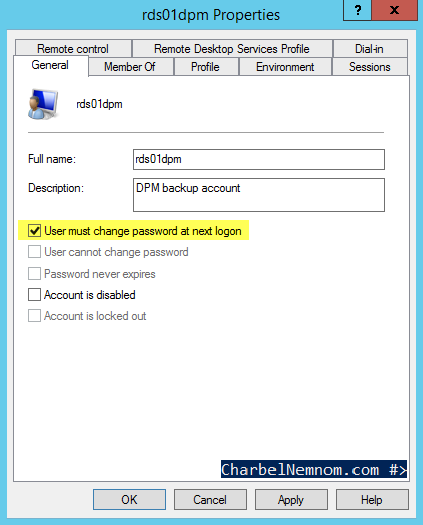
As you can see the User must change the password at the next logon!
Let’s change it to Password never expires.

Now refresh the agent again in the DPM console and here you go 

But wait, we didn’t finish yet! Because after 42 days you will experience the same issue again
What?… and why after 42 days?
Because if you recall, the local security policy on the server is set by default to expire after 42 days!
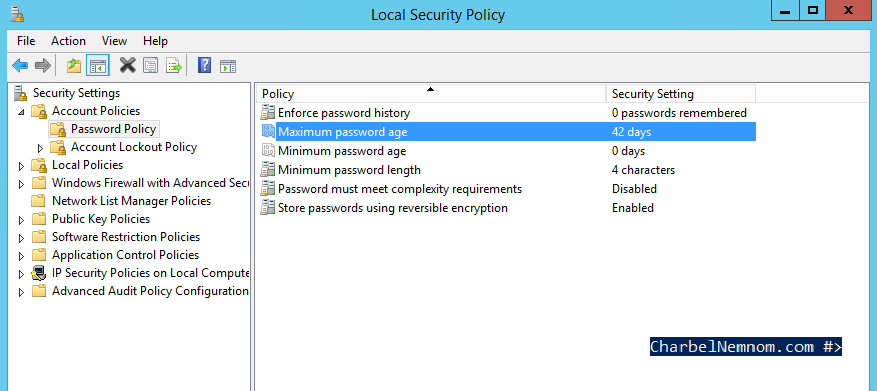
To avoid this issue in the future, you need to make sure to set the Maximum password age on the DPM server to Password will not expire (0 days).

You can add point 9 to your troubleshooting list.
That’s it there you have it! Happy World Backup Day!
Learn more
Do you want to learn more about System Center Data Protection Manager and how to create a hybrid-cloud backup solution? Make sure to check my recently published book: Microsoft System Center Data Protection Manager Cookbook.
With this book (over 450 pages) on your side, you will master the world of backup with System Center Data Protection Manager and Microsoft Azure Backup Server deployment and management by learning tips, tricks, and best practices, especially when it comes to advanced-level tasks.
__
Thank you for reading my blog.
If you have any questions or feedback, please leave a comment.
-Charbel Nemnom-
