
Updated — 30/09/2024 — Microsoft has deprecated third-party enrichment widgets for UEBA. You can no longer enable third-party enrichment widgets in Microsoft Sentinel due to the inability to create the required Azure key vaults. Existing widgets will stop functioning by February 2025. Organizations should disable these widgets by deleting the related key vaults (check how to remove enrichment widgets). No admin action is required for the transition. First-party data enrichment widgets are unaffected and will continue to work as usual.
Attackers frequently try to display their actions as normal activities, and in the balance between ordinary user activity and obvious attacker doings – there is a grey area. This grey area may pose imminent threats to your organization but could be overlooked. Microsoft Sentinel User and Entity Behavior Analytics (UEBA) builds comprehensive profiles of the user and entity across time and peer group horizons to best find anomalies and suspicious activity.
In this article, we will dive into the new Microsoft Sentinel Enrichment Widgets which will help you to retrieve, visualize, and understand more information about entities.
Table of Contents
Introduction
Another frontier in Security Information Event Management (SIEM) and Security Orchestration Automated Response (SOAR) solutions like Microsoft Sentinel, is User and Entity Behavior Analytics (UEBA). Unlike traditional defense measures that focus on preventing unauthorized access, UEBA learns and creates baselines of normal user behavior. Through its understanding of the ‘normal,’ it becomes unnervingly good at picking up anomalies indicative of a breach. When someone deviates from their usual pattern – say, accessing high-value data at odd hours – UEBA systems flag it instantly, truncating the attack chain before real damage can occur.
Microsoft Sentinel is a cloud-native SIEM and SOAR solution that makes it easy to collect security data across your entire hybrid organization from devices, users, apps, servers, and any cloud. Using the power of artificial intelligence and machine learning, Sentinel ensures that real threats are identified quickly and unleashes you from the burden of traditional security incident and event management solutions (SIEMs) by automating setting up, maintaining, and scaling infrastructure.
User and Entity Behavior Analytics (UEBA) is another killer feature in Microsoft Sentinel, which will analyze factors such as which devices the users log on from, what applications they commonly use, which location they log on from, what resources the users have access to, what are their standard working hours, what is the volume and frequency of the user’s activities, and more. So, by identifying what’s normal behavior, UEBA can easily find anomalies, which are the user’s activities that deviate from the user’s standard profile.
At Microsoft Ignite 2023, the Sentinel team announced a new addition to the User and Entity Behavior Analytics set of features called Enrichment Widgets, which will elevate Cybersecurity intelligence and aid Security Operations Centers (SOCs) to quickly decipher complex security data and make informed decisions.
What are Enrichment Widgets in Microsoft Sentinel?
Enrichment widgets in Microsoft Sentinel are dynamic components that provide detailed and actionable intelligence about entities. They combine external and internal content and data from different sources to give you a comprehensive understanding of potential security threats. These widgets are a powerful addition to your cybersecurity toolkit, offering both depth and breadth in information analysis.
Widgets are already available in Microsoft Sentinel today (in Public Preview). They currently appear for IP entities, both on their full entity pages and on their entity info panels that appear in Incident pages. These widgets show you valuable information about the entities, from both internal and third-party sources.
What makes widgets essential in Microsoft Sentinel?
* Real-time updates: In today’s dynamic cybersecurity landscape, real-time data is critical. Widgets provide live updates, ensuring that your analysts are always analyzing the most recent data available to them. These widgets utilize Log Analytics data: Network Inception Threat Indicator and Anomalies count, enabling a deeper exploration of your data environment.
* Integration: Microsoft Sentinel data sources seamlessly integrate with widgets, drawing from their vast reservoir of logs, alerts, and intelligence. This integration ensures that the visual insights provided by widgets are backed by the robust analytical power of Microsoft Sentinel. Integration with external and internal Threat Intelligence (TI) sources like Anomali, VirusTotal, Recorded Future, AbuseIPDB, and Microsoft Defender Threat Intelligence (Defender TI), providing detailed insights into IP addresses.

In essence, widgets are more than just visual aids. They are powerful analytical tools that, when used effectively, can greatly enhance the speed and efficiency of threat detection, investigation, and response.
Let’s look at how to configure and enable enrichment widgets in Microsoft Sentinel.
Prerequisites
To follow this article, you need to have the following:
1) Azure subscription – If you don’t have an Azure subscription, you can create a free one here.
2) Log Analytics workspace – To create a new workspace, follow the instructions here Create a Log Analytics workspace.
3) Enable Microsoft Sentinel at no additional cost on an Azure Monitor Log Analytics workspace for the first 31 days, follow the instructions here. Once Microsoft Sentinel is enabled on your Azure Monitor Log Analytics workspace, every GB of data ingested into the workspace can be retained at no charge for the first 90 days.
4) You need to have the Contributor role for the resource group of your Log Analytics Workspace to create an Azure Key Vault.
5) To access and maintain connections to data sources, enrichment widgets require the use of credentials. These credentials can be in the form of API keys, username/password combinations, or other sensitive information. To securely store these credentials, it is recommended that you create a dedicated Azure Key Vault. Microsoft Sentinel has automated the process of creating a Key Vault to be used for enrichment widgets.
6) Before you start adding the external data source credentials for each widget as described in Step 2 below, you need to either create new credentials for the desired widget that you want to add or locate your credentials if you already have an existing account for these data sources.
- Credentials for Virus Total: You can sign up for a free Virus Total account to get an API key.
- Credentials for AbuseIPDB: You can sign up for a free AbuseIPDB account to get an API key.
- Credentials for Anomali: Get the username and API key defined in your Anomali account. Alternatively, you can sign up for an Anomali ThreatStream account to get an API key.
- Credentials for Recorded Future: Contact your Recorded Future representative to obtain your API key. Alternatively, you can apply for a 30-day free trial, specifically for Sentinel users. Once you sign up for the free trial, it will take 48 hours to get your API token.
- Microsoft Defender Threat Intelligence: There is no need for credentials.
Please note that not all widget data sources require credentials for Microsoft Sentinel to access them. For example, the Microsoft Defender Threat Intelligence (Defender TI) widget should fetch the data automatically if you have the relevant Microsoft Defender Threat Intelligence license.
Assuming you have all the prerequisites in place, take the following steps:
Configure Enrichment Widgets
In this section, we will look at how to configure enrichment widgets set to take data presentation to the next level by integrating external content, enhancing our ability to make informed decisions quickly.
Step 1 – Create a dedicated Key Vault
First, we need to create a dedicated Key Vault to store the credentials for our widgets:
1) Launch the Azure Portal and search for Microsoft Sentinel.
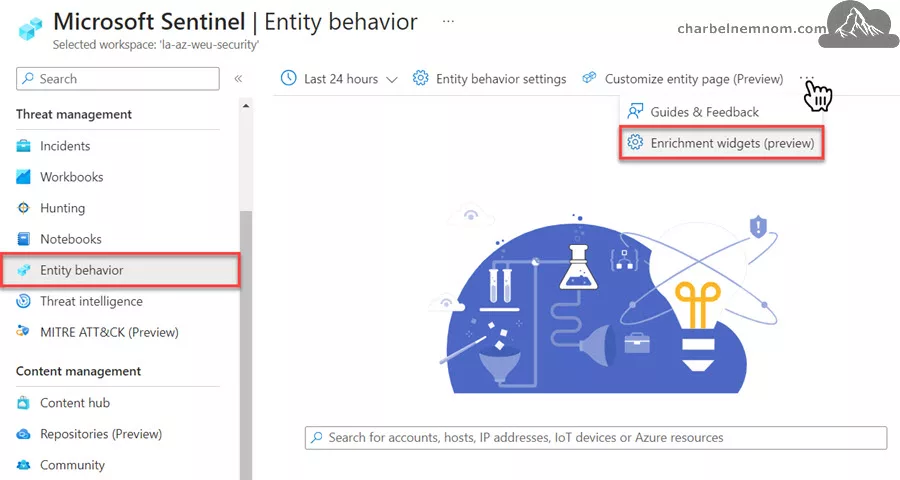
2) To access Entity behavior in Microsoft Sentinel, first, open the navigation menu, and then select the option for Entity behavior.
3) On the Entity behavior page, select Enrichment widgets (preview) from the toolbar as shown in the figure below.
4) On the Enrichment widgets onboarding page, select Create Key Vault as shown in the figure below.

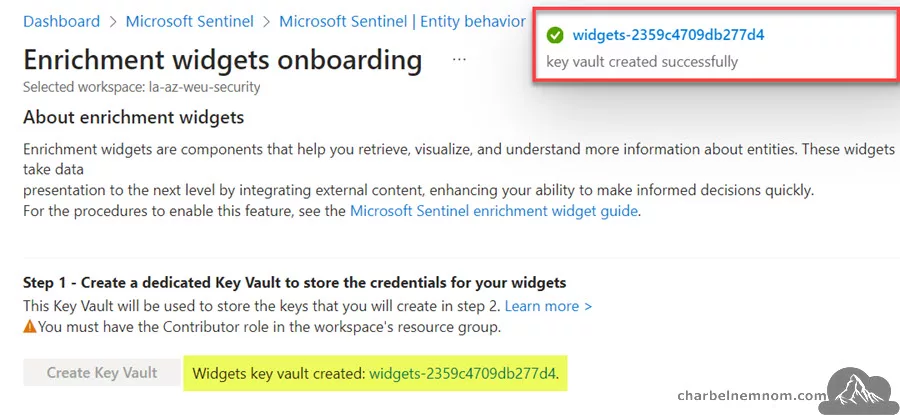
5) You will see an Azure portal notification when the Key Vault deployment is in progress, and again when it has been completed. The Key Vault name will be “widgets-” followed by a random number. Once you’ve completed the creation process, you’ll notice that the option to Create Key Vault is now disabled. Instead, you’ll see the name of your newly created key vault appear as a clickable link, as shown in the figure below. To access the key vault’s page, simply select the link in blue.
Related: Mastering Azure Key Vault.
6) The next section “Step 2 – Add credentials“, which was previously grayed out, is now available to configure.
Step 2 – Add Widgets’ Credentials
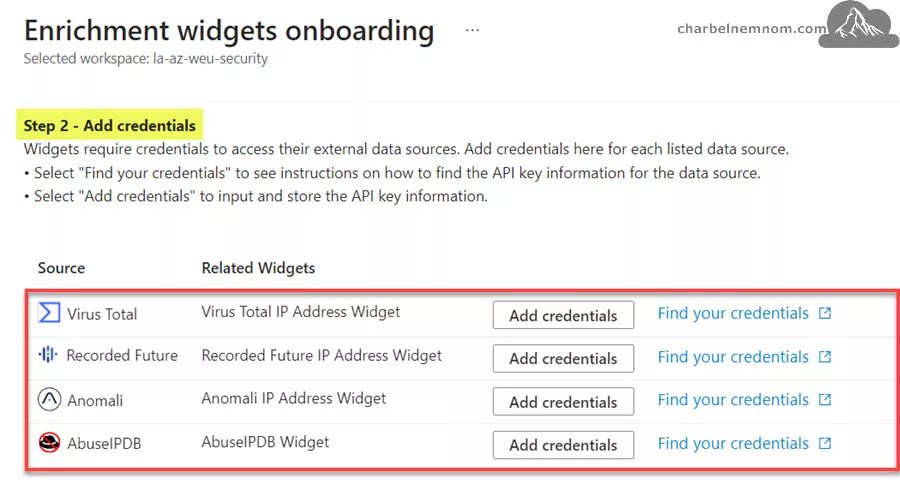
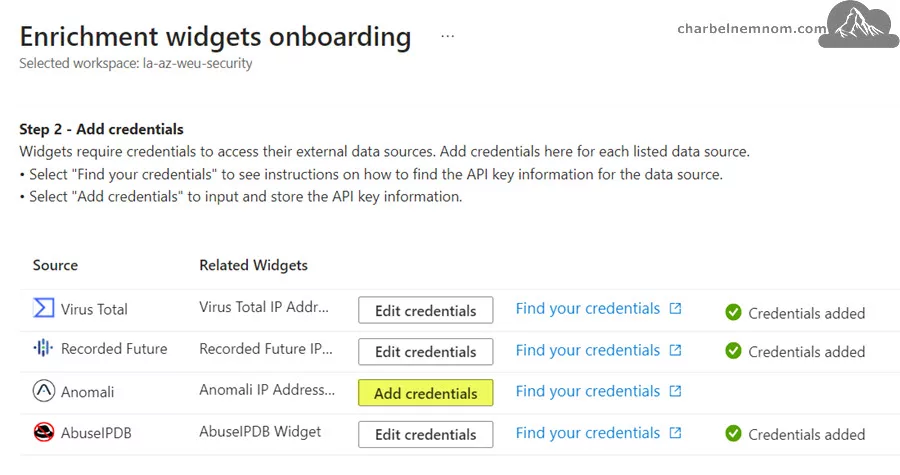
The data sources accessed by all the available widgets are listed under Step 2 – Add credentials. At the time of this writing, we have seven widgets available:
- Virus Total IP Address Widget
- Recorded Future IP Address Widget
- Anomali IP Address Widget
- AbuseIPDB Widget
- Network Inspection Threat Indicator Widget – This widget indicates the threat or malware identified in the network session based on the source IP address.
- Anomalies Count By IP Address Widget – This widget provides the number of anomalies associated with the IP address based on the Anomalies table.
- The Microsoft Defender Threat Intelligence – This widget should fetch the data automatically if you have the relevant Microsoft Defender Threat Intelligence license.
When you have the widgets credentials ready, copy them aside and then take the following steps for each data source. Please note that you need to add each data source’s credentials one at a time:
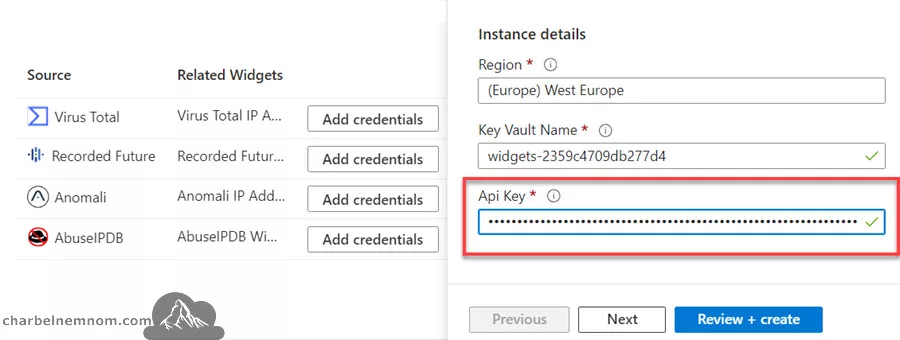
1) Select Add credentials for the external data source that you want to add. The Custom Deployment wizard will open in a side panel on the right side of the page, as shown in the figure below. The fields for Subscription, Resource group, Region, and Key Vault name are pre-populated for you and should not be edited.

2) Next, scroll down and then enter the credentials you saved into the relevant fields in the Custom Deployment wizard like the (API key, Username, Password, and so on) for the data source. In this example, the Virus Total API Key.
3) Next, select Review + Create. The Review + Create tab displays a summary of the configuration and may include the agreement terms. Before approving the terms and creating the secret, it is advisable to Duplicate the current browser tab. After that, click on Create in the old tab. This is recommended because creating the secret will take you outside of the Microsoft Sentinel context and into the Key Vault context, with no direct way back. By doing this, you’ll have the new duplicate tab remain on the Enrichment widgets onboarding page while the old tab is for managing your key vault secrets.
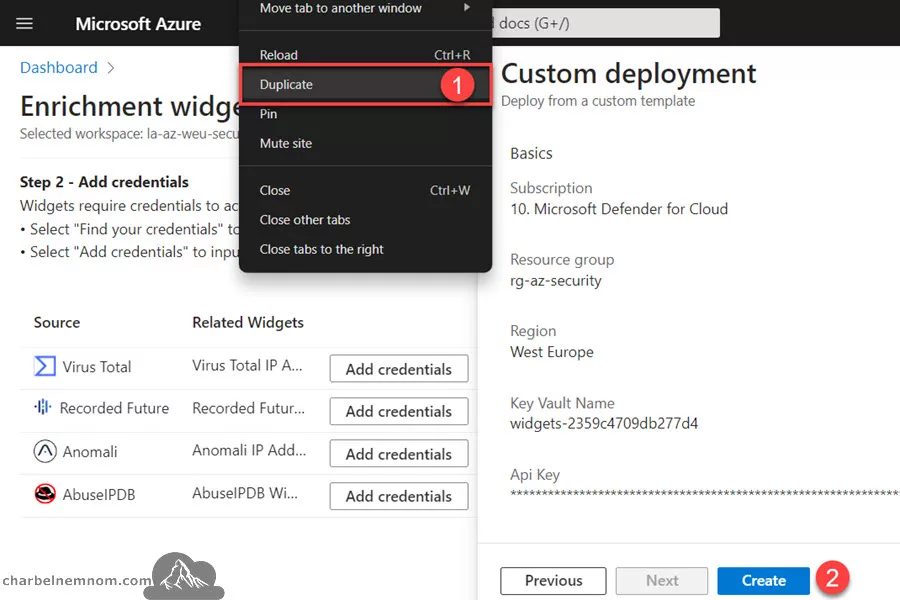
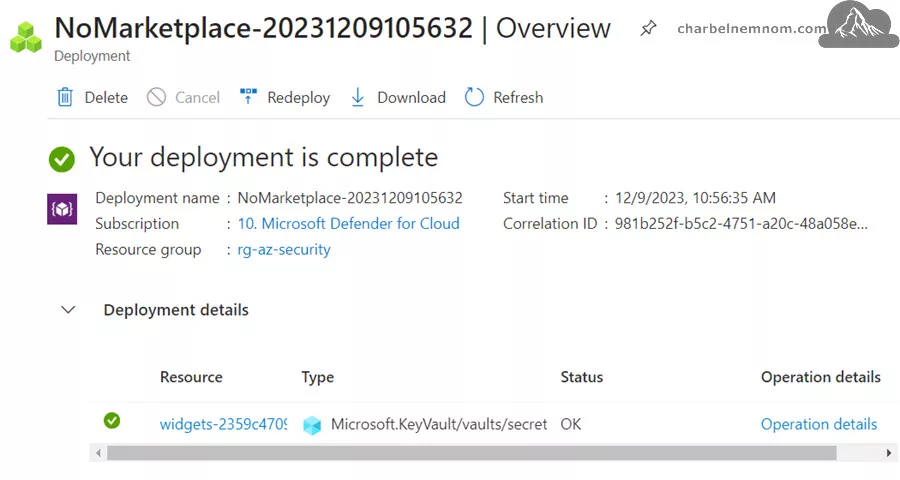
4) Upon duplicating the current tab, select Create to approve the terms and create the secret. A new page will appear with your new secret and a message confirming that the deployment is complete as shown in the figure below.
5) Next, return to the Enrichment widgets onboarding page in the new browser tab and repeat the same steps described above to add the remaining widget sources. You can also Edit credentials for the configured widget source if needed.
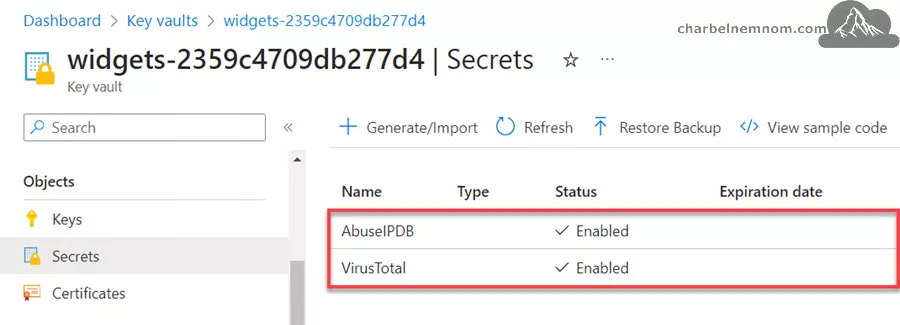
6) To verify that your new secret was added to the key vault, you can go to the newly created “widgets-” key vault dedicated to your widgets and then select “Secrets” under Objects. You will see that the widget source’s secret has been added to the list as shown in the figure below.
7) Last, make sure to keep an eye out for new widgets as they become available in Microsoft Sentinel. As soon as new widgets are released, their data sources will be added to the list on the Enrichment widgets onboarding page, in case they are not already there. Whenever you hear about newly available widgets, check back on the Enrichment widgets onboarding page to find new data sources that have not yet been set up with the necessary credentials. To configure them, follow the instructions described in Step 2 above.
Once you onboard the data source widgets into your environment, the UEBA engine will give you more Insights into IPs by the number of alerts for each widget that you configure as shown in the figure below. So, you can see if the IP address was reported, observed, identified as a risk, or associated with any network sessions.

Remove Enrichment Widgets
To remove the widgets experience from Microsoft Sentinel, you need to simply delete the previously created Azure Key Vault. You can do this by going to the resource group where Microsoft Sentinel is deployed, searching for the key vault resource “widgets-“, and then delete it.
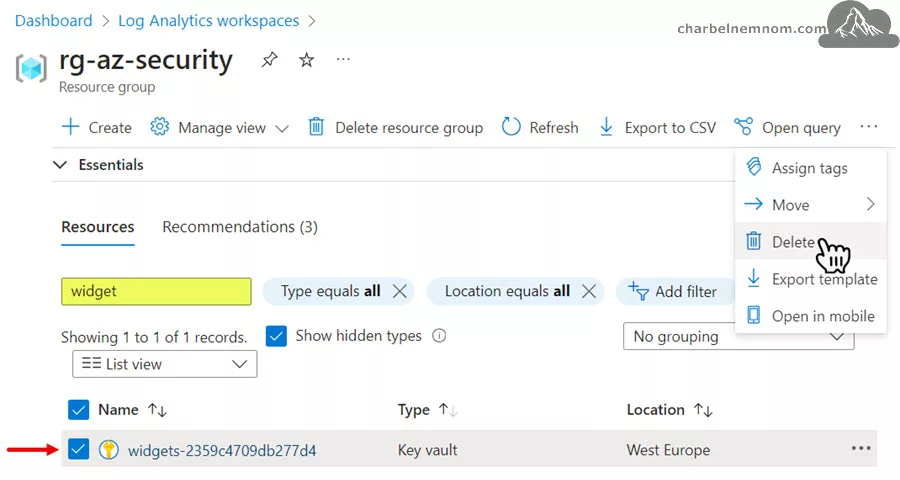
Now if you want to re-enable the enrichment widgets later on, you need to take the following steps:
1) Open PowerShell and connect to your Azure account with the “Connect-AzAccount” cmdlet.
2) Next, set the subscription context where Sentinel is deployed with the “Set-AzContext -Subscription "xxxx-xxxx-xxxx-xxxx” cmdlet.
3) Run the following command “Get-AzKeyVault -InRemovedState” to get all deleted key vaults in your current Azure subscription.
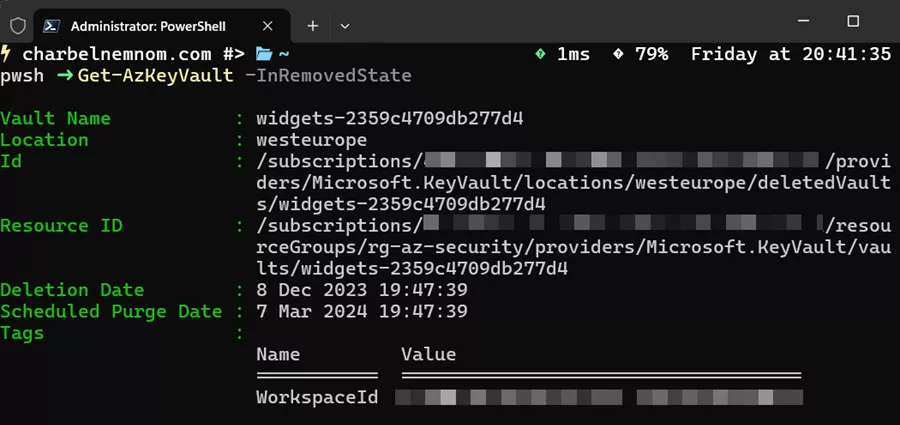
4) Last, remove and purge the deleted key vault by running the following command “Remove-AzKeyVault -VaultName widgets-2359c4709db277d4 -InRemovedState -Location westeurope“, and then Confirm. Make sure to update the “VaultName” and “Location” values to match your environment.

If you don’t remove and purge the previously created Azure Key Vault, you will receive the following error message once you re-enable the enrichment widgets within 90 days, because once an Azure Key Vault is created, the Soft Delete protection feature is enabled by default with a retention period of 90 days.
A vault with the same name already exists in a deleted state. You need to either recover it or purge the existing key vault.
There you have it. Happy Elevating Cybersecurity Intelligence with Microsoft Sentinel’s Enrichment Widgets!
Wrapping Up
In this article, we discussed what is the new enrichment widgets in Microsoft Sentinel and showed you how to configure them to augment the User and Entity Behavior Analytics (UEBA) engine.
Enrichment Widgets in Microsoft Sentinel are components that provide you with detailed and actionable intelligence about entities. These widgets are designed to integrate both internal and external content and data from different sources, to give you a complete understanding of potential security threats. They serve as a valuable addition to your cybersecurity toolkit, offering comprehensive information analysis that is both broad and deep.
__
Thank you for reading my blog.
If you have any questions or feedback, please leave a comment.
-Charbel Nemnom-
