
In the unlikely event that you have not heard, Windows Server 2016 TP5 is now available for download unless you are under a rock 

What you do after you install Windows Server?… Update it of course!
At day-0, Microsoft released Cumulative Update for Windows Server 2016 Technical Preview 5: KB3158663.
This KB is very important, because it is a security update that includes improvements and fixes in the functionality of Windows Server 2016 Technical Preview 5.
Table of Contents
How to get a Nano update?
Option 1: You can run Windows Update on your Windows Server 2016 TP5, the update is downloaded and installed automatically for you.
Option 2: You can get the stand-alone package for this update, by going to the Microsoft Update Catalog website.
How to install an update on Nano Server?
Patching and updating a Nano Server is a little different than traditional Windows Server. Starting with Windows Server 2016 Technical Preview P4, Microsoft added Windows Update (WU) WMI provider that can be used to scan and install updates. Even though you patch a LOT less with Nano Server but you still need to patch.
There are multiple options to install Windows update:
Option 1: Online using Windows Update (WU) WMI provider.
Option 2: Windows Server Update Services (WSUS).
Option 3: Download the update on another machine, copy it over, and then use DISM to apply the package.
In this post, I will cover Option 3, since my Nano Severs are not connected to the Internet and I don’t have WSUS in place. However, if you are interested in Option 1 and Option 2, please make sure to follow the step by step guide here.
Step 1 – Download the update
Download manually the update from Microsoft Update Catalog website (89.6MB) and copy it to your management machine.
Step 2 – Connect to Nano Server
In this step, we will connect to the Nano Server using PowerShell Remoting and then query the package that has been installed.
# Workgroup environment; we need to modify TrustedHosts list
Enable-PSRemoting –force
Set-Item wsman:\localhost\client\auth\CredSSP -value true -force
Enable-WSManCredSSP -force -role server
Set-item wsman:localhost\client\trustedhosts -value 10.0.0.*
Restart-Service winrm

$NanoIP = "10.0.0.20"
# Connect to Nano Server
$S = New-PSSession -ComputerName $NanoIP -Credential ~\Administrator
Enter-PSSession $S
Get-WindowsPackage -online | Where-Object {$_.PackageName -like "*Fix*"}

As you can see, we don’t have any package or security update installed.
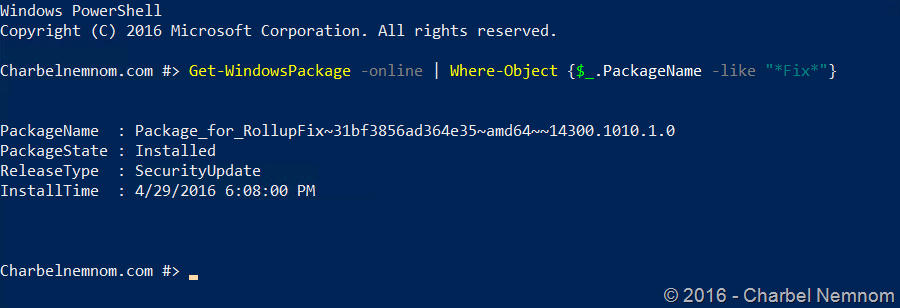
I have another system which I already installed this Rollup Fix, by running Get-WindowsPackage –online, we can see the update is installed.
Step 3 – Copy the update
To install this update, we need to expand the MSU file first and extract the CAB file.
In order to do so, please run the following command on your management machine:
Expand –f:* C:\ <destination folder to copy extracted files>
As you can see, the CAB file is extracted.
Next, we need to copy the package over the PowerShell remote session without the need to use network shares!
And if Nano Server is hosted in a VM, you can leverage PowerShell Direct and copy the same without network as well.
Please run the following command to copy the cab file:
Copy-Item -ToSession $S -Path C:\Windows10.0-kb3157663-x64.cab -Destination C:\If we connect to the Nano Server, we can see that the package has been copied over.

Step 4 – Apply the update
There are two options to apply the cab file with DISM, you can do this online or offline, I will cover both options:
-Online-
Dism.exe /online /add-package /packagepath:C:\Windows10.0-kb3157663-x64.cab /norestart-Offline-
Dism.exe /Mount-Image /ImageFile:<image path > /Index:1 /MountDir:<Mount Directory path>

Dism.exe /image:<mounted path> /add-package /packagepath:<path to the cab file>

Dism.exe /Unmount-Image /MountDir:<Mount Directory path> /Commit
The offline option requires to shutdown Nano Server first, mount the VHD(X), add the package and then commit.
Let’s install the package now using the online option:

The operation was completed successfully!
Step 5 – Confirm the update
We will confirm the Rollup Fix if it’s installed by running the following command in a Nano remote session:
Get-WindowsPackage -online | Where-Object {$_.PackageName -like "*Fix*"}
As you can see, the update is installed, but the state is still Pending.
For this package to get applied, we need to reboot Nano Server.
You can restart Nano Server using PowerShell (Restart-Computer) or by using Nano Recovery Console (Ctrl+F6).

Let’s check the package state after the reboot…

As you can see, the update is fully installed now. Happy Patching!
Hope that helps,
__
Thank you for reading our blog.
Please let us know in the comments section below if you have any questions or feedback.
-Charbel Nemnom-
