
Hello Folks,
Recently I came across a project where I need to upgrade 6 Hyper-V Hosts from 2012 to 2012 R2.
As I mentioned in the previous post, we must update the Hyper-V Integration Component Services (ICS) for all Virtual Machines after the Hyper-V host is upgraded, and always remember to keep them up to date in Windows guests Operating Systems.
The Integration Services for Hyper-V are actually part of the Windows Server and Windows Client OSs (since the time of Windows Server 2008 R2/Windows 7).
The challenge is that I want to update the Integration Services for 40 Virtual Machines. As you know you can find the Hyper-V Integration Services in the settings of each virtual machine.
What happened when you select the Insert Integration Services Setup Disk action option for a VM? behind the scenes the C:\Windows\System32\vmguest.iso file is attached to the Virtual Machine. Either the setup.exe in the support\amd64 or support\x86 folder is run, depending on the architecture of the guest OS in the VM.
Now the logic behind the auto-deployment of the Integration Services outside of the Hyper-V Manager console is to extract the content of the vmguest.iso file. This can be done now with Windows Server 2012 R2, Windows 8, and later or with PowerShell.
Next, we will share the extracted ISO image, and then call the setup.exe from within the Virtual Machine. The /quiet switch can be used with the setup.exe to make the installation in Unattended mode, but please note that the Virtual Machine will reboot after the installation is done. If you don’t want to restart the VM when the installation is completed, you need to add the /norestart switch, but obviously, you need to restart the Virtual Machine later in order to have the Integration Services updated.
Ok, so having this explained, let’s jump into the automation now 
<#

Author: Charbel Nemnom

Website: https://charbelnemnom.com

Date created: 13-June-2014

Last modified: 11-March-2021

Version: 2.0

#>

# Get Creds

$cred = get-credential "Domain\AdminUser"

# List All of Your Hyper-V Hosts

$ServerNames = "HV01","HV02","HV03","HV04","HV05","HV06"

# Mount the Integration Services ISO Image

$iso = "C:\windows\system32\vmguest.iso"

$folder =[System.IO.Path]::GetFileNameWithoutExtension($iso)

$mount_params = @{ImagePath = $iso; PassThru = $true; ErrorAction = "Ignore"}

$mount = Mount-DiskImage @mount_params

# Extract the Integration Services ISO Image

$volume = Get-DiskImage -ImagePath $mount.ImagePath | Get-Volume

$source = $volume.DriveLetter + ":\*"

$folder = New-Item -ItemType directory -Path C:\ISO

$params = @{Path = $source; Destination = $folder; Recurse = $true;}

cp @params

# Create Shared Folder

New-SMBShare -Name ICS -Path "C:\ISO\support\amd64"

# Check all Running Virtual Machines on each Hyper-V Host which has the ICS lower than V6.3.9600.16384

foreach ($ServerName in $ServerNames)

{

$VMNames = Get-VM -ComputerName $ServerName | ?{$_.IntegrationServicesVersion -lt "6.3.9600.16384" -and $_.State -EQ "Running"} | Select VMName

$VMs = $VMNames > C:\VMNames.txt

If ((Get-Content "C:\VMNames.txt") -eq $Null)

{ Write-Output "The Integration Services Upgrade is NOT required for Virtual Machines" "on Host" $ServerName }

Else

{foreach ($VirtualMachine in $VMNames)

{$VMName = $VirtualMachine.VMName

Enable-WSManCredSSP -DelegateComputer $VMName -Role Client -Force

Connect-WSMan $VMName -Credential $cred

Set-Item WSMan:\$VMName*\Service\Auth\CredSSP -Value $true

$scriptblock = {cmd.exe /C "\\ServerNameRunningTheScript\ICS\Setup.exe /quiet"}

Invoke-Command -scriptblock $scriptblock -computername $VMName -Authentication Credssp -Credential $cred

Disconnect-WSMan $VMName

" "
" "
Write-Output "The Integration Services has been updated for" $VMName "VM on" $ServerName "host, the VM is Rebooting..." }

" "
" "

}

Remove-Item -Path C:\VMNames.txt -Force

}

# Remove Shared Folder

Remove-SmbShare -Name ICS -Confirm:$false -Force

# Delete the Extracted ISO Folder

Remove-Item -Path C:\ISO -Recurse -Confirm:$false -Force

# Dismount the Integration Component Services ISO Image

Dismount-DiskImage -DevicePath \\.\CDROM1
And here you go: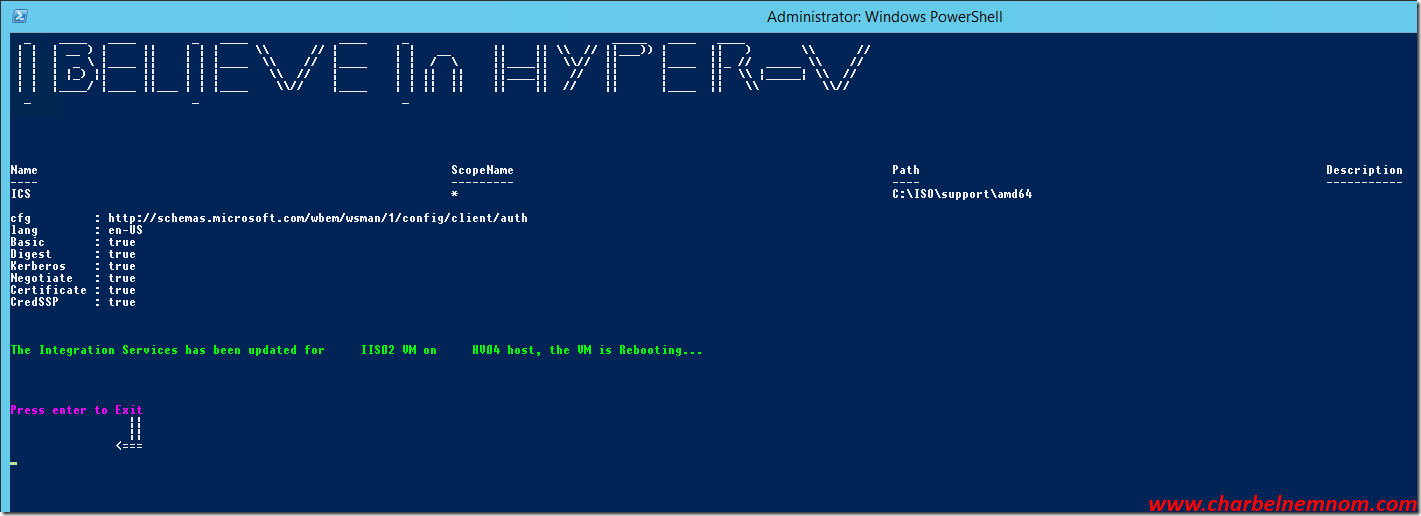
If none of the Virtual Machines required to be updated:
Two notes to mention:
- You need to have administrative privilege in order to run the script.
- All Virtual Machines must be running x64 OS.
Please bear in mind the script is not perfect and there is room for improvement, but nevertheless, it has worked for me and I feel that it’s much nicer than having to update the Integration Services manually for each VM from the UI.
A couple of areas that could definitely be improved though would have to check the guest OS architecture x86 or x64 in the VM, and then depending on that would have to update the Hyper-V Integration Services, etc.
If you have more ideas and would like to add more options, please share in the comment below:
Hope this was helpful for you.
Enjoy your day!
Cheers,
/Charbel

Hi Charbel,
How are you? After long time. I have completed Hyper-V Server + SCVMM 2012 R2 implementation and it is running stable since 2 years. I had multiple issues, but we have passed everything. Also, I have configured DR in Azure(ASR). Thanks for all the help and guidance .
Today I need to update my integration service. However, i am unable to copy the script. Can you help me?
Hello Sandeep,
Please check your inbox.
Thanks!
-Charbel
Hi Charbel,
Can I ask if you can possibly email me the script as well?
Thank You
Kind Regards,
Luhann
Done!
please send me above script, also need help on looping task on each vm:
Get-VM –ComputerName (Get-ClusterNode –Cluster clustername) | Get-VMProcessor | where {$_.CompatibilityForMigrationEnabled -eq $false} | select-object vmname,computername,CompatibilityForMigrationEnabled | stop-vm | Set-VMProcessor -CompatibilityForMigrationEnabled 1 | start-vm