
Updated—30/09/2025 — Starting October 1st, 2025, Microsoft will begin MFA enforcement gradually for accounts that sign in to Azure CLI, Azure PowerShell, Azure mobile app, IaC tools (non-Service Principal-based), and REST API endpoints to perform any Create, Update, or Delete operation. The Read operations won’t require MFA. Please refer to the following section to see how to audit your existing IaC tools with Conditional Access Policy.
Updated—18/11/2024 — Beginning February 3rd, 2025, the Microsoft 365 Admin Center portal will require Multifactor Authentication (MFA) when anyone tries to access it.
In 2024, Microsoft will implement mandatory multi-factor authentication (MFA) for all users signing into Azure. This phased rollout aims to bolster security and protect digital identities against cyber threats. The initiative begins with critical hubs like the Azure portal, Entra Admin Center, and Intune Admin Center, and eventually extends to other Azure tools and services.
This guide will give an overview of the new mandatory MFA for Azure, illustrate the steps to prepare your organization, and explain how to postpone the enforcement date if needed.
Table of Contents
Overview of Azure Mandatory MFA
As cyberattacks become more frequent, sophisticated, and damaging, protecting digital assets has never been more crucial. This aligns with Microsoft’s $20 billion investment in security over the next five years and its commitment to enhancing security across its services in 2024 and beyond!
On August 15, 2024, Microsoft announced it would introduce mandatory multi-factor authentication (MFA) for all Azure users starting in the second half of 2024. This phased rollout begins with sign-ins to the Azure portal, Entra Admin Center, and Intune Admin Center in October 2024. Users executing Create, Read, Update, or Delete (CRUD) operations in these critical hubs will be affected.
Phase Two will extend MFA to Azure CLI, Azure PowerShell, Azure mobile app, and Infrastructure as Code (IaC) tools starting in early 2025. The structured enforcement timeline allows organizations to prepare methodically.
Notifications about MFA enforcement will be sent to Global Administrators 60 days in advance via e-mails and Azure Service Health Notifications. Portal notifications in key admin centers will also be used to ensure awareness.

For those not yet enforcing MFA, many resources are available to get you started. Conditional Access policies can be deployed in report-only mode to simulate the enforcement environment, and Security defaults can be activated to provide a basic level of security.
// Related: Check how to safely disable Security Defaults in Microsoft Entra ID.
A grace period is available between August 15, 2024, and October 15, 2024, allowing Global Administrators to postpone enforcement until March 15, 2025. This requires elevating access across all Azure subscriptions and management groups.
External multifactor authentication solutions remain valid if integrated correctly. Federated Identity Providers offering MFA claim integrations also meet the requirement. Microsoft’s research indicates that MFA can block over 99% of account compromise attacks. This proactive stance supports compliance with PCI DSS, HIPAA, GDPR, and NIST regulations.
Implementing MFA is a crucial step in safeguarding your organization’s digital assets. By adopting the following measures, you reduce the risk of unauthorized access and strengthen your overall security posture.
Applications and Accounts Affected
Users engaging with the Azure portal, Microsoft Entra admin center, and Microsoft Intune admin center will need to use MFA starting October 2024. This requirement targets administrative users who are performing operational tasks. End users accessing applications, websites, or services hosted on Azure are not mandated to use MFA unless their access involves these specified admin portals.
User identities used for automation scripts or other automated tasks must sign in using MFA from the enforcement date. However, Microsoft recommends migrating these user-based service accounts to more secure alternatives like workload identities, such as managed identities or service principals, which are not subject to the same MFA requirements.
Break-glass or emergency access accounts must also comply with MFA requirements. Options such as passkeys (FIDO2) or certificate-based authentication can be used to meet MFA requirements for these accounts while maintaining secure access during emergencies.

Phased MFA Rollout Plan
Phase One (October 15, 2024): Targeting the Azure portal, Microsoft Entra admin center, and Microsoft Intune admin center.
Phase Two (September 15, 2025): Extending MFA requirement to Azure CLI, Azure PowerShell, Azure mobile app, and Infrastructure as Code (IaC) tools (non-Service Principal-based).
Both phases will include 60-day advance notifications via multiple channels:
- Azure Service Health Notifications
- Portal notifications
- Messages in the M365 message center
Workloads and automation using user-based service accounts must transition to using MFA or migrate to workload identities like managed identities or service principals.
The enforcement timeline from October 2024 to early 2025 provides organizations time to strategize and implement necessary changes, balancing enhanced security with operational continuity.
Preparing for MFA Enforcement
To prepare for mandatory MFA, organizations should:
Enable Users for MFA
- Verify user licenses include Microsoft Entra ID P1 or P2.
- Ensure users register MFA methods via the Microsoft Entra admin center.
- Utilize combined registration for MFA and self-service password reset (SSPR).

Use Conditional Access Policies
- Create policies in the Microsoft Entra admin center.
- Specify users, groups, apps, and resources requiring MFA.
- Set access controls based on conditions like location, network, device, and risk levels.

Review Secure Sign-In Events
- Use the Multifactor Authentication Gaps workbook to identify users lacking MFA.
- Monitor secure sign-in events and refine policies as needed.

Utilize Resources and Tools
- MFA Wizard for Microsoft Entra ID
- Phishing-resistant MFA methods (FIDO2 security keys, certificate-based authentication, passkeys)
- Conditional Access report-only mode
- Security defaults in Microsoft Entra ID

Prioritize phishing-resistant MFA methods to strengthen security against prevalent cyber threats. Taking these steps will help ensure compliance and enhance defenses against unauthorized access.
Audit IaC Tools with Conditional Access Policy
As noted in the Phased MFA rollout plan, Microsoft will begin MFA enforcement gradually, starting October 1st, 2025, for accounts that sign in to Azure CLI, Azure PowerShell, Azure mobile app, IaC tools (non-Service Principal-based), and REST API endpoints to perform any Create, Update, or Delete operation. The Read operations won’t require MFA. The Service Principals are unaffected by the Mandatory MFA, so the issue arises if you are using users as service accounts.
If you have “SigninLogs” ingested into Azure Monitor Log Analytics or Sentinel, you could use the following KQL query to audit the use of IaC tools in your environment. The [“errorCode”] == ‘0’ is a successful login. So, we’re looking for successful logins where the authentication requirement was NOT MFA.
let targetAppIds = dynamic([
"c44b4083-3bb0-49c1-b47d-974e53cbdf3c",
"04b07795-8ddb-461a-bbee-02f9e1bf7b46",
"1950a258-227b-4e31-a9cf-717495945fc2",
"0c1307d4-29d6-4389-a11c-5cbe7f65d7fa"
]);
SigninLogs
| where AppId in (targetAppIds)
| where TimeGenerated >= ago(30d)
| where AuthenticationRequirement != @"multiFactorAuthentication"
| where parse_json(Status)["errorCode"] == '0'
| where parse_json(Status)["additionalDetails"] !startswith 'MFA requirement satisfied'
To help with planning on this, you could import (upload) the following Conditional Access Policy in a JSON file to your environment in report-only mode to audit the default apps (Azure mobile app, Azure CLI, Azure PowerShell), where you can also add your IaC tools to the policy so you can audit them and adjust as needed.
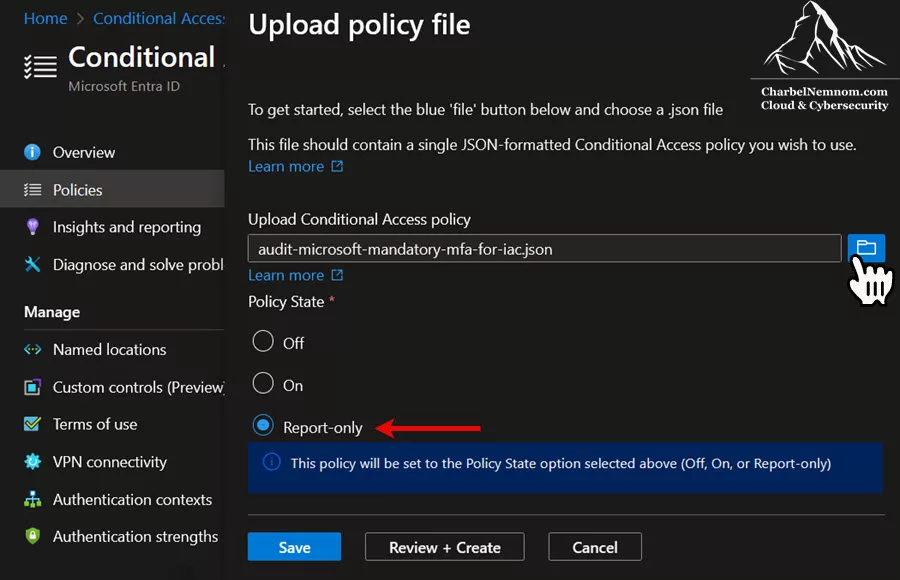
As a side note, the following approach is intended for those who don’t have “SigninLogs” ingested to Azure Monitor Log Analytics Workspace or Microsoft Sentinel/Defender XDR.
{
  "@odata.context": "https://graph.microsoft.com/v1.0/$metadata#identity/conditionalAccess/policies/$entity",
  "displayName": "CA-Audit Microsoft Mandatory MFA for IaC Tools",
  "conditions": {
    "locations": null,
    "devices": null,
    "signInRiskLevels": [],
    "applications": {
      "applicationFilter": null,
      "excludeApplications": [],
      "includeUserActions": [],
      "includeApplications": [
        "0c1307d4-29d6-4389-a11c-5cbe7f65d7fa",
        "04b07795-8ddb-461a-bbee-02f9e1bf7b46",
        "1950a258-227b-4e31-a9cf-717495945fc2"
      ],
      "includeAuthenticationContextClassReferences": []
    },
    "authenticationFlows": null,
    "clientApplications": null,
    "servicePrincipalRiskLevels": [],
    "platforms": null,
    "userRiskLevels": [],
    "users": {
      "includeRoles": [],
      "includeGroups": [],
      "excludeGroups": [],
      "includeUsers": [
        "All"
      ],
      "includeGuestsOrExternalUsers": null,
      "excludeUsers": [],
      "excludeGuestsOrExternalUsers": null,
      "excludeRoles": []
    },
    "insiderRiskLevels": null,
    "clientAppTypes": [
      "all"
    ]
  },
  "templateId": null,
  "state": "enabledForReportingButNotEnforced",
  "grantControls": {
    "authenticationStrength": null,
    "authenticationStrength@odata.context": "https://graph.microsoft.com/v1.0/$metadata#identity/conditionalAccess/policies('e505c675-33f1-4ef3-bf84-bbdd3d6c4ef1')/grantControls/authenticationStrength/$entity",
    "operator": "OR",
    "termsOfUse": [],
    "customAuthenticationFactors": [],
    "builtInControls": [
      "mfa"
    ]
  },
  "sessionControls": null
}
Please note that before you upload and import the above Conditional Access Policy template to your environment, make sure to register the following three service principals for each application (Azure mobile app, Azure CLI, Azure PowerShell) in your tenant by running the PowerShell command below againt the Microsoft Graph; otherwise, you’ll see an error when importing the conditional access policy:
# Interactive authentication to Microsoft Graph
Connect-MgGraph
"0c1307d4-29d6-4389-a11c-5cbe7f65d7fa",
"04b07795-8ddb-461a-bbee-02f9e1bf7b46",
"1950a258-227b-4e31-a9cf-717495945fc2" | ForEach-Object {
   New-MgServicePrincipal -AppId '$_'
}
Requesting More Time for Compliance
In some cases, organizations might need more time to comply with the multifactor authentication (MFA) enforcement deadline. Microsoft provides an option for Global Administrators to request an extension, postponing the enforcement date to March 15, 2025. Here’s a guide on how to request more time for compliance and the necessary actions involved.
Extension Request Process
Let’s look at how to postpone the MFA enforcement date to March 15, 2025:
Step 1: Assign Elevated Access
To initiate the extension process, Global Administrators need to assign themselves elevated access. This involves temporarily granting themselves the User Access Administrator role at the root scope to perform necessary tasks across all subscriptions and management groups.
1) Sign in to the Azure portal or the Entra admin center as a Global Administrator.
2|) If using Microsoft Entra Privileged Identity Management, ensure your Global Administrator role assignment is activated.
3) Go to Microsoft Entra ID, then select Properties under the Manage section.
4) Set the toggle for Access management for Azure resources to Yes. This assigns the User Access Administrator role, as shown in the figure below.

5) Click Save to confirm the changes and assign the role.
6) Sign out and sign back in to refresh your access permissions.
Step 2: Perform Postponement Action
Once elevated access is in place, Global Administrators can proceed to request the extension.
1) Visit the specific Multi-factor authentication settings page.
2) Locate and select the Postpone enforcement option on this page, as shown in the figure below.

3) After the postponement is confirmed, remove the elevated access by setting the toggle back to No in the same Properties section of Microsoft Entra ID to remove Access management for Azure resources.
Risks and Considerations
While postponing MFA enforcement provides additional time for compliance, it increases exposure to potential security threats. Azure portal accounts are valuable targets for threat actors, and delaying MFA implementation prolongs the period during which accounts remain vulnerable. Consider the following risks:
- Increased security vulnerabilities
- Potential delays in regulatory compliance
- Possible operational disruptions in case of a security breach
Importance of Prompt MFA Setup
Despite the option to request more time, setting up MFA as soon as possible remains the best practice. By doing so, organizations can:
- Mitigate threats effectively
- Enhance their overall security posture
- Ensure compliance with security standards and regulations
While the option to extend the MFA enforcement deadline provides flexibility, prompt MFA setup is crucial for safeguarding Azure resources and ensuring compliance.

External Authentication Methods and Identity Providers
Support for external multifactor authentication (MFA) solutions and federated identity providers (IdPs) adds flexibility to the mandatory MFA requirement for Azure. This approach can integrate existing authentication mechanisms, allowing businesses to use their preferred security solutions while maintaining compliance.
To utilize external MFA solutions, organizations need to migrate to the external authentication methods preview within Microsoft Entra ID. This new approach ensures that third-party MFA providers can be integrated directly, providing the necessary MFA claims required to satisfy the authentication mandate.
For organizations relying on federated IDPs like Active Directory Federation Services (AD FS) or other trusted federation providers, it’s important to configure these IDPs to send MFA claims. Here’s how to ensure proper configuration:
- Integrate your MFA provider with your preferred federated IDP.
- Create Conditional Access policies in the Microsoft Entra admin center that enforce MFA for federated IDP sign-ins.
- Configure the federated IdP to send MFA claims for user sign-ins.
Once configured, Azure can accept these MFA claims, meeting the mandatory MFA requirements. This flexibility benefits organizations with complex environments or those seeking a unified MFA approach across diverse systems.
Please note that Conditional Access (CA) custom controls will NOT satisfy MFA requirements; we need to use External Authentication Methods (EAM) instead, so your MFA vendor needs to support EAM. For example, as shown in the figure below, Duo Security added support for EAM a while ago, so if your vendor doesn’t have support yet, make sure they know it is important to you. Keep this in your backlog, but if your vendor doesn’t add support soon enough, you can postpone MFA enforcement in the portal, as described in the previous section.

Leveraging external authentication methods and federated identity providers to meet Azure’s MFA requirements offers a pathway to compliance that aligns with existing security frameworks.

To safeguard your Azure environments effectively, ensure your configurations are up-to-date with the external authentication methods preview, enforce Conditional Access policies, and properly set up MFA claims within your IDP.
In Conclusion
Microsoft’s introduction of mandatory Azure MFA (multi-factor authentication) for all users marks a pivotal step in enhancing security and protecting digital identities. This phased rollout requires organizations to take proactive measures, including enabling users for MFA, creating Conditional Access policies, and utilizing phishing-resistant methods.
While the option to postpone enforcement provides flexibility, it is imperative to prioritize early compliance to mitigate risks and ensure robust defenses against cyber threats. By preparing now, organizations can ensure a smooth transition and effective defense against cyber threats and reinforce their security posture in alignment with regulatory standards.
__
Thank you for reading our blog.
Please let us know in the comments section below if you have any questions or feedback.
-Charbel Nemnom-
