Updated — 15/01/2025 — Microsoft announced Bicep Support in Microsoft Sentinel Repositories. Bicep support for Microsoft Sentinel offers streamlined configuration management with intuitive syntax, improved collaboration through version control and CI/CD integration, and rapid deployment using reusable modules and tools for error-free, consistent configurations. Check how to decompile a JSON Azure Resource Manager (ARM) template to Bicep.
The Microsoft Sentinel repositories feature provides a centralized way to deploy and manage Sentinel content using code. With repositories, you can connect to external source control systems like GitHub and Azure DevOps, allowing smooth integration into your continuous integration/continuous delivery (CI/CD) pipelines. This intelligent automation eliminates the need for manual intervention in updating and deploying your customized content across different workspaces.
If you have already been working with Microsoft Sentinel repositories for quite some time, you may have noticed that when creating a connection to Azure DevOps or GitHub, the default connection is set to never expire, or you can set an expiration date (recommended) which can be valid for 3, 6, 12, or 24 months before it expires. This deployment secret is powered by Service Principal app registration and is called the Azure Sentinel Content Deployment App. Once the deployment secret expires, the repository connection will stop working, and your (CI/CD) pipelines will start failing.
To avoid service disruption, this article illustrates the steps for automating and rotating Microsoft Sentinel Repositories connections at scale using PowerShell and REST API.
Table of Contents
Introduction
The Microsoft Sentinel repositories feature provides a centralized way to deploy and manage Sentinel content using code. By connecting to external source control systems, you can integrate it with your continuous integration/continuous delivery (CI/CD) pipelines, reducing the need for manual interventions when updating and deploying customized content across different workspaces.
Using repositories helps streamline the management of your Sentinel content, allowing for automated updates and efficient distribution across multiple Log Analytics workspaces. This improves workflow efficiency and reduces the risk of errors from manual processes. Additionally, integrating repositories into the Sentinel ecosystem frees your team to focus on strategic tasks rather than the tactical chore of content deployment.

// Related: Manage Security Content as Code with Microsoft Sentinel.
This automation contributes to a more agile and responsive security operations process, enabling your organization to quickly adapt to emerging threats. Ultimately, the Microsoft Sentinel repositories feature represents a move towards a more streamlined, automated, and efficient approach to managing and deploying Sentinel content. Through seamless integration with GitHub and Azure DevOps source control and CI/CD pipelines, this feature liberates security teams from the burden of manual content deployment and fosters a more proactive and dynamic cybersecurity environment.
Each time you create a new connection using GitHub or Azure DevOps repository to your workspace, behind the scenes, Microsoft Sentinel will create an app registration in Microsoft Entra called Azure Sentinel Content Deployment App, followed by the repository ID number between ( ), as shown in the figure below.

The challenge is when the deployment secret expires after the connection is created for the first time. As mentioned earlier, the default connection will be created to never expire, or you can set an expiration date (recommended) for 3, 6, 12, or 24 months before it expires, as shown in the figure below.
Once the connection expires, the repository connection will stop working, and your (CI/CD) pipelines will start failing. In this case, you must edit this connection and click the “Rotate secret” button to update, as shown in the figure below. Otherwise, the connection will stop running if the secret is not rotated at the expiration date.
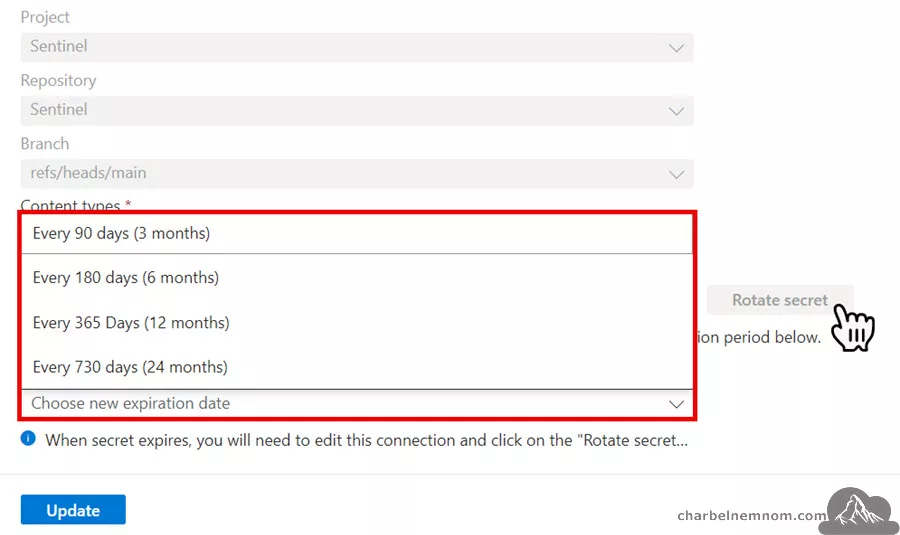
As an optional configuration, if you want to rotate the secret and don’t set an expiration date (every 90, 180, 365, or 730 days), the service principal secret will be set to never expire by default. The password rotation option is only available after the connection is created. As a best practice, it is NOT recommended that the service principal secret be set to never expire.
This becomes even more challenging if you are a managed security service provider (MSSP) that provides outsourced monitoring and management of Microsoft Sentinel to different customers. Repositories can be especially useful for MSSPs serving multiple Sentinel customers and workspaces for content deployment. Repositories connections offer various ways for you to manage and customize the deployment experience across your customers.
Let’s see how to automate this process and tackle this challenge!
Prerequisites
To follow this article, you need to have the following:
1) Azure subscription – If you don’t have an Azure subscription, you can create one here for free.
2) Log Analytics workspace – To create a new workspace, follow the instructions to create a Log Analytics workspace.
3) Enable Microsoft Sentinel at no additional cost on an Azure Monitor Log Analytics workspace for the first 31 days; follow the quick onboarding process. Once Microsoft Sentinel is enabled on your Azure Monitor Log Analytics workspace, every GB of data ingested into the workspace can be retained at no charge for 90 days.
4) Ensure you have the following roles assigned on the following resources:
- Microsoft Sentinel Contributor on the Log Analytics workspace where Microsoft Sentinel is deployed.
5) Azure DevOps – If you don’t have one, you can create a free one here.
- Azure DevOps Organization/Project – If you don’t have one, follow these steps to create an organization.
- Azure DevOps Git repository – If you don’t have one, follow these steps to create a new one in your project.
- You need the Project Administrator access to your Azure DevOps repository.
6) Connect the Azure DevOps repository to your Microsoft Sentinel workspace; follow the quick connection process.
- Note: GitHub is out of scope in this example, but the logic is exactly the same.
- You can connect up to 5 repositories to a Sentinel Workspace.
7) Install Azure PowerShell locally on your machine or use Cloud Shell.
To install Azure Accounts PowerShell modules on your machine, you can run the following command:
# Install and update to the latest Az PowerShell module
Install-Module -Name Az.Accounts -AllowClobber -Force

# Check the installed Az PowerShell modules version
Get-Module -Name Az.Accounts -ListAvailable | Select Name, Version
Assuming you have all the prerequisites in place, take the following steps:
Rotate Microsoft Sentinel Repositories Connections
This section will describe how to rotate Microsoft Sentinel repository connections automatically. You have several options for running the script: Azure Cloud Shell, Visual Studio Code, or Windows Terminal. The Script works with PowerShell 5.1 or PowerShell 7 (core) with the Az module.
.EXAMPLE-1
.\Rotate-SentinelRepositories.ps1 -SubscriptionId <SUB-ID> -ResourceGroup <RG-Name> `
    -WorkspaceName <Log-Analytics-Name> -Duration <12> -Verbose
This example will connect to your Azure account using the specified subscription ID and workspace name. Then, it checks the deployment secret expiration date for all repositories configured in Microsoft Sentinel. If it expires within seven days (one week before the expiration date) or if the connection expires after 24 months (this means the connection is set to never expire), then the tool will automatically rotate the deployment secret expiration connection based on the specified duration (3, 6, 12, or 24 months).
At the time of this writing, the only supported way to trigger and rotate the secret in Microsoft Sentinel with Azure DevOps programmatically is by using the “Personal Access Token” PAT flow; the “OAuth” flow is reserved for the UX portal interaction only. And for GitHub, you must use the Application installation ID to access the repository. We hope the Microsoft Sentinel team will update their API to allow access to the Azure DevOps repository using Service Principal instead of Personal Access Tokens.
Next, the tool will create a new PAT token valid for one hour only for a specific organization name in Azure DevOps. The PAT token will only have access to manage code and service endpoints, which is required for Microsoft Sentinel Repositories. The PAT has custom-defined scope access without full access. Always remember to use the principle of least privilege (PoLP) when assigning permissions.
Furthermore, the tool will create only one PAT token by organization name. If you have five different repositories connected to Microsoft Sentinel with the same organization, it creates one PAT and updates all five connections. On the other hand, if you have different Azure DevOps organizations connected to Sentinel, the tool will create one PAT for each organization and update each connection.

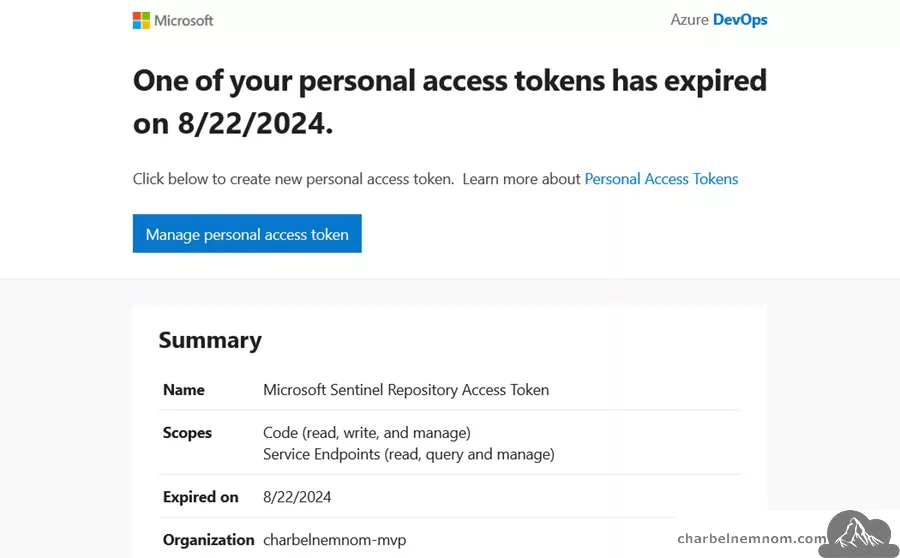
The PAT token expires in one hour, and you’ll receive a confirmation message like the one below, which will revoke the PAT!
Run the PowerShell Tool
Before we run the tool, we can see that in this environment, we have three continuous deployment connections, and the deployment secret expiration is set to never expire.

Once you run this tool, you’ll get an output similar to the one below.
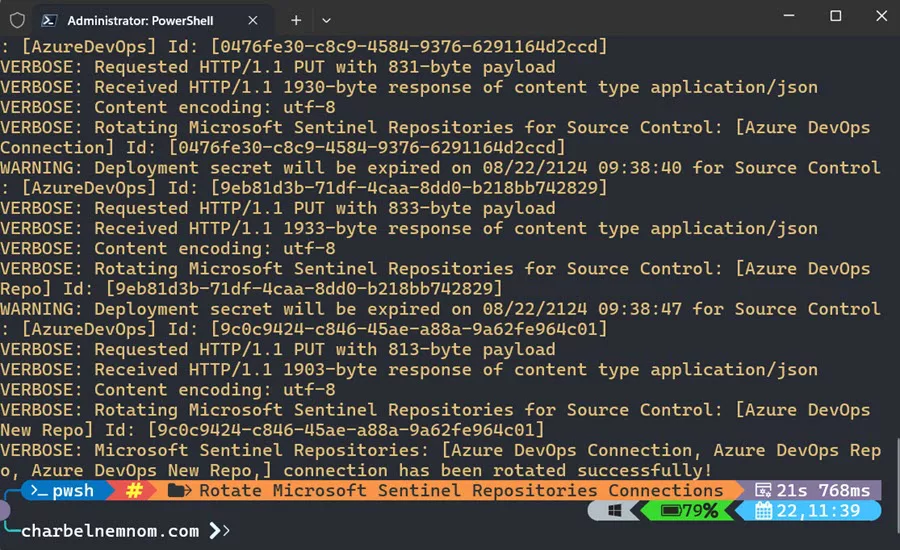
This is version 1.0. If you have any feedback or changes that everyone should receive, please feel free to leave a comment below.
PowerShell Code
Below is the tool that you can use to automatically rotate Microsoft Sentinel Repositories connections on demand.
Limitation: At the time of this writing, we cannot leverage Automation Accounts, Azure Functions, or Logic Apps to automate the rotation of the Microsoft Sentinel Repositories Connections because service principals can be used to call Azure DevOps REST APIs and perform most actions, but cannot be used to create tokens, like personal access tokens (PATs) or SSH Keys. They can generate their own Microsoft Entra ID tokens, which can be used to call Azure DevOps REST APIs.
<#
.SYNOPSIS
Rotate Microsoft Sentinel Repositories Connections.

.DESCRIPTION
Automate and rotate Microsoft Sentinel Repositories Connections at scale using PowerShell and REST API.

.NOTES
File Name : Rotate-RepositoriesConnections.ps1
Author    : Microsoft MVP/MCT - Charbel Nemnom
Version   : 1.0
Date      : 16-August-2024
Updated   : 22-August-2024
Requires  : PowerShell 7.x.x (Core)
Module    : Az

.LINK
To provide feedback or for further assistance please visit:
https://charbelnemnom.com/links/contact/

.EXAMPLE
.\Rotate-SentinelRepositories.ps1 -SubscriptionId <SUB-ID> -ResourceGroup <RG-Name> `
    -WorkspaceName <Log-Analytics-Name> -Duration <6> -Verbose
#>

param (
    [Parameter(Position = 0, Mandatory = $true, HelpMessage = 'Enter Azure Subscription ID')]
    [string]$subscriptionId = "46daadda-215b-4dd8-ae31-7aca4bcb81f1",
    [Parameter(Position = 1, Mandatory = $true, HelpMessage = 'Enter Resource Group Name where Microsoft Sentinel is deployed')]
    [string]$resourceGroupName = "rg-az-security",
    [Parameter(Position = 2, Mandatory = $true, HelpMessage = 'Enter Log Analytics Workspace Name')]
    [string]$workspaceName = "la-az-weu-security",
    [Parameter(Position = 3, HelpMessage = 'Set secret expiration duration')]
    [ValidateSet('3', '6', '12', '24')]
    [int]$duration = '6'
)

#! Install PowerShell Modules Function
function Install-Module-If-Needed {
    param([string]$ModuleName)

    if (Get-Module -ListAvailable -Name $ModuleName) {
        Write-Host "Module '$($ModuleName)' already exists, continue..." -ForegroundColor Green
    }
    else {
        Write-Host "Module '$($ModuleName)' does not exist, installing..." -ForegroundColor Yellow
        Install-Module $ModuleName -Force -AllowClobber -ErrorAction Stop
        Write-Host "Module '$($ModuleName)' installed." -ForegroundColor Green
    }
}

#! Rotate Service Principal Function
function Rotate-ServicePrincipal {
    param (
        $udpateSourceURI,
        $sourcePayload,
        $authHeader
    )

    try {
        $udpateSource = Invoke-RestMethod -Method PUT -Uri $udpateSourceURI -Body $sourcePayload -Headers $authHeader
        if (!($udpateSource)) {
            Write-Host $udpateSource.id
            Write-Host $udpateSource.name
            throw "Error when rotating Microsoft Sentinel Repositories Service Principal: $($sourceControl.properties.displayName)"
        }
        Write-Verbose "Rotating Microsoft Sentinel Repositories for Source Control: [$($sourceControl.properties.displayName)] Id: [$($sourceControl.name)]" -Verbose
        return $udpateSource
    }
    catch {
        Write-Error $_ -ErrorAction Continue
    }
}

#! Create New DevOps PAT Token Function
function New-PATToken {
    param (
        $organizationName
    )
    $azureDevOpsResourceId = "499b84ac-1321-427f-aa17-267ca6975798"
    $azureDevOpsApiVersion = "?api-version=7.2-preview.1"

    # Note: Add the [-AsSecureString] parameter, the change is expected to take effect in Az module version: '13.0.0' and later
    $token = (Get-AzAccessToken -ResourceUrl $azureDevOpsResourceId -WarningAction SilentlyContinue).Token
    $headers = @{
        'Authorization' = "Bearer $token"
        'Content-Type'  = 'application/json'
    }
    # Create a new PAT token valid for 1 hour by a specific organization name
    # The token will have access to manage code and service endpoints ONLY
    $patParameters = @{
        Method          = 'Post'
        UseBasicParsing = $true
        Uri             = "https://vssps.dev.azure.com/$($organizationName)/_apis/tokens/pats$($azureDevOpsApiVersion)"
        Headers         = $headers
        Body            = @{
            "displayName" = "Microsoft Sentinel Repository Access Token"
            "scope"       = "vso.code_manage vso.serviceendpoint_manage"
            "validTo"     = (Get-Date).AddHours(1).ToUniversalTime() | Get-Date -Format "yyyy-MM-ddTHH:mm:ssZ"
            "allOrgs"     = $false
        } | ConvertTo-Json
        ContentType     = 'application/json'
    }
    try {
        $patToken = (Invoke-RestMethod @patParameters).patToken
        if (!($patToken)) {
            Write-Host $patToken.displayName
            Write-Host $udpateSource.name
            throw "Error when creating Azure DevOps Personal Access Token for organization name: [$($organizationName)]"
        }
        Write-Verbose "Azure DevOps PAT created for organization name: [$($organizationName)] Valid From [$($patToken.validFrom)] Valid To [$($patToken.validTo)] with manage code and service endpoints scopes!" -Verbose
        return $patToken.token
    }
    catch {
        Write-Error $_ -ErrorAction Stop
    }
}

#! Install Az Accounts Module If Needed
Install-Module-If-Needed Az.Accounts

#! Check Azure Connection
Try {
    Write-Verbose "Connecting to Azure Cloud..." -Verbose
    Connect-AzAccount -ErrorAction Stop | Out-Null
}
Catch {
    Write-Warning "Cannot connect to Azure Cloud. Please check your credentials. Exiting!"
    Break
}

# Define the latest REST API Version to use for Microsoft Sentinel Repositories
$apiVersion = "?api-version=2024-01-01-preview"

#! Get Az Access Token
# This will default to Azure Resource Manager endpoint
# Note: Add the [-AsSecureString] parameter, the change is expected to take effect in Az module version: '13.0.0' and later
Write-Verbose "Get Azure Access Token..." -Verbose
$token = Get-AzAccessToken -WarningAction SilentlyContinue
$authHeader = @{
    'Content-Type'  = 'application/json'
    'Authorization' = 'Bearer ' + $token.Token
}

# Get all existing source controls repositories
Write-Verbose "Getting all Source Controls - Sentinel Repositories..." -Verbose
$sourceControlsURI = "https://management.azure.com/subscriptions/$subscriptionid/resourceGroups/$resourceGroupName/providers/Microsoft.OperationalInsights/workspaces/$workspaceName/providers/Microsoft.SecurityInsights/sourcecontrols$($apiVersion)"
$sourceResponse = (Invoke-RestMethod $sourceControlsURI -Method GET -Headers $authHeader).value

# Check if there are any source controls
try {
    if ($sourceResponse.Count -eq 0) {
        throw "No source controls can be found for Microsoft Sentinel instance: $($workspaceName)"
    }
}
catch {
    Write-Error $_ -ErrorAction Stop
}

# Check if Service Principal connection will be expired in 7 days (less than or equal to the current date)
# Or if the connection is set to expire for more than 24 months (this means the connection is set to never expire)
Write-Verbose "Check if Service Principal connection is getting to expire or set to never expire..." -Verbose
$expiringSourceControls = $sourceResponse | Where-Object { $_.properties.servicePrincipal.credentialsExpireOn -le (Get-Date).AddDays(-7) `
        -or $_.properties.servicePrincipal.credentialsExpireOn -gt (Get-Date).AddMonths(24) }

if ($expiringSourceControls.count -gt 0) {
    Write-Verbose "Getting all Azure DevOps organizations... " -Verbose
    $organizations = $sourceResponse | ForEach-Object {
        $_.properties.repository.url.Split('/')[3]
    }
    # Initialize a hash table to store Azure DevOps PAT tokens
    $patTokens = @{}
    Write-Verbose "Removing Azure DevOps duplicates organizations..." -Verbose
    $organizations = $organizations | Select-Object -Unique
    foreach ($organization in $organizations) {
        # Create a new PAT token for the Azure DevOps organization
        Write-Verbose "Creating Azure DevOps Personal Access Token valid for 1 hour for organization name: [$($organization)]" -Verbose
        $patToken = New-PATToken -organizationName $organization

        # Store the PAT token in the hash table with the organization name as the key
        Write-Verbose "Storing Azure DevOps Personal Access Token for organization name: [$($organization)]" -Verbose
        $patTokens[$organization] = $patToken
    }

    $updatedRepositoryNames = @()
    foreach ($sourceControl in $expiringSourceControls) {
        Write-Warning "Deployment secret will be expired on $($sourceControl.properties.servicePrincipal.credentialsExpireOn) for Source Control: [$($sourceControl.properties.repoType)] Id: [$($sourceControl.name)]"

        # Define Source Control Payload
        $body = @{
            "properties" = @{
                "description"      = $sourceControl.properties.description
                "displayName"      = $sourceControl.properties.displayName
                "repository"       = @{
                    "url"        = $sourceControl.properties.repository.url
                    "branch"     = $sourceControl.properties.repository.branch
                    "displayUrl" = $sourceControl.properties.repository.displayUrl
                }
                "repoType"         = $sourceControl.properties.repoType
                "contentTypes"     = $sourceControl.properties.contentTypes
                "repositoryAccess" = @{
                    "kind"  = "PAT"
                    "token" = $patTokens["$($sourceControl.properties.repository.url.Split('/')[3])"]
                }
                "servicePrincipal" = @{
                    "credentialsExpireOn" = (Get-Date).AddMonths($duration).ToUniversalTime() | Get-Date -Format "yyyy-MM-ddTHH:mm:ssZ"
                }
            }
        }
        $sourcePayload = $body | ConvertTo-Json -EnumsAsStrings -Depth 50

        # Define Source Control URI
        $udpateSourceURI = "https://management.azure.com/subscriptions/$subscriptionid/resourceGroups/$resourceGroupName/providers/Microsoft.OperationalInsights/workspaces/$workspaceName/providers/Microsoft.SecurityInsights/sourcecontrols/$($sourceControl.properties.id)$($apiVersion)"

        # Rotate Service Principal
        $udpateSource = Rotate-ServicePrincipal -udpateSourceURI $udpateSourceURI -sourcePayload $sourcePayload -authHeader $authHeader
        if ($udpateSource) {
            $updatedRepositoryNames += "$($sourceControl.properties.displayName),"
        }
    }
    Write-Verbose "Microsoft Sentinel Repositories: [$($updatedRepositoryNames)] connection has been rotated successfully!" -Verbose
}
else {
    Write-Verbose "No Source Control is getting to expire or set to never expire..." -Verbose
}
Here is the verification that the secret rotation for Microsoft Sentinel Repositories has been successfully rotated for 12 months, expiring on 22 August 2025.

That’s it, there you have it. Happy Automating and Rotating Microsoft Sentinel Repositories Connections at Scale!
In Summary
Microsoft Sentinel repositories offer a powerful way to efficiently manage and deploy Sentinel content by integrating with source control systems and CI/CD pipelines. However, a critical aspect of maintaining this efficiency is managing the deployment secret for repository connections, which expire every two years. To avoid disruptions in your CI/CD workflows and ensure continuous operation, it is crucial to automate the rotation of these secrets.
This article provided a comprehensive guide to automating the secret rotation process using PowerShell and REST API. Automating this process reduces manual intervention and enhances the reliability and responsiveness of your security management. Implementing these strategies will help you maintain a secure and efficient Sentinel deployment, allowing your team to focus on addressing emerging threats rather than managing routine updates.
By following these procedures, you can prevent service interruptions and streamline the management of your Sentinel repositories, ensuring a robust and proactive security operations environment.
__
Thank you for reading our blog.
Please let us know in the comments section below if you have any questions or feedback.
-Charbel Nemnom-

Hey, great article. We have come a cropper to this today with our repository pipeline from devops to Sentinel failing due to credential expiry.
What we can’t figure out though is we never set a credential when we connected the repository, and there are no client secrets added to the Sentinel Content Deploy App registration.
We see in the pipeline yaml that is obtains a $System.AccessToken, which I understand is a temporary token, and passes that as an authent0ication header.
We see notifications to use an app client secret or to use federated credential (which we need to get our heads around) but what we’re flummoxed with is what has changed from using the System.AccessToken to then make this stop working for our pipeline what appears to be 2 years since we initially connected it to Sentinel.
Any insight you can share would be great.
Hello Dave, Thanks a lot for the detailed comment and for reading the article!
What you’re seeing actually makes sense once you separate the two different authentication paths involved:
1. Azure DevOps pipeline → Azure DevOps / Git
This is where
$System.AccessTokencomes in.It’s a short-lived token issued per pipeline run and is not what’s expiring after ~2 years.
2. Microsoft Sentinel service → Azure DevOps repository (Sentinel Repositories connection)
This is handled by the “Azure Sentinel Content Deployment App” service principal that Sentinel creates automatically when you first connect the repo.
That app has its own secret/credential and expiry, which is what’s hitting the ~2-year wall and breaking your continuous deployment.
What actually expired is the Sentinel Repositories connection’s own service principal secret, created behind the scenes when you first connected DevOps to Sentinel. Sentinel uses the “Azure Sentinel Content Deployment App” to talk to your DevOps repo, and that app has its own credential + expiry (by default, ~2 years), separate from the pipeline’s
$System.AccessToken.When that secret hits its expiry, the Sentinel repo connection breaks and your pipeline starts failing, even though
$System.AccessTokenstill works fine. The quick fix is to go to Sentinel → Repositories → your connection → Edit → Authorize → Rotate Key, choose a new duration, and Update.As I described in this article, I shared a PowerShell script that automates this rotation process, so it doesn’t fail again due to credential expiry in a couple of years.
Hope it helps!
Thanks so much for the response to my comment.
That all makes sense, but the strange thing that I can’t wrap my head around is why there is no Client secret visible on the ‘Azure Content Deployment App’ app registration.
When I set one (to fix this issue) it is visible, but looking at another repository connection and the associated App Registration / Service Principal there is no secret set, so it is so confusing to know what was actually expiring.
e.g.
david [ ~ ]$ az ad app credential list –id
[
{
“customKeyIdentifier”: null,
“displayName”: “Nov 2025 Sentinel “,
“endDateTime”: “2027-11-14T12:31:53.4Z”,
“hint”: “iLH”,
“keyId”: “xxxxxxxxxxxxxxxxxx”,
“secretText”: null,
“startDateTime”: “2025-11-14T12:31:53.4Z”
}
]
david [ ~ ]$ az ad app credential list –id
[]
david [ ~ ]$
Json output 1 was from the app that had expired and we’d added a client secret.
Json output 2 (or lack of it) was from a separate content deployment app that hasn’t expired as yet.
We’ll definitely be looking into your script so thanks for that. The challenge we have is doing this for remote customers means we’ll need them to do something in their tenant I presume as we only manage Sentinel not the whole Azure tenant.
Thanks!
Great follow-up, thanks David!
What you’re seeing is actually expected (if confusing). The “deployment secret” that Sentinel tracks and rotates is not always stored as a normal client secret on the “Azure Sentinel Content Deployment App”. Instead, Sentinel keeps that credential + expiry as part of the Sentinel SourceControl (repository) resource itself (see the
servicePrincipal.credentialsExpireOnproperty in the Sentinel API), and only exposes it in the Repositories → connection → “Rotate secret” UI.So:
> On the app where you manually added a client secret,
az ad app credential listshows it.> On the app where the secret was created internally by Sentinel, it doesn’t show up as a normal client secret at all, so
az ad app credential listreturns [], even though the repo connection still has an expiry and will eventually break.That’s why the expiry behavior doesn’t line up with what you see on the app registration blade or via
az ad app credential list. The “real” timer lives on the Sentinel repository connection, not the visible client secret.Re MSSP/remote customers: you’re right, the rotation script must run in the customer tenant (or via Lighthouse/delegated access), but nothing extra is needed from them beyond the usual Sentinel + DevOps permissions.
Hope it helps!