
In this article, we will show you how to mix MTU on Windows Server with Switch Embedded Teaming (SET) converged network.
Table of Contents
Introduction
With the release of Windows Server 2016, Microsoft introduced a new type of teaming approach called Switch Embedded Teaming (known as SET). SET is a virtualization-aware virtual switch, and it’s different from the traditional LBFO NIC Teaming as follows:
SET is embedded into the Hyper-V virtual switch, which means a couple of things, the first one, is you don’t have any team interfaces on the host anymore, you won’t be able to build anything extra on top of it, you can’t set a property on the team because it’s part of the virtual switch, you need to set all the properties directly on the virtual switch.
SET is targeted to support Software Defined Networking (SDN) switch capabilities, it’s not a general-purpose use everywhere teaming solution that NIC Teaming was intended to be. It’s specifically integrated with the Converged RDMA vNIC and SDN stack. Last but not least, SET is only supported in Nano Server, however, the LBFO teaming solution is not supported in Nano.
The other day, a colleague of mine asked me the following question:
Can I mix MTUs on Windows Server with SET Team converged network? For example 9014 for Live Migration and SMB storage and 1514 for Management OS and virtual machines.
For more information about the Maximum Transmission Unit (MTU), please check here.
The diagram below illustrates the networking architecture for the converged network in Windows Server 2016, 2019, or later.

The short answer is YES! and here are the steps on how to do it:
Step 1: Physical NICs
You should configure the physical NICs (pNICs) that are used by the SET virtual switch which are connected to your Top of Rack Switches (TOR). Here is the PowerShell command to set the Jumbo Packet to 9014.
Get-NetAdapterAdvancedProperty –Name “HPE Ethernet 40Gb*” -RegistryKeyword "*jumbopacket" | Set-NetAdapterAdvancedProperty -RegistryValue 9014This command will set the Jumbo Packet to 9014 for all physical NICs started by the name “HPE Ethernet 40Gb*”.
Step 2: Physical Switches
Configure jumbo frames on your physical switches. Check your manufacturer’s instructions on how to enable jumbo frames. The following example illustrates how to enable jumbo frames globally (all ports) on Cisco Nexus Switches:
policy-map type network-qos jumbo
  class type network-qos class-default
          mtu 9216
system qos
  service-policy type network-qos jumbo
Step 3: SET Hyper-V Virtual Switch
You don’t need to set anything on the SET Team virtual switch. This has been the case since Windows Server 2012 with traditional LBFO NIC Teaming as well.
Step 4: Virtual Machine OS NIC
By default, the Jumbo Frame is disabled inside the guest operating system. If you want to keep the default standard MTU to 1514, then skip this step.
However, if you want to configure a Jumbo Frame for the virtual machine, then you need to enable it inside the guest.
Option 1: Advanced properties of the virtual adapter

Option 2: Windows PowerShell
Invoke-Command -VMName (Get-VM).Name -Credential Domain\Administrator -ScriptBlock { Get-NetAdapterAdvancedProperty -Name * -RegistryKeyword "*jumbopacket" | Set-NetAdapterAdvancedProperty -RegistryValue 9014 }This single line of PowerShell will set the Jumbo Packet for all virtual machines on a particular Hyper-V host without any network connection. For more information, check PowerShell Direct.
Step 5: Management OS vNIC
Referring to the diagram above, we have several vNICs for a different type of traffic on the management partition (the Hyper-V host), they can also be enabled/disabled for jumbo frames via the Advanced properties of the virtual adapter or through PowerShell, as follows:
Get-NetAdapterAdvancedProperty -Name "vEthernet (MGT_HostOS)" -RegistryKeyword "*jumbopacket" | Set-NetAdapterAdvancedProperty -RegistryValue 1514Here is an example for the vNICs on the Hyper-V host, we disabled Jumbo Packet for the MGT_HostOS vNIC and for the MGT_HVR vNIC, and we enabled Jumbo Packet for Live Migration and Backup vNICs.

Step 6: Verify
You should now be able to send jumbo packets, which you can verify by using the following commands from the host vNIC or from the guest vmNIC.
Windows: Verify Jumbo Frames {9014}:
Ping -f -l 8972 <target IP>Windows: Verify Jumbo Frames {1514}:
Ping -f -l 1472 <target IP>Linux: Verify Jumbo Frames {9014}:
ping -M do -s 8972 <target IP>Here is an example showing that ping is failing to send a larger Jumbo Packet via the MGT_HostOS vNIC, but I am able to send a standard MTU packet {1472}.
On the other side, I am able to send a larger Jumbo Packet {8972} via Live Migration vNIC.
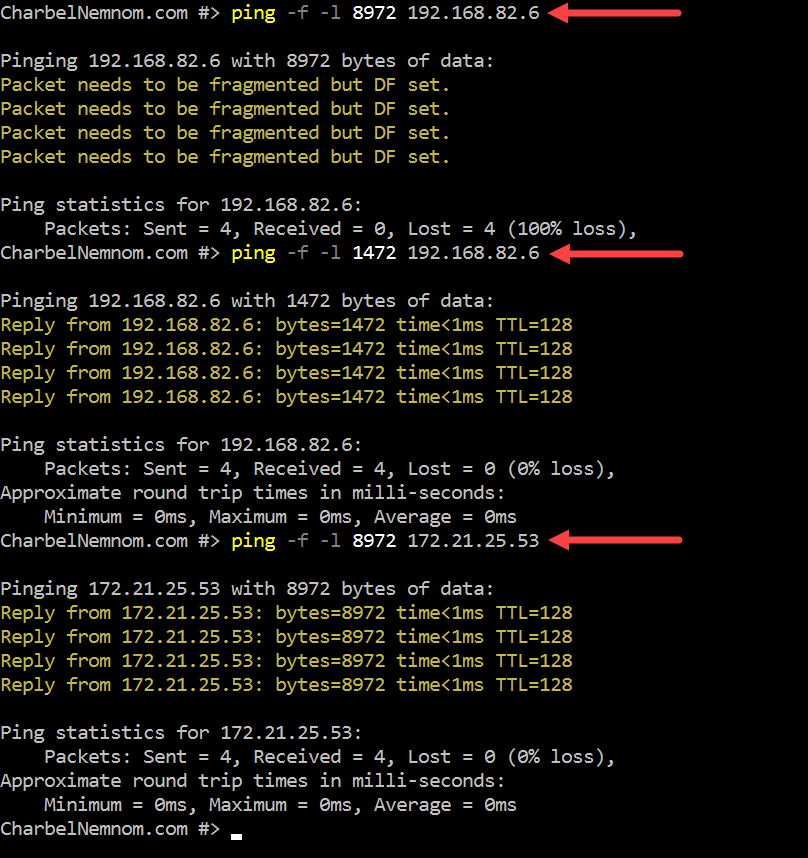
As shown in the example above, I used a packet size of 8972 because there are wrappers around the data sent; 9000 is unlikely to work (more on this below), but 8972 should work and still confirms that you’re sending jumbo frames. The same for standard MTU as well, I used a packet size of 1472; 1500 is unlikely to work.
The reason for the 8972 on *nix devices is that the ICMP/ping implementation doesn’t encapsulate the 28-byte ICMP (8) + IP (20) (ping + standard internet protocol packet) header – thus we must take the 9000 and subtract 28 = 8972.
Hope this helps!
__
Thank you for reading my blog.
If you have any questions or feedback, please leave a comment.
-Charbel Nemnom-

I’m researching going from 4x10GBe NICs ( 2 jumbo frames for iscsi and 2 teamed for VM/VLAN traffic ) to 2 x 40GBE connections and this is EXACTLY what I’m looking for. I can’t conceive of needing 4x40GBe connections for 4 384GB cluster nodes and a single iscsi SAN. THANK YOU!!
Charbel, have you done any recent test regarding the usefulness of enabling Jumbo frames on modern hardware? In my testing with 10 and 25Gbps NICs, I no longer see any advantage with jumbos. iPerf shows full speed with and without. Yeah, Jumbos helped like 15 – 20 years ago, but now – I am not sure it is worth spending time setting up stuff for Jumbos.
Hello Raj, thanks for the comment!
The benefits of Jumbo frames are more noticeable in environments with specific use cases, such as storage area networks (SANs) or high-performance computing clusters. In general-purpose networks, the advantages may be less pronounced.
As you know, for Jumbo frames to provide a noticeable benefit, the entire network path, including switches and routers, must support Jumbo frames. If any component along the path doesn’t support Jumbo frames, the benefits diminish.
The effectiveness of Jumbo frames may depend on the specific testing methodology. Tools like iPerf are useful for benchmarking, but real-world scenarios may have different characteristics.
Again, the modern network hardware has seen advancements in handling smaller frames efficiently. The improvements in hardware may reduce the relative benefits of Jumbo frames for certain workloads.
So, there is no a clear answer here. I suggest that you test based on the nature of the applications and workloads with and without Jumbos.
Hope it helps!
Charbel, may I ask, why do you set MTU 1514 on the host management network? Is 9000 somehow harmful for the management network?
Hello Sergei, thanks for the comments and the great question!
Jumbo frames aren’t harmful on the management network, but they offer no real benefit either — management traffic (RDP, WMI, DNS, DHCP, etc.) uses small packets well under 1500 bytes.
Keeping standard MTU on management also avoids compatibility issues with firewalls, routers, or other devices along the path that may not support jumbo frames.
So it’s simply about enabling jumbo frames only where they actually help (Live Migration, Storage, Backup) and keeping things simple and reliable everywhere else.
Hope this helps!