
In this article, we will show you how to configure and enable Single Sign-On (SSO) for Windows Admin Center installed on Windows Server, so you can manage your environment with Passwordless.
Table of Contents
Introduction
Windows Admin Center (WAC) is a flexible, locally deployed, browser-based management platform and solution. It contains core tools for troubleshooting, configuration, management, and maintenance for Windows Server, Windows Client, Software-Defined Storage (SDS), Software-Defined Network (SDN), Microsoft Hyper-V Server, and more.
Windows Admin Center is not only for managing servers, clusters, hyper-converged infrastructure, and Windows 10/11 clients, but it also lets you connect your Windows Server to Azure hybrid services whether they are running on-premises or in a different cloud provider. There are many more hybrid services for Windows Server, which you can leverage with Windows Admin Center.
- Azure Backup
- Azure File Sync
- Azure Network Adapter
- Azure Site Recovery
- Azure Security Center
- Azure ARC
- And much more…
When you start using Windows Admin Center where the gateway is installed on Windows Server, you will be prompted to sign in with a user who has enough privilege, as well as for every node you need to connect and manage in your environment you need to specify a username and password. If Windows Admin Center is installed on Windows 10 (client machine), it’s ready to use Single Sign-On. However, for a production environment, it’s recommended to have Windows Admin Center installed in a highly available mode.
Prerequisites
The prerequisites are very simple as follows:
1) Make sure you are running the latest release of Windows Admin Center (WAC).
2) Make sure you have at least 1 domain controller running Windows Server 2012 or later in your environment.
Enable Single Sign-On in Windows Admin Center
To truly enable Single Sign-On on Windows Admin Center, you need to take the following 2 steps:
1) First, we need to trust WAC by the supported browser (Google Chrome, Microsoft Edge, and Microsoft Edge based on Chromium).
- You need to add the Windows Admin Center FQDN machine to the “Trusted Local Intranet Zone” under Internet Properties as shown in the screenshot below. You can also do it via Group Policy (GPO).

- Now, when you launch the Windows Admin Center portal, you won’t be prompted to enter your credentials anymore.
2) The next step is to configure Kerberos delegation so that the Windows Admin Center gateway can pass your credentials on to each node you want to manage. Since WAC uses PowerShell behind the scenes, this step is known as the second hop in PowerShell Remoting. For more information about the Kerberos delegation, we would suggest that you read the Ask the Directory Services Team blog post “Understanding Kerberos Double Hop”.
- To automate this step, I have created a PowerShell script that will help you to set the resource-based Kerberos constrained delegation in your domain. To do so, open an elevated PowerShell console on your management machine, import the Active Directory module, and run the following script:
# Add and import AD PowerShell
Add-WindowsFeature RSAT-AD-PowerShell
Import-Module ActiveDirectory

# Host name of Windows Admin Center
$wac = "MGMT01"

# Server names and Cluster names that you want to manage with Windows Admin Center in your domain
# $servers = "FSRV01", "FSRV02", "AFS-CORE", "HCI-CLUSTER1"

# Instead of adding manually the list of servers above
# You can specify the path of a .csv file to import a large number of servers/clusters
# If you want to provide a CSV file, please make sure to add a header to the column of computer names called 'NETBIOS_NAME'
$servers = Read-Host "`nSpecify the full path to a CSV file (include spaces, but no quotes)" -ErrorAction Stop

Try {
    $CSVData = @(Import-CSV -Path $servers -ErrorAction Stop)
    Write-Verbose "Successfully imported entries from $servers"
    Write-Verbose "Total no. of servers in CSV are : $($CSVData.count)"
}
Catch {
    Write-Verbose "Failed to read from the CSV file $servers Exiting!"
    Break
}

# Get the identity object of Windows Admin Center (WAC)
$wacobject = Get-ADComputer -Identity $WAC

# Set the resource-based kerberos constrained delegation for each node
foreach ($server in $CSVData)
{
$server = $server.NETBIOS_NAME
$serverObject = Get-ADComputer -Identity $server
Set-ADComputer -Identity $serverObject -PrincipalsAllowedToDelegateToAccount $wacobject -verbose
}
- Last but not least, you need to clear the Key Distribution Center (KDC) caches by running the following script, you could also restart the node, or wait at least 15 minutes to clear the cache. Because if you don’t clear the cache, you cannot use SSO immediately, clearing the KDC cache will just get you a new fresh Kerberos ticket immediately.
# Clear KDC Cache
Invoke-Command -ComputerName $Servers -ScriptBlock {
    klist purge -li 0x3e7
} - Please note that this step is essential; you must configure this for the node that WAC should manage by setting the PrincipalsAllowedToDelegateToAccount property of the managed node to the WAC server’s computer account, making the managed node accept Kerberos tickets that the WAC server has delegated. Hence, every new node (server) introduced to the domain will need to have this configured. Otherwise, WAC users will have to re-enter their passwords each and every time.
Adding Kerberos constrained delegation manually
If you don’t want to use PowerShell, you can configure delegation through Active Directory Users and Computers (ADUC) instead — but note that this is a different mechanism, not a GUI version of the script above.
The PowerShell script configures resource-based constrained delegation (RBCD), which is set on the managed node and points back to the gateway. ADUC has no interface for RBCD at all — the msDS-AllowedToActOnBehalfOfOtherIdentity attribute it writes is only reachable through PowerShell or the Attribute Editor.
What ADUC can configure is classic Kerberos Constrained Delegation (KCD), and that one is always outbound: it’s configured on the Windows Admin Center gateway server, listing the nodes it is allowed to delegate to — not the other way around.
So, open the Active Directory Users and Computers console, locate the computer account of your Windows Admin Center gateway (MGMT01 in this example), and open its properties. Under the Delegation tab, select > Trust this computer for delegation to specified services only > Use Kerberos only.
Click Add… and then Users or Computers…, search for the computer account of the managed node you want to connect to, and then select/add the WSMAN service, as shown in the figure below.
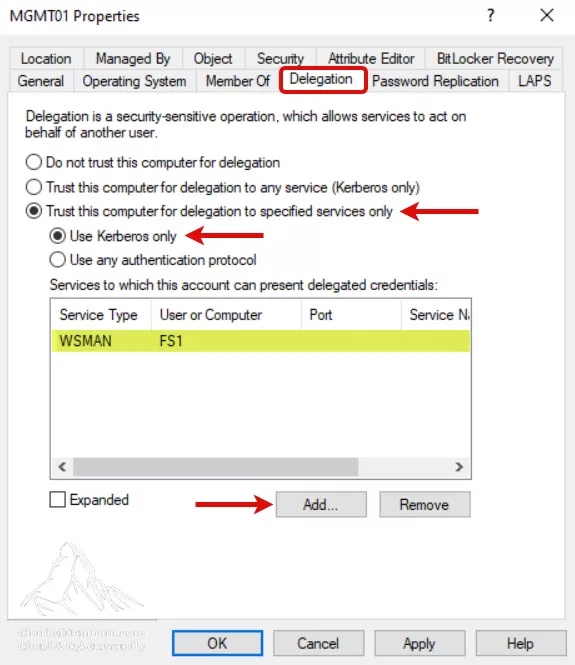
Repeat the Add… step for every node you want to manage with Windows Admin Center (FSRV01, FSRV02, AFS-CORE, and so on). Unlike the PowerShell method, everything is configured in one place — on the gateway’s computer object.
Two things to keep in mind before choosing this route:
- Classic KCD requires the
SeEnableDelegationprivilege to configure, which in practice means Domain Admin, and it only works within a single domain. RBCD can be delegated to whoever owns the node’s computer object and works across domains and forests — which is why Microsoft documents RBCD as the approach for Windows Admin Center. - You only need ONE of the two methods, not both. Either way, clear the KDC cache afterward as described in the previous step; otherwise, the negative cache will keep you waiting up to 15 minutes.
Verify Single Sign-On in Windows Admin Center
Now let’s see how Single Sign-On (SSO) works in Windows Admin Center in action!
For this demo, I have set up resource-based Kerberos constrained delegation on 3 servers (FSRV01, FSRV02, AFS-CORE), and skipped the DC01 server.

Summary
Microsoft Windows Admin Center is the future of the remote server management experience. This is a great step by Microsoft for the on-premises environment and for Azure to have a single pane of glass for managing your servers wherever they are. Windows Admin Center will help to manage and configure Server Core installations and drastically remove the need to login locally on every server.
In this article, I showed you how to enable Single Sign-On (SSO) for Windows Admin Center via resource-based Kerberos-constrained delegation. The beauty of it is that Windows Hello for Business works as well.
And that’s it. Enjoy managing your servers with Passwordless :)
__
Thank you for reading my blog.
If you have any questions or feedback, please leave a comment.
-Charbel Nemnom-

Very helpful. Straight to the point. Great work and thanks for the help!
Very helpfull. Thanks man
How could you re-write this to use a CSV file or a Get-ADComputer query?
Hello James, thanks for the feedback.
Please note that I have updated the script to import a large number of servers using a CSV file instead.
Give it a try and let me know if it works for you.
Thank You!
Does it need to be NETBIOS’s name? What if you have disabled NTLM and NETBIOS over TCP/IP on the domain and don’t have NETBIOS available?
Hello Matt, thanks for the comment.
The Single Sign-On (SSO) will work even if you have disabled NTLM and NETBIOS over TCP/IP on your domain.
As noted in the article in Step 2, we are using Kerberos and not NTLM. And in Step 3, we are clearing the Key Distribution Center (KDC) cache database used by Kerberos.
As long as you have DNS working fine in your environment, you should be ready to go.
Looking forward to your confirmation after you test it in your domain.
Hope this helps!
Hi.
Thanks for this Post and the script.
In the script is a little error: use import-csv instead read-host, then it works.
Regards
Martin
Sorry.. my fault, found what your idea was..
Thank you Martin for the feedback and comment!
I don’t want to use your PowerShell script and you don’t provide an alternate solution to add the services manually. Which service do I need to add from each server in the delegation for WAC to work with Kerberos? WSMAN?
Hello Charlie, thanks for the comment and feedback!
Yes, you need WSMAN Service. We have updated the article to include adding Kerberos constrained delegation manually in AD.
Hope this helps!
Can you use a YubiKey authentication with WADC, we require YubiKeys
Hello Bob, thanks the comment and the great question!
Do you want to authenticate to WADC portal or to authenticate to servers using YubiKeys?
No, YubiKey authentication is not supported with WADC for on-premises yet.
However, you can use YubiKey authentication for Windows Admin Center in Azure.
Hope it helps!
Any ideas how to fix the Ajax 500 error message in WAC?
Hello Robert, Windows Admin Center (WAC) can return an “ajax error 500” for a variety of reasons, most commonly related to misconfigurations after server renames, certificate and permission issues, or remoting/listener mismatches. In many cases, simply reinstalling WAC can resolve the problem—particularly if it started immediately after renaming the gateway server. Beyond that, you’ll want to check detailed logs to pinpoint the underlying failure under the following path:
%ProgramData%\Microsoft\Windows Admin Center\LogsLook for stack traces or repeated failures timestamped at the moment you click a connection in WAC.
Hope it helps!
Hi Charbel,
interesting and inspiring article – but something must be wrong in the last part.
You’re mixing resource-based Kerberos delegation via PowerShell with traditional/classical Kerberos Constrained Delegation (KCD) via ADUC.
For KCD, the last part in your article without PowerShell, delegation has to go FROM the WAC server TO the managed hosts not the other way around. Ie. on the WAC server MGMT01 properties you would configure delegation to WSMAN/FILE-SRV01, WSMAN/FILE-SRV02 … and so on.
Hello Markus, thanks for the comment and for taking the time to write this up. I appreciate the catch!
The two methods are not interchangeable, and the manual section had the direction reversed:
– The PowerShell script configures resource-based constrained delegation (RBCD). It runs against the managed node and sets
PrincipalsAllowedToDelegateToAccountto the WAC gateway’s computer account. That part is correct as written.– The ADUC Delegation tab can only configure classic KCD, which is always outbound from the delegating account. So it has to be done on the WAC gateway’s computer object (MGMT01 in my example): Delegation tab > Trust this computer for delegation to specified services only > Use Kerberos only > Add > WSMAN for FILE-SRV01, FILE-SRV02, and so on.
Worth adding that ADUC has no UI for RBCD at all —
msDS-AllowedToActOnBehalfOfOtherIdentityis only reachable through PowerShell or the Attribute Editor. And classic KCD needs theSeEnableDelegationright (normally Domain Admin) and stays within the domain, while RBCD can be set by whoever owns the node object and works across domains. That is why Microsoft documents RBCD as the approach for WAC.I have updated the article and the screenshot accordingly.
Thanks again, Markus!
Hope this helps!