
Learn how to quickly and efficiently use PowerShell to rename the OS disk of an Azure Virtual Machine. Whether you’re using Linux or Windows VMs, renaming the OS disk after deployment through the Azure portal can be challenging.
This guide will walk you through a streamlined approach to renaming the OS disk without downtime, ensuring your VMs adhere to naming conventions and best practices.
Table of Contents
Introduction
Renaming the OS Disk for an Azure VM is not a new problem. If you find yourself having to do this, you know how painful it is. This is the case when you deploy a Virtual Machine using the Azure Portal; however, if you deploy the VM using Azure PowerShell, ARM template, or Azure CLI, then you can specify the OS disk name at deployment time.
Once the VM is deployed using the portal, Azure will end up creating a random name for the OS disk as shown in the following screenshot:
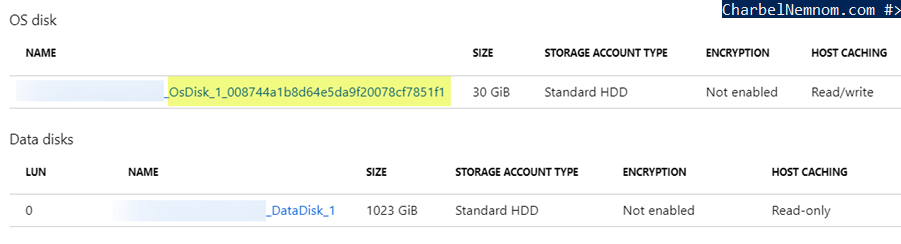
If you are following a standard naming convention and you want to rename the OS disk, then you have to follow the steps below in the Azure Portal:
- Create a copy of the OS Disk with the desired name (assuming you are using managed disks).
- Swap the OS disk for the VM.
- Start the VM.
- Finally, delete the old OS disk.
You don’t need to shut down the VM first, but once you Swap the OS disk, then you need to start the VM through the portal. Unfortunately, Azure does not have a built-in option to rename the OS disk. The good news is that we can automate the entire process using a few lines of PowerShell and skip the start VM step.
The following sections will describe how to rename the OS Disk for an Azure VM with PowerShell. The same procedure applies whether you are using a Linux or Windows VM.
If you want to rename the NIC interface for an Azure virtual machine, please check the following article.
If you want to rename an Azure virtual machine, please check the following article.
If you want to rename the Data Disks for an Azure virtual machine, please check the following article.
Rename Azure VM OS Disk
You have a couple of options to run the script, you can either use Azure Cloud Shell, Visual Studio Code, or Windows Terminal. The Script works with PowerShell 5.1 or PowerShell 7 (core) with the Az module.
.EXAMPLE
.\Rename-AzOSDisk.ps1 -resourceGroup [ResourceGroupName] `
  -VMName [VMName] -osdiskName [OSDiskName] -Verbose
This example will rename the OS Disk for the specified VM, you need to specify the Resource Group name, VM name, and the new OS disk name. The script will use the Swap OS disk feature in Azure and change the OS disk on the fly. Finally, the script will ask you to confirm the deletion of the original OS disk. If the VM is a member of an Availability Set, the script will also work flawlessly.
Please note that the VM will reboot once the disk is swapped. You need to plan a small maintenance window if you are running a critical workload on the VM.
Here is an example of the output once you run this tool:

PowerShell Code
The complete script is detailed below to automate the entire process:
<#
.SYNOPSIS
Rename Azure OS Disk.

.DESCRIPTION
Rename Azure VM OS Disk for Linux and Windows.

.NOTES
File Name : Rename-AzOSDisk.ps1
Author    : Microsoft MVP/MCT - Charbel Nemnom
Version   : 2.0
Date      : 13-September-2019
Update    : 07-December-2024
Requires  : PowerShell 5.1 or PowerShell 7.4.x (Core)
Module    : Az PowerShell Module
OS        : Windows or Linux VMs

.LINK
To provide feedback or for further assistance please visit:
https://charbelnemnom.com

.EXAMPLE
.\Rename-AzOSDisk.ps1 -resourceGroup [ResourceGroupName] -VMName [VMName] -osdiskName [OSDiskName] -Verbose
This example will rename the OS Disk for the specified VM, you need to specify the Resource Group name, VM name and the new OS disk name.
Then the script will use the Swap OS disk feature in Azure and change the OS disk on the fly.
#>

[CmdletBinding()]
Param (
    [Parameter(Position = 0, Mandatory = $true, HelpMessage = 'Enter the Resource Group of the VM')]
    [Alias('rg')]
    [String]$resourceGroup,

    [Parameter(Position = 1, Mandatory = $True, HelpMessage = 'Enter Azure VM name')]
    [Alias('VM')]
    [String]$VMName,

    [Parameter(Position = 2, Mandatory = $true, HelpMessage = 'Enter the desired OS Disk name')]
    [Alias('DiskName')]
    [String]$osdiskName

)

#! Install Az Module If Needed
function Install-Module-If-Needed {
    param([string]$ModuleName)

    if (Get-Module -ListAvailable -Name $ModuleName) {
        Write-Host "Module '$($ModuleName)' already exists." -ForegroundColor Green
    }
    else {
        Write-Host "Module '$($ModuleName)' does not exist, installing..." -ForegroundColor Yellow
        Install-Module $ModuleName -Force  -AllowClobber -ErrorAction Stop
        Write-Host "Module '$($ModuleName)' installed." -ForegroundColor Green
    }
}

Install-Module-If-Needed Az.Accounts

#! Check Azure Connection
Try {
    Write-Verbose "Connecting to Azure Cloud..."
    Connect-AzAccount -ErrorAction Stop | Out-Null
}
Catch {
    Write-Warning "Cannot connect to Azure Cloud. Please check your credentials. Exiting!"
    Break
}

#! Install Az Compute Module If Needed
Install-Module-If-Needed Az.Compute

#! Get the details of the VM
Write-Verbose "Get the VM information details: $VMName"
$VM = Get-AzVM -Name $VMName -ResourceGroupName $resourceGroup

#! Get source OS Disk information
Write-Verbose "Get the source OS Disk information: $($VM.StorageProfile.OsDisk.Name)"
$sourceOSDisk = Get-AzDisk -ResourceGroupName $resourceGroup -DiskName $VM.StorageProfile.OsDisk.Name

#! Create the managed disk configuration
Write-Verbose "Create the managed disk configuration..."
If (!$sourceOSDisk.Zones) {
#! If the source disk has no zones, create a disk config without zones
$diskConfig = New-AzDiskConfig -SkuName $sourceOSDisk.Sku.Name -Location $VM.Location `
    -DiskSizeGB $sourceOSDisk.DiskSizeGB -SourceResourceId $sourceOSDisk.Id `
    -CreateOption Copy
Write-Verbose "Source OS Disk has no zones. Creating disk configuration without zones."
}
Else {
#! If the source disk has zones, include them in the disk config
$diskConfig = New-AzDiskConfig -SkuName $sourceOSDisk.Sku.Name -Location $VM.Location `
    -DiskSizeGB $sourceOSDisk.DiskSizeGB -SourceResourceId $sourceOSDisk.Id `
    -CreateOption Copy -Zone $sourceOSDisk.Zones
Write-Verbose "Source OS Disk has zones: $($sourceOSDisk.Zones). Creating disk configuration with zones."
}

#! Create the new disk
Write-Verbose "Create the new OS disk..."
$newOSDisk = New-AzDisk -Disk $diskConfig -DiskName $osdiskName -ResourceGroupName $resourceGroup

#! Swap the OS Disk
Write-Verbose "Swap the OS disk to: $osdiskName"
Set-AzVMOSDisk -VM $VM -ManagedDiskId $newOSDisk.Id -Name $osdiskName | Out-Null
Write-Verbose "The VM is rebooting..."
Update-AzVM -ResourceGroupName $resourceGroup -VM $VM

#! Delete the old OS Disk
$delete = Read-Host "Do you want to delete the original OS Disk [y/n]"
If ($delete -eq "y") {
    Write-Warning "Deleting the old OS Disk: $($sourceOSDisk.Name)"
    Remove-AzDisk -ResourceGroupName $resourceGroup -DiskName $sourceOSDisk.Name -Force -Confirm:$false
}
If you look back at the Azure Portal, we can see that the new OS Disk name has been attached successfully.
 If you have any feedback or changes that everyone should receive, please feel free to leave a comment below.
That’s it, there you have it. Enjoy Azure VM OS Swapping!
__
Thank you for reading my blog.
If you have any questions or feedback, please leave a comment.
-Charbel Nemnom-

Hello,
Thank you for this brilliant script which is very helpful post-migration to change the name of OS Disk and NICs. However, I was wondering if there is a script to rename data disks as well? Please let me know how to achieve this via similar scripts.
Thanks in advance,
Hello Chandan, thanks for the feedback and comment!
Please check the following article that might help you to rename Azure VM data disks as well.
Let me know if it works for you.
Hi Charbel,
The script for data disk renaming is working very well. Thank you so much!
Sorry to mix the topics here but regarding the NIC renaming script, it works when a single NIC card is attached to a VM and fails if there are 2 NIC cards attached. It picks up a NIC and creates a copy of it but the attachment is not happening.
Error: Network interface NicRenameTest must have Primary property set. ErrorCode: NetworkInterfaceMustHavePrimaryPropertySet
May I know how I can fix this issue as I have 2 or 4 NICs for some machines?
Thank you
Hello Chandan, thanks for the comment and feedback!
The comment is related to a different topic as you mentioned.
Please note that I’ve updated the tool to support multiple network interfaces.
You can now rename multiple NICs attached to an Azure virtual machine (check it here).
Let me know if it works for you.
Enjoy :)
Got this error during execution:
VERBOSE: Create the managed disk configuration…
New-AzDiskConfig: Cannot bind parameter ‘DiskSizeGB’ to the target. Exception setting “DiskSizeGB”: “Cannot convert null to type “System.Int32″.”
Hello C E, thanks for reporting this error.
Yes, it looks like that Microsoft has changed the underlying command.
I have updated the tool and tested it with the latest Az PowerShell module.
Let me know how it works for you now.
Thanks!
Thank you for this awesome script. A real time-saver.
Thank you, Daniel for your feedback, much appreciated!
Unfortunately I get the following error when I run this:
VERBOSE: Create the new OS disk…
New-AzDisk: C:\***\Scripts\Rename-AzOSDisk.ps1:87
Line |
87 | … newOSDisk = New-AzDisk -Disk $diskConfig -DiskName $osdiskName -Resou …
| ~~~~~~~~~~~~~~~~~~~~~~~~~~~~~~~~~~~~~~~~~~~~~~~~~~~~~~~~~
| Changing property ‘creationData’ is not allowed. ErrorCode: PropertyChangeNotAllowed ErrorMessage: Changing
| property ‘creationData’ is not allowed. ErrorTarget: creationData StatusCode: 409 ReasonPhrase: Conflict
| OperationID : fd2457b5-0157-4319-a094-9f2dc3dc62f3
Hello Lloyd, thanks for sharing your experience!
Please note that I just renamed the OS Disk for one of my VMs and didn’t have the issue you described.
Which version are using for the “
Az.Compute” module?Could you please make sure you are running the latest “
Az” module (version 12.3.0) and the “Az.Compute” module (version 8.4.0).You can verify that by running the following command:
Get-module -name Az.Compute -ListAvailableI am also using PowerShell Core version 7.4.5. Hope it helps!
Ran in to an issue where the diskconfig for new disk didn’t include zone information from the sourcedisk;
___________________________________________
Update-AzVM : Disk /subscriptions//resourceGroups//providers/Microsoft.Compute/disks/-OsDisk cannot be attached to the VM because it is not in zone ‘1’.
ErrorCode: BadRequest
ErrorMessage: Disk /subscriptions//resourceGroups//providers/Microsoft.Compute/disks/-OsDisk cannot be attached to the VM because it is not in zone ‘1’.
ErrorTarget:
StatusCode: 400
ReasonPhrase:
OperationID : eac53105-8144-4396-88b4-105b96e69e4e
At line:26 char:1
+ Update-AzVM -ResourceGroupName $resourceGroup -VM $VM
+ ~~~~~~~~~~~~~~~~~~~~~~~~~~~~~~~~~~~~~~~~~~~~~~~~~~~~~
+ CategoryInfo : CloseError: (:) [Update-AzVM], ComputeCloudException
+ FullyQualifiedErrorId : Microsoft.Azure.Commands.Compute.UpdateAzureVMCommand
___________________________________________________________
I looked at the $newOSDisk info and confirmed no $newOSDisk.Zones is not populated, but is present on $sourceOSDisk.
Hello Trey, thanks for the comment and for validating the script!
Yes, the issue you’re encountering happens because the new OS disk does not inherit the availability zone information from the source OS disk.
I updated the script to handle the zone information from the source disk.
I have included a conditional check for the presence of zones ($sourceOSDisk.Zones) to handle scenarios where a source disk may or may not be associated with a specific availability zone.
This will ensure the script adapts dynamically to different configurations without assuming every disk is zoned.
Please try it again and let me know if it works for you.