
Microsoft Sentinel is a cloud-native security information and event management (SIEM) and security orchestration, automation, and response (SOAR) platform. Being in the cloud, it is heavily scalable. With Sentinel, security investigations and detection are enriched with AI and leverage other Azure services for comprehensive security operations.
In this article, we’ll explore the power of automation rules and playbooks to improve SOC team efficiency and master Microsoft Sentinel Playbooks.
Table of Contents
Understanding Microsoft Sentinel Playbooks
Microsoft Sentinel Playbooks are automated security tools that respond to cyber incidents using Azure Logic Apps. They focus on Security Orchestration, Automation, and Response (SOAR), helping Security Operations Center (SOC) analysts manage overwhelming alerts.
With Playbooks, we have to mention the term “SOAR,” which stands for Security Orchestration, Automation and Response, and Azure Logic Apps, the underlying technology. Logic Apps are the workhorse of Security Orchestration and Automated Response (SOAR) in Sentinel. They provide a low code method for data ingestion, enrichment, and automation.
Playbooks excel at automating routine tasks like:
- Isolating compromised devices
- Resetting passwords
- Updating proxy settings
This automation allows security analysts to focus on investigation. Microsoft’s integration with Azure Logic Apps enables various triggers – incident, alert, or entity-based – which can initiate actions such as:
- Incident enrichment can be done using VirusTotal, IPinfo, AbuseIPDB, or by checking the device risk status.
Automate triage by:
- Running investigation queries (Check user MFA status, agent, and location)
- Triggering automated investigation (Collect investigation packages, run external forensics tooling using THOR Lite, for example, and Collect memory dump from devices)
Automate response by:
- Revoking user sessions
- Resetting password
- Disabling account
- Isolating device
- Logging a ticket with ServiceNow
- Updating proxy policy configuration
- Blocking port on a firewall
You can find a lot of Playbook examples on Microsoft Learn, GitHub, and the Microsoft Sentinel Content Hub, as shown in the figure below.

Understanding Automation Rules
Automation rules provide a centralized way to manage and streamline incident handling in Microsoft Sentinel. By simplifying complex workflows, they enhance your incident orchestration processes and make automation more accessible and efficient.
As part of Sentinel’s SOAR (Security Orchestration, Automation, and Response) capabilities, automation rules work alongside playbooks to enable dynamic workflows. They allow you to define triggers, set conditions, and execute actions, automating key aspects of a SOC analyst’s tasks.

For instance, you can create an automation rule to automatically assign an “Owner” to a Sentinel incident based on its detection source. Additionally, automation rules can trigger playbooks, further extending their utility. Some common use cases include:
- Performing basic automation tasks for incident handling without relying on playbooks.
- Automating responses across multiple analytics rules simultaneously.
- Controlling the execution order of specific actions.
- Inspecting incident details and invoking playbooks based on predefined criteria.
Automation rules and playbooks can function independently or in tandem, offering unmatched flexibility for designing tailored automation workflows. With Microsoft Sentinel’s SOAR capabilities, the possibilities for streamlining and enhancing security operations are virtually limitless.
Setting Up and Managing Playbooks
Setting up playbooks in Microsoft Sentinel begins in the Azure portal, using the Logic Apps environment. Users can choose between Consumption (pay-per-use) or Standard (fixed monthly plans) logic apps based on their needs. By default, Microsoft Sentinel automation will create logic apps using the Consumption model (Pay-per-operation).

Configuring triggers and actions is crucial. Microsoft Sentinel offers options from incident triggers to alert-based workflows. Precise permissions are essential, with Azure roles like Logic App Contributors and Logic App Operators having specific duties.
Managed Identities ensure playbooks run with minimal necessary rights, reducing secret lifecycle issues and minimizing over-permission risks (more about authentication in the next section).
After you set up the logic app, active management and monitoring through Diagnostics settings using AzureDiagnostics ensure smooth playbook execution (more about monitoring in the next section).

Extend Analytic Rule with Logic App
With Azure Logic App, we could extend the built-in analytic rule template to help automate triage. For example, if we look at the “Rare RDP Connections” analytic rule, we can see that the maximum amount of data looking back in Sentinel is from the last 14 days. So, with just 14 days, this analytic rule could result in false positive alerts since a user could have logged in 20 or 30 days before.

This detection rule will identify when an RDP connection is new or rare related to any logon type by a given account today compared with the previous 14 days. The RDP connections are identified by the EventID 4624 with LogonType = 10.
We could attach an automation rule to run a playbook whenever this detection rule creates an incident.

We can build a Logic App to investigate if the RDP connection is really rare. This Logic App is designed to automate the triage process for Microsoft Sentinel incidents related to RDP connections, specifically focusing on identifying “rare” activity.
Here’s how it works step by step:
1. Triggering on Incident Creation
The Logic App is triggered whenever a new incident is created in Microsoft Sentinel. This is achieved using the Sentinel incident creation webhook, which provides details about the incident, including its ID and related entities.
2. Extracting Related Entities
The app retrieves related entities associated with the incident, such as IP addresses, hostnames, and user accounts. These entities are crucial for further analysis and are gathered using Sentinel’s API connections.

3. Iterating Through Related Entities
For each combination of IP address, hostname, and user account, the Logic App initiates a deeper analysis to determine whether this combination has been observed in logs before.
4. Extending the Query Timeframe
The Logic App extends the original query timeframe used in the Sentinel analytics rule from the default 14 days to 60 days. This allows the app to check for earlier occurrences of the same combination, providing a more comprehensive historical context.
5. Running the Extended Query
Using Azure Monitor Logs, the app executes the modified query over a 60-day window. This retrieves relevant activity data to assess if the combination of IP, hostname, and user account has been previously observed.

6. Evaluating Results
If results are found (True) indicating that this combination is not rare (e.g., the activity is routine or expected), the Logic App takes automated actions:
- Add a Comment to the Incident: A detailed comment is added to the incident in Sentinel. The comment summarizes the findings, including when the user, IP, or host was last seen in the 60-day timeframe.
- Close the Incident Automatically: The incident is marked as “Closed” with the classification “BenignPositive – SuspiciousButExpected,” indicating the automation determined the activity is not genuinely suspicious. Tags such as “Automate triage” and “Automation” are added for reference.
If no results are found, the incident remains open for further manual investigation by the SOC team.

7. Scalability with Nested Loops
The Logic App processes multiple IPs, hostnames, and accounts simultaneously using nested loops, ensuring that every possible combination is thoroughly analyzed without requiring manual effort.
8. Key Benefits
- Streamlines Incident Response: By automating the triage process, the Logic App reduces the workload for security teams.
- Enhanced Accuracy: The extended query timeframe ensures decisions are based on a broader dataset, improving the reliability of triage outcomes.
- Time Savings: Automating routine decisions like closing non-rare incidents allows analysts to focus on genuinely critical alerts.
This Logic App exemplifies how Microsoft Sentinel can be integrated with automation to handle incidents intelligently and efficiently, showcasing the power of Logic Apps in a security operations workflow.
Playbooks Authentication and Authorization
Logic Apps offer flexible authentication options, including:
Personal accounts
- Easy! One-click and done.
- What if the person leaves the organization?
- Probably, the person has too many permissions.
App Registration (Service Principal)
- Only granted permissions that are required
- Secret lifecycle management is a burden
Managed Identities
- No secrets lifecycle management
- Least-privilege
- Most scenarios are supported

Managed Identities have two distinct kinds:
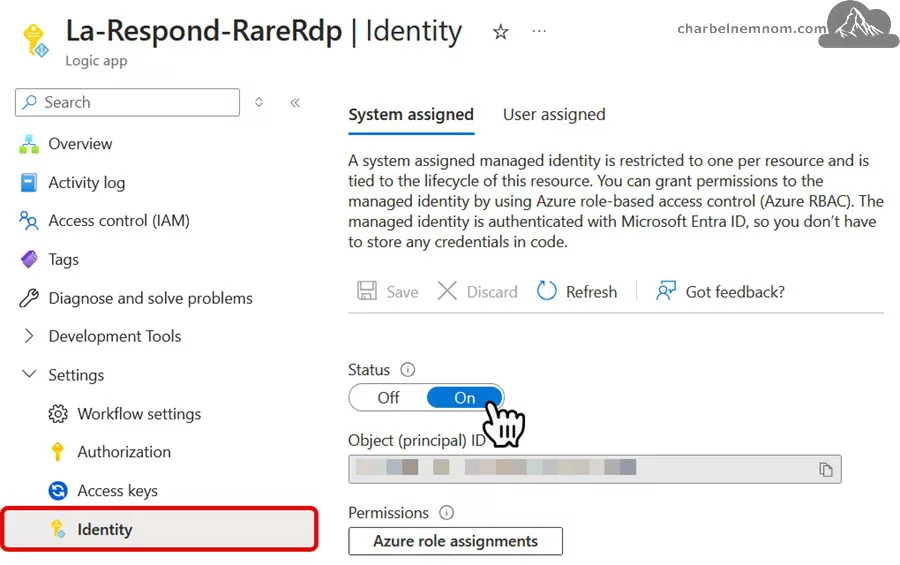
- System-assigned: A system-assigned managed identity is restricted to one per resource and is tied to the lifecycle of this resource. You can grant permissions to the managed identity by using Azure role-based access control (Azure RBAC). The managed identity is authenticated with Microsoft Entra ID, so you don’t have to store any credentials in code.
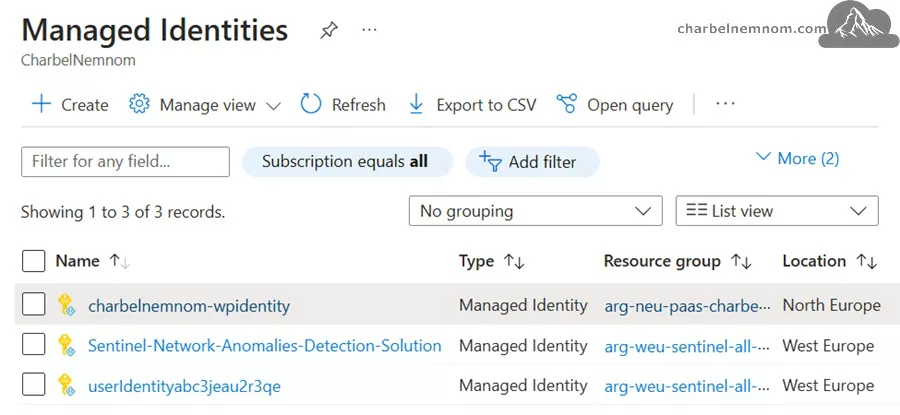
- User-assigned: User-assigned managed identities enable Azure resources to authenticate to cloud services (e.g. Azure Key Vault) without storing credentials in code. These types of managed identities are created as standalone Azure resources and have their own lifecycle. A single resource (e.g. Virtual Machine) can utilize multiple user-assigned managed identities. Similarly, a single user-assigned managed identity can be shared across multiple resources (e.g. Virtual Machine).
Once you enable a system-assigned managed identity for the logic app, an Enterprise Application in Microsoft Entra ID is created behind the scenes, as shown in the figure below.

If you enable a user-assigned managed identity for the logic app, behind the scenes, a managed identity is created, as shown in the figure below.
So, what is the difference between using user-assigned and system-assigned managed identity for Playbooks?
When you use the user-assigned managed identity, you can associate the identity to other Playbooks and keep the API connections (Microsoft.web/connections) tidy, as you don’t need to authorize each system-assigned managed identity to Sentinel. This also makes PowerShell scripting easy with a fixed GUID. You could do a hybrid of both if you really wanted (or call for a bearer token from an enterprise application (i.e., a service principal). Both approaches would be valid; it depends on what you need to achieve and do.
Next, you must assign the appropriate Azure role to the Resource Group where Microsoft Sentinel is deployed to ensure the Logic App has the necessary permissions over Sentinel.
For example, based on the automation scenario we shared in the previous section, to respond to rare RDP connections, we must assign the Microsoft Sentinel Contributor role to the Logic App Managed Identity to be able to query the Log Analytics Workspace, add comments, and update the incidents. Click the “+ Add role assignment“, then set the Scope to “Resource group”, Subscription, and Resource group, and pick the role, as shown in the figure below.
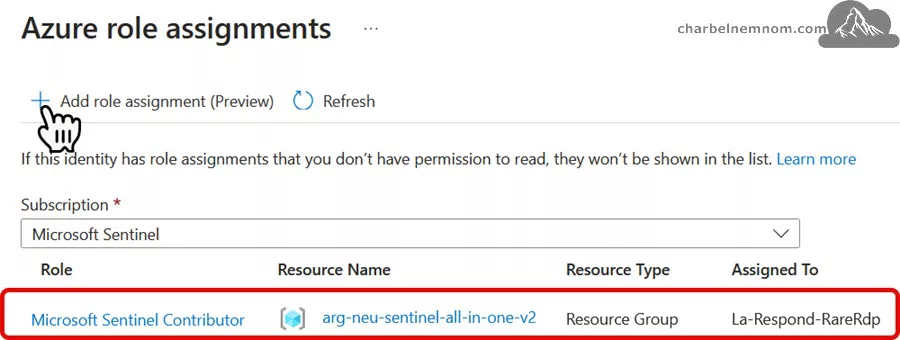
Of course, this is just a simple role assignment we assigned for the Logic App Managed Identity based on the workflow example we shared here. Advanced workflows like respond and auto endpoint investigation in Microsoft Defender for Endpoint (MDE) require different API permissions in Microsoft Graph, Microsoft Threat Protection, and Windows Defender ATP.
Playbooks Monitoring and Troubleshooting
As with cars, we must also watch our playbooks closely. Who knows if they might fail and we don’t notice it immediately.
A car might only need service once a year to keep it running smoothly without any issues. We recommend not waiting that long with playbooks and checking in more frequently.
You might wonder why a playbook that worked perfectly during testing suddenly fails when triggered by a specific incident.
This scenario is not uncommon—everything seems to function as expected during testing, but when a real incident occurs, the playbook fails to execute as intended.
When this happens, you want to investigate and understand the root cause.
We have encountered this situation multiple times. The issues could stem from various reasons, such as the playbook no longer existing, permission issues, or errors in the fields being passed to the playbook.
So, what do we need to monitor?
- Logic App runs: Enable diagnostic logs in Log Analytics, or you could use Azure Policy to force and enable Azure Diagnostic Settings to Log Analytics Workspace.

Once you enable diagnostic logs for Logic Apps in Log Analytics, you can query the “AzureDiagnostics” table and check for failed runs.
AzureDiagnostics
| where status_s == "Failed"
| summarize make_list(pack_all()) by resource_workflowName_s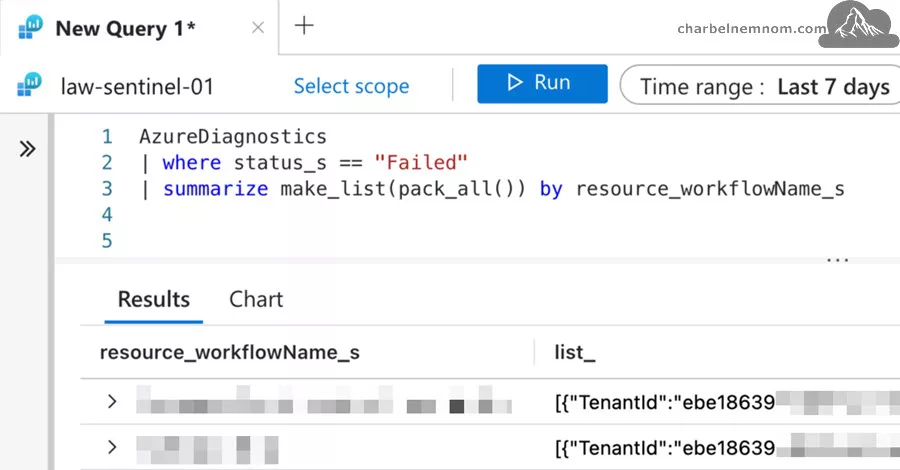
- Sentinel Automation rules: Enable auditing and health monitoring under Settings in Microsoft Sentinel. The auditing and health monitoring will collect logs for the following categories (Automation, Data Collection – Connectors, and Analytics Rules).
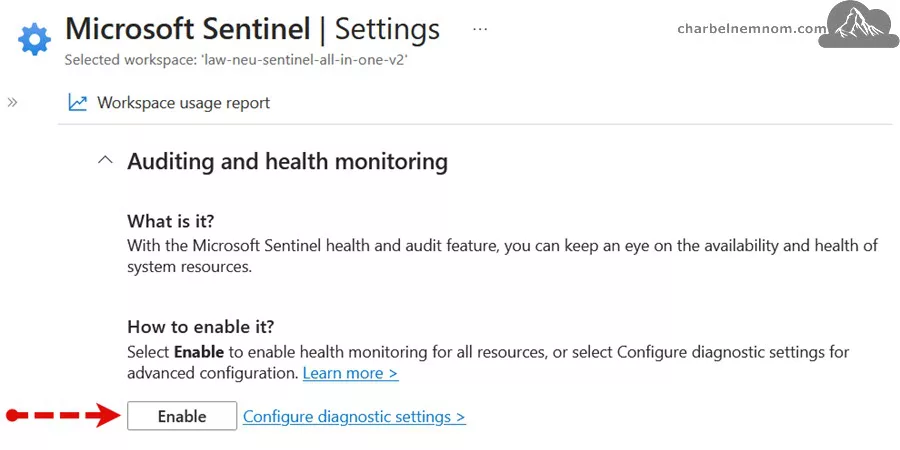
Once you enable health monitoring for Microsoft Sentinel, you can query the “SentinelHealth” table and check for unsuccessful runs.
SentinelHealth
| where OperationName == "Automation rule run"
| where Status != "Success"
- Dashboard with Workbooks: You could use the following two built-in workbooks from Content Hub that will provide deeper insights regarding each playbook’s status, activity, and billing. You can use the workbook’s logic to monitor the general health of the playbooks.

Monitoring playbooks involves using tools such as Azure Diagnostics and Sentinel Health tables. AzureDiagnostics offers a detailed view of playbook runs, helping identify issues when playbooks fail. The SentinelHealth table provides insight into automation rule statuses.
Permissions often cause playbook problems. Ensuring the Microsoft Sentinel service account and related managed identities have correct Azure roles is crucial. Common issues include:
- Missing connections
- Outdated workflows
- Updates not applied to all dependencies
Regular audits help catch permission issues and ensure all components are up-to-date. This proactive approach supports a strong security architecture, keeping playbooks agile and responsive.
The “AzureDiagnostics” and “SentinelHealth” tables and Workbooks help track issues when playbooks don’t run as expected.

Advanced Playbook Scenarios
Advanced playbook scenarios in Microsoft Sentinel illustrate the platform’s ability to address intricate security challenges effectively. These scenarios go beyond basic automation to demonstrate how Sentinel can be tailored to tackle complex incidents, streamline operations, and enhance security defenses.
Investigating Unusual RDP Connections
As demonstrated in the previous section, one such advanced scenario involves handling unusual Remote Desktop Protocol (RDP) connections. Anomalies in RDP usage often signal potential malicious activity or misconfigurations. Here, a Sentinel playbook can:
- Extend Investigation Period: By querying logs over a longer look-back period, the playbook can determine if the unusual connection aligns with historical patterns or is anomalous.
- Enrich Alerts with Contextual Data: Integrate with threat intelligence feeds to assess the source IP’s reputation and provide additional context.
- Trigger Proactive Remediation: If deemed suspicious, the playbook can isolate the system, block the IP address, or notify the security team for further investigation.
Role of Managed Identities in Secure Automation
Managed identities play a pivotal role in advanced playbook scenarios. They enable playbooks to:
- Securely Access Resources: Grant playbooks permission to interact with resources like Azure Storage, Key Vault, or external APIs without requiring explicit credential management.
- Enhance Security Posture: Eliminate the risk of credential leaks, ensuring that sensitive operations are executed securely.
For example, a playbook investigating unusual RDP connections might leverage managed identities to pull enriched data from an Azure Log Analytics workspace or access a Key Vault to retrieve specific security keys.
Enhancing Automation with PowerShell
PowerShell scripts can significantly enhance playbook capabilities by simplifying complex tasks, such as managing API permissions or performing advanced data manipulations. For instance:
- Dynamic API Interactions: Playbooks can use PowerShell to interact with third-party systems, query detailed information, and trigger additional workflows.
- Custom Data Parsing: Use scripts to extract and process data from incident alerts to generate more meaningful insights for analysts.
- Advanced Remediation: Automate intricate responses, such as modifying firewall rules or applying configuration changes dynamically.
Other Advanced Use Cases
1. Cross-Environment Incident Correlation: Sentinel playbooks can correlate incidents across multiple environments, such as Azure, on-premises systems, and third-party cloud platforms. Playbooks can detect and respond to multi-faceted threats more effectively by connecting to multiple data sources and analyzing patterns.
2. Dynamic Access Control: When unusual login attempts are detected, playbooks can dynamically adjust access control policies, such as enforcing multi-factor authentication or locking accounts temporarily, to prevent unauthorized access.
3. Automated Compliance Checks: Sentinel playbooks can monitor compliance by scanning configurations and triggering alerts or remediation tasks when deviations from organizational policies are detected.
4. Phishing Incident Response: Playbooks can identify, isolate, and remediate phishing emails by extracting email artifacts, checking URLs against threat intelligence feeds, and instructing email servers to block or quarantine similar messages automatically.
The Power of Integration
Microsoft Sentinel’s integration with Azure Logic Apps allows advanced playbooks to:
- Utilize Custom Connectors: Extend functionality by integrating with non-Microsoft services such as ServiceNow, Jira by Atlassian, or PagerDuty.
- Create Complex Workflows: Chain multiple playbooks together to handle multi-step processes, ensuring scalability and reliability in incident response.
Enhancing Cybersecurity Strategy
Advanced playbook scenarios showcase how automation strengthens defenses against sophisticated threats. By automating routine tasks, enriching alerts with contextual data, and executing complex workflows, Sentinel playbooks empower security teams to:
- Focus on high-priority threats.
- Enhance the efficiency and precision of their responses.
- Build a proactive and resilient security posture.
In Conclusion
Automation rules are central to deploying playbooks, activating them when incidents occur or alerts trigger. Playbooks excel at various actions, including:
- Enrichment
- Triage
- Response
For enrichment, they gather data from sources like VirusTotal or Ipinfo. During triage, they run investigation queries and launch external forensics tools. In response, playbooks can take decisive actions like revoking user sessions or isolating compromised devices.
Integration with external systems like ServiceNow is crucial for creating a cohesive defense strategy. The shift from analytics to automation rules offers greater flexibility and compatibility with updated security tools.
With Microsoft Sentinel’s SOAR capabilities, advanced playbooks become a cornerstone of an effective cybersecurity strategy, delivering value through seamless automation and actionable insights.
__
Thank you for reading my blog.
If you have any questions or feedback, please leave a comment.
-Charbel Nemnom-
