
You have an existing Azure VM with Generation 1 and you want to migrate it to Generation 2 to get the benefits of the latest security features offered by the Azure platform. Generation 2 VMs use the new UEFI-based boot architecture rather than the BIOS-based architecture used by generation 1 VMs.
In this article, we will show you how to migrate Gen1 to Gen2 VMs on Azure.
Table of Contents
Introduction
Azure offers trusted launch as a seamless way to improve the security of generation 2 VMs. Trusted Launch is now generally available which protects against advanced and persistent attack techniques. The trusted launch is composed of several, coordinated infrastructure technologies that can be enabled independently. Each technology provides another layer of defense against sophisticated threats.
Generation 2 VMs support key features that aren’t supported in generation 1 VMs. These features include increased memory, Intel Software Guard Extensions (Intel SGX), and virtualized persistent memory (vPMEM). Generation 2 VMs running on-premises have some features that aren’t supported in Azure yet.
Generation 2 VMs use the new UEFI-based boot architecture rather than the BIOS-based architecture used by generation 1 VMs. Compared to generation 1 VMs, generation 2 VMs might have improved boot and installation times.
> For more information about Generation 1 vs. Generation 2 VMs, please read the full comparison for features and capabilities.
In this article, we will show you how to migrate an existing Azure (Windows) VM from Generation 1 to Generation 2 VM with the recovery partition still enabled. The same steps will apply whether you are using a standard Azure VM (Windows Server 2012 and later) or an Azure Virtual Desktop (AVD) golden image (Windows 10 Pro/Enterprise and later).
Prerequisites
To follow this article, you need to have the following:
1) Azure subscription – If you don’t have an Azure subscription, you can create a free one here.
2) Azure Generation 1 VM, please check the quick start guide to create a Windows virtual machine in the Azure portal.
3) Azure Generation 2 VM SKU, please check the supported VM sizes listed here.
4) Temporary Azure VM for the migration (Gen1 or Gen2).
Note: Depending on how you delete a VM, it may only delete the VM resource, not the networking and disk resources. Microsoft has added a new capability where you can change the default settings for what other resources are deleted when you delete a VM (OS Disk, Data Disks, and Network Interfaces). By default, the disks are marked to be deleted, please make sure to unselect the disks and not delete them when you delete a VM.
Assuming you have already an existing Gen1 VM, take the following steps:
***Before you proceed with the steps described below, please make sure you have a VALID BACKUP!!! Please note that this process will require downtime, so you need to plan.
Migrate Gen1 to Gen2 VMs on Azure
The high-level steps involved in the migration plan are the following:
1) Disable the Windows Recovery Environment (Windows RE) on the Gen1 VM.
2) Create a new temporary Azure Gen2 VM.
3) Create or use an existing Azure VM to migrate.
4) Capture and apply the image.
5) Create a new Gen2 VM or Swap the OS disk of an existing Gen 2 VM.
6) Enable the Windows Recovery Environment.
For this example, I have an existing Azure Gen1 VM that I want to migrate. As shown in the figure below, I have opened the System Information (msinfo32) to show the BIOS Mode is Legacy.

I have also created a text file and saved it on the Gen1 VM called (AzureVMGen1-Gen2) to confirm that the file will remain when we migrate the VM to Generation 2.

And here’s the disk partition layout for the Gen1 VM in Azure. Notice it’s a typical Master Boot Record (MBR) layout.

I want to emphasize that the process below may NOT be perfect but served its purpose by migrating successfully Generation 1 to Generation 2 Azure virtual machine.
1) Disable the Windows RE on Gen1 VM
In this step, we will boot Gen1 Azure VM that we are planning to migrate and make sure that Windows Recovery Environment is disabled.
This step is required only if your OS is Windows 10 and later and not Windows Server.
Log on to your Gen1 VM and open the command prompt as administrator.
Run the following commands in sequence:
reagentc /info

reagentc /disable

#Windows RE Status must show Disabled
reagentc /info
Next, shut down the Generation 1 VM, then create a snapshot of the OSDisk and then create a managed disk from the snapshot because we need to use it in Step 3.

You can also delete the Gen1 VM WITHOUT deleting its Disk.
2) Create a new temporary Azure Gen2 VM
In this step, we will create a new temporary generation 2 VM in Azure to get the OSDisk type layout by Azure.
You can follow the steps described here to create a generation 2 (Gen2) VM in the Azure portal.
***IMP: If you want to create the Gen2 VM with trusted launch enabled, then make sure to follow the steps described here, otherwise, the VM will use the default Security type set to Standard.
Once the VM is created, you can delete the temporary Gen2 VM in Azure WITHOUT deleting the Gen2 Disk, or you can create a snapshot of the OSDisk and then create a managed disk from the snapshot because we need to use it in the next step.

3) Temporary VM for the migration
In this step, we need to use a temporary VM to migrate, you can create a new Azure VM or use an existing VM, the VM must be in the same Azure region as the original Gen1 (Step 1) and Gen2 VM from (Step 2), please do not use the VM from the previous two steps.
The temporary VM used for the migration could be Generation 1 or Generation 2 VM.
Once the new temporary VM is created, you need to make sure it’s Stopped (deallocated).
Next, you need to mount (attach) both the Gen1 Disk from the original VM, as well as the Gen2 Disk from Step 2 as shown in the figure below.

Next, turn on the temporary VM.
In this example, we have the Gen1 Disk mounted with the drive letter W:\ (Windows_Gen1) and the Gen2 Disk mounted with the drive letter Z:\ (Windows_Gen2).
Please note that the Windows_Gen2 volume is a temporary disk, we will format the disk and migrate the data from the Windows_Gen1 W:\ to Z:\ (more on this in a bit).

Next, we need to mount the Recovery Partition (~450 MB) and the EFI System Partition (~99 MB) from the Gen2 disk.

First, we will mount the EFI System Partition (the one formatted with FAT32, with no Label, ~99 MB), and assign the letter X:\ using DISKPART.

Run the following commands:
Diskpart

list volume

select volume 8
assign letter=X
format quick fs=fat32
Next, we need to mount the Recovery Partition (the one formatted with NTFS, labeled Recovery, ~450 MB), and assign the letter Y:\ using DISKPART.

Run the following commands:
Diskpart

list volume

select volume 7
assign letter=Y
format quick fs=ntfs label="Recovery"

set id="de94bba4-06d1-4d40-a16a-bfd50179d6ac"
gpt attributes=0x8000000000000001
Next, we need to mount the OS partition of the Gen2 Disk, assign the drive letter Z:\, and then format the disk.
Diskpart

list volume
select volume 6

assign letter=Z

format quick fs=ntfs label="Windows_Gen2"
4) Capture and apply the image
At this point, we’re going to “capture” and then “apply” the captured image from the source Windows_Gen1 volume into the Windows partition on the new Windows_Gen2 volume, drive letters W:\ and Z:\ in my walkthrough.
Run the following commands from an elevated command prompt on the temporary VM that we are using for the migration:
Dism /Capture-Image /ImageFile:"C:\Captured.wim" /CaptureDir:W:\ /Name:CapturedThis will take some time depending on the size of the Gen1 disk and your storage subsystem performance of the temporary machine in Azure.

Once the capture is completed from the source, we need to apply it to the drive letter Z:\ by running this command:
Dism /Apply-Image /ImageFile:"C:\Captured.wim" /ApplyDir:Z:\ /Index:1 /CheckIntegrityThis will take some time depending on the size of the captured image and your storage subsystem performance.

Next, we need to configure the EFI System Partition on the target Windows_Gen2 volume. Run the following bcdboot command from an elevated command prompt, where Z:\ is the target Windows partition and X:\ is the target EFI System Partition in my walkthrough.
Z:\Windows\System32\bcdboot Z:\Windows /s X: /f UEFI
5) Create a new Gen2 VM
Last but not least, you need to create a new Gen2 VM or Swap the OS disk of an existing Gen2 VM.
First, detach the Gen2 disk from the temporary VM that we used for the migration.
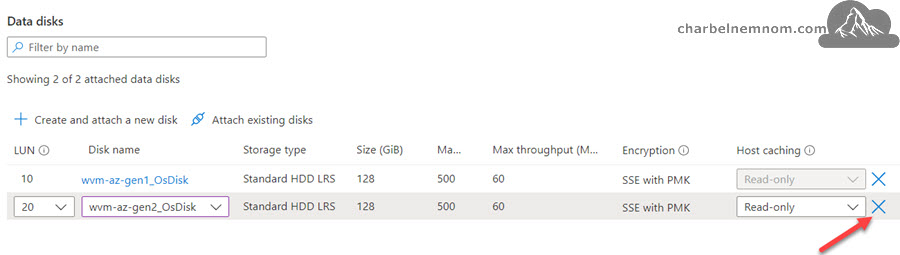
Next, create a new Gen2 Azure VM from the OSDisk or Swap the OSDisk of an existing Gen2 VM that you already have. Please note that this option will create the VM with the Security type set to Standard.

If you want to deploy the VM with trusted launch enabled, then you need to publish the image and create a VM Image Definition using the Azure Compute Galleries.
For this to work, you need to make sure that you created the new temporary generation 2 VM in Step 2 as a Trusted launch VM.

Trusted launch allows images to be created and shared through the Azure Compute Gallery (formerly Shared Image Gallery). The image source can be an existing Azure VM which is either generalized or specialized, an existing managed disk or a snapshot, a VHD, or an image version from another gallery. To deploy a Trusted Launch VM from an Azure Compute Gallery image version, please check how to deploy a trusted launch VM from an Azure Compute Gallery image.
Once the new Gen2 VM is created, let’s fire it up and see what happens!
…The good news is that it boots without any issues.

As shown in the figure below, I have opened the System Information (msinfo32) to show the BIOS Mode is UEFI now. The System Name in my example is (WVM-AZ-GEN1) which proves this is the original VM that I had as Gen1 and now it’s migrated to Gen2.

Let’s take a look at Windows Explorer and Disk Management (diskmgmt.msc) to see. Notice its layout as an EFI System Partition.

SUCCESS!!! We can see the text file (AzureVMGen1-Gen2) is from our original virtual machine.
6) Enable the Windows RE on Gen2 VM
The last step is to re-enable the Windows Recovery Environment from inside of the Gen2 Windows OS. This step is required only if your OS is Windows 10 and later and not Windows Server.
Re-enabling Windows RE is fairly straightforward.
Log on to your new Gen2 VM, then open the command prompt as administrator and run this command:
reagentc /enable
reagentc /info
So that’s it there you have it. Although somewhat involved, that is what it takes to convert an Azure VM workload from Generation 1 to Generation 2. You may, of course, decide that a clean installation may be simpler.
> Learn more about how to protect Generation 2 (Trusted Launch) Azure VM with Azure Backup.
Summary
Your choice to create a generation 1 or generation 2 virtual machine depends on which guest operating system you want to install and the boot method you want to use to deploy the virtual machine. Microsoft recommends that you create a generation 2 virtual machine to take advantage of features like Trusted Launch, and Secure Boot.
You can’t change a virtual machine’s generation after you’ve created it. So, we recommend that you review the considerations as documented by Microsoft, as well as choose the operating system, boot method, and features you want to use before you choose a generation for your Azure VM.
By following the steps described in this article, you can convert and migrate an Azure VM workload from Generation 1 to Generation 2.
Source: I’ve followed the Hyper-V Generation 2 virtual machines by John Howard that helped me migrate my Azure VM from Gen1 to Gen2.
__
Thank you for reading my blog.
If you have any questions or feedback, please leave a comment.
-Charbel Nemnom-

Hi Charbel.
Hope you’re doing well!
Thank you for sharing the procedure steps for AZ VM Migrate (GEN 1 to GEN2).
I will be grateful if you can share the video link.
Thankful to you for sharing the knowledge.
Hello Venkat, thanks for the comment and feedback!
I don’t have a video for Azure VM Migration (GEN 1 to GEN2).
Is this tutorial not enough for you? I described all the steps in this article.
Thanks!
Hi Charbel,
Thanks for replying. The procedure steps are a little complex to perform the task.
I have a question to get clarified from you.
1. While copying the image from VM Gen 1 to Gen2, does it support the SAP application and database?
2. I believe we will need to re-configure the Gen2 VM settings (DNS, Agent install, etc).
Regards,
Venkat
Hello Venkat, yes the migration to Gen2 involves multiple steps.
To answer your questions:
1) Yes, copying the image from Gen1 to Gen2, does support any application and database.
But I would recommend you to do first your due diligence by consulting SAP to see if it works on Gen2 UEFI Vs BIOS. As I noted in the article, please make sure you have a VALID BACKUP!
2) No, you don’t need to re-configure the VM settings, the agent will be also copied, etc.
Now depending on your virtual network set up in Azure, DNS will not change, however, the IP address might change, but you can always put it back as before.
Hope it helps!
Thank you for answering my questions. I appreciate your valuable advice.
Charbel,
Thanks for your assistance. The process was indeed long, however, I was able to convert a Gen 1 VM to a Gen 2 VM with Secure Boot and vTPM which would have been more of a headache if I had to reconfigure the server from scratch.
Thank you Tom for your feedback, much appreciated!
I am happy to hear that you were able to convert a Gen1 VM to a Gen2 VM as illustrated in this article.
All the best,
I am getting an Error 5 When attempting to copy .wim from source to Gen2 Volume.
Thoughts?
Hello TSi, thanks for the comment!
Error 5 that you are getting is about permissions.
Make sure you have full control of both source and the Gen2 Volume.
Try to give the SYSTEM account full control on the “C:\Captured.wim” and on the Gen2 Volume drive letter.
Hope it helps!
I started this process over. Currently at the step where I am capturing the wim. Its been “running” for about 20 mins now with no progress bar. Initially when I tested this I didnt pay attention if there was a bar or not. I came back to it several hours later(attended to other items) and it was completed. Is it normal not to see a bar during capture?
Hello TSi, thanks for the added information.
It is possible that the absence of a progress bar is normal during the capture.
However, it is also possible that the capture process has stalled or encountered an error.
If you have been waiting for 20 minutes without any indication of progress, it may be worth investigating further to ensure that the capture process is running properly.
Did you try to press Enter a couple of times after 20 minutes?
You may want to check if there are any logs or error messages that can provide more information about the status of the capture process.
Hi,
Great guide, thank you!
2 Questions:
a. What is the id de94bba4-06d1-4d40-a16a-bfd50179d6ac? can it be any GUID or is it fixed at that and what is it’s association.
b. What happens with the recovery partition? We set the drive letter to Y: and format it but never do anything else with it.
Hello Robert, thanks for the comment and feedback!
Here are the answers for a and b:
a) The id “
de94bba4-06d1-4d40-a16a-bfd50179d6ac” is fixed. This is needed to set the Recovery/utility partition as Primary.b) You don’t need to do anything with the recovery partition. The recovery partition is needed for UEFI/GPT-Based Systems. It’s used for recovery tools such as Windows RE, recovery files such as push-button reset images, and other system utilities. Check the Recovery tools partition page for more information.
Hope it helps!
Hi Charbel,
Thank you so much for great guide on conversion.
After the new Gen2 VM is created I am facing an issue in booting “The boot loader did not load an operating system”.
Could you let me know what the possible cause could be?
Hello Vimal, thanks for the comment and feedback!
The error message “The boot loader did not load an operating system” indicates that the system is unable to locate and load the operating system during the boot process.
There could many causes for this to happen and it’s difficult to guide you without looking at the environment.
But what I can think of, is the following:
Incorrectly configured disk partitions can lead to boot problems. Ensure that the partitions are set up correctly when you run the “
Diskpart” commands, and the boot loader points to the correct partition where the operating system is installed.Misconfigured Boot Loader Parameters – Check if the boot loader parameters or configuration files are set correctly.
Next, check if you captured and applied the image successfully.
Hope it helps!
Can you also guide us in converting Gen1 VM to Gen2, in particular to Citrix Virtual Desktop?
Citrix static virtual desktop has an identity disk, and I am not sure if the same identity disk can be attached to a converted Gen 2 VM.
Hello Ankush, when converting a Citrix static virtual desktop from Generation 1 (Gen1) to Generation 2 (Gen2) VM, the handling of the identity disk is a critical consideration.
In most cases, when converting a Citrix static virtual desktop from Gen1 to Gen2, it’s recommended to create a new identity disk or use a compatible disk format that aligns with the requirements of the Gen2 VM. This may involve creating a new disk image, formatting it using the appropriate file system, and attaching it to the Gen2 VM during or after the conversion process.
The identity disk attached to a Gen1 VM may not be compatible with the disk configuration expected by a Gen2 VM. I strongly recommend you to check with Citrix support resources before proceeding with the conversion process.
Hope it helps!
We have a VM Ev5 that was originally Gen1 and was migrated to Gen2 for “trusted boot” – but the disk controller is still “SCSI” – VM cannot be resized from Ev5 to Ev6 (disk controller must be NVMe). I try to create 2 managed disks from OS snapshot on that VM and on a new “real” Gen2 VM.
Azure does not allow to attach both data disks to a single VM. The original VM can’t see the “real” Gen2 disk, and vice versa. Having those 2 disks attached to 2 separate VMs, makes that process of backup/restore partitions between those disks is to complex and seems like a nightmare.
Hi Yaron, thanks for the comment and for sharing your experience!
What you’re seeing is an expected Azure limitation, not a misconfiguration. Even after migrating Gen1 → Gen2, the VM keeps its original disk controller.
Since Ev5 uses SCSI and Ev6 requires NVMe, Azure does not allow resizing from Ev5 to Ev6, nor attaching SCSI and NVMe disks to the same VM.
Gen2 conversion only changes the boot firmware (BIOS → UEFI) to enable features like Trusted Launch; it does not convert the storage controller. Because of this:
> A migrated Gen2 (SCSI) VM cannot attach NVMe disks
> A “real” Gen2 NVMe VM cannot attach the old SCSI OS disk
> Disk-level snapshot/attach or partition restore across controllers is not supported
The only supported path is a side-by-side migration:
> Create a new Gen2 VM on an NVMe-based family (Ev6)
> Migrate data/applications at the OS or application level (not disk level)
If NVMe is the end goal, the VM must be created as Gen2 + NVMe from day one.
Hope this helps clarify the behavior.
—Charbel