
MITRE ATT&CK framework is a publicly available knowledge base of tactics and techniques frequently employed by attackers, developed and updated through real-world observations. Numerous organizations utilize the MITRE ATT&CK repository to formulate targeted threat models and strategies to assess their security posture in various environments.
Microsoft Sentinel analyzes ingested data to detect threats and help you investigate and visualize the nature and coverage of your organization’s security status. This includes threat visibility through mapping analytics rules and hunting queries to MITRE ATT&CK Tactics, Techniques, and Sub techniques.
This article will describe how to extract and generate MITRE ATT&CK mapping and coverage for the Microsoft Sentinel Analytics Rules you installed through Content Hub so you can share it with your CISO.
Table of Contents
Introduction
Microsoft Sentinel is a cloud-native Security Information Event Management (SIEM) and Security Orchestration Automated Response (SOAR) solution. Microsoft Sentinel delivers intelligent security analytics and threat intelligence across the enterprise, providing a single solution for alert detection, threat visibility, proactive hunting, and threat response.
Microsoft Sentinel Analytics Rules templates were designed by Microsoft’s team of security experts and analysts based on known threats, common attack vectors, and suspicious activity escalation chains. Many Analytics Rules templates can be customized to search for activities or filter them according to your needs.
Solutions in Microsoft Sentinel Content Hub provide a consolidated way to acquire Microsoft Sentinel content, like data connectors, workbooks, analytics rules, and automation (playbooks), in your workspace with a single deployment step.
A question that comes often is, what if we have imported one or more solutions from Content Hub and need to document the current MITRE ATT&CK coverage out-of-the-box for the Analytics Rules templates, often referred to as use cases?

Running scheduled analytics rules with MITRE techniques in Microsoft Sentinel improves your organization’s security posture in the MITRE coverage matrix:
- Analytics Rules: Apply specific MITRE techniques to rules and filter by technique for easier searches.
- Incidents: MITRE techniques are added to incidents triggered by configured rules.
- Threat Hunting: Assign tactics and techniques to queries, filter results by tactics, and map techniques to bookmarks.
Microsoft Sentinel is currently aligned with the MITRE ATT&CK framework, version 13, which you can view on the ATT&CK website.
Documenting the MITRE ATT&CK coverage for the out-of-the-box Analytics Rules (use cases) we installed through Content Hub is a tedious manual operation in the Azure or Defender portal.
Let’s see how to automate this process and export MITRE ATT&CK coverage for Microsoft Sentinel Analytics Rules faster using the REST API and PowerShell.
Prerequisites
To follow this article, you need to have the following:
1) Azure subscription – If you don’t have an Azure subscription, you can create one here for free.
2) Log Analytics workspace – To create a new workspace, follow the instructions to create a Log Analytics workspace.
3) Enable Microsoft Sentinel at no additional cost on an Azure Monitor Log Analytics workspace for the first 31 days; follow the instructions on this page. Once Microsoft Sentinel is enabled on your Azure Monitor Log Analytics workspace, every GB of data ingested into the workspace can be retained at no charge for 90 days.
4) Ensure the desired solution is installed first from Content Hub before you run the script described below. It’s NOT required to enable and create the Analytics Rules to generate the MITRE ATT&CK analytics report.
5) Permissions: To generate the MITRE ATT&CK analytics report described below, you must have the Microsoft Sentinel Reader rights. However, you need the Microsoft Sentinel Contributor rights to install and update solutions from the Content hub.
6) You can use the Azure PowerShell installed locally on your machine or the Cloud Shell. To install Azure Accounts PowerShell modules on your machine, you can run the following command:
# Install and update to the latest Az PowerShell module
Install-Module -Name Az.Accounts -AllowClobber -Force

# Check Az PowerShell modules version installed
Get-Module -Name Az.Accounts -ListAvailable | Select Name, Version
7) Familiarity with the MITRE ATT&CK framework and its tactics and techniques.
Assuming you have all the prerequisites in place, take the following steps:
Generate MITRE ATT&CK Analytics Report
This section will describe how to generate MITRE ATT&CK Analytics Rules report at scale.
You have several options for running the script: Azure Cloud Shell, Visual Studio Code, or Windows Terminal. The Script works with the Az module installed with PowerShell 7.4.x (core).
.EXAMPLE-1
.\Get-MitreRuleAnalytics -SubscriptionId "xxxxxxxx-aaaa-bbbb-cccc-zzzzzzzzzzzz" `
 -ResourceGroup "RG-Name" -WorkspaceName "Workspace-Name" -SolutionName "Microsoft Entra ID" -Verbose
This example will connect to your Azure account using the subscription ID specified. Then, the tool will query and retrieve all MITRE ATT&CK (tactics, techniques, and sub-techniques) set for the analytics rules, including the rule name and description of the specified Microsoft Sentinel solution installed, and then generate a CSV report.
Run the PowerShell Tool
Here is an example of the output once you run this tool.
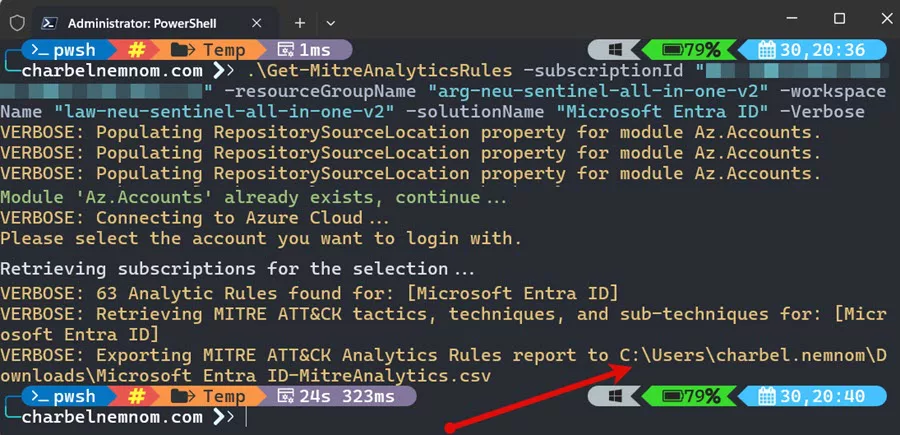
By default, the generated CSV report will be exported to the following path: “C:\Users\username\Downloads\“ folder following by the chosen solution name “-MitreAnalytics.csv“. You can change the default path as needed.
Opening the report, as shown in the figure below, we have six columns: the Solution Name, Use Case Name (Analytic rule name), Use Case Description (Analytic rule description), Mitre Attack Tactics, Mitre Attack Techniques, and Mitre Attack Sub Techniques.

PowerShell Code
Below is the tool to automatically generate the report for all MITRE ATT&CK (tactics, techniques, and sub-techniques) set for the analytics rules, including the rule name and description of the specified Microsoft Sentinel solution installed.
<#
.SYNOPSIS
Generate MITRE ATT&CK for Microsoft Sentinel Analytics Rules at Scale.

.DESCRIPTION
How to generate MITRE ATT&CK for Microsoft Sentinel Analytics Rules using the REST API and PowerShell.

.NOTES
File Name : Get-MitreAnalyticsRules.ps1
Author    : Microsoft MVP/MCT - Charbel Nemnom
Version   : 1.0
Date      : 29-January-2025
Updated   : 31-January-2025
Requires  : PowerShell 7.4.x (Core)
Module    : Az Module

.LINK
To provide feedback or for further assistance please visit:
 https://charbelnemnom.com

.EXAMPLE
.\Get-MitreRuleAnalytics -SubscriptionId <SUB-ID> -ResourceGroup <RG-Name> -WorkspaceName <Log-Analytics-Name> -SolutionName <Source-Name> -Verbose
This example will connect to your Azure account using the subscription ID specified.
The tool will query and retrieve all MITRE ATT&CK (tactics, techniques, and sub-techniques) set for the analytics rules of the specified Microsoft Sentinel solution installed.
#>

param (
    [Parameter(Position = 0, Mandatory = $true, HelpMessage = 'Enter Azure Subscription ID')]
    [string]$subscriptionId,
    [Parameter(Position = 1, Mandatory = $true, HelpMessage = 'Enter Resource Group Name where Microsoft Sentinel is deployed')]
    [string]$resourceGroupName,
    [Parameter(Position = 2, Mandatory = $true, HelpMessage = 'Enter Log Analytics Workspace Name')]
    [string]$workspaceName,
    [Parameter(Position = 3, Mandatory = $true, HelpMessage = 'Enter Microsoft Sentinel Content Hub Solution Name')]
    [string]$solutionName
)

#! Install Az Module If Needed
function Install-Module-If-Needed {
    param([string]$ModuleName)

    if (Get-Module -ListAvailable -Name $ModuleName) {
        Write-Host "Module '$($ModuleName)' already exists, continue..." -ForegroundColor Green
    }
    else {
        Write-Host "Module '$($ModuleName)' does not exist, installing..." -ForegroundColor Yellow
        Install-Module $ModuleName -Force  -AllowClobber -ErrorAction Stop
        Write-Host "Module '$($ModuleName)' installed." -ForegroundColor Green
    }
}

#! Install Az Accounts Module If Needed
Install-Module-If-Needed Az.Accounts

#! Check Azure Connection
Try {
    Write-Verbose "Connecting to Azure Cloud..."
    Connect-AzAccount -ErrorAction Stop | Out-Null
}
Catch {
    Write-Warning "Cannot connect to Azure Cloud. Please check your credentials. Exiting!"
    Break
}

# Define the Preview API Version to use for Microsoft Sentinel
# The Preview API Version is needed to include the MITRE ATT&CK (tactics, techniques, and sub-techniques)
$apiVersion = "?api-version=2024-10-01-preview"

#! Get Az Access Token
# This will default to Azure Resource Manager endpoint
$token = (ConvertFrom-SecureString (Get-AzAccessToken -AsSecureString -WarningAction SilentlyContinue).Token -AsPlainText)
$authHeader = @{
    'Content-Type'  = 'application/json'
    'Authorization' = 'Bearer ' + $token
}

# Get Content Product Packages
$contentURI = "https://management.azure.com/subscriptions/$subscriptionid/resourceGroups/$resourceGroupName/providers/Microsoft.OperationalInsights/workspaces/$workspaceName/providers/Microsoft.SecurityInsights/contentProductPackages$($apiVersion)"
$contentResponse = (Invoke-RestMethod $contentURI -Method 'GET' -Headers $authHeader -Verbose:$false).value
$solutions = $contentResponse | Where-Object { $null -ne $_.properties.version }
$solution = ($solutions | Where-Object { $_.properties.displayName -eq "$solutionName" }).properties.contentId

# Get Content Templates
$contentURI = "https://management.azure.com/subscriptions/$subscriptionid/resourceGroups/$resourceGroupName/providers/Microsoft.OperationalInsights/workspaces/$workspaceName/providers/Microsoft.SecurityInsights/contentTemplates$($apiVersion)"
$contentResponse = (Invoke-RestMethod $contentURI -Method 'GET' -Headers $authHeader -Verbose:$false).value

try {
    $contentTemplates = $contentResponse | Where-Object { $_.properties.packageId -eq $solution -and $_.properties.contentKind -eq "AnalyticsRule" }
    if ($contentTemplates.count -eq 0) {
        throw "Solution Name: [$solutionName] cannot be found. Please check the solution name and install it from the Content Hub blade!"
    }
}
catch {
    Write-Error $_ -ErrorAction Stop
}

Write-Verbose "$($contentTemplates.count) Analytic Rules found for: [$solutionName]"

# Function to generate the report
function Generate-MitreAnalyticsReport {
    param (
        [string]$OutputFilePath
    )

    # Initialize an array to hold the Mitre Analytics report data
    $reportData = @()

    # Loop through the analytics rules
    foreach ($contentTemplate in $contentTemplates) {
        $ruleName = $contentTemplate.name
        $ruleTemplateURI = "https://management.azure.com/subscriptions/$subscriptionid/resourceGroups/$resourceGroupName/providers/Microsoft.OperationalInsights/workspaces/$workspaceName/providers/Microsoft.SecurityInsights/contentTemplates/$($ruleName)$($apiVersion)"
        $ruleResponse = Invoke-RestMethod $ruleTemplateURI -Method 'GET' -Headers $authHeader -Verbose:$false
        $rule = $ruleResponse.properties.mainTemplate.resources | Where-Object type -eq 'Microsoft.SecurityInsights/AlertRuleTemplates'

        $reportData += [PSCustomObject]@{
            SolutionName             = $solutionName
            UseCaseName              = $rule.properties.displayName
            UseCaseDescription       = $rule.properties.description
            MitreAttackTactics       = $rule.properties.tactics -join ", "
            MitreAttackTechniques    = $rule.properties.techniques -join ", "
            MitreAttackSubTechniques = $rule.properties.subTechniques -join ", "
        }
    }

    # Export the report data to a CSV file
    Write-Verbose "Exporting MITRE ATT&CK Analytics Rules report to $env:USERPROFILE\Downloads\$($solutionName)-MitreAnalytics.csv"
    $reportData | Export-Csv -Path $OutputFilePath -NoTypeInformation
}

# Generate the report
Write-Verbose "Retrieving MITRE ATT&CK tactics, techniques, and sub-techniques for: [$solutionName]"
Generate-MitreAnalyticsReport -OutputFilePath "$env:USERPROFILE\Downloads\$($solutionName)-MitreAnalytics.csv"
This is version 1.0. If you have any feedback or changes that everyone should receive, please feel free to leave a comment below.
In Conclusion
Automating the generation of MITRE ATT&CK mappings for Microsoft Sentinel Analytics Rules significantly enhances an organization’s ability to document and visualize its security coverage. By leveraging PowerShell and the Microsoft Sentinel REST API, security teams can efficiently extract tactics, techniques, and sub-techniques associated with installed solutions from the Content Hub.
This process not only saves time but also ensures that CISOs and security analysts have an up-to-date and comprehensive understanding of their detection capabilities. Whether you’re tracking authentication anomalies in Microsoft Entra ID, monitoring endpoint threats with Microsoft Defender for Endpoint, or securing cloud workloads using Microsoft Defender for Cloud, this method provides a scalable and repeatable way to assess your organization’s threat detection landscape.
By implementing this automated approach, security teams can proactively strengthen their defenses and coverage, align their analytics rules and use cases with industry best practices of the MITRE ATT&CK framework, and make informed decisions about improving detection and response strategies.
__
Thank you for reading our blog.
Please let us know in the comments section below if you have any questions or feedback.
-Charbel Nemnom-
