
Updated – 05/03/2025 – On-demand malware scanning in Defender for Storage is now generally available (GA)! This feature also supports blobs up to 50 GB in size (previously limited to 2GB).
Updated – 27/11/2023 – Defender For Storage Security Operator generates a false positive Security alert – Suspicious Azure role assignment detected (Preview).
Updated – 26/07/2023 – Malware Scanning in Defender for Storage will be generally available (GA) for Azure Blob Storage on September 1, 2023.
Microsoft Defender for Cloud is a cloud-native security solution that provides advanced threat protection across multiple cloud platforms, including Microsoft Azure, AWS, and Google Cloud Platform. It offers a unified view of security across hybrid cloud environments and provides proactive threat intelligence to identify and respond to potential attacks before they occur.
In this article, we will look at how to protect Azure Storage in Microsoft Defender for Cloud including the new malware scanning capability.
Table of Contents
Introduction
Microsoft Defender for Cloud offers several key value propositions for organizations looking to secure their cloud workloads:
1) Cloud Security Posture Management (CSPM) – CSPM offers visibility throughout multi-cloud and hybrid environments, from development to runtime, and offers alerts and suggestions to security teams on vital vulnerabilities and misconfigurations that may result in security issues. Furthermore, CSPM comes equipped with in-built workflows to enhance the security posture and facilitate remediation at scale.
2) Cloud Workload Protection Platform (CWPP) – Cloud Workload Protection examines workloads utilizing sophisticated analytics and threat intelligence to help minimize the risk of attack and promptly address emerging threats.
3) DevOps security management – Offers a set of capabilities that allow developers to develop code more securely, offers guidance on best security practices for your source code repositories, and examines templates employed for deploying code in your Azure environment.
4) Cloud-Native Application Protection Platform (CNAPP) – CNAPP seamlessly combines security and compliance capabilities into a single platform to provide end-to-end cloud security for full-stack workloads across Amazon Web Services (AWS), Google Cloud Platform (GCP), and Azure Cloud Services.
With its advanced machine learning and behavioral analytics capabilities, Microsoft Defender for Cloud can detect and remediate threats quickly and accurately, minimizing the risk of data breaches and other security incidents. Whether you’re a small business or a large enterprise, Microsoft Defender for Cloud is an essential tool for securing your cloud workloads and protecting your critical data.

In 2019, Microsoft announced the GA release of Advanced Threat Protection for Azure storage accounts that protects Blob Containers’ service. Advanced Threat Protection (ATP) for Azure Storage provides an additional layer of security intelligence that detects unusual and potentially harmful attempts to access or exploit storage accounts. This layer of protection allows you to protect and address concerns about potential threats to your storage accounts as they occur, without needing to be a security expert.
Additionally, you can also use Advanced Threat Protection for Azure Files, Azure File Shares, and Azure Data Lake Storage Gen2 in addition to blob containers service. And guess what, this also protects your Azure File Sync deployment on-premises against malware. You can read more about this capability in this guide.
Activity monitoring (log analysis-based threat detection) is not enough… storage accounts can be a malware entry point into any organization and a malware distribution point. To protect storage accounts from this type of threat, the content must be scanned for malware before it is accessed from the storage account. But until today, there was no easy way of doing that, and therefore many storage accounts remain vulnerable. As a result, the threat of malware in storage accounts is considered a top threat by organizations, security analysts, and regulators.
The good news is that at Microsoft Secure on March 28, 2023, Microsoft announced the public preview for storage malware scanning which has built-in, near real-time, full malware scanning of content you upload to a protected storage account.
And the great news is that 8 hours after the official announcement, Defender for Cloud already caught Trojans in customers’ environments. Protecting data from malware and keeping the environment safe is one of the main pillars of the malware scanning capability in Microsoft Defender for Storage.
Protect Azure Storage – Malware Scanning Overview
The main feature of Malware Scanning in Defender for Storage is that it is near real-time, on-upload malware scanning using Microsoft of all content upon upload to the storage account. The time to scan will take seconds in most cases and may take up to 5-10 minutes for very heavy workloads.
Malware scanning is provided as a regional service and does not require the provision or maintenance of dedicated infrastructure. It leverages MDAV (Microsoft Defender Antivirus) to do a full malware scan, with high efficacy. It is significantly more comprehensive than only file hash reputation analysis.

The near real-time scan result on every file in Azure Event Grid and Index Tags on the file metadata, so it can support automated response. You can export the scan results to the Log Analytics workspace so you can use them for compliance evidence (more on that later).
When a malicious file is detected, Microsoft Defender for Cloud generates a security alert (more on that in a bit).
The Malware scanning is an agentless SaaS solution that allows you to simply set up at scale, with zero maintenance, and supports automating response at scale (more on that later).
Common use cases for Malware Scanning
The common use cases where malware scanning in cloud storage services become indispensable to maintain the integrity of both data and systems. Below are some prime examples of these scenarios:
> Web Applications: Cloud-based web applications often allow users to upload content to storage. This feature provides convenient and scalable storage solutions for applications like tax applications, CV upload HR sites, and receipt uploads.
> Content Protection: The distribution of assets like videos and photos, both internally and externally, is a common practice. However, this also opens up opportunities for malware distribution through Content Delivery Networks (CDNs) and content hubs.
> Compliance Requirements: Organizations that must adhere to strict compliance standards such as NIST, SWIFT, GDPR, and others require robust security practices, including malware scanning. This is particularly critical for businesses operating in regulated industries or specific regions.
> Third-Party Integration: Integrating third-party data from various sources, such as business partners, developers, and contractors, can expose your system to potential security risks. Conducting malware scans on this data ensures that it doesn’t compromise your system’s security.
> Collaborative Platforms: Cloud storage is commonly used for sharing content and facilitating collaboration among teams and organizations. Implementing malware scanning safeguards the collaboration process and promotes secure information exchange.
> Data Pipelines: Data flowing through Extract, Transform, and Load (ETL) processes can originate from multiple sources, making it susceptible to malware infiltration. By scanning for malware, organizations can ensure the integrity of their data pipelines.
> ML Training Data: High-quality and secure training data is paramount for effective machine learning models. Ensuring that the datasets are free from malware, especially when they include user-generated content or data from external sources, becomes crucial for accurate outcomes.
Prerequisites
To follow this article, you need to have the following:
1) Microsoft Azure subscription. If you don’t have an Azure subscription, you can create a free one here.
2) You need a standard general-purpose v2 storage account, Azure Data Lake Storage Gen2, or a premium block blobs storage account – To create a general-purpose v2 storage account, you can follow the instructions described here. You need to have one or more containers – You can follow the instructions here to create a container.
For more information, check the Azure Storage Essential Training.
3) Microsoft Defender for Cloud – Defender for Storage plan enabled per subscription under the Pricing & Settings page for storage accounts (more on that below).
Additionally, to enable malware protection and scanning, you need to have the following set of permissions and prerequisites:
1) You must have Owner roles (such as Subscription Owner or Storage Account Owner) or specific roles with the necessary data actions. Think always with the principle of least privilege (PoLP).
2) You must register the Azure Event Grid resource provider as shown in the figure below to be able to create the Event Grid System which is used for detecting upload triggers.
- You must have permission /register/action operation for the resource provider. This permission is included by default in the Contributor and Owner roles.
- You can do that in the Azure Portal or launch the Azure Cloud Shell and run the following PowerShell command to register Microsoft.EventGrid resource provider in your subscription:
Register-AzResourceProvider -ProviderNamespace Microsoft.EventGrid
3) You must have the “Public network access” enabled on your storage account, either from all networks or from selected virtual networks and IP addresses as shown in the figure below. Please note that malware scanning is not supported for storage accounts with “Public network access” set to Disabled.

Assuming you have all the permissions and the prerequisites in place, take the following steps:
Enable Microsoft Defender for Storage
You can enable and configure Microsoft Defender for Storage from the Azure portal, or with the built-in Azure policies, programmatically using IaC (Bicep and ARM) templates, or directly with the REST API.
When you enable Microsoft Defender for Storage on a subscription, all existing Azure Storage accounts will be protected and any newly created storage resources in the future will also be automatically protected.
// What if you don’t want to enable Defender for Storage on all storage accounts in the scope of the subscription, check how to exclude a storage account from Microsoft Defender for Storage (Classic).
Launch the Azure portal and navigate to Microsoft Defender for Cloud > Environment settings.
Select the desired subscription for which you want to enable Defender for Storage.
If Defender for Storage is not yet enabled on your subscription, turn the Defender for Storage plan toggle “On” and then click “Save” as shown in the figure below.

In case Defender for Storage was already enabled on your subscription, you will see the following “New plan available” experience to upgrade your current Defender for Storage plan (Classic) to the new Defender for Storage plan.

And then click “Save” to upgrade to the new plan.
Enable Malware Scanning in Defender for Storage
Enabling malware scanning is a feature of Defender for Storage. You can enable or disable it based on your needs.
When you enable Microsoft Defender for Storage on a subscription as described in the previous section, all existing Azure Storage accounts will be protected and any newly created storage resources in the future will also be automatically protected, this includes on-upload malware scanning and sensitive data discovery.
You can change the malware scanning size cap per storage account per month for malware, you can change the settings in the “Edit configuration” as shown in the figure below, and then hit “Apply“.

This setting is used to cap the number of GB scanned per month by Malware Scanning on each storage account in your subscription. You can use this to control costs. After crossing this limit in a single billing period, files will not be scanned for malware.
As a side note, the “capping” capability is currently not functional. You can set your limitations now, and they’ll start working when “capping” is fully functional.
At the time of this writing, the malware scanning feature is free during public preview, for generally available (GA), the price will be $0.15 (USD) for each GB of data scanned.
If you want to enable Malware Scanning on the entire subscription using the REST API, you can use the following PUT command:
PUT /management.azure.com/subscriptions/{SubscriptionID}/providers/Microsoft.Security/pricings/StorageAccounts?api-version=2023-01-01Then add the following request in the Body:
{
    "properties": {
        "extensions": [
            {
                "name": "OnUploadMalwareScanning",
                "isEnabled": "True",
                "additionalExtensionProperties": {
                    "CapGBPerMonthPerStorageAccount": "5000"
                }
            },
            {
                "name": "SensitiveDataDiscovery",
                "isEnabled": "True"
            }
        ],
        "subPlan": "DefenderForStorageV2",
        "pricingTier": "Standard"
    }
}
You can of course modify the monthly threshold for malware scanning in your storage accounts by simply adjusting the value for the “CapGBPerMonthPerStorageAccount” parameter, and if you want to turn off On-upload malware scanning or Sensitive data discovery features, you can change the “isEnabled” value to False instead of True.
Now for each storage account, you enable Malware Scanning on, you will see a new resource created in the same resource group of the storage account – Event Grid System Topic as shown in the figure below – which is used by the Malware Scanning service to listen on upload triggers.

To scan your data, the Malware Scanning service requires access to your data. During service enablement, a new Data Scanner resource called “StorageDataScanner” is created in your Azure subscription and assigned with a system-assigned managed identity. This resource is granted with the “Storage Blob Data Owner” And “Storage Blob Data Reader” role assignment permitting it to access your data for purposes of Malware Scanning and Sensitive Data Discovery.

In case Malware Scanning is enabled on the subscription level, a new Security Operator resource called “StorageAccounts/securityOperators/DefenderForStorageSecurityOperator” is created with a system-assigned managed identity.

The Security Operator is assigned the following four RBAC roles at the Azure subscription level. This resource enables and repairs the configuration on existing storage accounts and checks for new storage accounts to be enabled.
- EventGrid Contributor
- Role-Based Access Control Administrator
- Security Admin
- Storage Account Contributor

Please note that if Microsoft Defender for Cloud fired a Security Alert related to “Suspicious Azure role assignment detected (Preview)” and refers to the Account in (Microsoft Entra ID user ID) “StorageAccounts/securityOperators/DefenderForStorageSecurityOperator” as shown in the Medium Severity notification below:

You can dismiss this alert (it’s a false positive), this activity is legitimate and coming from Microsoft Corporation Azure Datacenter (IP Address: 20.9.108.121), West Des Moines, Iowa, United States. Microsoft should fix this false positive security alert and not stress customers!

Please note that Malware scanning depends on certain resources, identities, and networking settings to function properly. If you remove and delete any of these resources, it will break the malware-scanning functionality.
Disable Malware Scanning in Defender for Storage
If you want to turn off the On-upload malware scanning or sensitive data discovery at the subscription level, you can select “Settings >” under Monitoring coverage for Storage, and change the status of the relevant feature to “Off” as shown in the figure below.

This setting will disable On-upload Malware scanning or Sensitive data discovery for all storage accounts under the relevant subscription.
It’s recommended to enable Defender for Storage on the entire subscription to protect all existing and future storage accounts in it. However, there are some cases where you would want to exclude specific storage accounts from Microsoft Defender protection.
// What if you don’t want to enable Malware scanning or Sensitive data discovery on all storage accounts in the scope of the subscription?
You can override Defender for Storage subscription-level settings to configure settings that are different from the settings that are configured on the subscription level as follows:
Navigate to your storage account where you want to configure custom Defender for Storage settings. In the storage account menu, in the Security + networking section, select Microsoft Defender for Cloud.
Then select “Settings” in Microsoft Defender for Storage as shown in the figure below.

First, you need to scroll down to Advanced settings and set the status to “On” as shown in the figure below, this will override Defender for Storage subscription-level settings. This ensures that the settings are saved only for this storage account and will not be overrun by the subscription settings.
Next, you can configure the settings that you want to change, for example, you can disable/enable the “On-upload malware scanning“ / “Sensitive data threat detection” feature individually.
Please note that you need to have the Storage Account Owner’s permission if you need to enable Defender for Storage on the storage account level.

You can also modify the settings of malware scanning by switching the “On-upload malware scanning” to On if it’s not already enabled.
Then check the relevant boxes underneath and change the settings.
- Set limit of GB scanned per month: If you wish to permit unlimited scanning, leave this box unchecked. If you want to set a limit, the value must be larger than 10GB. And after crossing this limit (with up to 20GB deviation) in a single calendar month, files will not be scanned for malware.
- Send scan results to Log Analytics: You can store every scan result in a centralized log repository which is easy to query by setting up Log Analytics Workspace destination. Please note that additional charges will apply.
- Send scan results to Event Grid Topic: You can store every scan result in the selected Event Grid custom topic. This topic must be a custom topic in the same region as this storage account. Then you can use the scan result events to trigger your own automated response via the Azure Function or Logic App. Please note that additional charges will apply.

Last, if you wish to disable Defender for Storage on a specific storage account, then set the status of Microsoft Defender for Storage to Off as shown in the figure below.

All these options can be configured and modified using the REST API.
Validate Malware Scanning in Defender for Storage
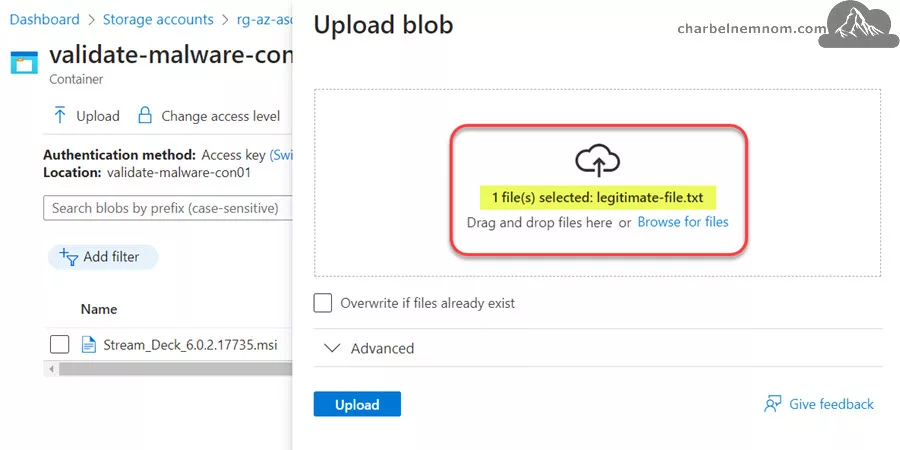
To validate that the setup has succeeded, you can upload a file directly to the relevant storage account protected by Defender for Storage (for example, by using the Azure portal to upload a block blob).
After you upload a blob, click on it, on the Overview page scroll down and you will see the results on the Blob index tags view as shown in the figure below. This blob metadata is a useful way to see results. You can see two new index tags called “Malware Scanning scan result” and “Malware Scanning scan time“.

If you don’t see the index tags immediately, click the “Refresh” button because it might take a couple of seconds for the scan to be completed.
Please note that index tags are NOT supported for Azure Data Lake Storage (ADLS) Gen2 storage accounts.
Next, let’s validate a malware upload. Instead of using real malware, which could cause damage, you can use a simulated malware file. An EICAR test file will be treated as malware by all standardized antimalware software.
As a side note, the European Institute for Computer Antivirus Research (EICAR) and the Computer Antivirus Research Organization (CARO) jointly developed a standard test file protocol called the “EICAR test file” which allows users to test their antivirus solution. The EICAR file is completely benign; however, when scanned, compliant antivirus solutions report the file in the same way as an actual malicious file. This does not mean that the computer is infected with malware, but rather it shows that the computer’s antivirus is functioning as expected (read more about the EICAR test file).
Now, before creating the EICAR test file, you need to exclude an empty folder where you want to store the file, so your endpoint antivirus protection won’t delete the file. If you’re using Microsoft Defender for Endpoint (MDE), check this guide on how to add an exclusion to Windows Security. You might want to exclude that folder for testing purposes only.
Next, copy the string below into a text file, and save it to the excluded folder.
X5O!P%@AP[4\PZX54(P^)7CC)7}$EICAR-STANDARD-ANTIVIRUS-TEST-FILE!$H+H*Then upload the EICAR text file to your storage account container.
You should now see the index tag called “Malware Scanning scan result” has the value “Malicious” as shown in the figure below. Again, if you don’t see these tags immediately, click the “Refresh” button.

You will also receive a Microsoft Defender for Cloud security alert. To see the alert, go to “Microsoft Defender for Cloud“, and then click on “Security alerts“.
As shown in the figure below, you’ll see a “High” severity alert called “Malicious file uploaded to storage account“. You can click it to see the full alert details.

Or select Take Action and follow the recommended actions to mitigate this threat.

If you have configured email notifications for security alerts, or if you’ve already integrated Defender for Cloud with Azure Monitor, then you will also receive a notification based on the action group that you specified.

In this example, we are using email notifications. You can find more details on how to integrate Microsoft Defender for Cloud with Azure Monitor.
And if no action was taken on the malicious file, you’ll still keep receiving security alerts from Azure Monitor.
Consume Malware Scanning Results
Malware Scanning scan results in Defender for Storage are available in four methods:
- Blob index tags
- Microsoft Defender security alerts
- Scan results in Event Grid
- Scan results in Logs Analytics
After you set up Malware Scanning in Defender for Storage, you will see results in blob index tags for every file uploaded to the storage account, and Microsoft Defender security alerts when Malware Scanning identifies the file as malicious as described in the previous validate section.
You may also choose to consume additional scan result methods – in Event Grid and Log Analytics – that require additional configuration.
In this section, you’ll learn how to configure and consume Malware Scanning in Event Grid and Log Analytics.
Scan results in Event Grid
Azure Event Grid is useful for event-driven automation. It is the fastest method to get results and minimize latency.
Scan results can be configured to be sent to an Event Grid custom topic which needs to be created in advance – please check the Event Grid documentation on creating custom topics.
Please note that the destination Event Grid custom topic must be created in the same region of the storage account you wish to send Malware Scanning results from.
To configure the Event Grid custom topic destination, you need to navigate to the relevant storage account and open the “Microsoft Defender for Cloud” tab, then click “Settings” and select “Send scan results to Event-Grid topic” as shown in the figure below.

Events from Event Grid custom topics can be consumed with multiple endpoint types. The most useful for Malware Scanning scenarios are:
- Function App – which uses a serverless function to run code for the automated response.
- WebHook – to connect an application.
- Event Hub.
- Service Bus Queue.
Learn more on how to consume events from Event Grid.
Scan results in Logs Analytics
You may also want to log your scan results. This is useful for audit and compliance evidence, as well as for investigating scan results easily. You can store every scan result in a centralized log repository which is easy to query by setting up Log Analytics Workspace destination.
To start sending scan results to diagnostic settings, you’ll need to create a Log Analytics workspace or use an existing one. Check how to create Log Analytics workspaces in Azure Monitor. You can adjust the date retention
To configure the Log Analytics as a destination, you need to navigate to the relevant storage account and open the “Microsoft Defender for Cloud” tab, then click “Settings” and select “Send scan results to Log Analytics” as shown in the figure below.

Then you can run the following Kusto Query Language (KQL) query to see the scan results in Log Analytics.
The table used to store logs for malware scans performed by the Malware Scanning feature of Defender in Storage is called “StorageMalwareScanningResults“.
StorageMalwareScanningResults
| sort by TimeGenerated asc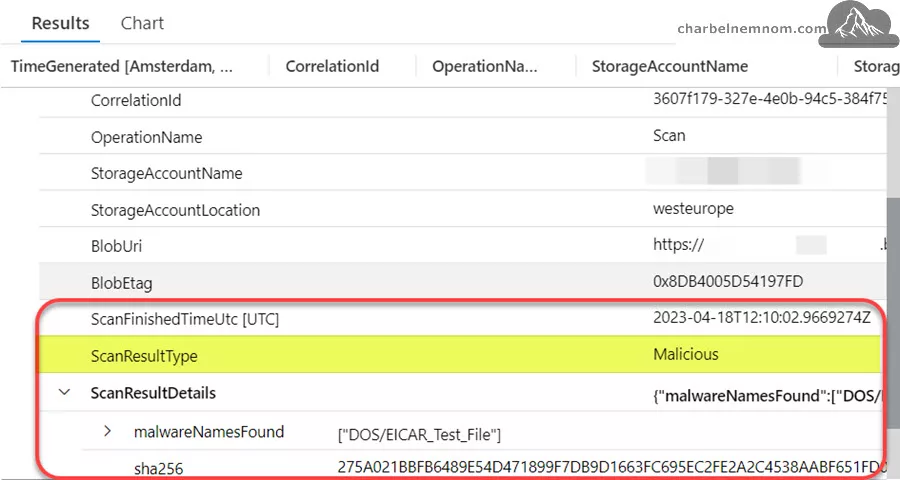
In case you don’t want to enable Defender for Storage on the subscription level, you can still enable Defender for Storage on the storage account level as described in the previous section, and then choose whether you want to send scan results to the Event-Grid topic or to Logs Analytics workspace.
Configure Automated Response
Now before you configure automated response, you need to prepare your environment whether you want to delete the malicious file or you want to move it (quarantine) the file.
To ensure that you can recover files in case of false positives or when investigating malicious files, it is advisable to enable soft delete on the storage account before setting up automatic deletion. This will allow you to “undelete” files if needed. When you create a new storage account, soft delete is enabled by default under Data protection, learn more about soft delete for blobs.
Instead of deletion, you can move the malicious files to a dedicated “quarantine” storage container with restricted access for security admin or SOC analysts. It’s recommended to use Azure AD RBAC to control container-level access. If necessary, move the file to a different storage account and only grant Azure AD permission to access the “quarantined” storage account. Avoid using SAS (shared access signatures) tokens on the protected storage account.
To set up automation, you have two options as follows:
Option 1: Workflow automation for Microsoft Defender for Cloud alerts – This option is based on Logic App which is simple and no code is required to setting up automated responses. However, the response time is slower than the event-driven code-based approach (See option 2 below). You can deploy the following DeleteBlobLogicApp Azure Resource Manager (ARM) template using the Azure portal.
Next, you need to add an Azure role assignment of the Logic App (Managed Identity) to allow it to delete blobs from your storage account.

Next, go to your storage account Access Control (IAM) and give the Logic App Storage Blob Data Contributor role as shown in the figure below.

Next, go to Microsoft Defender for Cloud dashboard and select Workflow automation under Management in the side menu.
Then click + Add a new workflow. Give a name to the workflow, define the scope for the automation, then choose the resource group in which the Workflow automation will be stored.
In the Alert name contains field, you need to fill in the following text: “Malicious file uploaded to the storage account“, and lastly choose your Logic app in the Actions section as shown in the figure below.

// See Also: Workflow Automation in Microsoft Defender for Cloud.
Option 2: You can build a Function App based on Event Grid events. A Function App provides high performance with a low latency response time. When you write the Azure Function code, you can use Microsoft premade function sample – MoveMaliciousBlobEventTrigger, or write your own code to copy the blob elsewhere, then delete it from the source using ‘.NET‘.
> Learn more about setting up an automated response to Malware Scanning in Microsoft Defender for Storage.
Pricing
Defender for Storage costs $10/storage account/month for activity monitoring (log analysis-based threat detection).
Storage accounts that exceed 73 million monthly transactions will be charged $0.1492 for every 1 million transactions that exceed the threshold.
The Malware Scanning (add-on) is free during the public preview only. Sensitive data threat detection is completely free.
The Malware Scanning is billed per GB scanned. To provide cost predictability, Malware Scanning supports setting a cap on the amount of GB scanned in a single month per storage account. This setting can be set at the subscription level to apply to each storage account in the subscription, or you can set it for a specific storage account.
The default value for each storage account is 5000 GB per month, and after crossing this limit, blobs won’t be scanned (with up to a 20-GB confidence interval).
Starting on September 1st, 2023, Malware Scanning will be priced at $0.15 (USD) per GB of data scanned. Billing for Malware Scanning is not enabled during public preview and advanced notice will be given before billing starts.
> Learn more about Microsoft Defender for Cloud pricing.
Known Limitations
At the time of this writing, the following is the list of known limits for Malware Scanning in Defender for Storage and Microsoft is actively working on them:
- Legacy v1 storage accounts aren’t supported. You need to have v2 storage accounts.
- Azure Files isn’t supported for Malware Scanning. Stay Tuned!
- Client-side encrypted blobs aren’t supported (they can’t be decrypted before scanning by the service). The data encrypted at rest by Customer Managed Keys (CMK) is supported.
- The file size limit for scanning is 2 GB.
- The “capping” capability is currently not functional. You can set your limitations now, and they’ll start working when “capping” is fully functional.
- The Malware Scanning scan throughput rate limit is per storage account @ 2GB/min.
- Uploading at a higher rate results in a slow-down scan – the files are scanned later.
- Index tag scan result isn’t supported in storage account with Hierarchical namespace enabled (Azure Data Lake Storage Gen2).
- Append and Page blobs aren’t supported for Malware Scanning.
FAQs
If the scan detects malware, will it provide any automatic response to restrict access to the blob containing the malware?
You can configure your own automation and take appropriate action (delete the blob, move it to a quarantine container, etc.). See how to configure automated response.
Is the solution going to be performance heavy?
No, the scanning has minimal impact on storage IOPS.
For every blob that is uploaded to the account, the solution adds a read operation and an index tag update operation. The limit on blob accounts is 20K transactions per second, so, depending on the workload of the application, the added operations in most cases are negligible.
I believe the malware scan result is incorrect. How do I report it to Microsoft for review?
If you have a file that you suspect might be malware (false-positive or false-negative) or is being incorrectly detected, you can submit it to Microsoft for analysis through the sample submission portal here. Then select “Microsoft Defender for Storage” as the Source. For more information, see https://aka.ms/submitfile.
Summary
In this article, we showed you how to protect your Azure Storage account in Microsoft Defender for Cloud by using the latest Malware Scanning capability.
Malware Scanning in Defender for Storage helps you to protect storage accounts from malicious content, especially when the content in the storage account is obtained from untrusted sources (customers and partners, anonymous users, etc.)
Or your organization requires to adhere to compliance standards that require on-upload malware scanning such as NIST, SWIFT, UK GOV, and more, and you need to collect the necessary evidence for compliance audits.
The Defender for Storage plan includes:
- Activity Monitoring (GA).
- Sensitive data threat detection (preview feature, new plan only, free).
- Malware Scanning (preview feature, new plan only, free during public preview).
Malware Scanning is a paid add-on feature to Defender for Storage, currently available for Azure Blob Storage only. It leverages MDAV (Microsoft Defender Antivirus) to do a full malware scan, with high efficacy. It is significantly more comprehensive than only file hash reputation analysis.
The Activity Monitoring feature in Defender for Storage includes blob/file hash reputation analysis only.
> Learn more about Microsoft Defender for Storage.
__
Thank you for reading my blog.
If you have any questions or feedback, please leave a comment.
-Charbel Nemnom-

Hello,
If I am enabling the defender for storage for the first time will the malware scanning scan entire GB in the different blob storage if i have not enabled the capping?
Because of this will there be shocking charges on my bill as the malware scanning scanned 1000s of TB in different storage accounts?
Hello Rik, thanks for the comment and the great question!
No, Malware scanning in Defender for Storage works after you enable it. This means that it will start scanning on-upload.
When a blob is uploaded to a protected storage account – a malware scan is triggered. All upload methods trigger the scan.
This will not scan the different blob storage that you already have.
It’s always a good practice to enable the “capping” mechanism if you know how much do you approximately upload per month.
Hope it helps!