
Azure Firewall is a managed stateful firewall that works from the Open Systems Interconnection (OSI) Layer 3 to Layer 7 perspective. It is an excellent PaaS service, but it is also expensive. Building lab environments is time-consuming, and occasionally, you need to test specific features and then delete the firewall. You want to avoid re-deploying the same configuration whenever you need an Azure firewall.
The good news is that Azure Firewall can be stopped (deallocated) and started (allocated) without impacting its configuration. In this article, we will show you how to automate the stop and start of Azure Firewall with PowerShell and Azure Automation Accounts so you can schedule it to run based on your needs and save money.
Disclaimer: This article is written for lab environments and testing scenarios; it’s NOT recommended for production. The Azure Firewall should always be running and active in production.
Table of Contents
Introduction
Azure Firewall is a stateful firewall, which means that it understands sessions. For example, suppose we’re using a connection-oriented protocol like TCP. In that case, the firewall understands that a request will come in through the firewall to reach a server, and then the server will respond, and the firewall will understand that the response is associated with the request.
Azure Firewall protects inbound and outbound traffic from anywhere to your virtual networks and workloads. It functions with other Azure security tools, mainly application security groups, network security groups, and application gateways.

Some additional value propositions of Azure Firewall include tapping into the Microsoft Threat Intelligence. This means Azure Firewall is aware of known malicious IP addresses and domains and can protect your services from seeing that malicious traffic.
Microsoft charges the Azure Firewall based on the SKU (Basic, Standard, or Premium), the amount of time (per minute and NOT per hour) that the firewall is provisioned and available, and the amount of data processed by the firewall for all the three SKUs (Basic, Standard, or Premium).
Additionally, we have Azure Firewall Manager (firewall policy) that costs $100 per policy in the Azure region (Central US) per month. For example, if the firewall policy is used across three Azure regions, the price would be $300 monthly. Last, we also have the policy analytics enablement option, which costs $250 per monthly policy for (Central US). As you can see, the price could go up very quickly.
For detailed information regarding the price of Azure Firewall, check the official pricing page here.
What about if you have an Azure Firewall that does not require availability 24h/7d, or you want to test it before you put it in production and are limited on a budget? Can you save costs? The answer is YES!
Note: The Stop and Start of Azure Firewall is documented officially in the Azure Firewall FAQ guide.
Let’s see how to automate this in action…
Related: Check how to automate the Stop and Start of Azure Application Gateway.
Prerequisites
To follow this article, you need to have the following:
1) Azure subscription – If you don’t have an Azure subscription, you can create one here for free.
2) You need at least one static public IP address with Standard SKU for Azure Firewall. You also need an additional public IP to enable management NIC and force tunneling. Firewall Management NIC separates Firewall management traffic from customer traffic. In this case, a dedicated subnet is required with its own associated public IP address that will be used exclusively by the Azure platform and can’t be used for any other purpose. You can create new public IPs by running the following Azure CLI commands:
az network public-ip create -n AzFw-Pip001 -g resourceGroupName --allocation-method Static --sku Standard

az network public-ip create -n AzFw-Mgmt-Pip001 -g resourceGroupName --allocation-method Static --sku Standard
3) Azure Firewall up and running (Basic or Standard or Premium) – If you don’t have an Azure Firewall, you can follow this tutorial to deploy Azure Firewall.
- You need a virtual network and dedicated subnet for Azure Firewall named (AzureFirewallSubnet).
- For Firewall Management NIC, you also need a dedicated subnet named (AzureFirewallManagementSubnet).
4) We must create a custom RBAC role for the Azure Firewall with write permissions. This custom RBAC role will be assigned to the managed identity of the Automation Accounts so we can stop and start the firewall with the principle of least privilege (more on this below).
5) To create custom roles, you must have the Owner or User Access Administrator role on the subscription where Azure Firewall is deployed.
Assuming you have all the prerequisites in place, take the following steps:
Create a Custom RBAC role for Azure Firewall
As mentioned, the Automation Account Managed Identity that we’ll create in the next step must have the following minimum permissions (as a custom role) on the resource group level where the Azure Firewall was created:
- “
Microsoft.Network/publicIPAddresses/read“ - “
Microsoft.Network/virtualNetworks/read“ - “
Microsoft.Network/azureFirewalls/read“ - “
Microsoft.Network/azureFirewalls/write“ - “
Microsoft.Network/firewallPolicies/join/action“
Azure Firewall does NOT have a built-in Azure role-based access control (Azure RBAC) by default, so we need to create a custom role with a minimum level of permissions to automate the start and stop of our Azure Firewall instance.
You can create Azure custom roles using the Azure Portal, CLI, REST API, ARM template, Bicep, or PowerShell. In this example, we’ll use the PowerShell command below to create a custom role with the above minimum permissions. The custom RBAC role could be created at the subscription or management group level.
If you don’t have the Azure PowerShell module installed on your machine, open the Cloud Shell at (https://shell.azure.com), sign in with your account, and ensure the environment is set to PowerShell. Then, copy the PowerShell code and paste it into the Cloud Shell prompt to run it and create a new custom role. Please make sure to replace the {groupID} or the {subscriptionId} variables below with the appropriate value of your Management Group ID or Subscription ID:
# Create Azure Firewall Custom RBAC Role (Read/Write)
$role = Get-AzRoleDefinition -Name "Automation Runbook Operator"
$role.Id = $null
$role.Name = "Azure Firewall Custom Role for Azure Automation"
$role.Description = "Automate Stop and Start of Azure Firewall with Azure Automation Accounts."
$role.IsCustom = $True
$role.Actions.RemoveRange(0,$role.Actions.Count)

# Add Action to get a public IP address definition
$role.Actions.Add("Microsoft.Network/publicIPAddresses/read")
# Add Action to get the virtual network definition
$role.Actions.Add("Microsoft.Network/virtualNetworks/read")
# Add Action to get Azure Firewall definition
$role.Actions.Add("Microsoft.Network/azureFirewalls/read")
# Add Action to start and stop Azure Firewall
$role.Actions.Add("Microsoft.Network/azureFirewalls/write")
# Add Action to joins a Firewall Policy. Not alertable
$role.Actions.Add("Microsoft.Network/firewallPolicies/join/action")
$role.AssignableScopes.Clear()

# Please make sure to replace the {groupID} variable below with the appropriate value of your Management Group ID
# $role.AssignableScopes.Add("/providers/Microsoft.Management/managementGroups/{groupID}")

# Please make sure to replace the {subscriptionID} variables with the appropriate value of your subscription
$role.AssignableScopes.Add("/subscriptions/{subscriptionID}")

New-AzRoleDefinition -Role $role
Once you run the script above, you should receive a similar output to the one below.
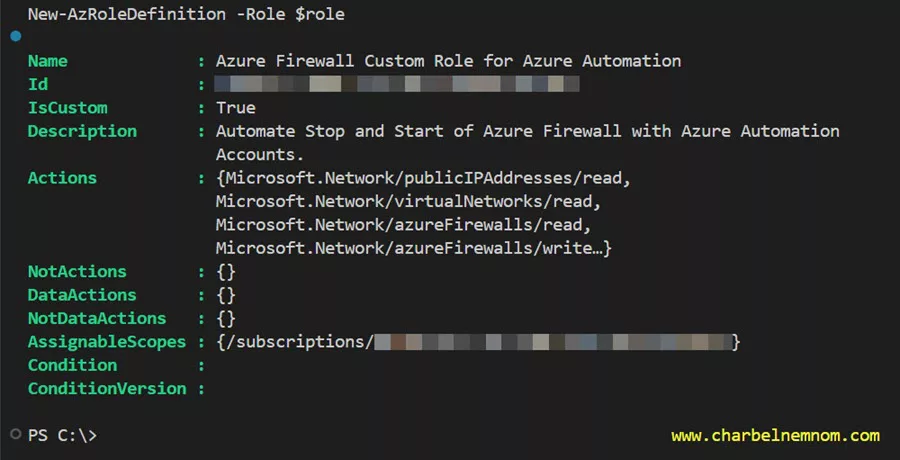
If we switch to the Azure portal, we go to Roles under Access control (IAM), search for the newly created custom role (i.e., Azure Firewall Custom Role for Azure Automation), and click on View details. You should see the following five permissions assigned to this custom role.

You can confirm the same by running the following PowerShell command:
Get-AzRoleDefinition -Name "Azure Firewall Custom Role for Azure Automation"
You could also remove the custom role created in the previous step by running the following PowerShell command:
Remove-AzRoleDefinition -Name "Azure Firewall Custom Role for Azure Automation" -ForceCreate Automation Account
Creating an Automation Account creates a new service principal in Microsoft Entra ID (formerly Azure AD) by default. Next, you must assign the appropriate (Azure RBAC) role to allow access to Azure Firewall for the service principal at the resource group level where the firewall is deployed.
In this example, we assigned the Azure Firewall Custom role we created above to the managed identity at the resource group level. When assigning permissions, always remember to use the principle of least privilege (PoLP).

If you have an existing Automation Account with system-assigned managed identity enabled, skip this step and jump to the “Create PowerShell Runbook” section.

Open the Azure portal and click All Services in the upper left-hand corner. In the list of resources, type Automation. As you begin typing, the list filters based on your input. Select Automation Accounts.
Click +Add. Enter the automation account name, and choose the right subscription, resource group, and location. A system-assigned managed identity is selected by default, as shown in the figure below.

Then select Review + Create and click Create.
Create PowerShell Runbooks
In this step, we create multiple Runbooks based on which set of Azure Firewalls you want to automate. PowerShell Runbooks are based on PowerShell, including Azure CLI and Python. You can directly edit the runbook’s code using the text editor in the Azure portal. Alternatively, you can use any offline text editor, such as Visual Studio Code, and import the Runbook into Azure Automation.
In this example, we will create two Runbooks as PowerShell types; the first will ‘Stop‘, and the second will ‘Start‘ the Azure Firewall under a specific Subscription and Resource Group.
From your automation account, select Runbooks under Process Automation. Click the ‘+ Create a runbook‘ button to open the Create a runbook blade, as shown in the figure below.
Please make sure to select the right runtime PowerShell version. This example will use the latest PowerShell Az modules targeting the 7.2 runtime version. The first runbook will be to stop the Azure Firewall instance.
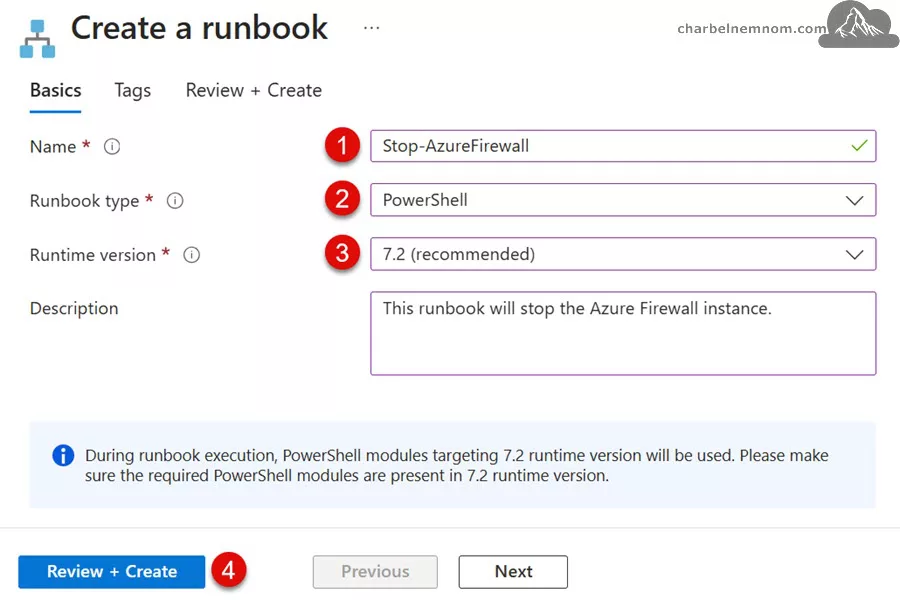
Next, select Review + Create and click Create.
We must repeat the same process to create another runbook to start the Azure Firewall because the PowerShell code will differ, and we need to set a different schedule to start the Azure Firewall instance.

You can create as many Runbooks as you want based on your scenario.
Edit the Stop Azure Firewall Runbook
Once you have created the “Stop-AzureFirewall” runbook, you must edit it and add the script below. As mentioned earlier, we will create a Runbook to connect to our Azure account using the subscription ID, resource group name, and Azure Firewall name you specified; then, it checks to get the Azure Firewall definition and then deallocate (stop) it.
The automation runbook is as follows:
<#
.SYNOPSIS
Stop-AzureFirewall.ps1 script will stop the Azure Firewall in a specific Azure region.

.DESCRIPTION
This script will stop the Azure Firewall in a specific Azure region. The script will deallocate the Azure Firewall and release the public IP addresses.

.NOTES
File Name : Stop-AzureFirewall.ps1
Author    : Microsoft MVP/MCT - Charbel Nemnom
Version   : 1.0
Date      : 26-November-2024
Updated   : 27-November-2024
Requires  : PowerShell PowerShell 7.x.x (Core)
Module    : Az Module
Service   : Automation Accounts

.LINK
To provide feedback or for further assistance please visit:
https://charbelnemnom.com
#>

param (
    [Parameter(Position = 0, Mandatory = $true, HelpMessage = 'Enter Azure Subscription ID')]
    [string]$subscriptionId,
    [Parameter(Position = 1, Mandatory = $true, HelpMessage = 'Enter Resource Group Name where Microsoft Sentinel is deployed')]
    [string]$rgName,
    [Parameter(Position = 2, Mandatory = $true, HelpMessage = 'Enter Log Analytics Workspace Name')]
    [string]$azFwName
)

# Ensures you do not inherit an AzContext in your runbook
Disable-AzContextAutosave -Scope Process

#! Check Azure Connection
Try {
    Write-Output "Connecting to Azure Cloud..."
    # Connect to Azure with system-assigned managed identity (automation account)
    Connect-AzAccount -Identity -ErrorAction Stop | Out-Null
}
Catch {
    Write-Warning "Cannot connect to Azure Cloud. Please check your managed identity Azure RBAC access. Exiting!"
    Break
}

# Set Azure Subscription context
Set-AzContext -Subscription $subscriptionId

# Get Azure Firewall
Write-Output "Getting the Azure Firewall instance: [$($azFwName)]"
$azfw = Get-AzFirewall -Name $azFwName -ResourceGroupName $rgName

# Stop Azure Firewall
Write-Output "Stopping the Azure Firewall instance: [$($azFwName)]"
$azfw.Deallocate()
Set-AzFirewall -AzureFirewall $azfw
Save the script in the CMDLETS pane, as shown in the figure below.

Then, test the runbook using the “Test pane” and fill in all the required parameters to verify it works as intended before publishing it. You must manually supply the following three mandatory parameters on the Test page and then click the Start button to test the automation script.
- SUBSCRIPTIONID: Mandatory
- RGNAME: Mandatory
- AZFWNAME: Mandatory

Once this runbook triggers, the provisioning status changes to Succeeded in approximately 13 minutes. Then, Azure Firewall and its billing operations are stopped, as shown in the figure below. All private and public IP addresses are deallocated.

Once the test is completed successfully, you must publish the Runbook by clicking the Publish button and then confirm with Yes. This is a very important step.
Edit the Start Azure Firewall Runbook
Once you have created the “Start-AzureFirewall” runbook, you must edit it and add the script below. As mentioned earlier, we will create a second Runbook to connect to our Azure account using the subscription ID, resource group name, Azure Firewall name, and the Public IP addresses you assigned; then, it checks to get the Azure Firewall definition and allocates (starts) it.
The automation runbook is as follows:
<#
.SYNOPSIS
Start-AzureFirewall.ps1 script will start the Azure Firewall in a specific Azure region.

.DESCRIPTION
This script will start the Azure Firewall in a specific Azure region. The script will allocate the Azure Firewall and assign the public IP addresses including management NIC.

.NOTES
File Name : Start-AzureFirewall.ps1
Author    : Microsoft MVP/MCT - Charbel Nemnom
Version   : 1.0
Date      : 26-November-2024
Updated   : 27-November-2024
Requires  : PowerShell PowerShell 7.x.x (Core)
Module    : Az Module
Service   : Automation Accounts

.LINK
To provide feedback or for further assistance please visit:
https://charbelnemnom.com
#>

param (
    [Parameter(Position = 0, Mandatory = $true, HelpMessage = 'Enter Azure Subscription ID')]
    [string]$subscriptionId,
    [Parameter(Position = 1, Mandatory = $true, HelpMessage = 'Enter Resource Group Name where Microsoft Sentinel is deployed')]
    [string]$rgName,
    [Parameter(Position = 2, Mandatory = $true, HelpMessage = 'Enter Log Analytics Workspace Name')]
    [string]$azFwName,
    [Parameter(Position = 3, Mandatory = $true, HelpMessage = 'Enter the first Public IP Address Name for the Azure Firewall')]
    [string]$publicIp1,
    [Parameter(Position = 4, Mandatory = $false, HelpMessage = 'Enter the second Public IP Address Name for the Azure Firewall')]
    [string]$publicIp2,
    [Parameter(Position = 5, Mandatory = $false, HelpMessage = 'Enter the Management NIC Public IP Address Name for the Azure Firewall')]
    [string]$mgmtPublicIp
)

# Ensures you do not inherit an AzContext in your runbook
Disable-AzContextAutosave -Scope Process

#! Check Azure Connection
Try {
    Write-Output "Connecting to Azure Cloud..."
    # Connect to Azure with system-assigned managed identity (automation account)
    Connect-AzAccount -Identity -ErrorAction Stop | Out-Null
}
Catch {
    Write-Warning "Cannot connect to Azure Cloud. Please check your managed identity Azure RBAC access. Exiting!"
    Break
}

# Set Azure Subscription context
Set-AzContext -Subscription $subscriptionId

# Get and validate Azure Firewall
Write-Output "Getting the Azure Firewall instance: [$($azFwName)]"
$azfw = Try {
    Get-AzFirewall -Name $azFwName -ResourceGroupName $rgName -ErrorAction Stop
} Catch {
    Write-Warning "Failed to retrieve Azure Firewall instance [$($azFwName)] in resource group [$($rgName)]. Exiting!"
    Break
}

# Get and Validate Virtual Network
Write-Output "Getting the Virtual Network definition for the Azure Firewall: [$($azFwName)]"
$vnet = Try {
    Get-AzVirtualNetwork -ResourceGroupName $rgName -ErrorAction Stop
} Catch {
    Write-Warning "Failed to retrieve Virtual Network in resource group [$($rgName)]. Exiting!"
    Break
}

# Get Public IP Addresses
Write-Output "Getting the first Public IP Address definition: [$($publicIp1)]"
$pip1 = Get-AzPublicIpAddress -ResourceGroupName $rgName -Name $publicIp1

if ($null -ne $publicip2) {
    Write-Output "Getting the second Public IP Address definition: [$($publicIp2)]"
    $pip2 = Get-AzPublicIpAddress -ResourceGroupName $rgName -Name $publicIp2
}

if ($null -ne $mgmtPublicIp) {
    Write-Output "Getting the management NIC Public IP Address definition: [$($mgmtPublicIp)]"
    $mgmtpip = Get-AzPublicIpAddress -ResourceGroupName $rgName -Name $mgmtPublicIp
}

if ($null -eq $publicip2 -and $null -eq $mgmtPublicIp) {
    $azfw.Allocate($vnet, $pip1)
}
elseif ($null -eq $publicip2 -and $null -ne $mgmtPublicIp) {
    $azfw.Allocate($vnet, $pip1, $mgmtpip)
}
elseif ($null -ne $publicip2 -and $null -eq $mgmtPublicIp) {
    $azfw.Allocate($vnet, @($pip1, $pip2))
}
elseif ($null -ne $publicip2 -and $null -ne $mgmtPublicIp) {
    $azfw.Allocate($vnet, @($pip1, $pip2), $mgmtpip)
}

# Start Azure Firewall
Write-Output "Starting the Azure Firewall instance: [$($azFwName)]"
Set-AzFirewall -AzureFirewall $azfw
Save the script in the CMDLETS pane, as shown in the figure below.

Then, test the runbook using the “Test pane” and fill in all the required parameters to verify it works as intended before publishing it. You must manually supply the following four mandatory parameters on the Test page and then click the Start button to test the automation script. If you have assigned a second public IP address to the Azure Firewall and the Management NIC, you can also add those parameters as optional.
- SUBSCRIPTIONID: Mandatory
- RGNAME: Mandatory
- AZFWNAME: Mandatory
- PUBLICIP1: Mandatory
- PUBLICIP2: Optional
- MGMTPUBLICIP: Optional
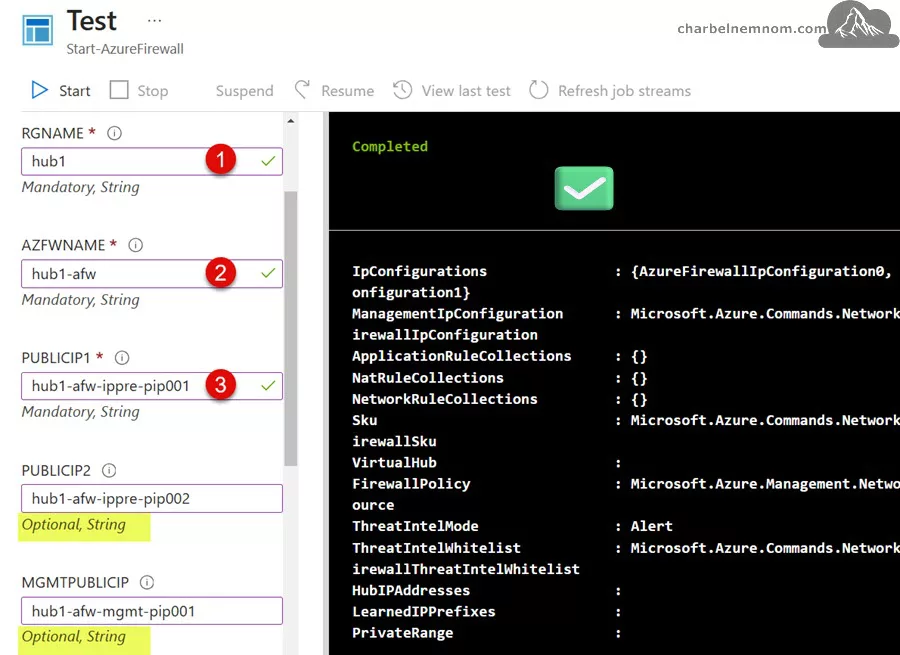
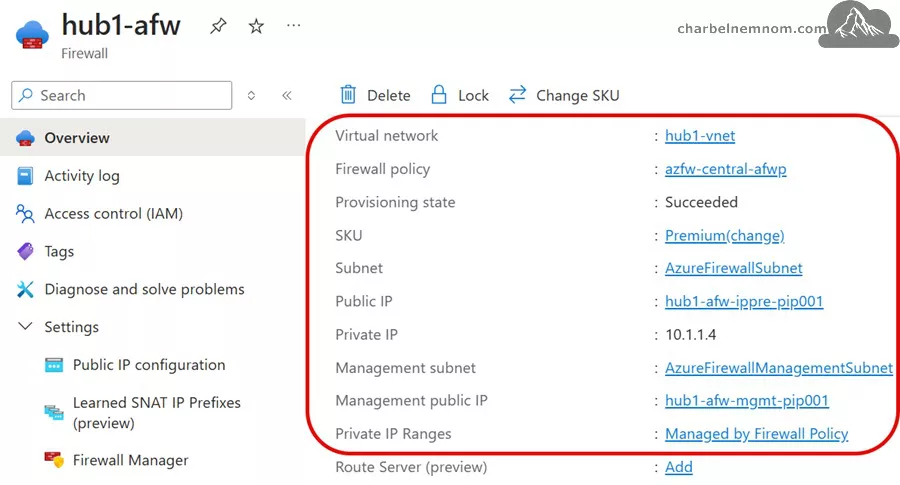
Once this runbook triggers, the provisioning status changes to Succeeded in approximately 13 minutes. Then, Azure Firewall and its billing operations are started. As shown in the figure below, we can see the Virtual Subnet, Private, Public, and Management NIC public IP addresses.
Once the test is completed successfully, you must publish the second Runbook by clicking the Publish button and then confirm with Yes. This is a very important step.
Schedule the Runbook
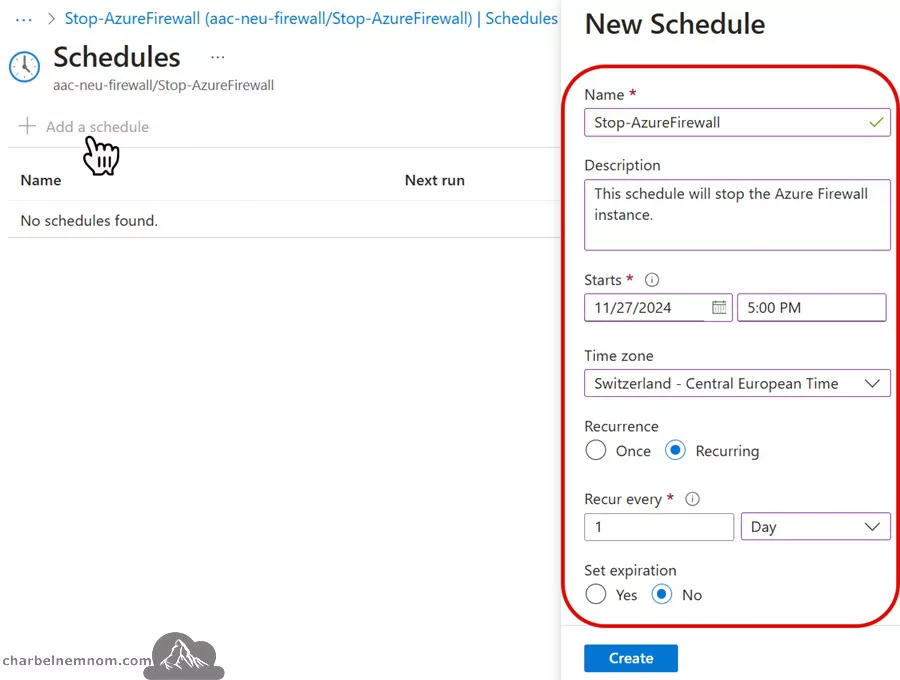
In the final step, you can schedule the runbook to run when you want to stop and start the Azure Firewall based on your desired runtime schedule.
Select the Schedules page within both Runbooks we created in the previous step, then click + Add Schedule. If you need to schedule a daily stop, then you create a new schedule that looks similar to the one below:
While scheduling the Runbook, we must set the required parameters for the PowerShell script. In this example, we must specify the Azure Subscription ID, Resource Group Name, and Azure Firewall Name for the “Stop-AzureFirewall” runbook. Once done, click OK twice.
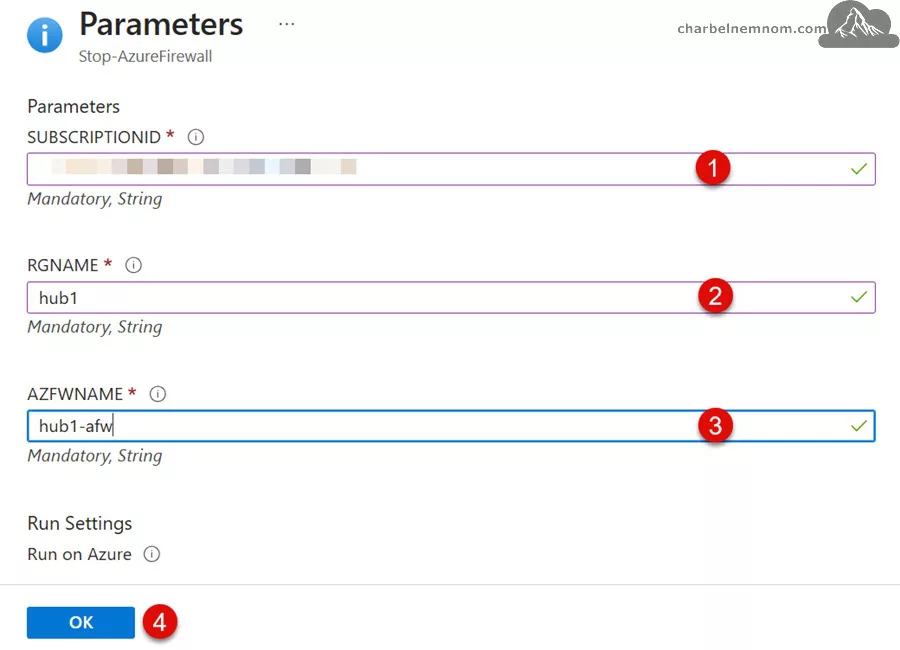
You want to repeat the same steps to create a schedule for the second Runbook to ‘Start‘ the Azure Firewall based on your desired schedule. Here, you must specify the Azure Subscription ID, Resource Group Name, Azure Firewall Name, and the Public IP address(es) for the “Start-AzureFirewall” runbook. Once done, click OK twice.

Our schedule looks like this:

Monitor the Runbook
Last, you can test and monitor the Runbook from the “Jobs” page of Runbooks under the Resources section. Then, look for the Output, Errors, Warnings, and All Logs, as shown in the figure below.

That’s it, there you have it. Happy Automating the start and stop of Azure Firewall!
In Conclusion
Automating the stop and start of Azure Firewall can significantly reduce costs, especially in lab and testing environments where continuous availability is unnecessary. Following the steps outlined in this article, you can create a streamlined process using Azure Automation Accounts and PowerShell Runbooks, ensuring that your firewall configurations remain intact while optimizing expenses.
This approach exemplifies the flexibility and scalability of Azure services, enabling organizations to adapt their resources to specific needs without compromising efficiency. However, always remember that this solution is intended for non-production scenarios. Maintaining a running and active Azure Firewall in production environments is critical to ensuring uninterrupted security and protection.
The deallocation and allocation methods preserve the Azure Firewall configuration, which is a great way to save a lot of costs in labs and testing environments where the Firewall does not have to be serviced constantly.
Related: Check out designing and implementing Microsoft Azure Networking solutions.
__
Thank you for reading our blog.
Please let us know in the comments section below if you have any questions or feedback.
-Charbel Nemnom-
