
Like all SIEM systems, the Microsoft Sentinel SIEM/XDR product relies heavily on the consistent flow of logs and data from relevant security sources. A typical Microsoft Sentinel workspace can include 15 or more categories of data sources. These may include streaming logs from Windows/Linux servers and firewalls, service-based alerts from Microsoft native services such as Microsoft Entra ID and Defender XDR, and third-party services like Fortinet and Palo Alto.
Several options are available for monitoring data source ingestion into the Azure Log Analytics workspace where Microsoft Sentinel is installed, each with its own advantages and disadvantages. In this guide, we will present the most straightforward, flexible, and reliable method for monitoring data ingestion. This is particularly important when log sources stop sending data to Microsoft Sentinel, as it may indicate an outage that requires further investigation.
Table of Contents
Monitor Data Connectors
Microsoft Sentinel is a cloud-native solution for Security Information and Event Management (SIEM) and Security Orchestration, Automation, and Response (SOAR) offered by Microsoft. It delivers intelligent security analytics and threat intelligence throughout the organization, providing a comprehensive solution for alert detection, threat visibility, proactive threat hunting, and incident response. Being cloud-native, it easily scales to meet an organization’s increasing security demands while reducing the costs associated with maintaining in-house infrastructure.
Microsoft Sentinel utilizes Data Connectors to handle log ingestion. It comes with out-of-the-box connectors for Microsoft services, which are service-to-service connectors. Additionally, there are many built-in connectors for third-party services, which utilize Syslog, Common Event Format (CEF), or REST APIs to connect the data sources to Microsoft Sentinel.
In addition to logs from Microsoft native services and third-party services, Microsoft Sentinel can collect logs from Azure VMs and non-Azure VMs. The log collection is done via the new Azure Monitor Agent (AMA), which replaces the deprecated old Log Analytics Agent (MMA).
Detecting Data Source Outages
Security Operations teams use SIEMs and security tools such as Microsoft Sentinel and Microsoft Defender XDR to defend their IT and OT state against attackers. Larger organizations tend to amass huge amounts of data, ranging from hundreds of gigabytes to terabytes. Not all of this data has a security value at first sight. However, considering common patterns and trends can still allow defenders to detect missing logs and events that might have otherwise gone undetected.
All data sources and connectors in Microsoft Sentinel stream into a single location: the Azure Log Analytics workspace where Microsoft Sentinel is installed. Without a reliable method to detect when one or more data sources stop sending data, there is a risk that a data source will become inactive without anyone noticing, potentially leading to severe consequences. The ability to detect a serious or potential breach, such as a ransomware attack, could be compromised if the Security Information and Event Management (SIEM) system misses the critical indicator of compromise because the specific data source had ceased sending logs before the event, and this issue went unnoticed.

The state of the Data Connectors can be monitored with out-of-the-box solutions, such as the health monitoring workbook, or by creating a custom solution. The data collection health monitoring workbook is an out-of-the-box solution that provides insight regarding log ingestion status, anomaly detection, and the health status of Log Analytics agents.
The workbook consists of three tabs: Overview, Data collection anomalies, and Agents info. The Overview tab, as shown in the figure below, shows the general status of the log ingestions in the selected workspace. It contains data such as the Events per Second (EPS), data volume, and time of the last log received.

There is also a built-in Microsoft Sentinel feature called Sentinel Health to detect missing data sources and alert the security operation teams. This feature can be enabled in the Microsoft Sentinel > Settings menu, as shown in the figure below; however, Sentinel Health monitors a very limited set of data connectors. This is a good feature but is less useful in the present release due to the limited scope of data connector coverage.
As of this writing, the “SentinelHealth” data table currently supports only the following data connectors:
- Amazon Web Services (CloudTrail and S3)
- Dynamics 365
- Office 365
- Microsoft Defender for Endpoint
- Threat Intelligence – TAXII
- Threat Intelligence Platforms
- Any connector based on Codeless Connector Platform

You can also create one or more Microsoft Sentinel Analytics scheduled query rules to run KQL and check for missing data sources. This is a fine approach but requires managing the missing data source logic in parallel with the security detection ruleset, and you cannot use the union or search operator in the scheduled alert rule, which is by design.
A second approach would be using a single Azure Logic App, which avoids query rule sprawl and reduces the opportunity for error by consolidating all missing data source logic. However, this option depends on another Azure PaaS resource to manage and monitor and has a price tag; it could be complicated even if you imported a ready-made Azure Logic App template. As a side note, Azure Logic App is priced based on the number of steps included in the playbook.
Another more straightforward, cheaper (~ $0.5 per month), reliable alternative, and flexible approach is using the Azure Monitor alert rule capability with the combination of Microsoft Sentinel watchlist to monitor data source outages, which is the topic of our guide today.
Are you ready? Let’s dive in…
Prerequisites
To follow this guide, you need to have the following:
1) Azure subscription: If you don’t have an Azure subscription, you can create one here for free.
2) Log Analytics workspace: To create a new workspace, follow the instructions to create a Log Analytics workspace.
3) Microsoft Sentinel: You can enable Microsoft Sentinel at no additional cost on an Azure Monitor Log Analytics workspace for the first 31 days; follow the quick onboarding process. Once Microsoft Sentinel is enabled on your Azure Monitor Log Analytics workspace, every GB of data ingested into the workspace can be retained at no charge for 90 days.
4) At least one Data Connector is connected in Microsoft Sentinel.
5) Create a new watchlist (more on this in the next section).
6) Create a new Azure Monitor alert rule (more on this in the next section).
7) you must have the Microsoft Sentinel Contributor role to create and update Microsoft Sentinel watchlists.
8) To create Azure Monitor rules, you must have the Monitoring Contributor role.
9) Last, you must be familiar with Kusto Query Language (KQL).
Once you have all the prerequisites in place, take the following steps.
Monitor Data Connectors in Microsoft Sentinel
First, we must build and create our Microsoft Sentinel watchlist as a baseline, serving as our primary source of truth.
See Also: Monitor Log Flow For Devices in Microsoft Sentinel
Create a new Watchlist
Before we create our watchlist, we must prepare a new CSV file, which will include the table names that we need to monitor and the allowed threshold for each table that we need to set, which we need to compare to the actual log source that we receive in Microsoft Sentinel (more on this in a bit). As shown in the figure below, we need to have two columns, one column named “TableName” and the second one called “ThresholdInSeconds“.

Here are some tips on selecting the data sources to fill in the “TableName” column in the watchlist.
You can check the data sources at Microsoft Sentinel > Configuration > Data connectors, as shown in the figure below. The Data types list for the selected connector exposes the name of the Log Analytics table to use in the “TableName” column in the watchlist.

You can also browse the tables list under Logs or use the following KQL query “search * | distinct $table“, as shown in the figure below, to locate the table names to use in the Watchlist.

In summary, you must fill in all the data table names and the desired threshold in seconds for each table. For example, when the data stops flowing to the “SecurityEvent” table after 4 hours, equal to (4 hrs x 3,600 sec) = 14,400 seconds, the security operations teams must be alerted. You can adjust the desired threshold for each table based on your environment.
Another tip to help you determine the average ingestion latency for each table (threshold in seconds) is to use the Workspace Usage Report workbook and look for the “Latency” tab based on the last 24 hours, or you could run the following KQL query targetting the tables you specified in the Watchlist. In this example, the Watchlist name is called “wl_scs_ops_tables“. As shown in the output below and based on the “average E2E IngestionLatency (Seconds)” column, we could set the expected “ThresholdInSeconds” for each table in the Watchlist.
let TimeRange = 24h;
let watchlistTables =
    _GetWatchlist('wl_scs_ops_tables')
    | project TableName;
union withsource = TableName1 *
| where TableName1 in (watchlistTables) // Filter based on watchlist
| where TimeGenerated > ago(TimeRange)
| summarize
      ['average E2E IngestionLatency (Seconds)'] = round(avg(todouble(datetime_diff("Second",ingestion_time(),TimeGenerated)) ),2)
    , ['minimun E2E IngestionLatency (Seconds)'] = round(min(todouble(datetime_diff("Second",ingestion_time(),TimeGenerated)) ),2)
    , ['maximum E2E IngestionLatency (Seconds)'] = round(max(todouble(datetime_diff("Second",ingestion_time(),TimeGenerated)) ),2)
  by TableName = TableName1
| sort by ['average E2E IngestionLatency (Seconds)'] desc
| join kind= fullouter (watchlistTables) on TableName
| where isnotempty(TableName)
| project-away TableName1
Once you fill in all the data table names and the desired threshold in seconds for each table to be alert on, take the following steps:
1) Open the Azure Portal and sign in with a user who has Microsoft Sentinel Contributor permissions.
2) Click All Services, which is found in the upper left-hand corner. In the list of resources, type Microsoft Sentinel. As you begin typing, the list filters based on your input.
3) Click on Microsoft Sentinel and select the desired Log Analytics Workspace.
4) From Microsoft Sentinel’s sidebar, Select Watchlist under the Configuration section, then click + Add new, as shown in the figure below.

5) On the General page (Watchlist wizard), provide the watchlist’s name, description, and alias as shown in the figure below, and then select Next: Source >. The Watchlist alias name will be used as a reference later when we start building KQL queries.

On the Source page, a CSV file with a header is set as default (currently, only CSV is supported); then enter the number of lines before the header row in your CSV data file (0 in our example), and then choose the “.CSV” as a file to upload in one of two ways:
- You can click the Browse for files link in the Upload file box and select your CSV file to upload.
- Or, drag and drop your CSV file onto the Upload file box.
Please note that file uploads are currently limited to files of up to 3.8 MB in size.
Then, in the SearchKey field below, select the column name in the Watchlist so we can use it in the query to join with other data and perform a frequent search (more on this in a bit). In this example, the column name is “TableName“, as shown in the figure below. The Watchlist wizard will preview only the first 50 rows of results.
Click Next: Review and Create > to continue.

Finally, review the information, verify that it is correct, wait for the Validation passed message, and then click Create. Once the watchlist is created, you will receive a notification message on the Azure Portal, as shown in the figure below.

Please note that if more watchlist items are expected than those displayed under your Watchlists (Rows) field, please allow a few minutes for the data to be ingested into your workspace.
Create a new Azure Monitor Rule
As mentioned previously, Microsoft Sentinel Analytics scheduled query rules do not support using a union * or search operator, which is by design. This is needed to dynamically pull the list of tables from the Log Analytics workspace. As an alternative approach, we can use Azure Monitor alert rules to query dynamically the existing tables in the workspace and overcome this limitation instead.
Assuming you have the read permission on the target resource (Log Analytics workspace) of the alert rule and write permission on the resource group in which the alert rule is created, take the following steps:
Please note that you can also create an alert rule using the Azure CLI, PowerShell, or an ARM template. For this guide, we’ll use the Azure portal. By default, if you create the alert rule from the Azure portal, the rule is created in the same resource group as the target resource.
1) In the Azure portal, select Monitor. On the left pane, select Alerts. Select + Create > Alert rule, as shown in the figure below.

You can also create an alert rule directly from the Log Analytics workspace. Go to the Log Analytics workspace in the Azure portal, where the Microsoft Sentinel instance is activated.
On the left pane, select Alerts. Select + Create > Alert rule or Create custom alert rule, as shown in the figure below. The alert rule’s scope is set to the Log Analytics you selected.

Next, continue setting the conditions for the alert rule. On the Condition tab, when you select the Signal name field, select Custom log search, as shown in the figure below.

On the Logs pane, copy and paste the following KQL query to check and compare the last data ingested for each table defined in the Watchlist and return the details for which you want to create an alert.
// Title: Enhanced Monitoring for Microsoft Sentinel Data Connectors Log Ingestion
// Description: Ensure uninterrupted data ingestion monitoring, including fallback for inactive tables
// Author: Charbel Nemnom (MVP/MCT)
// Created on: 19.11.2024
// Last modified date: 06.12.2024
// Version: 1.1.2

// Step 1: Define the total time range to look back
let TimeRange = 24h;

// Step 2: Retrieve the list of defined tables and their thresholds from the watchlist
let watchlistTables =
    _GetWatchlist('wl_scs_ops_tables')
    | project TableName, ThresholdInSeconds = tolong(ThresholdInSeconds);

// Step 3: Union all relevant tables and include a fallback for inactive tables
let activeTables =
    union withsource = TableName1 *
    | where TableName1 in (watchlistTables | project TableName) // Filter based on watchlist
    | where TimeGenerated > ago(TimeRange) // Only consider recent logs
    | summarize last_log = datetime_diff("second", now(), max(TimeGenerated)) by TableName1;

// Step 4: Create a fallback for inactive tables
let fallbackTables = watchlistTables
    | where TableName !in (activeTables | project TableName1) // Identify inactive tables
    | extend last_log = 999999; // Assign a large value for fallback

// Step 5: Combine active and fallback tables, then check against thresholds
union activeTables, fallbackTables
| join kind=inner (watchlistTables) on $left.TableName1 == $right.TableName
| where last_log > ThresholdInSeconds1 // Show only tables exceeding their threshold
| extend
    last_log_hours = iff(
                         (last_log / 3600.0) % 1 > 0.8,
                         floor(last_log / 3600.0, 1) + 1,
                         round(last_log / 3600.0, 1)
                     ), // Add 1 to round up
    ThresholdInHours = iff(
                       (ThresholdInSeconds1 / 3600.0) % 1 > 0.8,
                       floor(ThresholdInSeconds1 / 3600.0, 1) + 1,
                       round(ThresholdInSeconds1 / 3600.0, 1)
                   ) // Add 1 to round up
| project
    ['Table Name'] = TableName1,
    ['Last Event Time (UTC)'] = format_datetime(now() - totimespan(last_log * 1s), "dd/MM/yyyy HH:mm:ss"),
    ['Last Record Received (Hours)'] = last_log_hours,
    ['Actual Last Record Received (Seconds)'] = last_log,
    ['Watchlist Threshold (Hours)'] = ThresholdInHours,
    ['Watchlist Threshold (Seconds)'] = ThresholdInSeconds1
| order by ['Last Record Received (Hours)'] desc
Note: To convert the [‘Last Event Time (UTC)‘] from UTC to your local current time, you can use the datetime_add() function in KQL. This function lets you add or subtract a specific amount of time to a “datetime” value. Assume your local timezone is UTC+1 (Central European Winter Time) or UTC+2 (Central European Summer Time). You would add 1 or 2 hours to the UTC timestamp as follows:
['Last Event Time (CET)'] = format_datetime(datetime_add("hour", 1, now() - totimespan(last_log * 1s)), "dd/MM/yyyy HH:mm:ss")
This KQL query monitors log ingestion in Microsoft Sentinel for specific tables defined in the watchlist. It compares the time since the last log was received (last_log) against a threshold defined in the watchlist. If a table hasn’t received logs within the specified threshold, it flags it for alerting. Additionally, the query ensures inactive tables (those without logs) for the past 24 hours are checked by assigning a fallback value (999999 seconds).
The fallback mechanism guarantees that even if a table has no logs for 24 hours, it will still be flagged based on the simulated delay of 999999 seconds (approximately 11 days or 277 hours). This ensures that inactive tables are continuously monitored and trigger alerts daily as long as they remain inactive; this will address the weekends and public holiday scenarios to ensure the security operation teams are still notified.
Next, select Run to run the alert. The Preview section shows you the query results. Please note that the query might not show results, and this is expected if no tables exceed the log ingestion threshold you specified in the Watchlist. When you finish editing your query, select Continue Editing Alert.

Next, in the Measurement section, select values for these fields:
- Measure: Last Record Received (Hours)
- Aggregation type: Total
- Aggregation granularity: 4 hours (The interval for aggregating multiple records to one numeric value.)

Leave the Split by Dimensions section to don’t split. In the Alert logic section, select values for these fields:
- Operator: Greater than
- Threshold value: 0
- Frequency of evaluation: 4 hours (The frequency is not a specific time that the alert runs daily. It’s how often the alert rule runs.)
So, we need to be notified if the threshold value is greater than 0. As shown in the figure below, this alert rule will cost around 0.50 US cents monthly.

Once you have configured the alert rule conditions, you can configure the alert rule details to complete the alert’s creation. You can also optionally add actions and tags to the alert rule.
Click Next: Actions >. On the Actions tab, we can select or create action groups for the alert rule. You can also use the quick actions (preview) feature. For notification types, you can use email, SMS messages, push, or voice.
Setting an action for an alert rule is an optional step, but it is vitally important to do so and take action. You should look at this and take action, not just send email notifications to a dedicated mailbox or a helpdesk system and sit there and do nothing. Collecting security logs is critical, and we should act on the alerts!
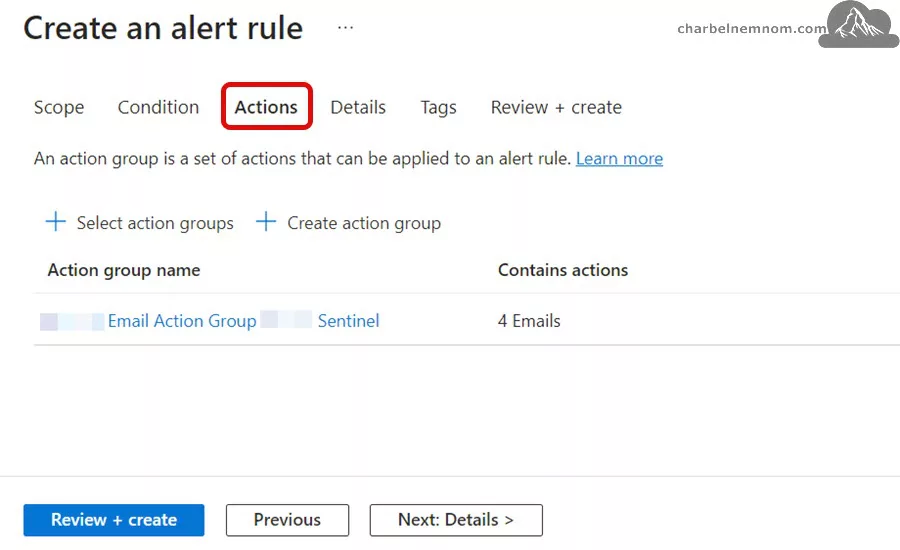
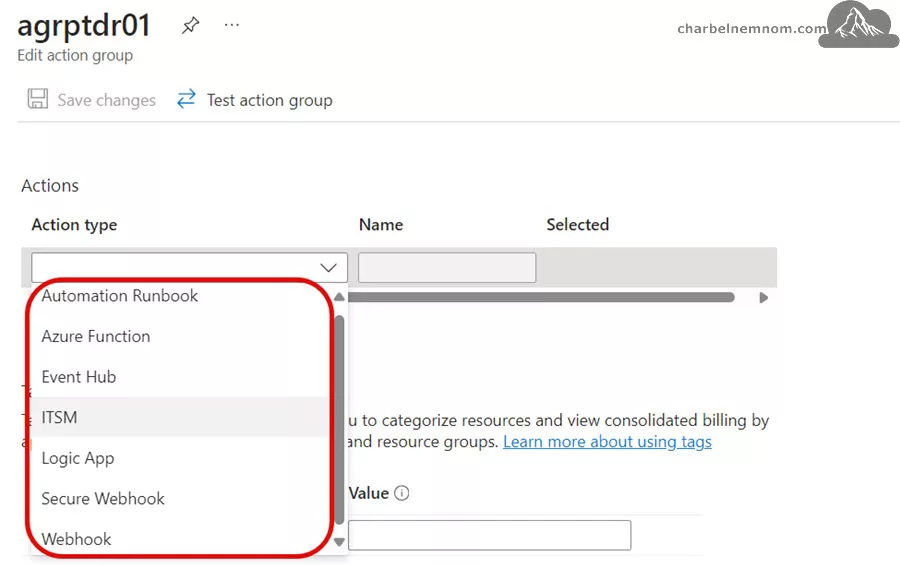
We can also specify what action type to take if the alert triggers. For example, we can run an Automation Runbook, Azure Function, or Event Hub, open a ticket in ITSM systems, run an Azure Logic App, or use a Secure/Webhook. So, we have many different ways of triggering, integrating, and automating.
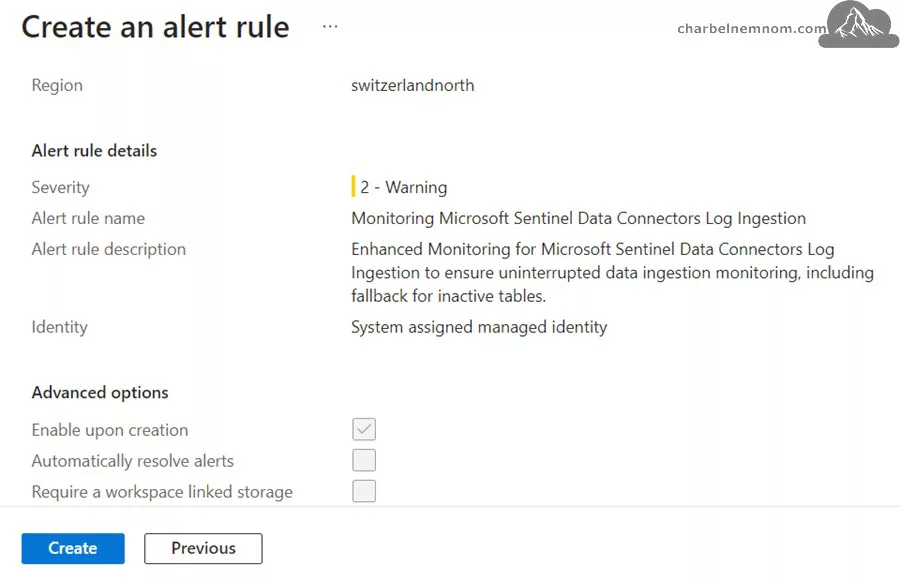
Next, on the Details tab, under Project details, select the Subscription and Resource group values. Then, under Alert rule details, Select the Severity value as Warning. Enter values for the Alert rule name and description and select the Region value, as shown in the figure below.

Next, in the Identity section, select which identity the log search alert rule uses for authentication when it sends the log query. Please keep these points in mind when you’re selecting an identity:
- A managed identity is required if you’re sending a query to Azure Data Explorer or Resource Graph.
- Use a managed identity if you want to be able to view or edit the permissions associated with the alert rule.
- If you don’t use a managed identity, the alert rule permissions are based on the permissions of the last user to edit the rule at the time that the rule was last edited.
- The default option is based on the permissions of the last user who edited the rule when it was created or edited.
As a best practice, use a system-assigned managed identity to help you avoid a case where the rule doesn’t work as expected because the user who last edited the rule didn’t have permission for all the resources added to the rule’s scope.
Important: The managed identity associated with this rule must have the Log Analytics Reader role because the query needs access to the Log Analytics workspace where Microsoft Sentinel is installed.

Then, under the Advanced Options section, you can set several options:
- Enable upon creation: You select this option to make the alert rule run as soon as you finish creating it.
- Automatically resolve alerts: You select this option to make an alert stateful. When an alert is stateful, it is resolved when the condition is no longer met for a specific time range.
- Mute actions: You select this option to set a period of time to wait before alert actions are triggered again. In the Mute actions field that appears, select the amount of time to wait after an alert is fired before triggering actions again.
- Require workspace-linked storage: You select this option if workspace-linked storage for alerts is configured. If no linked storage is configured, the rule isn’t created.

Next, on the Tags tab, you can optionally set any required tags on the alert rule resource. Last, on the Review + create tab, the rule is validated. If there’s a problem, go back and fix it. When validation passes, and you’ve reviewed the settings, select the Create button, as shown in the figure below.
Explanation of the KQL Query
In this section, we will explain the KQL query shared in the previous section in detail so you can understand its entire logic.
Step 1: Define the Time Range
let TimeRange = 24h;This defines the time range for analysis (24 hours) within which the query will analyze data. Logs older than this time range are excluded from consideration.
Step 2: Retrieve Watchlist Information
let watchlistTables =
    _GetWatchlist('wl_scs_ops_tables')
    | project TableName, ThresholdInSeconds = tolong(ThresholdInSeconds);
This step will fetch a watchlist (wl_scs_ops_tables) containing the table names (TableName) and their respective thresholds (ThresholdInSeconds). The project statement ensures only the relevant columns are retained. Then, it converts ThresholdInSeconds to a numeric value using tolong() for accurate calculations.
Step 3: Analyze Active Tables
let activeTables =
    union withsource = TableName1 *
    | where TableName1 in (watchlistTables | project TableName) // Filter based on watchlist
    | where TimeGenerated > ago(TimeRange) // Only consider recent logs
    | summarize last_log = datetime_diff("second", now(), max(TimeGenerated)) by TableName1;
The union withsource = TableName1 * aggregates data from all available tables in Sentinel, adding a column TableName1 that identifies the table name. The where TableName1 in (watchlistTables | project TableName) filters out tables not listed in the watchlist. The where TimeGenerated > ago(TimeRange) keeps only logs generated in the last 24 hours. Then, we summarize last_log = datetime_diff(“second”, now(), max(TimeGenerated)) by TableName1 and calculate the time difference (in seconds) between now and the most recent log for each table.
Step 4: Add a Fallback for Inactive Tables
let fallbackTables = watchlistTables
    | where TableName !in (activeTables | project TableName1) // Identify inactive tables
    | extend last_log = 999999; // Assign a large value for fallback
This step will identify tables in the watchlist (TableName) that are not present in the activeTables (i.e., inactive), meaning no logs were received. Then, it assigns a fallback last_log value of 999999 seconds to simulate an inactive state for these tables so we can still be alerted even after 24 hours have passed.
Step 5: Combine Active and Fallback Tables
union activeTables, fallbackTables
| join kind=inner (watchlistTables) on $left.TableName1 == $right.TableName
| where last_log > ThresholdInSeconds // Show only tables exceeding their threshold
This step will union activeTables and fallbackTables to merge logs from both active and inactive tables. The join kind=inner merges the combined table data with the watchlist, ensuring thresholds are aligned with their respective tables. Then, we apply a threshold filter to flag tables where the time since the last log (last_log) exceeds their threshold (ThresholdInSeconds).
Step 6: Add Calculated Fields
| extend
    last_log_hours = iff(
                         (last_log / 3600.0) % 1 > 0.8,
                         floor(last_log / 3600.0, 1) + 1,
                         round(last_log / 3600.0, 1)
                     ),
    ThresholdInHours = iff(
                       (ThresholdInSeconds / 3600.0) % 1 > 0.8,
                       floor(ThresholdInSeconds / 3600.0, 1) + 1,
                       round(ThresholdInSeconds / 3600.0, 1)
                   );
In this step, we convert last_log (in seconds) to hours and round up to the nearest whole number if the fractional part is > 0.8. We also convert ThresholdInSeconds to hours and apply a similar rounding logic.
Step 7: Format Output
| project
    ['Table Name'] = TableName1,
    ['Last Event Time (UTC)'] = format_datetime(now() - totimespan(last_log * 1s), "dd/MM/yyyy HH:mm:ss"),
    ['Last Record Received (Hours)'] = last_log_hours,
    ['Actual Last Record Received (Seconds)'] = last_log,
    ['Watchlist Threshold (Hours)'] = ThresholdInHours,
    ['Watchlist Threshold (Seconds)'] = ThresholdInSeconds
| order by ['Last Record Received (Hours)'] desc
In the last step, we format the output to display meaningful column names and sort the results in descending order by the time since the last log. The ‘Last Event Time‘ column will help to understand the last time the table received an event.
Note: To convert the [‘Last Event Time (UTC)‘] from UTC to your local current time, you can use the datetime_add() function in KQL. This function lets you add or subtract a specific amount of time to a “datetime” value. Assume your local timezone is UTC+1 (Central European Winter Time) or UTC+2 (Central European Summer Time). You would add 1 or 2 hours to the UTC timestamp as follows:
['Last Event Time (CET)'] = format_datetime(datetime_add("hour", 1, now() - totimespan(last_log * 1s)), "dd/MM/yyyy HH:mm:ss")Azure Monitor Alert Notification
Once the Azure Monitor Alert rule fires, you will receive an email notification like the one below. You can click and investigate the alert directly on the Azure Monitor portal.

You can see the alert summary details in the Log search alert details. Then, as shown in the figure below, you can click view the results in Log Analytics to determine which table stopped receiving logs beyond the specified threshold in the watchlist.

Once you select to view the results in Log Analytics, the query runs and shows the affected table. As we see in the following example, the “SigninLogs” table received the last record in 6.4 hours, which deviated from the watchlist threshold (4 hours).
The “SigninLogs” table is a native Microsoft connector service for Microsoft Entra ID. In this case, either could be an issue (delay) on Microsoft’s side, which might happen but rarely, or no one has logged into the environment within the defined threshold, which is our case here, or the user has removed and disconnected Microsoft Entra ID “SigninLogs” flow logs.
This monitoring capability becomes even more relevant when monitoring “SecurityEvent“, “WindowsEvent“, “Syslog“, “CommonSecurityLog” tables, and so on, which depend on the Azure Monitor Agent (AMA) and other infrastructure components under our control.
The output will show the following:
- Table Name
- Last Record Received (Hours)
- Actual Last Record Received (Seconds)
- Watchlist Threshold (Hours)
- Watchlist Threshold (Seconds)

Remember that during your investigation for any data source outages, for example, if we look at the “AzureDiagnostics” and “CommonSecurityLog” tables, these data types require a filter to be meaningful, which requires “| where” filters in the KQL to search for the device vendor, such as “Fortinet” or the Azure service type for diagnostic logs belong to (such as Network Security Groups, Microsoft Logic, or Automation Accounts, etc.).
Create Microsoft Sentinel Incident
Suppose you would prefer to create a Microsoft Sentinel Incident when one or more Microsoft Sentinel data sources stop sending data. In that case, we can leverage Azure Logic App to run the same KQL query above on a predefined schedule. So, Why do we want to do this?
The Azure Monitor alert rule does not return the query’s output when the alert is triggered. As illustrated in the previous section, we must query the results manually when the alert is triggered, which might slow down the team’s response. Additionally, consolidating all alerts and incidents in one place is crucial for full visibility of the environment.
If you don’t have a Logic App with the consumption plan, you can create one by following the quick start guide using the Azure portal.
Once you have the Logic App created, take the following steps:
1) Browse the Logic App > Identity blade and enable system-assigned (managed identity) status to On, as shown in the figure below. Then, click on the Azure role assignments.

2) Next, we must assign the Microsoft Sentinel Contributor role to Logic App Managed Identity so that we can query and create Microsoft Sentinel incidents. Click the “+ Add role assignment“, then set the Scope to “Resource group”, Subscription, Resource group, and pick the role, as shown in the figure below.

3) Next, go to the Logic App designer blade and add a Recurrence trigger, as shown in the figure below. Set the desired recurring interval based on your needs.

4) Next, add an action step and search for “Run query and list results V2” and select it, as shown in the figure below.

5) Copy and paste the KQL query shared in the previous section in the “Query” field, then fill in the remaining ones:
- Subscription: {Subsciption-Name}
- Resource Group: {Resource-Group-Name}
- Resource Type: Log Analytics Workspace
- Resource Name: {Log-Analytics-Name}
- Time Range Type: Set in query

6) Next, add an action step and search for “Condition” and select it. In the Parameters section, under the Condition Expression, as shown in the figure below, add the following values:
- AND
- Value:
@empty(body('Run_KQL_Query')?['value']) - Operator: is not equal to
- Value: true
- Value:
Important: Replace the 'Run_KQL_Query' with the exact name of your query action from the previous step.

7) Next, under the True section, add an action step and search for “Create HTML table” and select it. In the From field, select the value output from the previous action, “Run KQL query“, as shown in the figure below. Here, we create an HTML table with the output if the KQL query returns results. By setting the condition as “empty(body('Run_KQL_Query')?['value'])” is not equal to true; the Logic App will correctly handle cases where the KQL query result contains data.

8) The last action step that we need to create after the “Create HTML table” is creating a Microsoft Sentinel incident, as shown in the figure below.

9) Then, we need to fill in the following details. Adjust based on your needs:
- Title: One or more Microsoft Sentinel data sources stopped sending data
- Severity: High, Medium, Low, Informational
- Status: New
- Subscription: {Subsciption-Name}
- Resource Group: {Resource-Group-Name}
- Workspace Name: {Log-Analytics-Name}
-
Description: Add the desired text and choose the “
Output” value from the “Create HTML table” action step.
Last, you can assign an Owner, add an Object ID, or add Tags to the incident as optional parameters, and then Save the Logic App.

10) For reference, here is the Logic App designer’s view of the playbook for the full version.

Now, the next time the playbook runs and the query detects that one or more data sources stop receiving logs, a new incident similar to the one below will be created in Microsoft Sentinel.

That’s it, there you have it! Happy Data Connectors Monitoring in Microsoft Sentinel.
Custom Alert Rules and KQL
Custom alert rules coupled with Kusto Query Language (KQL) offer powerful solutions for monitoring data connectors not covered by the “SentinelHealth” table. KQL allows complex queries to analyze data within Microsoft Sentinel’s Log Analytics workspace.
Here’s an example KQL query to check the latest log entry from a critical data source:
let lastEventTime = CommonSecurityLog
| where DeviceVendor == "VendorName" and DeviceProduct == "FirewallProduct"
| summarize LastEventTime = arg_max(TimeGenerated, *)
| project LastEventTime;
Another example to monitor connector status changes:
let latestStatus = CustomConnectorLog
| where TimeGenerated > ago(1d) and Status in ('Success', 'Failure')
| summarize latestTime = arg_max(TimeGenerated, *) by ConnectorName, ConnectorId
| project ConnectorName, ConnectorId, Status, latestTime;
let previousStatus = CustomConnectorLog
| where TimeGenerated > ago(1d) and Status in ('Success', 'Failure')
| join kind=leftanti (latestStatus) on ConnectorName, ConnectorId, TimeGenerated
| summarize previousTime = arg_max(TimeGenerated, *) by ConnectorName, ConnectorId
| project ConnectorName, ConnectorId, Status;
latestStatus
| join kind=inner (previousStatus) on ConnectorName, ConnectorId
| where Status == "Failure" and previousStatus.Status == "Success"
These queries can be integrated into Azure Monitor alerts to trigger notifications or automated actions when defined conditions are met, enhancing the overall security monitoring capabilities.
In Conclusion
Common challenges in monitoring data connectors include detecting inactive data sources and managing the logic associated with multiple data sources. To address these issues, consider the following solutions:
- Use Azure Monitor alert rules to trigger notifications when specific conditions are not met.
- Implement Microsoft Sentinel watchlists to store and monitor critical resources or data sources.
- Maintain a dynamic approach to connector monitoring by regularly reviewing and updating strategies.
These strategies enhance the ability to promptly detect and promptly address data source outages and streamline overall security posture. By combining these solutions, organizations can create a robust monitoring system that adapts to changing security needs and data landscapes.
In this guide, we showed you an easy option: leveraging the Azure Monitor alert rule capability with a combination of KQL queries to enable robust monitoring of data ingestion in Microsoft Sentinel.
The query analyzes active tables for recent logs, assigns fallback values to inactive tables, and compares log delays against predefined thresholds in the watchlist. Then, it formats and prioritizes results for easy review to ensure uninterrupted and proactive log ingestion monitoring, flagging issues before they escalate.
__
Thank you for reading our blog.
Please let us know in the comments section below if you have any questions or feedback.
-Charbel Nemnom-

Hi Charbel,
Thank you for sharing such an insightful post. I tried following along, but I’m encountering an error when running the KQL
‘union’ operator: Failed to resolve table expression named ‘activeTables’
Request id: 1180eb62-6b8c-4d98-8b14-7e41ac96c8f5
Hello Alex, thanks for the comment and feedback!
Based on the error you shared, I assume that either the watchlist is not yet populated or the name of the watchlist is wrong.
Could you please check the watchlist name? Also, check the syntax when you copied the query.
Hope it helps!
Hi,
Great example. Unfortunately, I can’t understand how you managed to use the:
_GetWatchlist('wl_scs_ops_tables')
    | project TableName, ThresholdInSeconds = tolong(ThresholdInSeconds)
In the Alert rule, I get this message:
Unknown function: ‘_GetWatchlist’.
The name ‘_GetWatchlist’ does not refer to any known function.
That sounds like _GetWatchlist is not valid.
Hello Bremby, thanks for the feedback!
Have you created the Watchlist named (wl_scs_ops_tables), I assume yes?
Once the Watchlist is created in Microsoft Sentinel, it might take a few minutes to be ready.
I just run the following query in my environment and it’s working without any issue:
The
_GetWatchlist('watchlist-name')is a valid function in KQL.Thank You!
Hi,
Like Bremby I had the same issue but I noticed why very soon. Charbel mentions to go to Azure Monitor to add the _getwatchlist function. Under Azure Monitor, Sentinel functions are not present. You must go to your Log Analytics Workspace to configure the alert under the Monitor tab.