
Centralized logging is crucial for effectively managing Linux systems. Organizations can streamline their log management processes by using tools like Rsyslog/Syslog-ng and integrating with platforms like Microsoft Sentinel. This approach enhances security, simplifies compliance, and improves operational monitoring.
This article will describe all the steps to collect the Syslog audit logs from Linux servers and transfer them to a centralized collection server with the Azure Arc and Azure Monitor Agent (AMA). This approach would not require you to install and manage Azure Arc/AMA on each machine but to keep collecting from a central collector server with outbound connectivity.
Table of Contents
Collect Linux Logs to Microsoft Sentinel
Syslog is a standard protocol for sending and receiving messages between different devices or applications over a network. Originally developed for Unix systems, it is now widely supported by various platforms and vendors. Syslog messages have a predefined structure that includes a priority, a timestamp, a hostname, an application name, a process ID, and the message text. These messages can be transmitted over UDP, TCP, or TLS, depending on the configuration and security requirements. The Azure Monitor Agent (AMA) supports Syslog according to RFCs 3164 and 5424.
The following diagram shows Syslog and CEF messages collected from a Linux-based log forwarding machine on which the Azure Arc-connected agent with the Azure Monitor Agent extension is installed. This log forwarder collects Syslog and CEF messages from their originating Linux machines, devices, or appliances.
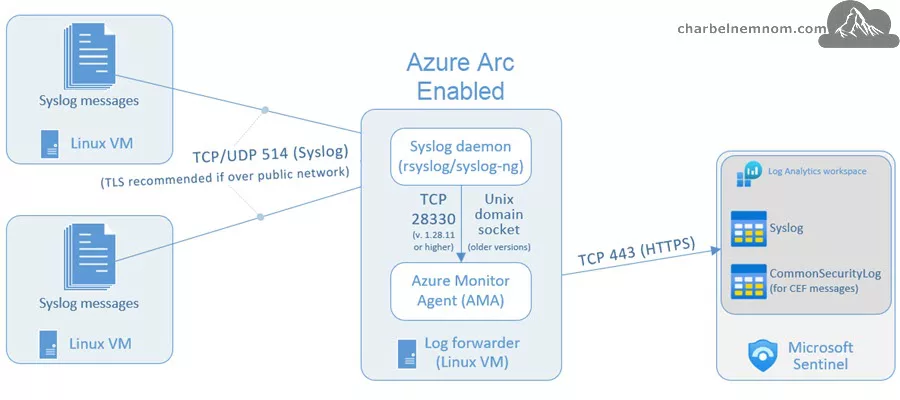
In this architecture, the collector machine collects messages from other Linux machines. Then, it forwards them to Microsoft Sentinel/workspace. The connector sends the agents instructions based on the Data Collection Rules (DCRs) we define. DCRs specify the monitoring systems and types of logs or messages to collect. They define filters to apply to the messages before ingesting into the workspace for better performance and more efficient querying and analysis.
Prerequisites
To follow this guide, you need to have the following:
1) Azure subscription — If you don’t have an Azure subscription, you can create one for free.
2) Log Analytics workspace — To create a new workspace, follow the instructions to create a Log Analytics workspace.
3) Microsoft Sentinel — To enable Microsoft Sentinel at no additional cost on an Azure Monitor Log Analytics workspace for the first 31 days, follow the instructions here. Once Microsoft Sentinel is enabled on your workspace, every GB of data ingested into the workspace can be retained at no charge (free) for 90 days.
4) Install the Syslog via AMA solution from the Content hub in Microsoft Sentinel. The Syslog solution allows you to ingest events from applications or appliances that generate and can forward logs in the Syslog format to a Syslog Forwarder. The Agent for Linux can then forward these logs to the Log Analytics/Microsoft Sentinel workspace.

5) Central Collector Machine — You need to create and configure a Linux system to collect logs from all your Linux systems and forward them to the Microsoft Sentinel workspace. This machine will play two roles: collector and forwarder. The collector machine can be physical or virtual in your on-premises environment, an Azure VM, or a VM in another cloud. Having the collector machine close to the source (Linux systems) is also recommended. Please see the list of supported Linux operating systems for Azure Arc and Azure Monitor Agent (AMA) extension. In this guide, we used Ubuntu release 24.04.
6) To onboard the collector machine to Azure Arc, you must have the Azure Connected Machine Onboarding or Contributor role for the resource group where you’re managing the collector server. As part of the onboarding of the Azure Arc-connected agent and creating the Data Collection Rule (DCR), Microsoft Sentinel will install the Azure Monitor Agent (AMA) extension on the Linux collector machine. (more on this in the next section).
7) Last, you need at least one or more Linux systems to pose as the production service generating logs. In this guide, we also used Ubuntu release 24.04.
Assuming you have all the prerequisites in place, take the following steps:
Onboard Linux Collector Machine to Azure Arc
To capture logs and events within Microsoft Sentinel, there has to be a connection to the Log Analytics workspace that Microsoft Sentinel monitors. To do this, we need to enroll our Linux collector machine into Azure Arc and install the new Azure Monitor Agent (AMA).
Log onto the Azure portal at https://portal.azure.com
From the search portal, enter “Machines – Azure Arc” and select this to go to the “Machines” blade.
Click “+ Add/Create” and select “Add a machine“, as shown in the figure below.

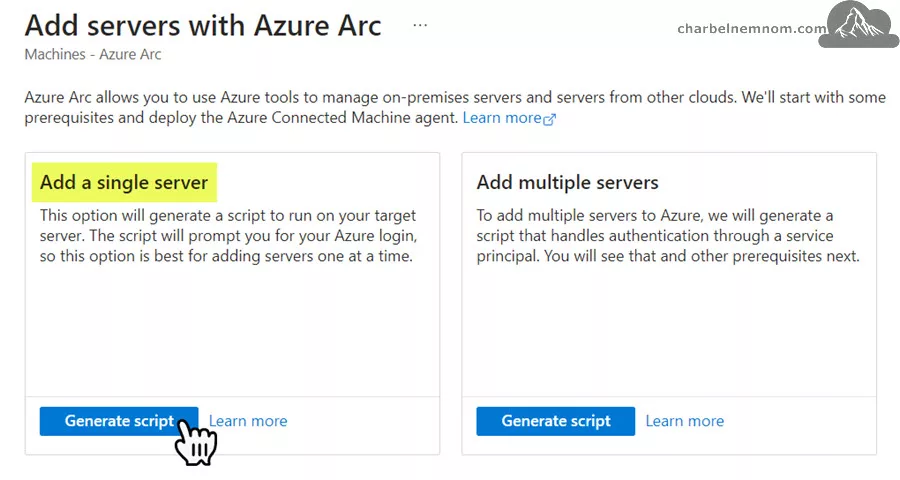
Next, select the “Generate Script” from the “Add a single server” box.
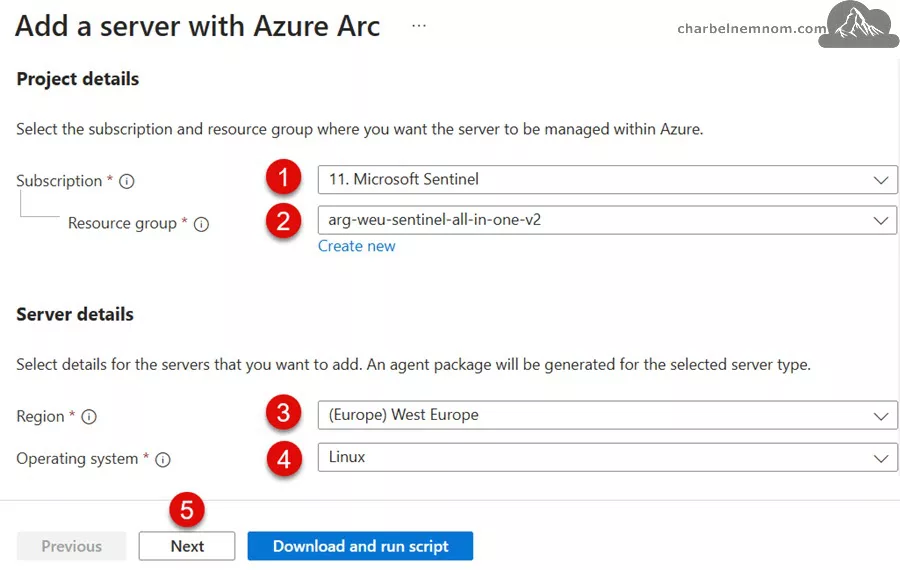
Select “Next,” complete the Project Details, choose “Linux” as an operating system for the server details, as shown in the figure below. We use a “Public endpoint” under the connectivity method for our example. We strongly encourage organizations not to expose log files on the public Internet; thus, you can use Private endpoints or Proxy servers instead. Click “Next” to continue.
Next, enter any required “Tags” for your organization and select “Next.” Then, select the “Download” or “Copy” button. Your organization will probably block the Bash “.sh” script files “Download” button.
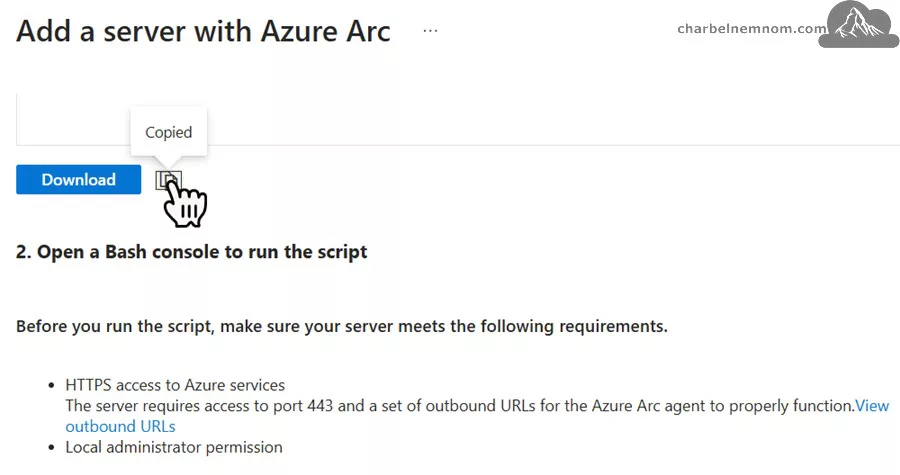
Paste the clipboard’s contents on the on-premises Linux collector machine and run it. This will then install the Arc Service. When it runs, it will ask you to open the “https://microsoft.com/devicelogin” page to enter the code, sign in, and accept. The script will then finish installing.

Move back to the “Machines” blade, hit refresh, and the newly onboarded Linux collector machine should now be part of this subscription “Microsoft Sentinel”, as shown in the figure below with the Windows Event Collector “Srv-Sentinel-Linux” below.

You can also install the Azure AD-based SSH Login for Azure Arc and use your Entra ID credentials to log in to Linux Arc Servers.
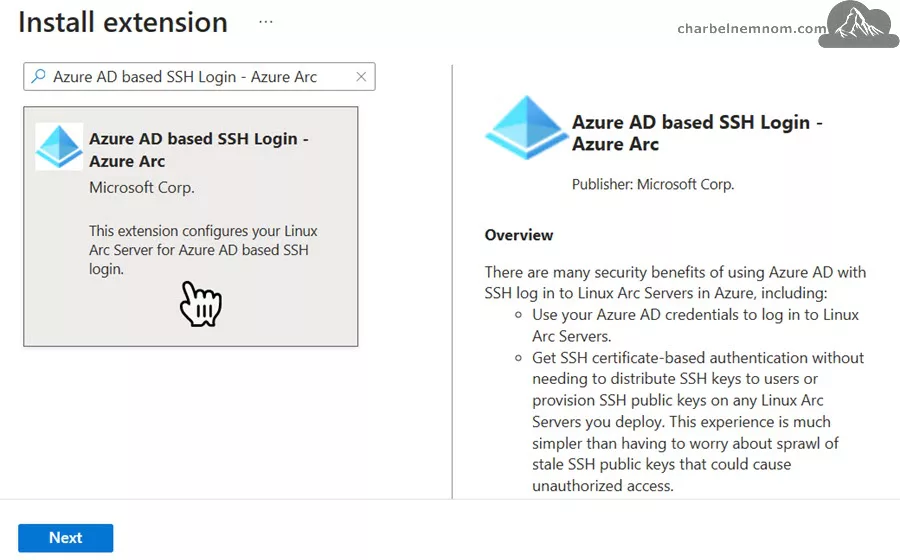
In the next step, we’ll create a Data Collection Rule (DCR) using the Syslog via AMA solution in Sentinel, enabling the Azure Monitor Agent for Linux extension on top of the Azure Arc-connected agent.
Configure Syslog Connector and Create Data Collection Rule
Once the Azure Arc connected agent is installed on the collector Linux machine, events and logs must be imported into a Log Analytics Workspace (LAW) for Sentinel to monitor and report on. As noted in the prerequisites section, we must first install the Syslog solution from Content Hub.
Log onto the Azure portal or to the Microsoft Defender portal (Defender XDR), select your Microsoft Sentinel instance, and then select the “Data Connectors” blade. Enter “Syslog via AMA” in the “Search by name or provider” box, click on “Syslog via AMA,” and select “Open connector page,” as shown in the figure below.

Next, under Configuration, select +Create Data Collection Rule.

On the “Basic” tab, enter “Rule Name“, “Subscription“, and “Resource group“, then click “Next: Resources >“.

On the “Resources” tab, search for and select the non-Azure Arc Linux Collector machine, which captures the events of your standard Linux servers, as shown in the figure below. Then click the “Next: Collect >“.

Now that our Syslog machine is selected, we must select the correct facility and log level on the “Collect” tab. In this example, we’re interested in collecting Linux logs over “LOG_AUTH” and “LOG_AUTHPRIV” with a log level of “LOG_INFO“, and keep the checkbox to Collect messages without PRI header (facility and severity), as shown in the figure below. The PRI header is a calculated priority value detailing the message’s severity level and facility based on a fixed formula. Some devices do not send this header attached to the message.
The “auth” and “authpriv” facilities are two distinct syslog categories for logging authentication-related messages. The “auth” facility logs general authentication messages, while the “authpriv” facility logs authentication-related messages that are considered private.
Note: For facility levels, you want to ensure you’re gathering all the security-relevant data. Once we narrow in on what we need for production, we can always fine-tune our logging locally and update the Data Collection Rule (DCR).

Last, on the validation page, click the “Create” button. The figure below shows that the selected event is “Linux syslog” only.

Next, Microsoft Sentinel will install the Azure Monitor Agent (AMA) extension on the non-Azure Arc Linux Collector machine and create the Data Collection Rule. After a few minutes, we can verify that the Syslog via AMA connector is connected and receiving logs, as shown in the figure below.

Setting Up Rsyslog for Centralized Logging
We are done on the Microsoft Sentinel side; the next step is to set up rsyslog for centralized logging, which will forward the logs from other Linux systems to the central collector server with Azure Arc/AMA.
Comparing Rsyslog and Syslog-ng
Both `rsyslog` and `syslog-ng` are Syslog implementations used for log management in Linux. They allow you to collect, filter, and forward logs. However, they have some features, performance, and configuration differences, which can influence your choice depending on your use case:
When choosing between Rsyslog and Syslog-ng for centralized logging, consider the following:
| Feature | Rsyslog | Syslog-ng |
|---|---|---|
| Performance | Excels in high-performance settings, handling large volumes efficiently | Suitable for moderate logging demands |
| Configuration | Straightforward, rule-based structure | More complex, modular system offering greater control |
| Protocol Support | Various protocols, including UDP, TCP, RELP, and TLS | Various protocols including UDP, TCP, RELP, and TLS |
| Filtering and Processing | Effective but less advanced by default | Extensive parsing and rewriting functionalities |
Choose based on your specific needs: Rsyslog for straightforward, high-volume processing or Syslog-ng for complex log manipulation and advanced filtering.
For our use case of forwarding logs to a central Linux server running AMA, the `rsyslog` might be a better starting point due to its simplicity and performance, especially if you are dealing with a straightforward log-forwarding setup.
Step 1 — Finding the private IP address
First, we need to find the private IP address of the collector Linux server.
As mentioned, if you have the ‘Microsoft Entra SSH Login – Azure Arc’ extension installed on the central collector Linux server with the role of ‘Virtual machine administrator login’ or ‘Virtual machine user login’ assigned, you can go ahead and connect to the Azure Arc Linux server through`ssh` and run the following command:
hostname -I
You can now proceed to the next step, where we’ll verify that `rsyslog` is installed and enabled on both the client and central server.
Step 2 — Installing and enabling the Rsyslog
First, we need to verify the status of the `rsyslog` service on both the client and central server. Since Ubuntu has already pre-installed rsyslog, you can confirm its active status using the command below. In our example, the service is active and running.
sudo systemctl status rsyslog
If `rsyslog` is not installed, install it using your distribution’s package manager. The example below is for Ubuntu machines:
sudo apt install rsyslog -yIf the `rsyslog` service is not active, you can start it using the command below:
sudo systemctl start rsyslogAs a reminder, this step should be done on both the client and central Linux server.
Step 3 — Configuring the Central server to receive logs
Now that we’ve confirmed that Rsyslog is installed and running on the central collector server and the other systems. Next, we need to open the `rsyslog.conf` configuration file on the central server for editing using your favorite text editor, such as nano:
sudo nano /etc/rsyslog.confNext, you need to look for the following lines that are commented out:
# provides UDP syslog reception
#module(load="imudp")
#input(type="imudp" port="514")

# provides TCP syslog reception
#module(load="imtcp")
#input(type="imtcp" port="514")
These lines load the `imudp` and `imtcp` modules for listening at the specified UDP or TCP ports (both at port 514). If you wish, configure the central server to listen to both ports or change the port number as you see fit.

For our example, we will use a TCP connection alone. Enable it by uncommenting the following two lines of code and removing the # prefix:
module(load="imtcp")
input(type="imtcp" port="514")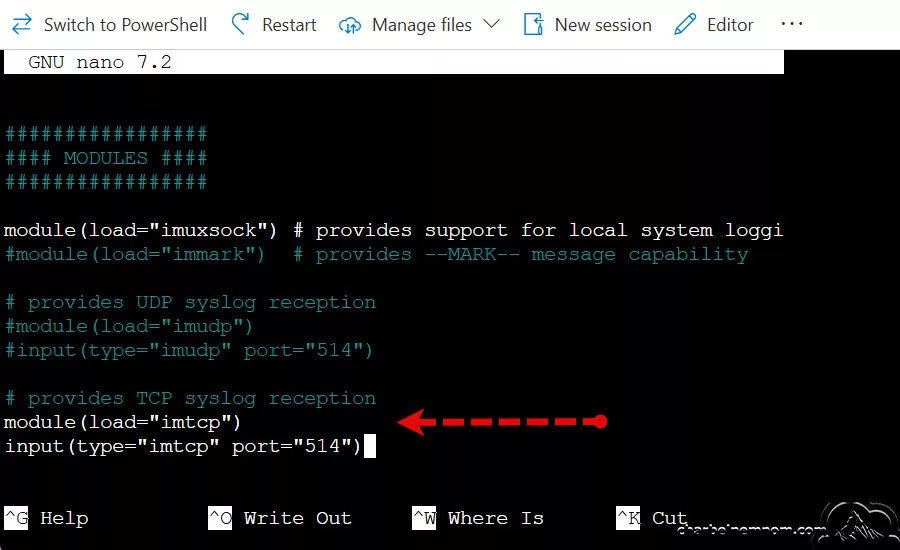
Then, save the changes in file `/etc/rsyslog.conf` and exit the editor. Press `Ctrl + O` and press `Enter`. – To exit Nano, press the button `Ctrl + X`.
Note: If your central system includes a firewall configuration, you must also allow the new TCP service at the specified port with `ufw` command below. It requires sudo because it changes the firewall rules.
sudo ufw allow 514/tcpAfter configuring the firewall to allow new TCP service using the command above, the firewall won’t interfere with Rsyslog traffic. Go ahead and restart the rsyslog service to apply the new configuration:
sudo systemctl restart rsyslogLast, you can check and confirm that the TCP port 514 is opened (listening) on the central collector server with the ‘ss‘ utility command. Sudo is required because this utility reads sockets:
sudo ss -tulnp | grep "rsyslog"
Step 4 — Forwarding Logs from Linux systems
Next, we’ll point our Linux machines to forward all the desired logs to the central Rsyslog server, which has the Azure Arc agent installed.
First, we must connect to the client/server through `ssh`.
Once you’re logged in successfully, we need to edit the default Rsyslog configuration at “/etc/rsyslog.d/50-default.conf” with a text editor (sudo is required for write permission):
sudo nano /etc/rsyslog.d/50-default.conf
Next, we must ensure the forwarding configuration includes proper settings to retain the sender’s IP. Add the following directives to the”/etc/rsyslog.d/50-default.conf” file:
$PreserveFQDN on
$ActionForwardDefaultTemplate RSYSLOG_ForwardFormat
Next, we need to add the following directives on a new line at the beginning of the file. As mentioned, we’re interested in collecting “LOG_AUTH” and “LOG_AUTHPRIV” facilities. Replace the placeholder with the central server’s IPv4 address, which you retrieved in Step 1.
auth.* @@<rsyslog_azure_arc_server_ip>:514authpriv.* @@<rsyslog_azure_arc_server_ip>:514

The directives we just added above define that the Rsyslog service should send the defined facilities (auth/authpriv) with all priority levels (in other words, all logs *) to the IP address of the centralized server at TCP port 514. If you set up this directive using `@` instead of `@@`, then it will forward the logs over the UDP port.
If you want to forward all logs on the server, then you can use the `*.*@@<rsyslog_azure_arc_server_ip>:514`, and if you want to forward only specific logs, you can specify the service name instead of *, as we did in our example.
Then save the changes you’ve made to the `50-default.conf` file. Press `Ctrl + O`. – Nano will ask for the file name. If you’re saving the current file, just press `Enter`. – To exit Nano, press the button `Ctrl + X`.
Then restart the rsyslog service using the command below to apply the new configuration:
sudo systemctl restart rsyslogNow, the Rsyslog client is fully configured to send its logs to the centralized Rsyslog server. Please note that you must repeat the steps described in this section on all your Linux clients/servers for which you want to forward their logs to Microsoft Sentinel through the collector machine.
Ensuring Log Security and Compliance
When collecting logs in centralized logging systems (e.g., with rsyslog, syslog-ng, or journald), both facilities can be included, but consider these points:
- authpriv logs are more sensitive. Ensure they are transmitted and stored securely (e.g., over TLS to prevent unauthorized access).
-
Separate filtering: Use distinct rules to segregate “
auth” and “authpriv” messages if required, respecting their privacy levels.
For example, an “rsyslog” configuration snippet might look like this:
# Collect auth messages
auth.* /var/log/auth.log

# Collect authpriv messages securely
authpriv.* /var/log/secure
This separation helps maintain the principle of least privilege for sensitive data, which protects sensitive information, meets regulatory requirements, and supports enhanced security operations and risk mitigation.
Step 5 — Testing log ingestion to Sentinel
Now that we’ve configured both the Rsyslog client and centralized server, let’s verify that our changes have had the desired effect.
Switch to any Linux machine that you configured the log forwarding to the collector server and run the following command. This will manually create a log entry on the client machine:
logger "Test message from $(hostname)"If you’re collecting facility `local0` and enabled `LOG_LOCAL0` in the Syslog Data Collection Rule (DCR), then you can use the following command to generate a test log message on the client side:
logger -p local0.info "Test message from $(hostname)"Next, switch to the collector Linux machine and run the following command to confirm the logs have reached the collector server.
sudo tcpdump -nn -i any port 514This confirms that the collector machine is receiving Syslog messages from the clients.

Last, switch to the Azure portal or the Microsoft Defender portal (Defender XDR), select your Microsoft Sentinel instance, and then select the “Logs” blade or the “Advanced hunting” in case of using the Unified SecOps Platform and run the following KQL query.
Syslog
| where SyslogMessage has "Test message"
| project TimeGenerated, Computer, CollectorHostName, Facility, SyslogMessage, SeverityLevel
Here is another KQL query looking for facilities “auth” and “authpriv“.
Syslog
| where Facility == "auth" or Facility == "authpriv"
| summarize by HostIP, Facility, SyslogMessage, Computer
| sort by Computer
This confirms that Log Analytics/Microsoft Sentinel receives Syslog messages from the collector machine.

Maintain Disk Space on the Collector Machine
By default, the Rsyslog configuration logs all facilities to “/var/log/“. For example, with Ubuntu 18.04 LTS and later, rsyslog ships with a default configuration file “/etc/rsyslog.d/50-default.conf“, which logs events from nearly all facilities to disk at “/var/log/syslog“. On the other hand, RedHat/CentOS family Syslog events are stored under /var/log/ but in a different file called messages: “/var/log/messages“.
When the directory “/var/log” gets full,” the system can’t store more logs, leading to a drop in log ingestion to the Microsoft Sentinel / Log Analytics workspace. This can be problematic, especially if you forward logs to Microsoft Sentinel for security and analysis. While increasing your collector machine’s storage capacity can temporarily solve the disk space issue, a more sustainable solution involves removing high-volume facilities and automating log maintenance.
Removing High-Volume Facilities
If you’re sending a high log volume through rsyslog and your Linux system is set up to log events for these facilities, you must consider modifying the default rsyslog config file to avoid logging and storing them under “/var/log/“. Please note that the events for this facility would still be forwarded to Azure Monitor Agent because rsyslog uses a different configuration for forwarding stored in “/etc/rsyslog.d/10-azuremonitoragent-omfwd.conf“.

For example, to remove local4 events from being logged at “/var/log/syslog” for Ubuntu or “/var/log/messages” for RedHat/CentOS, you must change this line in “/etc/rsyslog.d/50-default.conf” by adding “local4.none” to “-/var/log/syslog” or “-/var/log/messages“, as shown in the figure below.
sudo nano /etc/rsyslog.d/50-default.conf
Then save the changes you’ve made to the `50-default.conf` file. Press `Ctrl + O`. – Nano will ask for the file name. If you’re saving the current file, just press `Enter`. – To exit Nano, press the button `Ctrl + X`.
Then restart the rsyslog service using the command below to apply the new configuration:
sudo systemctl restart rsyslogAutomating Log Maintenance
Next, we’ll create a log maintenance script to automatically truncate the “syslog” or “messages” files.
Navigate to the “/var/log” directory and create a new directory to store Sentinel scripts:
cd /var/log
sudo mkdir scripts
Inside the scripts directory, create a new script file by running the following commands:
cd scripts
sudo touch sentinel_scripts
sudo nano sentinel_scripts
Then, add the following command to the script, as shown in the figure below, which will automatically truncate the log file for “syslog“. For RedHat/CentOS, you must change the file name to “messages” instead.
find /var/log/ -name "syslog" -exec truncate -s 0 {} \;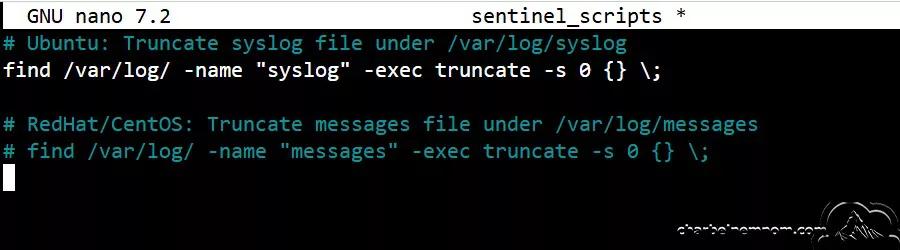
Then save the changes you’ve made to the `sentinel_scripts` file. Press `Ctrl + O`. – Nano will ask for the file name. If you’re saving the current file, just press `Enter`. – To exit Nano, press the button `Ctrl + X`.
Finally, we’ll create a cron job to run the script regularly.
Open the crontab and choose the nano editor “1“, as shown in the figure below.
sudo crontab -e
Then, add the following four lines at the end of the crontab file to schedule the script to run four times a day at midnight, 6 am, 12 noon, and 6 pm:
0 0 * * * sh /var/log/scripts/sentinel_scripts
0 6 * * * sh /var/log/scripts/sentinel_scripts
0 12 * * * sh /var/log/scripts/sentinel_scripts
0 18 * * * sh /var/log/scripts/sentinel_scripts
Then save the changes you’ve made to the `crontab` file. Press `Ctrl + O`. – Nano will ask for the file name. If you’re saving the current file, just press `Enter`. – To exit Nano, press the button `Ctrl + X`.
Last, ensure the time is set correctly on the Linux collector so the Cron job will run based on your timezone. You can verify the current timezone (local time) by running “timedatectl“.
If you want to change the timezone, you can list the available timezones by running “timedatectl list-timezones” and then set the timezone based on your region, for example: “sudo timedatectl set-timezone Europe/Zurich“.
By setting up this Cron job, we ensure that the “/var/log” directory on the Linux collector machine does not fill up, preventing drops in log ingestion to Microsoft Sentinel. This automated maintenance helps keep the log-forwarding process smooth and uninterrupted.
Enable Syslog Analytics rule and UEBA
In the final step, once you start ingesting logs from all your Linux systems into Microsoft Sentinel, you must enable the Analytics rule for the Syslog solution.

// Related: Check how To Enable Microsoft Sentinel Analytics Rules at Scale.
As of this writing, the Syslog solution contains seven built-in Analytics rules.

Additionally, enable Microsoft Sentinel UEBA (User and Entity Behavior Analytics) in your environment. The UEBA activity includes four templates for Syslog, as shown in the figure below. These templates allow us to detect whether an account was created, deleted, added, or removed from the sudo group.
You can customize the entity page and change the activities in the UEBA tracks. In addition to the activities tracked and presented in the timeline by Microsoft Sentinel UEBA, you can create any other activities you want to keep track of and present them on the timeline.

// Related: Check how To Enable Sentinel UEBA Activity Templates at Scale.
That’s it. There you have it! We hope this tutorial has provided options to reduce operational costs and get your Syslog events in Microsoft Sentinel without requiring you to install and manage the Azure Monitor Agent (AMA) on each Linux server but to keep collecting from a central server with outbound connectivity.
Wrapping Up
Rsyslog is a popular choice for setting up centralized logging due to its impressive performance. It can process up to one million log entries per second. It supports message delivery over TCP, SSL, and TLS and features multi-threading, configurable filtering, and various output formats. Additionally, Rsyslog can forward incoming log entries to other destinations like Microsoft Sentinel after applying specific transformations.
Centralized logging for Linux systems using Rsyslog or Syslog-ng, combined with Azure Arc and Azure Monitor Agent (AMA), is a robust, streamlining log collection and monitoring approach. By implementing a centralized log-forwarding architecture, organizations can enhance security, simplify compliance, and optimize performance.
This guide has outlined the step-by-step process to configure your systems, enabling efficient integration with Microsoft Sentinel for comprehensive analysis and reporting. This integration enhances real-time threat detection and simplifies compliance monitoring across hybrid IT environments.
__
Thank you for reading our blog.
Please let us know in the comments section below if you have any questions or feedback.
-Charbel Nemnom-

Excellent post, we just went through this but are facing issues with logs saving to disk.
It appears logrotate exists but will also look at the truncate scripts.
Thank you, Rich, for the feedback!
Please check the truncate scripts and ensure they are running with sufficient permissions.
Note that the truncate scripts require administrative privileges—consider using ‘
sudo’ in your commands or running the script as a superuser.Hope this helps!
Thank you for this insightful and well-structured post! Your effort in breaking down the topic so clearly is truly appreciated. It’s always refreshing to see quality content that adds real value to the community. Keep up the great work!