
Updated – 07/05/2025 – Microsoft announced the general availability of Azure Storage Actions, a fully managed platform that transforms how organizations automate data management tasks for Azure Blob and Data Lake Storage.
Azure Storage Actions is a serverless storage data management, no-code tool simplifying large-scale data operations on Azure Blob Storage. Combining conditions, operations, and assignments allows you to automate data management tasks precisely.
In this guide, we’ll explore how to create and manage storage tasks in Azure Storage Actions, optimize data workflows, ensure compliance, and monitor performance with Azure Monitor.
Table of Contents
Understanding Azure Storage Actions
Azure Storage Actions (public preview) is a powerful cloud data management tool designed for high-volume operations on blob data. Its serverless framework eliminates the need for infrastructure management, allowing users to focus on creating storage tasks.
Fundamentally, Azure Storage Actions is an event condition action (ECA) framework. If you’re familiar with the ECA framework, you know that an event occurs if an object meets a condition, and you take action on it. With storage actions, you can define schedule-based or on-demand execution tasks. You can specify a condition allowing the conditional processing of your Blobs based on the object’s properties. You can apply native Blob operations at scale on the objects or blobs that meet your specified condition.
Storage Actions is a fully serverless framework. All of the infrastructure is fully managed. You can deploy in minutes. There’s no complex software you need to worry about deploying or infrastructure you need to manage. It automatically scales with whatever your storage volumes are and whatever your storage scale is.
Storage Actions is a fully no-code development approach for composing tasks. You can easily apply the task to multiple storage accounts, you can monitor the task execution because it provides you with aggregate metrics that summarize what has happened in the course of the execution of your storage action or storage tasks that you specified, and you can easily drill down into specific incidents or specific issues that you know happen during execution because it provides you that dashboard and navigation path to zoom in on that specific instance that you care about.

A Storage Task in Azure Storage Actions consists of three main components:
- Conditions: Criteria or filters that determine which data should be processed.
- Operations: Actions executed on the blobs, such as setting immutability policies or altering tiers.
- Assignments: Specify target storage accounts and objects, scheduling, and execution report storage.
The no-code builder provides a visual editor for setting conditions with clauses that combine properties, values, and operators. Users can define operations to change or act on data, including tagging blobs, altering storage tiers, or enforcing data retention policies.
Assignments allow the storage task to interact with specific storage accounts, define scopes, and schedule task runs. This feature enables managing data at scale and offers flexibility in targeting new or existing datasets.
Azure Storage Actions helps businesses manage various datasets, addressing challenges like cost optimization, large-scale data operations, and compliance.
Prerequisites
To follow this article, you need to have the following:
1) Azure subscription – If you don’t have an Azure subscription, you can create one here for free.
2) An Azure storage account – If you don’t have a storage account, see how to create one. As you create the storage account, ensure that you Enable version-level immutability support and versioning for blobs under Data Protection > Tracking / Access Control. Don’t enable the Hierarchical Namespace feature, which is not enabled by default.

As of this writing, Azure Storage Actions is in public preview. You can target only storage accounts in the same region as the storage tasks.
3) You need the Storage Blob Data Owner role assigned to your user identity in the storage account or resource group context.
4) You need a custom role assigned to your user identity or managed identity in the context of the resource group, which contains the RBAC actions necessary to assign a task to a storage account. Learn about the permissions required to perform and assign a task.
5) You need at least one Blob container containing one or more Microsoft Word documents, audio files, PDF files, or others.
6) As of this writing, Azure Storage tasks are supported in the following 16 public Azure regions. Microsoft will expand to more regions in the coming months.
- Australia East
- Australia Southeast
- Brazil south
- Canada Central
- Central India
- Central US
- France Central
- Germany West Central
- North Central US
- North Europe
- South Central US
- Southeast Asia
- Switzerland North
- West Europe
- West US
- West US 2
7) Azure Storage Actions Pricing: Storage Actions is in public preview and does NOT incur additional costs (❗️This means no support will be provided, and potential costs can arise once the feature goes GA!). Please note that effective 1 April 2025, the price of Azure Storage Actions will change as outlined below:
- 1 Task Execution = $0.25
- 1M Objects Targeted = $0.10
- 1M Operations Invoked = $1.00
Assuming you have all the prerequisites in place, take the following steps:
Creating Storage Tasks
To create a storage task in Azure Storage Actions:
1) Access the Azure portal and search for Storage tasks under Azure Storage Actions.

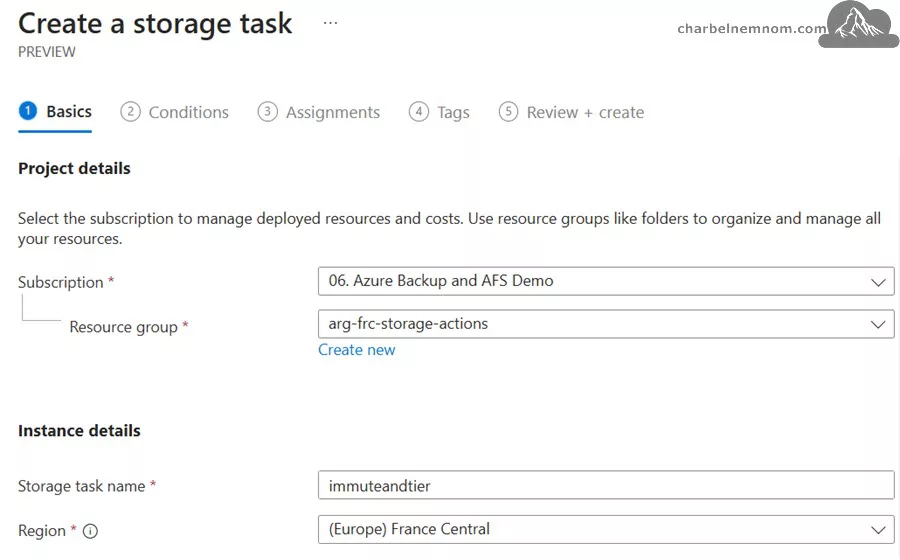
2) Select ‘Create storage task‘, enter essential details such as subscription and resource group, and give the storage task a descriptive name.
Note: The storage task name must be 3 to 18 characters long and may contain only lowercase letters and numbers.
3) Next, on the Conditions tab, you configure conditions using the visual builder, specifying which blobs should undergo operations. We have an “If” and a “Then” clause. This means we define our conditions where if a certain Blob matches these conditions defined here, only then is a certain operation made on that specific Blob.

For this example, we want to target only the “WAVE” files in our storage account. We would use the property Blob name, and we would use the operator to check whether the Blob ends with the wave format. Then, we would add another clause where we target only call recordings identified by the index tag, ensuring that a voice was made in that specific recording.
This means that we are only targeting WAVE file formats, and they also need to have this specific tag on it indicating that that call was made in that specific audio. Also, to ensure you know, the voice recordings are uploaded within a certain date and time, so we must capture those that have been recently uploaded. For this, we’ll also use a “Creation Time” field, where Azure Storage Actions supports creation times that are greater than or earlier than a certain duration ago.
Then, with the combination of these clauses, the overall logic is such that when this task runs on a storage account, it targets the “WAVE” files, which have the call audio tag on them and were created earlier than 30 minutes ago. If a Blob matches such a condition, we want to perform a certain operation on it.
In this scenario, we want to add an immutability policy, mainly because we want to retain them for a certain time. For example, we could set it three months later, and for this duration of time, we will keep it locked so that those specific files that match these conditions are not tampered with and remain immutable.
Also, given that we also want to save costs while retaining this data, we can tier the Blob to move it to a cool tier so that it incurs less cost while it’s retained. The archive is also supported here. And while at it, we want to also add another tag to it, mainly because we can come back, and eventually, let’s say, if we want to read these files for some other purpose, we can identify those blobs that were moved to the Cool tier. We can add another tag to it saying “call_audio_tiered,” so we can use this to identify those audio calls tiered into cool and added with an immutability policy.
We can also add another “Else” clause. So, if a certain Blob matches this, then this immutability happens. However, if another set of Blobs does not match this “If” condition, then we have an “Else” condition where a certain operation can be taken. For example, if we want to delete those support calls, we can add this in the “Else” condition, where those blobs are looked at and deleted if they are not required in the “Else” case.
Another thing that the Azure Storage Actions condition builder supports is the grouping of clauses. For example, instead of adding, we can combine the two, create an “Or” condition, and group them, as shown in the figure below. So, we can do an “Or” where we can say if the Blob name ends with WAVE or the Blob name ends with MP3, then we could perform certain operations on it.

Here is the code used in this example, which represents the same Visual Builder conditions above.
[[and(endsWith(Name, 'wave'), equals(Tags.Value[call_audio], 'true'), greater(utcNow, dateTimeAdd(Creation-Time, 'PT30M')))]]4) Once we define such an “If” and a “Then” condition and before we assign it to the storage account, we want to ensure that whatever we’ve created is logically correct. To do that, we have a feature called “Preview“. The ‘Preview Conditions‘ feature on the Conditions tab allows you to review affected blobs before the assignment.
The “Preview” feature helps us gain confidence when we use it on our storage account. Upon clicking the “Preview” button, as shown in the figure below, it looks up the conditions we authored and tries to see if any of the Blobs in the storage account match those we previously authored.

With “Preview,” we gain confidence that the condition we authored is indeed correct. Once we ensure that it is, we can go back and use it on the storage account.
5) Now that the condition is defined, we want to assign it to the target storage account. On the assignments tab, click “+ Add Assignment“. Then, on the Add Assignment blade, we define the scope of our storage account and the assignment name we want to give, as shown in the figure below.
Note: The assignment name must be 2 to 62 characters long and may contain only letters and numbers.
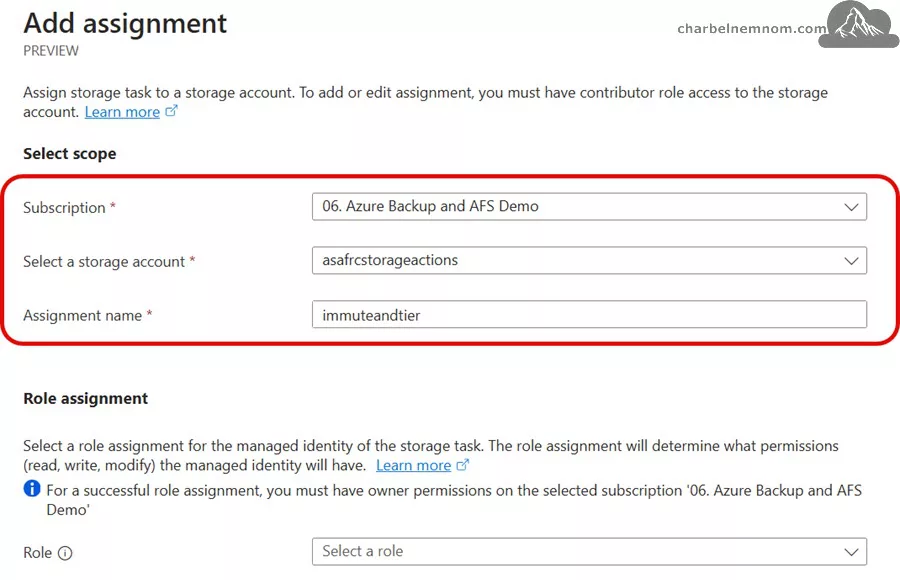
6) Storage Actions use Manage Identity to access the storage account for the role assignment. We want to give the managed identities used by the storage task certain roles so that they have very specific permissions attached. If I’m an IT admin, I know this storage task only does whatever permissions it is given.
For example, if there’s a Custom Role that only allows setting tags, then that role could be used here so that we know we have enough confidence in the managed identity to know it can only tag blobs and cannot perform disruptive operations like deletes. For this example, we’ll use the “Storage Blob Data Owner“. When assigning permissions, always remember to use the principle of least privilege (PoLP).

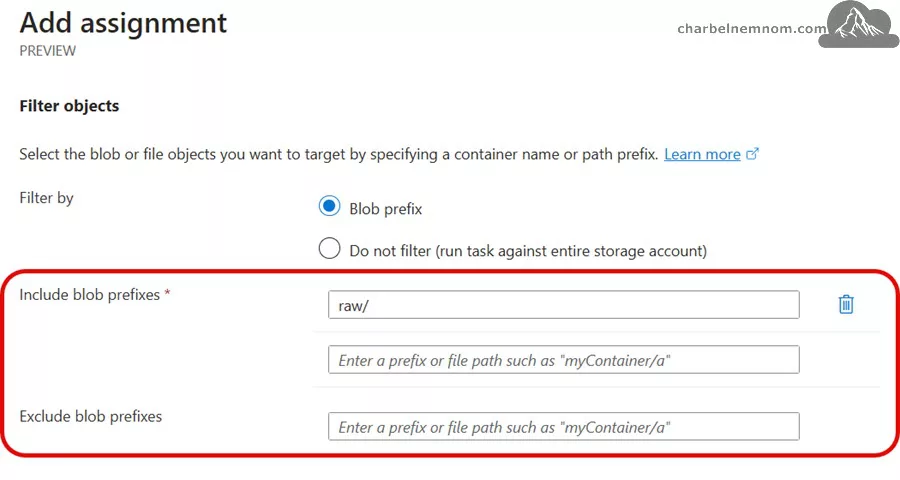
7) Next, Azure Storage Actions supports filtering the Blobs; with the filters, we only scan a subset of blobs in the storage account. For example, if you have 100 different containers and only want to scan specific containers in the storage account, we can use the filtering here to filter for those prefixes.
For the storage account we have here, the prefix is called “raw“. We also have the exclude support for Blob prefixes. So, while scanning the prefix, we want to exclude certain Blob prefixes if there are certain sub-parts in the prefix or the whole storage account. Those can also be defined here so that they are not scanned and looked at when the task runs on that account.
8) Another thing we have in Storage Tasks is that we can determine how often the task is supposed to run. The “Scheduled run” option to run on a recurring schedule. For example, if the audio files land in the storage account daily at 9:00 AM. Then, we could have this run every day at 10:00 AM, and then it looks into those recently uploaded Blobs and adds those immutability policies. In this case, we don’t have to monitor it every day. We can also end the scheduled run frequency by setting the “End by“. We can also repeat the schedule run every certain number of days. So, for those cases, the recurrent scheduled run is super useful.
There’s also a “Single run“, where we don’t want to run it recurrently. For example, we want to run it once through the specific containers in the storage account. Then we can choose this option.
Finally, we have the option to select the report export container. So, upon completing the storage task when it runs through the storage account, as an IT admin, I want to get a report that itemizes all the operations done on the Blobs so that we can look into it and audit whether everything went through correctly. So, for that, we need to choose an existing container that we have in our storage account or create a new container.

9) Once the assignment details are filled in, we must “Add” the assignment and create the storage task. We then do a final validation, which is essentially a summary of what we created before.
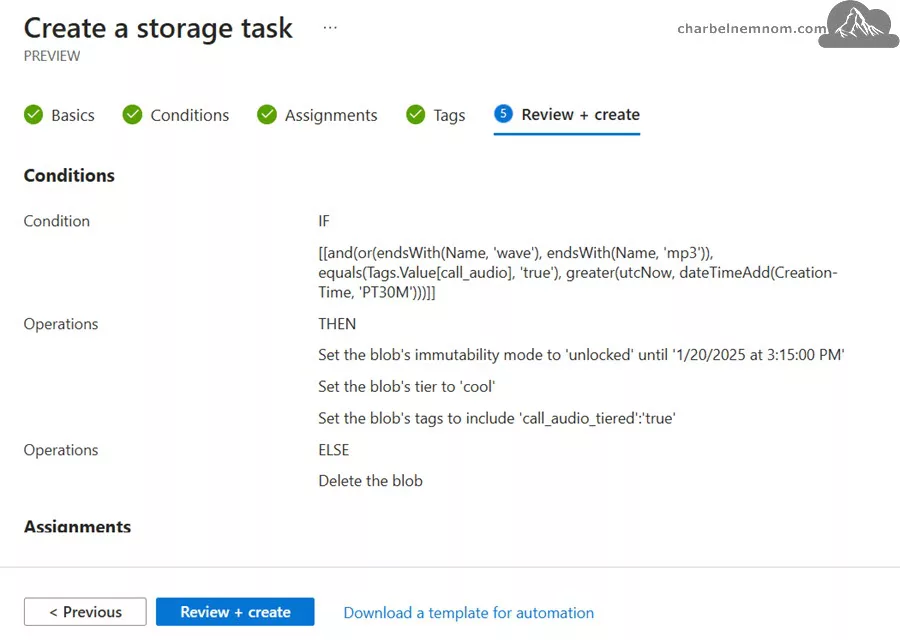
Once you proceed with the deployment, the storage task deployment is similar to any other ARM resource it uses from the Azure portal. It uses an ARM template to deploy the actual resource. We have two different ARM resources. One is a storage task under the storage actions resource path, and we also have the storage task assignment, which is an ARM resource under the storage account.
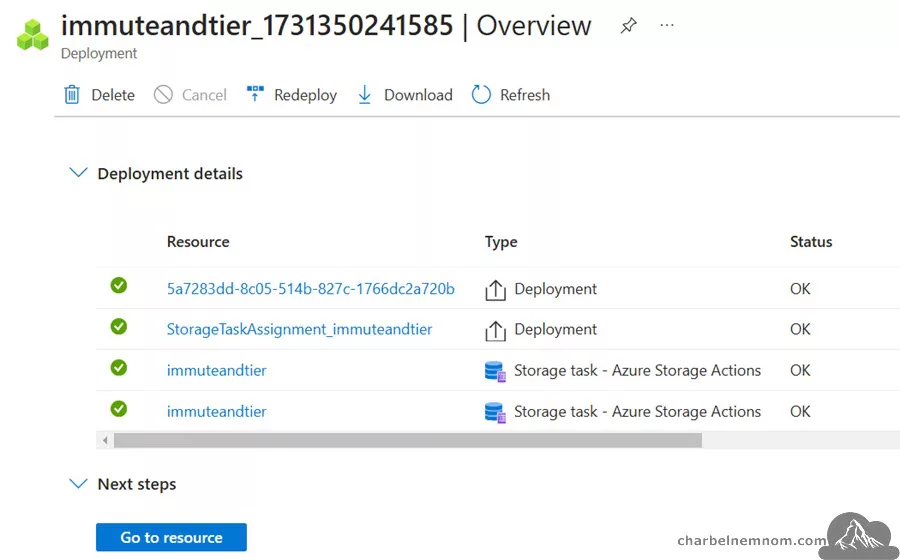
This process balances flexibility and control, allowing for efficient management of data workflows, compliance, and storage optimization through Azure’s user-friendly interface.
Managing Storage Tasks
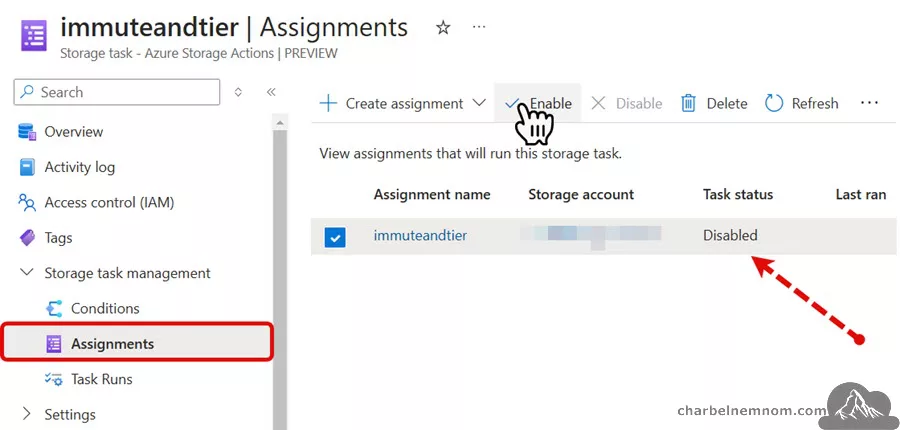
Storage tasks won’t immediately run by default, as assignments are disabled by default. You’ll need to enable them manually to ensure only fully configured tasks proceed.
Once our deployment is completed, we can check the actual storage task resource. The following figure shows the starting page of the storage task assigned to the storage account. As we see, the key metrics are 0 because, to begin with, any tasks added to a storage account are not enabled by default. This is mainly because we want to ensure that, as an IT admin or developer, we must explicitly enable them because some of these operations could be disruptive. However, once the task is run on this storage account, these metrics will show up, and we can see how things are progressing.
If we look under the Conditions blade, we’ll see what we previously defined during the creation process. The visual builder shows the same logic we defined by targeting the “WAVE” files with the voice audio call, setting them to a cool tier, and locking them up.

To enable the storage task, we must go to the Assignments blade, where we can simultaneously assign the same task condition to multiple storage accounts. For this example, we’ve assigned it to just one storage account, which is currently disabled. Click to enable the task assignment, and once the task is enabled, we will see that it progresses and starts executing in time.
Monitoring and Analyzing Storage Task Runs
Azure Monitor oversees storage task runs in Azure Storage Actions, providing insights into every executed operation.
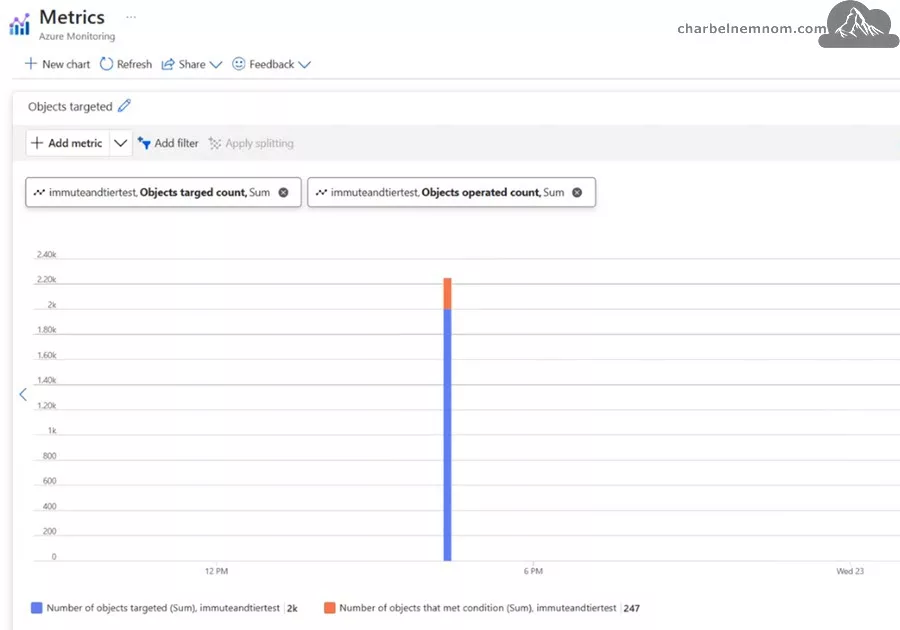
Through the Azure monitoring page, we can drill down into the metrics and figure out how many were targeted and how many of the blobs actually met the condition. We can also look into the date and time these operations were performed through the UI, which gives insight into how our Blobs are progressing.
Another reporting option is exporting a CSV file, which we can export under the Assignments blade. Once the task is completed, we will see that a report is generated at the end of the task run. So, upon clicking the View report, we get a report with a zip file, and upon opening the ZIP file, it has a CSV with the contents.

The report CSV contains an itemized list of all the Blobs in the container, what operations were done on them, and whether they were successful or not. It also has a column that indicates whether it matches the condition. This way, we can review the complete list and determine if all Blobs were operated on successfully. If there are any issues with them, we can drill down and see if we need to rerun them, etc.

These monitoring and reporting capabilities enable organizations to manage their data operations with clarity and agility, transforming data management into a strategic asset.
Practical Use Cases and Scenarios
Azure Storage Actions offers solutions for various data management challenges:
1) Financial services: Managing sensitive data like customer voice recordings by applying time-based immutability policies and transitioning to cost-effective storage tiers.
2) Media and telemetry data management: Configuring storage tasks to set expiry dates using metadata tags or conditions based on creation dates, automating cleanup processes.
These scenarios demonstrate how Azure Storage Actions can optimize storage and operations, enabling organizations to switch from reactive to proactive data practices.

Security and Permissions in Azure Storage Actions
Security in Azure Storage Actions revolves around managed identities and role-based access control (RBAC):
1) Managed identities: Automated identities managed within Azure Active Directory, simplifying the security model.
2) RBAC: Allows for nuanced permission setting based on roles. The built-in ‘Storage Blob Data Owner‘ role is available, but custom roles can be created for specific operations, and it is highly recommended that one be created.
This approach enables effective and adaptive access control, maintaining order and trust in your data management strategy.

Comparing Storage Actions and Lifecycle Management
When evaluating blob management in Azure Storage, it’s important to recognize the differences between the traditional Lifecycle Management feature and the newer Storage Actions. While Lifecycle Management has long provided a way to shift data between storage tiers or delete outdated blobs based on creation or modification dates, its flexibility is somewhat limited.
The key differences include:
* Trigger Flexibility: Storage Actions allow you to initiate processes based on a wider variety of conditions. For example, you can trigger actions based on file size and last access time or match blob names using wildcards. These options enable more nuanced data management strategies without writing custom scripts.
| Trigger | Storage Actions | Lifecycle Management |
|---|---|---|
| Creation date | Yes | Yes |
| Blob name match | Yes | No |
| Content-Length | Yes | No |
| Last access time | Yes | No |
| Tag value match | Yes | No |
* Expanded Capabilities: Beyond simply shifting data tiers or deletion, Storage Actions offer additional functionalities that can streamline data handling, like set tags, undelete blobs, and set legal holds. This broader scope of operations means that tasks traditionally requiring custom solutions can now be managed directly within the Azure ecosystem.
| Action | Storage Actions | Lifecycle Management |
|---|---|---|
| Set blob tier | Yes | Yes |
| Delete blob | Yes | Yes |
| Set tags | Yes | No |
| Undelete blob | Yes | No |
| Set legal hold | Yes | No |
* Permissions and Deployment: Unlike Lifecycle Management—which is an embedded feature of a storage account—Storage Actions operate as standalone resources. They can be assigned to one or multiple storage accounts and leverage built-in RBAC and managed identities. This enhances security and simplifies administrative overhead, paving the way for more robust and scalable implementations.
| Permissions | Storage Actions | Lifecycle Management |
|---|---|---|
| Scope | Standalone resource | Embedded into a storage account |
| Managed Identity | Yes | No |
| Roles | Yes | No |
* Scheduling Options: With Storage Actions, you can set up detailed schedules for when actions should run. This means you can target specific storage accounts for periodic processing or one-time tasks or even exclude certain accounts altogether, giving you greater control over operational timing.
| Schedule Options | Storage Actions | Lifecycle Management |
|---|---|---|
| Single run | Yes | No |
| Recurring run | Yes | No |
If your primary goal is simple data archiving based on last modification dates, Lifecycle Management might be sufficient, given its straightforward setup; however, for scenarios demanding more tailored management—whether due to large data volumes or the need for advanced trigger conditions—Storage Actions offer a powerful alternative.
In Conclusion
Azure Storage Actions is a tool for managing data with precision and efficiency. It streamlines operations, enhances compliance, and optimizes costs while providing insightful monitoring capabilities. With its serverless infrastructure, Azure Storage Actions can scale to meet your data management needs without the overhead of provisioning or managing resources.
Storage tasks provide a framework for the large-scale execution of common operations on objects for blobs and Azure Data Lake Storage (ADLS) Gen2. Tasks are part of an intelligent data framework (IDF) designed to provide customers with extensible data management capabilities that can serve as a foundation for Artificial intelligence for IT operations (AIOps).
__
Thank you for reading our blog.
Please let us know in the comments section below if you have any questions or feedback.
-Charbel Nemnom-
