
With the general availability of Windows Server 2025, Microsoft also released System Center 2025, which introduces updates that reflect a shift in IT infrastructure management and security. These changes align with current technological trends, offering tools that facilitate a more integrated and secure approach to system management.
This article will discuss all the new features introduced in Microsoft System Center 2025, including the discontinued services.
Table of Contents
Service Provider Foundation
System Center 2025 discontinues the Service Provider Foundation (SPF). SPF 2022 remains operational with System Center 2025 components, allowing for a transition period.
Users affected by this change will need to focus on Azure Arc-enabled SCVMM. Azure Arc integrates capabilities into SCVMM for more unified management, offering expanded functionalities to simplify virtual machine management.
Azure Arc-enabled SCVMM allows users to manage VMs more efficiently, with operations like:
- Start
- Stop
- Restart
- Resizing
All these operations on SCVMM-managed VMs are now under one roof, governed by Azure’s Role-Based Access Control (RBAC), providing a self-service option for admins.
The shift to Azure Arc modernizes the approach, delivering more comprehensive integrations and capabilities than previously available with SPF. This move aligns with a broader strategy of modernizing data centers and digital infrastructures, bringing more synergy with Azure services.

Operations Manager 2025 Enhancements
System Center Operations Manager 2025 introduces several key improvements:
- Full support for Windows Server 2025, ensuring smooth integration and management of server environments.
- Adoption of OpenSSL 3.1 to 3.3, providing a solid foundation of cryptographic security and data protection.
- Support for newer versions of popular browsers like Chrome and Edge, ensuring a smoother, more consistent user experience across devices and platforms.
These updates significantly impact system management and security. The integration with Windows Server 2025 allows IT operations to leverage the newest server capabilities seamlessly. The adoption of new security standards through OpenSSL reflects a proactive approach to safeguarding data. Enhanced browser compatibility ensures that system management is more accessible and user-friendly.

Data Protection Manager 2025 Updates
System Center Data Protection Manager 2025 provides crucial updates:
- Full support for Windows Server 2025, ensuring efficient protection of workloads on the latest server platform.
- Improved mechanism for saving passphrases, with the ability to securely store them within Azure Key Vault.
- Backup and restoration of VMs configured with virtual Trusted Platform Modules (vTPM), preserving vTPM device settings during restoration.
These updates reinforce data protection strategies, integrating advanced cloud security solutions and modernizing IT operations’ security posture. The vTPM backup capabilities offer a new level of assurance that DPM is prepared to meet the latest protection needs.

Virtual Machine Manager 2025 Features
System Center Virtual Machine Manager (VMM) 2025 introduces:
- Support for Windows Server 2025, allowing efficient utilization of the latest server technology.
- Extended capabilities to manage virtual machines on Azure Stack HCI clusters running the 23H2 release.
- Adoption of TLS 1.3, moving away from older protocols like NTLM and CredSSP to minimize potential vulnerabilities.
- Support for latest Linux distributions, such as Ubuntu Linux 24.04 and RHEL 9.
These features enable organizations to maximize efficiency, streamline management across complex environments, and strengthen security practices. They represent significant steps in infrastructure modernization, equipping IT professionals with necessary tools for maintaining modern, secure, and agile IT infrastructures.

See Also: Extend Azure Arc To System Center Virtual Machine Manager.
Download System Center 2025
There are multiple options to download and get started with System Center 2025.
- Visit the Evaluation Center product page.
- Get it from Microsoft Admin Center / Visual Studio subscriptions.
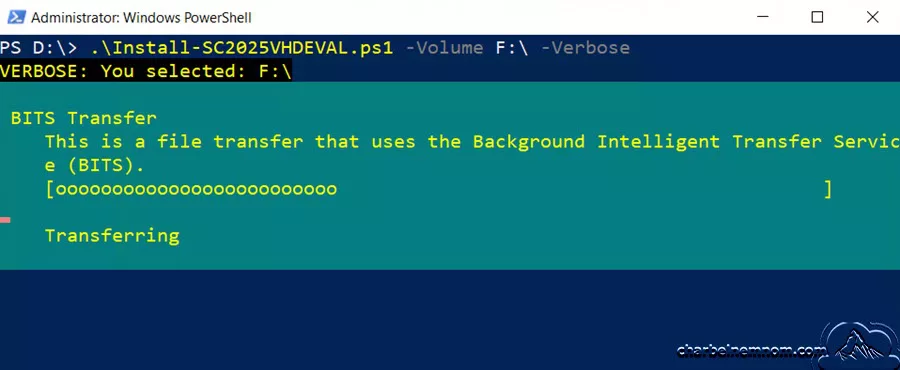
- You could use the following PowerShell script to automatically download evaluation VHDs for each product. Please make sure you have enough capacity.
# Download all System Center 2025 GA VHD Evaluation
# Author: Charbel Nemnom https://charbelnemnom.com/
# Name: Install-SC2025VHDEVAL.ps1
# Version: 1.0

[CmdletBinding()]
param (
    [Parameter(Position = 0, HelpMessage = 'Destination Volume')]
    [Alias('Vol')]
    [String]$Volume
)

Try {
    $Vol = ($Volume -replace (":|\\", ''))
    $CheckVolume = Get-PSDrive -Name $Vol -ErrorAction Stop
}
Catch {
    Write-Warning -Message "No drive found for: `"$Vol`", Please specify a correct volume"
    Exit
}

Write-Verbose "You selected: $($CheckVolume.Root)"
Write-Verbose "Creating new directory..."
$Destination = New-Item -Name SC2025VHDEVAL -Path $(($Vol) + ":") -ItemType Directory -Force

# Variables
$SizeOfSC2025 = 100GB

# Get Space on volume
$SpaceRemaining = ((Get-Volume $CheckVolume.Root.Split(":")[0]).SizeRemaining)

if ($SpaceRemaining -gt $SizeOfSC2025) {
    # SCVMM 2025
((Invoke-WebRequest -Uri "https://www.microsoft.com/en-us/download/confirmation.aspx?id=106280").links | `
        Where-Object href -match "exe$|docx$|bin$").href | ForEach-Object { Start-BitsTransfer -Source $_ -Destination $Destination }
    # SCOM 2025
((Invoke-WebRequest -Uri "https://www.microsoft.com/en-us/download/confirmation.aspx?id=106282").links | `
        Where-Object href -match "exe$|docx$|bin$").href | ForEach-Object { Start-BitsTransfer -Source $_ -Destination $Destination }
    # SCORCH 2025
((Invoke-WebRequest -Uri "https://www.microsoft.com/en-us/download/confirmation.aspx?id=106286").links | `
        Where-Object href -match "exe$|docx$|bin$").href | ForEach-Object { Start-BitsTransfer -Source $_ -Destination $Destination }
    # SCDPM 2025
((Invoke-WebRequest -Uri "https://www.microsoft.com/en-us/download/confirmation.aspx?id=106285").links | `
        Where-Object href -match "exe$|docx$|bin$").href | ForEach-Object { Start-BitsTransfer -Source $_ -Destination $Destination }
    # SCSM 2025
((Invoke-WebRequest -Uri "https://www.microsoft.com/en-us/download/confirmation.aspx?id=106283").links | `
        Where-Object href -match "exe$|docx$|bin$").href | ForEach-Object { Start-BitsTransfer -Source $_ -Destination $Destination }

}
else {
    $SpaceRemaining = [math]::Round($SpaceRemaining / 1GB)
    Write-Output "The remaining size on $Destination is $SpaceRemaining GB, please free up at least $($SizeOfSC2025/1GB) GB and try again!"
}
In Summary
System Center 2025 reinforces Microsoft’s dedication to enhancing security and infrastructure modernization:
- Reduced reliance on older authentication methods like CredSSP and NTLM, replaced by more advanced solutions.
- Implementation of Transport Layer Security (TLS) version 1.3, providing improved security and performance benefits.
- Advancement of modernization efforts through Azure Arc-enabled System Center Virtual Machine Manager (SCVMM), supporting the management of diverse environments.
These changes prioritize protecting sensitive operations and data integrity across network operations. The Azure Arc-enabled SCVMM solution offers a unified interface for managing virtual machines across traditional and advanced infrastructures, allowing organizations to use cloud-native capabilities while maintaining control over on-premises resources.
System Center 2025 represents a significant advancement in IT management, emphasizing security and integration. This release sets the stage for organizations to confidently manage their infrastructures, equipped with the tools necessary for future growth and adaptability.
__
Thank you for reading our blog.
Please let us know in the comments section below if you have any questions or feedback.
-Charbel Nemnom-

Have you successfully installed SCVMM 2025 yet on Windows Server 2025 with SQL 2022 yet? I followed the instructions to the letter and the installation always rolls back for some unknown reason.
Installing C:\Users\svc_scvmm\Desktop\scvmm\amd64\setup\msi\Server\vmmServer.msi failed with Windows Installer error 1603.
See C:\ProgramData\VMMLogs\vmmServer.log for more information. After resolving the problem, retry setup.
Product: Microsoft System Center Virtual Machine Manager Server (x64) — Error 1720. There is a problem with this Windows Installer package. A script required for this install to complete could not be run. Contact your support personnel or package vendor. Custom action ConfigWsman script error -2147221503, : Line 312, Column 9,
Error 1720. There is a problem with this Windows Installer package. A script required for this install to complete could not be run. Contact your support personnel or package vendor. Custom action ConfigWsman script error -2147221503, : Line 312, Column 9,
Hello Robert, thanks for the comment!
Yes, I have successfully installed SCVMM 2025 on Windows Server 2025 with SQL 2022. The errors you’re encountering can be challenging. Here are some steps to troubleshoot:
1. Review Installation error Logs: Examine the
vmmServer.loglocated inC:\ProgramData\VMMLogs\for detailed error messages.2. Ensure Administrative Privileges: Right-click the installer and select “Run as administrator” to ensure it has the necessary permissions.
3. Disable Antivirus Temporarily: Some antivirus programs can interfere with installations. Temporarily disable them during the SCVMM 2025 setup.
4. Error 1603: Verify that the SYSTEM account has Full Control permissions on the installation directory.
5. Check for Encrypted or Substitute Drives: Ensure the installation is not being performed on an encrypted folder or a substitute drive, as these can cause Error 1603.
6. Error 1720: The installer might be corrupted; download a fresh copy, next ensure the Windows Installer service is running properly. You can also unregister (
msiexec /unregister) and re-register (msiexec /regserver) the Windows Installer service to fix potential issues.7. Check for any Pending Windows Updates.
Let me know if any of these steps resolve the issue or if you need further assistance.