
The built-in Windows Firewall is a great security feature for the Windows client and server operating systems. While not every organization actively uses Windows Firewall (they may have a third-party security solution deployed instead), the Windows Firewall application has a powerful logging component that is highly valuable for investigation and proactive hunting.
The good news is that Microsoft Sentinel allows you to stream and filter Windows Firewall application logs collected from your machines and servers using the new Azure Monitor Agent (AMA) Windows Firewall extension to the “ASimNetworkSessionLogs” normalized schema table.
One question we are frequently asked is whether we can use the Windows Forwarded Events solution using Azure Monitor Agent (AMA) to collect Windows Firewall Events to be forwarded to a Windows Event Collector (WEC) machine, similar to collecting Windows Security Event logs instead of individually loading the AMA agent on each server. The short answer is YES! Furthermore, to collect Windows Firewall events from any system that isn’t an Azure virtual machine, we must also ensure that the Azure Arc agent is installed first. If you have many hybrid systems, this becomes even more challenging.
This guide will describe all the steps to configure and collect Windows Firewall Events from your servers, send them to Microsoft Sentinel using the Windows Forwarded Events solution, and get them ingested into the “ASimNetworkSessionLogs” normalized table using ingest-time transformation and Data collection rules (DCRs). This approach would not require you to install and manage the AMA on each machine but to keep collecting from a central WEC server with outbound connectivity.
Table of Contents
Introduction
Windows Forwarded Events is a feature of the Windows operating system that allows event logs to be collected and forwarded to a central location for analysis. This feature helps you to monitor and troubleshoot events across multiple computers from a central location.
When a Windows computer generates an event, it writes it to its local event log. With Windows Forwarded Events, you can configure computers and servers to forward events to a central collector computer known as Windows Event Collector (WEC), which can then analyze the events from multiple sources.
The forwarded events can be filtered based on criteria such as event ID, source, and keywords to help you focus on specific events. Windows Event Forwarding (WEF) isn’t new; we believe it has been around for more than 20 years now. This feature can be particularly useful for large-scale deployments, but the ability to query the logs has never been its strong point, and storage can be an issue.
Fortunately, with Microsoft Sentinel, we could leverage the Windows Forwarded Events connector solution based on the new Azure Monitor Agent (AMA) to stream our logs from the WEC server to the Log Analytics workspace. This would overcome the challenge of querying and storing the logs without having the AMA agent installed on each computer or server.

Understanding Windows Event Logs
Windows Event Logs capture system activities, categorized into five main types:
- System logs: Record core operating system events
- Application logs: Detail local app activities
- Setup logs: Document installation processes
- Security logs: Contain information on login attempts and privilege changes
- Forwarded Events: Compile logs from various computers
The Windows Event Viewer allows users to access and analyze this information, facilitating troubleshooting, security audits, and system monitoring.

Ingesting Windows Security and Firewall Events into Microsoft Sentinel
Windows Firewall is a Microsoft Windows application that filters information from your system from the internet and blocks potentially harmful programs. The firewall software blocks most programs from communicating through the firewall. Microsoft Sentinel and Azure Monitor offer different methods to ingest Windows Logs:
1) Windows Security Events via Azure Monitor Agent (AMA) Content Hub: This solution directly connects security events to Sentinel, populating the “SecurityEvent” table with filtered, relevant information.
2) Windows Firewall Events via Azure Monitor Agent (AMA) Content Hub: This solution allows you to stream all Windows Firewall logs from your Windows machines to Sentinel, populating the “ASimNetworkSessionLogs” table with filtered, relevant information.
3) Windows Forwarded Events via Azure Monitor Agent (AMA) Content Hub: This is useful when direct access to servers is limited, which is precisely the case here. It gathers logs from various sources and channels them through a Windows Event Collector (WEC) to Sentinel, populating the “WindowsEvent” table with filtered, relevant information.
4) Azure Monitor Data Collection Rules (DCRs): Provides a broad overview of the operating environment without using Sentinel, capturing logs for comprehensive insights into the “Event” table.
Each method caters to specific operational needs and security requirements, equipping SOC teams with tools to maintain network safety.

This guide focuses on method three, which uses Windows Forwarded Events via Azure Monitor Agent (AMA) to stream all Windows Firewall logs from servers and computers to Microsoft Sentinel, populating the data in the “ASimNetworkSessionLogs” table with filtered, relevant information.
A quick note: This will be a long article built on different pieces to parse the Windows Firewall log files to a Windows Event Collector (WEC) because Windows Firewall logs are stored in text files under the following default path: “C:\Windows\System32\LogFiles\Firewall\pfirewall.log” and not in the Windows Event Log. To forward them, we need to create a task that reads this log and sends it to the Windows Event Log so we can leverage Windows Event Forwarding (WEF) using Source-Initiated Subscriptions.
Are you ready? Let’s dive in…
Prerequisites
To follow this guide, you need to have the following:
1) Azure subscription: If you don’t have an Azure subscription, you can create one here for free.
2) Log Analytics workspace: To create a new workspace, follow the instructions to create a Log Analytics workspace.
3) Microsoft Sentinel: You can enable Microsoft Sentinel at no additional cost on an Azure Monitor Log Analytics workspace for the first 31 days; follow the quick onboarding process. Once Microsoft Sentinel is enabled on your Azure Monitor Log Analytics workspace, every GB of data ingested into the workspace can be retained at no charge for 90 days.
4) Content Hub: The Windows Forwarded Events solution must be installed from the Content Hub blade.

5) To onboard WEC machine(s) to Azure Arc, you must have the Azure Connected Machine Onboarding or Contributor role for the resource group where you’re managing the WEC servers.
Before Windows Event Forwarding (WEF) can be used, specific requirements must be met. This ensures a smooth implementation without limitations.
1) Windows version: The latest version of Windows 11 Client and Windows Server 2019, 2022, and later is recommended for the source (from where you want to capture the Windows Firewall Logs) and the destination machine running the Windows Event Collector (WEC) service.
2) Network connectivity: Ensure that all computers within the network can communicate. Configure necessary firewall rules to safely forward event logs to the central WEC server. To maintain the confidentiality and integrity of log data, it is strongly recommended that secure communication with Kerberos be used. Network traffic should use WSMAN port 5985.
3) Permissions: To set up and manage WEF, you need administrative rights on both the source computers and the target server. Other than configuring the group policy objects, no domain admin rights are needed.
4) Windows Event Collector (WEC): The requirements for a single log collector machine can vary depending on several factors, such as the volume of log data you want to collect, the frequency of events, and the complexity of your analysis needs. The more data you collect and analyze, the more powerful the machine needs to be. Here are some general recommendations for the requirements of a log collector:
* CPU: A multi-core processor with good processing speed is important for efficiently processing event logs. The exact requirements vary, but a modern quad-core processor or better is recommended. The processor should have a minimum of 4 cores.
* RAM: The amount of RAM depends on the volume of log data and the complexity of your analyses. Generally, at least 16 GB of RAM is recommended.
* Storage: Sufficient storage space is needed to store log data before it is forwarded to the Log Analytics workspace.
* Network: A fast network connection is essential, especially if you are collecting log data from multiple sources.
* Scale: For Windows Event collections, we scale by using multiple Windows Event Collector (WEC) servers. In this case, you will have several Windows Event Collector servers in place; each will support up to 5,000 events per second (EPS), the maximum number of events a single WEC server can collect. You will then define the policy for different machines to forward their events to the different WEC servers you will have configured.
* High-Availability: For high availability and client load balancing in a Windows Event Forwarding (WEF) setup. You can use DNS Round Robin, which allows you to register multiple A records for a single DNS name, each pointing to a different WEC server, or GPO-Based Load Distribution. For true load balancing, you can use Network Load Balancing (NLB) or deploy a reverse proxy (like HAProxy or NGINX) that forwards WEF traffic to healthy WEC nodes, but for most use cases, DNS Round Robin with WEF client failover is sufficient. This ensures better scalability, avoids a single point of failure, and spreads event load evenly.

5) Enable and configure Windows Firewall logging on your Severs(s). More information is below.
Collect Windows Firewall Events
This guide’s Windows Event Forwarding (WEF) architecture is based on a domain network where various components play critical roles in effectively managing and analyzing Windows Firewall event log data. Two Active Directory Domain Services (AD DS) running DNS roles on-premises oversee configurations, while the WEC log collector centralizes Windows Firewall logs from both DCs. You could expand and replicate the same configuration to capture Windows Firewall Logs from all systems in your environment.

Let’s dive through all the steps needed to implement this architecture.
Enable Windows Firewall Logging
We have several options for enabling the Windows Firewall Log. You could use Microsoft Intune, Group Policy (GPO), or PowerShell or manually enable it in the Control Panel. GPO is the recommended way to enable Firewall logging at scale.
The figure below shows the necessary configuration of each profile (Domain, Private, and Public), specifically that all dropped and successful connections are logged and that the log size limit is set to a minimum of 1,024 KB (1 MB) or a maximum of 32,767 KB (32 MB). The default 4 MB (4,096 KB) log size should be enough since this is the machine’s firewall rather than a Firewall server.

Once you enable firewall logging, you can open the actual Windows firewall log file “pfirewall.log” figure below —this is the raw data we collect for security use. The columns include source and destination IP and port, the size of the packet in bytes, TCP control flags, and the direction of the communication (SEND/RECEIVE).

Parse Windows Firewall Logging
The next step we need to do is to parse the Windows Firewall Log file. To forward Windows Firewall logs “pfirewall.log” from Windows machines to a Windows Event Collector (WEC) central server, we’ll need to set up an automated process to capture the logs and send them to the WEC. As mentioned earlier, the “pfirewall.log” is a text file, so we need a mechanism to read it and send it as a custom event to the Windows Event Log to be forwarded.
To do so, we have developed the following highly customized PowerShell script that forwards the contents of the “pfirewall.log” file (Windows Firewall log) to the Windows Event (Application) Log. This is necessary because “pfirewall.log” is a text file, not an event log entry, so we must manually convert it into something the Windows Event Collector (WEC) can recognize and forward.
PowerShell Script Breakdown
In this section, we will explain the PowerShell script step-by-step and then provide the entire script at the end.
# Define the path to the firewall log file
$firewallLog = "C:\Windows\System32\LogFiles\Firewall\pfirewall.log"
Purpose: This specifies the path to the Windows Firewall log file that will be processed for new log entries.
# Create a custom Event Log source if it doesn't already exist
if (-not [System.Diagnostics.EventLog]::SourceExists("FirewallLogForwarder")) {
    New-EventLog -LogName Application -Source "FirewallLogForwarder"
}Purpose: This checks whether a custom Event Log source named “FirewallLogForwarder” exists. If not, it creates this source under the “Application” log. This allows us to log firewall entries to the Windows Event Application Log. You can choose “Security,” “Setup,” or “System” if you don’t want to pull the logs under the “Application” log.
# Track the last position and last timestamp
$positionFile = "$env:ProgramData\FirewallLogPosition.txt"
$timestampFile = "$env:ProgramData\FirewallLogLastTimestamp.txt"Purpose: We create two variables that store the paths to files that will be used to track the last position and the last timestamp.
- $positionFile: The last read position in the firewall log.
- $timestampFile: The last known timestamp of the log entries processed. This helps us detect if the log has been reset and avoid reprocessing older entries.
# If position file doesn't exist, start reading from the beginning
if (Test-Path $positionFile) {
    $lastPosition = Get-Content $positionFile
} else {
    $lastPosition = 0
}

# If timestamp file exists, read the last known timestamp
if (Test-Path $timestampFile) {
    $lastTimestamp = Get-Content $timestampFile
} else {
    $lastTimestamp = ""
}Purpose: Loading the last position and last timestamp.
- The first block checks if the position tracking file exists. If it does, the script loads the last read position from it. Otherwise, it assumes this is the first run and sets “
$lastPosition = 0“. - The second block checks if the timestamp tracking file exists. If it does, the script loads the last known timestamp from it. Otherwise, it starts with an empty string (
$lastTimestamp = "").
# Open the firewall log and read all content
$log = Get-Content $firewallLog -RawPurpose: This reads the entire firewall log file into a string ($log) using -Raw. This makes it easier to process the log entries based on position.
# Explicitly convert $lastPosition and $log.Length to integers
$lastPosition = [int]$lastPosition
$logLength = [int]$log.LengthPurpose: The script converts both $lastPosition and $log.Length to integers. This ensures that comparisons between them (e.g., $lastPosition -lt $logLength) are numeric and don’t encounter type mismatch issues.
# Handle firewall log file (pfirewall.log) reset and rotation
# If last position is greater than the current log length, reset it to 0
if ($lastPosition -gt $logLength) {
    $lastPosition = 0
}Purpose: This handles the scenario where the firewall log file is rotated or reset (i.e., the log file size is smaller than the last recorded position). If this happens, it resets “$lastPosition = 0” so that the script starts reading from the beginning of the rotated log file.
# Read new content from the log since the last position
if ($lastPosition -lt $logLength) {
    $newEntries = $log.Substring($lastPosition)
$lastPosition = $logLengthPurpose: This condition checks if there are new entries to process in the log file. If the current log length is greater than the last read position, the script reads the new content starting from $lastPosition. After reading, it updates the $lastPosition to the current length of the log file $logLength.
# Split new entries into individual lines and filter out unwanted lines and extra line breaks
$filteredEntries = $newEntries.Split("`n") | Where-Object {
  $_ -notmatch '^#Version: 1.5' -and
  $_ -notmatch '^#Software: Microsoft Windows Firewall' -and
  $_ -notmatch '^#Time Format: Local' -and
  $_ -notmatch '^#Fields: date time action protocol src-ip dst-ip src-port dst-port size tcpflags tcpsyn tcpack tcpwin icmptype icmpcode info path pid' -and
  [string]::IsNullOrWhiteSpace($_) -eq $false
}Purpose: This splits the new log content into individual lines and filters out:
- Comment lines (e.g., metadata about the log file, version, software, field names).
- Blank or whitespace-only lines.
- This ensures that only actual log entries are processed.
# Check if the log file has been reset by comparing the first timestamp
$firstEntry = $filteredEntries | Select-Object -First 1
if ($firstEntry -match "^\d{4}-\d{2}-\d{2} \d{2}:\d{2}:\d{2}") {
$firstTimestamp = $firstEntry.Substring(0, 19) # Extract the first timestampPurpose: Checking the First Log Entry Timestamp
- This checks the first log entry and extracts its timestamp if it matches the expected format (
YYYY-MM-DD HH:MM:SS). -
$firstTimestamp = $firstEntry.Substring(0, 19)grabs the first 19 characters of the log entry, which represents the timestamp.
if ($lastTimestamp -eq "" -or $firstTimestamp -lt $lastTimestamp) {
   # The log file has been reset (rotated) or this is the first run
   $lastPosition = 0
}

# Update the last known timestamp
Set-Content $timestampFile $firstTimestamp
}Purpose: Detecting Windows Firewall log file rotation (reset) via timestamp comparison
- This checks if the log file has been reset by comparing the first log entry’s timestamp (
$firstTimestamp) with the last known timestamp ($lastTimestamp). - If
$lastTimestampis empty (i.e., the first time running the script), or the first log entry’s timestamp is earlier than the last processed timestamp, the log file is considered reset (rotated). In this case, the script resets$lastPosition = 0. - The last known timestamp is then updated and saved to
$timestampFileto track it for future comparisons.
# Log the new filtered entries to the Windows Event Application Log
foreach ($entry in $filteredEntries) {
  if ($entry -ne "") {
      try {
          Write-EventLog -LogName Application -Source "FirewallLogForwarder" -EntryType Information -EventId 3001 -Message $entry
          }
     catch {
          Write-Warning "Error writing to Event Log: $_"
          }
     }
}Purpose: This loops through the filtered log entries and writes them to the Windows Event Log (Application log) under the source “FirewallLogForwarder“. Each valid firewall log entry is assigned EventId 3001. You can change the Event ID number if you wish.
# Update the position file
Set-Content $positionFile $lastPosition
}Purpose: Last, after processing new entries, the script updates the position tracking file (FirewallLogPosition.txt) with the latest read position. This ensures that on the next run, the script will only process new log entries after this position.
Here is the entire script as a reference:
<#
.SYNOPSIS
Parse Windows Firewall Logs at Scale.

.DESCRIPTION
Parse Windows Firewall Log file "pfirewall.log" using PowerShell and write events to the Windows Event Application Log under the source "FirewallLogForwarder" with Event ID "3001".

.NOTES
File Name : Parse-WindowsFirewallLogs.ps1
Author    : Microsoft MVP/MCT - Charbel Nemnom
Version   : 1.0
Date      : 23-October-2024
Updated   : 25-October-2024
Requires  : Windows PowerShell 5.1 / PowerShell 7.4.x (Core)

.LINK
To provide feedback or for further assistance please visit:
 https://charbelnemnom.com
#>

# Define the path to the firewall log file
$firewallLog = "C:\Windows\System32\LogFiles\Firewall\pfirewall.log"

# Create a custom Event Log source if it doesn't already exist
if (-not [System.Diagnostics.EventLog]::SourceExists("FirewallLogForwarder")) {
    New-EventLog -LogName Application -Source "FirewallLogForwarder"
}

# Track the last position and last timestamp
$positionFile = "$env:ProgramData\FirewallLogPosition.txt"
$timestampFile = "$env:ProgramData\FirewallLogLastTimestamp.txt"

# If position file doesn't exist, start reading from the beginning
if (Test-Path $positionFile) {
    $lastPosition = Get-Content $positionFile
} else {
    $lastPosition = 0
}

# If timestamp file exists, read the last known timestamp
if (Test-Path $timestampFile) {
    $lastTimestamp = Get-Content $timestampFile
} else {
    $lastTimestamp = ""
}

# Open the firewall log and read all content
$log = Get-Content $firewallLog -Raw

# Explicitly convert $lastPosition and $log.Length to integers
$lastPosition = [int]$lastPosition
$logLength = [int]$log.Length

# Handle firewall log file (pfirewall.log) reset
# If last position is greater than the current log length, reset it to 0
if ($lastPosition -gt $logLength) {
    $lastPosition = 0
}

# Read new content from the log since the last position
if ($lastPosition -lt $logLength) {
    $newEntries = $log.Substring($lastPosition)
    $lastPosition = $logLength

    # Split new entries into individual lines and filter out unwanted lines and extra line breaks
    $filteredEntries = $newEntries.Split("`n") | Where-Object {
        $_ -notmatch '^#Version: 1.5' -and
        $_ -notmatch '^#Software: Microsoft Windows Firewall' -and
        $_ -notmatch '^#Time Format: Local' -and
        $_ -notmatch '^#Fields: date time action protocol src-ip dst-ip src-port dst-port size tcpflags tcpsyn tcpack tcpwin icmptype icmpcode info path pid' -and
        [string]::IsNullOrWhiteSpace($_) -eq $false # This removes empty or whitespace-only lines
    }

    # Check if the log file has been reset by comparing the first timestamp
    $firstEntry = $filteredEntries | Select-Object -First 1
    if ($firstEntry -match "^\d{4}-\d{2}-\d{2} \d{2}:\d{2}:\d{2}") {
        $firstTimestamp = $firstEntry.Substring(0, 19)  # Extract the first timestamp

        if ($lastTimestamp -eq "" -or $firstTimestamp -lt $lastTimestamp) {
            # The log file has been reset or this is the first run
            $lastPosition = 0
        }

        # Update the last known timestamp
        Set-Content $timestampFile $firstTimestamp
    }

    # Log the new filtered entries to the Windows Event Log
    foreach ($entry in $filteredEntries) {
        if ($entry -ne "") {
            try {
                Write-EventLog -LogName Application -Source "FirewallLogForwarder" -EntryType Information -EventId 3001 -Message $entry
            } catch {
                Write-Warning "Error writing to Event Log: $_"
            }
        }
    }

    # Update the position file
    Set-Content $positionFile $lastPosition
}
Schedule the Script to run Periodically
The next step is to schedule the script above to run periodically. In this case, we can use “Task Scheduler” to set up a task and action to trigger the script regularly.
To automate this process, we have created the following PowerShell script you must run once to create the Task Scheduler. Before you run the script below, you need to copy the entire script above and store it in the following path: “C:\Windows\System32\LogFiles\Firewall“. You can change the path if needed.

Once the script file is copied to the desired location, you can run the short script below to create the Task Scheduler.
# Get the current time
$currentTime = Get-Date
# Add 5 minutes to the current time
$newTime = $currentTime.AddMinutes(5)
# Time trigger
$Time = $newTime.ToString('HH:mm')

# Specify the trigger settings to run every 5 minutes indefinitely
$Trigger = New-ScheduledTaskTrigger -Once -at $Time -RepetitionInterval '00:05:00.0'
$Trigger.Repetition = $Trigger.Repetition

# Specify the account to run the script
$User = "NT AUTHORITY\SYSTEM"

# Specify the task settings
$Settings = New-ScheduledTaskSettingsSet -ExecutionTimeLimit 0

# Specify the PowerShell script location to run and with its parameters
$Action = New-ScheduledTaskAction -Execute "PowerShell.exe" -Argument "-file C:\Windows\System32\LogFiles\Firewall\FirewallLogForwarder.ps1"

# Specify the name of the task and register it
Register-ScheduledTask -TaskName "Collect Windows Firewall Logs"`
 -Description "Collect Windows Firewall Logs from pfirewall.log file. This is necessary because pfirewall.log is a text file, not an event log entry, so we have to manually convert it into something that the Windows Event Collector (WEC) can recognize and forward." `
 -Trigger $Trigger -User $User -Action $Action -RunLevel Highest -Settings $Settings –Force
Once you run the script, open Task Scheduler (taskschd.msc) and verify that the task has been created successfully under the default location “\.”

Once the Task Scheduler runs on the source machines and servers, you can verify that the Windows Firewall Logs (Event Data) are written to the Windows Event Viewer Application Log under the Event ID 3001 and the source is FirewallLogForwarder, as shown in the figure below.

Now, we are ready to set up Windows Event Forwarding (WEF).
Setting Up Windows Event Forwarding (WEF)
Windows Event Forwarding (WEF) creates a central repository for machine activities, enabling efficient monitoring and analysis to help with intrusion detection. The process involves the following:
Windows Remote Management (WinRM – WSMAN)
It’s good practice to check if the WinRM is enabled and running. Windows Remote Management (WinRM) is a Microsoft service that enables remote communication and management of Windows systems over a network. It allows administrators to execute commands, change configurations, and retrieve data from remote computers running Windows operating systems.
By default, WinRM listener is enabled starting with Windows Server 2008 R2 and later; you can check its configuration by running the following command:
winrm get winrm/config
Then, check if the WinRM service is set to start automatically by running the following PowerShell command:
Get-Service -Name WINRM | select StartType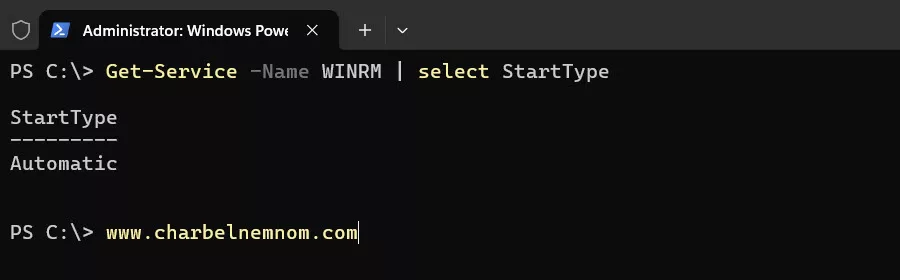
If any of the previous steps fail to achieve the desired outcome, you can run the following command to set up the log collector machine to use Windows Remote Management:
Enable-PSRemotingWinRM Collector Adjustments
As documented by Microsoft in the following guide (Events are not forwarded if the collector is running Windows Server), we must adjust the default access control lists (ACLs) for both the Windows Event Collector service (WecSvc) and the Windows Remote Management service (WinRM) URLs. This adjustment applies ONLY to Windows Server 2016 and 2019. You can skip this step if you are using a new Windows Server 2022, 2025, and later installation. However, if you upgraded to Windows Server 2022/2025 from 2016 or 2019, then you should also follow the steps described below.
To correct this issue, you must run the following commands in an elevated command console on the Windows Event Collector (WEC) machine:
netsh http delete urlacl url=http://+:5985/wsman/
netsh http add urlacl url=http://+:5985/wsman/ sddl=D:(A;;GX;;;S-1-5-80-569256582-2953403351-2909559716-1301513147-412116970)(A;;GX;;;S-1-5-80-4059739203-877974739-1245631912-527174227-2996563517)
netsh http delete urlacl url=https://+:5986/wsman/
netsh http add urlacl url=https://+:5986/wsman/ sddl=D:(A;;GX;;;S-1-5-80-569256582-2953403351-2909559716-1301513147-412116970)(A;;GX;;;S-1-5-80-4059739203-877974739-1245631912-527174227-2996563517)
Then, restart the WEC server or service: “Get-Service -Name Wecsvc | Restart-Service -Force” after making the changes. To view the current access control lists (ACLs) configuration, you can use the following command line: “netsh http show urlacl“.
Windows Firewall
Next, we need to check if Windows Remote Management (HTTP-In) is enabled or create a new firewall rule for Windows Remote Management (HTTPS-In) if you configured WINRM to listen on HTTPS (TCP-5986) by running the following command line in an elevated PowerShell console:
# Enable Windows Remote Management (HTTP-In)
Get-NetFirewallRule | Where-Object `
 {$_.Displayname -Like "Windows Remote Management (HTTP-In)" -and $_.Profile -like "*Domain*"} `
 | Select Enabled

# Create Windows Remote Management (HTTPS-In) firewall rule
New-NetFirewallRule -Name "Windows Remote Management (HTTPS-In)" `
 -DisplayName "Windows Remote Management (HTTPS-In)" -Profile "Domain" `
 -Enabled True -Direction Inbound -Protocol TCP -LocalPort "5986" `
 -Group "Windows Remote Management" -Program "System"
Suppose your source servers run Windows Server Core Edition (highly recommended). In that case, you can run the PowerShell command below to enable ‘Remote Event Log Management,’ enabling the following inbound rule: COM+ Network Access (DCOM-In). This is only needed to access your server’s Event Viewer from a remote system.
# Enable Remote Event Log Management
Set-NetFirewallRule -DisplayGroup 'Remote Event Log Management' -Enabled True -PassThru |
  Select-Object -Property DisplayName, Enabled
Create a Windows Event Forwarding Subscription
A Windows Event Forwarding (WEF) subscription gathers specific events from source computers within the domain and sends them to the Windows Event Collector (WEC) for centralized storage and analysis. Below are the steps to set up a WEF subscription:
Open the Event Viewer (Run: “eventvwr“) on the log collector server and go to “Subscriptions“. Click “Yes” when prompted to start the WEC service.

In the Subscription Properties window, give the subscription a name and select “Source computer initiated.” Then click on “Select Computer Groups…”

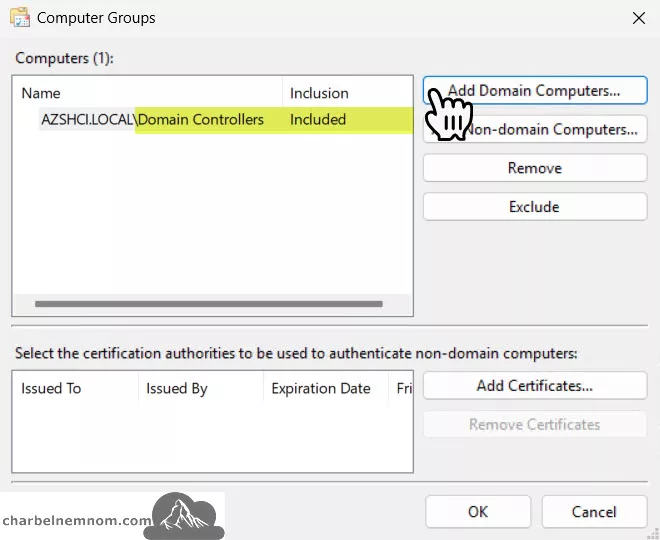
Next, Click “Add Domain Computers” and add the computer group (servers) that must forward Windows Firewall events. In this case, we need to forward the firewall events from domain controllers, so selecting “Domain Controllers” here is advisable. The machines will then be able to forward events but need further configuration (more on this below). Click “OK” in this dialog box.
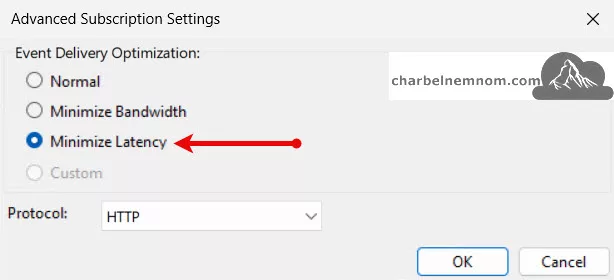
Then click “Advanced” at the bottom of the screen and select the option “Minimize Latency.” Click “OK”. These options are available:
- “Normal” pull delivery every 15 minutes.
- “Minimize Bandwidth” push delivery every 6 hours.
- “Minimize Latency” for critical events pushes delivery every 30 seconds. Since Windows Firewall and Security Events are critical, we’ll select Minimize Latency to forward events as quickly as possible.
Please note that the “HTTP” protocol is secured by Kerberos encryption. Click “OK”.
In the “Select Events” dialog box, specify the event configuration. This can be done in the UI section or via an XPATH (XML tab), as shown in the figure below. In this scenario, we need to forward the Firewall events from the Application Event Logs with the Event ID 3001.

If you prefer an XPATH configuration, here is the XML query filter as a reference:
<QueryList>
  <Query Id="0" Path="Application">
    <Select Path="Application">*[System[(EventID=3001)]]</Select>
  </Query>
</QueryList>
We’ll filter later using ingest-time transformation and Data collection rules (DCRs) before the logs hit the “ASimNetworkSessionLogs” normalized table in Log Analytics. For more information, refer to the Microsoft documentation.
Click “OK” twice to return to the subscription. It will now be configured according to the set conditions. The following screenshot represents this setup. The Source Computers column is still “0” because we have not finished the configuration.

Adjust Event Log Size
Adjusting the “Forwarded Events” log size is recommended, which is vital to ensure enough space to store log data on the Windows Event Collector (WEC) machine. Here’s the command line to set the event log size to 1 Gigabyte. You can set it to a higher number if needed. The minimum log size is 1048576 bytes (1024KB), and log files are always multiples of 64KB, so the value you enter will be rounded off accordingly:
wevtutil sl forwardedevents /ms:1000000000
Now, you may be asking, what happens if the WEC collector server is down for update reasons or just plain crashes? Do servers and machines sending logs keep the current state and then forward the logs once the collector becomes available, or are all the logs sent during the collector server that was down lost?
We’ve tested that exact scenario by taking down the WEC collector machine for a few minutes and then bringing it back online, and we have timed the power-off and power-on.
The good news is that the logs are kept locally on clients/servers until the WEF collector becomes available and then forwarded. So you don’t lose logs if WEC is down; it will just forward when it becomes available without losing the track.
WEF Configuration via a Group Policy object (GPO)
A Group Policy Object (GPO) is the way to manage the Windows Event Forwarding (WEF) configuration on multiple computers and servers within the domain. Here are the steps to create a WEF configuration via a GPO:
In “Group Policy Management,” create a group policy object in the organizational unit where the Windows machines that need to receive the WEF configuration are located. This GPO can be filtered based on computer names or a specific group. The following GPO policy exclusively uses computer configuration; therefore, we set the GPO Status to: “User configuration settings disabled”, as shown in the figure below.

Next, edit the policy and navigate to Computer Configuration -> Policies -> Windows Settings -> Security Settings -> Restricted Groups. Then, add a group named “Event Log Readers” and click “OK”. Then, in “Member of this group,” click “Add” and add the pseudo group “NT AUTHORITY\Network Service”, as shown in the figure below. Click “OK” twice to return. This must be done to give the “Network Service” rights to read and forward event logs to the collector.

Next, in the policy, navigate to Computer Configuration -> Policies -> Windows Settings -> Security Settings -> System Services, and configure the “Windows Remote Management (WS-Managemenet)” service to start automatically. Click “OK” to return.

Next, in the policy, navigate to Computer Configuration -> Policies -> Administrative Templates -> Windows Components -> Event Forwarding. Set the following two policies:
-
Configure forwarder resource usage: Enabled > The maximum forwarding rate: 500
- The maximum forwarding rate indicates how many log entries (events) a host can forward per second. A typical domain deployment will be between 500 and 1,000 entries.
-
Configure target Subscription Manager: Enabled
- The specified refresh interval for the servers and clients to retrieve the WEF configuration from the subscription. When there are few or no changes, this value can be increased to 30 minutes or one hour. In this example, we set it to 1 hour to refresh every 3,600 seconds. This parameter is measured in seconds. If the subscriptions and configuration don’t change frequently, this parameter can be configured to check every few hours or even less often.
Server=http://FQDN.Of.The.WEC.Collector:5985/wsman/SubscriptionManager/WEC,Refresh=3600

Verify the WEF Configuration
Once the previously shown configuration is successfully implemented, the log collector is configured, and the policies are applied to the hosts that need to forward the event log. The endpoints will eventually check in with the log collector.
On the log collector machine, open the Event Viewer—Subscriptions. The number under the column “Source Computers” will increase over time.

To quickly test and verify the functionality of Windows Event Forwarding (WEF) and ensure that Windows Firewall Events are correctly forwarded to the ‘Forwarded Events’ logs, you can run the Task Scheduler (mentioned above) on demand or wait for the next run to kick in.
Then, open Event Viewer—> Forwarded Events on the WEC machine to check for the forwarded Firewall events, as shown in the figure below.

Now, we are ready to enroll the WEC server to the Azure Arc service and send the Windows Firewall Events to Log Analytics/Sentinel.
Enroll WEC Server(s) in Azure Arc Service
To capture events within Microsoft Sentinel, there has to be a connection to the Log Analytics workspace that Microsoft Sentinel monitors. To do this, we need to enroll our WEC server into Azure Arc and install the new Azure Monitor Agent.
Log onto the Azure portal at https://portal.azure.com
From the search portal, enter “Machines – Azure Arc” and select this to go to the “Machines” blade.
Click “+ Add/Create” and select “Add a machine“, as shown in the figure below.

Next, select the “Generate Script” from the “Add a single server” box.
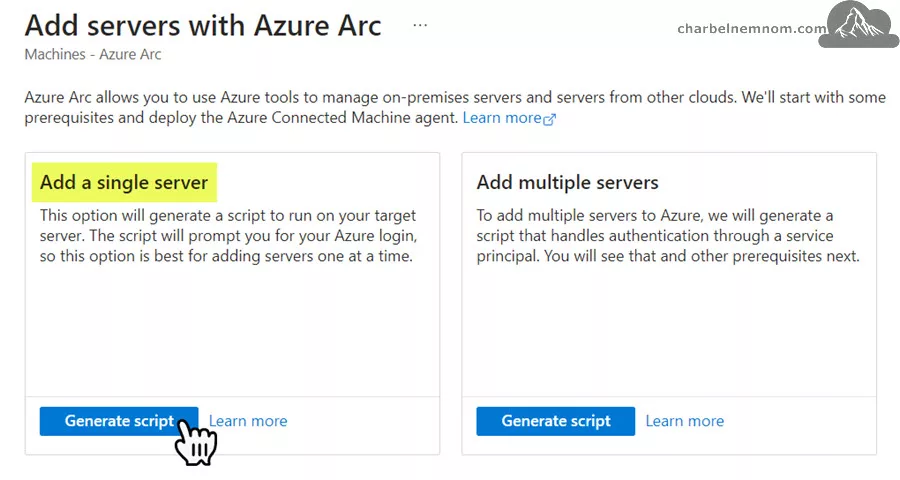
Select “Next,” complete the Project Details, and click “Next.” For this example, we are using a “Public endpoint” under the connectivity method. We strongly encourage organizations not to expose log files on the public Internet; thus, you can use Private endpoints or Proxy servers instead.
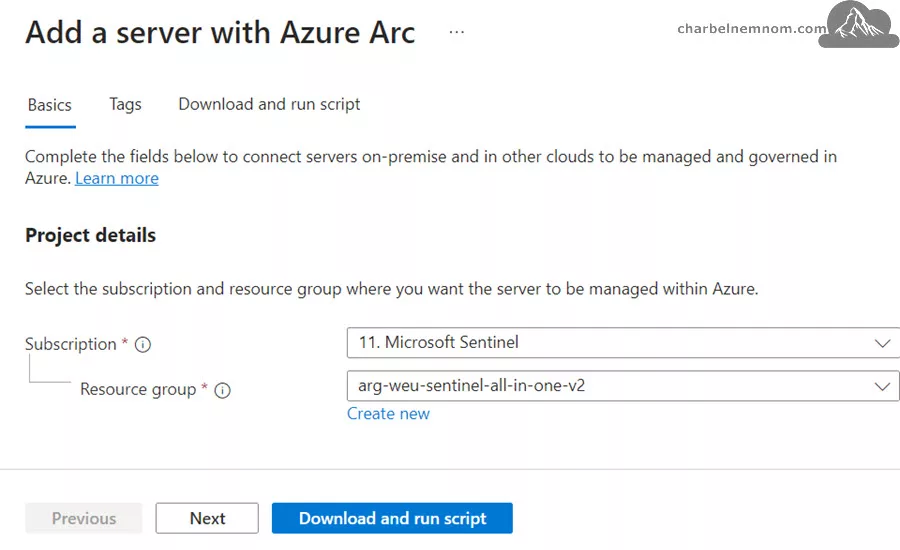
Next, enter any required “Tags” for your organization and select “Next.” Then, select the “Download” or “Copy” button. Your organization will probably block the PowerShell “.PS1” script files “Download” button.

From the on-premises WEC collector machine, open a script editor (Notepad, for example), paste the clipboard’s contents, and save it as “WEC-FW-Sentinel.ps1“.
- Open an elevated PowerShell command prompt
- Change directories to where you saved “
WEC-FW-Sentinel.ps1“ - Execute the script: “
.\WEC-FW-Sentinel.ps1“
Next, you will be prompted to sign into a web browser and enter a code to authenticate. Follow the on-screen prompts to log on and approve the joining of the WEC machine to Azure Arc.
Move back to the “Machines” blade, hit refresh, and the newly onboarded host should now be part of this subscription “Microsoft Sentinel”, as shown in the figure below with the Windows Event Collector “WSV-WEC-2025” below.

Configure Windows Forwarded Events Connector
Once collected, events must be imported into a Log Analytics Workspace (LAW) for Sentinel to monitor and report on. As noted in the prerequisites section, we must first install the Windows Forwarded Events solution from Content Hub.
Log onto the Azure portal or to the Microsoft Defender portal (Defender XDR), select your Microsoft Sentinel instance, and then select the “Data Connectors” blade. Enter “Windows Forwarded Events” in the “Search by name or provider” box, click on “Windows Forwarded Events,” and select “Open connector page,” as shown in the figure below.

Before we create a new data collection rule, select “Deploy” under Asim normalization support — Recommended! The Advanced Security Information Model (Asim) supports the Windows Forwarded Events connector.

If you are new to Asim, Asim is a standardized way of collecting and storing security-relevant log data from diverse hardware, software, and security services. Logging data that conforms to the Asim schema is also known as normalized, which is reflected on the lower left side of the figure below.
Inside the Azure Log Analytics database, where security data processed by Microsoft Sentinel is stored, records are divided into tables according to where the data came from. Before Asim, logs from devices and computers were either written to their application-specific log tables, the default “Syslog” table, the “CommonSecurityLog” table, or to custom log (_CL) tables. These pre-ASIM connectors required unique parsers to separate the relevant data, as shown in the figure’s center and lower right portions.
![Normalized data does not require any source-specific parsers. [Source: Microsoft]](https://charbelnemnom.com/wp-content/uploads/2024/10/Collect_Windows_DNS_Events_to_Microsoft_Sentinel_33-jpg.webp "Effective Approach To Collect Windows Firewall Events to Microsoft Sentinel 36")

The custom deployment should be complete in a few seconds.
Create Data Collection Rule (DCR)
Back to the Windows Forwarded Events connector page, select “+Create data collection rule“. On the “Basic” tab, enter “Rule Name“, “Subscription“, and “Resource group“, then click “Next: Resources >“.

On the “Resources” tab, search for and select your Windows Event Collector (WEC) machine, which captures on-premises Windows Firewall Events, as shown in the figure below. Then click the “Next: Collect >“.

On the “Collect” tab, choose whether to send “All Security Events” or just a filtered list “Custom“, and then click the “Next: Review + Create” button. In our scenario, we’ll select “All Security Events” for now and then modify the DCR rule later on to pick the Windows Firewall Events (Event ID 3001) and stream them to the appropriate “ASimNetworkSessionLogs” normalized schema table. The “All Security Events” option is misleading in this tab; this refers to collecting “All Events.”

Last, on the validation page, click the “Create” button. The figure below shows that the selected event is “AllEvents” and not “SecurityEvent” only.

Next, Microsoft Sentinel will install the Azure Monitor Agent (AMA) extension on the WEC machine as part of the Azure Arc-connected agent and create the Data Collection Rule. We can verify that the Windows Forwarded Events connector is connected and receiving logs, as shown in the figure below.

If we browse to the Microsoft Sentinel > Logs blade, we can query the “WindowsEvent” table and see that our domain controller (DC01) is reporting Firewall Events to the Log Analytics workspace.
WindowsEvent
| where EventID == "3001"
| summarize count() by Computer, Channel, Provider
We can also extract the Windows Firewall Events from the “WindowsEvent” table, as shown in the figure below.
WindowsEvent
| where EventID == 3001  // Filter for the firewall log forwarding events
| extend FirewallDetails = tostring(EventData["01"])  // Extract the firewall log data
| project FirewallDetails, Computer, TimeGenerated
We are not done yet! Next, we need to create an ingest-time transformation to stream the Windows Firewall Events logs to the appropriate “ASimNetworkSessionLogs” normalized schema table.
Create Data Transformation
When we created the DCR for the AMA connector, as described in the previous step, we could not create an ingest-time transformation in the portal. This does not mean transformations are not supported for these DCRs. We can add a “transformKql” and “xPathQueries” to filter out logs and an “outputStream” to the ARM template as described in the following section.
First, you must browse the newly created DCR (direct URL for Data collection rules). In this example, the data collection rule is called “DCR-WEF-WindowsFirewall“, then go to the “Export template” under “Automation“. To create an ingest-time transformation to a supported standard table, click on “Deploy“, as shown in the figure below:

Next, click on “Edit template” and then scroll to the “dataSources” And “windowsEventLogs” section, as shown in the figure below. We need to modify and update the “xPathQueries”, as shown in the figure below.
In this example, we only select and filter the Event ID equal to ‘3001‘. We are doing this because we are leveraging the Windows Forwarded Events solution to stream Security Events and non-security Events, so for this DCR, we only select and pick the Windows Firewall Logs. We have another DCR rule to split the Security Events and stream them to the “SecurityEvent” table.
"ForwardedEvents!*[System[(EventID=3001)]]"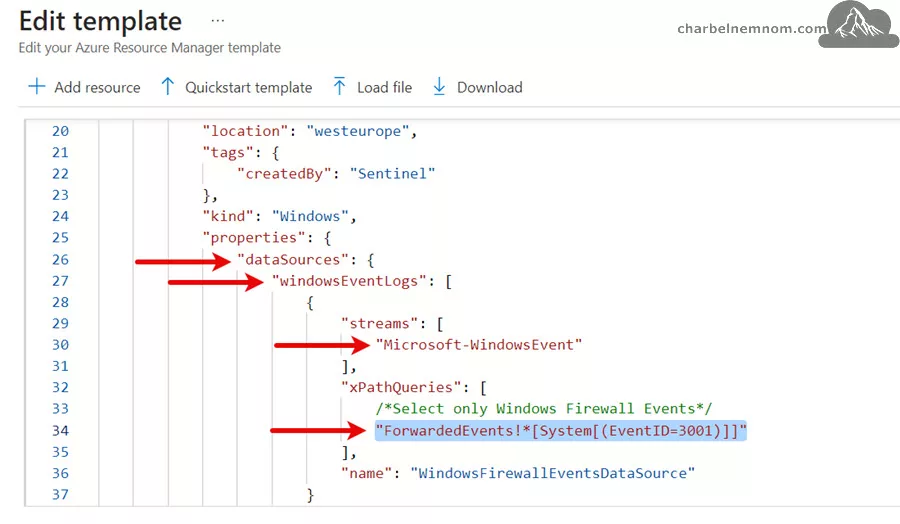
And then under the “dataFlows” And “streams” section, we need to add an ingestion-time transformation using “transformKql” to transform the Windows Firewall Events coming from the “WindowsEvent” table to match the schema for the “ASimNetworkSessionLogs” normalized table. This was a bit complex to develop, but finally, we succeeded and tested it.
![Ingestion-Time Data Transformation [Microsoft-ASimNetworkSessionLogs-WindowsFirewall]](https://charbelnemnom.com/wp-content/uploads/2024/10/Collect_Windows_Firewall_Events_to_Microsoft_Sentinel_20-jpg.webp "Effective Approach To Collect Windows Firewall Events to Microsoft Sentinel 47")
ASimNetworkSessionLogs” schema in Microsoft Sentinel.
,
"transformKql": "source\n| extend FirewallDetails = tostring(EventData[\"01\"])\n
| parse FirewallDetails with Date:datetime \" \" Time:string \" \" DvcOriginalAction:string \" \" NetworkProtocol:string \" \" SrcIpAddr:string \" \"
DstIpAddr:string \" \" SrcPortNumber:string \" \" DstPortNumber:string \" \" SrcBytes:string \" \" TcpFlags:string \" \" TcpSequenceNumber:string \" \"
TcpAcknowledgement:string \" \" TcpWindowSize:string \" \" NetworkIcmpType:string \" \" NetworkIcmpCode:string \" \" Info:string \" \"
NetworkDirection:string \" \" Pid:string \" \" *\n
| extend AdditionalFieldsString = strcat(\n        \"{TcpSequenceNumber:\", TcpSequenceNumber, \n        \",TcpAcknowledgement:\", TcpAcknowledgement, \n        \",TcpWindowSize:\", TcpWindowSize, \n        \",Info:\", Info, \"}\" )\n
| extend DstGeoCountry = tostring((geo_location(DstIpAddr)).country)\n
| extend DstGeoLatitude = todouble((geo_location(DstIpAddr)).latitude)\n
| extend DstGeoLongitude = todouble((geo_location(DstIpAddr)).longitude)\n
| project\n    TimeGenerated,       \n    DvcAction = iif(DvcOriginalAction == \"ALLOW\", \"Allow\", \"Block\"),\n
EventSeverity = EventLevelName            ,\n    EventStartTime = TimeGenerated,\n    EventEndTime = TimeGenerated,\n
DvcOriginalAction,    \n    NetworkDirection = iif(NetworkDirection == \"RECEIVE\", \"Inbound\", \"Outbound\"),\n
SrcBytes = tolong(SrcBytes),\n    DvcHostname = tostring(split(Computer, \".\")[0]),\n    DvcFQDN = Computer,\n
EventCount = toint(1),\n    DstGeoCountry,\n    DstGeoLatitude,\n    DstGeoLongitude,\n    EventType = \"EndpointNetworkSession\",\n
EventResult = iif(DvcOriginalAction in (\"Deny\", \"Drop\", \"Drop ICMP\", \"Reset\", \"Reset Source\", \"Reset Destination\"), \"Failure\", \"Success\"),\n
EventSchema = \"NetworkSession\",  \n    EventSchemaVersion = \"0.2.6\",    \n    EventProduct = \"Windows Firewall\",\n
EventVendor = \"Microsoft\",\n    AdditionalFields = todynamic(AdditionalFieldsString),\n    SrcIpAddr,\n    SrcPortNumber = toint(SrcPortNumber),\n
DstIpAddr,\n    DstPortNumber = toint(DstPortNumber),\n    NetworkProtocol, \n
TcpFlagsAck = iif(TcpFlags == \"0\", true, false),\n    TcpFlagsFin = iif(TcpFlags == \"0\", true, false),\n
TcpFlagsPsh = iif(TcpFlags == \"0\", true, false),\n    TcpFlagsRst = iif(TcpFlags == \"0\", true, false),\n
TcpFlagsUrg = iif(TcpFlags == \"0\", true, false),\n    TcpFlagsSyn = iif(TcpFlags == \"0\", true, false)\n",
"outputStream": "Microsoft-ASimNetworkSessionLogs-WindowsFirewall"
Here’s how each part works:
1. Parsing FirewallDetails: This splits and extracts fields from the FirewallDetails string (e.g., Date, Time, DvcOriginalAction, NetworkProtocol, SrcIpAddr, DstIpAddr, and more).
2. Building AdditionalFieldsString: A string-based JSON structure with key fields like TcpSequenceNumber, TcpAcknowledgement, TcpWindowSize, and Info is created. This is later converted to a dynamic object using “todynamic“.
3. Geo-location Enrichment: DstGeoCountry, DstGeoLatitude, and DstGeoLongitude are extracted based on the destination IP (DstIpAddr) using the “geo_location()” function.
4. Column Mapping and Conversions: Specific field transformations and type conversions are applied to ensure correct schema alignment. For instance:
-
DvcActionconverts the original action to either “Allow” or “Block.” -
NetworkDirectionmaps to “Inbound” or “Outbound.” -
DvcHostnameandDvcFQDNmap to the computer name and FQDN from where the Windows Firewall Events are coming to identify quickly the hostname. Those fields are not included by default as part of the native Windows Firewall Events via the AMA solution; however, they are available in the “ASimNetworkSessionLogs” schema table, so why not enrich our data? - Fields like
SrcPortNumber,DstPortNumber, andSrcBytesare cast to integers. - Boolean flags for TCP properties are set based on
TcpFlags.
5. Final Schema Mapping: Key fields like EventSchema, EventSchemaVersion, EventProduct, and EventVendor standardize the event format, and fields are selected for output according to the “ASimNetworkSessionLogs” schema. Check the Advanced Security Information Model (ASIM) Network Session normalization schema reference.
The final “outputStream:“, “Microsoft-ASimNetworkSessionLogs-WindowsFirewall“, receives this transformed data, allowing Microsoft Sentinel to process the Windows firewall logs with enhanced structure and context. Remember that standard tables must include “Microsoft-” in front of them and “Custom-” for custom tables. Then, click “Save” on the Edit template page.
Once you have saved the template, click “Next“, and you must create (re-deploy) the template to the same existing DCR. In this example, “DCR-WEF-WindowsFirewall“.
Test Data Transformation
Allow about 20 minutes for the ingestion-time transformation to take effect, and you can then test it by running a query against the “ASimNetworkSessionLogs” table. Only data sent to the table after applying the transformation will be affected.
As we can see in the figure below, the Windows Firewall logs are populating beautifully in the “ASimNetworkSessionLogs” schema table.
ASimNetworkSessionLogs
| where EventProduct == "Windows Firewall"
| sort by TimeGenerated
| take 50
Network Session Essentials Solution
Installing the Microsoft Network Session Essentials Content hub solution, which provides tailored content for various network security scenarios, is recommended. This solution supports over 15 network products and services, including Windows Firewall, Zscaler, AWS, Cisco Meraki, and Fortinet FortiGate, among others. This allows the same content from the Network Session Essentials solution to be utilized across multiple network products within your organization, offering greater value while enhancing network protection. What do all these solutions have in common? They all track network sessions!

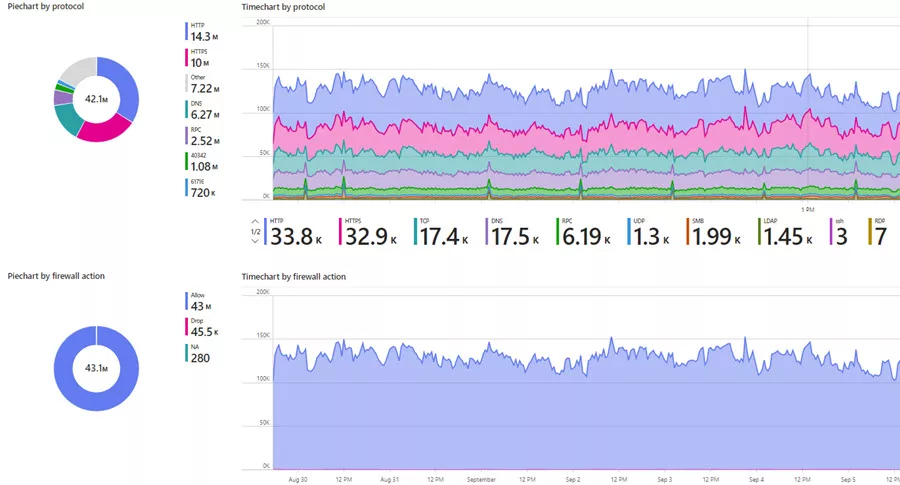
Next, you need to install the Network Session Essentials solution playbook “SummarizeData_NSE“, this Logic App is specially crafted to support the workbook in the solution: Network Session Essentials, as shown in the figure above. This workbook view displays the power of the ASIM model merging network session data from four different data sources in the same ‘pane of glass’ (VMInsights, Fortinet, Windows Firewall, Defender for Endpoint, etc.).
Once you’ve installed and integrated the Network Session Essentials solution and activated the Logic App for data summarization, you can install the standalone Windows Firewall via the AMA workbook developed by fellow MVP John Joyner.

This workbook provides insights into Windows Firewall Logs in combination with Windows Security Events and Azure sign-in logs.
That’s it. There you have it! We hope this long guide has provided options to reduce operational costs and get your Windows Firewall and Security Events data in Microsoft Sentinel without requiring you to install and manage the Azure Monitor Agent (AMA) on each server but to keep collecting from a central server with outbound connectivity.
In Summary
Leveraging the Windows Firewall logs within Microsoft Sentinel can be a game-changer for security insights across Windows environments. By using Azure Monitor Agent (AMA), the Windows Forwarded Events solution, and Azure Arc integration, organizations can centralize firewall event collection without deploying AMA on each server individually.
This approach simplifies hybrid and on-premises deployments, allowing you to stream, analyze, and normalize firewall logs in real-time using the “ASimNetworkSessionLogs” schema. Implementing this configuration enhances visibility and strengthens proactive threat detection, reducing operational overhead and ensuring robust coverage across diverse infrastructures.
__
Thank you for reading our blog.
Please let us know in the comments section below if you have any questions or feedback.
-Charbel Nemnom-
