
Extension attributes in Microsoft Entra ID provide a powerful method to add custom details to objects, including devices, in your tenant. They allow you to store unique data about each device, enabling filtering and grouping for specific policies or apps. These attributes cover devices registered as Microsoft Entra ID Joined, Hybrid Joined, or simply Registered.
If you are synchronizing objects from Active Directory Domain Services (AD DS) to Microsoft Entra using Microsoft Entra Connect Sync, you might notice that we can’t synchronize device extension attributes. We can only sync attributes for users and groups. As more devices are added and removed from Microsoft Entra, we need a process to automate the configuration of the device extension attributes.
This guide will show you how to automatically configure and set device extension attributes in Microsoft Entra ID using Azure Function App, whether the device is Entra ID joined, hybrid joined, or simply registered.
Table of Contents
Understanding Extension Attributes
Extension attributes in Microsoft Entra ID provide a powerful method to add custom details to objects, including devices, in your tenant. They allow you to store unique data about each device, enabling filtering and grouping for specific policies or apps. These attributes cover devices registered as Entra ID Joined, Hybrid Joined, or simply Registered.
Extension attribute values can be automatically assigned with some scripting when a device joins Microsoft Entra ID or enrolls in Microsoft Intune. This approach allows IT admins to execute actions on devices and adjust security measures quickly. Extension attributes are viewable within the Entra ID interface on any device’s details page, as shown in the figure below. The downside is that Microsoft does not yet provide a UI option to set the extension attributes in the portal.

Automation is key: Scripts using Microsoft Graph PowerShell can automatically set extension attribute values based on predetermined criteria. This process can flag devices for tighter network security or schedule future device reviews.
Extension attributes enable monitoring and trigger automated responses for scenarios involving employee departures or devices flagged for suspicious behavior. Setting an extension attribute as a condition makes creating dynamic device groups (members) straightforward. The same attributes can be used to fine-tune conditional access policies.

Prerequisites
To follow this article, you need to have the following:
1) Azure subscription – If you don’t have an Azure subscription, you can create one here for free.
2) Function App with App Service plan consumption-based (more on this in the next section).
3) Enable system-assigned managed identity for the Function App (more on this in the next section).
4) Assign the least privileged Microsoft Graph role in Microsoft Entra ID (more on this in the next section).
5) You need a Microsoft Entra ID Premium P1 license or Intune for Education to leverage the dynamic device membership capability. You can purchase licenses or get trial licenses.
Assuming you have all the prerequisites in place, take the following steps:
Create Function App
In this section, we’ll create a new Azure function app. You can create a PowerShell function in Azure directly using Visual Studio Code. If you have an existing Function App, you can use it and skip to the next step.
Browse the Azure Portal, click Create a resource, and select Function App.
For the Hosting plans, select ‘Consumption‘ for serverless and event-driven scaling for the lowest minimum cost; this Plan is billed dynamically according to your usage, which helps save money when the usage is small, as in this case.
As a side note, the ‘Premium‘ is for enterprise-level, serverless applications with event-based scaling and network isolation, and the ‘App Service Plan‘ is for reusing compute from the existing app service plan.

Next, select your desired subscription and resource group and give it a descriptive name, such as “Set-DeviceExtension-EntraID“.
The runtime stack refers to the language we want to write the function logic. Azure Function supports mainstream languages or platforms such as .NET, Java, Node.js, Python, Custom Handler, and PowerShell Core.
For this scenario, we need to choose PowerShell Core, as shown in the figure below. We can only choose the latest version, 7.2 or 7.4. Choose your desired Azure region, and select Windows for the Operation System. Click Next: Storage > to continue.

Next, we have to create a new or select an existing Storage account, which is required by the latest version of Azure Function V4. Click Next: Networking > to continue.
On the Networking page, disable public access. We don’t need to enable inbound public access; click Next: Monitoring > to continue.

On the Monitoring tab, Application Insights can be used to monitor the running health of the function and as a console output capture when debugging it. It’s up to you to decide whether to enable it or not. Enabling Application Insights is strongly recommended to test your function in the Azure portal and monitor it.
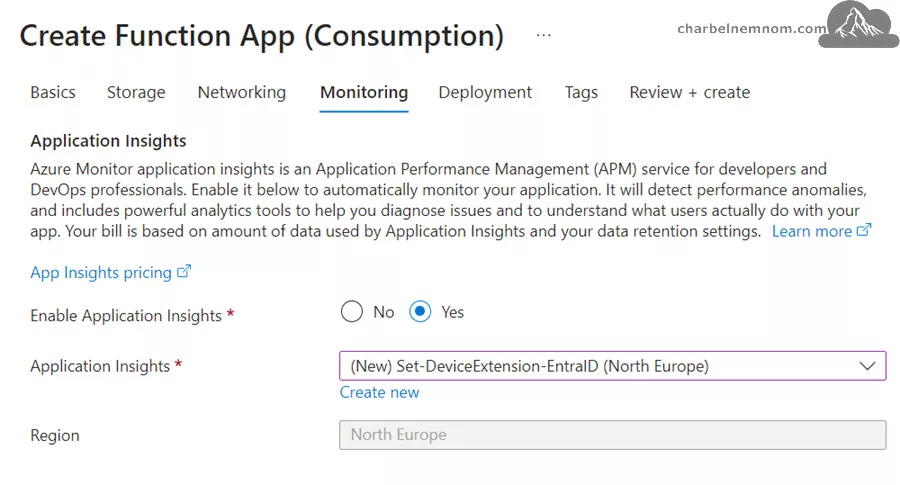
Skip the continuous deployment settings page. Then, set the desired Tags for the function app. Last, click Review + Create > to review your input, then select Create.
Enable System Assigned Managed Identity
After the Function App is created, we need to configure its permissions to control the access to Microsoft Entra ID and manage devices.
Open your Function App, select Identity under the Settings menu, turn on the System assigned to toggle to On, click Save as shown in the figure below, and then confirm by selecting Yes.

Once the system-assigned managed identity is enabled, the Function App resource will be registered with Microsoft Entra ID > Enterprise applications > Managed Identities. After it’s registered, we can permit it to access the Microsoft Graph API or other Azure services like storage accounts, subscriptions, management groups, etc.
Assign Permissions to the Managed Identity
The next step is to assign the least privileged permissions to the Managed Identity of the Function App.
In Azure, managed identities are listed under Enterprise Applications in Entra. Unlike service principals, which were found under App Registrations, managing permissions is a bit different now. To assign the necessary Microsoft Graph permissions for managed identities, you need to navigate to the Azure portal and go to the Enterprise Applications section instead of the API permissions under App Registrations.
However, neither the Azure nor Microsoft Entra portal offers the option to assign permissions for the Managed identities under Enterprise Applications, as shown in the figure below. In this scenario, the Microsoft Graph permissions.

When assigning Microsoft Graph API permissions to a managed identity, it’s important to understand that managed identities are meant for use with Azure resources. Since the Microsoft Graph API is not classified as an Azure resource, we cannot directly assign Graph API permissions to a managed identity.
We can use the managed identity to obtain an access token, which allows us to call the Microsoft Graph API. However, we need to ensure that the necessary permissions or roles are assigned to the service principal of the managed identity.
For running cmdlets like “Get-MgDevice“, “Update-MgDevice“, and “Remove-MgDevice” we would need to have the necessary permissions assigned to the managed identity. These cmdlets require “Device.Read.All“, and “Device.ReadWrite.All” permissions respectively.
Note: To assign the least privileged Microsoft Graph permission to the managed identity, we need to use the following PowerShell script. When executing the script below, it is important to ensure that you have at least the Privileged Role Administrator directory role assigned to your account.
<#
.SYNOPSIS
Assign Microsoft Graph permissions to Azure Managed Identity.

.DESCRIPTION
Assign Microsoft Graph permissions to Azure Managed Identity using PowerShell.

.NOTES
File Name : Assign-MgPermissionsMI.ps1
Author    : Microsoft MVP/MCT - Charbel Nemnom
Version   : 1.0
Date      : 30-October-2024
Updated   : 31-October-2024
Requires  : Windows PowerShell 5.1 / PowerShell 7.4.x (Core)
Modules   : Az.Accounts, Az.Resources, Microsoft.Graph

.LINK
To provide feedback or for further assistance please visit:
 https://charbelnemnom.com
#>

# Define the required parameters
$tenantId = "Enter-Microsoft-Tenant-ID-Here"
$managedIdentityDisplayName = "FunctionApp-ManagedIdentity-DisplayName"

# Set the desired Microsoft Graph app role
# Least Privileged role to assign extension attributes for devices is "Device.ReadWrite.All"
$appRoleName = "Device.ReadWrite.All"

#! Install Required Modules If Needed
function Install-Module-If-Needed {
    param([string]$ModuleName)

    if (Get-Module -ListAvailable -Name $ModuleName) {
        Write-Host "Module '$($ModuleName)' already exists, continue..." -ForegroundColor Green
    }
    else {
        Write-Host "Module '$($ModuleName)' does not exist, installing..." -ForegroundColor Yellow
        Install-Module $ModuleName -Force  -AllowClobber -ErrorAction Stop
        Write-Host "Module '$($ModuleName)' installed." -ForegroundColor Green
    }
}

#! Install Az Accounts Module If Needed
Install-Module-If-Needed Az.Accounts

#! Install Az Resources Module If Needed
Install-Module-If-Needed Az.Resources

#! Install Microsoft Graph Module If Needed
Install-Module-If-Needed Microsoft.Graph

# Connect to Microsoft Graph with specified Tenant
Write-Verbose "Connecting to Microsoft Graph with Tenant ID: $($tenantId)" -Verbose
Connect-MgGraph -TenantId $tenantId -Scopes "AppRoleAssignment.ReadWrite.All", "Application.Read.All" -UseDeviceCode

# Connect to Microsoft Azure with device code
Write-Verbose "Connecting to Microsoft Azure with Device Code" -Verbose
Connect-AzAccount -UseDeviceAuthentication

# Get Microsoft Entra Object (principal) ID of Function App MI
Write-Verbose "Getting Microsoft Entra Object ID for the Managed Identity: $($managedIdentityDisplayName)" -Verbose
$managedIdentityObjectId = (Get-AzADServicePrincipal -DisplayName $managedIdentityDisplayName).Id

# Get the Microsoft Graph Service Principal ID
Write-Verbose "Getting Microsoft Graph Service Principal ID" -Verbose
$serverApplicationName = "Microsoft Graph"
$serverServicePrincipalObjectId = (Get-MgServicePrincipal -Filter "DisplayName eq '$serverApplicationName'").Id
$serverservicePrincipal = Get-MgServicePrincipal -ServicePrincipalId $serverServicePrincipalObjectId

# Get the Microsoft Graph App Role ID
Write-Verbose "Getting Microsoft Graph App Role ID: $($appRoleName)" -Verbose
$appRoleId = ($serverServicePrincipal.AppRoles | Where-Object { $_.Value -eq $appRoleName }).Id

# Set the required parameters for the New-MgServicePrincipalAppRoleAssignment cmdlet
Write-Verbose "Setting parameters for the New-MgServicePrincipalAppRoleAssignment cmdlet" -Verbose
$parameters = @{
    ServicePrincipalId = $managedIdentityObjectId
    PrincipalId        = $managedIdentityObjectId
    ResourceId         = $serverServicePrincipalObjectId
    AppRoleId          = $appRoleId
}

# Assign the Microsoft Graph app role to the managed identity
try {
    Write-Verbose "Assigning Microsoft Graph App Role to the Managed Identity" -Verbose
    New-MgServicePrincipalAppRoleAssignment @parameters
}
catch {
    Write-Error $_ -ErrorAction Stop
}
Once you run the script above, you can verify that the “Device.ReadWrite.All” Microsoft Graph permission is assigned to the Function App Managed identity under Enterprise Applications, as shown in the figure below.

Function Code and Trigger
Now that our Function App is up and running and the managed identity is configured, let’s create a new Function.
From the Overview blade, under Functions, select Create Function, as shown in the figure below.

Next, select “Time trigger”, as shown in the figure below, and click Next. In this scenario, we’ll set the function to run on a specified schedule.

On the Template details page, give the function a descriptive name “Set-DeviceExtensionAttributes” and then enter a cron expression of the format ‘{second} {minute} {hour} {day} {month} {day of week}’ to specify the schedule. For example, “0 0 5 * * *“, as shown in the figure below. This means that the function will trigger daily at 5 a.m. Adjust the schedule based on your needs, and then click Create.

As a reference, here is the basic format of the CRON expressions in Azure Functions:
{second} {minute} {hour} {day} {month} {day of the week}
e.g. 0 * * * * * (is equal to every minute).
The following values are allowed for the different placeholders:
| Value | Allowed Values | Description |
|---|---|---|
| {second} | 0-59; * | {second} when the trigger will be fired |
| {minute} | 0-59; * | {minute} when the trigger will be fired |
| {hour} | 0-23; * | {hour} when the trigger will be fired |
| {day} | 1-31; * | {day} when the trigger will be fired |
| {month} | 1-12; * | {month} when the trigger will be fired |
| {day of the week} | 0-6; SUN-SAT; * | {day of the week} when the trigger will be fired |
Please refer to the official documentation for more information about Azure Functions time trigger.
Once the function is created, go to Code + Test of the function, and replace the default PowerShell code for run.ps1 with the below code. Please replace the “extensionAttributes” values under $body with your attributes. You can add up to 15 extension attributes.
# Input bindings are passed in via param block.
param($Timer)

# Get the current universal time in the default string format.
$currentUTCtime = (Get-Date).ToUniversalTime()

# The 'IsPastDue' property is 'true' when the current function invocation is later than scheduled.
if ($Timer.IsPastDue) {
    Write-Host "PowerShell timer is running late!"
}

# Write an information log with the current time.
Write-Host "PowerShell timer trigger function ran! TIME: $currentUTCtime"

# Connect to Microsoft Graph using Managed Identity
Connect-MgGraph -Identity -NoWelcome

# Get all devices
$devices = Get-MgDevice
Write-Output "Number of devices found: $($devices.Count)"

# Loop through each device and set extension attributes if not configured
foreach ($device in $devices) {
    Write-Output "Checking extension attributes for device: $($device.DisplayName)"
    if ($device.additionalProperties.extensionAttributes.count -eq 0) {
        $body = @{
             extensionAttributes = @{
                extensionAttribute1 = $env:extensionAttribute1
                extensionAttribute2 = $env:extensionAttribute2
                extensionAttribute3 = $env:extensionAttribute3
                extensionAttribute4 = $env:extensionAttribute4
                extensionAttribute5 = $env:extensionAttribute5
                # Add more attributes as needed
                # You can add up to 15 extension attributes
            }
        }
        try {
            Update-MgDevice -DeviceId $device.Id -BodyParameter ($body | ConvertTo-Json -Depth 10)
            Write-Output "Extension attributes set for device: $($device.DisplayName)"
        }
        catch {
            Write-Error $_ -ErrorAction Stop
        }
    }
}
The provided PowerShell code is a timer-triggered function that connects to Microsoft Graph and updates device extension attributes. Here’s a brief explanation of the key parts:
Parameter Handling and Time Check: The function begins by accepting a parameter $Timer, which represents the time trigger. It checks if the function is running late compared to its scheduled time using the IsPastDue property, logging a message if it is. The param($Timer) is required for the Time Trigger. Otherwise, the function will fail to run.
Current Time Logging: The current UTC time is captured and logged to indicate when the function is executed.
Microsoft Graph Connection: The function uses Managed Identity to securely connect to Microsoft Graph without needing credentials with the “Connect-MgGraph -Identity -NoWelcome” and suppressing the welcome message.
Device Management: It retrieves all devices from Microsoft Graph and counts the found devices. For each device, it checks if the extension attributes are not configured. If they are empty, it prepares a body with predefined extension attributes set under the Environment variables (more on this in a bit). It attempts to update the device’s extension attributes. If an error occurs during the update, it logs it for troubleshooting.
Please note that you expand upon the provided script and target (filter) a specific set of devices by checking the device name or part of it. The logic remains the same.
Click Save to save your code.

Before we test our code, we need to enable the required Microsoft Graph PowerShell module on the Function App under the App Files section and set the predefined extension attributes under the Environment variables.
Function App Configuration
The next step we need to take is to set the App files and the Environment variables.
From the Functions blade under Functions, select App Files, and then switch to the “requirements.psd1” as shown in the figure below. Next, we need to add the “Microsoft.Graph.Identity.DirectoryManagement” module on line 8 to load it as part of the Function App, then click Save.
'Microsoft.Graph.Identity.DirectoryManagement' = '2.24.0'This is a very important step. Otherwise, the function won’t be able to use the Microsoft Graph Identity Directory Management module, and thus, the PowerShell code will fail to run.

Additionally, reducing the number of modules installed to only what you need is appropriate. In this scenario, we need only the module 'Microsoft.Graph.Identity.DirectoryManagement' = '2.24.0'. We recommend not importing all of the modules of Microsoft Graph, i.e., 'Microsoft.Graph' = '2.24.0' as it will increase performance on cold starts.
@{
    # For latest supported version, go to 'https://www.powershellgallery.com/packages/Az'.
    # To use the Az module in your function app, please uncomment the line below.
    # 'Az' = '12.*'
    'Microsoft.Graph.Identity.DirectoryManagement' = '2.24.0' # Latest module as of 01.11.2024
}
The next update we want to make is to select the “host.json“, increase the default function timeout to 10 minutes, as shown in the figure below, and click Save. This is the maximum you are allowed for the Consumption Plan. This will help prevent the function from timing out after the default 5 minutes.
{
  "version": "2.0",
  "managedDependency": {
    "Enabled": true
  },
  "extensionBundle": {
    "id": "Microsoft.Azure.Functions.ExtensionBundle",
    "version": "[4.*, 5.0.0)"
  },
  "functionTimeout": "00:10:00"
}
The next update we want to make is to select the “profile.ps1“, then remove or comment the following four lines of PowerShell code and click Save. In our scenario and use case here, we are not connecting to Microsoft Azure and are using the Microsoft Graph endpoint instead. Furthermore, we have not enabled the Azure PowerShell module 'Az' = '12.*' in the “requirements.psd1” file above. So, if we keep it, the PowerShell function will error out since it does not have the Az PowerShell module installed.
if ($env:MSI_SECRET) {
    Disable-AzContextAutosave -Scope Process | Out-Null
    Connect-AzAccount -Identity
}
The last setting is to define the desired extension attributes under the Environment variables. From the Functions blade under Settings, select Environment variables, and then click + Add, as shown in the figure below.

Next, give the variable name “extensionAttribute1” and set the desired value, as shown in the figure below. You can repeat this process to add more variables as needed. Important: The variable names must match those defined in the script above. In this example, we used five extension attribute variables. Click Apply.

Then click Apply one more time and Confirm your changes.

Test the Function App
At this step, we are ready to test our function!
To test your function manually from the Azure portal, you must set the Cross-Origin Resource Sharing (CORS) in your Function App. Running your function in the portal requires the app to accept requests from the Azure portal “https://portal.azure.com” explicitly. This is known as cross-origin resource sharing (CORS).
In your Function App, under API, select CORS, add the Allowed Origins below, and click Save. This is only required to test the function manually in the Azure portal.
https://portal.azure.com
https://functions.azure.com
https://functions-staging.azure.com
https://functions-next.azure.com
Note: If you plan to trigger the function manually and have disabled public network access as described in the Create Function App section, your manual test will fail. You must have direct network access to run your function. Your app may be restricted with private endpoints, access restrictions, or service endpoints. Use the “AzureCloud” service tag to enable inbound and outbound networking to Azure services in your virtual network. The next option is to wait for the next hour or day when the function automatically triggers based on your schedule and keep the public network access disabled.
Next, you can trigger the function manually by going to the Function App Overview page, selecting your function under Functions, then going to Code + Test, clicking “Test/Run”, and clicking Run. If everything is OK, you should not see red errors in the Logs console; you should see just [Information] messages, as shown in the figure below.

If you see any error in the output logs, go to the Invocations tab and check the errors in more detail (you must have Application Insights enabled for the monitoring to work).

Last, if we switch to the device blade in the Microsft Entra portal, we can see that all five extension attributes are set and configured.

Practical Scenarios for Extension Attributes
Extension attributes prove valuable in various organizational scenarios:
1) Employee departure: Set an attribute to signal-focused monitoring, ensuring secure connections and limited access to sensitive resources.
2) Anomaly detection: Change an attribute to start an automated escalation protocol for devices showing suspicious behavior.
3) Device retirement: Assign an attribute to identify devices for future offboarding actions, allowing for calibrated, scheduled device removal.
4) Device policy: Create a Microsoft Intune policy that you want to apply to devices located in specific areas or serving a particular purpose (i.e., Production). Thus, by creating a dynamic group with a rule query syntax set to (device.extensionAttribute1 -eq "BuildingEast"), etc.
These uses showcase how extension attributes connect manual processes with automated precision, enabling IT departments to shift from reactive to proactive operations.
Removing Device Extension Attributes
If you want to remove and delete device extension attributes, you can automate this process using the following PowerShell code.
# Get all devices
$devices = Get-MgDevice
Write-Output "Number of devices found: $($devices.Count)"

# Loop through each device and remove extension attributes if configured
foreach ($device in $devices) {
   Write-Output "Checking extension attributes for device: $($device.DisplayName)"
   if ($device.additionalProperties.extensionAttributes.count -ne 0) {
       $extensionAttributes = $device.additionalProperties.extensionAttributes
       foreach ($key in $extensionAttributes.Keys) {
           $body = @{
               extensionAttributes = @{
                   $key = ""
               }
           }
           try {
               Update-MgDevice -DeviceId $device.Id -BodyParameter ($body | ConvertTo-Json -Depth 10)
               Write-Output "Extension attribute: [$($key):$($extensionAttributes[$key])] is removed for device: $($device.DisplayName)"
           }
           catch {
               Write-Error $_ -ErrorAction Stop
           }
       }
   }
}
That’s there you have it!
In Summary
Azure Function Apps enhance automation for managing extension attributes. You maintain accurate device-related information automatically by configuring functions to update device extension attributes programmatically. The process involves:
- Defining actions in your Azure Function App
- Using HTTP or timer triggers for scheduled executions
- Interacting with the Microsoft Graph API to identify and update devices based on predefined criteria
Benefits of this automation include:
- Reduced human error
- Improved accuracy and security
- Freeing IT staff for more complex, strategic work
Extension attributes in Microsoft Entra ID offer a versatile tool for managing devices efficiently. By automating and simplifying device management, they provide a streamlined approach to maintaining security and compliance across your organization.
Managing these attributes is crucial for creating dynamic solutions like groups and policies that adapt to changing needs. Incorporating Azure Function Apps provides a reliable system that stays ahead of requirements, keeping operations efficient, responsive, and precise.
__
Thank you for reading our blog.
Please let us know in the comments section below if you have any questions or feedback.
-Charbel Nemnom-

Hi Thanks for this article. There is one very important thing missing though.
I could not get the Graph permissions assigned to the Managed Identity until I gave my account the Privileged Role Administrator. Until that was in place, the Assign-MgPermissionsMI.ps1 would not execute successfully. Not sure if this has changed since the article was written.
Many Thanks
Dave
https://learn.microsoft.com/en-us/powershell/microsoftgraph/how-to-grant-revoke-api-permissions?view=graph-powershell-1.0&pivots=grant-application-permissions#prerequisites-1
Hello Dave, thanks for your comment and for sharing your experience!
Yes, the
Cloud Application Administratorprivileged role was originally the minimum role required to assign the Microsoft GraphDevice.ReadWrite.Allpermission for a managed identity (enterprise application). However, it appears that Microsoft has updated the prerequisites so that thePrivileged Role Administratorrole is now required. Although theApplication Administratorrole could also be used previously, this is no longer the case.If you look at the Cloud Application Administrator and Application Administrator RBAC reference permissions, you’ll see that those roles grant the ability to consent for delegated and application permissions—with the exception of application permissions for Microsoft Graph. Therefore, the required role now is the Privileged Role Administrator.
Thanks again!
-Charbel
Me again.
There’s a line missing in the Assign-MgPermissions.ps1. The following is required at the end of the # Get the Microsoft Graph Service Principal ID
$serverservicePrincipal = Get-MgServicePrincipal -ServicePrincipalId $serverServicePrincipalObjectId
Without this the $serverservicePrincipal is not created so the AppRoleID can’t be found.
Hello Dave,
Thanks for the follow-up and for catching that!
It looks like I missed that line during copy and paste, especially since I reference it in the next command.
Appreciate you pointing it out!