
In early July 2025, Microsoft announced that Microsoft Sentinel in the Azure Portal will be deprecated as of July 1, 2026. From that date forward, all access requests to the Azure Portal will be automatically redirected to the Microsoft Defender portal.
This gives all Microsoft Sentinel customers and users one year to transition to the Defender portal and update their internal processes, playbooks, and automation workflows.
Like any major platform shift, this change introduces some challenges—even though connecting your Sentinel workspace(s) to the Defender portal is relatively straightforward.

Microsoft has already resolved many issues and bugs to make the transition to Defender as smooth as possible, but there are still some caveats to consider when making the switch. One of the remaining issues, and an important one, is that the incident description is no longer populated if you rely on it in your automation and internal processes, as shown in the figure below.

This is due to the unified experience in the Defender portal, which introduces notable changes to incidents and alerts from APIs. Now, it supports API calls based on the Microsoft Graph REST API v1.0, which can be used for automation related to alerts, incidents, advanced hunting, and more.
In this article, we will outline how to resolve the missing incident description in your Security Orchestration, Automation, and Response (SOAR) playbooks, as well as how to address the issue if you have ServiceNow or any other ITSM integrated with Sentinel.
Table of Contents
Understanding the Issue
This unusual issue was one of the biggest blockers for our customers after they switched to the Defender XDR (Unified SecOps) portal with Microsoft Sentinel, on which they heavily rely for incident descriptions in their SOAR playbooks and ITSM integration.
In Microsoft Sentinel, there is a feature that allows you to customize alert details, where you can base your alert description on the dynamic parameters of your KQL query, as shown in the figure below.

However, the missing incident description will happen regardless of whether you customize the dynamic alert description to enhance the alert in the Analytic(s) rule or not. If the dynamic alert description is not used, the incident will include the default description that you set as part of the Analytic rule details, as shown in the figure below.

Before the transition to Microsoft Defender, with Microsoft Sentinel, the incident description was always the same as one of the alert descriptions, allowing for further processing in your SOAR using the incident description. Once you transition Microsoft Sentinel to Defender XDR, the incident description will no longer be visible in the Azure portal, as shown in the figure below.

Nor in the SecurityIncident table. You can also verify this by querying the SecurityIncident table:
SecurityIncident
| where TimeGenerated >= ago(14d)
| where Title contains "MFA Spamming followed by Successful login"
| distinct Title, Description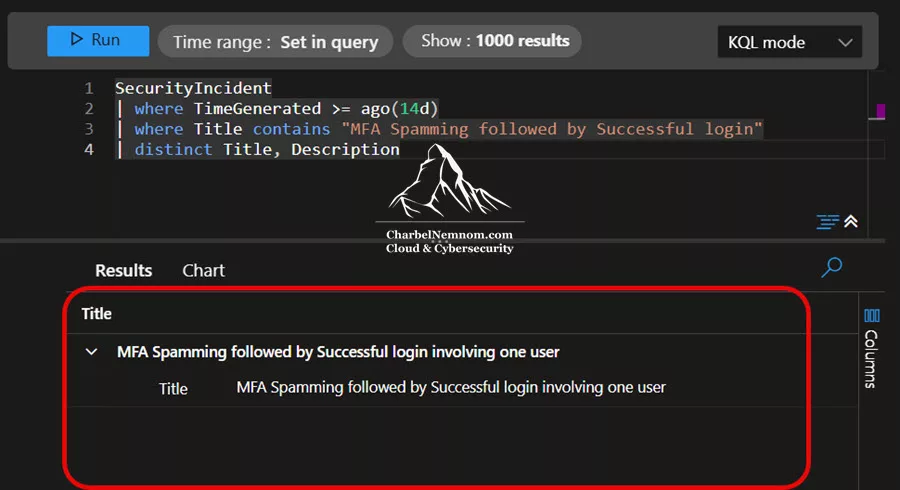
Although Microsoft released a UI fix earlier in 2025 (making incident descriptions visible again in the Defender portal based on the static or dynamic alert descriptions in the Analytic rule), the underlying incident properties in the Microsoft.SecurityInsights APIs and the SecurityIncident table remains unchanged.
However, this was only a UI fix in the Defender portal. We can see an example below where the incident description is showing in the Defender XDR portal:

As we can see, this fix was not provided in the Azure Portal, nor in the SecurityIncident table:
Fix for Azure Logic App (Playbooks)
To resolve this issue, we need to rely on the alert description instead, as only the alerts will have both the static and dynamic alert descriptions. We can verify this by querying the SecurityAlert table:
SecurityAlert
| where TimeGenerated >= ago(14d)
| where AlertName contains "MFA Spamming followed by Successful login"
| distinct AlertName, Description
Now, depending on how your automation and SOAR engine are configured, this might be an easy or a more challenging change to perform. If you are using Azure Logic Apps with the Microsoft Sentinel Incident trigger, it is relatively easy to change to alert description instead of incident description, since the alerts with their properties and description are present in the incident object you receive in the Logic App via the "alerts": [ {...} ] property, as shown in the example below:
{
  "id": "HIDDEN FOR OBVIOUS REASONS",
  "name": "HIDDEN FOR OBVIOUS REASONS",
  "etag": "HIDDEN FOR OBVIOUS REASONS",
  "type": "Microsoft.SecurityInsights/Incidents",
  "properties": {
    "title": "MFA Spamming followed by Successful login involving one user",
    "severity": "High",
    "status": "New",
    "owner": {
      "objectId": null,
      "email": null,
      "assignedTo": null,
      "userPrincipalName": null
    },
    "labels": [],
    "firstActivityTimeUtc": "2025-08-22T09:23:06.0805942Z",
    "lastActivityTimeUtc": "2025-08-23T09:23:06.0805942Z",
    "lastModifiedTimeUtc": "2025-08-23T09:28:25.3933333Z",
    "createdTimeUtc": "2025-08-23T09:28:25.1733333Z",
    "incidentNumber": 9767,
    "additionalData": {
      "alertsCount": 1,
      "bookmarksCount": 0,
      "commentsCount": 0,
      "alertProductNames": [
        "Azure Sentinel"
      ],
      "tactics": [
        "CredentialAccess"
      ],
      "techniques": [
        "T1110"
      ]
    },
    "relatedAnalyticRuleIds": [
      "HIDDEN FOR OBVIOUS REASONS"
    ],
    "incidentUrl": "HIDDEN FOR OBVIOUS REASONS",
    "providerName": "Microsoft XDR",
    "providerIncidentId": "17953",
    "alerts": [
      {
        "id": "HIDDEN FOR OBVIOUS REASONS",
        "type": "Microsoft.SecurityInsights/Entities",
        "kind": "SecurityAlert",
        "properties": {
          "systemAlertId": "HIDDEN FOR OBVIOUS REASONS",
          "tactics": [
            "CredentialAccess"
          ],
          "alertDisplayName": "MFA Spamming followed by Successful login",
          "description": "Identifies MFA Spamming followed by Successful logins and by a successful authentication within a given time window.\nDefault Failure count is 10 and 1 successful login with default Time Window is 5 minutes.",
          "confidenceLevel": "Unknown",
          "severity": "High",
          "vendorName": "Microsoft",
          "productName": "Azure Sentinel",
          "productComponentName": "Scheduled Alerts",
          "alertType": "HIDDEN FOR OBVIOUS REASONS",
          "processingEndTime": "2025-08-23T09:28:25.9033333Z",
          "status": "New",
          "endTimeUtc": "2025-08-23T09:23:06.0805942Z",
          "startTimeUtc": "2025-08-22T09:23:06.0805942Z",
          "timeGenerated": "2025-08-23T09:28:24.6266667Z",
          "providerAlertId": "38a2151f-80ed-4178-a594-43c912b4bee6",
          "alertLink": "HIDDEN FOR OBVIOUS REASONS",
          "resourceIdentifiers": [
            {
              "type": "LogAnalytics",
              "workspaceId": "HIDDEN FOR OBVIOUS REASONS"
            }
          ],
}
In this case, we need to update our Logic Apps automation workflow to use the following enhanced description field expression:
"title": "Description",
"value": "@{coalesce(triggerBody()?['object']?['properties']?['description'], if(greater(length(triggerBody()?['object']?['properties']?['alerts']), 0), triggerBody()?['object']?['properties']?['alerts'][0]['properties']['description'], 'No description available'))}"
This adjustment will do the following:
1. First: Tries to use the incident description (if available)
2. Second: Falls back to the first alert’s description from alerts[0].properties.description
3. Third: Shows “No description available” if neither exists
Here’s how it works, based on the incident object:
If properties.description is missing or null after transitioning to the Defender portal, it will extract the first alert description from alerts[0].properties.description.

Therefore, your Logic App now has the same functionality as before, but will display the alert description when the incident description is missing after onboarding to the Defender portal. This approach bypasses the missing description field in your SOAR engine by reconstructing it from alert data, as shown in the example below.

However, suppose you are still using the Microsoft Sentinel Azure REST API. In that case, you need to perform an additional API call to retrieve the alerts related to the incident, allowing you to obtain the description for each alert (check the ‘Gets all alerts for an incident‘ API call).

Fix for ITSM (ServiceNow & Others)
Similarly, and as shown in the example below, the Description field is set to “undefined” when the incident(s) are synchronized from Sentinel to ServiceNow.

For ServiceNow and/or any other IT Service Management (ITSM) that you have integrated with Microsoft Sentinel before onboarding to the Defender portal, there are a couple of workarounds that you can use for now:
1. Custom Logic App to Extract Alert Descriptions
As described above, you can use a custom Logic App triggered by new incidents to:
- Query the alerts associated with the incident.
- Extract the alert descriptions by using the same expression shared above.
"@{coalesce(triggerBody()?['object']?['properties']?['description'], if(greater(length(triggerBody()?['object']?['properties']?['alerts']), 0), triggerBody()?['object']?['properties']?['alerts'][0]['properties']['description'], 'No description available'))}"- Concatenate them into a custom field or comment.
- Push this to ServiceNow via the integration.
This approach bypasses the missing description field by reconstructing it from alert data.
2. Use the AdditionalData or Comments Field
Or, you can use the "additionalData": {...} or "comments": [...] field properties to modify the ServiceNow sync logic to populate the incident description by using:
incident.alerts[].description- Or add a comment with the alert details
However, this approach requires customizing the ServiceNow Business Rule or the Logic App that is used for synchronization.
Conclusion
The missing incident description is one of the most disruptive issues organizations face when migrating Microsoft Sentinel to the Defender XDR unified portal.
While Microsoft has yet to release a permanent fix for the incident properties, the workarounds outlined here—leveraging alert descriptions in Logic Apps and ITSM integrations—allow security teams to maintain automation continuity and preserve critical context in incident workflows.
Until Microsoft addresses this bug at the API and data model level, these adjustments will ensure your SOAR and ITSM pipelines remain reliable and effective.
If your automation heavily depends on the incident description field, implement this fix early in your Defender transition project to avoid downstream disruptions.
Remember, you can always support us in developing tools and creating content via Why Contribute? – Charbelnemnom.com Cloud & Cybersecurity
__
Thank you for reading our blog.
Please let us know in the comments section below if you have any questions or feedback.
-Charbel Nemnom-
