
Updated—12/02/2026 — For supported Microsoft Defender XDR tables (MDE/MDO/MDA), you can now stream directly to the Microsoft Sentinel data lake while keeping XDR retention at 30 days (included in license). This bypasses Log Analytics/Sentinel ingestion and mirrors new XDR data straight to the lake for long-term, interactive access from the Defender portal. Please note that data lake ingestion, data lake processing, and data lake storage costs still apply.
Microsoft Sentinel’s integration with Microsoft Defender XDR has unlocked unified data management capabilities for SOC teams. In a previous post, we discussed and explored log tiering with the new Sentinel Data Lake in depth, which is generally available (GA) as of September 30th, 2025. In this follow-up, we’ll deep-dive into how to manage Microsoft Defender XDR tables after you onboard a Sentinel workspace to the Defender portal.
This guide is tailored for SOC analysts, architects, and security practitioners who need to fine-tune data retention and ingestion for XDR (Extended Detection and Response) logs within Microsoft Sentinel’s ecosystem. We will discuss how data is managed when XDR tables remain “pure XDR” (with a 30-day advanced hunting retention) compared to when they are integrated with Sentinel (ingested into the Sentinel Analytics tier with Data Lake mirroring). You will learn, step by step, how to configure the ingestion and retention of individual XDR tables using the Defender portal.
We will guide you through adjusting analytics and total retention for each table, explain how data flows after you implement these changes, and review the cost implications of retention. Additionally, we will clarify why XDR-only tables display an “Analytics” retention label at 30 days, what this means for licensing and billing, and address the common confusion around the Microsoft Defender XDR connector after you onboard Sentinel to Defender.
Let’s get started with an overview of how Microsoft Defender XDR data retention works and why the unified portal approach changes the game for managing these tables.
Table of Contents
Understanding Defender XDR Data Retention
Before configuring anything, it’s crucial to understand the two retention modes for Defender XDR data: 30-Day XDR vs. Sentinel Analytics.
XDR Default Retention (Pure XDR) – By default, Microsoft Defender XDR retains advanced hunting data for 30 days. This data lives in the XDR Kusto platform (the Defender portal) and is not ingested into your Log Analytics workspace or Sentinel Data Lake by default. The 30-day retention is essentially the “hunt tier” included with your XDR licensing – it allows security teams to run queries (advanced hunting) on recent data across endpoints, email, identities, cloud apps, etc., with no additional Sentinel cost. In other words, 30 days of analytics retention for XDR data is covered by the Defender XDR license.
If you do nothing after integrating Sentinel, your XDR tables will remain in this state: accessible via advanced hunting for 30 days, but not stored in Sentinel’s Log Analytics or long-term Data Lake.
Sentinel-Integrated Retention (Sentinel Analytics tier) – If you need to retain XDR data longer than 30 days or want to use full Sentinel SIEM capabilities on that data, you can ingest the XDR data into Microsoft Sentinel. Practically, this means extending the table’s retention beyond 30 days, which moves it into the Sentinel Analytics tier (Log Analytics workspace) and simultaneously mirrors it to the Sentinel Data Lake for long-term storage.
Once ingested, the XDR data behaves like any other Sentinel log: it can power analytics rules, workbooks, incident investigation, and be retained for up to years if needed. However, ingesting data beyond the free limits comes with Azure Monitor ingestion and retention costs (we will break down the cost implications shortly).
Update (Ignite Nov 2025). For supported Microsoft Defender XDR tables, you can now stream directly to the Microsoft Sentinel data lake while keeping Analytics retention at 30 days (included in license). This bypasses Log Analytics ingestion and mirrors new XDR data straight to the lake for long-term, interactive access from the Defender portal. Initial support is Defender for Endpoint tables, with Defender for Cloud Apps (MDA) and Defender for Office (MDO) following. Effectively, for those tables, there are now two independent paths:
- XDR hot (30 days) for hunting/near-real-time analytics/custom detection rules (no Sentinel storage cost).
- Data lake long-term (up to 12 years) without LA ingestion.
Historically, you cannot send XDR data directly to the data lake without first ingesting it into the Analytics tier. For XDR tables, ingestion to Analytics is a prerequisite; the lake mirrors from Analytics. Effectively, Sentinel keeps one copy of the data (in the Analytics tier and mirrored in the Lake).
So, at a high level: leaving a table at 30 days means it stays “XDR-only” (queryable via advanced hunting in Defender, but not visible in Sentinel’s Logs blade in the Azure portal), whereas setting > 30 days retention means it becomes a Sentinel-managed table stored in Log Analytics workspace (Analytics tier) from where it is automatically mirrored into the Data lake, and with optional Data Lake retention for beyond the Analytics period.
Remember that with the Analytics tier retention setting, you receive 90 days of Log Analytics retention at no additional cost. The total retention setting, which retains data in the lake beyond the analytics retention period, incurs additional storage costs.
Which XDR tables are we talking about?
Microsoft Defender XDR includes many advanced hunting tables (from Defender for Endpoint, Defender for Office 365, Defender for Identity, Defender for Cloud Apps, etc.). Examples include endpoint telemetry tables like DeviceEvents, DeviceProcessEvents, DeviceNetworkEvents, file and registry tables (DeviceFileEvents, DeviceRegistryEvents), identity logs (IdentityLogonEvents, IdentityQueryEvents), cloud app activities (CloudAppEvents), email security tables (EmailEvents, EmailAttachmentInfo, EmailUrlInfo, EmailPostDeliveryEvents), and alert data (AlertInfo, AlertEvidence), among others.
By default, all these Defender XDR hunting tables have 30-day retention in the XDR platform. After you onboard and connect Sentinel to the Unified SecOps Platform, you gain the ability to manage retention for supported XDR tables via the Defender portal. Not every advanced hunting table is immediately manageable; for instance, some might remain view-only (the Microsoft documentation notes that certain tables, like IdentityInfo are XDR-only and can’t be managed from the Defender portal yet). However, most commonly used ones are now supported for retention changes in the unified interface. We’ll see how to identify these in the portal next.
The Unified Portal Experience After Onboarding Sentinel
Microsoft is moving Sentinel management into the Defender portal to create a unified SIEM and XDR experience. If you’ve onboarded your Sentinel workspace to the Defender portal (either manually or automatically for new workspaces after July 2025), you’ll notice a few changes in how data connectors and settings appear:
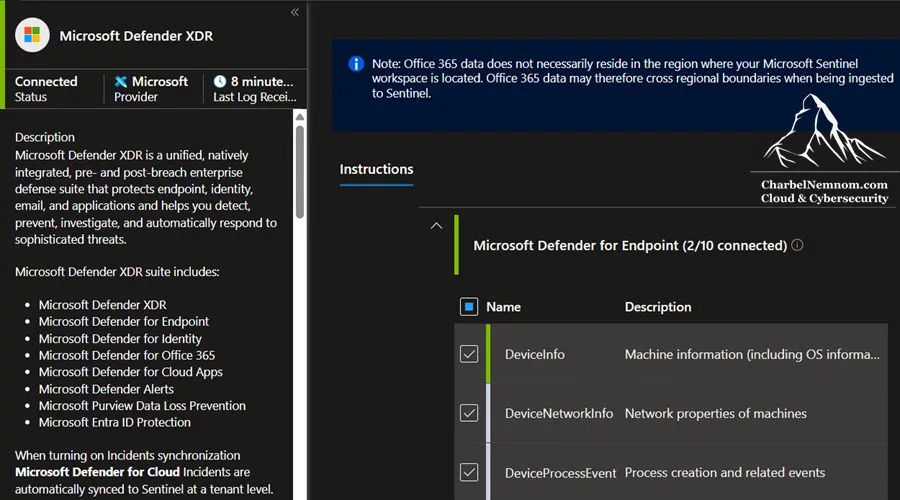
Defender XDR Connector Visibility: In the Azure portal, Sentinel used to have a “Microsoft Defender for XXX”, for a specific Defender product, or the unified “Microsoft Defender XDR” data connector, where you would configure incident syncing and select which advanced hunting event tables to ingest to the workspace, as shown in the figure below.
After onboarding to the Defender portal, you will no longer see the Microsoft Defender XDR connector listed on the Data connectors page in the Defender portal UI, as shown in the figure below. This is by design – the integration is enabled automatically under the hood. In fact, several built-in Microsoft data connectors (Defender for Endpoint, Identity, and Office 365, among others) are hidden in the Defender portal because their data is now natively unified and is actually active in the background.
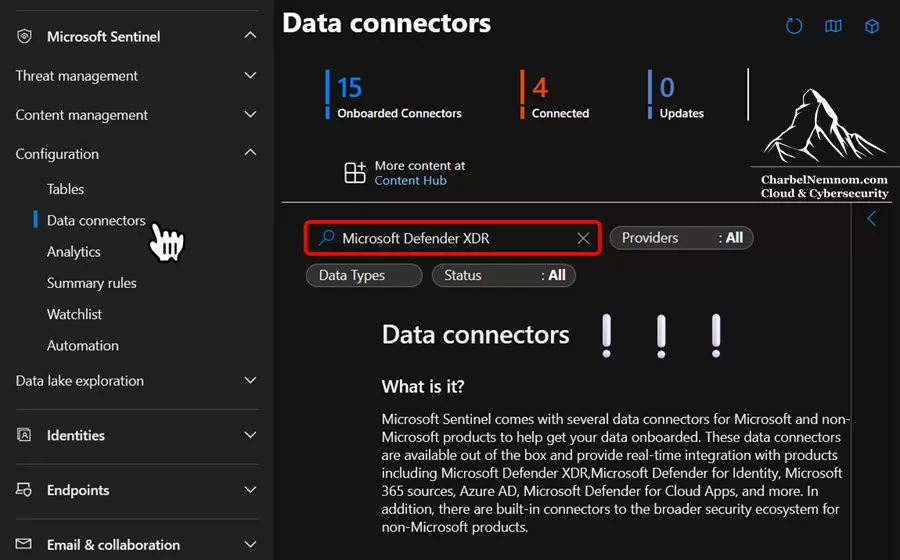
The XDR connector (incidents & alerts integration) is automatically connected when you onboard Sentinel to Defender, and if you ever offboard the Sentinel workspace, it automatically disconnects. The absence of the connector in the UI means you no longer need to configure it there manually; instead, you manage XDR data ingestion through the Tables management interface, as we’ll do below.
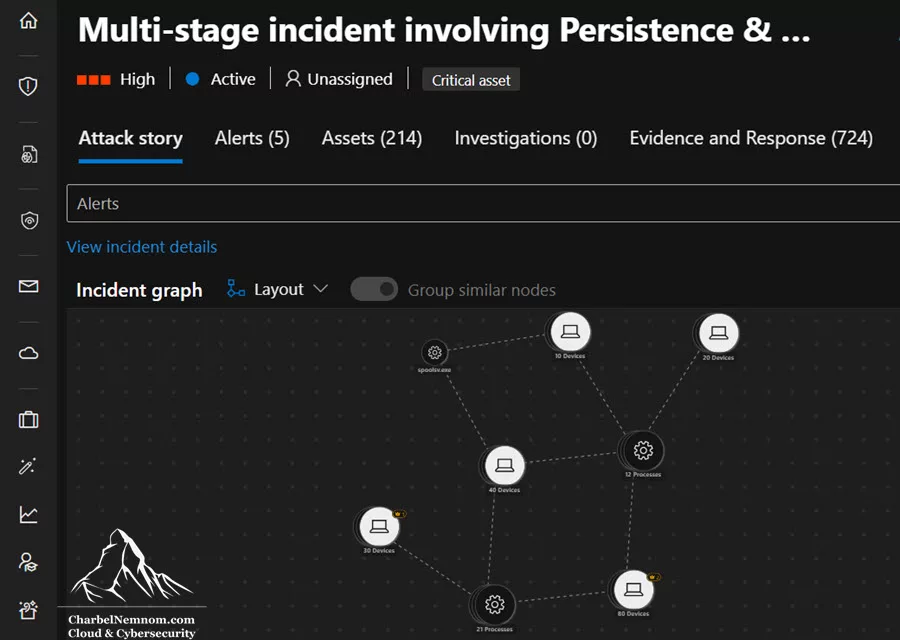
Unified Incident Queue: With Sentinel in Defender, all Microsoft Defender incidents and Sentinel incidents merge into one unified incident queue (powered by the Defender XDR incident engine). Your Sentinel analytics rule alerts and incidents are now handled by the XDR incident correlation engine alongside Defender’s alerts. This ensures incidents from Defender products and Sentinel-only sources all appear in one place. (While incident management is beyond our scope here, it’s good to know the integration is deeper than just logs ingestion. For example, if you had the Fusion rule in Sentinel, it’s replaced by Defender’s built-in multistage attack correlation once you move to the unified portal.)
This has significant advantages, as it can quickly reveal multi-stage attacks that might otherwise appear as unrelated, harmless alerts. It also helps decrease the number of incidents by combining those that are related.
No Change to Existing Data Ingestion Pipelines: It’s important to note that moving to the Defender portal does not alter the underlying Log Analytics workspace or how data is stored/ingested. All your existing connectors and agents continue to send data to the same Log Analytics workspace. The new portal simply gives a centralized place to manage both Sentinel and XDR data. So, the fundamental data pipeline remains intact – we’re just controlling it through a different interface.
With that context, the key area of interest for this discussion is the Tables management in the Defender portal. This is where we can view all our tables (Sentinel tables, custom tables, and XDR tables) and configure retention tier settings.
Manage Microsoft Defender XDR Tables
To manage Defender XDR table retention and ingestion settings, you will use the Microsoft Sentinel > Configuration > Tables section in the Defender portal. The interface provides a consolidated view of all tables. It allows per-table configuration of Analytics tier retention (hot retention in Log Analytics) and Total retention (long-term retention in Data Lake). Let’s walk through how to use it:
Step 1: Navigate to the Tables Management
Open the Microsoft Defender portal (security.microsoft.com) and in the left navigation menu, select Microsoft Sentinel (this appears after onboarding your workspace). Under Sentinel, go to Configuration > Tables. This will display the list of tables across your Sentinel workspace. If you have multiple workspaces, you can switch the active workspace at the top-left of the Tables page to manage tables in different workspaces.
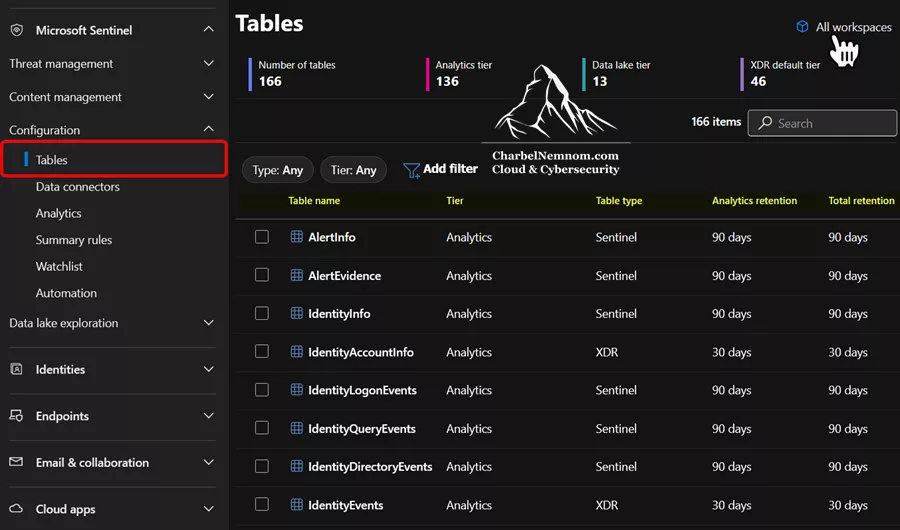
On the Tables page, as shown in the figure below, you’ll see a list with columns such as Table name, Tier, Table type, Analytics retention, Total retention, and Workspace. This list includes standard Sentinel tables (like Azure Activity logs, security alerts, etc.), any custom tables, and the Defender XDR tables (typically identified by their names). There are also summary counters at the top indicating the number of tables in the Analytics tier, the Data Lake tier, and the XDR default tier.
A quick info about this list:
* Table Type distinguishes Sentinel-managed tables vs. XDR tables. For example, IdentityAccountInfo or IdentityEvents will have Table type: XDR, whereas SecurityAlert, SigninLogs, or AuditLogs, etc. will show Sentinel.
Note: For Defender-origin tables, Table Type typically remains XDR even after you extend retention and ingest. You can use Tier and the Analytics/Total retention columns to see the current storage path and durations.
* Tier indicates where the data currently resides. “Analytics” means the table is in the Analytics tier (Log Analytics) for its current retention. “Data Lake” would mean it’s in the Data Lake tier only (cold tier). Interestingly, even a pure XDR table at 30 days, like EmailEvents, shows Tier = Analytics in the UI, as shown in the figure below, because the data is available for analytics queries (via the Defender hunting interface). There isn’t a separate “XDR” tier label in this column (the portal groups XDR under the concept of analytics tier for retention purposes, albeit not in Log Analytics).
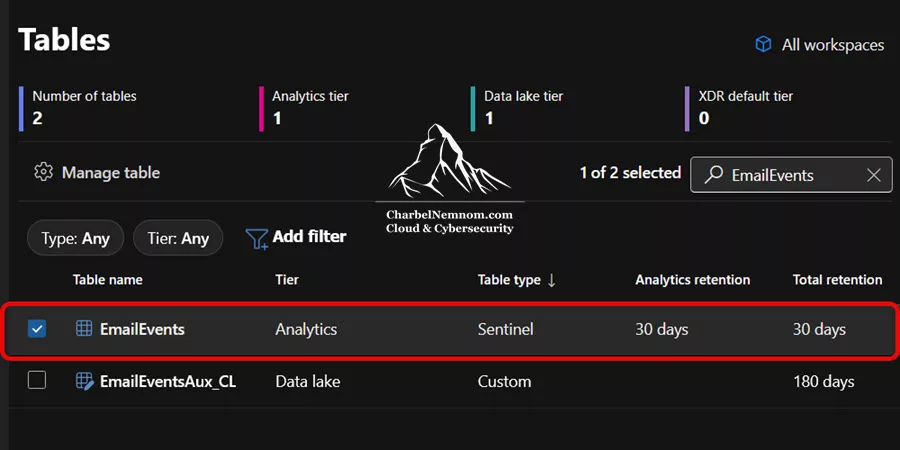
* Analytics retention shows the number of days data is kept in the hot Analytics tier. By default, for XDR tables, this will be 30 days. For Sentinel tables, the default is often 90 days (since Sentinel gives 90 days free retention for Analytics tier logs). If you extend retention for any table, this number will show the new value.
* Total retention shows the total days data is kept, including the Data Lake. If this equals the Analytics retention, it means no additional cold storage beyond the hot period. If Total retention is greater, that means after data ages out of the analytics tier, it remains in the Data Lake with additional cold (low) storage costs until the total period is reached.
Step 2: Select an XDR Table to Manage
Next, find the specific XDR table you want to configure. For example, let’s say we want to manage the EmailEvents table (which contains email delivery and filtering events from Defender for Office 365). Click on the table name in the list. A side panel will open for the selected table.
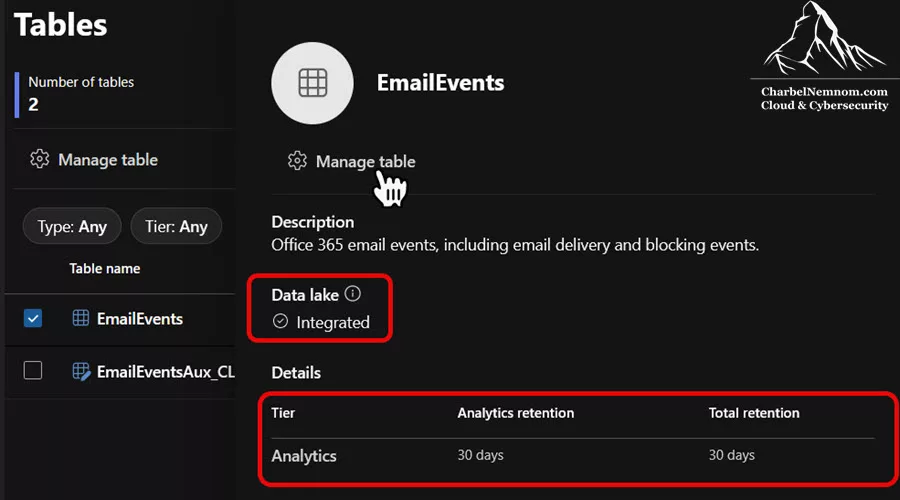
On the Tables detail panel, as shown in the figure below, you will see information like the table description, its current storage tier, and retention details. For XDR tables at default, it will show – Tier: Analytics, Analytics retention: 30 days, Total retention: 30 days. There may also be an indicator for Data Lake integration.
If your Sentinel Data Lake is enabled, as demonstrated in this article, you can see “Data lake: Integrated”. By default, this means that if the table is ingested, it will be mirrored in the lake for the same period. At a pure 30-day XDR-only state, “Integrated” simply implies that the infrastructure is in place, but no data beyond 30 days is actually stored in the lake (since the total is 30). On this panel, we can click the “Manage table” button or link. This will bring up the full Manage table settings screen, where you can modify retention and tier settings.
Step 3: Adjust Analytics and Total Retention
The Manage table page is where you configure how long to retain data in the Analytics tier and optionally extend its retention in the Data Lake. You’ll see two main sections here: Analytics tier and Data Lake tier.
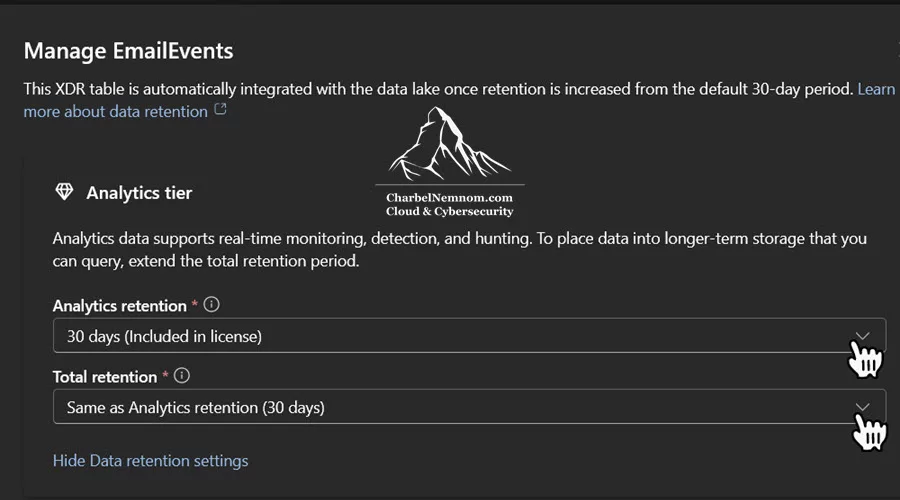
For XDR tables, the default selection will be the Analytics tier (since XDR data for 30 days is considered analytics-tier data accessible for hunting, included in the license). You have three options to configure:
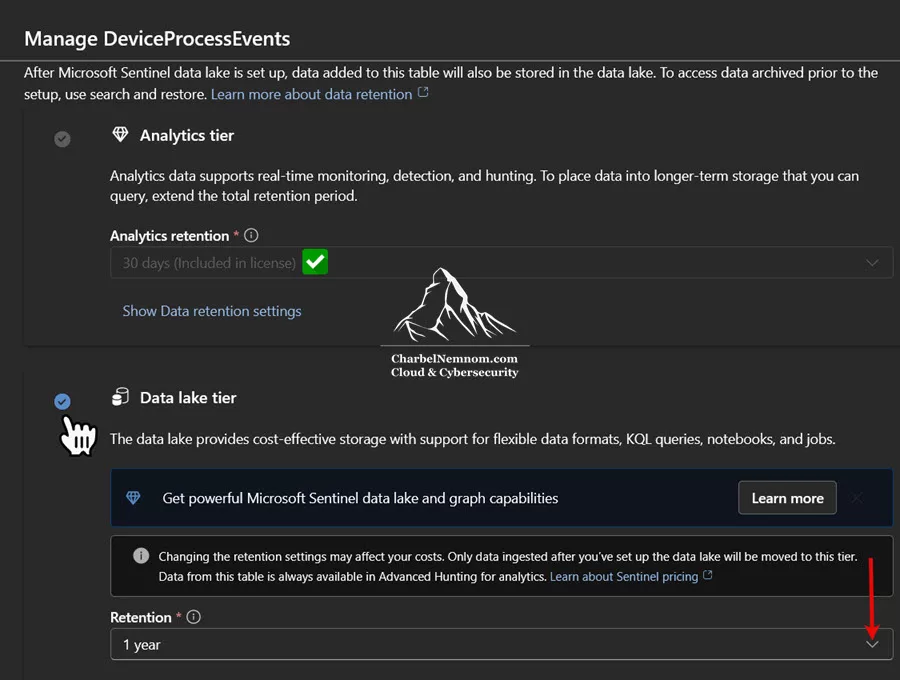
Direct-to-lake for XDR (new) – For supported Advanced Hunting data (see the list below), the Analytics retention control is locked at 30 days (included in license), while the Data lake tier shows a Retention dropdown you can set (e.g., 180, 365, 730 days, up to 12 years). Setting this will ingest new data for that table straight to the lake. Therefore, direct ingestion from XDR into the data lake occurs without passing through the analytics tier. This release enables lake‑only ingestion for Advanced Hunting data for the following tables:
-
Defender for Endpoint (MDE) –
DeviceInfo,DeviceNetworkInfo,DeviceProcessEvents,DeviceNetworkEvents,DeviceFileEvents,DeviceRegistryEvents,DeviceLogonEvents,DeviceImageLoadEvents,DeviceEvents,DeviceFileCertificateInfo -
Defender for Office 365 (MDO) –
EmailAttachmentInfo,EmailEvents,EmailPostDeliveryEvents,EmailUrlInfo,UrlClickEvents -
Defender for Cloud Apps (MDA) –
CloudAppEvents
Analytics retention – a dropdown to set how many days to retain data in the analytics tier. For Sentinel-integrated tables, this can be anywhere from 30 days up to 2 years (730 days). By default, it’s 30 for XDR tables. If you want to ingest this table’s data into Sentinel, you must set this to more than 30 days. Please note that increasing either the retention period (Analytics retention or Total retention) from the default 30-day period will move your XDR data to Sentinel and incur ingestion costs.
For example, you might choose 90 days (which is a common choice, as 90 days is free retention for Sentinel workspaces and aligns with many compliance needs). Increasing the analytics retention beyond 30 will effectively bring that table into your Log Analytics workspace (if it wasn’t already) and start ingesting new data into Sentinel going forward, which will be automatically mirrored into the Data Lake. It’s worth noting that once you increase the Analytics retention beyond 30 days, the Total retention is set automatically to “Same as Analytics retention” (More on what happens under the hood in a moment).
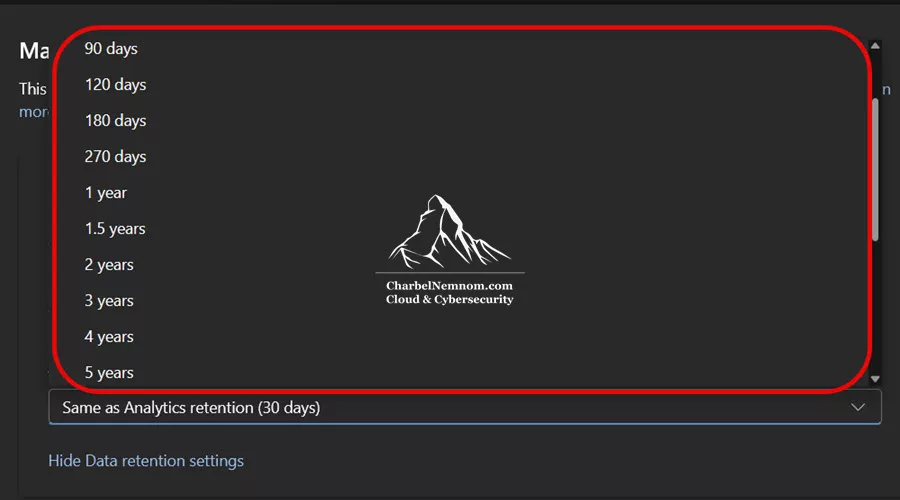
Total retention – this controls the data lake retention for that table. By default, it’s set to “Same as Analytics retention” (meaning no extra retention in the lake beyond the hot data). You can extend this up to 12 years (4,380 days). Setting a Total retention greater than the Analytics retention means that after data exceeds the analytics window, it will be kept in cold storage (the Sentinel Data Lake) until the total period is reached.
As a side note and not specifically for XDR tables, you can also choose a different total retention period based on your needs, beyond the fixed values shown in the UI (1 year, 1.5 years, 2 years, 3 years, 4 years, etc.). You can do so by creating a custom Data Lake table and setting the desired retention, such as 2.5 years, as described in this article.
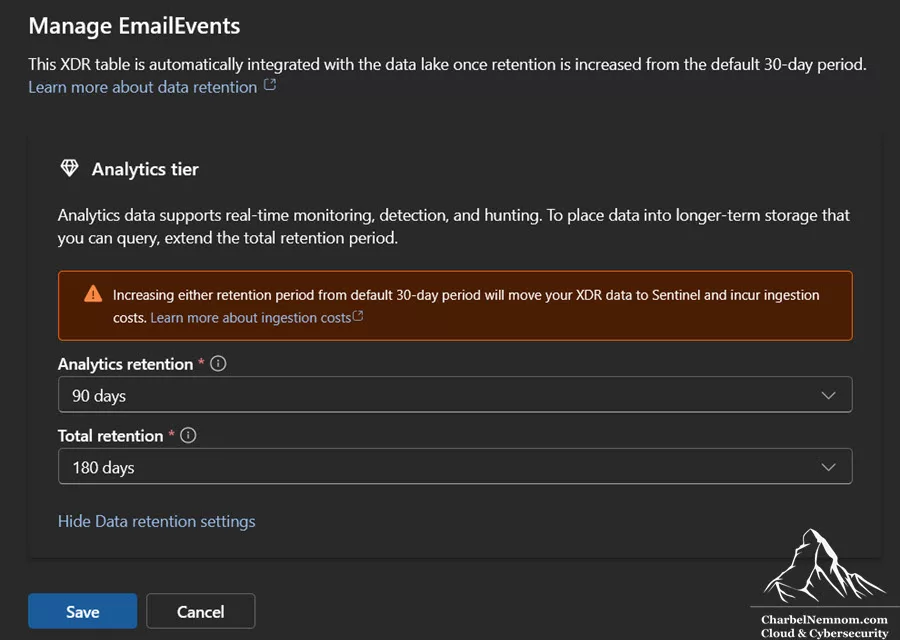
For example, if you set Analytics retention = 90 days and Total retention = 180 days, then data older than 90 days (up to 180 days) will reside in the Data Lake, accessible via KQL jobs, Search jobs, and Summary rules query methods, but not available for immediate analytics or hunting queries. Suppose you don’t need long-term retention beyond the hot period for this table. In that case, you can leave Total retention equal to analytics retention (which effectively means all retained data stays in the hot Analytics tier and is mirrored with the same retention period into the Data Lake).
For our EmailEvents example, let’s say we want to retain 6 months of email events for compliance, but only the most recent 3 months need to be actively queryable for hunting and analytics. We would set Analytics retention = 90 days and Total retention = 180 days. This configuration means:
- The Defender for Office 365 email events will be ingested into Sentinel (Log Analytics) and kept for 90 days in the analytics tier.
- Beyond 90 days, up to 180 days, those events will be stored in the Sentinel Data Lake (which is much cheaper storage), allowing us to query and search them if needed, but they won’t be immediately accessible in analytics queries after 90 days.
Another example: if you simply want to ingest the data into Sentinel but don’t need any extra long-term retention, you might set Analytics retention = 60 days and Total retention = 60 days (or 90/90, etc., any period beyond 30 up to 90 to stay within free retention). The key point is that any value over 30 for Analytics retention flips the switch from “XDR-only” to “Sentinel-integrated.” You cannot set a value between 1–29 days here; 30 is the minimum and default.
Step 4: Change the Tier
Optionally, in the Manage table page, you might notice an option to switch tiers entirely – i.e., move a table to the Data lake tier exclusively (meaning data would go straight to the Data Lake without being kept in the Analytics database). This option is intended for high-volume, verbose data, such as Firewall and Proxy logs, that you may not need in real-time analytics at all (you’d only query it occasionally from cold storage).
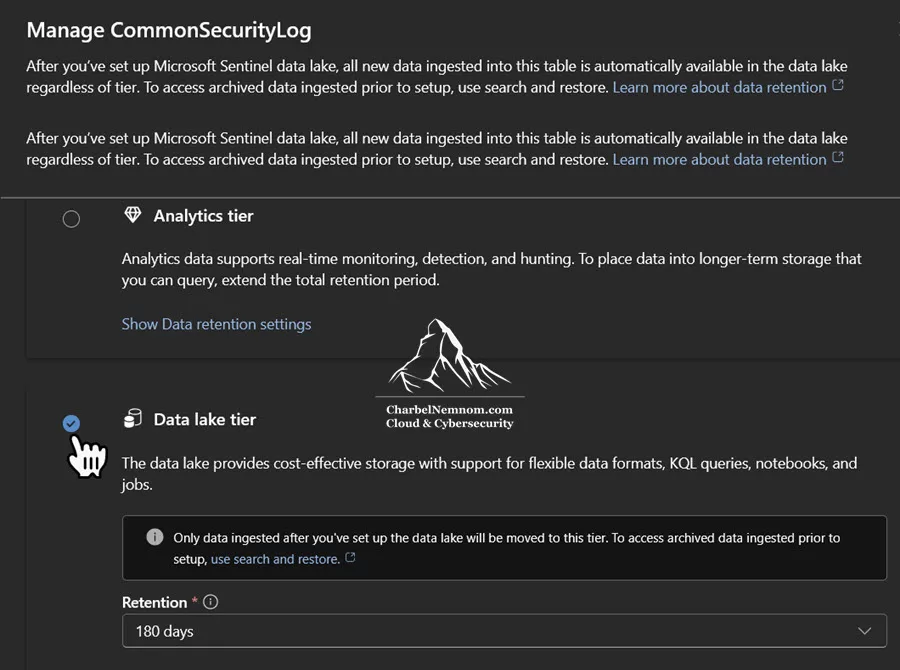
However, not all tables support switching to the data lake tier only. In fact, the Defender portal will not allow tier changes for certain table types. Historically, XDR tables could not be “lake-only.” As of Microsoft Ignite in November 2025, for supported XDR families (MDE, MDA, and MDO), you can keep Analytics at 30 days (included in license) and set Data lake retention > 30 days, which effectively makes the long-term copy lake-only (no LA ingestion) while preserving 30 days of hot hunting in XDR.
Non-supported tables still follow the previous rule set. Meaning, you can extend their retention (ingest them into Sentinel first), but you cannot offload them to only the data lake tier.
Step 5: Review and Save Changes
Before saving, take note of any warning messages that the Defender portal presents. When changing retention or tier settings, the Defender portal will display warnings such as:
- Increased retention is likely to lead to increased data cost – a reminder that longer retention = potentially higher cost.
- If switching a table from Analytics to the Data Lake tier (for tables that allow it), warnings that features depending on real-time analytics will stop working (like alert rules, hunting queries, etc.). For XDR tables, as mentioned, you likely cannot switch to lake-only, so you won’t see the latter warning in that context.
Lastly, ensure the retention periods are as intended and acknowledge any potential implications. When ready, click Save to apply the new settings.
Upon saving, the changes take effect immediately for Analytics retention. If you increase the retention period for analytics on a table with existing data, the new setting takes effect immediately. This means that if data is already being collected, Sentinel will now retain it for a longer duration going forward. If you extended Total retention, any data already ingested will also honor the new total (with some caveats: the docs note that if you reduce retention, data isn’t immediately deleted – they wait ~30 days before removal to avoid accidental loss).
For our EmailEvents example, once we hit Save on 90d/180d, the EmailEvents table is now actively being ingested into our Sentinel workspace and will mirror to the Data Lake for long-term retention.
Step 6: Verify Ingestion and Data Behavior
After configuring a table, it’s good practice to verify that data is flowing as expected and that the retention settings are working:
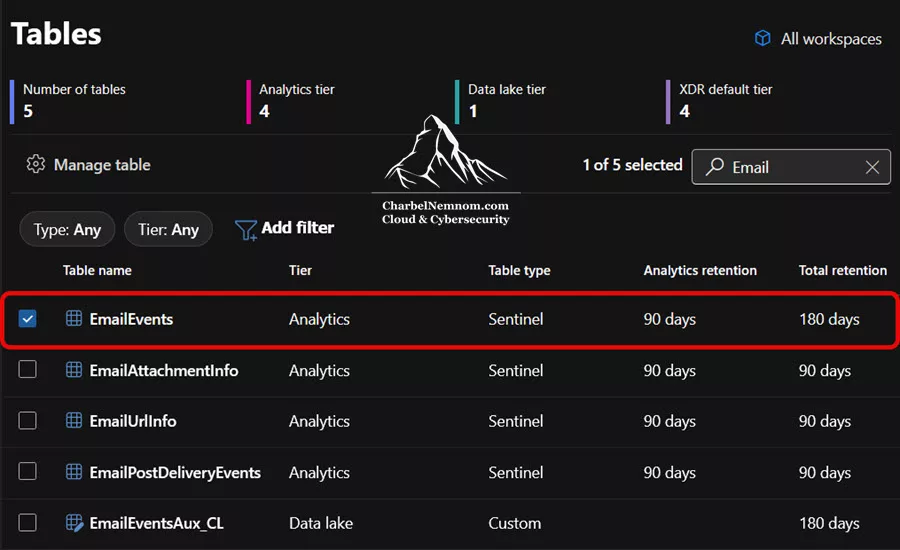
* Check the Table Status: Back on the Tables page, your selected table should now show the updated retention values. In our case, EmailEvents would show “Analytics retention: 90 days, Total retention: 180 days” and still Tier = Analytics (since it’s in hot tier). The Table type is Sentinel, but it remains XDR source; changing retention only affects where the data is stored and for how long (Analytics vs. Data Lake).
If you previously had “XDR default tier” count at the top, you might see that count decrease by one, and the Analytics tier count increase by one, reflecting that the table moved out of the purely-XDR category into Sentinel-managed.
* Run a Log Query: In Microsoft Sentinel (Defender portal or even Azure portal’s Logs blade), you can run a simple KQL query against the table to see if you get data. For example:
EmailEvents
| summarize EventsCount = count() by bin(TimeGenerated, 1d)
If the integration was successful and new data has started to flow, you should begin to see counts appear, as shown in the query output below. Keep in mind that ingestion starts from the point you enable it onward. If nothing appears and you expect frequent events in that table, double-check that the data source (Defender for Office 365 in this case) is actively sending events (and that there actually were emails/events in that period).
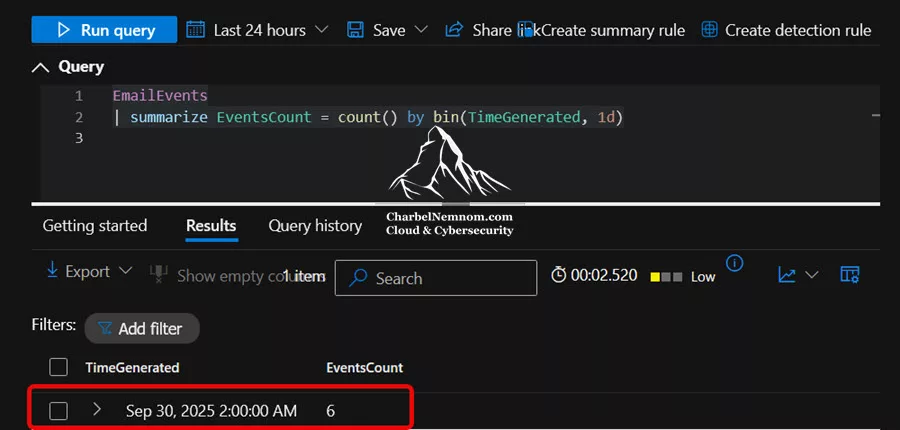
* Direct-to-lake behavior: For tables configured direct-to-lake, you won’t see > 30-day history in the Azure portal Logs blade because no LA ingestion occurs. Instead, run your hunting queries in the Defender portal (Advanced hunting and Custom detection rules), and the new data lake exploration experience continues to query the full lake-backed retention for those XDR tables.
* Advanced Hunting vs Sentinel Logs: In the unified Defender portal (after onboarding your Sentinel workspace), Advanced Hunting (AH) can query beyond 30 days for any XDR tables you’ve streamed to Sentinel and configured with retention > 30 days. In that case, AH transparently reads from the Sentinel-backed storage, giving you a single, unified hunting experience—no need to jump to the Azure portal’s Logs blade to reach older data.
If a table remains XDR-only at 30 days, AH still returns up to 30 days for that table (as before). For historical investigations on data streamed to Sentinel, you can use Defender portal capabilities (Hunting queries, Search jobs/KQL jobs/Summary rules for Data Lake). If you later revert the table to 30 days, AH returns to a 30-day window for that table.
* Incident/Alert Integration Check: Since the Defender XDR connector was auto-enabled, your incident queue should already be unified. However, just ensure that incidents are coming in as expected (e.g., create a test alert). Also, verify that you avoided duplicate incidents by turning off the “Microsoft incident creation rules” when connecting (the platform automatically disables this connection in the background or via a checkbox when first connecting the XDR connector in the Azure portal, to prevent Defender and Sentinel from both creating incidents for the same alerts). In our scenario, we onboarded the workspace to the Unified Security Operations Platform, so the incidents and alerts configuration is disabled. But it’s good to confirm you’re not seeing duplicates.
At this point, we have successfully onboarded an XDR table (EmailEvents) into Sentinel and configured its retention. The process can be repeated for any other XDR table you need to retain longer or search within Sentinel. Common ones might include EmailUrlInfo (URLs clicked in emails), DeviceEvents (general endpoint events), AlertEvidence (detailed entities for alerts), etc. Just be mindful and select only the tables that deliver value for your use case – remember, more data ingested means more cost (unless covered by a free allocation). This brings us to our next crucial topic: retention costs and licensing.
Retention and Cost Implications
When managing XDR tables in Sentinel, it’s essential to understand the cost model and how your licensing can offset those costs. Here’s a breakdown of key points to keep in mind:
1. 30-Day XDR Retention is Free (Included in License)
Keeping a table at the default 30 days doesn’t incur any charge from the Sentinel side. As mentioned, that data is stored in the XDR (Kusto) system and is part of what you’ve paid for with your Microsoft Defender XDR license. See Microsoft Sentinel benefits for Microsoft 365 E5, A5, F5, and G5 customers for further information.
The Defender portal still labels it as “Analytics retention: 30 days” (since it’s hot data available for analytics), but it’s essentially free and not billed via Azure. The “Analytics” label in this context is a bit confusing – it refers to the fact that the data is in an interactive queryable store for 30 days, not that it’s in Log Analytics. Think of it as “30 days in an analytics tier (be it XDR’s internal store or Sentinel’s Log Analytics)”.
To be very clear: If a table shows 30 days of analytics retention and Table Type = XDR, that data is not being billed to your Log Analytics – it’s covered by the XDR license. Only when you extend beyond 30 does it start generating Azure usage.
2. Sentinel Analytics tier – 90 Days Included Storage
Microsoft Sentinel provides 90 days of free retention in the Analytics tier for Sentinel-enabled workspaces. This means once you ingest data into Sentinel, Microsoft does not charge for storing it up to 90 days.
In our earlier example, we set EmailEvents to 90 days analytics – that means we will not pay for the storage of those 90 days of data (because it’s within the included retention window for Sentinel). If we had set 180 days of analytics, we’d incur charges for days 91–180 in the analytics database (pro-rated per GB per month). Therefore, a best practice is to leverage the 90-day included retention if it meets your needs, as it maximizes value.
3. Direct-to-Lake cost model (new)
- No Log Analytics ingestion for supported XDR tables → you skip ingestion charges entirely.
- You pay only for data lake storage, which benefits from the 6:1 compression model.
- The M365 E5 5 MB/user/day grant applies to Sentinel ingestion; if you go direct-to-lake, that grant isn’t needed for these tables.
- Queries remain interactive from the Defender portal across the full lake retention you set.
Example: DeviceProcessEvents at ~2.5 GB/day raw → lake stores ~0.42 GB/day (÷ 6). One year ≈ 153 GB stored. Multiply by your regional lake $/GB-month to estimate storage—still a fraction of Analytics storage and zero LA ingestion.
The direct-to-lake means no LA ingestion; price it as compressed lake storage only. The M365 grant is relevant only when you ingest to Sentinel (Log Analytics).
4. Data Lake Retention beyond Analytics incurs a low-cost charge
Whenever you set Total retention beyond Analytics retention, the extra days in the Data Lake incur a cost (though significantly lower than hot analytics storage). The data lake is optimized for cheap long-term storage. The good news is that as of October 1st, 2025, Data lake storage, including asset data storage, is now billed with a simple and uniform data compression rate of 6:1 across all data sources (as documented by Microsoft). This means 6 times lower storage cost!
For instance, if you keep 6 months in Analytics and 1 year Total, you pay for 6-12 months of data in the lake. If you keep 3 months in analytics and 6 months total, you pay for the additional 3 months in the lake. For example: 90 days analytics / 180 days total retention – you pay normal ingestion + 0 extra for the first 90 days storage (included) + storage for the additional 90 days in the lake.
Another example: 30 days analytics (since XDR default) / 180 days total retention – you pay log ingestion, no analytics storage cost (30 < 90 days), and you pay for 150 days of lake storage for the period beyond the 30-day hot data.
In summary, if the retention period is changed to more than 30 days, the data will be ingested into Log Analytics, and from there, it will be automatically mirrored into the data lake. With the Analytics tier retention setting, you receive 90 days of Log Analytics retention at no cost. However, if you set the total retention to keep data in the lake beyond the analytics retention period, this will result in additional storage costs. Please check our previous article, where we detailed the Cost Analysis for Microsoft Sentinel Data Lake.
5. Ingestion Costs (and Free Data Offers)
When you ingest XDR data into Sentinel (change the retention to more than 30 days), you will incur data ingestion charges (measured per GB ingested), just like any other data source – unless you have an offsetting benefit. Notably, Microsoft offers a Microsoft 365 E5 data ingestion benefit for Sentinel. If you have Microsoft 365 E5 (or A5, F5, G5) licenses, you get up to 5 MB per user per day of Microsoft 365 data ingestion into Sentinel at no cost. Advanced hunting data from Defender (which is exactly what these XDR tables are) is included in that offer.
For example, a tenant with 3,500 E5 users can ingest up to ~17.5 GB per day of Defender data free, which saves around ~$2,200 per month. This is a huge incentive to integrate XDR with Sentinel for E5 customers. Keep in mind the 5 MB per user/day covers Microsoft 365 data sources (Defender, Office 365 logs, Entra ID logs, etc.) – it wouldn’t cover, say, firewall logs or AWS logs. But for our context, EmailEvents, DeviceEvents, etc., are within that grant.
If you don’t have E5 or go beyond the free allowance, ingestion is charged per GB (as per Sentinel’s official pricing page). It’s still often worth ingesting critical XDR data for the analytics value – you want to be selective if cost is a concern.
6. Example Cost Scenarios
To reinforce our understanding, let’s analyze a scenario with and without Sentinel ingestion:
* Scenario A: Pure XDR, 30 days. You keep DeviceEvents at 30 days, XDR-only. Cost = $0 from Sentinel. Your only limitation is that you can only hunt on 30 days of endpoint data, and you can’t use Sentinel analytics rules beyond what custom advanced hunting might do (though note, you can create Defender custom detection rules that query both XDR and Sentinel data without ingesting the XDR table – more on that trick later).
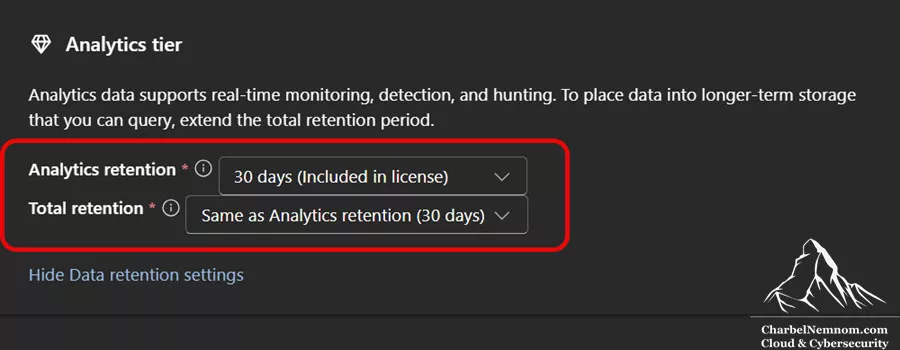
* Scenario B: Ingest to Sentinel, 90 days analytics, 90 days total. Now DeviceEvents flows into Sentinel. Suppose DeviceEvents generates 5 GB of data per day in your organization (for example). 5 GB/day ingested for 90 days is ~450 GB total stored. With an E5 data grant covering 5 MB per user, let’s say you have 10k users = ~50 GB/day free. 5 GB/day is well under that, so ingestion could effectively be free.
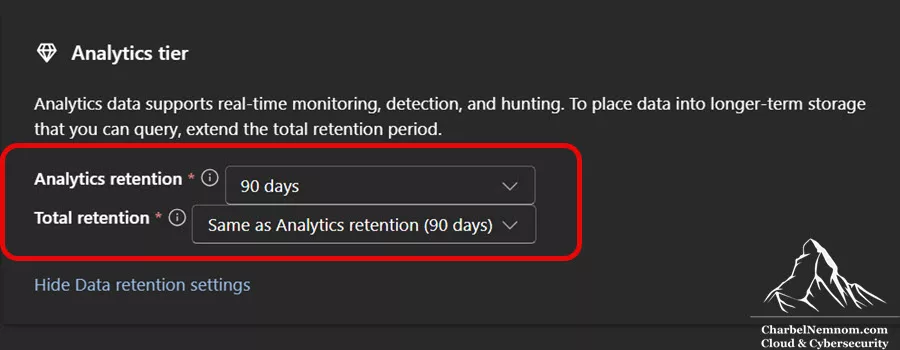
Storage of 90 days in analytics is free (under Sentinel’s 90-day no-charge retention). Data Lake isn’t used here because Total = Analytics in this scenario. So your cost might effectively be $0 if within grants, or if not, you’d pay 5 GB * price per GB ingested (around $5.2 per GB at PAYG, so ~$26/day, ~$780/month) if you had no grant. This gives you 3 months of readily searchable endpoint logs in Sentinel.
* Scenario C: Ingest to Sentinel, 90 days Analytics, 365 days (1 year) total. Here you’re mixing tiers: e.g., EmailEvents at 3 months hot, 12 months total. Let’s say it’s 1 GB/day of data. Ingestion of 1 GB/day might be covered partially by E5 (depending on user count) or not.
Analytics storage: 90 days free, so no charge for hot storage. Data Lake storage: 275 extra days of 1 GB/day data = 275 GB in the lake, priced at cold storage rates (~$0.026/GB-month, rough figure) → about $1 per month for just the EmailEvents table. Very cheap to keep a year of that data. So for that table, the main cost is ingestion (if not free). You’d be paying maybe $150/month ingestion (if no grant), plus ~$1/month for Data Lake retention beyond 90 days. That’s a reasonable cost for having a full year of email logs for investigation.
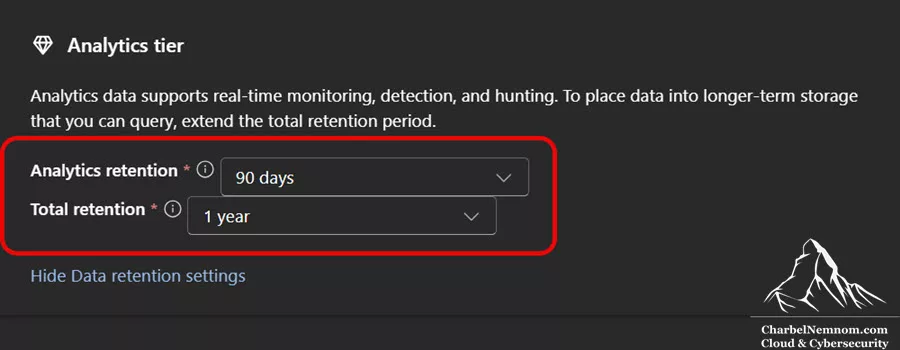
These examples illustrate that with the new tiering, you can significantly optimize costs by leveraging included retention and opting for lake storage in the long term. Microsoft even documented that storing logs in the Sentinel Data Lake is now compressed at a 6:1 ratio across all data sources. This means 6 times lower storage cost. This flexibility allows you to decide, per table, what data justifies the expense of hot storage vs. what can live in cold storage.
It’s worth mentioning that starting from October 1, 2025, until March 31, 2026, Microsoft introduced a new 50 GB commitment tier in public preview, with promotional pricing available during this period. Customers who choose the new 50 GB commitment tier will retain their promotional rate until March 31, 2027. This offer is available in all regions where Microsoft Sentinel is deployed, although promotional pricing may vary by region and country. You can access this offer through Enterprise Agreements (EA), Cloud Solution Provider (CSP) channels, and Direct channels. More details about the new 50 GB commitment tier will be available on the Microsoft Sentinel pricing page starting October 1, 2025.
7. Billing Details – “Analytics” Label on XDR Tables
Let’s clarify an important point: Why does the Tables UI page show “Analytics retention: 30 days” even for an XDR table that you have not ingested into Sentinel? This might lead some to confusion if this data is in Log Analytics and contributing to the 30-day retention period. The answer is no; it is not in Log Analytics until you decide to extend it. The portal uses the term “Analytics retention” in a general sense. For an XDR-only table, the 30-day period indicates how long the data is available for analytics within the Defender XDR hunting (Kusto) system. This effectively represents the XDR analytics tier.
The table’s label as Table Type = XDR indicates that the 30 days of analytics retention come from the XDR platform. The UI displays this 30-day analytics retention to show that the data can be queried and alerting can occur within that timeframe. However, this data resides in XDR’s storage and is included in your XDR license, meaning it is not counted or billed within Sentinel.
As soon as you bump it to (for example) 31 days, the table type will still be XDR (because it’s an XDR data source), but now you’ve effectively told the system to create that table in the Sentinel workspace. After that point, data from day 31 onward goes into Log Analytics (and the first 30 days remain in XDR too, so there’s overlap). Microsoft has engineered it so that beyond 30, it seamlessly continues in Sentinel. There’s no double charge for that overlapping period; the first 30 days are still covered by the XDR license, and Sentinel picks up from there for retention.
Another important aspect to consider: If you decide later to stop ingesting an XDR table (perhaps you only needed it temporarily), you can revert its Analytics retention to 30 days (and its Total retention to 30 days). The documentation notes that setting an XDR table back to 30 days will stop ingesting new data and effectively disable the Sentinel connector for that data.
The data already ingested in Log Analytics up to that point would remain until it ages out, but no new data would flow in (you’d go back to relying on the Defender portal’s 30-day storage only). This is useful to know in case you want to cut off ingestion to save costs – simply reset to the default, and the pipeline is turned off.
8. Watch Out for Overlapping Costs
When you first enable ingestion (extend retention), there’s no extra charge for anything up to 30 days because XDR covers it. When you go beyond 30 days, Sentinel starts counting ingestion from that point on.
When you set the retention period to 60 days, Sentinel will retain data for those 60 days. The first 30 days of data are covered by your XDR license, meaning there won’t be any storage charges for that period. However, you will incur ingestion fees if that data was imported into Sentinel. If the XDR connector was active before you transitioned to the Unified Security Operations Platform, those first 30 days were ingested with the default retention settings. If the connector wasn’t active, the data will not be backfilled.
To simplify: the first 30 days of data are retained in XDR at no charge from Sentinel. Any data beyond that will incur either ingestion fees or storage fees, or both, depending on the duration and your licensing agreement.
In summary, managing XDR tables through Sentinel allows you to fine-tune your cost vs. retention trade-offs. You might choose to ingest only a subset of tables that are high-value for long-term analysis (for example, you might ingest AlertInfo and DeviceAlerts for 2 years for auditing all alert history, but leave extremely verbose tables like DeviceNetworkEvents at 30 days if you don’t often need those longer).
The Defender portal (Tables management UI) makes it as easy as a dropdown adjustment per table. Many organizations with the right licensing can ingest a lot of this data at little marginal cost, which is a big win for visibility.
Best Practices and Additional Tips
Before we conclude, here are a few best practices and clarifications when managing Defender XDR tables in Sentinel and Data Lake:
Use Unified Custom Detection Rules
If you have detection scenarios that involve both Sentinel data and XDR data, but you do not need the XDR data beyond 30 days, consider using Microsoft Defender custom queries (custom detection rules) that run across both sets of data without ingestion, and this can be used for both needs below and beyond 30 days.

The unified custom detections allow writing detection rules that query XDR tables directly alongside Sentinel tables. This means, for example, you could write a custom detection rule that looks for a combination of an Entra ID SigninLogs (Sentinel data) and a AlertEvidence (XDR data) occurring within an hour of each other, all within KQL – and you can do that without ingesting AlertEvidence into Sentinel, as long as the rule is only looking at a 30-day window. This approach can save costs by leveraging the XDR advanced hunting pipeline for real-time detection, without storing everything in Sentinel.
Here’s a custom detection rule that correlates Sentinel data (Entra ID Sign-in logs) with Defender XDR endpoint telemetry without having to ingest the XDR table into Sentinel. In this case, a risky or failed sign-in, followed shortly by a credential-dumping attempt on any endpoint tied to that user within 60 minutes, is a strong signal of account compromise and lateral movement staging.
// ---- RISKY / SUSPICIOUS ENTRA ID SIGN-INS (Sentinel table) ----
let RiskySignins =
    SigninLogs
    | where TimeGenerated > ago(1d)
    // Flag clearly suspicious attempts:
    | where ResultType != 0 or RiskLevelDuringSignIn in ("high","medium")
    | project
        UPN = tostring(UserPrincipalName),
        SignInTime = TimeGenerated,
        SignInIP = tostring(IPAddress),
        App = tostring(AppDisplayName),
        CAStatus = tostring(ConditionalAccessStatus),
        Location = tostring(LocationDetails.countryOrRegion);

// ---- CREDENTIAL DUMPING BEHAVIORS ON ENDPOINTS (XDR table) ----
let CredDumpOnEndpoint =
    DeviceProcessEvents
    | where Timestamp > ago(1d)
    // Common cred-dump patterns; tune to your noise profile
    | where
        (tolower(FileName) in ("procdump.exe","rundll32.exe") and ProcessCommandLine has_any ("lsass", "comsvcs.dll", "MiniDump", "-ma", "/ma"))
        or (ProcessCommandLine has_any ("comsvcs.dll, MiniDump", "sekurlsa"))
    | project
        Timestamp, DeviceId, DeviceName, ReportId, AccountUpn, FileName, ProcessCommandLine;

// ---- CORRELATE: risky sign-in followed by cred dumping within 60 minutes ----
CredDumpOnEndpoint
| join kind=innerunique (RiskySignins) on $left.AccountUpn == $right.UPN
| where Timestamp >= SignInTime and Timestamp < SignInTime + 1h
| project
    // Required for custom detections on MDE data:
    Timestamp, DeviceId, ReportId,
    // Strong entities:
    DeviceName, AccountUpn,
    // Context
    SuspiciousProcess = FileName,
    ProcessCommandLine,
    SignInTime, SignInIP, App, CAStatus, Location
Microsoft recommends using custom detection rules to maintain a consistent and unified experience when managing user-defined rules across Microsoft Sentinel and Defender XDR data. They have significantly enhanced custom detection capabilities, offering flexible entity mapping, custom alert enrichment details, dynamic alert titles and descriptions, and high-frequency options for data ingested into Microsoft Sentinel. This functionality allows querying two different databases simultaneously. Behind the scenes, these custom detection rules utilize the Defender Advanced Hunting API to access XDR data in real-time.
Monitor XDR Table Volume Before Ingesting
Some XDR tables can be extremely high volume (for instance, DeviceEvents or DeviceNetworkEvents on a busy endpoint environment). Check the volume in advanced hunting (you can run the following query in Defender AH to estimate the amount of data generated per day) before enabling Sentinel ingestion. This query will summarize the volume for DeviceEvents count on a representative day.
// AH tables use Timestamp
// Sentinel (Log Analytics) tables use TimeGenerated
// Swap DeviceEvents for the table you're assessing
DeviceEvents
| where Timestamp > ago(7d)
| summarize Events = count() by bin(Timestamp, 1d)
| order by Timestamp desc
To estimate your XDR table budget before ingesting into Sentinel, you can search a 1-hour window during a typical busy period, then compute the avg_bytes_per_event, as follows:
1. Find the busy hour helper (and quick chart)
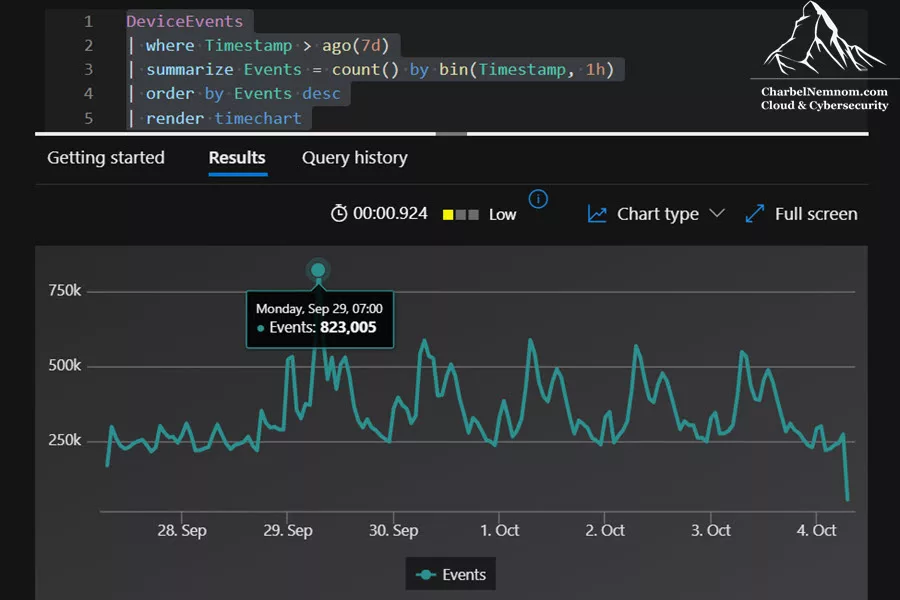
First, we need to find a busy 1-hour window (counts only). You can pick any representative busy hour. If your workload is very spiky, you can take two or three different hours and average the results.
The following query is to identify when to compute to get the avg_bytes_per_event. So, we use summarize query to find the busy window, this will help to compute bytes per event.
DeviceEvents
| where Timestamp > ago(7d)
| summarize Events = count() by bin(Timestamp, 1h)
| order by Events desc
// | render timechart   // uncomment to visualize
You can pick a contiguous 1-hour slot during peak volume (you can also add | render timechart and see the peak), as shown in the figure below. In our scenario, the busy 1-hour window is on September 29th at 7:00 AM.
2. Compute the event count for a month
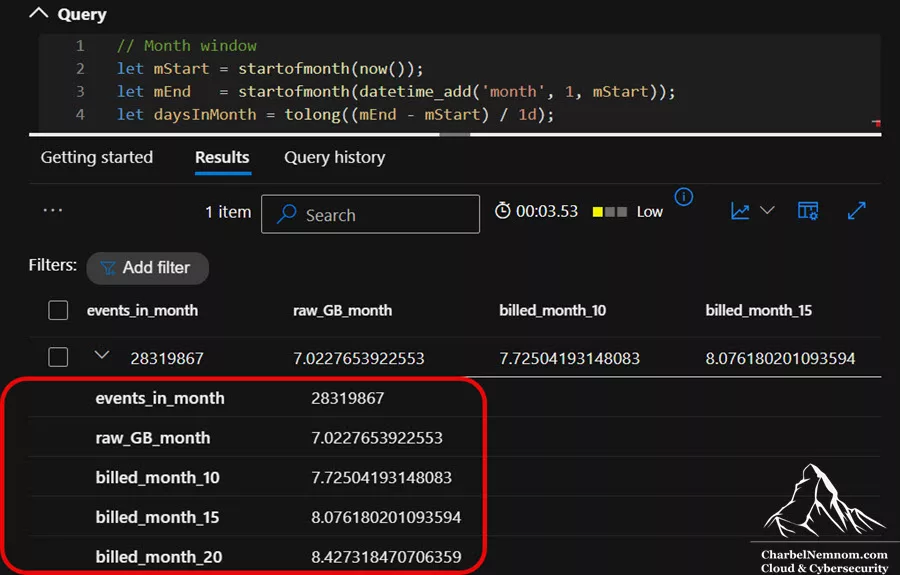
Next, once we find the busy 1-hour window, run the following query to compute an approximate bytes-per-row using the string lengths of heavy columns of the XDR table. In this example, we selected the heavy columns, like AccountName, FileName, ProcessCommandLine, FolderPath, SHA1, and AdditionalFields in the DeviceEvents table. Replace the times below with the peak you found above:
// Month window
let mStart = startofmonth(now());
let mEnd   = startofmonth(datetime_add('month', 1, mStart));
let daysInMonth = tolong((mEnd - mStart) / 1d);

// Your representative 1-hour sizing slice
let s = datetime(2025-09-29T07:00:00Z);
let e = datetime(2025-09-29T08:00:00Z);
let avg_bpe = toscalar(
    DeviceEvents
    | where Timestamp >= s and Timestamp < e
    | extend approx_bytes =
        strlen(tostring(AccountName)) +
        strlen(tostring(FileName)) +
        strlen(tostring(ProcessCommandLine)) +
        strlen(tostring(FolderPath)) +
        strlen(tostring(SHA1)) +
        strlen(tostring(AdditionalFields))
    | summarize avg(approx_bytes)
);

// Total events in the month + GB projections
let totals =
DeviceEvents
| where Timestamp >= mStart and Timestamp < mEnd
| summarize events_in_month = count()
| extend raw_GB_month = (events_in_month * avg_bpe) / 1e9
| extend billed_month_10 = raw_GB_month * 1.10,
         billed_month_15 = raw_GB_month * 1.15,
         billed_month_20 = raw_GB_month * 1.20;

totals
This query will display the raw GB for the month and the billed GB, along with a 10%, 15%, and 20% overhead.
Note — KQL result limits: Advanced Hunting/Kusto applies output caps (commonly ~64 MB result payload or ~500k rows). If you hit truncation (e.g., E_QUERY_RESULT_SET_TOO_LARGE), reduce columns with project, slice a smaller time window, or sample with rand(). For sizing, include heavy fields (e.g., ProcessCommandLine, AdditionalFields) in your sample to keep the bytes/event estimate realistic.
3. Month projection with M365 grant and cost
Lastly, you select your GB per month from the column that matches your chosen overhead (e.g., billed_month_15). Then, subtract the Microsoft 365 E5 grant (if applicable in your case):
- Grant per day = 5 MB × #E5 users
- Grant per month (GB), Example: 5 MB × 3,000 E5 users × 31 days /1024 ≈ 454.10 GB free.
- Overage GB = max(0, billed_GB_month − grant_GB_month)
- Ingestion cost = overage_GB × price_per_GB_in_your_region
You can even calculate the grant and overage inside KQL. Replace your user count and optional region price in the query below. If your grant ≥ billed_GB_month, the ingestion cost will be $0 (storage may still apply for Data Lake if you extend the Total retention). If your billed GB exceeds the grant, the query will show the overage and estimated cost for the 10%, 15%, and 20% scenarios.
let users = 3000; // <-- set your E5 (A5/F5/G5) users eligible for the grant
let price = 4.30; // <-- set your Azure regional $/GB ingestion (example Pay-as-you-go for East US)
let mStart = startofmonth(now());
let mEnd   = startofmonth(datetime_add('month', 1, mStart));
let daysInMonth = tolong((mEnd - mStart) / 1d);

// Your representative 1-hour sizing slice
let s = datetime(2025-09-29T07:00:00Z);
let e = datetime(2025-09-29T08:00:00Z);
let avg_bpe = toscalar(
    DeviceEvents
    | where Timestamp >= s and Timestamp < e
    | extend approx_bytes =
        strlen(tostring(AccountName)) +
        strlen(tostring(FileName)) +
        strlen(tostring(ProcessCommandLine)) +
        strlen(tostring(FolderPath)) +
        strlen(tostring(SHA1)) +
        strlen(tostring(AdditionalFields))
    | summarize avg(approx_bytes)
);

// Total events in the month + GB projections (10/15/20%)
DeviceEvents
| where Timestamp >= mStart and Timestamp < mEnd
| summarize events_in_month = count()
| extend raw_GB_month = (events_in_month * avg_bpe) / 1e9
| extend billed_month_10 = raw_GB_month * 1.10,
         billed_month_15 = raw_GB_month * 1.15,
         billed_month_20 = raw_GB_month * 1.20
| extend grant_GB_month = (5.0 * users * daysInMonth) / 1024.0
| extend overage_10 = max_of(0.0, billed_month_10 - grant_GB_month),
         overage_15 = max_of(0.0, billed_month_15 - grant_GB_month),
         overage_20 = max_of(0.0, billed_month_20 - grant_GB_month)
| extend est_cost_10 = overage_10 * price,
         est_cost_15 = overage_15 * price,
         est_cost_20 = overage_20 * price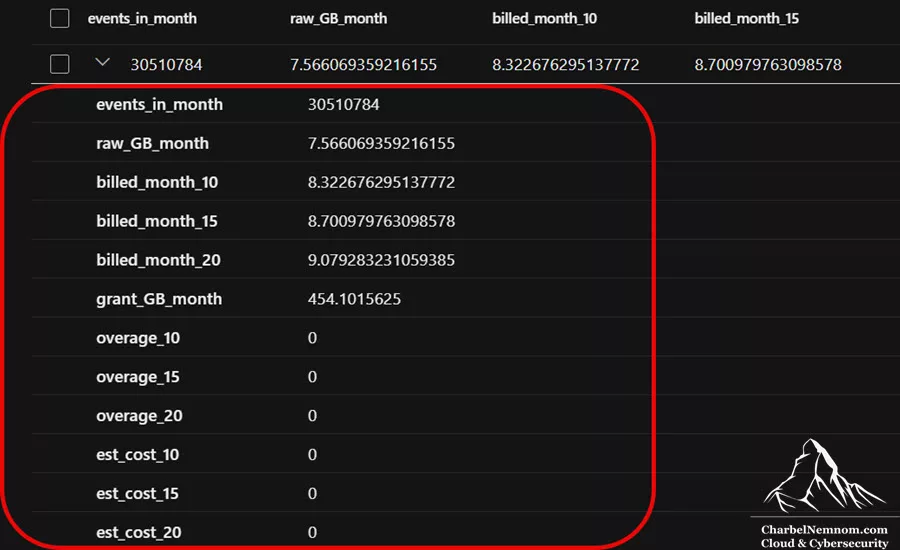
In the output, we see that the overage and estimated cost are zero because the billed GB/month estimate is well below the Microsoft 365 E5 data grant limit. What does each row mean from the output that we see in this example?
-
events_in_month = 28,337,978. Count of
DeviceEventsbetween the start of the current month and now (month-to-date). - raw_GB_month = 7.566. Computed with the bytes-per-event derived from the 1-hour sizing window.
- billed_month_10 / 15 / 20. Raw volume plus indexing/serialization overhead.
- grant_GB_month = 454.10. Microsoft 365 E5 grant for 3,000 users in a 31-day month.
- overage_10 / 15 / 20 = 0. Because billed_month_x ≪ grant_GB_month, there’s no overage.
- est_cost_10 / 15 / 20 = 0. Since there’s no overage, the estimated cost will also be 0.
So, we’ve used ~8.70 GB (at +15% overhead). We still have ~445 GB of grant headroom this month: 454.10 − 8.70 ≈ 445 (GB). Even if our consumption doubles or triples, we will still be comfortably within the grant.
Remember, the grant is tenant-wide for Microsoft 365 data sources. To budget accurately, repeat this method for the other XDR tables you care about (e.g., DeviceProcessEvents, EmailEvents, EmailUrlInfo) and sum the projected billed GB across them.
Which overhead should you choose:
- 10–15%: compact events (short strings, few large dynamic fields).
- 15–20%: mixed/typical endpoint events. 15% is a sensible default.
- 20–30%: very verbose rows (long
ProcessCommandLine, largeAdditionalFieldsJSON). 20% is a safe upper bound.
Estimate data ingestion volume for Sentinel
Now, if you need actual GB to estimate cost, you can ingest the table to Sentinel first and then run the following query. Because we can’t get an exact _BilledSize number without actually sending the data through the Log Analytics pipeline.
DeviceEvents
| summarize GB = sum(_BilledSize) / 1e9
  by bin(TimeGenerated, 1d)
| order by TimeGenerated desc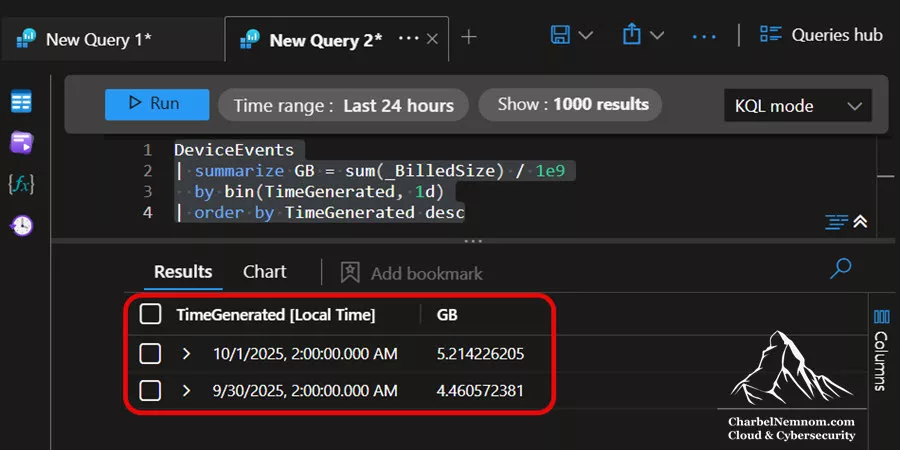
Here is a multi-table quick view (swap in the XDR tables you ingest). Note: _BilledSize exists only in Log Analytics/Sentinel. If the table is still XDR-only (within 30 days) and not ingested, these queries will return no results because the table doesn’t exist in your workspace yet.
union withsource=TableName
    DeviceEvents,
    DeviceProcessEvents,
    DeviceNetworkEvents,
    DeviceFileEvents
| summarize GB = sum(_BilledSize) / 1e9 by TableName, bin(TimeGenerated, 1d)
| order by TimeGenerated desc
You can also use the workspace Usage table query below:
Usage
| where IsBillable == true
| where DataType == "DeviceEvents"
| summarize GB = sum(
    case(QuantityUnit == "MBytes", Quantity/1024.0,
         QuantityUnit == "GBytes", Quantity,
         0.0)
  ) by bin(TimeGenerated, 1d)
| order by TimeGenerated desc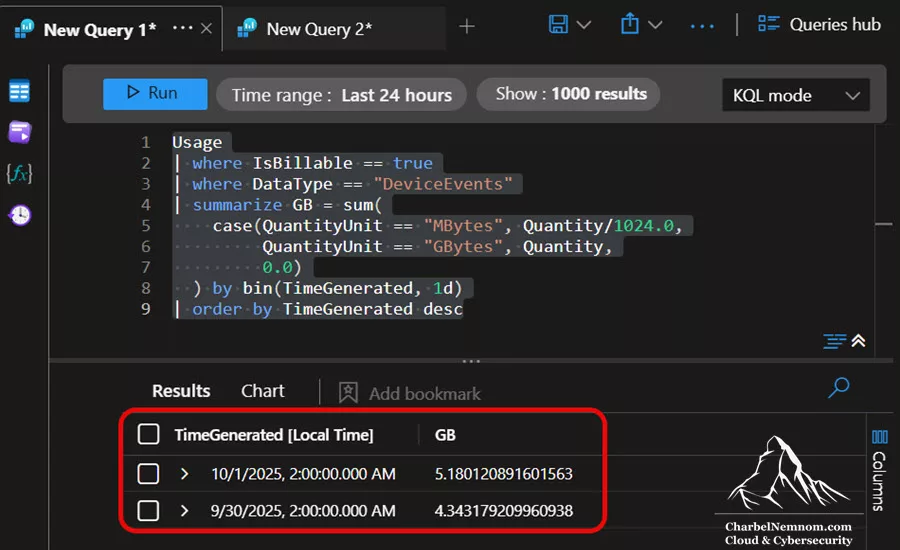
This will give you an idea of the cost impact. You can filter each Defender XDR table using a workspace transformation data collection rule (DCR) to reduce noise before ingestion. Here’s a DCR example to filter out a specific type of connection, like ConnectionFailed, ConnectionAcknowledged, ListeningConnectionCreated for the DeviceNetworkEvents table.
"dataFlows": [
   {
    "streams": [
        "Microsoft-Table-DeviceNetworkEvents"
    ],
    "destinations": [
        "fb7cd75d5e014379b836fd97c8d07d7c"
    ],
    "transformKql": "source\n| where ActionType !in ('ConnectionFailed', 'ConnectionAcknowledged', 'ListeningConnectionCreated')\n"
   }
]
Multi-Workspace Considerations
If you have multiple Sentinel workspaces (say one per region or environment, such as those from M365, Defender for Cloud, Defender XDR, Entra, and others) all onboarded to Defender, you manage each workspace’s tables separately by switching the context at the top of the Tables blade. Ensure you extend retention in all relevant workspaces if you have data split across them.
When you enable the Data Lake in your tenant, each workspace will be provisioned with a separate Data Lake, ensuring that the separations you have designed are maintained. This multi-workspace setup now supports cross-workspace queries on the Data Lake.
Audit and Adjust Regularly
Data requirements change over time. Therefore, it is essential to periodically review the XDR tables you have ingested and their corresponding retention settings. You might find, for instance, that nobody queried a certain log for 6 months – maybe you can cut its retention or stop ingesting to save costs. The Defender portal gives you visibility into the number of tables by tier, etc., which can signal if you’ve perhaps ingested more than necessary.
As a query usage tip, you can use the “LAQueryLogs” table, which contains the history of KQL queries that ran in the Sentinel environment, including the table name and the start/end of the query. Please note that for the “LAQueryLogs” table, you must enable logs in the Log Analytics workspace where the Sentinel workspace is deployed, as shown in the figure below, and the XDR table must be ingested into Log Analytics.

On the other hand, all data lake interactive queries and KQL job activity are logged to the Microsoft Purview unified audit log table. If you’re using Defender for Cloud Apps and Microsoft 365 integration, you’ll see these entries in the CloudAppEvents table for further analysis or alerting.
Also, track your Sentinel costs: You can use the Microsoft Sentinel Optimization and the Workspace Usage Report Workbooks to track ingestion volume and query costs per table.
Understand Data Accessibility
Data in the Analytics tier (Log Analytics) is available for all Sentinel features: KQL queries, analytics rules, workbooks, hunting, etc. Data in the Data Lake tier (After the analytics retention period expires) is not directly queryable in Sentinel’s Log Analytics interface (Azure portal), but it’s available in the Defender portal. You can run Search Jobs or KQL jobs to retrieve it.
Working with cold data: Search jobs vs. KQL jobs vs. Summary rules
-
KQL jobs (Data Lake): Frequent (every 5 min to hourly, daily, weekly, and monthly). Full KQL power over the Data Lake; ad-hoc or scheduled; can join across multiple source tables and promote filtered results back to Analytics (often as a custom table with a
_KQL_CLsuffix). - Search jobs (Archive): Scan archived/long-term data and restore a specific single table + time range to the hot Analytics tier for interactive queries.
- Summary rules (Analytics rollups): Frequent (every 20 min to 24 hrs) rollups in the Analytics tier to keep tiny, always-hot KPIs (counts/distincts) while raw beyond your hot window stays cheap in the Data Lake.
- Direct-to-lake + KQL jobs: If you want long-range hot KPIs while keeping raw data in the data lake, schedule KQL jobs against the lake to promote tiny summaries (e.g., hourly device/IP counts) to the Analytics tier. This keeps dashboards fast without ingesting months of raw.
As a side note, if you’ve encountered issues with Summary Rules running on big data sets and failing due to event number limits or timeouts, KQL Jobs offer some more flexibility here as well. See the comparison doc about KQL jobs, summary rules, and search jobs in Microsoft Sentinel.
Cost reality and tip
Summary rules don’t reduce XDR tables ingestion (raw still flows through Analytics to mirror into the Lake). They do minimize hot storage and make long-range dashboards fast by querying a small summary table instead of months of raw.
Promoting data from the lake to Analytics (via KQL jobs) is billed at hot-tier rates; it’s highly recommended to project/filter to keep it lean. Keep raw long-term in the Data Lake (cheap), and surface only the summary/curated slices you truly need hot.
Together, these let you keep long retention cheap in the Lake, then pull just what you need back to Analytics for rapid workflows. There’s a bit of a paradigm shift if you’re new to the Data Lake: essentially, you can run KQL jobs or schedule a search that scans the cold data and outputs results to an analytics table. So if you set long total retention, be aware that querying that older data isn’t instant – but it’s there when you truly need it (e.g., an investigation on an incident from a year ago).
Practical example with Summary rules
For example, we’ll use the DeviceNetworkEvents XDR table to keep Analytics = 90 days (uses Sentinel’s included hot retention), Total = 365 (raw mirrors to Data Lake).
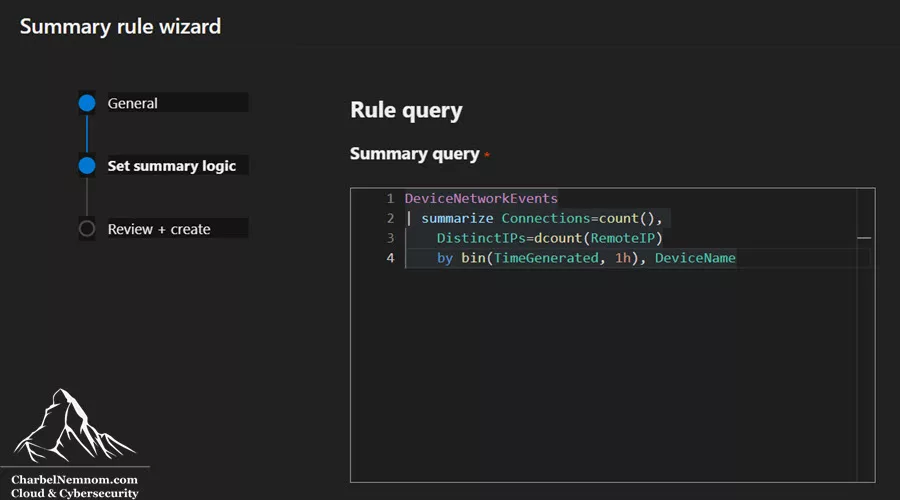
You can use Summary rules to pre-aggregate high-volume logs into a compact Analytics table for fast queries, while keeping the raw, verbose data in the Data Lake for long-term investigations. Typical rollups: hourly/daily counts, distinct actors, or rare events. This pattern reduces “hot” data volume and cost, while preserving long-term visibility in cold storage. Here’s an example of an aggregation logic query:
DeviceNetworkEvents
| summarize Connections=count(), DistinctIPs=dcount(RemoteIP)
         by bin(TimeGenerated, 1h), DeviceName
You create the rule from Defender portal → Microsoft Sentinel → Configuration → Summary rules, then point your detections at the hourly custom table for lightning-fast analytics.
For a 7-month-old incident, either run a KQL job across the Lake to retrieve only the relevant hits for Analytics, or use a Search job to restore the necessary archived slice (per table) for interactive analysis.
XDR Connector Status in Azure Portal
If you look back at the Azure portal’s Sentinel Data Connectors list after doing all this, you would still see the Microsoft Defender XDR connector listed (and showing connected). In fact, if you had previously connected some tables via the Azure portal, those tables would have been ingested already. The Defender portal and retention settings will honor those selections. So, suppose the XDR connector was enabled before being onboarded to the Unified Security Operations Platform. In that case, the tables you chose during connector setup are already ingested into Analytics and mirrored to the Data Lake by default (with 30 days of retention, extendable).
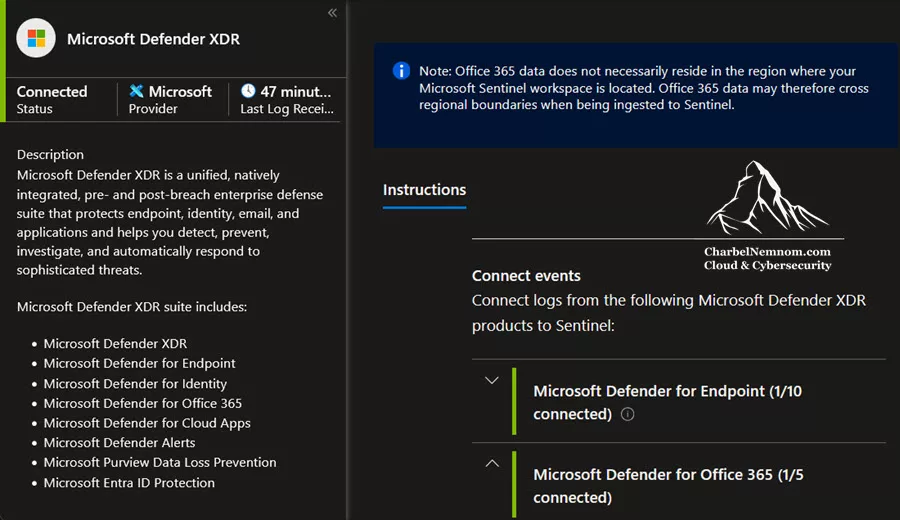
Tables that were not selected originally can now be ingested into Sentinel Log Analytics simply by increasing their retention in the Defender portal to more than 30 days. If you never enabled the connector before, doing it via retention settings effectively enables it table-by-table. For troubleshooting, remember that enabling any XDR table ingestion will, in effect, enable the “Microsoft XDR” data connector in the backend (even though you don’t see it in UI). And disabling (resetting to 30 days) will disable that connector if no other tables are above 30.
Permissions and Licensing Requirements
To manage Defender XDR tables in the Defender portal, ensure you have appropriate permissions. Generally, you need Log Analytics permissions (like Log Analytics Contributor or Reader for that workspace) and Defender XDR Unified RBAC permissions.
To view and manage Table settings in the Defender portal, you need both XDR Unified RBAC permissions and Microsoft Sentinel workspace permissions, as follows:
View table settings
- Unified RBAC permissions: Security data basics (read) permissions under the Security operations permissions group.
- Microsoft Sentinel permissions:
Microsoft.OperationalInsights/workspaces/tables/readpermissions to the Log Analytics workspace, as provided by the Log Analytics Reader built-in role.
Configure table settings
- Unified RBAC permissions: Data (manage) permissions under the Data operations permissions group.
- Microsoft Sentinel permissions:
Microsoft.OperationalInsights/workspaces/writeandMicrosoft.OperationalInsights/workspaces/tables/writepermissions to the Log Analytics workspace, as provided by the Log Analytics Contributor built-in role.
Also, you obviously need the corresponding Microsoft Defender license active (Defender XDR is essentially the suite; if you only had Defender for Endpoint P2, you’d have those MDE tables, etc.). In short, your organization should have the relevant licenses for whatever data you expect to see (e.g., you won’t have EmailEvents if you don’t have Defender for Office 365, etc.).
Data Lake Explorer & access tips
You can access Data Lake content from Defender portal → Microsoft Sentinel → Data lake exploration. Two layers govern the access:
- Defender XDR Unified RBAC (portal-wide access)
- Sentinel workspace roles (Log Analytics/SIEM & Data Lake operations)
If you can’t see lake tables or jobs, verify both role sets for the workspace you’re targeting.
Wrapping Up
Microsoft’s unification of Sentinel and Defender XDR has empowered security teams to manage log data in a far more granular and cost-effective way. By using the Defender portal’s Tables interface, we can now decide on a per-table basis how to handle each dataset:
- Leave it at 30 days in XDR if that’s sufficient (zero cost, included in your E5 license) – great for high-volume data you rarely search beyond a month.
- Ingest it into Sentinel’s analytics tier for deeper analysis, longer retention, and seamless integration with Sentinel’s SIEM capabilities – ideal for critical logs that drive detections or investigations.
- Mirror it to the Data Lake for cost-effective long-term retention of up to 12 years, ensuring compliance and historical analysis needs are met without incurring significant expenses.
All of this is configured in a few clicks, without needing to jump into different portals or complex data pipeline changes. We’ve also clarified that seeing an “Analytics 30 days” label on an XDR table doesn’t mean you’re paying for it – it’s simply the default hunting retention. Once you go beyond 30 days, you’re opting into Sentinel’s analytics ingestion/storage, with costs that can be offset by free grants (like the 5 MB/user/day offer for Microsoft 365 E5/A5/F5/G5).
Older guidance suggested using workspace transformation DCRs to clone XDR tables (e.g., DeviceProcessEventsDL_CL) to directly route Microsoft XDR logs to the data lake. With direct-to-lake for XDR, you can skip Sentinel ingestion entirely for supported tables and set lake retention directly in the Defender portal. This renders the workspace transformation DCRs workarounds unnecessary in most cases.
As you follow the guidelines and configurations described in this article, continue to monitor your outcomes. Ensure that the data you ingest is providing value (detections, insights) to justify any costs. Leverage the ability to run cross-platform queries for short-term needs, and only persist what’s necessary. The flexibility is in your hands to strike the right balance between cost, performance, and visibility.
In closing, managing XDR tables via the Defender portal (Unified SecOps Platform) is a powerful capability that modern SOCs should embrace. It helps maximize the return on your Microsoft 365 E5/A5/F5/G5 security investments by bringing the rich XDR telemetry into your SIEM, on your terms. With careful planning and the guidance provided here, you can ensure that you retain the data you need for as long as you need it – whether for threat hunting, investigations, or compliance – all while controlling costs and complexity.
Happy hunting, and stay secure!
Remember, you can always support us in developing tools and creating content via Why Contribute? – Charbelnemnom.com Cloud & Cybersecurity
__
Thank you for reading our blog.
Please let us know in the comments section below if you have any questions or feedback.
-Charbel Nemnom-

First of thank you for this article. This answered a lot of my questions.
I did have one question though. If I want to keep Defender XDR data for 30 days in XDR and 90 days in Sentinel, do I need to configure Table retention to 90 days or 120 days?
Hello Joel, thanks for the feedback!
If you want to keep Defender XDR data for 30 days in XDR and 90 days in Sentinel, you should configure the table retention to 90 days, not 120 days.
The first 30 days of Defender XDR data are already included in XDR for free. Once you extend the table retention beyond 30 days (for example, to 90 days), you’ll start paying only for XDR data ingestion into Sentinel (X GB/day), while retention in Sentinel remains free for 90 days.
You might think there’s an overlap between both systems for the first 30 days if you configure table retention beyond 30 days — but Microsoft Defender handles that automatically in the background, making the process fully transparent to users.
Hope this answers your question.