
Updated—12/02/2026 — For supported Microsoft Defender XDR tables (MDE/MDO/MDA), you can now stream directly to the Microsoft Sentinel data lake while keeping XDR retention at 30 days (included in license). This bypasses Log Analytics/Sentinel ingestion and mirrors new XDR data directly into the lake for long-term, interactive access via the Defender portal. Please note that data lake ingestion, data lake processing, and data lake storage costs still apply.
Updated—04/02/2026 — Microsoft Sentinel’s data lake for data processing is always included in the data lake ingestion price, whether you filter, transform, or not. To easily understand the log ingestion price for Microsoft Sentinel data lake, you can combine the data lake ingestion costs ($0.050/GB) + data processing costs ($0.10/GB) = $0.15 per GB.
Updated—01/12/2025 — Microsoft Sentinel’s data lake adds powerful value by storing the asset data known as system tables in a scalable, cost-efficient way that supports long-term retention, advanced analytics, and AI-driven threat detection. Check the following section to learn about asset data in the Microsoft Sentinel data lake.
Updated—30/09/2025 — Microsoft announced that Microsoft Sentinel data lake is now generally available. This is a new era for cost-efficient defense, empowering you to store and secure all your security data.
Microsoft Sentinel has evolved from a cloud-native SIEM into a modern security data lake platform that enables organizations to ingest, retain, and analyze massive volumes of log data without compromising on cost or coverage. Traditional SIEMs forced security teams to make painful tradeoffs – either limit logging and retention (leaving blind spots) or pay exorbitant costs to store everything. Sentinel’s new data lake capability resolves this paradox by providing a unified, scalable repository for all security data with flexible tiered storage. This means SOCs can retain years of logs (up to 12 years) at a fraction of the cost of analytics-tier storage, gaining deep historical visibility for threat hunting and forensics.
In this blog post, we’ll explore Sentinel’s modern security data lake features, unified data management, log classification (high fidelity vs high volume), flexible ingestion with Delta Parquet storage, hotter vs hot tiering, real-world use cases, implementation guidance, advanced analytics tips, cost analysis, and built-in security/compliance benefits.
Table of Contents
Microsoft Sentinel Modern Security data lake
Microsoft Sentinel data lake is a fully managed, cloud-native security data lake designed to break down data silos and centralize all your security logs for analytics. This data lake stores data in open, industry-standard formats (specifically Delta Lake on Apache Parquet) for easy integration and analysis. The Sentinel data lake is architected to ingest, store, and analyze diverse security data at scale – from firewall flows and telemetry to identity logs and threat intelligence – all in one place. By decoupling storage from compute and leveraging the power of the Azure cloud, it allows elastic scaling of data volume without a linear increase in cost.
In practice, this means you can afford to retain more data for longer (think multi-year retention) and query it on demand, rather than keeping only 90 days of hot logs due to cost. Sentinel’s data lake addresses key SIEM challenges in several ways: it unifies security data across Microsoft and third-party sources (350+ connectors) into one open platform, optimizes cost with tiered storage and on-demand querying, enables deep insights over up to 12 years of data, and powers advanced analytics and AI for faster detection/response.

Under the hood, Microsoft Fabric provides the backbone for Sentinel’s data lake, bringing benefits like OneLake data virtualization, separation of storage and compute, and integration with analytics services. Data in the lake is stored in a schema-aware Parquet format (Delta Lake), which is compressed and optimized for analytical queries. This open format means you’re not locked into proprietary storage – security data can be accessed by Spark, Power BI, Azure Synapse, or third-party tools if needed.
More importantly for the SOC, storing logs in Fabric’s data lake drastically lowers the cost per TB of retention (Microsoft notes roughly 15% of the cost of traditional analytics logs). By keeping a single copy of data in the lake, Sentinel avoids duplicating logs and instead lets various tools query the same data, whether via Kusto Query Language (KQL) or Python notebooks.
As of October 1, 2025, data in the lake is automatically compressed at a 6:1 ratio, so you pay only for about one‑sixth of the original volume. In other words, billing is based on the compressed size rather than the raw size. For example, 600 GB of raw logs would be billed as about 100 GB (1 TB raw ≈ , 170 GB billed). But when running KQL queries, the charges apply to the uncompressed size.
In summary, the Sentinel data lake provides a unified, AI-ready data foundation for modern security operations – enabling long-term visibility, richer context for investigations, and advanced machine learning on security data that was previously cost-prohibitive to store.
Unified Data Management and Multi-Cloud Federation
One of the standout capabilities of Microsoft Sentinel’s data lake is its unified data management across diverse sources and even multiple clouds. Sentinel can ingest data from all the usual Microsoft sources (Azure logs, M365, Defender security products, etc.) and from third-party platforms like AWS, GCP, on-prem SIEMs, firewalls, and more. With 350+ built-in connectors, you can onboard logs ranging from Amazon S3 buckets and Google Workspace to Cisco networking logs and custom appliances into the Sentinel ecosystem.

In the new data lake model, Microsoft enables data federation – meaning you can bring in external data “in-place” without complete migration. For example, Sentinel’s data lake can mirror data from on-premises or other clouds (like AWS S3) into the central lake, giving you unified analysis without manually moving all data. This federated approach is powered by Fabric’s OneLake shortcuts under the covers, which let Sentinel reference external storage as if it were local, avoiding the creation of yet another data silo.
From a practitioner’s perspective, unified data management means you can correlate signals across your entire digital estate in one query. A single KQL query or notebook can join telemetry from Microsoft Entra ID, on-premises Active Directory, AWS CloudTrail logs, and, say, Cisco firewall events – something that used to require multiple tools. Sentinel’s data lake essentially eliminates security data silos, ensuring that analysts have a complete view for threat hunting and investigations. This is especially valuable for AI-driven analysis: unified data means Microsoft’s Security Copilot and anomaly detection models have full context across cloud boundaries.
In practical terms, a SOC analyst can look for an indicator of compromise (IoC) across years of logs spanning Azure and AWS with a single search query, without worrying where the data physically resides. By federating AWS S3 and other external data into Sentinel, organizations can leverage their existing log repositories in a centralized way. The data lake will either ingest that data or reference it in an open format, making it queryable alongside Azure data.
All of this unified management is handled in the Microsoft Defender portal, under a new Tables UI experience – allowing security architects to manage tables, define where data should reside (analytics vs. lake), and set retention with a few clicks.

Classifying Logs: High Fidelity vs. High Volume
Not all logs are the same, right? In a modern Security Operations Center (SOC), different data sources produce varying types of alerts. Some generate high-fidelity alerts or critical signals, such as Active Directory sign-in failures, EDR alerts, or antivirus detections. Others, however, produce high-volume, low-value logs, like DNS queries, NetFlow data, proxy logs, or raw firewall traffic.
Microsoft Sentinel’s log tiering strategy recognizes these differences. It enables you to classify and route logs according to their significance: high-fidelity logs, which are crucial for security, are sent to the hot analytics tier, while high-volume, less informative logs are directed to the cost-effective data lake tier. This approach enhances both your security effectiveness and budget management.
High-fidelity logs are those most likely to contain direct evidence of threats or require immediate alerting – for example, an Identity Protection alert for impossible travel, or a malware detection from Defender for Endpoint (MDE). These can be ingested into the Analytics Tier (Log Analytics workspace), where Sentinel’s real-time analytics rules, workbooks, and investigation tools operate.
Meanwhile, high-volume telemetry like VPN connection logs, detailed network flow records, or verbose debug logs can be ingested straight to the data lake Tier without indexing them in the Log Analytics engine. You won’t lose them – they’ll reside in the lake for on-demand querying – but you avoid paying the high ingestion cost for data that you don’t need to monitor in real-time.
Additionally, any data you choose to send to the Analytics tier is automatically mirrored to the data lake at no extra charge for 90 days. This means the data lake becomes the single central repository for all logs, while you have the freedom to only “hot-store” the important stuff.
Example: You might classify Windows server security events and Microsoft Entra ID logs as high-fidelity (since they often trigger immediate detections) and keep those in the Analytics tier for 90 days of active monitoring. On the other hand, logs like DNS query logs, firewall allow/deny, or AWS S3 access logs could be high-volume data that you archive to the data lake tier.
Before Sentinel’s data lake, many organizations dropped these noisy logs or kept them offline due to cost. Now, you can retain them cheaply in the lake and still leverage them when needed – for instance, to investigate an incident months later or to run retrospective threat intel matching. This dual pipeline approach (often called “split ingestion” or log tiering) ensures critical signals are always available for real-time alerts, while everything else is still accessible for historical analysis. By carefully categorizing logs into high-fidelity and high-volume, SOC teams enhance visibility while avoiding excessive burden on the SIEM and the budget.
Log Tiering: Hotter vs. Hot Data Management
At the heart of Sentinel’s approach is log tiering – managing data across a hot Analytics tier and a cold data lake tier. Each tier is optimized for different use cases, and together they deliver a balance of performance and cost savings. Let’s clarify what each tier means in practice:
Analytics Tier (Hotter-SSD): This is the traditional Log Analytics store that Sentinel has always used. It’s great for high-performance querying, indexing, and real-time analytics. Data in this tier is readily available for scheduled analytics rules, instant hunting queries, workbooks (dashboards), and automated incident detection. The hot tier data is indexed and cached, so queries are typically fast. However, it’s also relatively expensive for large volumes and historically had a retention limit (90 days free, up to 2 years max with extra cost). You’ll use this tier for logs that need immediate operational value – recent data where you cannot tolerate slow queries or delays.
Data lake Tier (Hot-HDD): The new security data lake serves as the long-term, cost-effective storage for Sentinel. Think of it as a low-cost, queryable tier rather than a passive archive where data can live for up to 12 years at low cost. It’s ideal for compliance archives, historical trend analysis, forensics, and any data that you don’t need to trigger alerts on in real-time. However, despite the ‘HDD’ label, the Sentinel data lake remains an interactive tier; you can run on-demand KQL or Spark queries against the lake data (queries simply scan the raw files since the lake isn’t pre‑indexed).
The cold tier sacrifices some query performance – data isn’t indexed like in Log Analytics, so queries will scan raw files and thus run slower (with more latency). However, it’s perfectly suitable for audit queries, investigations, or periodic deep dives. The cold tier also introduces some limitations in terms of Sentinel’s live features: you can’t directly run real-time Analytics Rules or live-workbook charts on cold data, and KQL queries against the lake are currently limited to a single table at a time (you can’t do cross-table joins in one lake query, except via lookup functions). In short, cold tier = cheap storage, slower queries, and no real-time detection, which is a fair trade-off for long-term retention.
The power of log tiering is in how these two tiers work together. All data in the hot tier is automatically copied to the cold tier (so you don’t worry about losing older hot data – it’s kept in the lake too). You can then choose to downgrade or archive data entirely to the cold tier. For example, you might set a policy that after 90 days in hot, specific tables are automatically kept for another 3 years in cold.
Microsoft has indicated that soon you’ll even be able to “split” data within a single table between tiers – e.g., keep the last 30 days of Firewall logs in hot, older than 30 days in cold, all transparently. This will give fine-grained control to balance performance vs. cost for each dataset. Splitting data within a single table is already available with the Auxiliary Logs Transformations in Log Analytics. Below is a good example that shows how to split data sources between Analytics and data lake tiers.

Below is a quick comparison of the Analytics and data lake tiers and their characteristics:
| Aspect | Analytics Tier (Hot) | Data Lake Tier (Cold) |
|---|---|---|
| Primary Purpose | Real-time analytics, alerts, and interactive hunting on recent data. | Long-term retention of large data volumes for compliance, forensics, and historical analysis. |
| Performance | High-performance indexed queries (fast response). Optimized for frequent access. | Slower queries (data is not pre-indexed) – best for batch analysis or scheduled queries. Some latency is expected for large scans. |
| Features Supported | All Sentinel features available: analytics rules, workbooks, hunting queries, incident automation, etc. | Limited direct analytics: supports KQL queries (one table at a time) and scheduled jobs/notebooks. No immediate alert rules on cold data. |
| Cost Model | Ingestion priced at standard rate; query costs included in Sentinel’s analytics billing. Meant for moderate data volumes. | Very low ingestion/storage cost for massive volumes. Queries charged per GB/TB scanned (usage-based). Ideal for cost-sensitive data. |
| Retention | Short to medium term by default. 90 days included (for Sentinel), extendable up to 2 years with additional charges. | Long-term retention (same data also in lake by default). Can be extended up to 12 years at low cost. |
| Example Data | High-fidelity logs: e.g., alerts, authentication events, critical host logs that require immediate alerting. | High-volume logs: e.g., full traffic logs, DNS queries, verbose audit logs that are useful for investigations but not real-time alerts. |
With log tiering in place, SOCs can implement a “hot-warm-cold” data strategy. “Hot” corresponds to the Analytics tier (actively monitored data), “Cold” corresponds to the data lake tier (archival data). In some discussions, a “warm” intermediate stage is mentioned – this can be thought of as data that is in the lake but may have been recently ingested or accessed frequently.
Sentinel’s design doesn’t explicitly label a warm tier, but by using flexible retention policies, you might treat the first 6-12 months in the lake as a warm period (where you run more queries), versus older data as true cold (rarely accessed). Regardless, the key point is that log tiering gives security architects granular control over where data lives and for how long, ensuring that hot data is lean and mean for instant detection, while cold data is abundant and cheap for deep investigations.
Create Microsoft Sentinel data lake Tables
How to create a custom table in the Sentinel data lake?
To create Microsoft Sentinel data lake custom tables, the process is the same as we have today with the Azure Monitor Log Analytics workspace. As of today, we can only use the REST API to create a custom table with the Auxiliary plan. Hopefully, Microsoft will enable this capability using the Azure portal, Defender portal, Azure CLI, and PowerShell.
See my earlier detailed article on how to create Auxiliary custom tables, which you can use for data lake custom tables as well.
Another point worth mentioning is that if you switch or change a table to the data lake tier in the Defender portal (https://security.microsoft.com), as shown in the figure below.
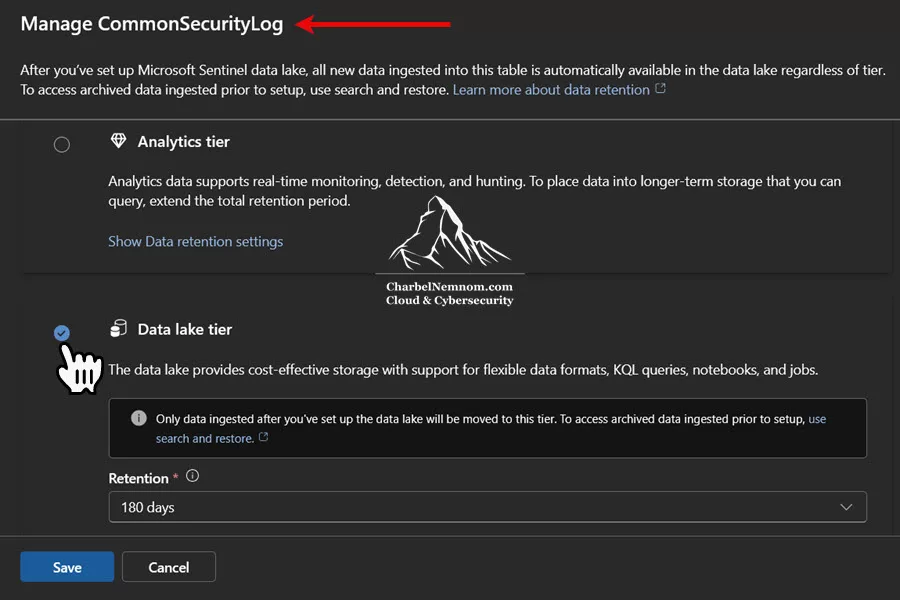
And then, when you go back to the Azure portal > Log Analytics > Tables management experience, you’ll see that the table plan you set as data lake in the Defender portal will show as an Auxiliary table plan, as shown in the figure below. So, the storage technology used in the back-end for the data lake is the same for Auxiliary logs.

As we can see, this workspace is part of Microsoft Sentinel’s data lake. Table Management for this workspace must be done on the Security Portal. You can now set tiering and manage retention across Defender XDR and Sentinel tables to optimize your security operations to realize the full value of connected Microsoft Sentinel and Microsoft Defender.
Similarly, when you create a custom Auxiliary table plan in the Log Analytics workspace with (i.e., 582 days of total retention ~1.6 years), which was onboarded to Sentinel data lake, and you switch to the Defender portal > Tables management experience, you’ll see the new custom table as the data lake tier, and the Table type is set to Custom, as shown in the figure below.

Note: The Sentinel data lake does not support Basic logs. Though they appear in the new Tables management page experience, they’re greyed out and not configurable. To move a table from the Basic tier to the data lake or Auxiliary tiers, you must follow a two-step process. First, in the Azure portal, switch the table from the Basic tier to the Analytics tier in the Log Analytics workspace. Then, in the Defender portal, change the table from the Analytics tier to the data lake tier. Please note that changes to the table plan are limited to once a week.
Configuring Log Tiering and Retention
Implementing Microsoft Sentinel’s log tiering is designed to be straightforward, especially if you’re already using Sentinel. Here’s a step-by-step overview to get started and some configuration tips that we faced during the onboarding:
1. Enable the Sentinel data lake: As of September 30th, 2025, the data lake feature is in Generally Available (GA) and is enabled via the Microsoft 365 Defender portal (sometimes referred to as Defender XDR or Unified SecOps portal). To onboard your tenant, navigate to the Defender portal (https://security.microsoft.com) with appropriate permissions. From the Home page or under System > Settings > Microsoft Sentinel > Data lake, you’ll find an option to “Get started” or “Start setup“, as follows:

To successfully proceed, you must be assigned the role of Security Administrator or Global Administrator and have an Azure subscription linked for billing. Additionally, you need “Owner” access to the subscription itself. It’s important to note that the “Owner” role must be set directly at the subscription level and does not consider any inherited roles from the management group scope. Therefore, if you only have the “Owner” role at the management group level, the setup will fail, and you will receive the following message: “You don’t have owner access to this subscription. Choose another subscription.”

Note: When onboarding the Microsoft Sentinel data lake, existing Azure Policy definitions that you have in place may prevent the deployment of necessary resources. To ensure a successful onboarding process without undermining overall policy enforcement, create a policy exemption specific to the resource group where Microsoft Sentinel is deployed. Specifically, exempt the resource type: Microsoft.SentinelPlatformServices/sentinelplatformservices.
This targeted exemption enables the components of the Sentinel data lake to deploy correctly while still adhering to the broader Azure governance policies that you may have already established.
During the preview, note that your Sentinel (Log Analytics) workspace and Tenant must be in supported regions and aligned (e.g., both in the same country/region geography); otherwise, you will see the following message that you are currently ineligible for the data lake.
Updated—30/09/2025 — Microsoft is expanding Sentinel data lake availability to additional regions. These new regions will roll out progressively over the coming weeks. For more information, check the official documentation.

If you have the required permissions, a setup side panel appears. Select the desired Subscription and Resource group to enable billing for the Microsoft Sentinel data lake, as shown in the figure below. By default, the data lake will use the subscription and resource group where the Microsoft Sentinel primary workspace is deployed (connected), and this is the recommended approach.
Please note that as of today, you cannot move the data lake to another Azure subscription or resource group once it’s deployed. Additionally, if you accidentally choose to set up the data lake in another resource group, ensure you don’t delete that resource group; otherwise, this can cause significant issues with the data lake.

// As a side note: data lake capabilities are in preview and are NOT recommended for use in production.
Next, select Set up data lake. The setup process begins, which may take up to 60 minutes to complete, and the following side panel is displayed. You can close the setup panel while the process is running in the background.
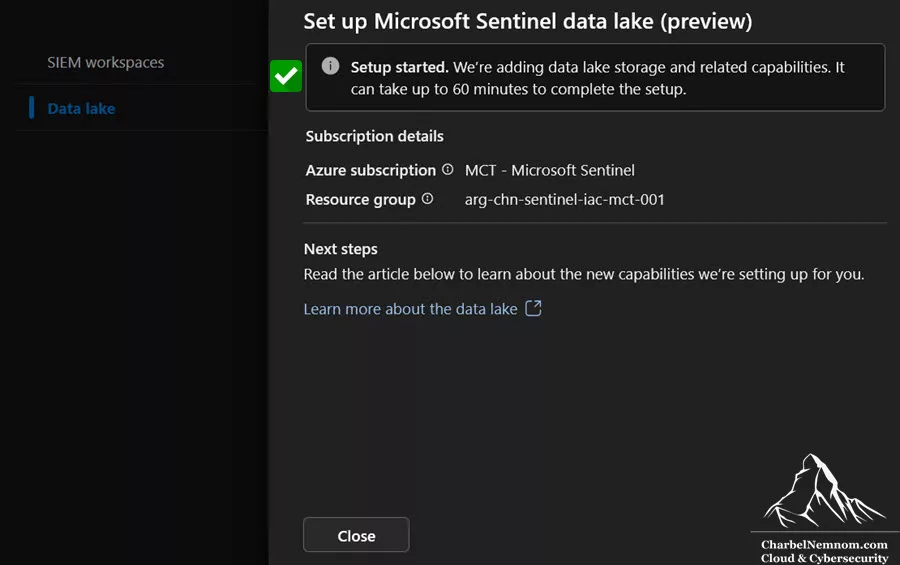
Enabling the data lake will provision the behind-the-scenes Fabric OneLake storage for your Sentinel workspace. As shown in the figure below, we can see a hidden new resource created as type: microsoft.sentinelplatformservices/sentinelplatformservices that start with the name “msg-resources-xxx” in the resource group where the data lake was set up.

2. Connect Data Sources as Usual: Once the data lake is enabled, all your existing data connectors in Sentinel continue to work, but now you gain flexibility in where the data goes. In the Sentinel Data connectors section of the portal, you can start connecting any new sources (Azure Activity logs, Microsoft 365, AWS, Google, etc.) or review existing ones.

Sentinel data lake works with all connectors – Microsoft native and third-party – so you don’t need new ingestion methods. The difference comes in the next step.

Now, from the Data Connectors page, we have the new Table Management experience widget built into each connector we add to our environment, so we can see the different table(s) that are associated with the connector, as shown in the figure below. We have a high-level summary of all the tables that the connector is configured for and the retention values for these tables. Now, we can go through each one of these tables, and then it becomes more fine-grained in terms of where we want this data to reside (Analytics or data lake tier) and set the desired retention.

3. Table Management – Choose Tier and Retention: Similar to the Table Management experience available in the Data Connectors page, we have a new Table Management experience in the Defender Portal under Microsoft Sentinel > Configuration > Tables, which lets you configure each log type. The Tables blade summarizes the total number of tables and the type for each tier (Analytics tier, data lake tier, and XDR default tier). For each connected data source or table (e.g., Heartbeat, SecurityAlert, Usage, SigninLogs, AuditLogs, AWSCloudTrail, etc.), you can choose to send it to Analytics, data lake, or both, and set the retention period for each tier.

Please note that to manage table(s) in the Defender portal, you must have the Log Analytics Contributor RBAC role assigned to your user account or to the Entra security group, of which you are a member.

By default, when you enable the data lake, any data going to Analytics will also be copied (mirrored) to the lake automatically. By default, Microsoft Sentinel and Microsoft Defender XDR retain data in this tier for 30 days. You can extend the retention period of all tables to up to two years at a prorated monthly short-term retention charge. You can extend the retention period of the Microsoft Sentinel solution tables, which will also be mirrored to the data lake for the same retention period.
The mirroring of data from the Analytics tier down to the data lake tier is free of charge as long as the data lake’s retention period matches that of the Analytics tier. For example, if you retain data in the Analytics tier for 90 days, that same data will be mirrored to the data lake. If you then keep the data in the data lake for 90 days, there is no additional cost involved.
However, if you wish to extend the retention period for that data in the data lake—which is likely if you plan to conduct more historical or trend analysis—you will incur data lake storage costs for the additional duration beyond the retention period of the logs in the Analytics tier.
Below is a good example that shows Sentinel data connectors and flow. The data will be pushed to the Analytics Tier and mirrored to the data lake Tier automatically (if enabled).
What mirroring really does is it takes that pipe and it forks it. And so essentially, we’re having data flow into the Analytics tier, the hot tier, but then also into the Data lake tier. As a result of that, we have this automatic synchronization of data in the Analytics tier and in the data lake tier. It allows customers to be able to say, “You know what? I have data in the Analytics tier, but I have a larger dataset in the data lake because of mirroring and/or direct ingestion into the lake. So, I can do deep investigations of my data because it’s all centralized there”.

You can then decide if some tables should be lake-only. For example, you might set Diagnostics logs or Firewall logs to “data lake only, 5-year retention,” whereas EDR alerts remain “Analytics (90 days) + data lake (5 years).” Configuring this is as simple as toggling options in the portal, as shown in the figure below – no custom scripts needed. Please note that the following content will NOT be available for tables in the lake tier only: Analytics rules, Hunting query, Parsers, Playbooks, Watchlist, and Workbooks. So, any existing content will stop working after changing to the lake tier.
Now, it’s key to note, though, when you make this selection, this is all forward only. So, when you change the tier of a particular table to be lake-only, the existing data in the Analytics tier will stay there, but then new data that’s being ingested in a fill-forward fashion will go into the data lake at that point and only into the data lake. So, that’s key to keep in mind.
Before Sentinel’s data lake, we needed to create a custom log table to use as an Auxiliary table. So, we were not able to switch from one tier to the other through the portal. This is a key differentiation of the data lake, which is quite impressive, because doing it this way is much more user-friendly for the security operator without making API calls or creating DCRs.

You can also specify retention: the Analytics tier can go up to 6 months (with charges beyond the free 90 days), and the data lake tier can be set up to 7 years. Keep in mind that data in the lake inherits the same schema and table name as in analytics, which simplifies querying.

4. Verification and Initial Sync: After setup, Sentinel will start routing new incoming data to the designated tiers. Data that lands in the lake is stored in your organization’s Fabric OneLake repository (you can think of it abstractly as an Azure data lake Storage under the hood). There may be a one-time sync of existing data if you onboard an existing workspace and previously used Auxiliary logs. Analytics data is automatically mirrored to the lake tier. You can check the Tables management experience in the portal to see the list of tables marked with (data lake integrated) and ensure data is flowing.
5. Setting up Retention Policies: Sentinel handles retention automatically once configured, meaning it will purge or archive data beyond the set period. It’s essential to double-check that your Log Analytics workspace retention settings (for hot data) are aligned with any compliance needs. For cold data, decide how long you need to keep each category of logs – some might need the whole 7-10 years, others may need only 1-2 years. Because cold storage is cheap, many organizations opt for keeping data longer “just in case”. The portal’s table management UI will list the cost impact of chosen retention (check the cost analysis section below for more details).
6. Querying Data and Promoting Results: To make use of your tiered data, head to the new data lake Exploration in Sentinel (within the Defender portal). Here you can write KQL queries directly against the data lake tables. The syntax is very similar to normal KQL, except you’ll target the data lake context. For example, the query below would retrieve a year of sign-in logs from the lake with specific error codes, group them hourly, and flag spikes where there were more than 5 failed attempts, and those failures came from more than 5 unique users.
let timeframe = 365d;
let relevantErrorCodes = dynamic([50053, 50126, 50055, 50057, 50005, 50076, 50079]);
SigninLogs
| where TimeGenerated >= ago(timeframe)
| where ResultType in (relevantErrorCodes)
| extend OS = tostring(parse_json(DeviceDetail).operatingSystem)
| project TimeGenerated, IPAddress, Location, OS, UserPrincipalName
| summarize FailedAttempts = count(), UniqueUsers = dcount(UserPrincipalName)
    by bin(TimeGenerated, 1h)
| where FailedAttempts > 5 and UniqueUsers > 5
| order by FailedAttempts desc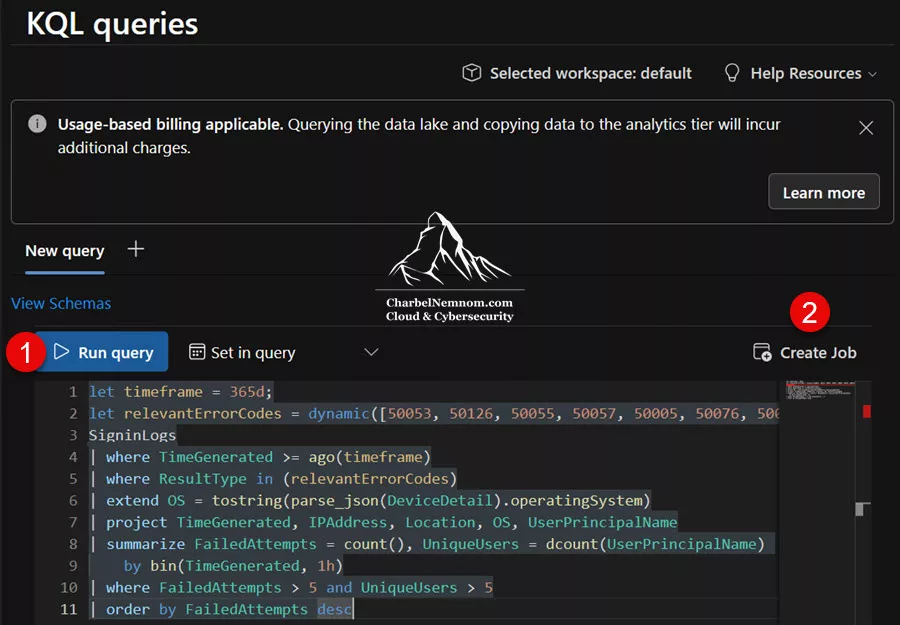
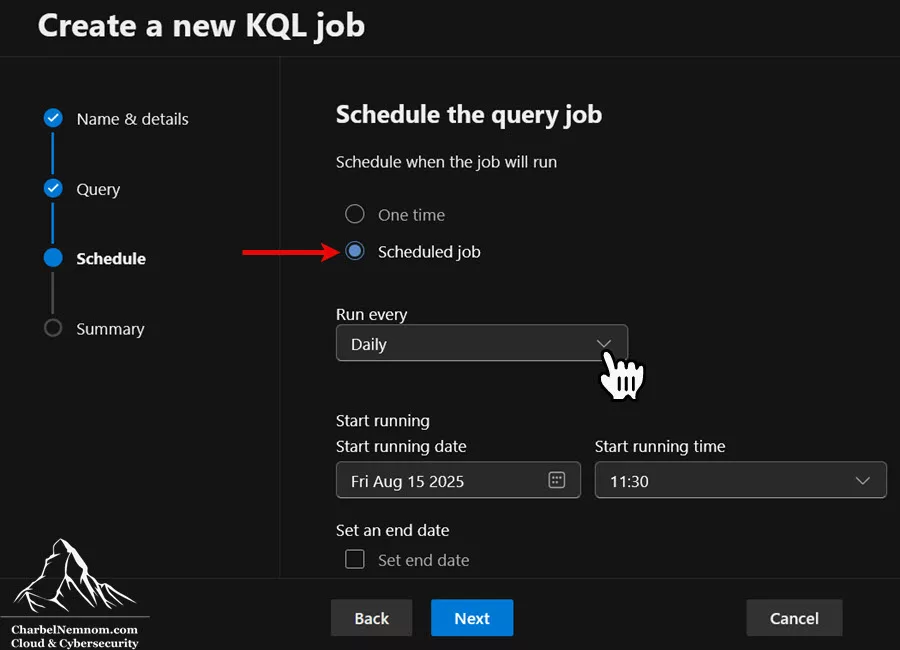
If you find something notable that you want to use in Sentinel analytics, you can use the Jobs feature to promote it. Create a KQL job that queries the lake and outputs results to a new Analytics tier table (or updates an existing one; the existing table must have the same schema as the data in the query).

This scheduled job can run periodically (say daily) to pull in any newly found threats from cold data to hot. For instance, you could schedule a job to run a query for “failed logins from new locations” over 6 months of data, and output summary results to a small analytics table for an alert rule to consume. This way, heavy lifting is done in the lake, and only the distilled findings live in the hot (Analytic) tier for real-time alerting.
7. Optimization Tips: Querying the cold tier efficiently may require some practice. Optimize your queries by narrowing time ranges and using filters on indexed fields (like TimeGenerated, source IP, etc.) to reduce data scanned. Leverage the fact that Parquet files in the lake are often partitioned by date – so include a TimeGenerated filter when possible (e.g., search 1 month at a time instead of all 5 years at once). If you have extremely large datasets, consider using the Spark notebook approach (see next section about Advanced Analytics) for complex analyses, as Spark can be more efficient for certain aggregations on big data.
Also, remember that KQL in the lake cannot do cross-table joins directly (as of preview), but you can use the lookup operator as a workaround to match values between a small reference table and a lake table. Another tip is to use Summary Rules: if you know you’ll frequently need a certain report (e.g., weekly count of events by country), you can create a summary job to pre-compute that on a schedule. This acts like creating an aggregated index that speeds up later queries.
8. Monitoring and Adjusting: After running with tiered storage for a while, review your usage. Microsoft provides cost details for each meter, so check if the majority of your bill is ingestion or query costs and adjust accordingly. If you rarely query a certain log in cold storage, you might extend its retention even further. If you find you need faster access for a particular log type, consider keeping a longer tail in hot storage.
The platform also has an audit log for data lake activities (auditing is automatically turned on for Microsoft Sentinel data lake). To access the audit log, you need to have the View-Only Audit Logs or Audit Logs role in Exchange Online. By default, those roles are assigned to the Compliance Management and Organization Management role groups – use this to see what queries or jobs have been run, which can inform you if someone is heavily querying a “cold” dataset (perhaps that dataset should be partly hot).
Overall, configuring log tiering is a one-time setup that provides ongoing benefits. Microsoft has made it as simple as toggling settings in the portal, so you don’t need to set up separate storage accounts, Azure Data Explorer (ADX), or manage manual data exports. The key is to plan your tiering strategy: identify which data is hot vs. cold, define retention for each to meet both security needs and compliance, and set up any scheduled jobs to bridge the gap (promoting interesting insights from cold to hot).
Sentinel data lake with Multi-Workspace
If you have multiple workspace deployments for Sentinel, for example, the primary workspace contains all the shared SaaS logs, such as those from Microsoft 365, Defender for Cloud, Defender XDR, Entra, and others. When you enable the data lake in your tenant, each workspace will be provisioned with a separate data lake, ensuring that the separations you have designed are maintained. This multi-workspace setup now supports cross-workspace queries on the data lake.
Asset Data (System Tables) in Microsoft Sentinel data lake
One of the newest capabilities of Microsoft Sentinel’s data lake is automatic asset data ingestion into the built-in System tables. During onboarding, your data lake is provisioned in the same region as your primary Sentinel Log Analytics workspace. Microsoft will also automatically enable Microsoft Entra, Microsoft 365, and Azure Resource Graph asset data. If this data isn’t in the same region as the data lake, by onboarding to the data lake, you consent to ingest and store this data in the region where your data lake resides so you can use it with Microsoft Sentinel data lake and graph experiences.
In essence, Sentinel creates a tenant-level “Default” workspace of asset data (the System tables workspace) that continuously maintains an up-to-date snapshot of your environment’s users, groups, devices, cloud resources, and other assets. This happens behind the scenes with no custom data connectors needed, provided you have the right permissions during onboarding.
When you enable the data lake, Sentinel will begin pulling in key asset inventory data from core services – specifically Microsoft Entra ID, Azure Resource Graph (Azure resource inventory), and Microsoft 365 (taken once every 24 hours) – and store this information in dedicated System tables within the data lake, which you can select in the workspace selection UI in the Lake exploration experiences.
What Are Asset System Tables?
Once you onboard the Sentinel data lake, you’ll notice a new “System tables” workspace in the data lake exploration UI in the Defender portal. Please note that by default, the “System tables” workspace is not selected. You choose it by clicking “Selected workspace” in the top-right corner, as shown in the figure below.

Then you’ll see a dedicated Assets category that includes ten built-in tables, as shown in the figure below. These tables are not tied to your Log Analytics workspace. They live entirely in the data lake, under the System tables scope, and can be queried directly for asset lookups and enrichment, which powers Sentinel graph experiences. Remember to select “System tables” in the Workspace scope when working in data lake exploration > KQL queries.
ARGAuthorizationResourcesARGResourceContainersARGResourcesEntraApplicationsEntraGroupMembershipsEntraGroupsEntraMembersEntraOrganizationsEntraServicePrincipalsEntraUsersSharePointSitesAndLists

Enabling and Managing Asset Ingestion
These System table datasets reside exclusively in the data lake tier (they are not duplicated in your Log Analytics workspace). If you onboarded Sentinel’s data lake with a Global Administrator (for Entra ID data) and Subscription Owner (for Azure Resource Graph) context, this asset ingestion is enabled by default.
To manage these tables, you must install and activate two built-in data connectors under Microsoft Sentinel → Content management → Content hub, and then under Configuration → Data connectors:
* Microsoft Entra ID Assets: Pulls identity and directory metadata such as users, groups, memberships, applications, and service principals.

* Azure Resource Graph: Ingests cloud resource metadata across subscriptions, including resource types, locations, and relationships.

Important: If you’ve enabled Data Risk Graphs in Microsoft Purview, the Entra ID Assets connector is a dependency. Disabling it will prevent those graphs from updating.
Once connected, the initial asset snapshot may take up to 24 hours to populate. Data is refreshed regularly and retained by default for 30 days, but you can also configure retention up to 12 years by selecting the three dots (…) to the right of the table name in the Table management grid.
When the asset data connector shows a Connected status, the toggle button text shows Disconnect. This indicates that ingestion is enabled. To disable the ingestion, you select the Disconnect button. Once disconnected, the connector status shows Disconnected, and the button text toggles to Connect.
Use Cases: Why These Tables Matter
These asset tables unlock some powerful real-world scenarios:
🔍 Enrich incident queries — Join log data like SigninLogs or DeviceProcessEvents with EntraUsers or ARGResources to pull in department, location, or resource metadata.
🧩 Correlate identities to infrastructure — Understand who owns a workload, what group a user belongs to, or which service principal accessed a resource.
🕵️ Detect hidden gaps — Identify cloud assets that aren’t logging to Sentinel but still exist in your tenant (shadow IT).
🎯 Scope your hunting — Combine asset info with threat intel or alerts for more precise investigations (e.g., show suspicious processes only on resources tagged as production).
Practical KQL Examples: Enriching with Asset Data
Here are a few examples of how you can use System Tables to enrich queries and investigations:
Example 1: Join SigninLogs with EntraUsers to enrich risky sign-ins with the user department. This gives you direct insight into which department or role was involved in sign-in failures, useful for triaging internal vs. privileged accounts.
SigninLogs
| where ResultType !in (0, 50125) // failed or risky sign-ins
| extend UserPrincipalName = tolower(UserPrincipalName)
| join kind=leftouter (
    EntraUsers
    | project UserPrincipalName = tolower(UserPrincipalName), DisplayName, Department, JobTitle
) on UserPrincipalName
| project TimeGenerated, UserPrincipalName, DisplayName, Department, JobTitle, IPAddress, AppDisplayName, ResultDescription
Example 2: Correlate service principal activity with EntraServicePrincipals. Use this to quickly identify what kind of service principal performed the action — managed identity, app registration, or legacy.
AzureActivity
| where Identity contains "app" and ActivityStatusValue == "Success"
| extend AppId = tostring(parse_json(Claims)["appid"])
| join kind=leftouter (
    EntraServicePrincipals
    | project AppId = tolower(AppId), DisplayName, ServicePrincipalType
) on AppId
| project TimeGenerated, Identity, DisplayName, ServicePrincipalType, ActivityStatusValue, OperationName, ResourceGroup
Example 3: Find Azure resources in your tenant not reporting to Sentinel. This shows you any VMs in Azure that haven’t sent a heartbeat, potentially unmonitored or misconfigured hosts.
let monitored = Heartbeat
| summarize by ResourceId;
ARGResources
| where type =~ "microsoft.compute/virtualmachines"
| where ResourceId !in (monitored)
| project ResourceId, name, location, subscriptionId, properties
Example 4: Detect suspicious processes only on production-tagged VMs. This filter processes alerts to include only those that occur on production-tagged machines, helping prioritize real threats.
DeviceProcessEvents
| where FileName in~ ("mimikatz.exe", "procdump.exe")
| join kind=inner (
    ARGResources
    | where tags.environment == "production"
    | project DeviceId = tolower(properties.extended.instanceView.computerName), ResourceName = name
) on DeviceId
| project TimeGenerated, DeviceId, FileName, ProcessCommandLine, ResourceName
These examples demonstrate how System Tables can transform your investigations from reactive to contextualized, without exporting data or writing long lookups.
Assets Tables Cost and Control
Asset ingestion into Microsoft Sentinel’s data lake is billed like typical data lake log ingestion, not only upon query. In other words, you incur charges for asset data ingestion and for asset data retention. In practical terms:
* You pay for each GB of asset data that the connectors ingest into the Sentinel data lake. This is a per-GB ingestion fee charged at the time of ingestion (with current rates around $0.05/GB for Entra ID asset data, as of late 2025). The Azure Resource Graph and other asset connectors would similarly count toward data lake ingestion volume. It’s important to understand that asset data snapshots are taken once every 24 hours.
* You pay for the ongoing storage of that data in the data lake (per GB per month), with compression factored in. This retention charge accumulates as long as the data remains in the data lake beyond any included retention period. (Asset data in the lake has 30 days default retention, which still resides in the lake tier and thus contributes to storage usage.)
* Querying that data is optional and billed separately. When you run queries against asset tables, the data scanned by the query will incur an additional charge per GB analyzed. This is similar to how “cold” or archived data query costs work – but crucially, the data’s existence in the lake is already billed regardless of querying.
You also remain in control: if your environment doesn’t require Entra or Azure asset enrichment, you can disable the corresponding connectors as we discussed above. But in most cases, the benefits in investigation speed, threat context, and detection quality make them worth the few extra cents.
Advanced Analytics: Spark, KQL Jobs, and Summary Rules
One of the exciting aspects of Microsoft Sentinel’s data lake is the opportunity to perform advanced analytics and big data processing on your security logs using tools like Apache Spark and extended KQL jobs. In the traditional Sentinel (Log Analytics), you were limited to KQL queries that ran interactively or via scheduled analytics rules, mostly scanning up to a few weeks or months of data. Now, with the data lake, you can bring the power of big data engines and long-running jobs to your SOC workflows.
KQL Jobs: Sentinel introduces the concept of jobs that can execute KQL queries on a schedule or on demand against the data lake. These are essentially the next generation of “search jobs” or scheduled queries. For example, you can create a job that runs a KQL query every night to look for anomalies in 1 year of sign-in logs. The job can run for minutes or even hours in the background (unlike interactive queries, which timeout faster), and once complete, it can store its output to a specified table. This output can be written back to the Analytics tier.
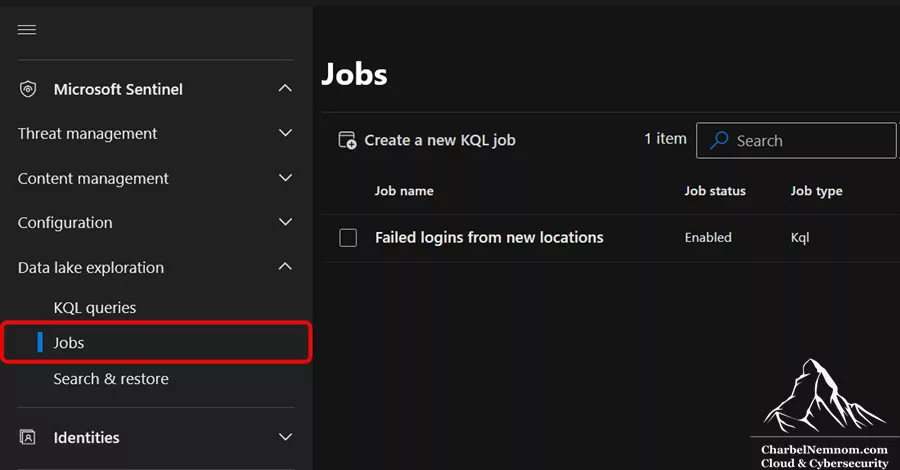
By chaining such jobs, you can automate complex analyses: e.g., one job scans all process creation events in cold storage for rare processes, outputs a list of suspicious processes to a lake table; another job or analytic rule picks those up for alerting.
Summary rules (a type of analytic rule): Similarly, allow you to summarize data periodically – they run a query on a schedule and save results. Sentinel’s summary rules work on both analytics and lake data tiers, though when sourcing from the lake, the KQL is currently limited to one table at a time. Still, this is perfect for computing trends or baselines (like “average hourly failed logins per user last 90 days” as a reference) and then comparing current data against these summaries for anomaly detection.

Spark Notebooks: For more heavy-duty processing, Sentinel integrates with Jupyter notebooks backed by a managed Spark runtime. Microsoft has even released a Sentinel Notebooks extension for VS Code in preview that lets you connect to the data lake and run PySpark code directly. This extension simplifies code development for Microsoft Security solutions. The initial release focuses on helping you explore data in the Microsoft Sentinel data lake and run security analytics over historical data. It provides a set of commands for interacting with data in the lake as well as creating and running notebooks using Microsoft-managed Spark compute.

Under the hood, when you run a notebook, Microsoft spins up a Spark compute cluster (you don’t see this; it’s fully managed) that can process the data in parallel. Spark is well-suited for tasks like joining very large datasets, doing machine learning at scale, or processing data across multiple tables. For instance, you could use Spark to join a 500 million-row DNS logs dataset with a 100 million-row web proxy dataset on the “session ID” field to find correlated events – something that would be difficult in pure KQL.
Once your notebook’s analysis is done, you can output results back to Sentinel. You can schedule notebooks as jobs too, meaning your Spark jobs can run periodically just like KQL jobs. The Spark job might then save the matches in a new Parquet file or directly call the Sentinel API to insert them as incidents.
The results of a Spark job (e.g., a list of anomalies detected or match threat intel IOCs against months of network logs) can then be elevated to the Analytics tier to create an incident or feed a Power BI dashboard. All of this can be orchestrated within a notebook that runs in a completely managed Spark environment – no need to maintain a Databricks or Hadoop cluster yourself.
By combining KQL jobs with Spark, you can implement advanced detection use cases. For example, you can create a summary table of “rare processes” for each day using a Spark job. This process may involve calculating a statistical rarity score for every process executed on endpoints. Then, you can use a KQL job scheduled rule to alert you if any of those rare processes match known malicious patterns or appear on multiple hosts.
Additionally, you can use a summary rule to aggregate failed login counts per user each month from the data lake and then apply an analytic rule to flag any users whose current month’s activity deviates significantly from their historical average. In essence, summary rules allow you to transform insights from big data into a quickly queryable format for the SIEM.
Additionally, Microsoft is infusing these capabilities with AI assistance. Microsoft Security Copilot can help generate KQL queries or Python code to analyze the data lake. So even if you’re not a Spark expert, you can describe what you want and have AI suggest the approach.
KQL Jobs vs. Summary Rules in Microsoft Sentinel data lake
As you start using Microsoft Sentinel data lake, two key mechanisms will help you analyze and operationalize data at scale: KQL Jobs and Summary Rules. While both allow you to schedule and automate queries, they serve different purposes and have distinct strengths, yet share the same goal and are supported by data lake:
When to Use KQL Jobs
KQL Jobs are designed for ad-hoc or scheduled asynchronous queries across your entire Sentinel data lake. They’re ideal when you need to:
- Investigate historical incidents using long-term data (up to 12 years)
- Enrich investigations with low-fidelity logs (e.g., verbose firewall data)
- Run complex queries with joins, unions, or advanced operators across multiple tables
- Execute queries on-demand or on flexible schedules (daily, weekly, monthly)
KQL Jobs are billed by GB of data analyzed and can run for up to one hour before timing out. They’re powerful for deep dives and retrospective hunting over vast amounts of cold data.
When to Use Summary Rules
Summary Rules, on the other hand, are built for recurring aggregations and are especially effective on high-volume data sources. They let you:
- Continuously summarize logs (e.g., network flow, DNS, proxy logs) into smaller, structured datasets
- Populate custom tables in Log Analytics with aggregated insights
- Run lightweight, recurring queries in the background with lower overhead
- Schedule queries at fixed intervals (every 20 minutes to 24 hours)
Summary Rules, on the other hand, are limited in supported operators and joins, but they integrate tightly with the Analytics tier. They’re particularly efficient for reducing “noisy” log data into actionable summaries that can then trigger detections or be visualized in dashboards.
Here’s a full feature comparison table between the two:
| Feature | KQL Jobs | Summary Rules |
|---|---|---|
| Purpose | Run ad-hoc or scheduled queries for investigation and enrichment | Aggregate and store insights from high-volume logs |
| Data tier | Microsoft Sentinel data lake tier | Analytics, auxiliary, basic, data lake (except for default workspace tables) |
| Workspace scope | Any Sentinel workspace connected to Microsoft Defender | Any Sentinel workspace connected to Microsoft Defender |
| Table scope | Multiple tables | Multiple tables (limited KQL operators) |
| Query language | Full KQL support | Limited KQL operators |
| Join support | Supported across tables | Analytics tier supported; Basic tier allows up to 5 joins with "lookup" |
| Scheduling frequency | On-demand; daily, weekly, monthly | Every 20 minutes to 24 hours |
| Lookback period | Up to 12 years | Up to 1 day |
| Timeout | 1 hour | 10 minutes |
| Max results | Dependent on query timeout | 500,000 records |
| Pricing model | Charged per GB of data analyzed | Analytics tier: free; Basic & auxiliary: pay per data scan (Log Analytics pricing) |
Usage Scenarios and Feature Choice
The following guidance can help you decide which feature best fits your needs:
✅ Use KQL Jobs if you:
- Are onboarded to the Microsoft Sentinel data lake
- Require a lookback greater than 24 hours
- Need to query historical data up to 12 years
- Want to run complex queries with full KQL operators (joins, unions, etc.)
- Need ad-hoc investigation capabilities
- You are working with data in the default workspace
✅ Use Summary Rules if you:
- Haven’t onboarded your tenant to the Microsoft Sentinel data lake (data may still reside in Auxiliary or Basic tiers)
- Require a lookback within 24 hours
- Need frequent summarization (e.g., every 20 minutes)
- Want to leverage out-of-the-box templates for quick setup
Tip:
- Use KQL Jobs for deep, investigative work across historical datasets where you need full flexibility.
- Use Summary Rules for continuous, lightweight summarizations that feed dashboards or analytics rules.
Together, they give SOC teams the right balance between big-data scale analysis and operational efficiency. With KQL Jobs, we have access to a much richer KQL language, including JOINs, UNIONs across different datasets, and all other operators. KQL Jobs also have a more extended lookback period. With Summary Rules, we have a maximum of 30 active rules per workspace and a maximum results set volume of 100 MB. So KQL Jobs are pretty powerful.
Cost Analysis: Microsoft Sentinel data lake
Cost planning is critical when adopting Microsoft Sentinel data lake for log tiering. Based on the official Sentinel data lake pricing and Azure pricing calculator for Microsoft Sentinel, you can find below the breakdown of storage (ingestion + retention) and usage costs (query + result ingestion) for various daily data volumes, in both Euros (€) and US Dollars ($) based in East US and North Europe regions as of August 15th, 2025.
| SKU | Meter Type | Price/$ (East US) | Price/€ (North Europe) |
|---|---|---|---|
| Data lake ingestion | Data Processed (GB) | $0.050 | €0.052 |
| Data lake storage | Data Stored (GB/Month) | $0.026 | €0.020 |
| Data lake query (Queries/Search Jobs) |
Data Analyzed (GB) | $0.005 | €0.005 |
| Data processing | Data Processed (GB) | $0.10 | €0.09 |
| Advanced data insights | 1 Compute Hour | $0.150 | €0.156 |
Please note that this is not Microsoft’s official calculation, but our contribution to estimate the costs of the Sentinel data lake. Additionally, the Advanced data insights are priced by one compute hour ($0.15/compute hour), and Data processing (KQL transformation with DCR and standardize security data), which costs ($0.10/GB), are not included in the calculation below. The data processing cost is not in effect during the public preview period.
Updated—04/02/2026 — Microsoft Sentinel’s data lake for data processing is always included in the data lake ingestion price, whether you filter, transform, or not. To easily understand the log ingestion price for Microsoft Sentinel data lake, you can combine the data lake ingestion costs ($0.050/GB) + data processing costs ($0.10/GB) = $0.15 per GB.
Updated—30/09/2025 — Microsoft introduced a new Data Processing feature that applies a $0.10 per GB charge for all data as it is ingested into the data lake. This feature enables a broad array of transformations like redaction, splitting, filtering, and normalizing data. This feature was not billed during public preview but will be chargeable at GA starting October 1st, 2025. The unfortunate news is that KQL transformation and filtering were previously completely free before the introduction of the data lake. Previously, if Microsoft Sentinel was enabled for the Log Analytics workspace, there was no ingestion charge for filtering, regardless of the amount of data filtered by the transformation. Now, this becomes chargeable once you enable the data lake.
Additionally, Data lake ingestion charges of $0.05 per GB will apply to Microsoft Entra asset data, beginning October 1st, 2025. This was not previously billed during the public preview of the data lake.
The good news and important update as of October 1st, 2025. Microsoft is helping customers retain all their security data cost-effectively for extended periods. Data lake storage, including asset data storage, is now billed with a simple and uniform data compression rate of 6:1 across all data sources. This means 6 times lower storage cost!!!
Remember — When you onboard to the data lake, your existing long-term retention (“archive”) tier will also be replaced by the data lake, and it will use the 6:1 compression too (1/6th of the costs, for example, 600 GB of raw logs would be billed as about 100 GB) — including full KQL interactive capabilities. No need to do search/restore jobs. KQL Jobs and Summary Rules are the way to go. Please note that when running KQL queries on the data lake, the charges will apply to the uncompressed size.
Pricing Meters for Microsoft Sentinel
Before we dive into the cost calculation, it’s essential to know the list of Meter Names for Microsoft Sentinel that you will be charged for, and that will appear on your bill:
* (Analytics Logs) in GB: Which we have known for a long time and will remain. This is used to ingest, store, and analyze security data for real-time detection, alerting, and analytics.
* (Data lake ingestion) in GB: Ingest and store large volumes of security data at a much lower cost than the Analytics tier. Ideal for long-term retention and compliance.
* (Data lake storage) in GB per month: Cost-effective, interactive storage. Free if new data is loaded in the Analytics tier, up to 3 months free.
* (Data lake query) in GB: Run powerful interactive searches and queries over data in the lake using tools like KQL, allowing you to explore and analyze data without moving it to the Analytics tier. You can also schedule queries with search jobs to move the data to an existing or custom new tables in the Analytics tier.
* (Data processing) in GB: KQL and data transformation with Data Collection Rules (DCRs) and standardize security data. The price will take effect starting October 1st, 2025. Please note that Microsoft Sentinel’s data lake for data processing is always included in the data lake ingestion price, whether you filter, transform, or not. To easily understand the log ingestion price for Microsoft Sentinel data lake, you can combine the data lake ingestion costs ($0.050/GB) + data processing costs ($0.10/GB) = $0.15 per GB.
* (Advanced data insights) in Computer Hour: Gain deeper security insights by analyzing large security datasets using interactive or scheduled notebooks. This is ideal for advanced investigations, Machine Learning (ML), and custom insights.
Data lake Ingestion and Retention Costs
The following tables show the monthly ingestion cost for various daily data volumes, plus the cost per additional month of retention.
| Daily Volume | Ingestion €/month | Ingestion $/month | Retention €/month | Retention $/month |
|---|---|---|---|---|
| 100 GB/day | €156 | $150 | €60 | $78 |
| 200 GB/day | €312 | $300 | €120 | $156 |
| 300 GB/day | €468 | $450 | €180 | $234 |
| 400 GB/day | €624 | $600 | €240 | $312 |
| 500 GB/day | €780 | $750 | €300 | $390 |
| 1,000 GB/day | €1,560 | $1,500 | €600 | $780 |
| 2,000 GB/day | €3,120 | $3,000 | €1,200 | $1,560 |
| 5,000 GB/day | €7,800 | $7,500 | €3,000 | $3,900 |
If we compare the log ingestion with pay-as-you-go and 90-day (3 months free) retention just to the Analytics tier without using the Sentinel data lake tier, the cost would be as follows:
- 100GB/day = $8,880 or €9,248/month
- 200GB/day = $16,440 or €17,121/month
- 300GB/day = $24,000 or €24,995/month
- 400GB/day = $31,120 or €32,410/month
- 500GB/day = $37,950 or €39,523/month
As we can see, the data lake tier has a significantly lower cost compared to the Analytics tier.
Data lake Query Usage Costs
The following tables show the monthly query costs assuming scanning the full daily volume once per day. The query usage is based on the Summary rule usage, where all the data is scanned/queried once. This could be interactive queries or search (schedule) jobs. As we can see, the query costs on the data lake are minimal.
| Daily Volume | Query €/month | Query $/month |
|---|---|---|
| 100 GB/day | €16 | $15 |
| 200 GB/day | €31 | $30 |
| 500 GB/day | €78 | $75 |
| 1,000 GB/day | €156 | $150 |
| 5,000 GB/day | €780 | $750 |
As a query usage tip, you can use the “LAQueryLogs” table, which contains the history of KQL queries that ran in the Sentinel environment, including the table name and the start/end of the query. You can join it with the “Usage” table, which will allow you to estimate the GB scanned.
// How far back to analyze
let timeframe = 7d;

// Usage GB table
let usage_gb =
    Usage
    | where TimeGenerated >= ago(timeframe)
    | where IsBillable == true
    | project UsageTime = TimeGenerated,
              DataType,
              GB = todouble(Quantity) / 1024.0; // Convert MB → GB

// Build a lookup of known table names (lowercased) from Usage
let known_tables =
    usage_gb
    | summarize by DataType
    | extend t = tolower(DataType);

// Extract table names from LAQueryLogs.QueryText
let query_tables =
    LAQueryLogs
    | where TimeGenerated >= ago(timeframe)
    | project
        QueryId = CorrelationId,
        UserPrincipalName = AADEmail,
        UserObjectID = AADObjectId,
        QueryText,
        StartTime = todatetime(QueryTimeRangeStart),
        EndTime   = todatetime(QueryTimeRangeEnd)
     // Capture identifier-like tokens with a capturing group
    | extend tokens = extract_all(@"(?i)\b([a-z][a-z0-9_]{1,128})\b", QueryText)
    | mv-expand token = tokens
    | extend t = tolower(tostring(token))
    // Keep only tokens that match known Usage.DataType values
    | join kind=innerunique known_tables on t
    | project-away t;

// Join each (QueryId, Table) to Usage within the query's time window and sum GB
query_tables
| join kind=leftouter usage_gb on DataType
| where UsageTime between (StartTime .. EndTime)
| summarize EstimatedGBScanned = sum(GB)
    by QueryId, UserPrincipalName, UserObjectID, StartTime, EndTime, QueryText
| order by EstimatedGBScanned desc nulls last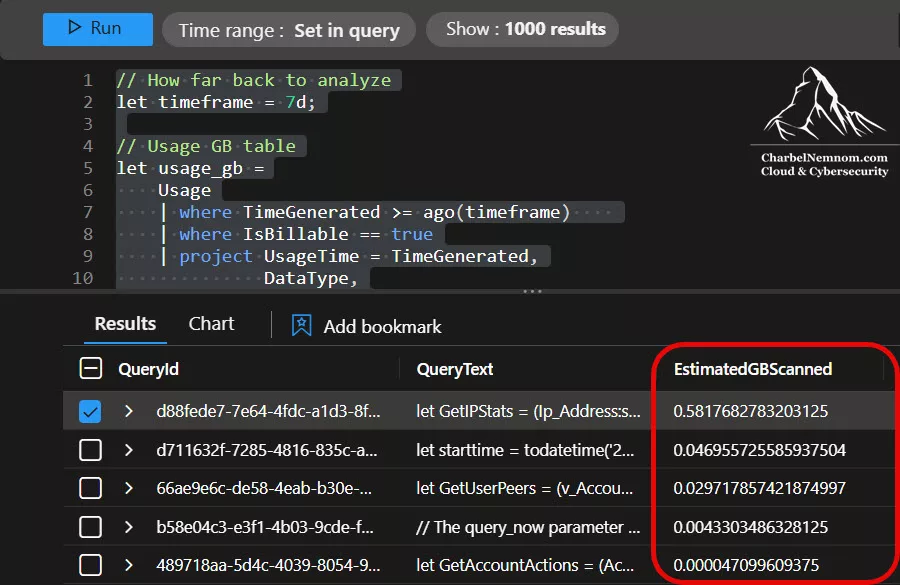
Please note that for the “LAQueryLogs” table, you must enable logs in the Log Analytics workspace where the Sentinel workspace is deployed, as shown in the figure below.

Data lake Result Ingestion: Summary Data to Analytics Tier
The following table shows the cost of promoting query results from the data lake table to the Analytics Tier (Log Analytics), for different summary ingestion rates in percentages.
| Daily Volume | Summary Ingestion Rate | Result Ingestion €/month | Result Ingestion $/month |
|---|---|---|---|
| 100 GB/day | 1% | €86 | $82 |
| 3% | €258 | $246 | |
| 5% | €430 | $410 | |
| 200 GB/day | 1% | €172 | $164 |
| 3% | €516 | $492 | |
| 5% | €860 | $820 | |
| 300 GB/day | 1% | €258 | $246 |
| 3% | €774 | $738 | |
| 5% | €1,290 | $1,230 | |
| 400 GB/day | 1% | €344 | $328 |
| 3% | €1,032 | $984 | |
| 5% | €1,720 | $1,640 | |
| 500 GB/day | 1% | €430 | $410 |
| 3% | €1,290 | $1,230 | |
| 5% | €2,150 | $2,050 | |
| 1,000 GB/day | 1% | €860 | $820 |
| 3% | €2,580 | $2,460 | |
| 5% | €4,300 | $4,100 |
Data lake Example Monthly Cost Scenarios
The following tables show different examples and scenarios for the usage costs, which combine the query (scan) and the result ingestion to the Analytics tier.
| Scenario | Description | Calculation | Europe (€)/month | US ($)/month |
|---|---|---|---|---|
| 1 | 500 GB/day ingestion, 3 months retention, no summary ingestion | Ingestion: €780 / $750 + Retention: €900 / $1,170 | €1,680 | $1,920 |
| 2 | 200 GB/day ingestion, 6 months retention, daily summary rule (3% promote rate) | Ingestion: €312 / $300 + Retention: €720 / $936 + Query: €32 / $30 + Summary ingestion: €516 / $491 | €1,580 | $1,758 |
| 3 | 100 GB/day ingestion, 6 months retention, no summary ingestion | Ingestion: €156 / $150 + Retention: €360 / $468 | €516 | $618 |
| 4 | 300 GB/day ingestion, 12 months retention, no summary ingestion | Ingestion: €468 / $450 + Retention: €2,160 / $2,808 | €2,628 | $3,258 |
| 5 | 400 GB/day ingestion, 12 months retention, daily summary rule (3% promote rate) | Ingestion: €624 / $600 + Retention: €2,880 / $3,744 + Query: €64 / $60 + Summary ingestion: €1,032 / $983 | €4,600 | $5,388 |
The data lake key cost insights are based on:
- Retention is cheap in the data lake (often <15% the cost of analytics tier storage).
- Summary ingestion rates have a big impact on cost – keep them lean (1–3%) to control analytics charges.
- Query costs are low enough to encourage frequent hunting without significant budget impact.
Compare Log Analytics vs. data lake Long-Term Retention
Another question that might come up is, what will happen if we already have archive data in Log Analytics (long-term retention), which is costing us $0.020/GB/month, and then we enable Sentinel data lake?
First, the Archive tier and the Restore concept are no longer valid and have been replaced with long-term retention in Azure Monitor (Log Analytics workspace). Before the data lake was introduced, we had the Analytics tier with up to two years for short-term retention as hot data. The Analytics tier will remain unchanged, and the price is the same. We also have Basic and Auxiliary Logs Tiers, and those will stay for the Azure Monitor (Log Analytics workspace) service only, but not in the context of Sentinel data lake migration.
The long-term retention that we already have with Analytics, Basic, and Auxiliary Logs tables, which was formerly called Archive, and up to 12 years of retention, will be automatically moved to data lake storage for long-term retention once the data lake is enabled. The billing meter in the back-end will be changed from Azure Monitor (Long-term Retention) to data lake Storage.
Now, once you enable Microsoft Sentinel data lake, all existing archive data in Log Analytics will be billed under the new data lake storage meter. The Azure Monitor (long-term retention) rate is about $0.020/GB/month, while data lake storage is $0.026/GB/month in East US. So, that’s a ~$0.006/GB/month increase — so at 100 TB scale, the difference is roughly $600/month. As we can see, there is a slight price increase between Log Analytics and data lake Storage for long-term retention.
The good news is that while it’s slightly higher than the Log Analytics (long-term retention), the data lake is an evolution that brings a unified Table management experience, transformation, faster tier management, and advanced analytics with Notebooks and Spark.
Last but not least, the public preview pricing is subject to change for data lake storage at General Availability (GA). So, in the end, they might land on the same price at $0.020 per GB per month. Stay Tuned!
FAQ About Microsoft Sentinel data lake
1. What are the prerequisites to enable the Sentinel data lake?
You must have your Sentinel workspace connected to the Microsoft Defender portal. Additionally, you need:
- Global Administrator or Security Administrator permissions
- Owner access to the subscription where the data lake will be provisioned
Also, check for any Azure Policies that might block the creation of Sentinel data lake resources.
2. Which regions are supported?
The data lake is currently supported only in select Azure regions as documented on this page. Workspaces must reside in the same region as your primary Defender-connected workspace to be onboarded. Multi-region workspace support is in the roadmap.
3. Do I need to change how I ingest data to use the data lake?
No changes are required. You can continue using existing ingestion methods such as the Azure Monitor Agent (AMA), diagnostic settings, or custom connectors. You simply manage table tiering through the table management experience.
4. Can I move all my data to the data lake tier to save costs?
Not entirely recommended. Keep real-time and high-security-value data in the Analytics tier (e.g., EDR logs, sign-ins, UEBA-supported tables). Use the SOC Optimization experience to identify low-use or verbose logs suitable for the data lake.
5. Can I split ingestion between data lake and analytics tiers?
Yes. Use Data Collection Rules (DCRs) to route specific records differently. For example, send “allow” Syslog events to the data lake and keep “deny” events in the analytics tier. Microsoft provides scripts to clone schemas and set this up cleanly.
6. How do I query data in the data lake, and what permissions are required?
You can query via:
- Lake Explorer with full KQL
- KQL jobs (scheduled or ad-hoc)
- Spark notebooks
Permissions: Global/Security Admin, Security Reader, or workspace-level roles like Sentinel Reader/ Sentinel Contributor. More granular RBAC is coming soon.
7. When should I use Summary Rules vs. KQL Jobs?
Use KQL jobs when you need full KQL, joins, longer lookback (up to 12 years), and flexible scheduling (as frequent as every 5 minutes). Use Summary Rules for simpler, lightweight queries that summarize data on a fixed schedule. KQL jobs are more powerful overall.
8. Can I bring in Microsoft Defender XDR logs for long-term retention?
Yes. You can now enable lake‑only ingestion for Advanced Hunting data from Defender for Endpoint (MDE), Defender for Office 365 (MDO), and Defender for Cloud Apps (MDA) directly into the Microsoft Sentinel data lake while keeping Analytics at 30 days (included in license). This bypasses Log Analytics ingestion and delivers significant cost savings for high-volume XDR tables, while enabling interactive hunting across the full lake retention period from the Defender portal.
9. What happens to Archive-tier data after enabling the data lake?
Archived data remains accessible, but billing shifts to the new data lake storage meter, which charges based on compressed data (6:1 ratio). This generally reduces your storage bill.
10. Are lake queries and jobs audited?
Yes. All query and KQL job activity is logged to the Microsoft Purview unified audit log table. If you’re using Defender for Cloud Apps and Microsoft 365 integration, you’ll see these entries in the CloudAppEvents table for further analysis or alerting.
In Conclusion
Microsoft Sentinel’s log tiering and new data lake mark a major advancement for security operations. It balances the need for long-term, cost-effective data retention with the demand for immediate security insights. SOC analysts can now craft precise logging strategies, retaining critical data in the analytics tier while archiving less urgent information in an easily accessible data lake. With the Sentinel data lake, organizations can fully embrace verbose logging without cost concerns, allowing for comprehensive data collection and intelligent analysis. This unified approach enhances detection capabilities and leverages AI and advanced analytics by providing rich historical context for learning.
From a practical standpoint, implementing log tiering in Sentinel is relatively easy and provides quick wins – immediate cost savings and extended retention. More strategically, it lays the groundwork for the future of the SOC, where SIEM and Big Data analytics converge. We foresee security teams using the data lake for proactive hunting, hypothesis testing, and AI-driven detection, and then seamlessly feeding those results into real-time defenses. It’s a shift towards what Microsoft terms “agentic AI” in security – AI that doesn’t just analyze but can act, armed with the complete knowledge of your environment.
Remember, you can always support us in developing tools and creating content via Why Contribute? – Charbelnemnom.com Cloud & Cybersecurity
__
Thank you for reading our blog.
Please let us know in the comments section below if you have any questions or feedback.
-Charbel Nemnom-

Sounds great, but beware if you are already sitting with loads of GB’s of logs in Log Analytics Archive tier. For most this will be anything over the 90days (you get free in Log Analytics) up to your total retention. Once you enable Sentinel Lake, all your archive data will get charged at a slightly more expensive rate. And if you are talking about TB’s of data in Archive already, this makes Lake much more expensive.
Hello Francois, thanks for the feedback and for raising this important point!
To provide more context about once you enable Sentinel Lake and you already have archive data in Log Analytics long-term retention.
First, there is no such plan called an Archive tier. Before Data Lake was introduced, we have the Analytics tier with up to two years for short-term retention, this tier will remain with no changes and the price is the same. We also have Basic and Auxiliary Logs Tiers and those will remain for the Azure Monitor (Log Analytics) service only, but not in the context of Sentinel Data Lake.
The long-term retention that you already have with Analytics, Basic, and Auxiliary Logs which was formerly called Archive, will be automatically moved to Data Lake storage for long-term retention once Data Lake is enabled. The billing meter in the back-end will be changed from Azure Monitor (Long-term Retention) to Data lake storage.
You’re right — once you enable Microsoft Sentinel Data Lake, all existing archive data in Log Analytics will be billed under the new Data Lake storage meter. The Azure Monitor (long-term retention) rate is about $0.020/GB/month, while Data Lake storage is $0.026/GB/month in East US. That’s a ~$0.006/GB/month increase — so at 100 TB scale, the difference is roughly $600/month. So, I don’t think this will make Data Lake much more expensive, right?
The good news is that while it’s slightly higher than the old Log Analytics (Archive) tier, Data Lake is an evolution which brings unified Table management experience, transformation, managing the tiers more rapidly, and advanced analytics with Notebooks and Spark.
Last but not least, the public preview pricing is subject to change for Data Lake storage at GA. So, in the end, they might land on the same at $0.020 per GB per month.
Cheers,
Great article Charbel,
I’m attempting to set up Data Lake for one of my clients. I’m getting the error you mention above: “you don’t have owner access to this subscription”, but I’m an Owner on the subscription. I’ve also added my account as an owner on the root management group, but I still get the same error.
Any idea what else to check?
Hello Paul, thanks a lot for your feedback!
That error usually indicates a permissions inheritance issue rather than your role itself. Even if your account is listed as Owner on the subscription or at the root management group, the Data Lake setup requires explicit Owner rights on the subscription where the Sentinel workspace is deployed.
A couple of things to double-check:
1) Make sure your account that you are using is not just inherited as Owner but actually appears as Owner on the subscription itself.
2) Verify the Resource Group where Sentinel workspace is deployed and confirm that your account is listed there with the correct Owner permissions.
3) If you’re working with multiple tenants or directories, confirm you’re in the right Entra ID tenant when enabling Sentinel Data Lake.
And yes, I’m assuming your Sentinel primary workspace is already connected in the Microsoft Defender portal, correct?
If so, once the permissions line up correctly at the subscription scope, which might take couple of minutes to propagate, the setup should go through. Hope that helps!
Hi, thanks for your reply.
I’ve checked all of your points, and added my account as an owner on the Resource Group where Sentinel is housed (then signed out and back in again), this was the only thing missing – still no go. Same error message. I was also a User Access Administrator on the subscription, removed that but still the same error message. Even tried in an InPrivate Window to see if that made a difference, but still the same error.
Is there a log somewhere where I could see more details?
And yes, I’ve got Sentinel in the XDR portal.
Hello Paul, thanks for checking all those points!
If you’re still seeing the “you don’t have owner access to this subscription” error, here are a couple of next steps:
* Check the Azure Activity Log (subscription level, “Administrative” events) around the time of the error — this often gives more detail.
* Verify there are no Azure policies or deny assignments at the management group/subscription level blocking the setup.
* Since Sentinel Data Lake is still in public preview, some subscriptions may have backend restrictions — if all looks correct, it’s best to raise a Microsoft support case so they can confirm eligibility flags on your subscription.
Since you’re already connected through the XDR portal and both the workspace and tenant are in the same region, this looks more like a backend validation issue than an RBAC misconfiguration.
Lovely blog. Just a reminder that it is always “Sentinel data lake” and never “Sentinel Data Lake”. It’s always lower case.
Thank you, dear Andrea, for your feedback and note. It is much appreciated!
The blog has been updated to use lower case ;-)