An Exchange database that will not mount can leave users without access to email, contacts, and calendars. When a healthy database copy or usable backup is unavailable, recovering mailbox data from the remaining Exchange Database (EDB) file becomes a priority.
Stellar provides two options for this situation: Online Exchange Database Repair, which processes an uploaded database through a browser, and Stellar Repair for Exchange, a desktop application for local recovery.
In this article, we will explore both options, explain how to recover mailbox data, and discuss their features and limitations. We will also cover how to validate the recovered files before restoring their contents to Exchange or Microsoft 365.
Table of Contents
Understanding Exchange Database Recovery
An EDB file stores Exchange mailbox data, including messages, attachments, contacts, and calendar items. If the database becomes inaccessible, the appropriate recovery method depends on the condition of the database and the availability of transaction logs, backups, and healthy database copies.
There are three related outcomes to understand:
- Database recovery: Bringing a database into a consistent state so that Exchange can mount it.
- Mailbox extraction: Reading recoverable information from an EDB file and saving it elsewhere.
- Mailbox restoration: Transferring that information into the destination mailboxes.
This distinction matters when evaluating an EDB repair tool. For example, the online service discussed here delivers mailbox PST files in a ZIP archive. Restoring those files to a messaging environment requires an additional import step.
For more background, see my Comprehensive Guide to Exchange Server Database Recovery.
Does Dirty Shutdown Always Mean Corruption?
A Dirty Shutdown state does not automatically mean that an Exchange database is physically corrupted. It can indicate that transaction logs must be replayed to bring the database into a consistent state.
Microsoft documents a recovery database procedure that uses Eseutil /R for log replay, followed by mounting the recovery database and extracting mailbox content with New-MailboxRestoreRequest. This approach depends on the available database files, logs, and recovery environment. See Microsoft’s recovery database procedure.
Before attempting recovery, preserve the original database and associated files. Determine whether a healthy database copy or verified backup can meet your requirements.
What Is Online Exchange Database Repair by Stellar?
Online Exchange Database Repair by Stellar is a browser-based service for recovering mailbox data from corrupted or inaccessible EDB files.
The online workflow does not require Microsoft Exchange Server or Outlook to be installed on your computer. You upload the database, allow the service to analyze it, review an HTML preview showing mailbox folder structure and item counts, and download the recovered mailboxes as PST files.
According to Stellar, the service supports the following scenarios that involve:
- Dirty Shutdown.
- Missing transaction logs.
- Unexpected shutdowns and server crashes.
- Storage corruption.
- Unsuccessful ESEUTIL recovery attempts.
The service is designed to recover emails, attachments, contacts, calendars, tasks, notes, journals, and mailbox folder structure. The actual recovery depends on the condition of the source database. Support for a corruption scenario does not guarantee that every mailbox item remains recoverable.
Online Service vs. Desktop Software
The most useful starting point is to consider where the database will be processed, its size, and where you need to restore the recovered data. Stellar offers an online service and a desktop application. The choice depends primarily on database size, whether uploading mailbox data is acceptable, and the required recovery destination.
| Consideration | Online service | Desktop software |
|---|---|---|
| Processing location | Database uploaded for processing | Local database processing |
| Setup | Browser and sign-in | Windows application installation |
| EDB file size | Free: up to 500 MB; Premium: up to 5 GB | Advertised without an EDB file-size limit |
| Recovery output | Mailbox PST files in a ZIP archive | PST and additional export options |
| Restoration to Exchange or Microsoft 365 | Separate PST import | Direct export options available |
| Best suited to | Smaller databases and occasional recovery | Larger databases and environments requiring local processing |
| Mailbox preview | HTML view of folder structure and item counts only | Full preview of recovered emails, contacts, and other mailbox items |
The desktop product also includes filtering, mailbox prioritization, and parallel saving of up to eight mailboxes, depending on available resources. The Corporate edition currently lists a 100-mailbox limit, so an unlimited EDB file size does not mean unlimited licensing allowances. Check the edition supplied or purchased against the required workload. See Stellar Repair for Exchange desktop features and editions.
Prerequisites
To follow this guide, prepare the following:
- A working copy of the EDB file: Preserve the original database and use a separate copy for recovery.
- For online recovery: An internet connection, a web browser, and a Stellar account with a plan appropriate for the database size.
- For desktop recovery: A Windows computer that meets the application’s requirements, with Stellar Repair for Exchange installed, an appropriate license for saving recovered data, and Microsoft Outlook installed to save the recovered mailboxes.
- Sufficient storage: Allow space for the source copy, temporary files, and recovered mailbox data.
- A way to inspect the output: Use Microsoft Outlook or a compatible PST viewer to validate the recovered mailbox contents.
If you plan to restore data to Exchange or Microsoft 365, you will also need access to the destination environment and the permissions required for the chosen import or export method.
Before using the online service, confirm that your organization allows you to upload the database for external processing.
How to Repair an EDB File Online
The online recovery process follows three main stages: upload, analysis, and preview with download.
1. Sign In and Upload the Database
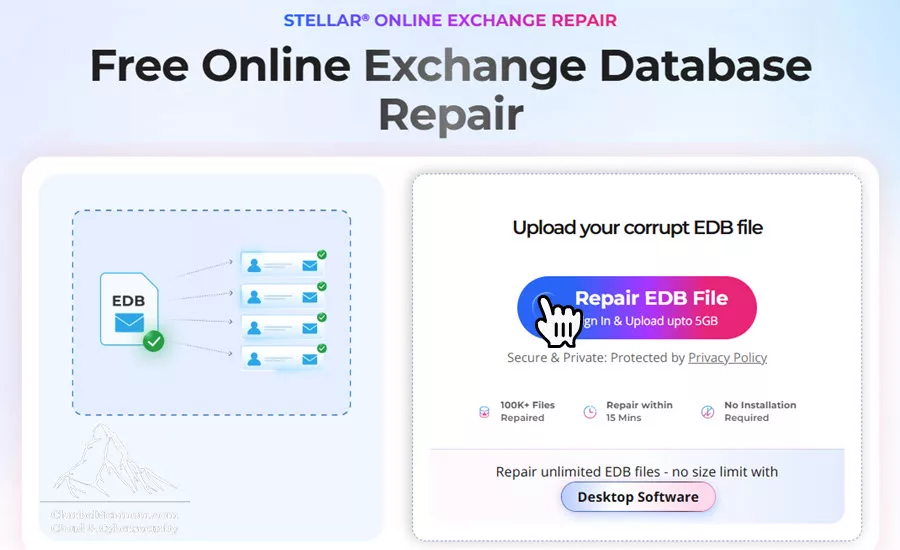
Open Online Exchange Database Repair by Stellar and select Repair EDB File.
Sign in and select the working copy of your database. Choose the appropriate service plan based on the EDB file size.
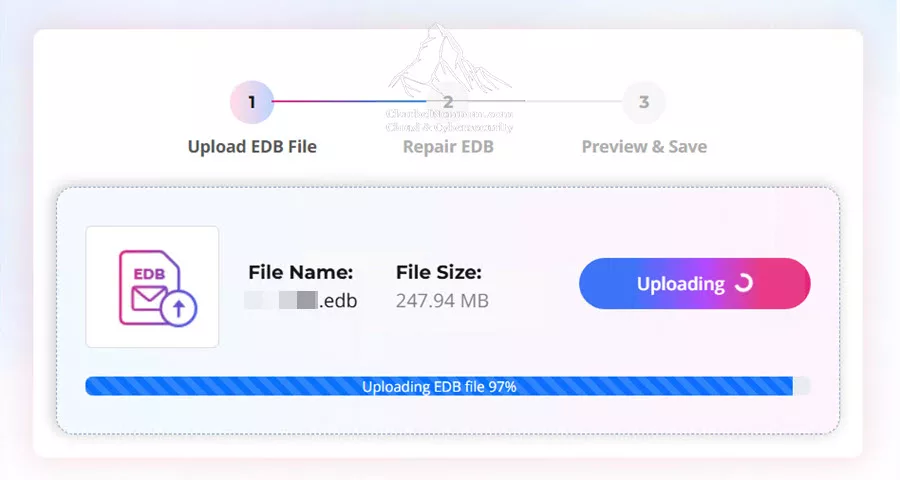
Upload duration depends on both the file size and your connection’s upload speed. Allow the transfer to complete before proceeding.
2. Allow the Service to Analyze the EDB File
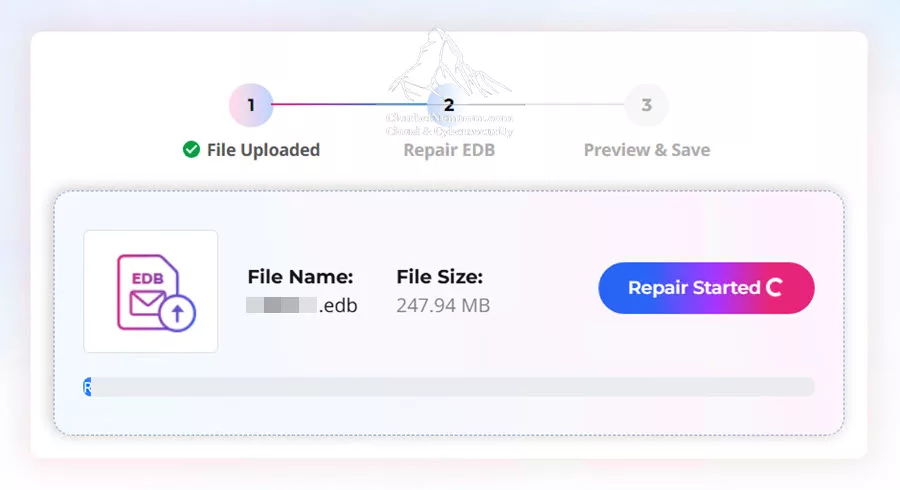
After the upload is completed, select Start Repair. The service will start analyzing the database, as shown in the figure below, and process the recoverable mailbox data.
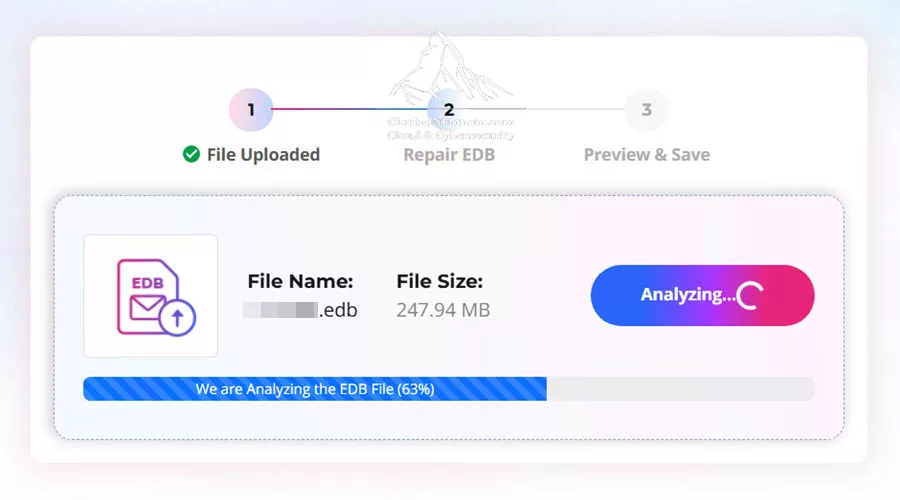
This process is automated and requires no human intervention. The repair time varies based on the database and its condition, so allow the operation to finish before evaluating the results.
3. Preview the Recovered Mailboxes
Once the repair completes successfully, select Preview to open an HTML preview of the recovered mailbox structure.
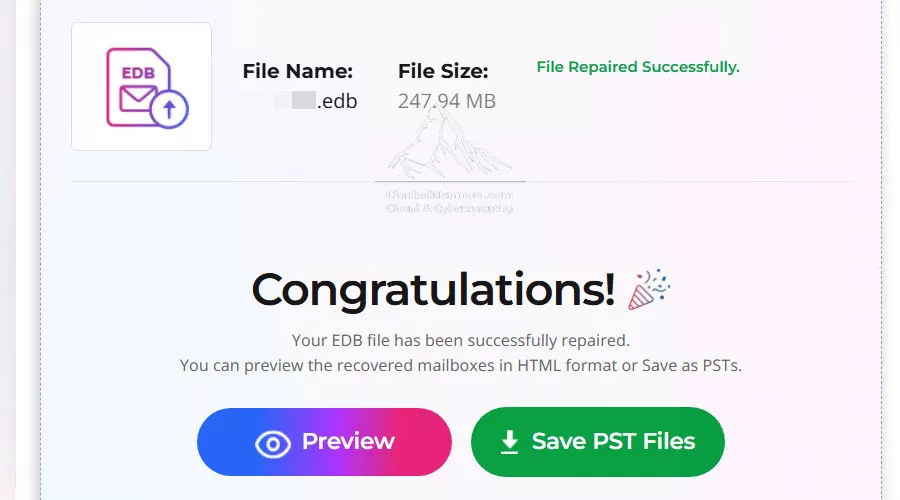
The HTML preview shows the mailbox folder hierarchy and item counts. You can use it to review the listed mailboxes, their folders, and the number of items reported in each folder.
The online preview does not display individual emails, message bodies, contacts, or other mailbox item content. To inspect the actual recovered data, download the PST files and open them in Microsoft Outlook or a compatible PST viewer.
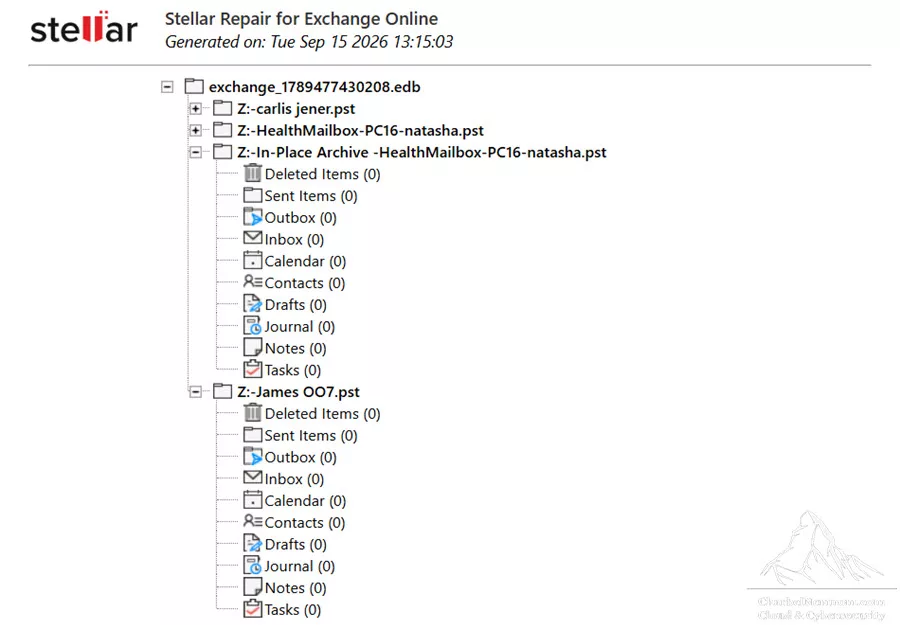
The structural preview provides an initial overview of the recovery results. You can validate the contents of the downloaded PST files before restoring them to your destination mailboxes.
4. Download the Recovered PST Files
You can also download the recovered mailboxes as a ZIP archive and extract it into a dedicated folder.
The online service delivers individual mailbox PST files. Keep their relationship to the source mailboxes clear, particularly when preparing an import into Exchange or Microsoft 365.
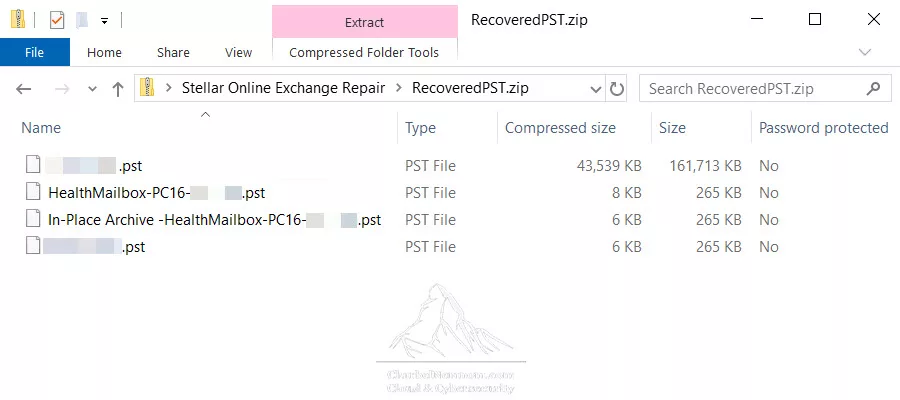
Open the saved files using Outlook or a compatible PST viewer and confirm that the required content is accessible.
Downloading the archive completes the online extraction workflow. Importing the recovered data into destination mailboxes is a separate operation.
How to Use Stellar Repair for Exchange on Desktop
The desktop application provides a local workflow for selecting a database, scanning it, and saving the recovered mailbox content.
1. Install and Activate the Application
Download Stellar Repair for Exchange from the official product page.
Next, run the installer, follow the setup wizard, and activate your license when required.
At the time of writing, the product page lists version 12.2.0.0, an x64 processor, and 8 GB RAM minimum, with 16 GB recommended. Make sure to check the current requirements before installation.
Reserve additional storage for processing and output. The application’s installation footprint does not represent the space needed to recover a database.
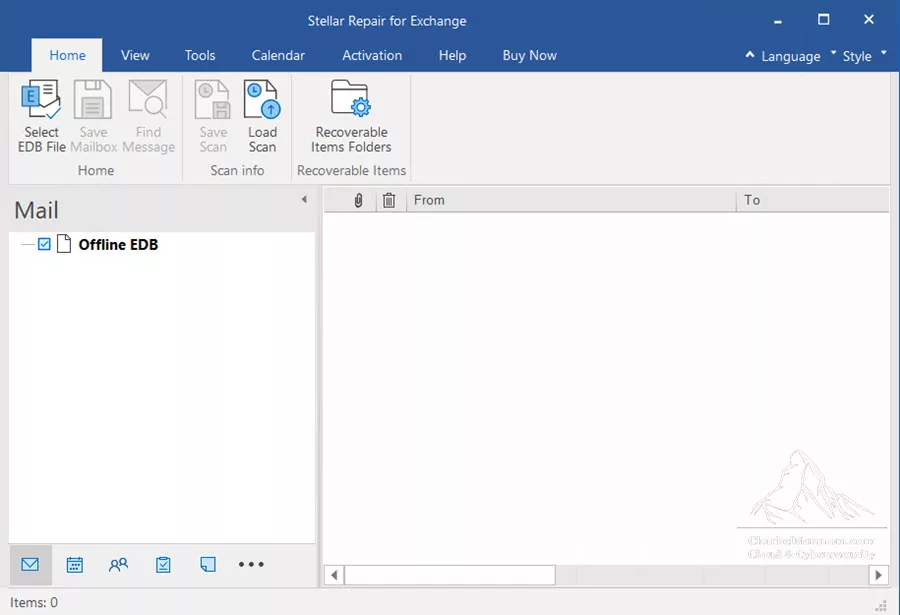
2. Select the EDB File
Launch the application, select the EDB file, and browse to your working copy of the database. If you need to locate the file, use Find.
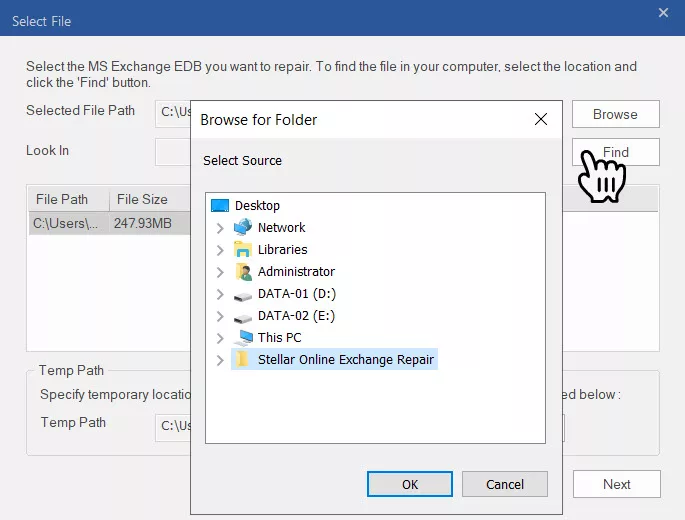
Confirm that you have selected the correct source database before starting the scan.
3. Choose a Scan Mode
The documented desktop workflow offers Quick Scan and Extensive Scan, followed by preview and saving.
First, begin with Quick Scan. If the expected content is missing or the initial results are insufficient, consider Extensive Scan and allow additional processing time.
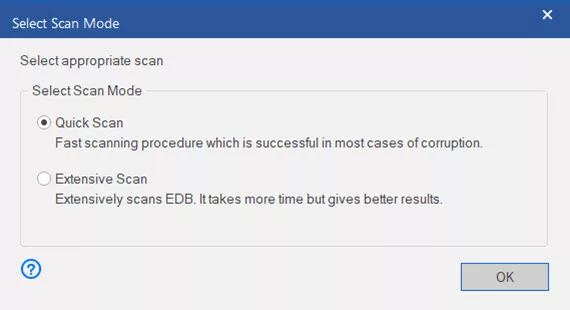
A more extensive scan may identify additional recoverable content, but it cannot guarantee that damaged or missing information will be restored.
4. Preview the Mailbox Content
After scanning, Stellar Repair for Exchange provides a full preview of recovered mailbox content, including emails, contacts, and other mailbox items. Review the mailbox tree on the left and select individual items to inspect their contents before exporting.
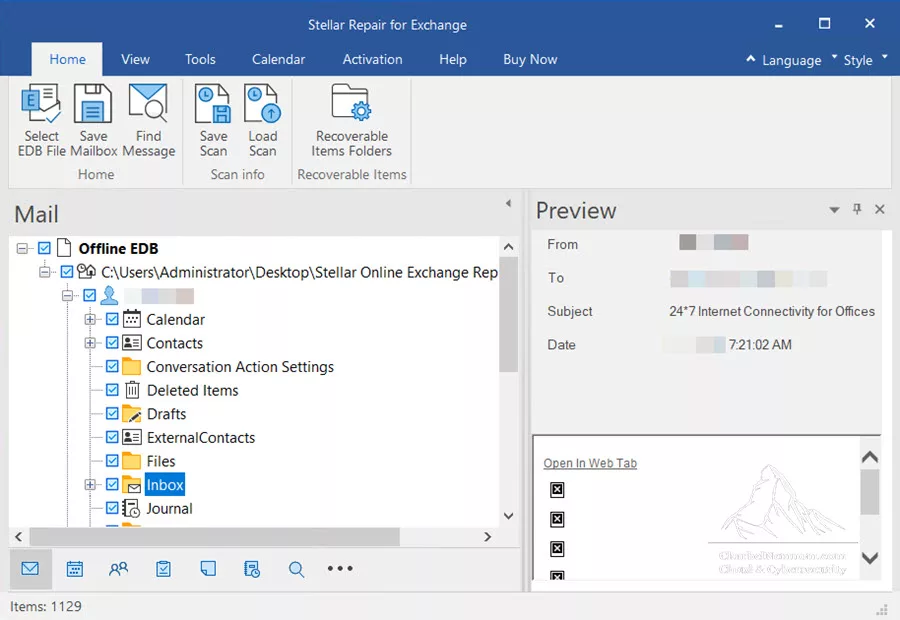
Next, check the folders and messages most relevant to the recovery request. For example, if you need a specific project’s correspondence, verify the relevant date range and attachments before exporting a large volume of data.
5. Save the Recovered Mailboxes
Before saving, make sure Microsoft Outlook is installed on the computer running Stellar Repair for Exchange. If Outlook is missing, the application displays an “Install MS Outlook” prompt and requires it before saving the selected data.
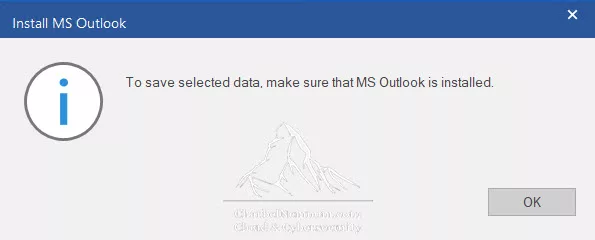
This requirement applies to the desktop saving workflow. The online service does not require a local Outlook installation to generate and download recovered PST files.
Next, select the required mailboxes, choose Save Mailbox, and select PST output.
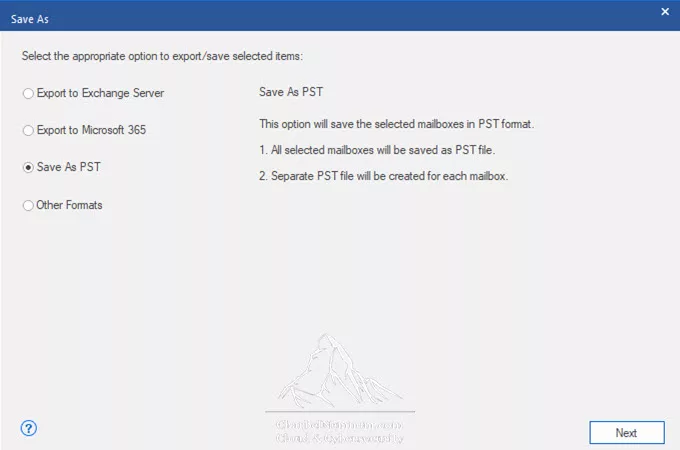
Choose an output folder with sufficient free space and allow the save operation to complete. Inspect any completion messages or reported errors before opening the saved files.
Note: Keep the recovered output separate from the source database.
6. Export to Exchange or Microsoft 365
For a direct export to Exchange or Microsoft 365, prepare the destination environment and review the installed version’s authentication and permission requirements.
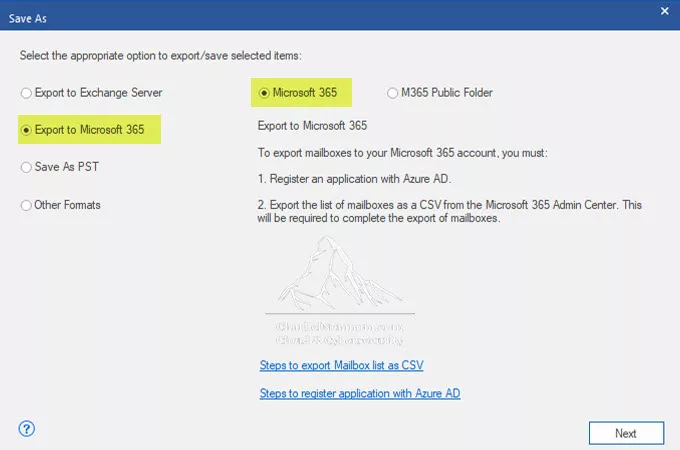
Check source-to-destination mailbox mappings carefully before starting. Sending recovered content to the wrong mailbox can create additional cleanup work and expose information to unintended recipients.
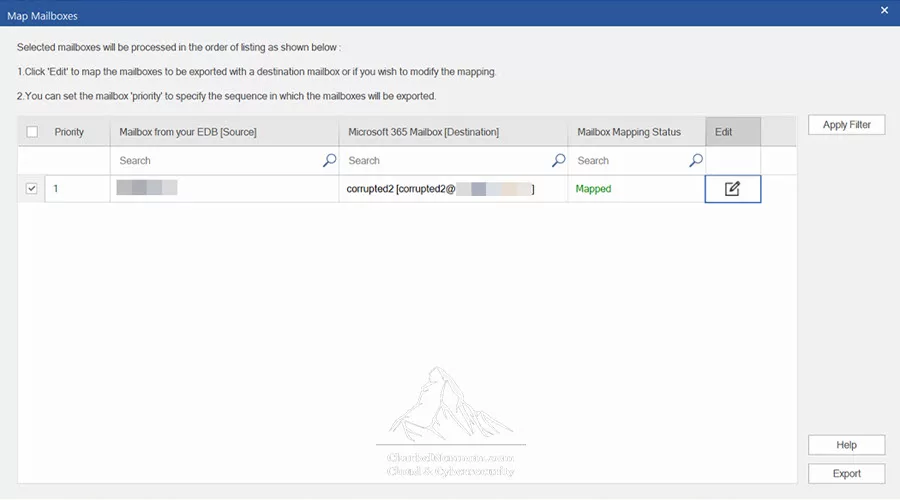
The online service’s lack of an Outlook requirement should not be assumed to apply to every desktop export configuration. Verify the prerequisites for your selected destination and application version.
After export, inspect the completion report and confirm that the expected content appears in the destination mailboxes.
How to Validate Recovered Mailbox Data
A successful scan is an intermediate milestone. The recovery is useful only if the saved content is readable and meets your requirements.
Use the following checks before treating the operation as complete:
| Validation area | What to check |
|---|---|
| Mailboxes | Required mailboxes are present |
| Folder hierarchy | Expected folders and subfolders are available |
| Messages | Subjects, bodies, addresses, and dates are readable |
| Attachments | Representative attachments open correctly |
| Contacts | Expected names, addresses, and populated fields are retained |
| Calendar items | Dates, times, attendees, and recurrence are correct where applicable |
| PST files | Saved files open successfully |
| Destination mailboxes | Imported or exported items appear in the intended location |
If you have a healthy reference copy or reliable item counts, compare the recovered data against that baseline.
Without a baseline, you can confirm that particular items were recovered, but you cannot reliably claim a complete recovery percentage.
Also distinguish missing content from content excluded by your export selections. Check the selected mailboxes, folders, and filters before repeating the scan.
Restoring Recovered PST Files to Microsoft 365
The PST files downloaded from the online service can be used in a subsequent restoration workflow.
For organizational imports, Microsoft documents a network upload process using AzCopy, a mailbox mapping CSV, and an import job in Microsoft Purview. Review the current requirements before proceeding. See Microsoft’s PST network upload procedure.
Then confirm the destination for each PST and validate a small, representative set of recovered content before committing to a larger restoration.
Mailbox data restoration also does not rebuild Exchange server configuration or restore mail flow. Those tasks belong to the broader recovery of the messaging environment.
If your source is an Outlook OST file rather than an EDB file, see my Comprehensive Guide to Convert OST to PST.
Security, Privacy, and Data Retention
An Exchange database can contain information belonging to many users. Consider where that information will be processed and who can access the recovered output.
Stellar states that the online service uses an encrypted connection and automatically deletes uploaded and recovered data within 24 hours for Free users and 48 hours for Premium users. It also describes the online recovery process as read-only, leaving the original EDB unchanged. These are vendor statements. See Stellar online security and retention information.
Download and validate recovered files promptly. Do not rely on the service’s temporary storage as the only location holding the recovered data.
For organizations that require local database processing, the desktop workflow is the more suitable option to evaluate. Protect its source files, working folders, and PST exports using your organization’s access and storage controls.
Which Option Should You Choose?
Choose the Online Service for Smaller, Occasional Recoveries
The online workflow is worth considering when your database fits within the available size limits and uploading it is acceptable.
It provides a convenient way to move from an inaccessible EDB file to downloadable mailbox data without installing a recovery application.
Remember to account for file transfer time and the separate restoration step after download.
Choose Desktop Software for Local Processing and Larger Databases
The desktop workflow is worth considering when the online size limit is insufficient, or the database must remain within your environment.
It also suits recovery work where you need more control over scanning, selecting content, and delivering data to the destination.
In either case, make the decision based on the required data and the quality of the recoverable output. File acceptance and a populated preview alone are not enough to establish success.
Frequently Asked Questions
Can I Recover an EDB File Without Exchange Server Installed?
The online service processes an uploaded EDB file without requiring a local Exchange Server installation. Restoring the recovered content to an Exchange environment is a separate task.
Do I Need Outlook for Online Exchange Database Repair?
Outlook is not required for the online repair workflow. You will need a suitable application if you want to open and inspect the downloaded PST files locally.
Is Online Exchange Database Repair by Stellar Free?
The Free plan supports EDB files within the advertised 500 MB limit. Larger files require an appropriate paid option.
Does the Online Service Return a Mountable EDB File?
The documented output is a ZIP archive containing mailbox PST files. Plan to restore the recovered mailbox data rather than mount a replacement EDB from the online service.
Can It Recover Mailboxes When Transaction Logs Are Missing?
Missing transaction logs are among the scenarios described by Stellar. Recovery still depends on the information available in the source database; content absent from that database cannot be assumed recoverable.
How Long Does EDB Recovery Take?
The total duration includes processing and saving, plus upload and download for the online workflow. Database condition, data volume, local resources, and network speed can all affect the time required.
How Can I Confirm That Recovery Succeeded?
Open the saved files, inspect representative mailbox items, and compare them with a known baseline where available. If restoration to Exchange or Microsoft 365 is part of the objective, validate the destination mailboxes as well.
Final Thoughts
Online Exchange Database Repair by Stellar provides a straightforward workflow for smaller databases when external processing is acceptable. Stellar Repair for Exchange extends the available options through local processing and additional control over recovery and export.
Both approaches should be evaluated against the same practical requirement: recovering readable mailbox content that can be restored where it is needed.
I recommend preserving the original database, inspecting the preview, and validating the saved output before completing the recovery. Those steps help turn extracted mailbox data into a usable restoration.
Remember, you can always support us in developing tools and creating content via Why Contribute? – Charbelnemnom.com Cloud & Cybersecurity
__
Thank you for reading our blog.
Please let us know in the comments section below if you have any questions or feedback.
-Charbel Nemnom-
