Updated – 19/10/2026 – Microsoft has lifted the GDAP limitation for Microsoft Sentinel in Unified RBAC. See point 5 under Things to Keep in Mind for details.
User and Entity Behavior Analytics (UEBA) is one of the most valuable capabilities in Microsoft Sentinel, and one that many environments never fully enable, since it is off by default and depends on directory sync and connected data sources. Instead of matching a single event against a static rule, UEBA builds a behavioral baseline for every user, host, IP address, and application in your environment, then uses machine learning to score deviations from that baseline. This is what turns a “successful sign-in” into “a successful sign-in from a country this account has never used, at an hour this account never works, right after a password reset.”
If you want the full background on how UEBA builds those profiles, which tables it populates, and how to use the anomalies in your investigations, have a look at our Deep Dive into Microsoft Sentinel UEBA.
This matters more now because of the deadline on the Azure portal. Microsoft has confirmed the new timeline for transitioning the Sentinel experience to the Defender portal. After March 31, 2027, Microsoft Sentinel will no longer be supported in the Azure portal and will be available only in the Microsoft Defender portal. All customers still using Microsoft Sentinel in the Azure portal will be redirected to the Defender portal and will use Microsoft Sentinel in the Defender portal only.
If you have not started yet, we strongly recommend that you begin planning your transition to the Defender portal now, so you get a smooth migration and take full advantage of the unified security operations experience.
That transition, however, is where this article starts. In early August 2026, while configuring UEBA in the Defender portal, we hit an error that took a while to troubleshoot because everything that Microsoft’s documentation tells you to check was already green. In this article, we will walk you through the error, everything we ruled out, the actual root cause, and the fix.
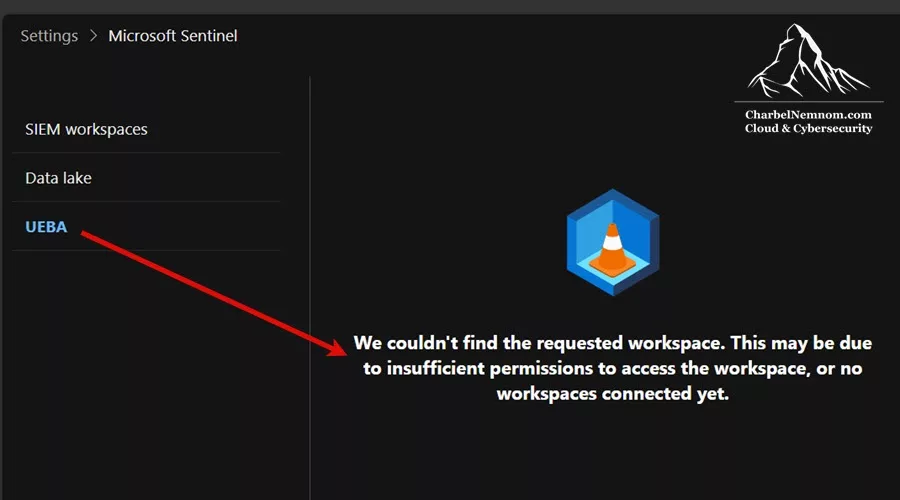
Table of Contents
Prerequisites
Before you start managing UEBA in the Defender portal, make sure the following is in place. Most UEBA access issues in the Defender portal come down to permissions, even when the error message points elsewhere.
1. Access Microsoft Sentinel in the Defender portal
Your Microsoft Sentinel workspace must be connected to the Defender portal, and your account needs the appropriate roles. The table below summarizes the key roles for a single-workspace setup:
| Task | Microsoft Entra or Azure built-in role required | Scope |
|---|---|---|
| Onboard Microsoft Sentinel to the Defender portal | At least Security Administrator in Microsoft Entra ID, plus Owner (unconditional role assignment) OR User Access Administrator + Microsoft Sentinel Contributor | Tenant and subscription for the Owner role |
| View Microsoft Sentinel in the Defender portal | Microsoft Sentinel Reader | Subscription, resource group, or workspace |
| Query Sentinel data tables or view incidents |
Microsoft Sentinel Reader, or a role with the equivalent Microsoft.OperationalInsights and Microsoft.SecurityInsights read actions |
Subscription, resource group, or workspace |
| Take investigative actions on incidents | Microsoft Sentinel Contributor, or a role with the equivalent read/write actions | Subscription, resource group, or workspace |
| Create a support request | Owner, Contributor, or Support Request Contributor | Subscription |
Please note that for onboarding, the Owner role assignment must be unconditional at the subscription scope. If your tenant has more than one workspace with Microsoft Sentinel enabled, you must also be at least a Security Administrator in Microsoft Entra ID.
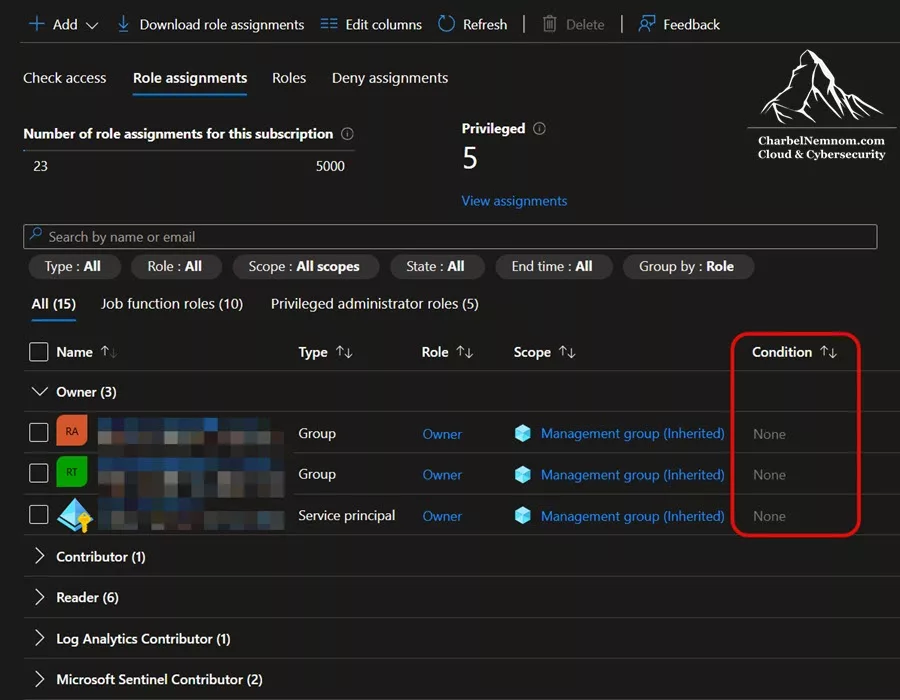
A note on the word “unconditional”: It refers to Azure attribute-based access control (ABAC) conditions attached to the role assignment itself, not to scope inheritance or Privileged Identity Management (PIM) eligibility.
So, when you assign a privileged role such as Owner or User Access Administrator in the Azure portal, the Add role assignment wizard includes a Conditions step that asks what the assignee is allowed to delegate:
- Allow user to assign all roles (highly privileged) stores no condition. This is what Microsoft means by an unconditional assignment.
- Allow user to assign a subset of roles to selected principals stores an ABAC condition that constrains which roles the Owner can hand out, and to whom.
This matters for onboarding because connecting Sentinel to the Defender portal does not simply read your permissions; it creates role assignments on your behalf. As the portal warns you when activating a workspace, the User Access Administrator role is assigned to the MTP Unified RBAC app within the enabled workspace. A constrained Owner can be blocked from creating that assignment, and the result is an onboarding that fails or a workspace that never shows up as eligible.
To verify what you have, go to Subscription > Access control (IAM) > Role assignments in the Azure portal and look at the Condition column. Unconditional assignments show None, while constrained ones show a View/Edit link.
You can also check it from the Azure CLI:
az role assignment list --scope /subscriptions/<subscription-id> \
  --query "[?roleDefinitionName=='Owner'].{principal:principalName, condition:condition}" -o table
A None value in the condition column means the assignment is unconditional, which matches what the Condition column shows in the Azure portal.
2. Enable or disable the UEBA feature
To turn UEBA on or off (these are not required to simply use UEBA):
- Your user must be assigned the Microsoft Entra ID Security Administrator role in your tenant, or equivalent permissions.
- Your user must be assigned at least one of the following Azure roles (Azure RBAC):
- Owner at the resource group level or higher.
- Contributor at the resource group level or higher.
- (Least privileged) Microsoft Sentinel Contributor at the workspace level or higher, and Log Analytics Contributor at the resource group level or higher.
- Your Log Analytics workspace must not have any Azure resource locks applied to it.
3. Activate a Sentinel workspace in Unified RBAC
If you plan to manage Sentinel permissions in the Defender portal, activating the workspace in Unified RBAC (URBAC) requires:
-
Security Administrator role in Microsoft Entra ID, AND one of the following:
- Subscription Owner, OR
- User Access Administrator + Microsoft Sentinel Contributor on the workspace.
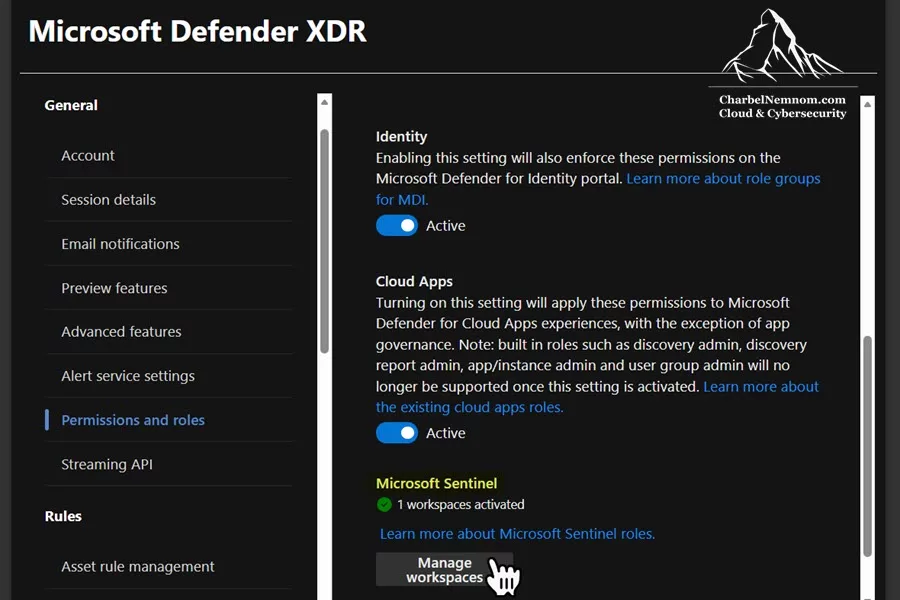
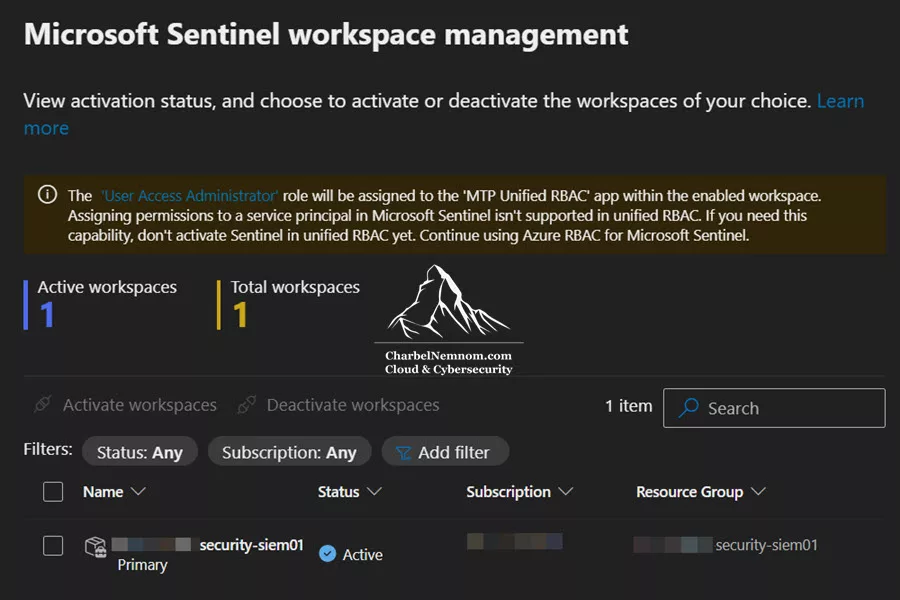
Please note that unlike the other Defender workloads, Microsoft Sentinel must be activated on a per-workspace basis. Go to Settings > Microsoft Defender XDR > Permissions and roles, and under Microsoft Sentinel, select Manage workspaces, as shown in the figure below.
Then, on the Microsoft Sentinel workspace management page, select the workspaces you want and then select Activate workspaces, as shown in the figure below.
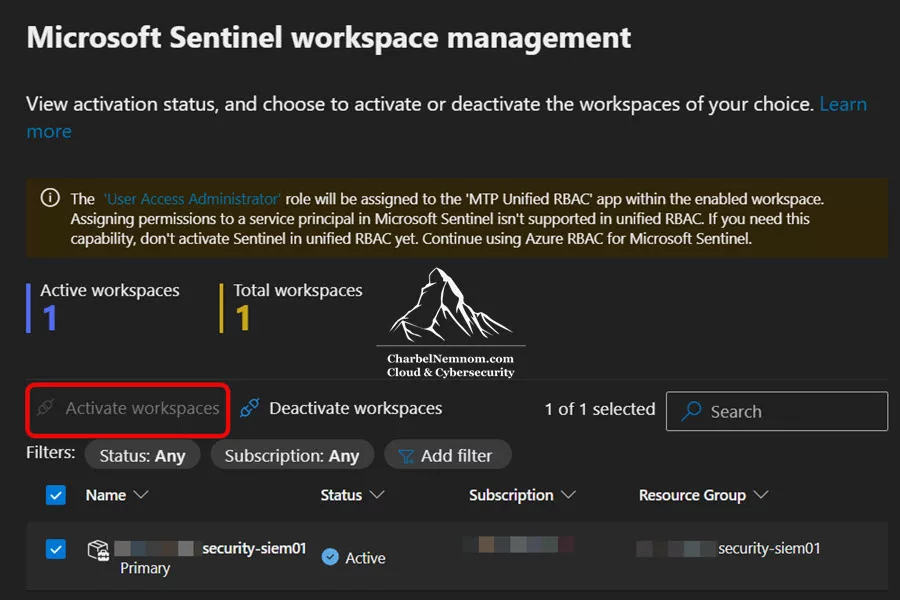
As a side note, at the time of writing, Microsoft’s documentation still refers to this button as View Workspaces, while the Defender portal shows Manage workspaces.
For the complete picture of how Sentinel roles map into the Defender Unified RBAC model, see our detailed guide: Demystifying Microsoft Sentinel Roles and Permissions.
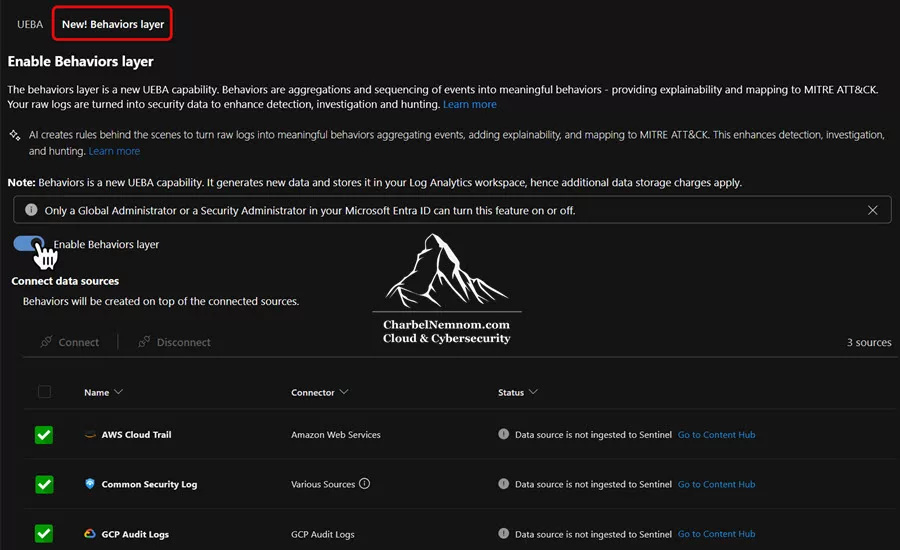
4. Enable the UEBA behaviors layer (optional)
If you also want to enable the new UEBA behaviors layer, you need at least the Security Administrator role in Microsoft Entra ID and the Microsoft Sentinel Contributor role on your Sentinel workspace. This combination is relevant to the root cause described later in this article.
Understanding the Issue
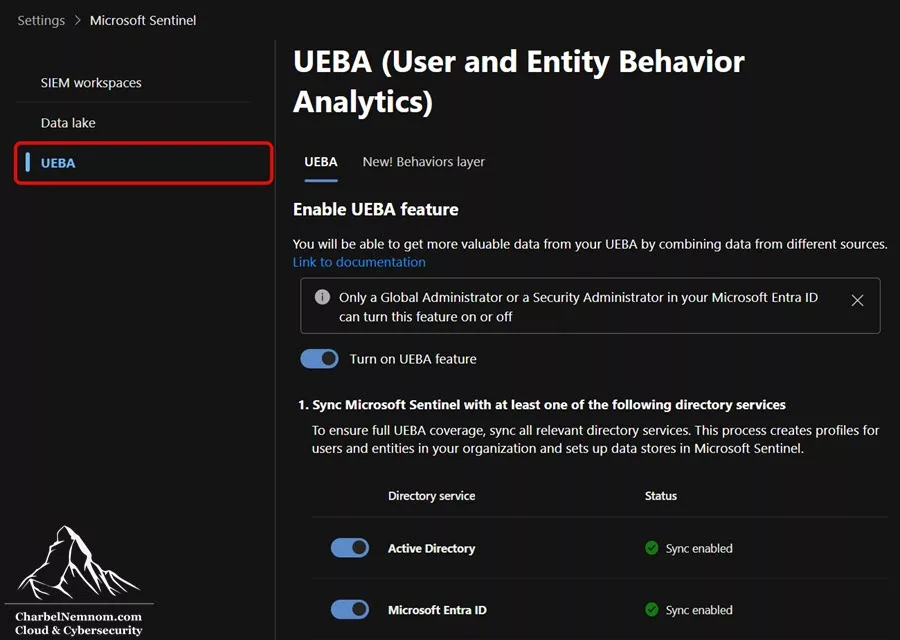
In the Defender portal, Microsoft Sentinel UEBA is configured from System > Settings > Microsoft Sentinel > UEBA tab, as shown in the figure below.
The key detail is the timing. The UEBA tab worked until we activated the Microsoft Sentinel workspace in Unified RBAC. Nothing else changed in the environment on that day. The workspace was still connected, still primary, and our Azure RBAC assignments were untouched. The error appeared strictly after activation.
When we opened that tab, instead of the Entity behavior configuration page, we got the following error:
We couldn’t find the requested workspace. This may be due to insufficient permissions to access the workspace, or no workspaces connected yet.
The error message points you in two directions: insufficient permissions or no connected workspace. Both conditions were already satisfied in our environment.
What We Verified First
Before changing anything, we walked through every item the error message and the documentation suggest.
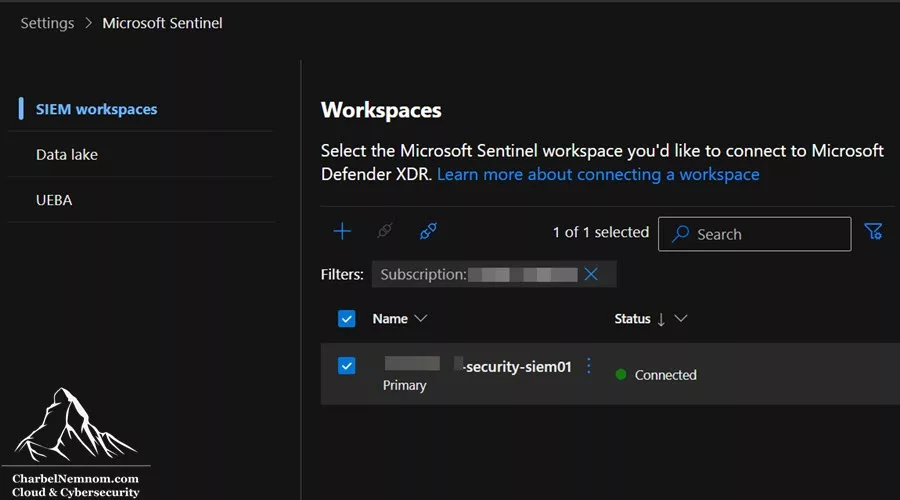
1. The workspace is connected and set as primary
Under Settings > Microsoft Sentinel > SIEM workspaces, the workspace is listed as Connected and marked as Primary, as shown in the figure below.
2. The workspace is activated in Unified RBAC
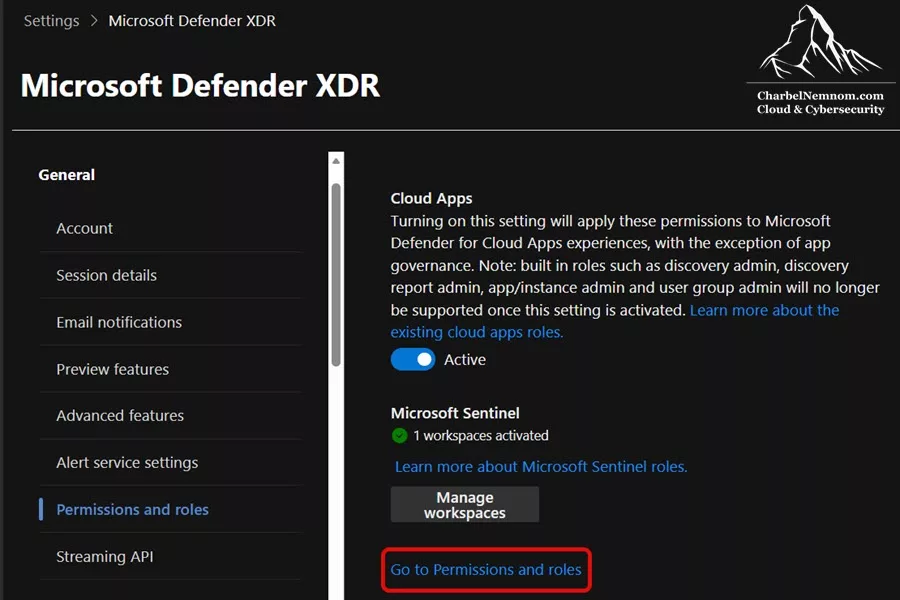
Under Settings > Microsoft Defender XDR > Permissions and roles, the Microsoft Sentinel section reported 1 workspace activated, as shown in the figure below.
Selecting Manage workspaces confirms the same. The workspace is listed with the status Active under Microsoft Sentinel workspace management, as shown in the figure below.
3. The workspace is onboarded to the Microsoft Sentinel data lake
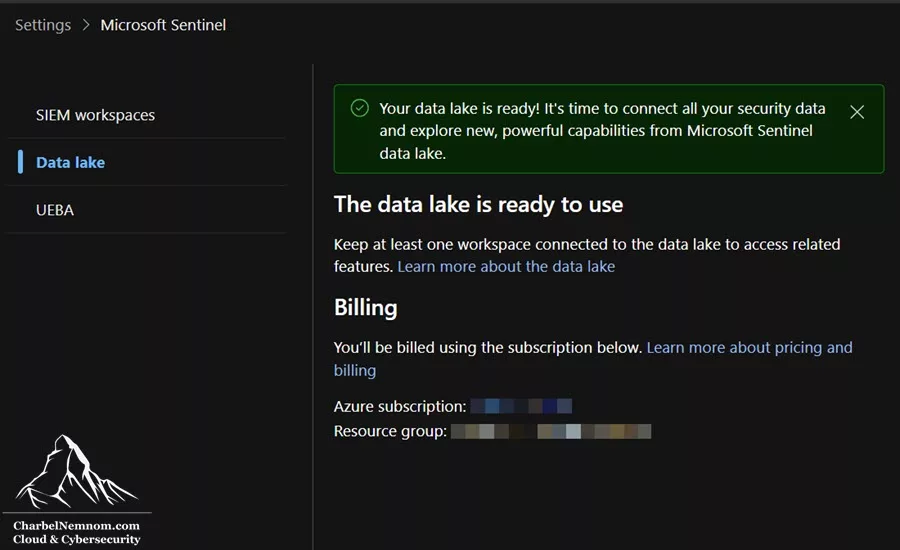
For completeness, we also confirmed that the same workspace is connected to the Microsoft Sentinel data lake under Settings > Microsoft Sentinel > Data lake, as shown in the figure below.
4. Azure RBAC is in place
The account used had Owner at the subscription level and Microsoft Sentinel Contributor on the workspace, plus Security Administrator in Microsoft Entra ID. Based on Microsoft’s documentation, this exceeds every requirement listed in the UEBA prerequisites.
The UEBA tab still returned the same error.
The Root Cause
The behavior is documented, but not in the UEBA documentation where you would look for it while troubleshooting.
In the Microsoft Defender unified RBAC documentation, Microsoft is explicit that for Microsoft Sentinel, unified RBAC becomes the source of permissions the moment it is enabled. Microsoft Sentinel is also activated on a per-workspace basis, not tenant-wide, so this switch happens as soon as you activate that specific workspace.
The Microsoft Sentinel product team says the same thing even more directly in the Unified RBAC announcement FAQ, answering what happens to legacy Sentinel roles after activation: “URBAC becomes the primary source of your permissions for Sentinel instead of Azure RBAC“, and you should therefore make sure the right permissions are set up in URBAC.
That last clause is the important one. Activating the workload and populating URBAC with roles are two separate operations. Activation flips the switch on the model. It does not migrate or copy your existing Azure RBAC role assignments into it — that is what the separate Import roles capability is for. So immediately after activation, and before any roles exist in Unified RBAC, the situation is this:
- In Azure RBAC, you are Owner and Sentinel Contributor.
- In Unified RBAC, there is not a single Sentinel role assignment for your identity.
The result is a workspace that is connected, primary, active, and data lake enabled, but which the UEBA settings page cannot resolve for your user. Hence, “We couldn’t find the requested workspace.”
This is also consistent with the behaviors layer requirement we flagged in the prerequisites section above: the Defender portal expects to see Microsoft Sentinel Contributor for your identity in a model it can evaluate, and once URBAC is activated for the workspace, that model is URBAC.
Microsoft also documents that Sentinel experiences in the Defender portal continue to respect ARM roles in addition to URBAC. That remained true in our environment, where the Sentinel data pages kept working throughout. The UEBA configuration page did not, and Microsoft does not document this distinction page by page. What we can report is the observed behavior: with the workspace activated in URBAC and no Sentinel roles present in URBAC, the UEBA page could not resolve the workspace, and importing the roles resolved it immediately.
The Solution: Import Microsoft Sentinel Roles into Defender XDR
The fix is to bring your existing Microsoft Sentinel roles into the Unified RBAC model using the Import roles capability. This re-creates the selected roles and their existing user and group assignments in URBAC, so you keep full parity with what you already have in Azure, without rebuilding anything by hand.
We covered this capability in depth in Import Roles: Simplify Your Migration to Unified RBAC. Here are the exact steps for this scenario:
1. Sign in to the Microsoft Defender portal and go to System > Settings > Microsoft Defender XDR > Permissions and roles.
2. Select Go to Permissions and roles.
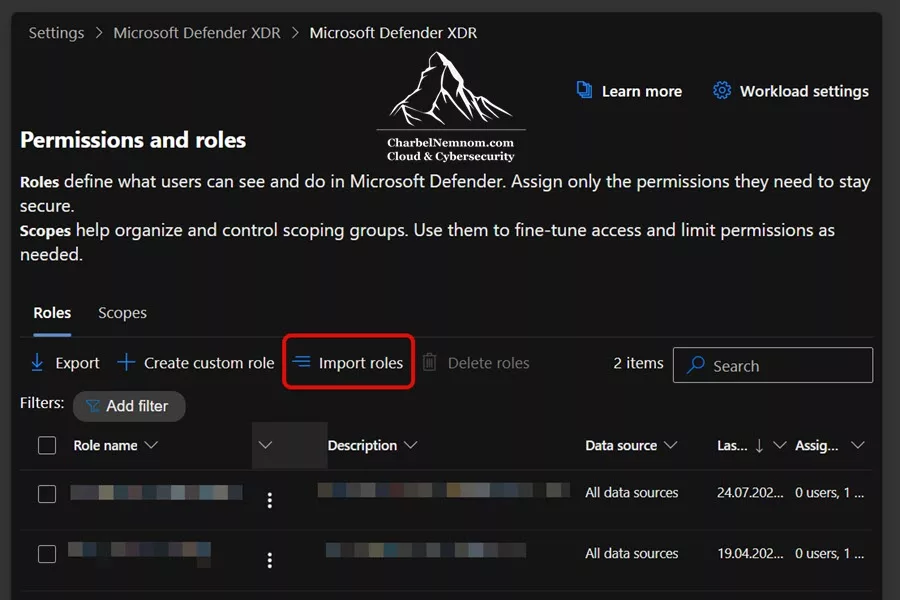
3. On the Roles page, select Import roles at the top, as shown in the figure below.
4. Under Workloads, select Microsoft Sentinel as the product to import from, and then select Next.
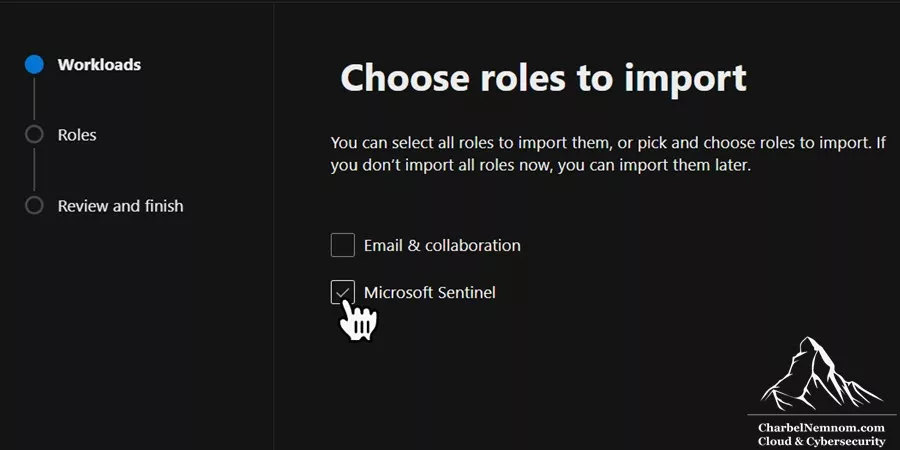
5. Select the primary Microsoft Sentinel workspace to import the roles from, and then select Next.
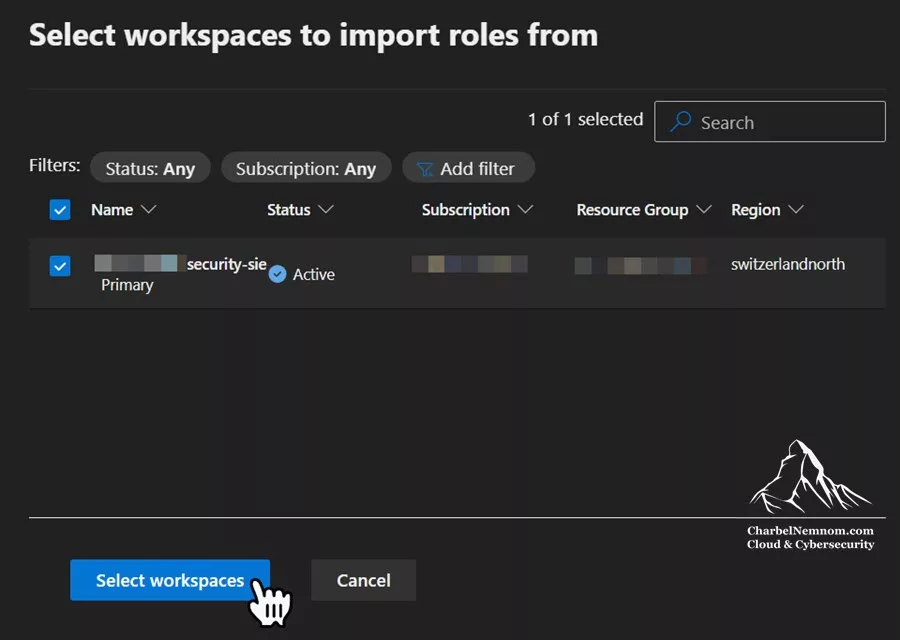
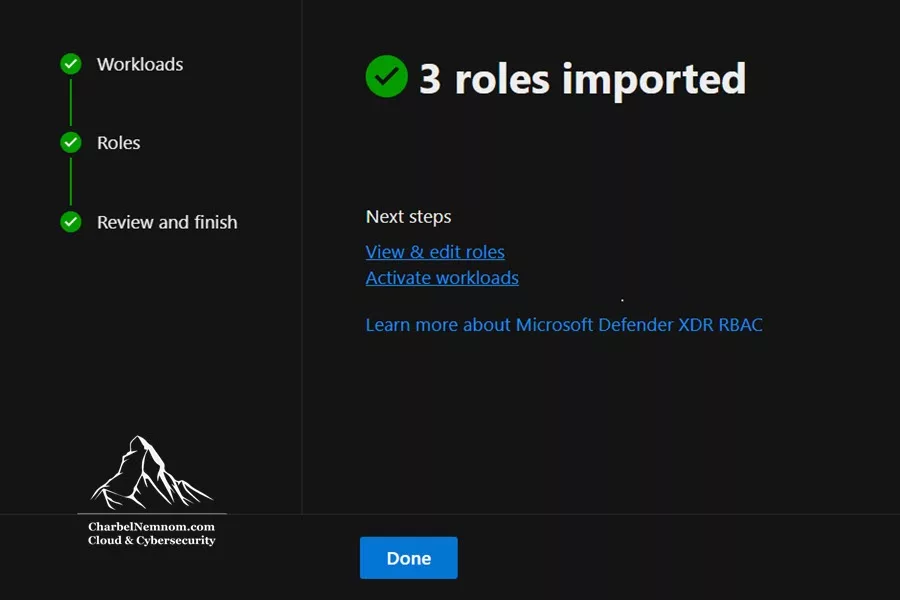
6. Choose the Microsoft Sentinel roles you want to import. In our case, the important one is Microsoft Sentinel Contributor, since that is the role that grants access to the workspace under the UEBA section. We imported all three (Reader, Responder, and Contributor) to keep the model consistent, as shown in the figure below.
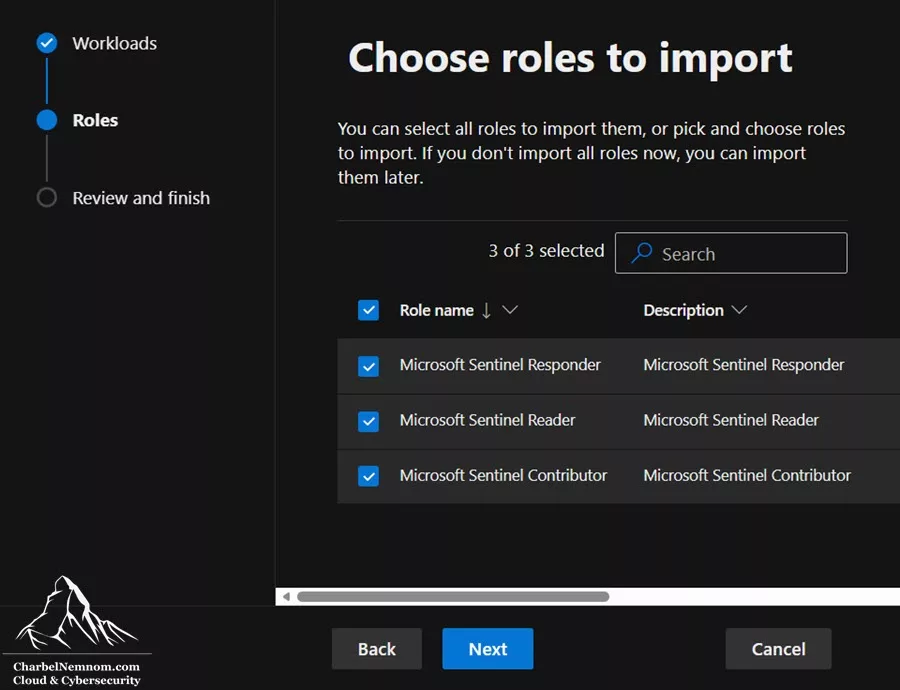
7. Complete the Review and Finish step, and then submit.
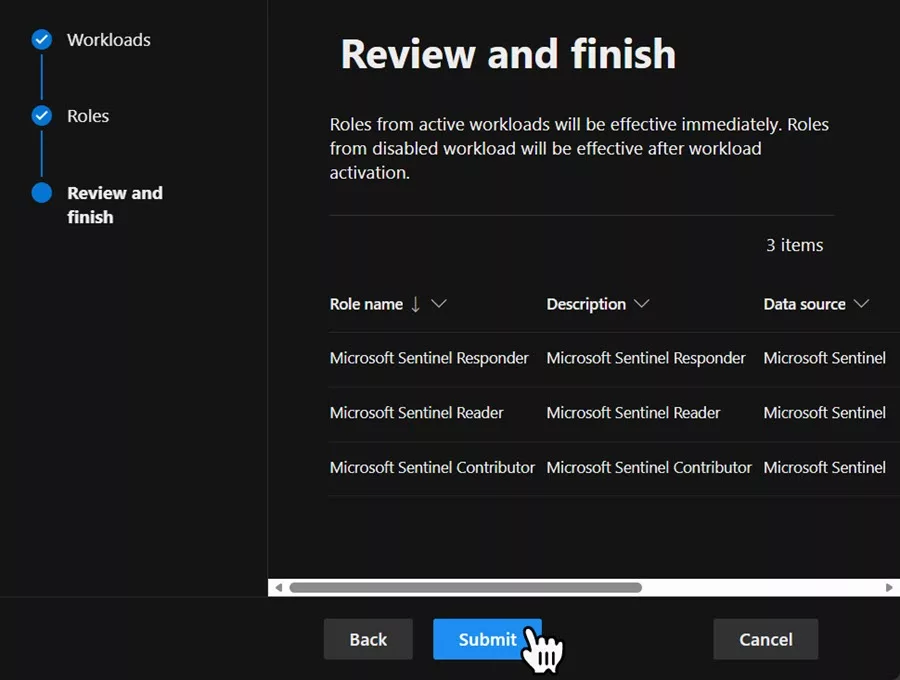
Please note that if a role you want to import contains assignments for users or groups that no longer exist in Microsoft Entra ID, it will appear in the Roles not eligible for import list. Remove the stale user or group from the role in Azure RBAC first, and then import it again.
Allow a few minutes for the permissions to propagate, and sign out and back in to the Defender portal to refresh your token.
Verify Access to UEBA
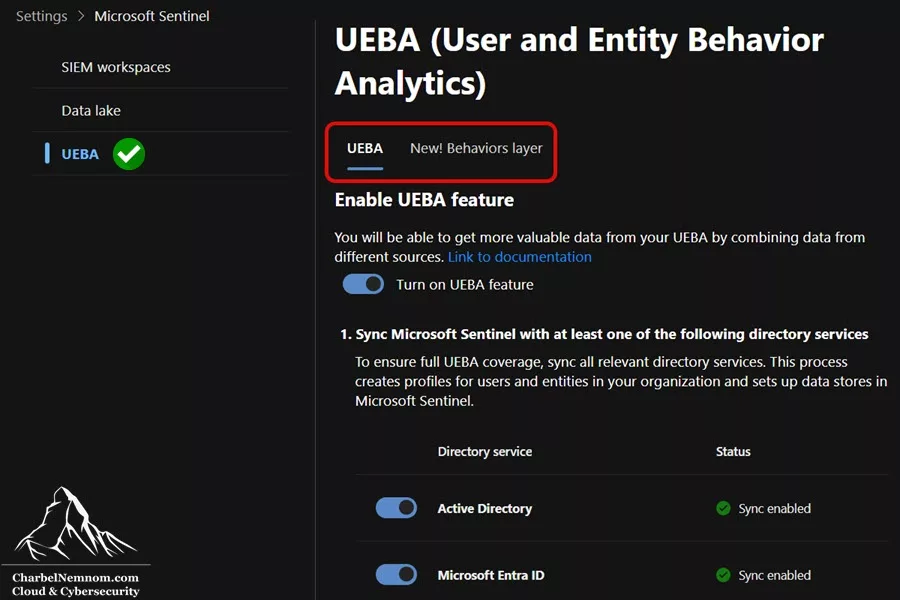
Go back to System > Settings > Microsoft Sentinel and select the UEBA tab. The Entity behavior configuration page now loads correctly, as shown in the figure below.
From here, you can complete and update the configuration as usual:
1. Toggle on Turn on UEBA feature.
2. Sync Microsoft Sentinel with at least one directory service, Active Directory and/or Microsoft Entra ID. To sync user entities from on-premises Active Directory, your tenant must be onboarded to Microsoft Defender for Identity with the MDI sensor installed on your domain controllers. If you have not deployed MDI yet, please check our step-by-step guide: Deploy Microsoft Defender for Identity – Comprehensive Guide.
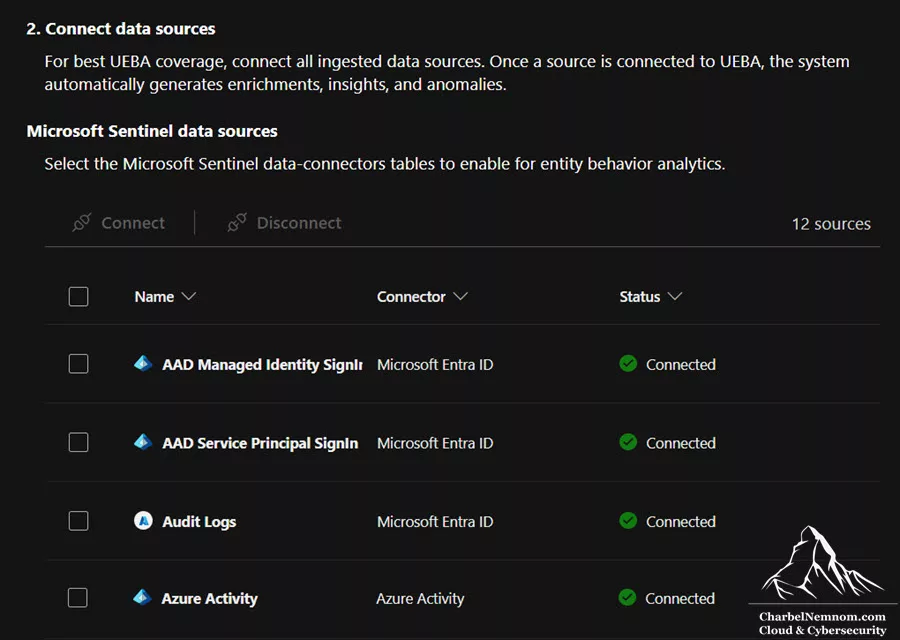
3. Connect your data sources. You can select Connect all data sources, or pick specific ones, as shown in the figure below. Please note that several sources can only be enabled from the Defender portal, including AWS CloudTrail, AWS GuardDuty, GCP Audit Logs, Okta CL, Device Logon Events, CommonSecurityLog for supported Check Point, Fortinet, and Zscaler events, and the Microsoft Entra ID managed identity and service principal sign-in logs.
4. Enable anomaly detection under Settings > Microsoft Sentinel > SIEM workspaces, select your workspace, then Anomalies, and toggle on Detect Anomalies.
5. Optionally, switch to the New! Behaviors layer tab to enable the UEBA behaviors layer, which translates raw logs from supported sources into normalized, MITRE-mapped behavior records in the BehaviorInfo and BehaviorEntities tables.
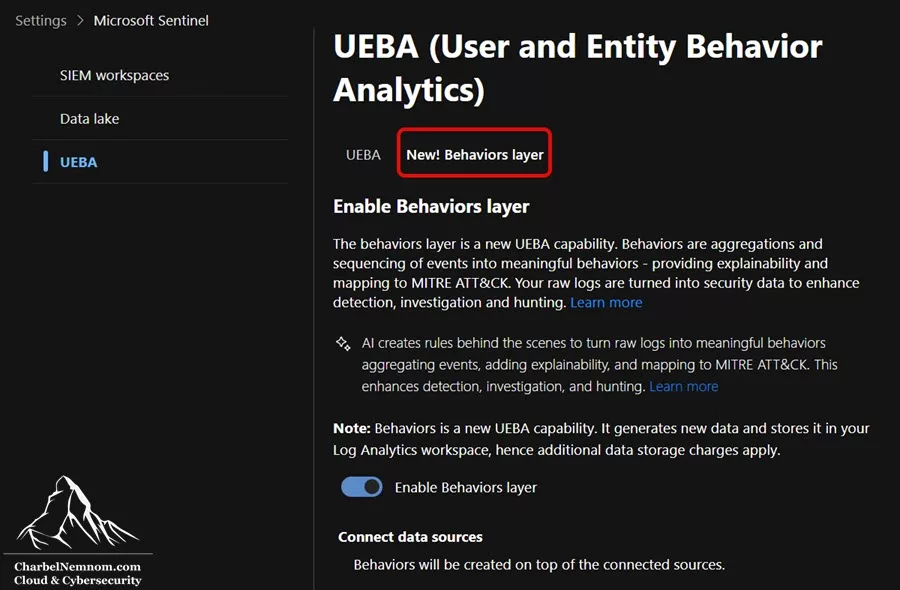
As a side note, there is no extra license cost for UEBA, but it does create new tables in your Log Analytics workspace, so additional data storage charges apply.
Things to Keep in Mind
A few points to keep in mind:
1. Activation is not migration. Activating a Sentinel workspace in Unified RBAC does not carry over your Azure RBAC assignments. Import your roles first, then activate. Microsoft explicitly supports importing roles before activation, which avoids the access gap we ran into.
2. Once enabled, URBAC is the source of permissions. Sentinel experiences in the Defender portal continue to respect ARM roles in addition to URBAC, so a user with broader Azure permissions can still see more data than their URBAC role implies. But for an activated workspace, Microsoft’s own guidance is to make sure the right permissions are set up in URBAC. Do not assume that broad Azure permissions will carry over to every page.
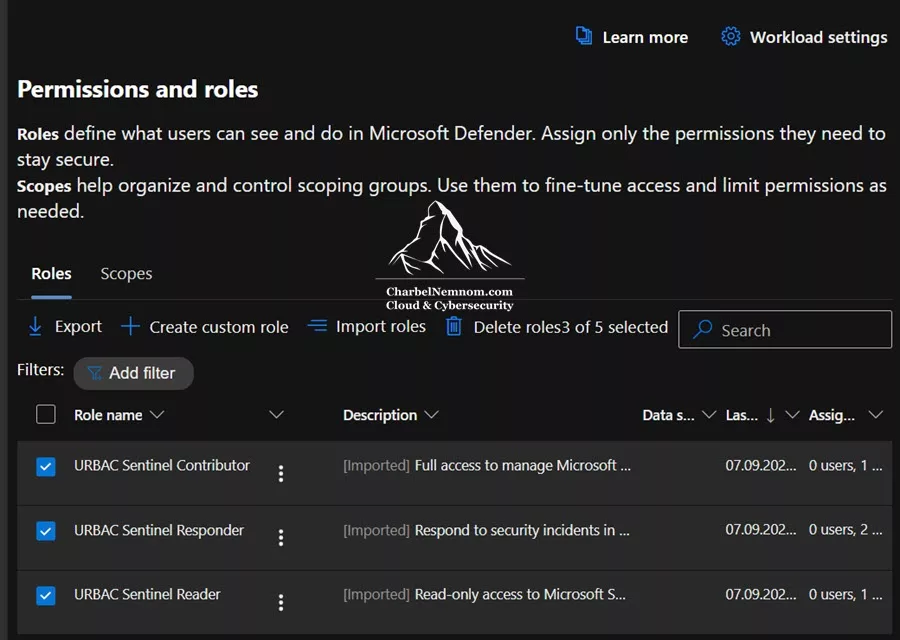
3. Role assignments sync back to Azure. Sentinel role assignments you make in Unified RBAC are synchronized with Azure RBAC and remain visible there, so importing your roles does not fragment your access model into two disconnected views.
4. Global Administrator is not a shortcut. In Unified RBAC, being a Global Administrator does not automatically grant you permissions over workspaces. It grants you the right to assign permissions, including to yourself.
5. Watch the service principal limitation. When you activate a workspace, the Defender portal assigns the User Access Administrator role to the MTP Unified RBAC app in the enabled workspace. Assigning permissions to a service principal in Microsoft Sentinel is not supported in Unified RBAC. If you need this capability, do not activate Sentinel in Unified RBAC yet, and continue using Azure RBAC.
Update (October 2026): Since we published this article, Microsoft has lifted the GDAP limitation. The Microsoft Sentinel workspace management page in the Defender portal now lists only service principals as unsupported, and the Unified RBAC documentation states that assigning permissions to a GDAP user group in Microsoft Sentinel is supported. When you create a custom role, you can now select GDAP remote tenant groups synchronized through a governance relationship. At the time of writing, the Activate Unified RBAC documentation still lists GDAP user groups as unsupported.
6. Some roles are still Azure-only. As of this writing, the Microsoft Sentinel Playbook Operator, Automation Contributor, and Workbook Contributor roles are not available in Unified RBAC and continue to be managed in the Azure portal.
7. Avoid making permission changes in Azure after activation. Once Unified RBAC is active for a workspace, manage Sentinel permissions in the Defender portal. Changing them in Azure afterward can lead to sync errors, which surface as a notification on the Permissions page.
8. This will stop being optional. We activated Sentinel in Unified RBAC manually, as an early opt-in. Microsoft has since announced that tenants will be auto-enabled into Defender Unified RBAC, with legacy roles imported automatically after an in-portal notification period. If that rollout reaches your tenant first, the import is handled for you. If you are activating manually today, ahead of it, the import is your responsibility.
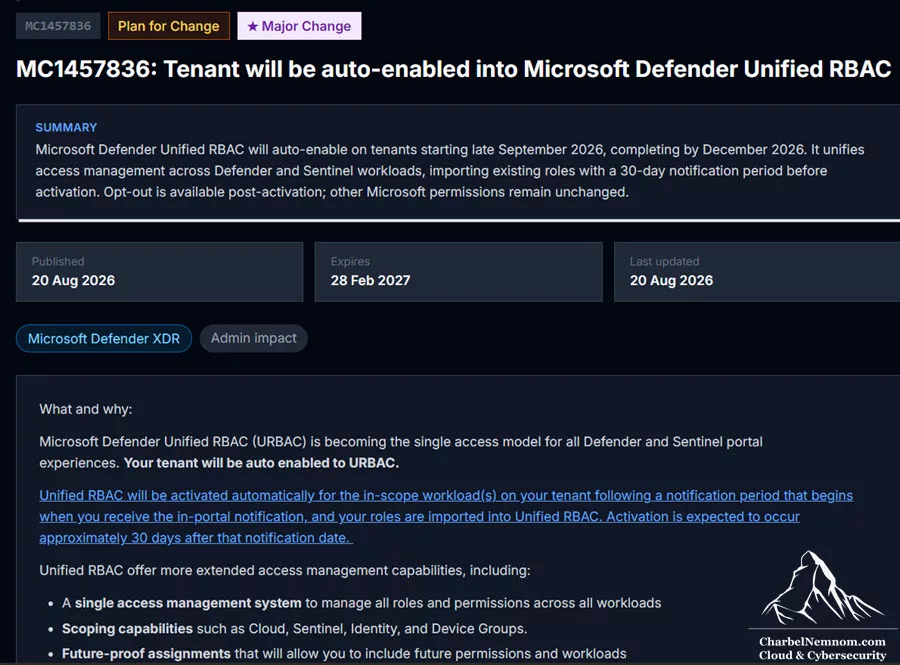
This is based on the official Message Center post MC1457836 – Tenant will be auto-enabled into Microsoft Defender Unified RBAC. Microsoft Defender Unified RBAC will auto-enable on tenants starting in late September 2026, completing by December 2026. It unifies access management across Defender and Sentinel workloads, importing existing roles with a 30-day notification period before activation. Opt-out is available post-activation; other Microsoft permissions remain unchanged.
Conclusion
As of this writing, and based on our testing, Microsoft has not changed this behavior, and the Import roles step remains the fix.
The “We couldn’t find the requested workspace” error under the UEBA tab is a misleading message for what is really a role model mismatch. Your workspace can be connected, primary, active in Unified RBAC, and onboarded to the data lake, and you can still be locked out of the UEBA configuration page simply because your Microsoft Sentinel roles only exist in Azure RBAC and never made it into the Defender Unified RBAC model.
The timing is the clearest indicator. If UEBA worked before you activated the workspace and stopped working right after, this is not a product bug. The permissions model changed, as documented, with an error message that does not say so.
Importing the Microsoft Sentinel roles, and specifically the Microsoft Sentinel Contributor role, into Microsoft Defender XDR resolves it immediately and preserves your existing assignments.
If you are planning your transition to the Defender portal before the March 31, 2027 deadline, add “import Sentinel roles into Unified RBAC” to your migration checklist, and do it before you activate your workspaces. This takes a couple of minutes and avoids the access gap described in this article.
Hope this helps someone out there facing the same issue!
Remember, you can always support us in developing tools and creating content via Why Contribute? – Charbelnemnom.com Cloud & Cybersecurity
__
Thank you for reading our blog.
Please let us know in the comments section below if you have any questions or feedback.
-Charbel Nemnom-

Hi Charbel. Amazing write-up. Reading through it made me realise we got it covered only by accident, because we had previously assigned URBAC permissions to everything (including Sentinel) to our “onboarding” account, so didn’t have the issue you described, but that’s definitely something to be aware of!
One question if I may – on point 5 (GDAP limitations) – have you tried the new Tenant Governance relationship and the new ability to assign URBAC roles to Remote Tenant Groups (including Sentinel now) ? I am currently testing it but, since the online resources on this is very scarce, would love to see some hi-quality review from you ;D Thanks!
Hi Davide,
Thanks for the kind words, and for sharing that. Assigning URBAC roles to your onboarding account upfront is exactly why you didn’t hit the issue.
Good catch on point 5. Microsoft has changed this since we published. The Microsoft Sentinel workspace management page in the Defender portal now lists only service principals as unsupported in Unified RBAC, and the Unified RBAC documentation states that assigning permissions to a GDAP user group in Microsoft Sentinel is supported. Custom roles also include the new Remote tenant group option.
One thing to watch while testing: the governance relationships guide still assigns Sentinel roles to remote tenant groups through Azure RBAC on the resource group, while the custom roles path does it through URBAC. I’d validate both and confirm which one grants the access you need in the Defender portal.
I’ve updated point 5 accordingly, and a dedicated write-up is on my list.
Hope this helps!