
Updated — 20/08/2025 — The tool below has been updated to create Microsoft Sentinel Data Lake tier tables, which are the same as Auxiliary tier Tables.
Updated — 15/07/2025 — Starting 1 May 2025, Microsoft will begin billing for queries and search jobs on logs ingested into the Auxiliary Logs plan. Querying Auxiliary Logs will be charged $0.005 per GB of data scanned (US East), and Search jobs on Auxiliary Logs will incur a cost of $0.005 per GB of data scanned (US East) plus search results ingestion costs.
Updated — 15/07/2025 — Starting 1 April 2025, Auxiliary Logs will be generally available (GA). Ingestion billing will begin at $0.15 per GB (US East), and long-term retention billing will be at $0.02 per GB (US East).
The new Auxiliary Logs tier, powered by Azure Data Lake Storage Gen2, offers a cost‑effective solution for storing high‑volume, low‑fidelity data sets with flexible long‑term retention. Nearly one year after the release of the Auxiliary logs, Microsoft has announced a public preview that introduces Data Collection Rule (DCR) transformations for Auxiliary Logs. This long-awaited feature enables organizations to filter, reshape, and route logs before they are stored in Auxiliary storage, thereby reducing costs. This guide walks you through each step, from planning and prerequisites to implementation, for:
- Creating and configuring auxiliary‑tier tables
- Copying the schemas of existing tables
- Defining DCR transformations for custom and platform logs
- Splitting streams between Analytics and Auxiliary tiers. The exact process will also apply to the Basic tier if required
Table of Contents
Auxiliary Logs Use Cases and Benefits
The typical Auxiliary‑Tier use cases are:
- High‑volume forensic data: NetFlow, proxy, firewall, IoT, and cloud storage access logs
- Audit and compliance archives: Long‑term retention of system and application audit logs
- Cost‑sensitive telemetry: Performance counters, verbose diagnostic streams
With transformations, you can filter and exclude irrelevant records (e.g., debug or benign events), field extraction by parsing raw JSON or key‑value blobs into structured columns, or route only critical events to the Analytics tier, while archiving the rest to the Auxiliary Logs tier. This will help to optimize ingestion costs and query performance by shaping data at collection time.
Prerequisites
To follow this article, you need to have the following:
1) Azure subscription – If you don’t have an Azure subscription, you can create one here for free.
2) Log Analytics workspace – To create a new workspace, follow the instructions to create a Log Analytics workspace.
3) Enable Microsoft Sentinel at no additional cost on an Azure Monitor Log Analytics workspace for the first 31 days; follow the quick onboarding process. Once Microsoft Sentinel is enabled on your Azure Monitor Log Analytics workspace, every GB of data ingested into the workspace can be retained at no charge for 90 days.
4) Azure role assignments and permissions:
- Microsoft Sentinel Contributor
- Monitoring Contributor to create and edit Data Collection Rules (DCRs) on the subscription
- Log Analytics Contributor to edit the workspace
5) Transformations on Auxiliary Logs, currently in public preview, are available in all Azure commercial regions (excluding special clouds) that support Azure Monitor.
6) The logs you want to process and transform into the Auxiliary tier are already being collected via one of the following methods:
- Azure Monitor Agent (AMA)
- Diagnostic Settings for Azure resources
- Azure Monitor Log Ingestion API
7) Familiarity with Kusto Query Language (KQL) for transformation definitions.
Pricing
Starting 1 April 2025, Auxiliary Logs became generally available (GA). Ingestion billing will begin at $0.15 per GB (US East), and long-term retention billing will be at $0.02 per GB (US East).
Starting 1 May 2025, Microsoft will begin billing for queries and search jobs on logs ingested into the Auxiliary Logs plan. Querying Auxiliary Logs will be charged $0.005 per GB of data scanned (US East), and Search jobs on Auxiliary Logs will incur a cost of $0.005 per GB of data scanned (US East) plus search results ingestion costs.
Creating Auxiliary‑Tier Tables
As of today, we can only use the REST API to create a custom table with the Auxiliary plan. Hopefully, Microsoft will enable this capability using the Azure portal, Defender portal, Azure CLI, and PowerShell.
To make things easier and faster, we will use Azure PowerShell to make REST API calls using the Azure Monitor Tables API to create a custom table with the Auxiliary plan.
I have created the following PowerShell function that will automate the entire process for you. This function will also copy the schema of an existing standard table that you specify, which might be required for data splitting scenarios. Example: Optimize Costs Using Ingestion-Time Transformation for Fortinet Logs in Microsoft Sentinel.
function Create-AuxCustomTable {
    <#
    .SYNOPSIS
        Creates or updates an Auxiliary (Data Lake) custom table in Azure Log Analytics.

    .DESCRIPTION
        This function allows you to create a new Auxiliary (Data Lake) custom table in Azure Log Analytics or update an existing table
        by copying the schema of a specified source table.

    .NOTES
        File Name : Create-AuxCustomTable.ps1
        Author    : Microsoft MVP/MCT - Charbel Nemnom
        Version   : 1.1
        Date      : 17-June-2025
        Updated   : 20-August-2025
        Requires  : PowerShell 7.4.x (Core)
        Module    : Az Module

    .LINK
        To provide feedback or for further assistance please visit:
        https://charbelnemnom.com

    .PARAMETER workspaceResourceId
        The resource id of the Log Analytics workspace.
        /subscriptions/subscription-Id/resourceGroups/rg-name/providers/Microsoft.OperationalInsights/workspaces/workspace-name

    .PARAMETER SourceTableName
        The name of the source table to copy the schema from.

    .PARAMETER AuxTableName
        The name of the new Auxiliary (Data Lake) custom table to create (suffix _CL will be appended automatically).

    .PARAMETER AuxTableDescription
        A description for the new Auxiliary (Data Lake) custom table.

    .PARAMETER TotalRetention
        Total long-term retention period for the new Auxiliary (Data Lake) table in days between (30-4383).

    .EXAMPLE
        Create-AuxCustomTable `
         -WorkspaceResourceId "/subscriptions/00000000-0000-0000-0000-000000000000/resourceGroups/MyResourceGroup/providers/Microsoft.OperationalInsights/workspaces/MyWorkspace" `
         -SourceTableName "CommonSecurityLog" `
         -AuxTableName "AuxTable" `
         -AuxTableDescription "AuxTableDescription" `
         -TotalRetention 365
    #>

    param (
        [Parameter(Position = 0, Mandatory = $true, HelpMessage = 'Enter Log Analytics Workspace Resource Id')]
        [ValidateNotNullOrEmpty()]
        [string]$WorkspaceResourceId,

        [Parameter(Position = 1, Mandatory = $true, HelpMessage = 'Enter the source table Name')]
        [ValidateNotNullOrEmpty()]
        [string]$SourceTableName,

        [Parameter(Position = 2, Mandatory = $true, HelpMessage = 'Enter the Auxiliary (Data Lake) custom table Name')]
        [ValidateNotNullOrEmpty()]
        [string]$AuxTableName,

        [Parameter(Position = 3, Mandatory = $true, HelpMessage = 'Enter the description for the new Auxiliary (Data Lake) custom table')]
        [ValidateNotNullOrEmpty()]
        [string]$AuxTableDescription,

        [Parameter(Position = 4, Mandatory = $true, HelpMessage = 'Enter the total retention period for the Auxiliary (Data Lake) table in days between [30-4383]')]
        [ValidateRange(30, 4383)]
        [int]$TotalRetention
    )

    #! Define Variables
    $tableType = "auxiliary"
    #! Define the Preview API Version to use for Log Analytics
    $apiVersion = "?api-version=2023-01-01-preview"

    #! Install Az Module If Needed
    function Install-Module-If-Needed {
        param([string]$ModuleName)

        if (Get-Module -ListAvailable -Name $ModuleName) {
            Write-Host "Module '$($ModuleName)' already exists, continue..." -ForegroundColor Green
        }
        else {
            Write-Host "Module '$($ModuleName)' does not exist, installing..." -ForegroundColor Yellow
            Install-Module $ModuleName -Force  -AllowClobber -ErrorAction Stop
            Write-Host "Module '$($ModuleName)' installed." -ForegroundColor Green
        }
    }

    #! Install Az Accounts Module If Needed
    Install-Module-If-Needed Az.Accounts

    #! Check Azure Connection
    Try {
        Write-Verbose "Connecting to Azure Cloud..."
        Connect-AzAccount -WarningAction SilentlyContinue -ErrorAction Stop | Out-Null
    }
    Catch {
        Write-Warning "Cannot connect to Azure Cloud. Please check your credentials. Exiting!"
        Break
    }

    # Create the authentication token
    $context = Get-AzContext
    if (-not $context) {
        throw "No Azure context found. Please re-authenticate."
    }
    $tokenRequest = [Microsoft.Azure.Commands.Common.Authentication.AzureSession]::Instance.AuthenticationFactory.Authenticate($context.Account, $context.Environment, $context.Tenant.Id, $null, "Never", $null, "https://management.azure.com/")
    if (-not $tokenRequest) {
        throw "Failed to obtain access token. Please check your authentication."
    }
    $AzureAccessToken = $tokenRequest.AccessToken
    $AuthenticationHeader = New-Object "System.Collections.Generic.Dictionary[[String],[String]]"
    $AuthenticationHeader.Add("Content-Type", "application/json")
    $AuthenticationHeader.Add("Authorization", "Bearer $AzureAccessToken")

    # Getting original source table schema
    Write-Output "[Getting source table schema for $sourceTableName...]"
    $tableManagementAPIUrl = "https://management.azure.com$workspaceResourceId/tables/$sourceTableName" + "$($apiVersion)"
    $response = Invoke-RestMethod -Uri $tableManagementAPIUrl -Method Get -Headers $AuthenticationHeader -ErrorAction Stop
    $columns = $response.properties.schema.columns

    # For standard tables we need to look into standard and custom columns separately
    if ($sourceTableName -notlike "*_CL") {
        $columns += $response.properties.schema.standardColumns
    }

    # Removing reserved column names from the schema
    Write-Output "[Removing reserved column names from the schema...]"
    $columnsNameToRemove = @("TenantId", "SourceSystem")
    # Removing dynamic column type from the schema. Tables with the Auxiliary plan don't support columns with dynamic data.
    Write-Output "[Removing dynamic column type from the schema...]"
    $columnsTypeToRemove = @("dynamic")
    $updatedColumns = $columns | Where-Object { $columnsNameToRemove -notcontains $_.name -and $columnsTypeToRemove -notcontains $_.type }

    # Construct table parameters
    Write-Output "[Constructing the Auxiliary table parameters...]"
    $customAuxTableName = $auxTableName + "_CL"
    $TableParams = @{
        properties = @{
            schema               = @{
                name        = $customAuxTableName
                description = $auxTableDescription
                columns     = $updatedColumns
            }
            totalRetentionInDays = $TotalRetention
            plan                 = $tableType
        }
    }

    # Convert table parameters to JSON
    Write-Output "[Converting table parameters to JSON...]"
    $TableParamsJson = $TableParams | ConvertTo-Json -Depth 4

    # Create or update the table
    Write-Output "[Creating/Updating Auxiliary table $customAuxTableName...]"
    $Response = Invoke-AzRestMethod -Path "$workspaceResourceId/tables/${customAuxTableName}$($apiVersion)" -Method PUT -Payload $TableParamsJson

    if ($Response.StatusCode -eq 200 -or $Response.StatusCode -eq 202) {
        Write-Output "[Success] Auxiliary Table '$customAuxTableName' created/updated successfully."
    }
    else {
        Write-Error "Failed to create/update the table. Status code: $($Response.StatusCode)"
        if ($Response.Content) {
            $ErrorDetails = $Response.Content | ConvertFrom-Json
            Write-Error "Error Code: $($ErrorDetails.error.code)"
            Write-Error "Error Message: $($ErrorDetails.error.message)"
        }
    }
}
I have recorded a quick video to illustrate the entire process, which allows you to specify a source table, e.g., CommonSecurityLog and create a new Auxiliary (Data Lake) custom table in Azure Log Analytics workspace or update an existing table by copying the schema of a specified source table.
Make sure you “dot source” the entire script before running it, as follows: . .\Create-AuxCustomTable.ps1 because this is a PowerShell function. Note that the suffix _CL will be automatically appended to the Auxiliary table name; there’s no need to add it manually.
Configuring DCRs for Custom‑Log Ingestion
Sending transformed custom logs into a table in the Auxiliary tier does not require any special arrangements on the data collection side. To transform custom logs via the Azure Monitor Ingestion API into Auxiliary-tier tables, take the following steps:
1. In your Azure Log Analytics Workspace, create a custom table in the Auxiliary tier as described in the previous section (Creating Auxiliary‑Tier Tables).
2. Next, configure your Data Collection Endpoint (DCE) and Data Collection Rule (DCR) using the following tutorial (Send data to Azure Monitor using Logs ingestion API). Remember to use the custom table in the Auxiliary tier you created at Step 1 as an outputStream in your DCR, as shown in the example below.
3. Here is an example of a dataFlows section of the DCR. Notice the streams, destinations, transformKql and outputStream. Remember that standard tables must include “Microsoft-” in front of them and “Custom-” for custom tables.
"dataFlows": [
    {
        "streams": [ "Custom-MyRawLog_CL" ],
        "destinations": [ "la-1107757644" ],
        "transformKql": "source",
        "outputStream": "Custom-MyAuxLog_CL"
    }
]
4. As shown in the example below, you can apply additional clauses to filter or parse:
source
| parse RawMessage with DateTime:string \t Level:string \t Message:string
| where Level == 'Error'
| project DateTime, Message
5. Deploy the DCR, then send logs via the API. They will be ingested into the table in the Auxiliary tier you created.
Routing AMA‑Collected Logs
Another scenario is sending a stream of standard logs, such as Windows events or Syslog, using Azure Monitor Agent (AMA), into a custom table in the Auxiliary tier. For example, to send performance counters to a table in the Auxiliary tier, take the following steps:
Note: This scenario is not related strictly to Sentinel, as Windows events and performance counters are verbose and will generate a lot of logs. Organizations have different needs for logs, so it’s strongly recommended when planning a Microsoft Sentinel deployment to classify the security data from non-security data. However, you can use this approach with an Azure Log Analytics workspace without Sentinel enabled.
1. In your Azure Log Analytics Workspace, create a custom table in the Auxiliary tier as described in the previous section (Creating Auxiliary‑Tier Tables).
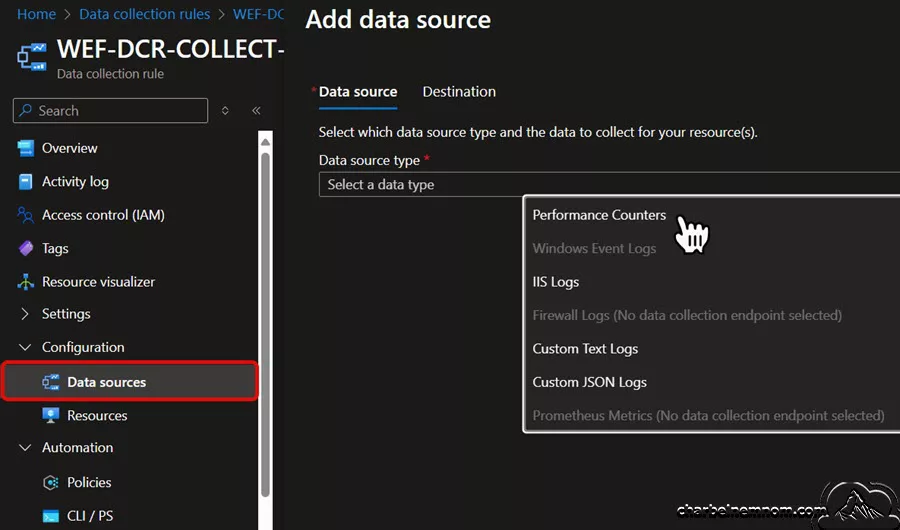
2. Configure the collection of performance counters from your resources, as shown in the figure below.
3. In the Azure portal or via ARM, modify the dataFlows section of your DCR, as shown in the example below.
"dataFlows": [
    {
        "streams": [ "Microsoft-Perf" ],
        "destinations": [ "la-1107757644" ],
        "transformKql": "source",
        "outputStream": "Custom-PerfAuxLog_CL" }
]
4. Save and deploy the DCR—your VMs will now send performance counters to the Auxiliary tier table, as configured.
Routing Diagnostic‑Setting Logs
Another scenario is that you can route logs from your Azure resources governed by using Diagnostic Settings to a table in the Auxiliary tier. Take the following steps:
1. Ensure Diagnostic Settings are enabled on target resources (e.g., Storage Accounts).

2. Next, ensure that the logs flow to the default (standard) Azure Log Analytics workspace table (e.g., StorageFileLogs, StorageBlobLogs), as shown in the figure below.

3. In your Azure Log Analytics Workspace, create a custom table in the Auxiliary tier using the source table, e.g., StorageFileLogs as described in the previous section (Creating Auxiliary‑Tier Tables).

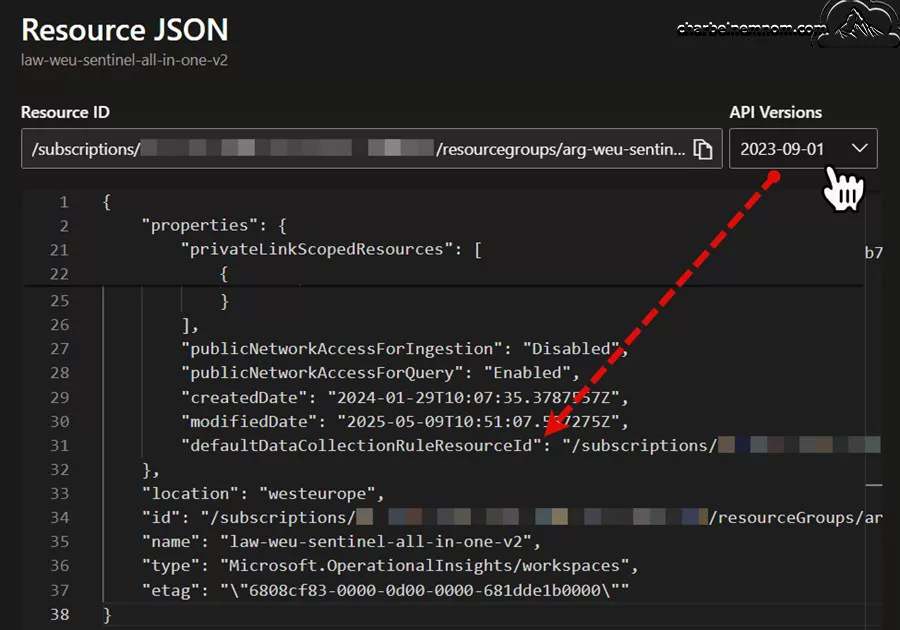
4. Next, locate the default DCR associated with your Log Analytics workspace by examining its ARM representation (for example, by selecting “JSON View” on the Overview page of the Log Analytics workspace resource). Please select the API version “2023-09-01” to view the workspace object, as shown in the figure below. The default DCR resource ID will be listed in the property defaultDataCollectionRuleResourceId.
5. Optional Step: If the default DCR at Step 4 hasn’t been previously created for your workspace, you can follow these steps to create one DCR and associate it with the workspace. If you are using the Azure portal to perform these steps, navigate to the “Tables” page within your Log Analytics workspace and choose the “Create transformation” option from the context menu next to the table where your logs are sent, e.g., StorageFileLogs, as shown in the figure below.

Next, follow the wizard to create a default Data Collection Rule (DCR), as shown in the figure below. You can leave the transformation unchanged or choose the filter you want to apply in the wizard. You can also filter the data by using the transformKql when you modify and edit the DCR (see Step 6 below).

Note: You can create only one workspace transformation DCR per Log Analytics workspace. You can use the same DCR to create multiple transformations for different tables by adding multiple streams under the dataFlows section.
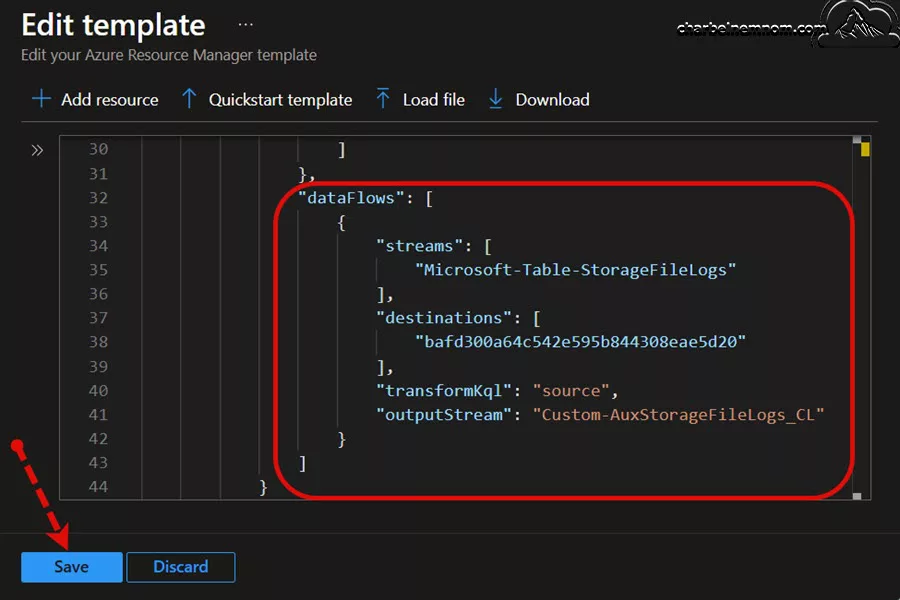
6. Then, edit and modify the default or the newly created DCR of your Log Analytics workspace to route your logs to the Auxiliary table you created at Step 3 above. In this example, we would like to route our StorageFileLogs data to an Auxiliary table named AuxStorageFileLogs_CL, so we need to add (or edit) the following dataFlows section in our default DCR. Remember that standard tables must include “Microsoft-Table” in front of them and “Custom-” for custom tables.
Note: The “destinations“: [ XXXXXX] name will be different in your environment, and it will be the same for all transformations that you include within the workspace transformation DCR.
"dataFlows": [
    {
        "streams": [
            "Microsoft-Table-StorageFileLogs"
        ],
        "destinations": [
            "bafd300a64c542e595b844308eae5d20"
        ],
        "transformKql": "source | where Category != \"StorageRead\"",
	"outputStream": "Custom-AuxStorageFileLogs_CL"
    }
]
7. Last, save and deploy the DCR—the StorageFileLogs will now send the logs to the new Auxiliary tier table AuxStorageFileLogs_CL, as shown in the figure below.

Note: Running a query on an Auxiliary log includes an additional cost. Starting 1 May 2025, Microsoft will begin billing for queries and search jobs on logs ingested into the Auxiliary Logs plan. Querying Auxiliary Logs will be charged $0.005 per GB of data scanned (US East), and Search jobs on Auxiliary Logs will incur a cost of $0.005 per GB of data scanned (US East), including search results ingestion costs.
Routing AWS CloudTrail Logs
Another scenario is sending AWS CloudTrail logs into a custom table in the Auxiliary tier. For example, you can send a specific set of logs or route all the logs to a table in the Auxiliary tier and disregard the original Analytics tier table created by the AWS data connector. Take the following steps:
1. First, you have to install the Amazon Web Services solution from the Content hub, then enable the Amazon Web Services S3 data connector, and select the destination table (i.e., AWSVPCFlow, AWSCloudTrail, AWSCloudWatch, etc.).

2. Next, in your Azure Log Analytics Workspace, create a custom table in the Auxiliary tier as described in the previous section (Creating Auxiliary‑Tier Tables). This will clone the existing schema of the Analytics table “AWSCloudTrail“. In this example, the custom Auxiliary table is called “AWSCloudTrail_Aux_CL“.

3. If you don’t have a workspace transformation DCR created for your workspace, then you need to create workspace transformations by navigating to the “Tables” page within your Log Analytics workspace and choosing the “Create transformation” option from the context menu next to the Analytics table “AWSCloudTrail” where your AWS logs are getting ingested, as described in the previous section (Routing Diagnostic‑Setting Logs).
Note: You can create only one workspace transformation DCR per Log Analytics workspace. You can use the same DCR to create multiple transformations for different tables by adding multiple streams under the dataFlows section.
4. Then, edit and modify the default or the newly created workspace transformation DCR of your Log Analytics workspace to route your AWSCloudTrail logs to the Auxiliary table you created at Step 2 above. In this example, we want to route all the AWSCloudTrail logs to an Auxiliary table named AWSCloudTrail_Aux_CL, so we need to add (or edit) the following dataFlows section in our default DCR. Remember that standard tables must include “Microsoft-Table-” in front of them and “Custom-” for custom tables.
Note: The “destinations“: [ XXXXXX] name will be different in your environment, and it will be the same for all transformations that you include within the workspace transformation DCR.
{
    "streams": [
        "Microsoft-Table-AWSCloudTrail"
    ],
    "destinations": [
        "bafd300a64c542e595b844308eae5d20"
    ],
    "transformKql": "source | where false"
},
{
    "streams": [
        "Microsoft-Table-AWSCloudTrail"
    ],
    "destinations": [
        "bafd300a64c542e595b844308eae5d20"
    ],
    "transformKql": "source",
    "outputStream": "Custom-AWSCloudTrail_Aux_CL"
}
What we are doing here is using the logical operator “where false” to evaluate the data. If the condition is true, everything proceeds as normal. However, if it is false, the corresponding row will be skipped. Since we specify that everything is false “source | where false“, then all rows will be skipped for the default AWSCloudTrail table and redirected to the AWSCloudTrail_Aux_CL custom table instead.
5. Last, save and deploy the DCR—the AWSCloudTrail will now send all the logs to the new Auxiliary tier table AWSCloudTrail_Aux_CL.
💡 Tip: You can verify what data sources are part of your default workspace transformation by going to the DCR (Kind = WorkspaceTransforms) > Configuration > Data sources, as shown in the figure below.

Splitting Streams Between Different Tiers
Logs can be split between tables in different tiers (Analytics, Basics, and Auxiliary tiers) using the same method as splitting within the same tier. A detailed description of the log splitting technique can be found in the following article (Optimize Costs Using Ingestion-Time Transformation for Fortinet Logs). Essentially, this process involves implementing two data flows for the same input stream, each directed to different output streams.
KQL transformations are applied to establish mutually exclusive (or, if desired, overlapping) filters for each output stream, as shown in the example below.
"dataFlows": [
     {
        "streams": [
            "Microsoft-Table-StorageFileLogs"
        ],
        "destinations": [
            "bafd300a64c542e595b844308eae5d20"
        ],
        "transformKql": "source",
        "outputStream": "Custom-AuxStorageFileLogs_CL"
        },
        {
        "streams": [
            "Microsoft-Table-StorageFileLogs"
        ],
        "destinations": [
            "bafd300a64c542e595b844308eae5d20"
        ],
        "transformKql": "source | where Category == \"StorageWrite\""
     }
]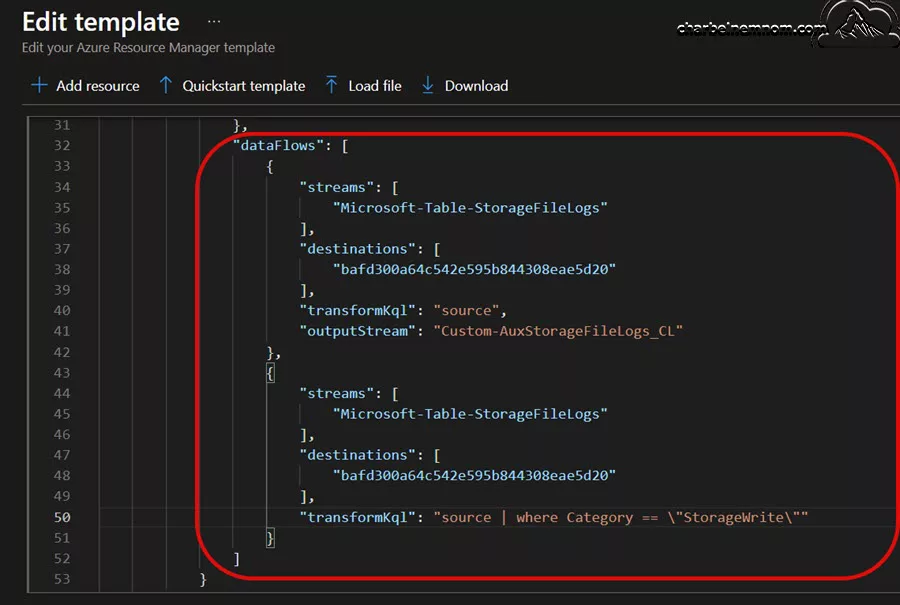
In this example, when directing StorageFileLogs to two different tables, only the StorageWrite events will be retained in the standard table, StorageFileLogs within the Analytics tier, as shown in the figure below.

And all the events like (StorageRead, StorageWrite, StorageDelete, etc.) will be routed to the new Auxiliary tier table AuxStorageFileLogs_CL, as shown in the figure below.

The Analytics table holds only high‑value events; the Auxiliary table archives everything (including high‑value, if desired).
Best Practices and Tips
To make the most of the Auxiliary Logs Transformations while keeping your environment efficient and cost-effective, consider the following best practices for setup, maintenance, and optimization:
* Schema Consistency: Always mirror the schema of standard tables precisely when creating custom tables in the Auxiliary tier. Mismatched columns can result in ingestion failures or malformed data.
* Retention Planning: Choose an appropriate totalRetentionInDays value that balances compliance requirements with cost. Longer retention periods between 30 days and 12 years may be needed for audit or investigation purposes, but come with additional storage costs.
* Filter Early: Use the transformKql in your Data Collection Rules (DCRs) to drop unnecessary fields or rows before ingestion. This reduces storage consumption and query complexity, optimizing both cost and performance.
* Test Incrementally: Start with a small sample of data and validate your table schema, KQL transformations, and routing logic. Once confirmed, scale up the solution to full production streams.
* Monitor Ingestion: Use Microsoft Sentinel Optimization Workbook to track ingestion volume and query costs per table. Ensure to enable auditing and health monitoring (with the Microsoft Sentinel health and audit feature, you can monitor the availability and health of system resources). Monitor ingestion health through Azure Monitor alerts and ensure DCRs function as expected.

* Query Strategically: Leverage both Analytics and Auxiliary tables during Sentinel investigations to get a complete picture of security incidents, without incurring unnecessary query costs.
* Cleanup Unused Resources: Purge unused Auxiliary tables regularly to prevent accumulating charges. Unused tables with long retention policies can lead to unnecessary storage bills.
* Rotate Retention: Review data access patterns and adjust retention periods as needed. For example, reduce the retention window for data that is rarely queried.
* Review DCRs Periodically: Over time, some dataFlows in your DCRs may become stale or redundant. Audit and clean up these configurations to maintain an efficient logging pipeline.
By following these best practices, you can confidently implement Auxiliary Logs in your Microsoft Sentinel environment, achieving operational efficiency and cost savings.
Wrapping Up
The Auxiliary Logs tier in Azure Monitor and Microsoft Sentinel, powered by Azure Data Lake Storage Gen2, provides a powerful, cost-effective solution for managing high-volume, low-fidelity data. By leveraging Data Collection Rules (DCRs) with transformation and routing capabilities, you can now precisely control what data is stored, how it is parsed, and where it lands—whether in the Analytics tier for active monitoring or the Auxiliary tier for long-term retention and audit purposes.
As with any log management strategy, planning is key. Start small, test thoroughly, and align your schema and retention with compliance and operational goals. This feature can drastically reduce costs with thoughtful implementation while preserving access to critical security context.
Remember, you can always support us in developing tools and creating content via Why Donate? – Charbelnemnom.com Cloud & Cybersecurity
__
Thank you for reading our blog.
Please let us know in the comments section below if you have any questions or feedback.
-Charbel Nemnom-
