
Effective access control is the keystone of any secure, well‑managed Microsoft Sentinel deployment. By carefully scoping permissions at each level—from your Azure tenant down to individual log records—you ensure that every user, automation account, or partner has precisely the access they need, and nothing more.
In this article, we’ll explore the various layers of Azure RBAC, examine built-in and custom roles within Sentinel, including the critical and various Microsoft Sentinel roles and permissions, and delve into the newly released granular RBAC capabilities in Azure Monitor Log Analytics.
We’ll also cover Sentinel’s integration with the Microsoft Defender Unified RBAC (URBAC) model—including the new ability to manage Sentinel permissions and import roles directly in the Defender portal—as well as the roles and permissions for the Microsoft Sentinel data lake. By the end, you’ll understand how to apply least-privilege principles across tenants, management groups, subscriptions, workspaces, and even individual log tables and rows.
Table of Contents
Why RBAC Matters in Microsoft Sentinel?
Imagine your security operations center (SOC) configured a set of detection rules and automated playbooks to spot and respond to threats. Then, due to overly broad permissions, a developer or a team accidentally disables those rules, or a misconfigured partner script deletes critical workbooks. Over‑privilege is not a theoretical risk—it happens in the field. By enforcing least privilege through Role-Based Access Control (RBAC) and Attribute-Based Access Control (ABAC):
* You reduce your attack surface. Only the SOC team and designated personnel can modify analytics rules or dismiss incidents; developers and help-desk staff remain in read-only mode.
* You streamline operations. When someone can’t see a workspace or table, they immediately know it’s outside their domain, cutting through confusion.
* You simplify audits. Compliance reviewers can trace which role allowed each action, and approval workflows via Privileged Identity Management (PIM) provide a clear record of who elevated permissions to access Sentinel and why.

* Segregate and control access to data. Organizations emphasize the need for detailed data access control while keeping a centralized logging platform. This allows you to specify user access to particular tables and rows based on business needs. You can also separate data access from control access using Azure Attribute-Based Access Control (ABAC) in your Azure Role-Based Access Control (RBAC) assignments.
The Azure Hierarchy—Your RBAC Foundation
Azure’s authorization model is built on a clear hierarchy. At the top sits your Microsoft Entra ID tenant, the identity store for users, groups, and service principals—much like your on‑premises Active Directory, but entirely API‑driven. Beneath that, management groups enable you to apply governance uniformly across multiple subscriptions, which is critical in large enterprises adopting an enterprise-scale landing zone design.
Within each management group, subscriptions act as billing and security boundaries. For instance, you might have separate subscriptions for “Production,” “Development,” and “Security‑Monitoring”. Inside a subscription, resource groups group related resources—say, the “rg-logs-prod-sec-001” contains all assets for your production Sentinel workspace, and the “rg-logs-dev-sec-001” includes all assets for your test and development Sentinel workspace. Finally, the resources themselves (Log Analytics workspaces, Logic Apps, Workbooks, Storage Account, Key Vault, and Function Apps) sit inside those resource groups.
Real‑World Example:
The security operations team uses an “orgabc-sec-001” subscription under a “mg-orgabc-sec” management group. Their Sentinel workspace resides in the “rg-logs-sec-001,” alongside Logic Apps for playbooks and storage accounts for watchlists. Developers in the “DevOps” subscription have no direct visibility into “rg-logs-prod-sec-001”, preventing accidental disruptions.

For highly sensitive roles—such as subscription owners, resource-group contributors, and Sentinel contributors—we must enable Privileged Identity Management (PIM). PIM forces just-in-time elevation: users request higher privileges when needed, approvals are initiated automatically, and access expires after a defined time window.

Ideally, the Microsoft Sentinel workspace should be placed under a dedicated management group that sits directly below the Tenant Root Group and under a dedicated subscription to isolate and segregate role access between the infrastructure team, network team, and security team. Furthermore, no high-privilege RBAC roles should be assigned directly at the Tenant Root Group. Please note that any assignment of user access or policy on the root management group applies to all resources within the directory. Because of this access level, you should evaluate the need to have items defined on this scope. User access and policy assignments should be “must have” only at this scope.

Another question you may ask is why deploy Microsoft Sentinel in a dedicated subscription? Again, for the same reasons mentioned above, plus workload separation and billing, as well as when you transition your Microsoft Sentinel environment to the Defender portal, Microsoft will auto-assign the Microsoft Sentinel Contributor role at the subscription level for the following two Service Principals, as shown in the figure below:
Microsoft Threat ProtectionWindowsDefenderATP
As a side note, Microsoft has officially announced that it is moving to the next phase of the transition, with a target to retire the Azure portal for Microsoft Sentinel by March 31, 2027. The key to this change is to prepare early.

You may wonder why not leverage and apply Azure deny assignments for the Microsoft Sentinel (Built‑in or custom) roles at the subscription or management group scope, so that only the security team has access to Sentinel by using a shared management group or subscription. A bit of context, the Azure deny assignments capability blocks users from performing specific Azure resource actions, even if a role assignment grants them access.
As of this writing, deny assignments are created and managed by Azure to protect resources. You can’t directly create your own deny assignments. However, you can specify deny settings when creating a deployment stack, which creates a deny assignment that is owned by the deployment stack resources. Therefore, having a dedicated subscription and utilizing a Management Group closely tied to Tenant Root for Microsoft Sentinel is the recommended approach to avoid inheriting permissions and policies from elsewhere.
Choosing the Right Scope Level
Azure’s RBAC framework gives you multiple layers at which to grant permissions, from the broadest management‑group level down to individual log records. By picking the appropriate scope, you ensure that teams see and do exactly what they need—no more, no less.
1. Management Group–Level Assignment sits at the top of the hierarchy. When you assign a role at this level, every child subscription and its resources inherit that permission unless you explicitly override it. For example, if the global security team holds the Security Reader role on the “mg-orgabc-sec” management group. As a result, every subscription under that umbrella automatically grants its analysts read‑only access to security policies and alerts, removing the need to replicate assignments in each subscription.
2. Subscription‑Level Assignment applies to all resource groups and resources within a subscription. Granting the Contributor role on the “Production” subscription in the environment, for instance, empowers the central infrastructure team to spin up new virtual machines, configure networking, and provision Log Analytics workspaces—all without additional role assignments at lower scopes.

3. Resource-Level Assignment allows you to refine access further by targeting a specific resource group or even a single resource. In practice, the SOC team is assigned the Sentinel Responder role exclusively on the “Sec‑Monitoring‑RG” resource group. This scope gives them the ability to triage, assign, and dismiss incidents in their Sentinel workspace while completely isolating them from unrelated environments like “Dev‑RG” or “Network‑RG.”

4. Table‑Level and Row‑Level Assignment (Granular RBAC) is the most granular scope, introduced by Azure Monitor Log Analytics. It enables two powerful controls:
a. Table‑Level Access allows you to grant or deny query access to specific tables. For example, Finance analysts can be permitted only to query the FinanceLogs table, while IT operations can query solely the InfrastructureLogs table.
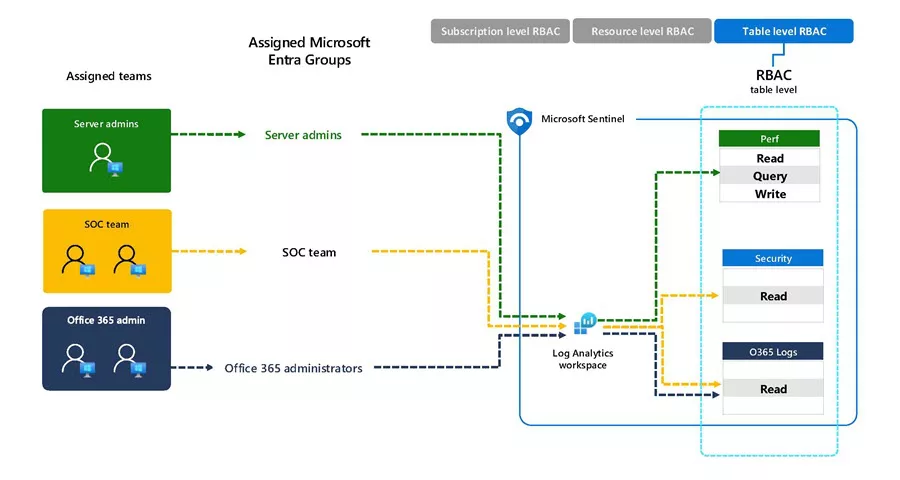
b. Row‑Level Access uses Attribute‑Based Access Control (ABAC) conditions to filter individual records within those tables. Suppose the HR team should see only EmployeeSignin records for their European offices: you define an ABAC condition on EmployeeSignin where OfficeLocation == 'Europe'. Any records outside that region will be hidden from their queries.

By understanding and utilizing the various scopes—management group, subscription, resource, and table—you can create a permission model that is both secure and scalable, aligning with your organization’s structure and compliance needs. Additionally, by combining table-level and row-level Attribute-Based Access Control (ABAC), you can integrate multiple business units into a single central workspace without compromising data isolation. This approach not only simplifies management and reduces costs but also enforces a true least-privilege model right down to each individual log entry.
Mapping Roles to Real‑World Teams
Every organization structures its teams differently; this can vary from one organization to another, but Microsoft Sentinel deployments typically involve multiple stakeholders, each with specific responsibilities and access needs. To apply a least‑privilege access model effectively, it’s critical to map each team’s responsibilities to the appropriate role and scope within Azure.
1. Server Administrators
The server administration team owns the “Production” subscription. These administrators are responsible for provisioning and managing Windows and Linux virtual machines, configuring virtual networks, and overseeing performance monitoring across compute workloads. They are assigned the Azure Contributor role, granting them full access to deploy and manage infrastructure. Logs from virtual machines, collected via the Azure Monitor Agent (AMA), are routed into a central Log Analytics workspace dedicated to monitoring, which differs from the Sentinel workspace that the server team helps maintain from a systems health perspective (CPU, memory, disk, etc.).
2. SOC Analysts
The Security Operations Center (SOC) operates within a dedicated resource group, “Sec‑Monitoring‑RG,” where the Microsoft Sentinel workspace resides. SOC analysts are typically assigned the Sentinel Contributor role at the resource-group level, which allows them to manage incidents, run hunting queries, create analytics rules, configure workbooks, and deploy content from the Sentinel content hub. However, they are intentionally isolated from infrastructure and network layers in other subscriptions, ensuring that their access is focused solely on security detection and response, and not infrastructure configuration.
3. Network Engineers / Network Administrators
Network engineers manage firewalls, NSGs, route tables, VPN gateways, and ExpressRoute circuits across multiple landing zones. Because these components generate security-relevant logs—especially firewall logs—they play a vital role in ensuring telemetry flows properly into Sentinel.
The network team may be granted “Contributor” access on network-specific resource groups or subscriptions (such as “Network-LandingZone”) and “Analytics Reader” or “table-level permissions” to specific tables in the Log Analytics workspace (e.g., CommonSecurityLog, AzureDiagnostics) to verify that network telemetry is being collected correctly.
In scenarios with granular RBAC enabled, we can further restrict network engineers to view only rows in CommonSecurityLog where DeviceVendor matches predefined firewall solutions (e.g., “Check Point”, “SonicWall”, “Fortinet” ) to ensure visibility aligns with their responsibilities. Check the Granular RBAC section below for more information.
4. Office 365 Administrators
The Office 365 administration team primarily manages identity and collaboration workloads. Occasionally, they require access to audit and alert data generated from Microsoft Defender for Office 365 or Microsoft Purview compliance solutions. In these cases, the team is assigned the “Analytics Reader” role, scoped to the Sentinel workspace or directly to relevant tables (e.g., OfficeActivity, SecurityAlert)—allowing them to run targeted Kusto queries without risking configuration drift in Sentinel. This read-only access helps them investigate anomalies such as phishing attempts or suspicious user behavior.
5. Consulting Partners
When the organization engages third-party Managed Security Service Providers (MSSPs) or automation consultants, access is carefully scoped using custom roles. For example, a consulting team tasked with building SOAR playbooks receives a combined role containing Logic App Contributor and Microsoft Sentinel Playbook Operator permissions, limited to the “rg-automation-sec‑001.”
This allows them to create and test Logic App–based playbooks and attach them to Sentinel automation rules, while shielding core detection logic and workspace configurations from changes. Some customers also use Privileged Identity Management (PIM) to enforce time-bound access for external partners. PIM is highly recommended not only to external partners but also for internal SOC teams.

Understanding Microsoft Sentinel’s Built‑In Roles
To streamline role assignment and align with operational responsibilities, Microsoft Sentinel provides a set of built‑in roles tailored for common use cases in security operations. Each role is designed to support specific personas—from auditors and analysts to automation engineers—ensuring precise control over what actions a user can perform within a Sentinel workspace.
Data lake support: These built-in Azure roles now also grant read access to workspace data within the Microsoft Sentinel data lake. When you assign a Sentinel Reader, Responder, or Contributor role at the resource group level, the user automatically receives parallel read permissions in the data lake experiences (such as the lake explorer and notebooks). For more details, see the dedicated Roles and Permissions for the Microsoft Sentinel data lake section below.
| Capability / Action | Sentinel Reader | Sentinel Responder | Sentinel Contributor | Playbook Operator | Automation Contributor |
|---|---|---|---|---|---|
| View incidents, workbooks, analytics rules, and data sources | ✅ | ✅ | ✅ | 🚫 | 🚫 |
| Assign, update, or dismiss incidents | 🚫 | ✅ | ✅ | 🚫 | 🚫 |
| Create or edit analytics rules | 🚫 | 🚫 | ✅ | 🚫 | 🚫 |
| Deploy and configure content hub solutions | 🚫 | 🚫 | ✅ | 🚫 | 🚫 |
| Create or edit workbooks | 🚫 | 🚫 | ✅ | 🚫 | 🚫 |
| Execute existing playbooks (Logic Apps) | 🚫 | 🚫 | ✅ | ✅ | ✅ (used by Sentinel) |
| Create, modify, or delete playbooks | 🚫 | 🚫 | 🚫 | 🚫 | ✅ (used by Sentinel) |
| Manage automation rules (SOAR) | 🚫 | 🚫 | ✅ | 🚫 | ✅ (used by Sentinel) |
| Intended for | Auditors / View-only users | L1 Analysts | SOC Architects / L2 Analysts / Content Engineers | SOC users / Response automation | Sentinel (Service Principal only) |
—Sentinel Reader—
This role is ideal for auditors, compliance officers, or stakeholders who need visibility into Sentinel activity but should not have the ability to make changes. Users with this role can view incidents, rules, workbooks, and connected data sources, making it perfect for read‑only access in governance or oversight scenarios.
—Sentinel Responder—
Designed for operational analysts, the Sentinel Responder role extends Reader capabilities by allowing users to take action on incidents. They can assign incidents to other users, update incident status, add comments, and dismiss false positives. The Tier 1 (L1) SOC analysts are typically assigned this role to handle daily triage and first‑level response without risking configuration changes.
—Sentinel Contributor—
This role provides full operational control over the Sentinel workspace, combining the permissions of both Reader and Responder roles, as well as the ability to create and edit analytics rules, automation rules, and workbooks. It is suited for Tier 2 (L2) SOC analysts, detection engineers, and security architects responsible for building and tuning detection content, as well as managing the workspace’s operational readiness.
—Sentinel Playbook Operator—
This role is explicitly focused on automation; the Playbook Operator role allows users to trigger existing Logic Apps (used for SOAR workflows) without modifying or creating them. This is especially useful for service accounts, response bots, or Tier 1 analysts who need to execute predefined automation actions—such as isolating a machine or sending notifications—without access to the underlying logic or code.
—Sentinel Automation Contributor—
This role grants full permissions over Logic Apps and is primarily used by Microsoft Sentinel itself to attach playbooks to automation rules. It enables the Sentinel service to create, update, and manage automation workflows as part of its Security Orchestration, Automation, and Response (SOAR) capabilities. The Automation Contributor role is not intended for user accounts. Instead, it should be assigned to Microsoft Sentinel under the Playbook permissions section when configuring automation rules that use Logic Apps, ensuring the service has the necessary permissions to execute and manage those playbooks during incident response.

Best Practice: Assign Sentinel built‑in roles at the resource group level, specifically the group that contains your Sentinel workspace and related assets (like Logic Apps or workbooks). It’s also recommended to place your playbooks in a dedicated resource group, separate from the resource group designated for the Sentinel workspace. Scoping roles this way ensures clear boundaries, minimizes over‑permissioning, and simplifies audits and access reviews.
💡 Tip: If you need to assign multiple capabilities—for example, let a partner build and test playbooks without touching detection rules—you can combine Playbook Operator with Logic App Contributor using a custom role.
Azure and Log Analytics Roles That Influence Sentinel Access
While Microsoft Sentinel includes a set of purpose-built roles tailored for security operations, it does not operate in isolation. Sentinel is built on top of core Azure infrastructure services—most notably Azure Resource Manager and Log Analytics—which means that general Azure RBAC and Log Analytics permissions can still impact what users can see and do within a Sentinel workspace.
Azure RBAC Roles
As mentioned previously, Azure’s built-in roles—such as Owner, Contributor, and Reader—apply at multiple scopes: management group, subscription, resource group, or individual resource level. These roles grant control-plane permissions that can unintentionally override Sentinel-specific RBAC boundaries.
For example, if you assign a user the Contributor role at the subscription level, they gain broad access to create, modify, or delete resources—including Sentinel workspaces, analytics rules, automation rules, and connected solutions. Even if your intent was to limit this user to read-only access in Sentinel (via the Sentinel Reader role), the broader Contributor assignment would take precedence, giving them more power than intended.
Log Analytics Roles
Since Sentinel stores and queries data through Log Analytics, two key roles influence what users can access at the data layer:
- Log Analytics Reader – Grants read-only access to logs and workspace data. Users with this role can view logs through workbooks or existing queries, but cannot modify or save new queries.
- Log Analytics Contributor – Provides the ability to run queries, create and save new query templates, and manage workspace configurations related to logs.
These roles are particularly relevant when users are expected to query log data without modifying Sentinel configurations. For example, an Office 365 administrator might be granted Log Analytics Reader access on the Sentinel workspace, or more precisely, at the OfficeActivity table level, to review email security logs without affecting any security content or automation rules.
By keeping access scoped appropriately, you reduce the risk of privilege escalation, minimize configuration errors, and maintain cleaner audit trails across your security operations environment.
Azure Logic Apps That Influence Sentinel Access
Automation in Microsoft Sentinel relies on Azure Logic Apps, which serve as the backbone for SOAR (Security Orchestration, Automation, and Response) functionality. Whether triggered by an incident, an analytics rule, or manually by an analyst, Logic Apps enable Sentinel to automate threat response activities across Microsoft and third-party systems.
However, successful use of playbooks in Sentinel depends heavily on proper access to Logic Apps—both for the Sentinel service itself and for users configuring or executing automation workflows.
Playbooks in Sentinel are built using Azure Logic Apps and fall into two types:
- Consumption Logic Apps – Classic single-tenant Logic Apps that execute per action (pay-per-execution).
- Standard Logic Apps – More advanced, containerized apps offering better performance and isolation (built on Azure Functions v4).
The type of Logic App you choose affects both deployment requirements and RBAC (role-based access control) needed for users and Sentinel to interact with it.
🔑 Required Roles for Logic Apps in Sentinel
The following table describes the required roles based on whether you select a Consumption or Standard Logic App to create your playbook:
| Action | Consumption Logic App | Standard Logic App |
|---|---|---|
| Create or edit the playbook |
Logic App Contributor or Contributor on RG |
Contributor or Logic App Contributor on RG |
| View the Logic App |
Reader or Logic App Contributor on RG |
Same as Consumption |
| Run the playbook manually |
Playbook Operator role + Logic App Operator on RG |
Playbook Operator + Logic App Operator on RG |
| Allow Sentinel to trigger the playbook | Sentinel must have the Automation Contributor role on the resource group containing the Logic App | Same – Automation Contributor required |
🔐 Note: In both cases, Automation Contributor enables Sentinel (as a service principal) to link and trigger the playbook in response to alerts or automation rules.
🧩 Who Can Create, Attach, and Run Sentinel Playbooks?
To create and operate playbooks in Microsoft Sentinel using Azure Logic Apps, different roles are required at different stages of the automation lifecycle—whether you’re building, triggering, or running playbooks manually. Here’s a breakdown:
| Role | Purpose / Permissions |
|---|---|
| Owner | Grants full access to the resource group, including the ability to delegate access (not Sentinel-specific). |
| Microsoft Sentinel Contributor | Allows users to create and attach a playbook to an analytics rule or automation rule. |
| Microsoft Sentinel Responder | Grants access to view and manage incidents, but cannot run playbooks manually. Often used by Tier 1 SOC analysts. |
| Microsoft Sentinel Playbook Operator | Allows a user to run an attached playbook manually from an incident. This is often paired with limited Logic App permissions. |
| Microsoft Sentinel Automation Contributor | Required for Microsoft Sentinel (the service) to trigger playbooks automatically through automation rules. Should be assigned to Sentinel on the Logic App’s resource group. |
🔐 Important Clarification: Even if a user has Sentinel Contributor, they cannot run a playbook manually unless they are also assigned the Playbook Operator role and have adequate Logic App permissions on the resource group.
📘 Example: Assigning Roles for a Standard Logic App
If you create a Standard playbook named IsolateMachineOnIncident, the following assignments are needed:
* The Sentinel service must be assigned Automation Contributor on the resource group Sec-Automation-RG.
* A SOC analyst who needs to run the playbook manually from an incident page must be assigned:
-
Playbook Operator(Sentinel role on workspace) -
Logic App OperatororLogic App Contributoron the Logic App’s resource group.
* An automation engineer developing and maintaining the playbook should be assigned:
-
Logic App ContributororContributoron the resource group.
🔒 Quick Reference: Sentinel Playbook Role Matrix
The following table describes the required roles and purpose through the lens of the Microsoft Sentinel playbook and automation:
| Role | Purpose | Required Scope | Can Create Playbooks | Can Attach to Rules | Can Trigger Automatically | Can Run Manually from Incident |
|---|---|---|---|---|---|---|
| Owner | Full access, including role assignments and delegation | Resource Group | ✅ Yes | ✅ Yes | ✅ Yes | ✅ Yes |
| Microsoft Sentinel Contributor | Create/edit analytics rules, automation rules, and attach playbooks | Sentinel Workspace | ✅ Yes (if combined with Logic App Contributor) | ✅ Yes | ❌ No | ❌ No |
| Microsoft Sentinel Responder | Investigate and manage incidents | Sentinel Workspace | ❌ No | ❌ No | ❌ No | ❌ No |
| Microsoft Sentinel Playbook Operator | Manually run playbooks from incidents | Sentinel Workspace | ❌ No | ❌ No | ❌ No | ✅ Yes (if Logic App Operator permissions also assigned) |
| Microsoft Sentinel Automation Contributor | Allows Sentinel service to trigger playbooks via automation rules | Resource Group (of Logic App) | ❌ No | ❌ No | ✅ Yes | ❌ No |
| Logic App Contributor | Create, edit, and manage Logic Apps | Resource Group | ✅ Yes | ❌ No | ❌ No | ✅ Yes (if paired with Playbook Operator) |
| Logic App Operator | Run Logic Apps without editing | Resource Group | ❌ No | ❌ No | ❌ No | ✅ Yes (if paired with Playbook Operator) |
⚙️ Best Practices for Managing Logic App Permissions and Role Assignments
1. Use the Right Role Combinations: Ensure users have both Sentinel-level roles (like Playbook Operator) and Logic App–level roles. A common misstep is giving only Sentinel permissions and wondering why the playbook won’t run.
2. Scope Access at the Resource Group Level: Assign roles such as Automation Contributor and Logic App Contributor at the resource group containing your playbooks. This simplifies management and reduces risk.
3. Prefer Managed Identities for Playbook Actions: Use system-assigned or user-assigned managed identities in Logic Apps to authenticate securely against services like Microsoft Graph, Defender for Endpoint, or third-party APIs.
4. Audit and Monitor Usage: Enable diagnostic logging on Logic Apps and use the AzureDiagnostics and WorkflowRuntime logs in Sentinel to track executions, failures, and access attempts.
5. For Sentinel-initiated automation (triggered by rules): Assign Automation Contributor to Sentinel on the Logic App’s resource group.
6. For analysts running playbooks manually: Assign Playbook Operator on the Sentinel workspace, and Logic App Operator on the Logic App’s resource group.
7. For automation engineers building playbooks: Assign Logic App Contributor and Sentinel Contributor roles.
Creating Custom Roles for Specialized Access Scenarios
While Microsoft Sentinel’s built-in roles cover many operational use cases, they may not always align perfectly with your organization’s unique access requirements. For example, you may want to grant access for a partner to manage and test playbooks without exposing sensitive analytics rules, or you may need to limit log visibility to a specific table. In such cases, creating a custom role allows you to mix and match permissions to suit very specific use cases.
Step-by-Step: How to Build a Custom Role
You begin by cloning an existing built-in role or creating a new one from scratch using the Azure portal’s Access Control (IAM) interface or through IaC. Custom roles allow you to define precisely which permissions (actions and data actions) are granted.

Next, you define control-plane actions that determine what a user can do with Azure resources at a configuration level. For a custom role focused on Sentinel or Log Analytics, you might include the following actions. Create the general data access role with the following actions and data actions at the resource group level:
-
Microsoft.OperationalInsights/workspaces/read– to view the Log Analytics workspace. -
Microsoft.OperationalInsights/workspaces/query/read– to run queries against the workspace. -
Microsoft.OperationalInsights/workspaces/search/action– Perform search jobs within the workspace. -
Microsoft.OperationalInsights/workspaces/analytics/query/action– Execute advanced analytics queries. -
Microsoft.OperationalInsights/workspaces/tables/query/read– List and read table definitions in the workspace.
These control-plane permissions are often necessary for users or services to view or query workspace structure, even if they do not have access to the underlying log data.
In addition to control-plane actions, we need data-plane actions for granular RBAC to control access to the actual log data stored in the workspace. For users who need to run or interact with data queries, include the following data-plane action:
-
Microsoft.OperationalInsights/workspaces/tables/data/read– Allows you to provide read data access to workspaces, or more fine-grained data entities, such as specific tables or rows.
Without this permission, users can open the query interface, but won’t be able to see results from the log tables.
🔐 Important: Data access is governed separately from configuration access. A role may need both control-plane and data-plane actions to function correctly, depending on the task.
To apply least-privilege principles, assign the custom role at the most specific level possible, preferably to an individual Table(s), Log Analytics workspace, or resource group. Avoid assigning custom roles at the subscription level unless necessary for centralized automation or compliance tooling.
Real-World Example: Partner Playbook Operator
A trusted partner is brought in to implement automated response playbooks using Azure Logic Apps. Rather than over-privileging the partner with a Contributor role, we need to define a custom role called “Partner Playbook Operator“.
This role includes:
Control-plane actions to allow workspace and Logic App visibility:
Microsoft.OperationalInsights/workspaces/readMicrosoft.SecurityInsights/automationRules/readMicrosoft.SecurityInsights/automationRules/writeMicrosoft.Logic/*
Data-plane actions to allow only restricted table-level access (if needed):
Microsoft.OperationalInsights/workspaces/tables/data/read- Plus ABAC conditions (more on this below) for specific tables, such as
CommonSecurityLog
The partner can deploy and manage playbooks linked to Sentinel automation rules, but cannot delete automation rules, modify analytics rules, edit workbooks, or access unrelated log data.

By defining custom roles with this level of precision, organizations can safely delegate access to partners, automation systems, or specific internal teams while preserving tight control over sensitive security content and operations.
Custom Roles for the Microsoft Sentinel data lake
When it comes to the Microsoft Sentinel data lake, custom roles follow a different model. Instead of using Azure custom roles (which apply to the SIEM/Log Analytics layer), you should use Microsoft Defender XDR Unified RBAC custom roles for data lake-specific access.
| Scope | Custom Role Type |
|---|---|
| Microsoft Sentinel SIEM access (workspace, analytics rules, incidents, etc.) | Azure custom roles |
| Microsoft Sentinel data lake access (lake explorer, notebooks, KQL jobs) | Defender XDR Unified RBAC custom roles |
This distinction is important because the data lake is accessed through the Defender portal, where Unified RBAC governs permissions. For table-level or row-level access within the SIEM layer, continue using Azure RBAC with granular RBAC conditions as described in the previous sections.
For data lake operations—such as running KQL queries against lake data, managing scheduled jobs, or writing output to specific workspaces—use the corresponding Unified RBAC or Microsoft Entra ID roles covered in the Roles and Permissions for the Microsoft Sentinel data lake section below.
Data Connectors and Repositories Permissions
Microsoft Sentinel’s power lies in its ability to aggregate telemetry from a wide array of Microsoft and third-party sources. But enabling those connections—and integrating with DevOps pipelines—requires the right combination of Azure and Entra ID permissions. Without them, onboarding data or enabling automation through content repositories can fail or cause incomplete visibility.
🔌 Data Connector Permissions
Each Microsoft Sentinel data connector has specific permission requirements, often tied to the source system or subscription scope. Here are the most common ones:
| Connector Type | Required Role / Scope |
|---|---|
| Azure Activity Logs |
Owner role on the subscription or management group where activity logs originate. This allows you to set up diagnostic settings for forwarding logs using Azure Policy. |
| Microsoft Entra ID Logs |
Global Administrator or Security Administrator in Entra ID. Required to onboard sign-in and audit logs. |
| Microsoft 365 Defender |
Security Administrator in Entra ID. Required to connect Defender for Endpoint, Identity, Office 365, and Cloud Apps. |
| Defender for Cloud |
Security Reader, Contributor, or Security Admin role on each subscription you intend to monitor. |
| Microsoft 365 Logs |
Global Administrator or Security Administrator in Entra ID. Required to authorize the Microsoft 365 (formerly, Office 365) Management Activity API. |
📦 Repository Integration (GitHub & Azure DevOps)
Microsoft Sentinel supports native integration with source control platforms, such as GitHub and Azure DevOps, allowing security teams to version control analytic rules, workbooks, hunting queries, and automation assets. Connecting a repository to Sentinel requires elevated permissions at the resource group level.
To connect Microsoft Sentinel to a GitHub or Azure DevOps repository, one of the following permission models must be in place:
-
Option 1:
Ownerrole on the resource group containing the Sentinel workspace. -
Option 2 (Least Privilege):
User Access Administrator+Microsoft Sentinel Contributoron the resource group.
This allows the user to grant consent and configure the GitHub or Azure DevOps repository connection under Microsoft Sentinel > Repositories in the Azure or Defender portal.
🔐 Repository access itself (e.g., Collaborator access to a GitHub repository or Project Administrator access to an Azure DevOps project) must also be granted during setup, so ensure your user identity has sufficient access in the connected GitHub or Azure DevOps project.
🧩 Aligning Permissions with Operational Needs
As your security operations center (SOC) grows in complexity, consider grouping responsibilities as follows:
| Task | Recommended Role | Scope |
|---|---|---|
| Configure data connectors |
Security Admin / Global Admin / Owner
|
Subscription / Management Group |
| Manage Sentinel content (rules, workbooks) | Microsoft Sentinel Contributor |
Resource Group |
| Connect Sentinel to GitHub / DevOps |
Owner or User Access Administrator + Contributor
|
Resource Group |
| Manage Entra and M365 connectors |
Security Admin or Global Admin (Entra ID) |
Entra Tenant |
By assigning these roles with intentional scoping, you ensure secure, auditable onboarding of log sources and development pipelines, without over-privileging users across your cloud environment.
Granular RBAC in Microsoft Sentinel
With the introduction of Granular Role-Based Access Control (RBAC) in Azure Monitor Log Analytics, organizations can now enforce fine-grained access controls on a single workspace, reducing operational overhead while maintaining strong data isolation. This shift significantly enhances least-privilege access models without requiring teams to manage multiple Log Analytics workspaces.
Why Use Granular RBAC?
In the past, many organizations created separate workspaces per team or department—such as Finance, HR, or IT—to prevent sensitive data leakage. While this strategy preserved privacy, it increased complexity, storage costs, and made cross-workspace analysis difficult.
Granular RBAC addresses these challenges by enabling:
- Table-level access – Users can only see the tables relevant to their role (e.g., Finance can view FinanceLogs; IT sees InfrastructureLogs).
- Row-level access – Filters apply at the individual record level (e.g., HR analysts can query employee sign-ins, but only for their geographic region).
- Clear separation of control and data planes – Admins define who can run queries (control plane) independently from what data they can see (data plane), ensuring transparency and auditability.
A single Log Analytics workspace can now serve multiple departments securely, streamlining configuration while maintaining strict access control boundaries.
Real-World Example: Two Approaches to Access Control
🛡️ Scenario A – Restrictive Access for Network Operations
The Network Operations team manages several firewall platforms, including Check Point, Fortinet, and SonicWall, and only requires visibility into relevant logs from those vendors.
The implementation will be to create a custom role called “Sentinel Network Device Team” that includes the following:
Actions:
Microsoft.OperationalInsights/workspaces/readMicrosoft.OperationalInsights/workspaces/query/read
DataActions:
Microsoft.OperationalInsights/workspaces/tables/data/read

Then, the custom role is assigned to the NetworkOps Entra ID security group. Now, during the assignment of the custom role to the Sentinel workspace, an action and a restrictive condition are added to grant access only when:
(
 (
  !(ActionMatches{'Microsoft.OperationalInsights/workspaces/tables/data/read'})
 )
 OR
 (
  (
   @Resource[Microsoft.OperationalInsights/workspaces/tables:name] StringEquals 'CommonSecurityLog'
   AND
   @Resource[Microsoft.OperationalInsights/workspaces/tables/record:DeviceVendor<$key_case_sensitive$>] ForAnyOfAnyValues:StringLikeIgnoreCase {'Fortinet', 'Check Point', 'SonicWall'}
  )
 )
)
Please note that it may take up to 15 minutes for effective permissions to take effect. The NetworkOps team can query the CommonSecurityLog table, but only see records related to their firewalls. Logs from other sources (e.g., Palo Alto) are automatically excluded.
🔎 Scenario B – Broad Visibility with Protected Executive Data
The Tier 1 Security Analysts require access to most security events, but must be restricted from viewing sensitive data related to Executive, Legal, and HR logins.
The implementation will be to create a custom role called “Tier 1 Security Analysts” that includes the same actions and data actions as before:
Actions:
Microsoft.OperationalInsights/workspaces/readMicrosoft.OperationalInsights/workspaces/query/read
DataActions:
Microsoft.OperationalInsights/workspaces/tables/data/read

Then, the custom role is assigned to the T1SecurityAnalysts Entra ID security group. During the assignment of the custom role to the Sentinel workspace, an action and a permissive condition are added to prevent access records for the UPN or device name of the Executive, Legal, and HR personnel. Here’s how the permissive condition looks in code form:
(
 (
  !(ActionMatches{'Microsoft.OperationalInsights/workspaces/tables/data/read'})
 )
 OR
 (
  @Resource[Microsoft.OperationalInsights/workspaces/tables:name] ForAnyOfAllValues:StringNotEquals {'SigninLogs', 'DeviceEvents'}
  OR
  (
   @Resource[Microsoft.OperationalInsights/workspaces/tables:name] StringEquals 'SigninLogs'
   AND
   @Resource[Microsoft.OperationalInsights/workspaces/tables/record:UserPrincipalName<$key_case_sensitive$>] StringNotEquals 'exec@domain.com'
   AND
   @Resource[Microsoft.OperationalInsights/workspaces/tables/record:UserPrincipalName<$key_case_sensitive$>] StringNotEquals 'legal@domain.com'
   AND
   @Resource[Microsoft.OperationalInsights/workspaces/tables/record:UserPrincipalName<$key_case_sensitive$>] StringNotEquals 'hr@domain.com'
  )
  OR
  (
   @Resource[Microsoft.OperationalInsights/workspaces/tables:name] StringEquals 'DeviceEvents'
   AND
   @Resource[Microsoft.OperationalInsights/workspaces/tables/record:Computer<$key_case_sensitive$>] StringNotEquals 'ExecDevice'
   AND
   @Resource[Microsoft.OperationalInsights/workspaces/tables/record:Computer<$key_case_sensitive$>] StringNotEquals 'LegalDevice'
   AND
   @Resource[Microsoft.OperationalInsights/workspaces/tables/record:Computer<$key_case_sensitive$>] StringNotEquals 'HRDevice'
  )
 )
)
Please note that it may take up to 15 minutes for effective permissions to take effect. The Tier 1 security analysts can investigate incidents broadly; however, Sentinel queries silently exclude any logs tied to Executives, Legal, and HR sign-ins or devices.
Monitoring and Troubleshooting Granular RBAC
Once configured, administrators can validate and monitor these controls through two key mechanisms, as follows:
- Azure Activity Logs and AzureActivity Table – Every role assignment and condition change is recorded, providing a reliable audit trail for governance and compliance.
-
LAQueryLogs Table – Run a test query and check the ‘
LAQueryLogs | sort by ConditionalDataAccess‘ column. This will indicate whether the query was executed with an applicable attribute-based access control (ABAC) data access condition and if the condition encountered an error. The following LAQueryLogs table query lists the users who ran the most queries in the last week:
LAQueryLogs
| where TimeGenerated > ago(7d)
| summarize events_count=count() by AADEmail
| extend UserPrincipalName = AADEmail, Queries = events_count
| join kind= leftouter (
    SigninLogs)
    on UserPrincipalName
| project UserDisplayName, UserPrincipalName, Queries
| summarize arg_max(Queries, *) by UserPrincipalName
| sort by ConditionalDataAccess, Queries desc
For the AzureActivity and LAQueryLogs Tables, you must enable logs using the diagnostics settings for the subscription where the Sentinel workspace is deployed, as well as in the Log Analytics workspace.

⚠️ Tip: Table names, column names, and values in conditions are case-sensitive. Even a small typo can result in denied access or a 400 Bad Request error.
Granular RBAC brings powerful, attribute-based access control to Log Analytics and Microsoft Sentinel. Whether you’re isolating records for compliance or customizing visibility for a specific role, this feature enables you to centralize logs without compromising on security or data sovereignty.
Microsoft Sentinel Access in the Unified SecOps Platform
With the convergence of Microsoft Sentinel into the Unified Security Operations platform (Microsoft Defender), security teams now benefit from a single pane of glass across incident response, investigation, and automation workflows. While this integration brings visual and operational cohesion, it’s essential to understand how Microsoft Sentinel roles and permissions function in this unified SecOps experience—especially with the introduction of Unified RBAC (URBAC) support for Sentinel.
Sentinel Permissions Can Now Be Managed in the Defender Portal
Previously, although Microsoft Sentinel was accessible from the Defender portal at security.microsoft.com, its permissions were exclusively governed by Azure RBAC and ABAC. This has changed significantly.
Microsoft Sentinel is now supported in the Microsoft Defender Unified RBAC (URBAC) model. This means:
• Sentinel permissions can now be managed directly in the Microsoft Defender portal, without the need to switch to the Azure portal for access management. This includes data lake support.
• Unified permissions model: You can manage user privileges for Sentinel and other Defender workloads (Defender for Endpoint, Defender for Office 365, Defender for Identity, etc.) in a single, consistent system.
• Future-proof scoping: Assignments can automatically include future data sources and workspaces as they’re added.
• Azure RBAC still works: Sentinel experiences in the Defender portal continue to respect ARM roles and permissions in addition to URBAC. Therefore, users with more permissions in ARM than in URBAC may see more data in the Sentinel pages in the Defender portal than is configured in their URBAC permissions.
How Sentinel Roles Map to Unified RBAC Permissions
To enable Sentinel roles in Unified RBAC, you need to assign the matching Unified RBAC permissions. Without the exact mapping below, the corresponding Sentinel role will not be enabled.
| Sentinel Role | Unified RBAC Permissions |
|---|---|
| Microsoft Sentinel Reader | Security operations \ Security data basic (read) |
| Microsoft Sentinel Responder |
Security operations \ Security data basic (read) + Security operations \ Alerts (manage) + Security operations \ Response (manage)
|
| Microsoft Sentinel Contributor |
Security operations \ Security data basic (read) + Security operations \ Alerts (manage) + Security operations \ Response (manage) + Authorization and settings \ Detection tuning (manage)
|

For detailed sample permission mappings that include additional Azure roles and Defender XDR roles for different security personas (Security Analysts, Security Engineers, Security Architects), refer to the Microsoft Learn mapping reference page.
Import Roles: Simplify Your Migration to Unified RBAC
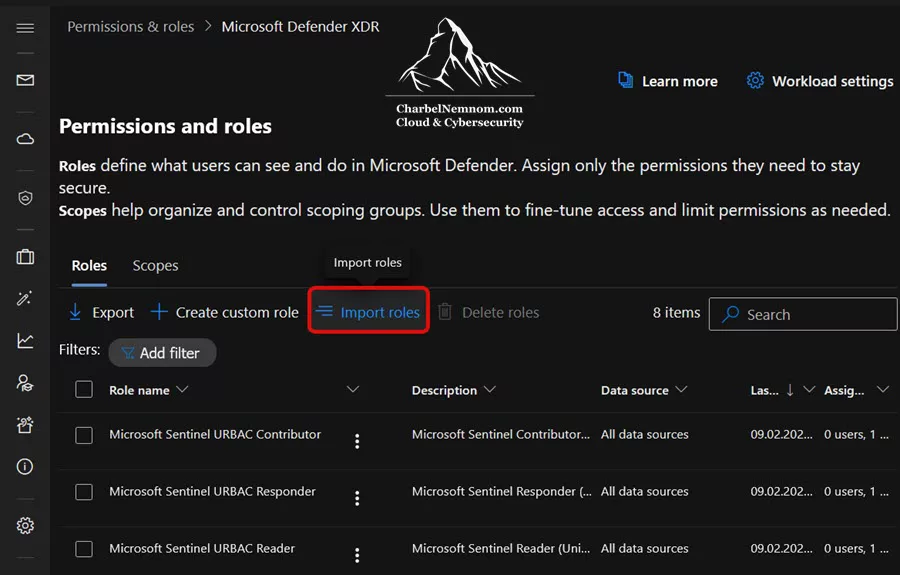
To make the transition to Unified RBAC smoother, Microsoft has introduced the ability to import existing Sentinel roles directly into the Unified RBAC model. This saves you time and effort compared to recreating them manually. Importing roles is relatively easy, as follows:
1. Navigate to the Permissions page in the Defender portal and select Defender XDR → Roles.
2. Click the “Import roles” button at the top of the roles page, as shown in the figure below.
3. Select Microsoft Sentinel as the product to import from.
4. Next, select the desired Log Analytics workspace to import roles from.
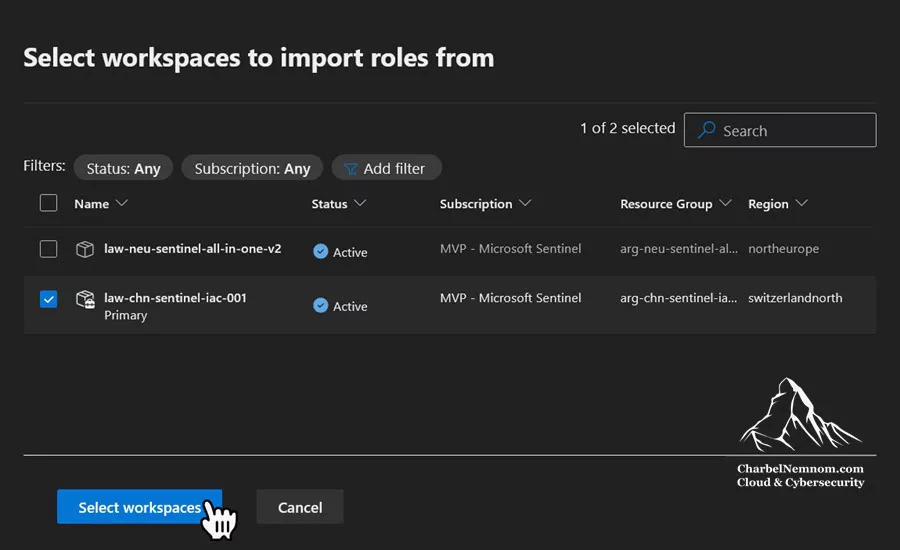
5. Next, choose the specific roles you want to import from the list, and then click Next.
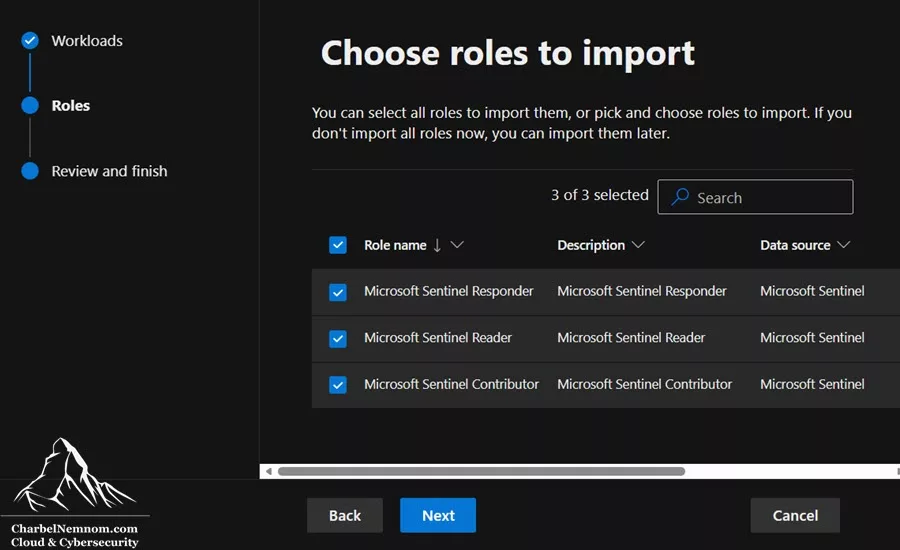
6. Last, Review and finish, and then submit.
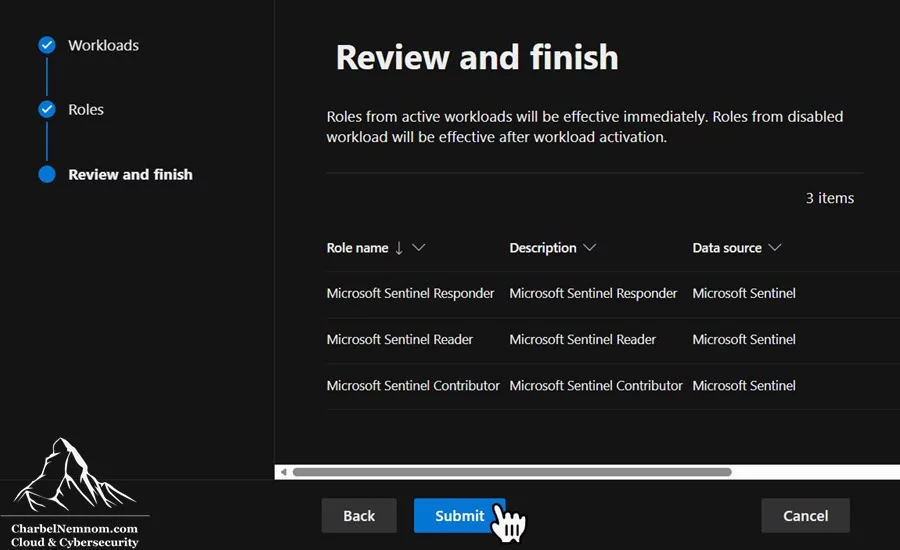
This action re-creates any role assignments for the roles you selected, preserving full parity in permissions and user assignments. The imported roles appear in the Permissions and roles list and are marked as “Imported” in the description. Once you edit an imported role, it is no longer marked as imported.
Tip: You can import roles before activating Sentinel in Unified RBAC. This ensures that your roles are already in place for a seamless transition, so no access gaps occur when you switch.
>Note: If a role you want to import contains assignments for users or groups that no longer exist in Microsoft Entra ID, it will appear in the “Roles not eligible for import” list. Remove the stale user or group from the role in the original Azure RBAC model before importing.
Step-by-Step: Activate Unified RBAC for Sentinel
To activate a Microsoft Sentinel workspace in Unified RBAC, you need:
- Security Administrator role in Microsoft Entra ID
-
AND one of the following:
- Subscription Owner, OR
- User Access Administrator + Sentinel Contributor on the workspace
Once you have the right permissions, take the following steps:
1. Sign in to the Microsoft Defender portal, and then navigate to System → Permissions.
2. Under Microsoft Defender XDR, select Roles.
3. Click “Activate workloads” from the banner or select Workload settings at the top of the page.
4. Then, under Permissions and roles, select “Manage workspaces” under Microsoft Sentinel.
5. Select the desired workspace(s) to enable URBAC on.
6. Last, click “Activate workspaces” and confirm, as shown in the figure below.
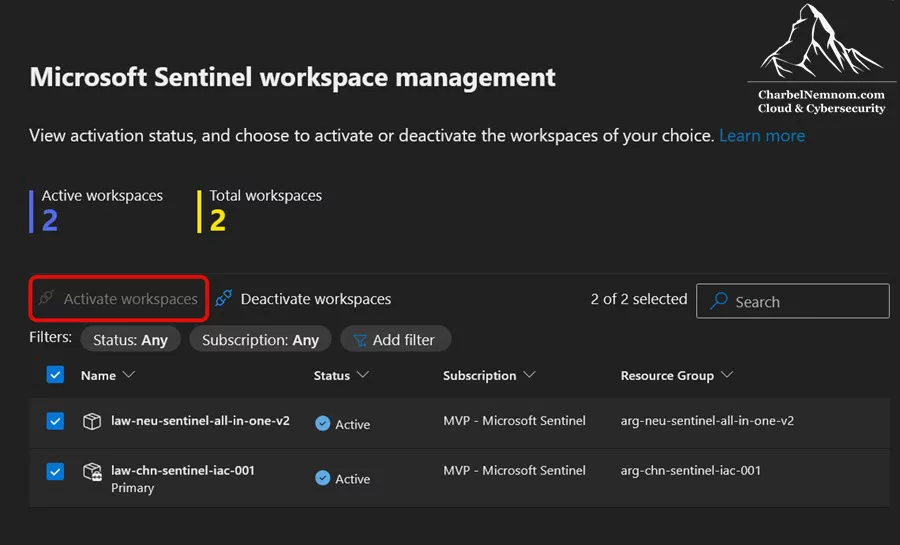
Tip: Start with a pilot workspace and a small group of users to validate assignments. Create the roles first, and activate Sentinel on URBAC only after—this ensures a seamless transition.
Important Considerations and Limitations
As you plan your Microsoft Sentinel access in the unified SecOps platform, note the following important points:
1. Roles not yet supported in URBAC: As of this writing, the Microsoft Sentinel Playbook Operator, Automation Contributor, and Workbook Contributor roles are not yet available in Unified RBAC. These continue to be managed in the Azure portal.
2. Avoid Azure portal changes after activation: Once URBAC is activated for a Sentinel workspace, use URBAC to manage Sentinel permissions. Making permission changes in Azure after URBAC is active may lead to sync errors. If this happens, a notification will appear on the Permissions page in the Defender portal with instructions on how to resolve it.
3. Global Administrator does not grant automatic permissions: In URBAC, being a Global Administrator does not grant you automatic permissions over workspaces. It does grant you the right to assign permissions, including to yourself.
4. Workspace-level scoping: Permissions are currently set at the workspace level. More granular (row-level) scoped access control within URBAC is under development and will be introduced separately.
5. Deactivation is possible: You can deactivate Unified RBAC for Sentinel in the Defender portal’s workload settings. This reverts to legacy Sentinel roles and their associated access controls, which are managed in Azure.
6. Azure RBAC and URBAC coexistence: Sentinel experiences in the Defender portal respect both ARM roles and URBAC permissions. Users with more permissions in ARM than in URBAC may see more data than what is configured in URBAC. Plan your role alignment accordingly.
Practical Example
Suppose your SOC team uses the Defender portal to centrally manage security operations. The following updated access model applies using Unified RBAC:
Tier 1 analysts are assigned:
• A Unified RBAC role with Security operations \ Security data basic (read) + Security operations \ Alerts (manage) + Security operations \ Response (manage) permissions, scoped to the relevant Sentinel workspaces — equivalent to Microsoft Sentinel Responder.
• Microsoft Sentinel Playbook Operator in Azure (since this role is not yet in URBAC) to run automation.
• Optionally, a Unified RBAC role for Defender for Endpoint with live response permissions.
Automation engineers are assigned:
• A Unified RBAC role with Security operations \ Security data basic (read) + Security operations \ Alerts (manage) + Security operations \ Response (manage) + Authorization and settings \ Detection tuning (manage) permissions — equivalent to Microsoft Sentinel Contributor.
• Logic App Contributor in Azure for playbook development.
Authorization administrators are assigned:
• A Unified RBAC role with Authorization and settings \ Authorization (Read and manage) permissions — this role allows you to manage URBAC roles and permissions, replacing the need for Global Administrator or Security Administrator Entra ID roles for day-to-day permission management.
These users access both Defender and Sentinel incidents from one interface. With Unified RBAC active, most Sentinel permissions are centrally managed in the Defender portal, while playbook-related roles remain in Azure.
Best Practice: Authorization Role in Unified RBAC
As a best practice, you can create a custom role for Authorization in Unified RBAC. This means a role for somebody who will be creating any new Unified RBAC permissions. By doing so, you can remove global Entra ID roles (such as Global Administrator or Security Administrator) that are no longer needed for day-to-day permission management, and use a specific Unified RBAC role for authorization instead.

Granular RBAC in the Unified Portal
As of this writing, the granular Role-Based Access Control (RBAC) at the row level is not fully supported in the Unified RBAC model for Microsoft Sentinel. This means that if you defined row-level ABAC conditions in Log Analytics (as described in the Granular RBAC section above), users and analysts may still be able to see the restricted data in the unified portal—except for Advanced Hunting, where hunting queries over Sentinel data will be scoped according to the granular access rules you defined.
Row-level scoped access control within URBAC is under active development and will be introduced in a separate update. Stay tuned for further development in this area!
Roles and Permissions for the Microsoft Sentinel data lake
The Microsoft Sentinel data lake is a purpose-built, cloud-native security data lake that transforms the way organizations manage and analyze security data. It provides centralized long-term storage (up to 12 years of retention), advanced analytics powered by KQL queries and Jupyter notebooks, and cost-effective tiered storage — all within the unified Defender portal experience.
To use the Microsoft Sentinel data lake, your workspace must be onboarded to the Defender portal, and the Microsoft Sentinel data lake must be enabled.
Understanding the data lake’s permissions model is critical because it differs from the traditional Azure RBAC model used for the Sentinel SIEM layer. The data lake relies on Microsoft Entra ID roles for broad access and Defender XDR Unified RBAC custom roles for more granular workspace-level access.
When creating a custom Unified RBAC role in the Defender portal, you will see four top-level permission groups:
| Permission Group | Purpose |
|---|---|
| Security operations | Day-to-day operations, incident response, and alerts management |
| Security posture | Vulnerability management and exposure management |
| Authorization and settings | Portal configurations, role management, and security settings |
| Data operations | Managing security data and controlling advanced analytics permissions. This permission group is dedicated to the Microsoft Sentinel data lake, enabling data retention management, tiered data movement, lake table creation, and connector management, including scheduling and managing analytics jobs and compute. |
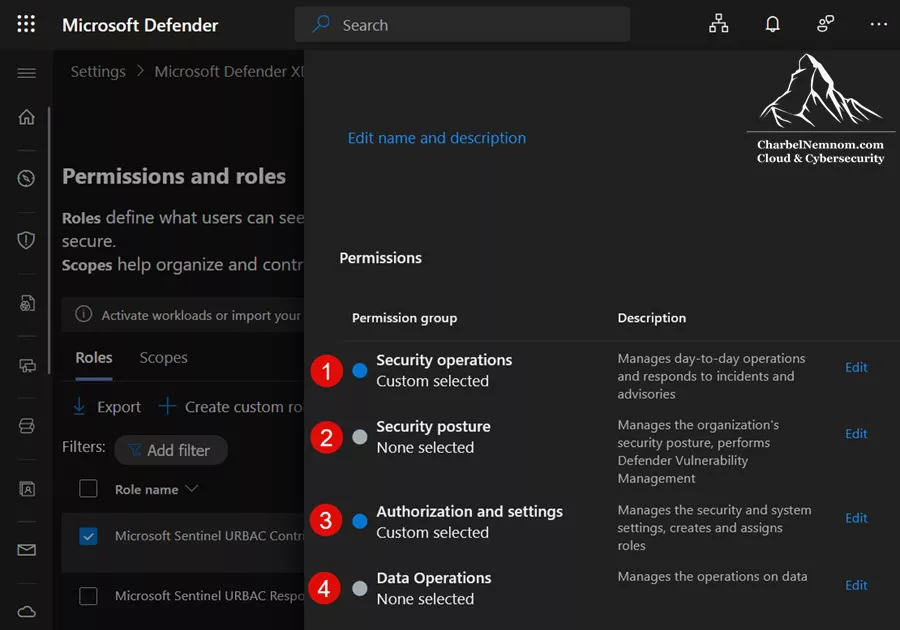
The Data operations permission group contains two sub-categories:
– Data Management \ Data (manage) — for users who perform update operations in the Microsoft Sentinel data lake, such as creating tables or modifying table retention settings.
– Advanced Analytics \ Analytics Jobs Schedule (manage) — for users who create and manage scheduled analytics jobs in the data lake.
To create custom roles for the Microsoft Sentinel data lake using the Security operations or Data operations permission group, you must have a Log Analytics workspace enabled for Microsoft Sentinel and onboarded to the Defender portal.
Microsoft Sentinel data lake Read Permissions
Microsoft Entra ID roles provide broad read access across all workspaces within the Microsoft Sentinel data lake. Use any of the following roles:
| Requirement | Roles |
|---|---|
| Read access across all workspaces in the data lake | Any of the following Microsoft Entra ID roles: Global Reader, Security Reader, Security Operator, Security Administrator, Global Administrator |
Alternatively, you might want to assign read access to tables within a specific workspace. In such cases, use one of the following:
| Requirement | Roles |
|---|---|
| Read permissions on system tables (in the default workspace) | Use a custom Microsoft Defender XDR Unified RBAC role with Security operations \ Security data basics (read) permissions over the Microsoft Sentinel data collection |
| Read permissions on any other workspace enabled for Microsoft Sentinel in the data lake | Use one of the following Azure RBAC built-in roles on that workspace: Log Analytics Reader, Log Analytics Contributor, Microsoft Sentinel Contributor, Microsoft Sentinel Reader, Reader, Contributor, Owner |
>Note: Microsoft Sentinel users with built-in Azure RBAC roles for their workspaces automatically receive parallel read permissions in the Microsoft Sentinel data lake experiences, such as the lake explorer and notebooks. No additional role assignment is needed for read access in these cases.
Microsoft Sentinel data lake Write Permissions
Microsoft Entra ID roles provide broad write access across all workspaces in the data lake:
| Requirement | Roles |
|---|---|
| Write to tables in the analytics tier using KQL jobs or notebooks | Any of the following Microsoft Entra ID roles: Security Operator, Security Administrator, Global Administrator |
| Write to tables in the data lake tier | Any of the following Microsoft Entra ID roles: Security Operator, Security Administrator, Global Administrator |
Alternatively, you might want to assign write access to a specific workspace. This can include the ability to configure connectors, modify retention settings, or create, update, and delete custom tables:
| Requirement | Roles |
|---|---|
| Update system tables in the data lake | Use a custom Microsoft Defender XDR Unified RBAC role with Data operations \ Data Management \ Data (manage) permissions over the Microsoft Sentinel data collection. |
| Write to any other Microsoft Sentinel workspace in the data lake | Use any built-in or custom role that includes the following Azure RBAC permissions on that workspace: microsoft.operationalinsights/workspaces/write, microsoft.operationalinsights/workspaces/tables/write, microsoft.operationalinsights/workspaces/tables/delete. Examples: Log Analytics Contributor, Owner, Contributor
|
Manage Jobs in the Microsoft Sentinel data lake
To create scheduled jobs or to manage jobs in the Microsoft Sentinel data lake, you must have one of the following Microsoft Entra ID roles:
Alternatively, for workspace-specific job management, you can use a custom Microsoft Defender XDR Unified RBAC role with Data operations \ Advanced Analytics \ Analytics Jobs Schedule (manage) permissions over the Microsoft Sentinel data collection that allow you to schedule and manage analytics jobs and compute.
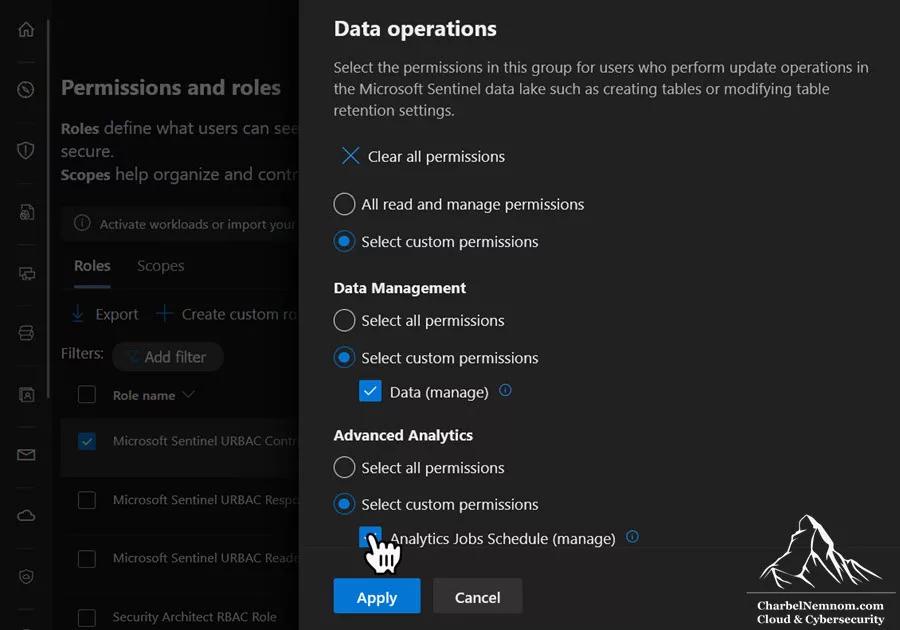
Data lake Architecture Quick Overview
The data lake operates with two distinct storage tiers:
| Tier | Purpose |
|---|---|
| Analytics tier | The existing Microsoft Sentinel data tier supports advanced hunting, alerting, and incident management. Designed for high-performance analytics and real-time data processing. |
| Data lake tier | Centralized long-term storage for querying and Python-based advanced analytics. Designed for cost-effective retention of large volumes of security data for up to 12 years. Data in the analytics tier is mirrored to the lake tier, preserving a single copy of the data. |
Key capabilities include:
- KQL queries via the lake explorer for data exploration, analysis, and job creation (promoting data from the lake tier to the analytics tier).
- Jupyter notebooks with Python libraries for machine learning, advanced analytics, and data visualization.
- Activity audit that tracks data access, job management, and query events for monitoring and compliance.
Key Differences: SIEM vs. data lake Permissions
The following table summarizes the key differences between permissions for the traditional Sentinel SIEM layer and the new data lake:
| Aspect | Microsoft Sentinel SIEM | Microsoft Sentinel data lake |
|---|---|---|
| Permission model | Azure RBAC (+ ABAC for granular access) | Microsoft Entra ID roles (broad) + Unified RBAC custom roles (workspace-specific) |
| Where to manage | Azure portal (IAM) | Microsoft Defender portal + Entra ID |
| Read access | Sentinel Reader/Responder/Contributor, Log Analytics Reader, etc. | Entra ID roles (Global Reader, Security Reader, etc.) or Azure RBAC roles on the workspace |
| Write access | Sentinel Contributor, Log Analytics Contributor, etc. | Entra ID roles (Security Operator, Security Administrator, Global Administrator) or Azure RBAC roles on the workspace |
| Custom roles | Azure custom roles | Defender XDR Unified RBAC custom roles |
| Granular access | Table-level and row-level ABAC conditions | Not yet available at the row level in the data lake |
| Scope | Management group / Subscription / Resource group / Workspace / Table / Row | All workspaces (Entra ID) or a specific workspace (Unified RBAC / Azure RBAC) |
Important: The data lake requires your workspace to be onboarded to the Defender portal. If you are planning to leverage the data lake, ensure your Sentinel workspace has been fully transitioned to the Defender portal experience.
RBAC Best Practices for Ongoing Governance
Strong role-based access control (RBAC) is essential not just at setup, but throughout the lifecycle of your Microsoft Sentinel deployment. As environments become increasingly complex, poor access hygiene poses a significant risk for misconfiguration, privilege escalation, and audit failures. Below are key RBAC governance practices to adopt across Sentinel and its supporting infrastructure.
🔐 Apply Least Privilege by Design
Always begin by asking: What is the minimum set of actions and scope this identity requires to perform its task?
Avoid assigning overly broad roles, such as ‘Contributor’, at the management group or subscription level when a ‘Sentinel Reader’ at the resource group would suffice. Use custom roles when built-in roles offer too much or too little.
⏳ Use Privileged Identity Management for Elevated Access
For sensitive roles such as Owner, Contributor, or Sentinel Contributor, including external Partners, leverage Microsoft Entra Privileged Identity Management (PIM) to enforce:
- Just-in-time (JIT) activation with time limits.
- Approval workflows for role elevation.
- MFA enforcement at the time of role activation.
- Audit logs of who elevated when and why.

This minimizes standing access and dramatically reduces the attack surface.
📊 Perform Regular Access Reviews and Audits
Schedule quarterly reviews of all role assignments, especially those with high privileges, such as subscriptions, management groups, and Sentinel workspaces. Use:
- Access Review in Microsoft Entra for user/group-based reviews.
- Azure Activity Logs and LAQueryLogs to monitor who is using which permissions.
- Sentinel’s User & Entity Behavior Analytics (UEBA) to detect anomalies tied to privileged accounts.
These reviews help identify “role creep,” dormant access, and drift from your RBAC intent.
📘 Maintain an RBAC Matrix
Document all role assignments in a centralized and version-controlled format, mapping:
- Roles (e.g., Sentinel Contributor, Log Analytics Reader)
- Assigned teams or personas (e.g., Tier 2 SOC, Automation Engineer)
- Purpose of access
- Assigned scopes (subscriptions / RGs / workspaces)
- Assignment and review dates
This RBAC matrix should be updated with every onboarding, offboarding, or change to ensure transparency and alignment with compliance.
By implementing these RBAC best practices, your organization can ensure that Microsoft Sentinel remains secure, auditable, and aligned with operational boundaries, regardless of how complex or distributed your environment becomes.
Wrapping Up
Microsoft Sentinel, built on the foundation of Azure’s role-based access control, provides a powerful and flexible framework for managing access, from high-level management groups and subscription roles to precision filters at the table and row levels within Log Analytics.
With the introduction of Microsoft Sentinel support in the Defender Unified RBAC model and the Microsoft Sentinel data lake, security teams now have even more tools to implement true least-privilege access — managing Sentinel permissions alongside other Defender workloads in a single, unified system, and controlling access to long-term data lake storage with dedicated role assignments. The key to effective RBAC is intentionality:
- Map roles to responsibilities, not job titles.
- Scope permissions as narrowly as possible, preferably at the resource group or workspace level.
- Utilize PIM to control elevation and review assignments regularly.
- Leverage custom roles and granular RBAC to meet specific security and compliance requirements without creating unnecessary workspace sprawl.
- Embrace Unified RBAC for centralized Sentinel permission management in the Defender portal, and use the Import roles feature for a seamless transition from Azure RBAC.
- Plan your data lake permissions early — understand the distinction between Entra ID roles (broad access) and Unified RBAC/Azure RBAC roles (workspace-specific access) for read, write, and job management operations.
Start by assessing your current access landscape, identifying over-permissioned accounts, and applying a consistent governance model across Sentinel, the Defender portal, and the data lake. With each refinement, you’ll move closer to a security operations environment that is tightly controlled, easier to audit, and fully aligned with your organization’s operational and regulatory priorities.
Remember, you can always support us in developing tools and creating content via Why Donate? – Charbelnemnom.com Cloud & Cybersecurity
__
Thank you for reading our blog.
Please let us know in the comments section below if you have any questions or feedback.
-Charbel Nemnom-
