
A robust Microsoft Sentinel deployment is more than just a “set-and-forget” cloud SIEM solution. As your organization’s security posture evolves, so too do your data sources, threat models, and cost considerations. Regularly performing a comprehensive “health check” of your Microsoft Sentinel instance helps you:
- Optimize costs by pruning unused resources, tuning high-volume log ingestion, and leveraging discounts.
- Strengthen security through the proper configuration of analytics, playbooks, and behavior analytics features.
- Improve operational efficiency by removing broken connectors, stale workbooks, and disabled automation.
In this deep-dive guide, we’ll walk through a structured approach to Sentinel health checks. You’ll gain practical, step-by-step instructions, Kusto queries, and best practices to ensure your deployment remains performant, cost-effective, and locked down against threats.
This work is based on over five years of experience with Microsoft Sentinel, collaborating with a diverse range of customers from small to medium and enterprise organizations. It will be regularly updated to reflect the latest innovations and integrations with the Microsoft Defender portal.
Table of Contents
Microsoft Sentinel’s Built-In SOC Optimization
Microsoft Sentinel ships with a SOC Optimization dashboard that surfaces three core recommendation categories:
1. Threat-Based Recommendations: Add security controls to close coverage gaps against specific attack scenarios. For example, enabling new analytics rules to detect emerging threats.
2. Data Value Recommendations: Optimize your data usage by identifying underutilized data sources or suggesting better data plans.
3. Similar Organizations Recommendations: Compare your environment to similar organizations and recommend log sources or detections they commonly use.

The Key Benefits of SOC Optimization include:
> Close Coverage Gaps: Ensure your defenses align with current and emerging threats.
> Maximize Data Efficiency: Optimizing data ingestion and retention strategies avoids unnecessary costs.
> Benchmark Against Industry Standards: Gain insights into how peer organizations address similar challenges.
> Streamline Implementation: Easily act on recommendations via links to relevant solutions, content hubs, or data plan adjustments.
> Risk-based recommendations: Includes three foundational use cases that align threat types with specific business risks:
- Credential Exploitation
- Network Infiltration
- Data Exfiltration
These risk-based scenarios surface directly within the SOC Optimization experience in the unified portal, alongside existing recommendations. Users receive coverage scores and improvement suggestions spanning both SIEM and XDR content — all mapped to relevant MITRE tactics, techniques, and sub-techniques for complete visibility and traceability.

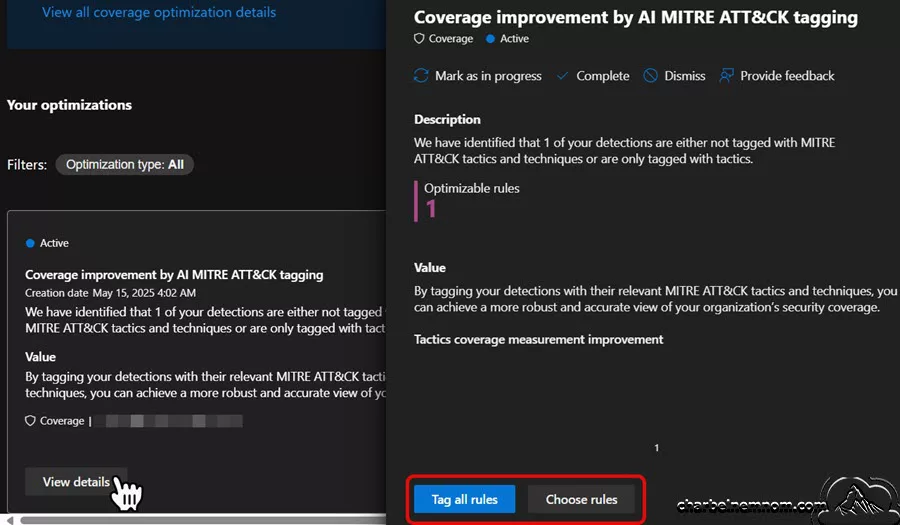
> AI MITRE ATT&CK tagging recommendations: This powerful new capability uses artificial intelligence to suggest tagging security detection rules with MITRE ATT&CK tactics and techniques. You can select “Tag all rules” to update all detections at once, or “Choose rules” to view and manage tagging for specific detection rules.
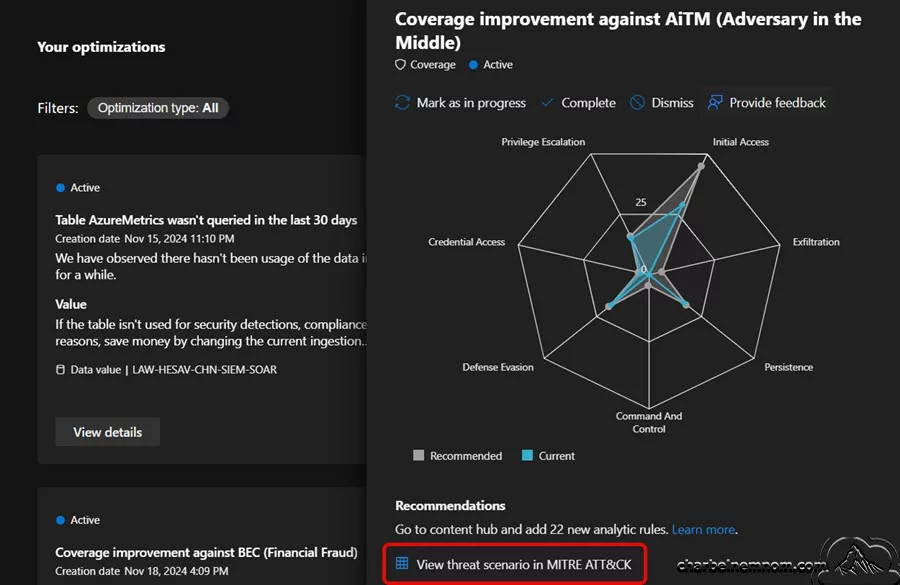
> MITRE ATT&CK integration with the SOC assessment to gain visibility into threat-based scenarios, offering a detailed coverage management experience aligned with the MITRE ATT&CK® framework.
// See Also: Generate MITRE ATT&CK Report for Microsoft Sentinel Analytics Rules.
While these insights and benefits offer a solid starting point, they’re tailored to a generic SOC perspective. To keep your SOC running smoothly, we must perform a full Sentinel health check beyond the built-in SOC Optimization suggestions. This involves examining pricing and data policies, ensuring all logs and rules are active, and removing unused resources.
Pricing and Cost Management
Controlling your Sentinel costs starts with understanding how you’re billed and where you can apply discounts and free data retention.
Simplified Pricing Experience
Microsoft Sentinel previously billed Log Analytics workspace ingestion and Sentinel features separately, leading to confusion. Since July 2023, Microsoft has introduced a unified “Simplified Pricing Experience”, streamlining billing visuals, though costs remain unchanged.
How to verify:
1. In the Azure portal, open your Microsoft Sentinel instance.
2. Click Settings in the bottom left.
3. If you see separate workspace and Sentinel billing panels, you’re on the old experience.
4. Click Switch to new pricing to consolidate them, as shown in the figure below.
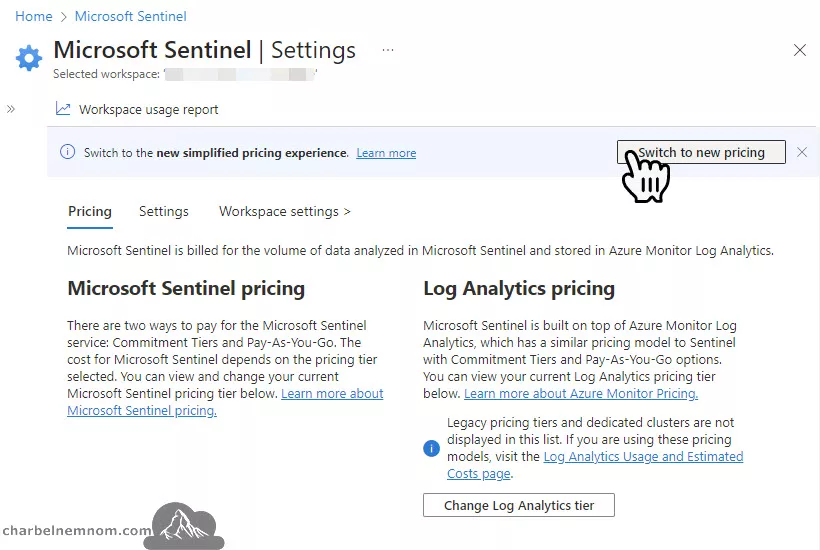
Please note that this change is UI-only and does not affect your actual costs. For new Sentinel instances created after July 2023, you’ll be automatically on the new simplified pricing experience.
Note: New Log Analytics workspaces can ingest up to 10 GB of log data per day for the first 31 days at no cost. During this trial period, both Log Analytics data ingestion fees and Microsoft Sentinel charges are waived. Please note that this free trial is limited to a maximum of 20 workspaces per Azure tenant. Existing workspaces can also enable Microsoft Sentinel without incurring additional costs, but only the Microsoft Sentinel charges are waived during the 31-day trial period.
Commitment Tiers and Savings
Simplified pricing supports commitment tiers (formerly Capacity Reservations) for analytics logs. For example, committing to 100 GB/day means you are billed for that baseline amount plus any overage at a discounted rate. You can increase your commitment at any time (decreasing only once every 31 days), and Sentinel will give you a recommended tier based on usage.
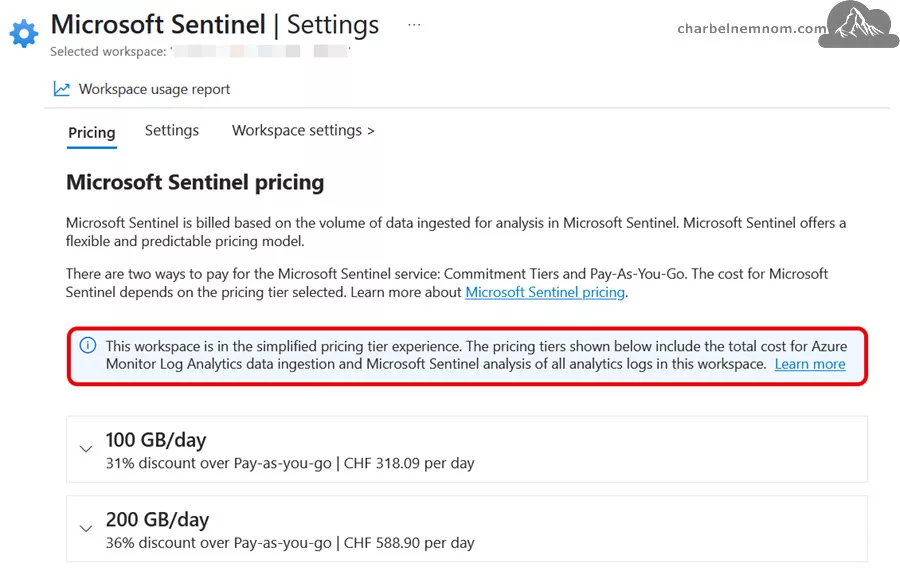
The new pre-purchase plans for Microsoft Sentinel, a type of Azure reservation, offer commit units (CUs) at discounted tiers when you purchase a pre-purchase plan available for 12 months. These Microsoft Sentinel commit units (SCUs) can be used to pay eligible costs in your workspace. The simplified pricing tier includes the total cost for Azure Monitor Log Analytics data ingestion and Microsoft Sentinel analysis of all analytics logs in the workspace.

High-volume organizations will save by using commitment tiers combined with pre-purchase plans, while low-volume shops can stay on a Pay-as-you-Go basis and/or combined with pre-purchase plans.
// Learn more: Microsoft Sentinel Sizing and Pricing.
You can use the built-in Usage and Estimated Costs blade in the Log Analytics workspace, the Workspace Usage Report workbook, the Microsoft Sentinel Optimization workbook, or Azure Cost Management to review daily ingestion cost and plan your tier.
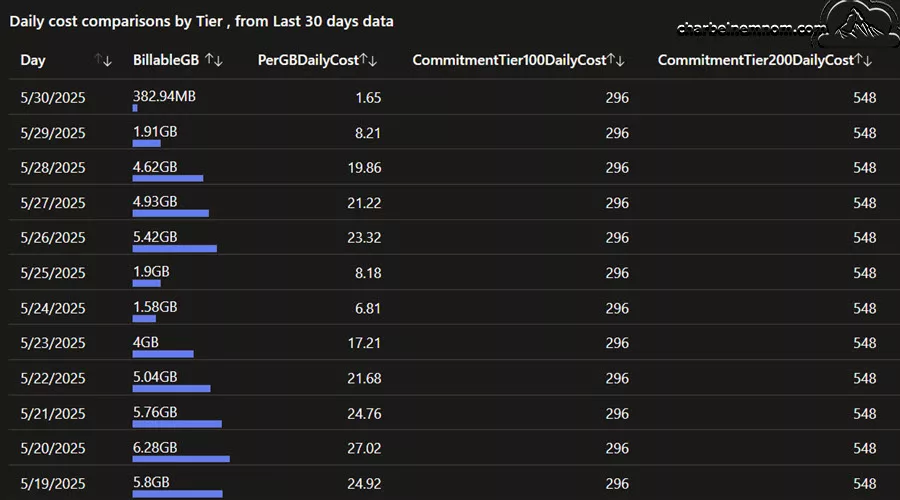
Commitment Tier Planning
Beyond simplified pricing, consider commitment tiers and data plans that offer more flexibility. For high data volumes, commitments (starting at 100 GB/day) lock in low per-GB rates. Review your workspace’s Pricing tab in Sentinel settings to see the recommended tier.
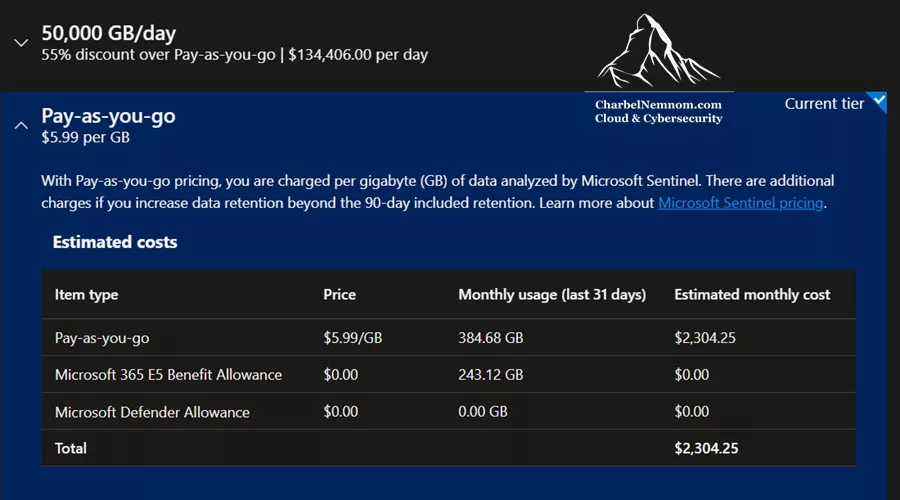
Remember that if you commit to any commitment tier, you can only downgrade after 31 days of making a capacity reservation. However, you can upgrade at any time without a waiting period.
If much of your data is debug/verbose, switch those tables to Basic Logs and Auxiliary Logs (a flat low rate) if possible. Use data collection rules (DCRs) to filter out unnecessary events (e.g., drop syslog severities below a threshold, drop security events related to machine account SIDs like S-1-5-18, S-1-5-19, S-1-5-20) and keep retention minimal on volatile tables.
Keep track of your daily ingestion by using queries or workbooks to determine your commitment tier. For instance, you can run the following KQL query in the workspace to analyze ingestion trends over the past 30 days. If you find that your usage consistently exceeds your current tier, consider upgrading to a higher tier. Conversely, if your usage is below the tier limit, you might be overcommitting. See the Log Optimization section below for additional cost optimization techniques.
Usage
| where TimeGenerated > ago(30d) and IsBillable == true
| summarize TotalVolume_GB = sum(Quantity) / 1024 by bin(TimeGenerated, 1d)
| render timechart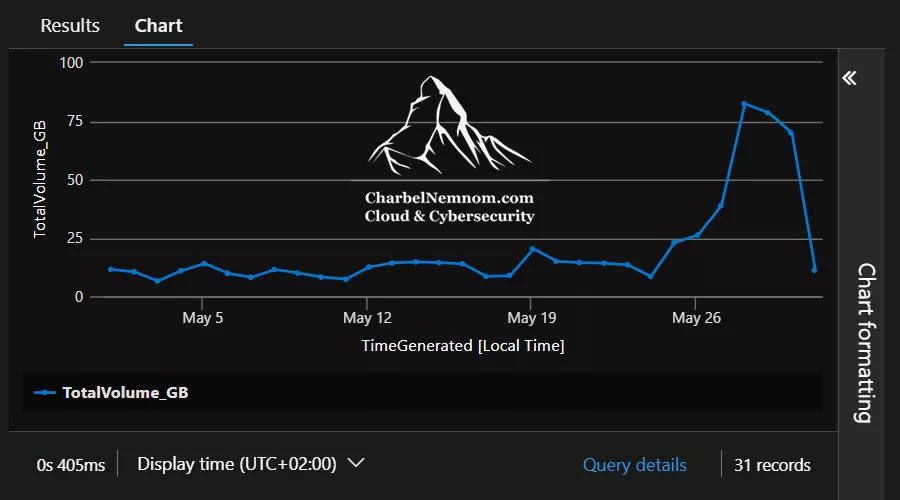
Free Entitlements
Take advantage of all free data plans. Microsoft Sentinel includes 500 MB/day per VM of protected Windows data under Defender for Servers P2. Additionally, certain tables are free to ingest; notably, AzureActivity (Azure Activity Logs), SentinelHealth (Health monitoring for Microsoft Sentinel), and OfficeActivity (Office 365 audit logs) are included at no additional cost. Even if these tables are larger, they won’t add to your bill. Certain Microsoft 365 licensing plans (E5, A5, F5, and G5) include 5 MB of free data ingestion per user each day.
Microsoft Sentinel also has built-in free ingestion for the following Microsoft Defender alert sources, so ensure you’ve enabled those connectors. Microsoft Defender XDR connector consolidates all the alerts for the entire Defender suite:
- Microsoft Defender XDR
- Microsoft Defender for Cloud
- Microsoft Defender for Office 365
- Microsoft Defender for Identity
- Microsoft Defender for Cloud Apps
- Microsoft Defender for Endpoint
- Microsoft Defender for Cloud
- Microsoft Defender for Cloud Apps
Note: If you have transitioned your Microsoft Sentinel environment to the Defender portal, the data connectors listed above are used for unified security operations and aren’t shown in the Data Connectors page in the Defender portal. However, these data connectors continue to be listed in Microsoft Sentinel in the Azure portal.
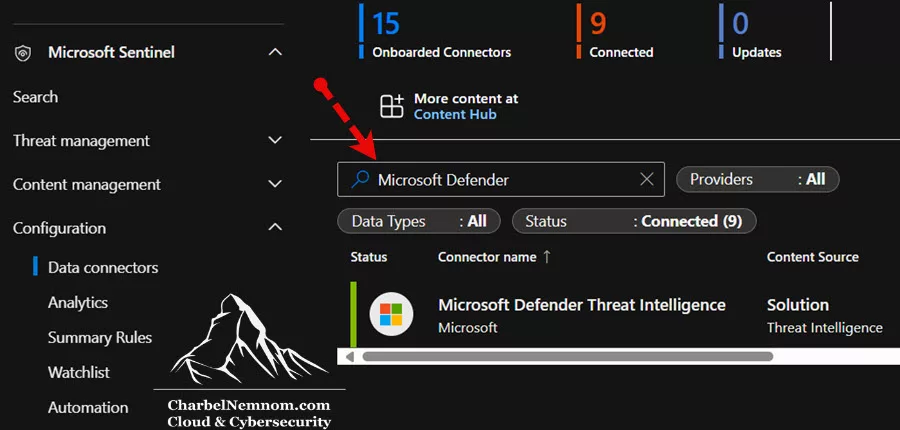
Data Retention Settings
By default, a Log Analytics workspace retains data for 30 days (which can be extended up to 90 days free of charge with Sentinel enabled or up to two years). All tables in the Log Analytics are automatically kept for up to 90 days at no charge, including the Usage table (workspace billing/ingestion records), which is also retained for 90 days free. You can increase the retention period (e.g. to 365 days) in the Azure portal under your Log Analytics workspace Settings ▶ Usage and estimated costs ▶ Data Retention.
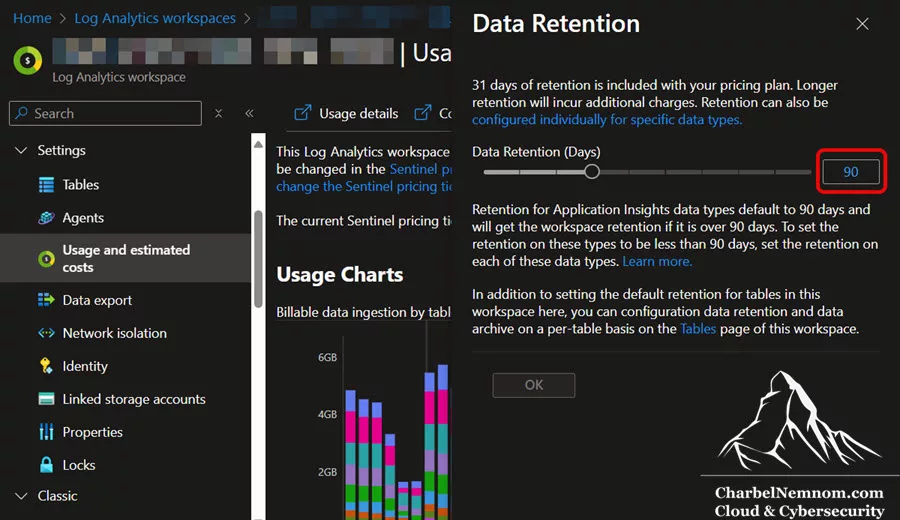
Remember that data retained beyond the free 90-day period incurs costs. Use these retention settings to balance incident investigation and compliance needs versus storage costs. Additionally, moving data to a log analytics Archive tier is a cost-effective solution for long-term storage, with a very low monthly cost of approximately $0.02 per gigabyte. This option is ideal for data you still need access to, but doesn’t require frequent querying. The trade-off here is the lower immediate access speed compared to the Analytics Logs plan. The maximum archive retention is up to 12 years.
Cost Optimization Tips
Identify high-volume, low-value logs that can be filtered or sent to Basic Logs and Auxiliary Logs (cheap flat-rate) instead of Analytics Logs. For example, verbose service logs or debug-level Syslog entries may not need full analytics and could be disabled or dropped. Similarly, reduce retention on seldom-used tables to save storage. Finally, use KQL queries to identify ingestion trends (see the Log Optimization section below) and remove any misconfigured data sources that are driving up costs.
UEBA and Anomaly Detection
Enable UEBA (User/Entity Behavior Analytics): In Sentinel’s Configuration ▶ Settings ▶ Entity behavior analytics, switch Set UEBA to On and select your identity sources. For example, synchronize Microsoft Entra ID Signin Logs, Audit Logs, and Azure Activity logs into UEBA (see Figure below).
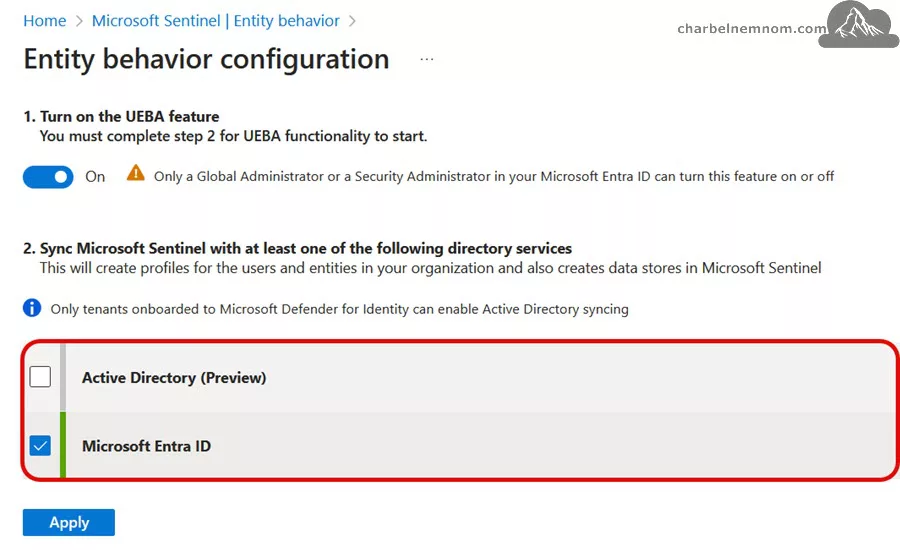

Additionally, we can enable Security Events for entity behavior analytics, which would be an extra step to configure Microsoft security events for Windows-based machines. This is quite interesting because we can configure Windows Security events via the new Azure Monitor Agent (AMA). What we are doing here is we can go in and install an agent on an Azure Windows virtual machine, and we can also install agents on non-Azure Windows machines. Exercise caution when adding “Security Events” as a data source for UEBA, as it can significantly impact costs due to the high volume of SecurityEvents log data sources. Make sure to filter the unnecessary “Security Events” before log ingestion.

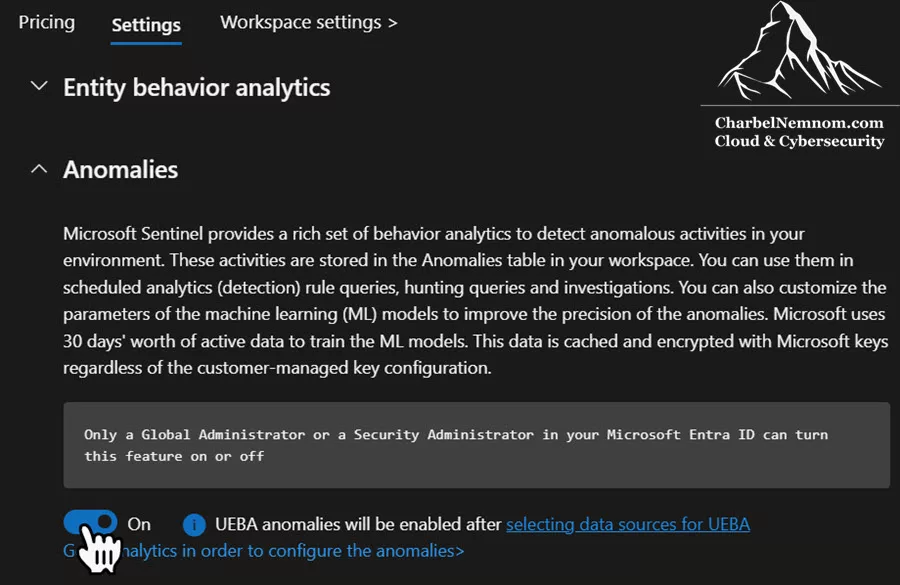
We can also enable Anomalies in Sentinel’s Configuration ▶ Settings ▶ Anomalies. Microsoft Sentinel provides a rich set of behavior analytics to detect anomalous activities in your environment. These activities are stored in the Anomalies table in your workspace. You can use them in scheduled analytics (detection) rule queries, hunting queries, and investigations.
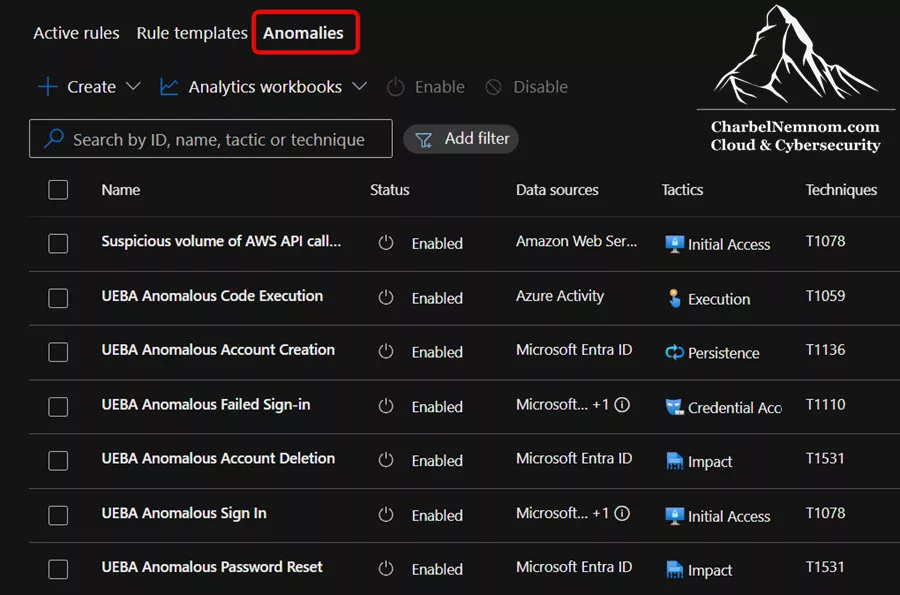
Built-in Anomaly Rules: The “Anomalies” enablement will create about 42 anomaly-based detection rules in your Sentinel under the informational severity. Microsoft Sentinel comes with out-of-the-box anomaly detection rule templates that run automatically. Visit the Analytics blade ▶ Anomalies tab to see them; they’re enabled by default.
// Learn more: Deep Dive into Microsoft Sentinel UEBA (User and Entity Behavior Analytics).
These ML-driven rules detect unusual activities (e.g., atypical logins, port scans, data exfiltration patterns). Anomalies that fire appears in the Anomalies table. Each activity we obtain from Microsoft Entra ID or elsewhere will be scored. Each activity is scored with an investigation priority score, which determines the probability of a specific user performing a particular activity based on the user’s behavioral learning and that of their peers. The activities identified as the most abnormal will receive the highest score. The score ranges from 0 to 10, where 10 represents the highest score and indicates that a certain activity is the most abnormal for a user. For example, you can query the Anomalies table to look for scores greater than 3:
Anomalies
| where TimeGenerated > ago(3d)
| where Score > 3
| project TimeGenerated, RuleName, Description, Score, UserName, UserPrincipalName
Please note that no special license is required, but UEBA does create new tables (like BehaviorAnalytics, IdentityInfo, UserPeerAnalytics, and Anomalies) that add storage costs.
Monitoring UEBA Health: After enabling UEBA, verify it’s ingesting data. Run a simple query below on the entity tables to check records and to confirm that event log sources logs are arriving. Additionally, refer to the SentinelHealth table (section below) to view UEBA processes and any associated failures.
BehaviorAnalytics
| where TimeGenerated > ago(7d)
| summarize EventSourceCount = count() by EventSource
| top 5 by EventSourceCount
Hunting Bookmark Hygiene and Cost Awareness
Microsoft Sentinel’s threat-hunting features let analysts run proactive queries against log data and save interesting findings. Analysts can bookmark any query result row they deem relevant. A bookmark captures the full query text, result data, and any annotations (notes, tags, MITRE mappings, etc.) added by the analyst.
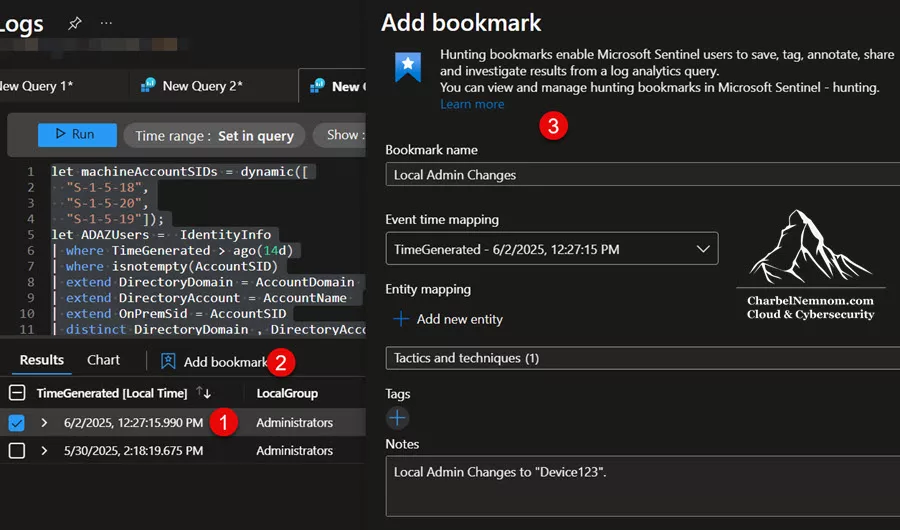
Bookmarks provide a persistent link back to the exact event or data point, enabling investigators to correlate evidence across incidents and share findings with the team. In practice, bookmarking a result makes it easier to revisit that finding later, for example, by investigating the bookmark in Sentinel’s entity graph or linking it to an incident.
Note: If you have transitioned your Microsoft Sentinel environment to the Defender portal, Bookmarks aren’t supported in the Advanced hunting blade, unlike in Log Analytics > Logs. Instead, bookmarks are supported in the Defender portal under Microsoft Sentinel > Threat management > Hunting only.
Cost Considerations
Every time you create or update a hunt bookmark, Sentinel ingests a record into the HuntingBookmark table in your Log Analytics workspace. By default, these records are billable log entries (the IsBillable flag is set to true by Microsoft). In other words, a large number of saved bookmarks will increase your Sentinel data ingestion volume (and cost) just like any other log. You can monitor the storage impact of bookmarks using the built-in Usage table. For example, this Kusto query finds all billable bookmark entries:
Usage
| where TimeGenerated > ago(7d) // Last 7 days
| where IsBillable == true and DataType == "HuntingBookmark" // We only care about HuntingBookmark table
| summarize TotalGB = round(sum(Quantity) / 1024, 2)
// Calculate total GB
| extend ['Daily Average (GB)'] = round(TotalGB/7, 2)
| extend ['Weekly Total (GB)'] = TotalGB
| extend ['Estimated Monthly Cost ($)'] = round(TotalGB/7 * 30 * 2.0, 2) // Estimate cost based on rate
| project ['Daily Average (GB)'], ['Weekly Total (GB)'], ['Estimated Monthly Cost ($)']
Running this query over a specific time range allows you to see how many gigabytes or megabytes of data your bookmarks are consuming. Keeping bookmark ingestion costs in check can help control your overall Sentinel costs.
Bookmark Hygiene Best Practices
Deleted bookmarks in Sentinel are only soft deleted. Each delete action sets SoftDeleted=true on that row but does not immediately remove it from the table. The HuntingBookmark table retains all historical entries, using the SoftDeleted flag to mark removals. Keep this in mind when estimating storage: even “deleted” bookmarks from the UI still occupy space in the workspace. Use KQL to filter: You can query the HuntingBookmark table directly to manage bookmarks. For example:
To list active (not deleted) bookmarks:
HuntingBookmark
| where SoftDeleted != true
To list soft-deleted bookmarks:
HuntingBookmark
| where SoftDeleted == true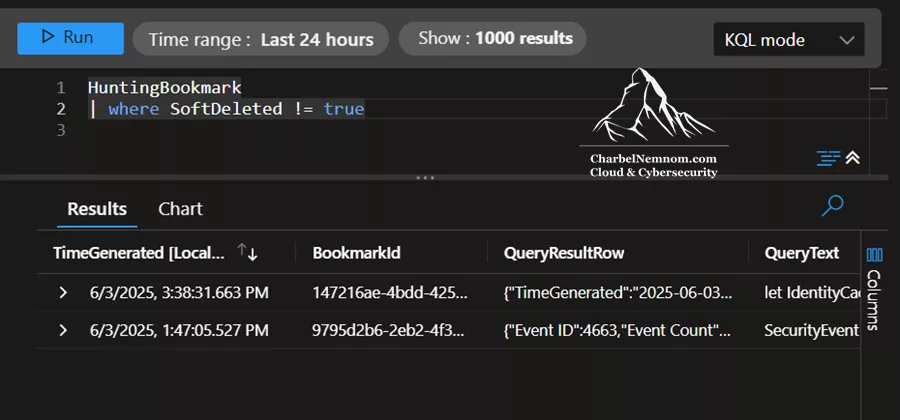
These queries help you identify which bookmarks are live “true“, making it easy to filter out old bookmarks in a “false” state.
1. In the Sentinel in the Azure portal and Defender portal, navigate to Threat Management > Hunting > Bookmarks. Select the bookmark(s) you want to delete and choose the Delete option, as shown in the figure below.
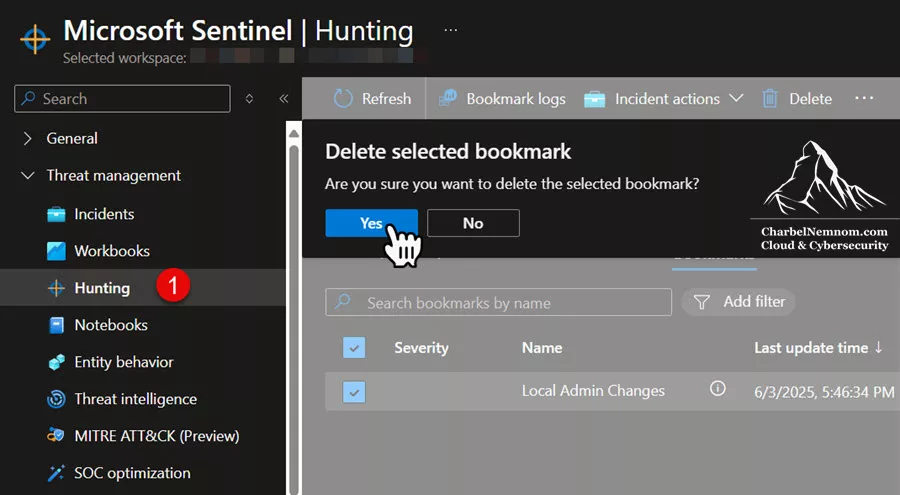
2. Confirm deletion. The bookmark will disappear from the Bookmarks list, but recall that the record remains in the HuntingBookmark table with SoftDeleted=true. If needed, you can filter for and prune soft-deleted entries via KQL as shown above.
3. Entities remain intact: Deleting a bookmark only unlinks it from the investigation context – it does not delete any underlying events or entities from Sentinel. The IPs, accounts, alerts, or incidents related to that bookmark are unaffected. You can safely remove bookmarks without fear of losing the actual data; doing so reduces clutter and storage usage.
These practices help SOC teams keep their hunting bookmarks organized and cost-effective. By removing stale entries, focusing on high-value findings, and using tags/names consistently, you ensure that the bookmark table remains lean and valuable for future investigations.
Data Connector Health and Diagnostics
Ensuring that all data connectors are functioning correctly is critical. Sentinel provides both workbooks and tables to monitor ingestion health.
Health Monitoring Workbook: Install the Data Collection Health Monitoring (from Content hub under “workbook”) to get dashboards for connector status and ingestion trends. This workbook highlights drifts and anomalies in ingested data and can alert on ingestion lapses.

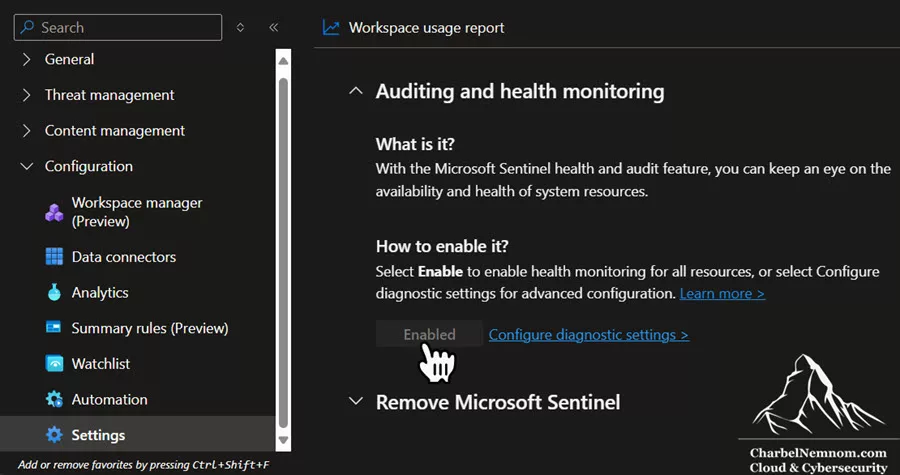
SentinelHealth & SentinelAudit Tables: Under Sentinel ▶ Settings ▶ Settings ▶ Auditing and health monitoring, click Enable to turn on workspace-level health logging. This automatically creates the SentinelHealth and SentinelAudit tables when the first health event is logged. The portal, behind the scenes, adds a Diagnostic Setting for your workspace (you can view it or add custom ones). This action will log health events (Analytics, Automation, and Data Collection – Connectors) to your workspace at no additional charge.
Configuring Diagnostics: If you need granular control, go to your Log Analytics workspace Diagnostic setting ▶ + Add diagnostic setting and choose the categories (e.g., allLogs, which includes Summary Logs and Audit categories) to send to your workspace, as shown in the figure below. Check how to monitor Summary Rules in Microsoft Sentinel.

Once enabled, use the following Kusto queries to check health events for data connectors. For example:
SentinelHealth
| where TimeGenerated > ago(7d)
| where SentinelResourceType == "Data connector"
| summarize by SentinelResourceName, Status, SentinelResourceKind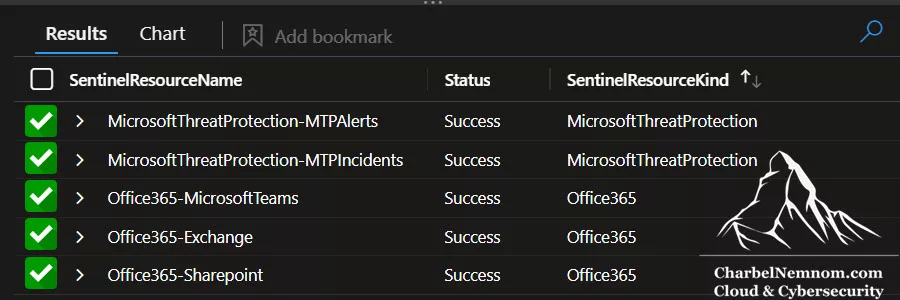
At the time of this writing, the SentinelHealth table currently supports only the following data connectors:
- Amazon Web Services (CloudTrail and S3)
- Dynamics 365
- Office 365
- Microsoft Defender for Endpoint
- Threat Intelligence – TAXII
- Threat Intelligence Platforms
- Any connector based on the Codeless Connector Platform
What about other data connectors and tables?
I’ve developed the following KQL query, designed to detect anomalies in data ingestion volume for specific tables listed in a watchlist, which helps identify unusual increases or decreases in data flowing into Sentinel by leveraging the series_decompose_anomalies function. You need to create a watchlist and add all the critical tables to it so that you can monitor for data ingestion anomalies.
// Define configuration parameters for anomaly detection.
// Sets the lookback period for the time series to the past 14 days.
let startTime = ago(14d);
// Excludes baseline values below 1 MB to filter out minor fluctuations.
let baselineThreshold = 1.0; // 0.1 = 1000 KB
// Sets the difference threshold to 0.5 MB; anomalies with a difference greater than this are considered significant.
let diffThreshold = 1.0; // Excluded
// Sets the anomaly score threshold to 10.0; alerts are generated when the anomaly score exceeds this value.
let anomalyScoreThreshold = 10.0;
// Defines the time window for displaying alerts, typically set to 1 day.
// This allows viewing anomalies detected within the last 1 day.
let time_generate = 1d; // Scheduled Frequency for the Analytic Rule
let watchlistTables =
    _GetWatchlist('wl_scs_ops_tables')
    | project TableName;
Usage
| where IsBillable == "true"
// Filter by the Watchlist tables
| where DataType in (watchlistTables)
// Create a time series that calculates the average ingested quantity for each DataType over specified intervals.
//
// Parameters:
//   Interval   - The time interval for aggregation (e.g., 2h for two hours).
//                Note: Smaller intervals can introduce more noise, while larger intervals provide smoother trends.
//   DataType   - The category by which the data is grouped.
| make-series ingested = avg(Quantity) on TimeGenerated from startTime to now() step 2h by DataType
// Create the baseline and display all anomalies based on the provided time series data.
// Parameters:
//   ingested  - Time series data to be ingested.
//   threshold - 5.0, determines the sensitivity for detecting mild or strong anomalies.
//   periodic  - -1, enables automatic detection of periodic patterns (e.g., daily, weekly, monthly cycles).
//   linefit   - Utilizes linear regression for trend analysis.
// Output:
//   ad_flag  - Indicates anomaly direction (0: stable, 1: upward, -1: downward).
//   ad_score - Anomaly score representing the severity of the anomaly.
//   baseline - The generated baseline from the time series data.
| extend (ad_flag, ad_score, baseline) = series_decompose_anomalies(ingested, 5.0, -1, 'linefit')
| mv-expand TimeGenerated to typeof(datetime),
		ingested to typeof(real),
		ad_flag to typeof(int),
		ad_score to typeof(real),
		baseline to typeof(real)
| where TimeGenerated > ago(time_generate)
| where ad_score > anomalyScoreThreshold
| extend diff = ingested - baseline
| where baseline > baselineThreshold
| where abs(diff) > diffThreshold
| project TimeGenerated, DataType, round(ingested,3), round(baseline,3), round(diff,3), ad_flag, ad_score
| extend packed = pack_all()
This query detects significant anomalies in data ingestion volume for specific billable tables listed in a watchlist. It analyzes 14 days of historical data, builds a baseline, and flags sharp increases or decreases in ingestion over the past day using anomaly scores and thresholds.
// Learn more: Effective Solution to Monitor Data Connectors in Microsoft Sentinel.
Legacy Custom Tables and Migration
Check for any Custom table (classic) entries in your workspace. These are tables created by the old HTTP Data Collector API or Azure Container Instances (ACI) ingestion, and they’re deprecated. To spot them, go to your Log Analytics Workspace ▶ Settings ▶ Tables in the Azure portal. Any table of type “Custom table (classic)” indicates legacy ingestion, as shown in the figure below.
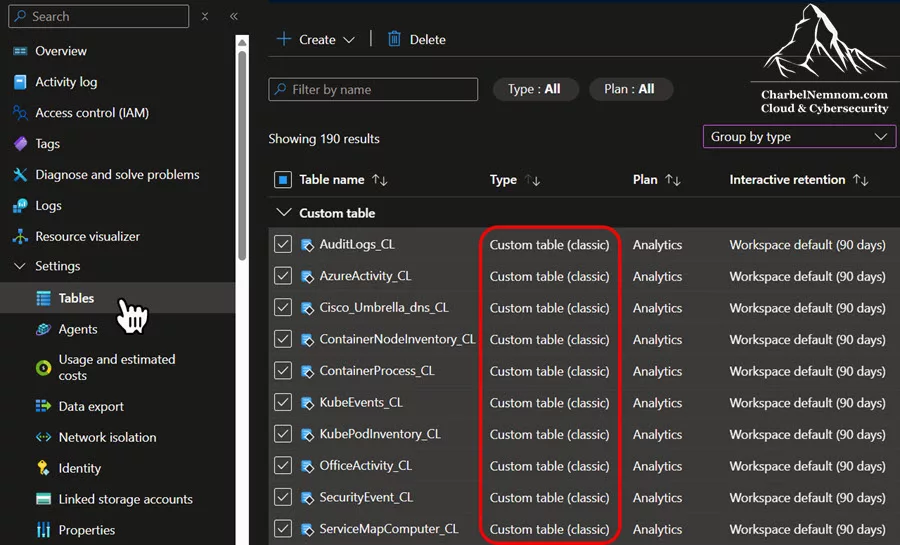
If you find classic tables, first verify they still have data (e.g., run MyOldTable_CL | where TimeGenerated > ago(90d)). Microsoft recommends migrating off the HTTP Data Collector API to the new Azure Monitor Logs Ingestion API.
What you need to do is to create new tables via Data Collection Rules (DCRs) or the new API, and update your data sources to send there. You can even query the old tables for recent entries to plan decommissioning (for example: SecurityEvent_CL | where TimeGenerated > ago(90d)). Ultimately, drop unused legacy tables to prevent them from being ingested into a non-standard table.
Visibility of Custom Data Connectors
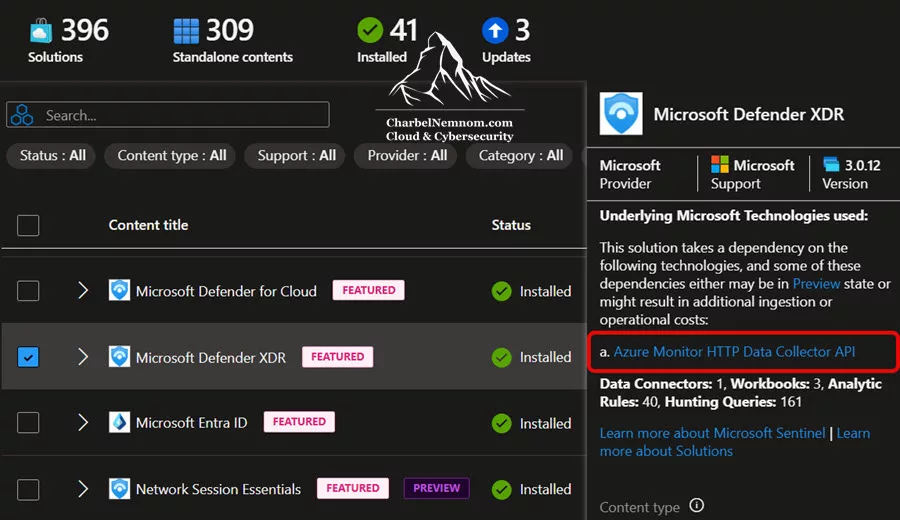
Some custom connectors or older solutions may not appear as first-class connectors in the Sentinel portal. For example, built-in connectors using HTTP ingestion will note their method in Content Hub, as shown in the figure below. These “non-UI” connectors can create blind spots. Check the Data Connectors list and Content Hub for any missing sources. Any unknown tables in Logs likely came from such connectors.
The figure below shows that the connector uses the Azure Monitor HTTP Data Collector API (the old ingestion method). Monitoring these is harder without a UI entry. For built-in data connectors, you’ll need to watch the Content Hub for updates and update them. Check how to automate Microsoft Sentinel Content Hub updates.
Creating UI Connectors: To improve monitoring, use the Codeless Connector Framework (CCF) (formerly Codeless Connector Platform, CCP) to define custom connectors. CCF connectors include a user interface (UI) presence and built-in health logging. In practice, build or convert any custom Azure Function/webhook ingestion into a CCF connector so it appears under Data Connectors. This also adds a Diagnostic Setting that feeds into the SentinelHealth table.
Log Optimization Techniques
Optimizing which logs you ingest can significantly reduce costs and improve detection. In this section, we will share different KQL queries to help you optimize your Microsoft Sentinel environment and log only what you care about.
Filtering before ingestion: Wherever possible, configure your data sources only to send useful events. For example, in a Syslog data collection rule, include where Facility == "auth" or Process == "sshd" to drop unrelated logs. In connectors like Windows Security Events, disable low-value sub-categories like machine account SIDs (“S-1-5-18“, “S-1-5-19“, “S-1-5-20“).
Top table analysis: Use the following KQL to find which tables are the largest. For example, this query identifies the top 10 tables in Log Analytics that ingested the most data over the past day, the number of records each table contains, and the average size of each record in bytes.
union withsource=['Table Name'] *
| where TimeGenerated > ago(1d)
| summarize Entries = count(), Size = sum(_BilledSize) by ['Table Name']
| top 10 by Size desc
| project
    ['Table Name'],
    ['Table Entries'] = Entries,
    ['Table Size'] = Size,
    ['Size per Entry'] = 1.0 * Size / Entries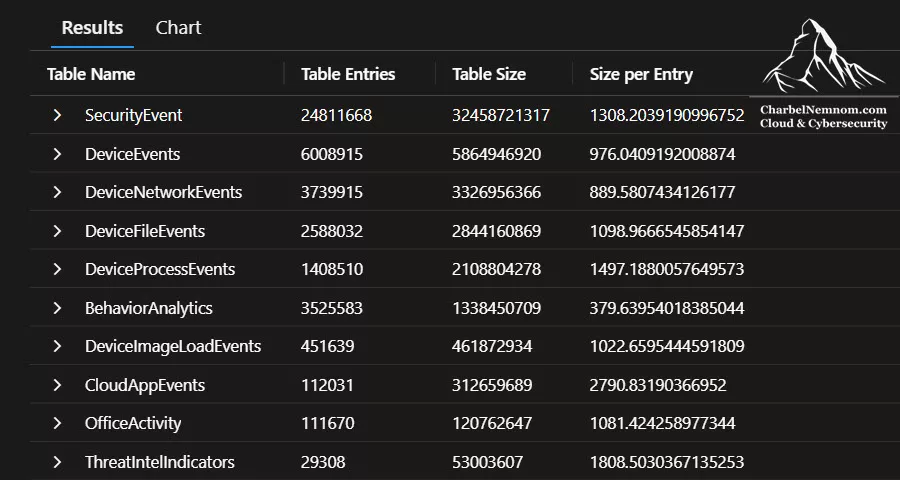
Trend charting: Use render timechart to visualize ingestion volume or event counts over time. This helps spot spikes. For example:
SecurityEvent
| where TimeGenerated > ago(1d)
| summarize Events=count() by bin(TimeGenerated, 1h)
| render timechart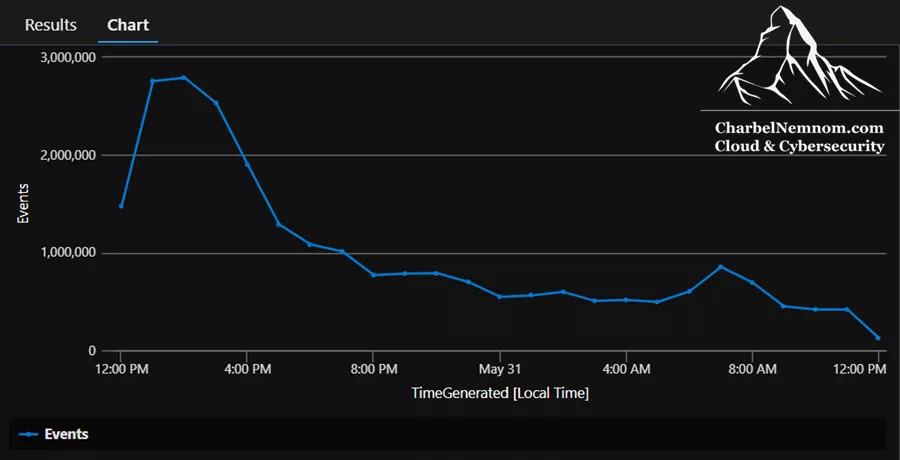
Ingestion Volume: Use the following KQL to query the Usage table for billable data for the last 30 days and summarize it by day and data type, converting the volume into GB per day. This helps visualize data ingestion volumes over time and monitor the progress of cost optimization.
// Query the Usage table
Usage
// Query the last 30 days
| where TimeGenerated > ago(30d)
// Only include 'billable' data
| where IsBillable == true
// Aggregate by day and data type
| summarize TotalvolumeGB = sum(Quantity) / 1000 by bin(StartTime, 1d), DataType
// Visualize as a column chart
| render columnchart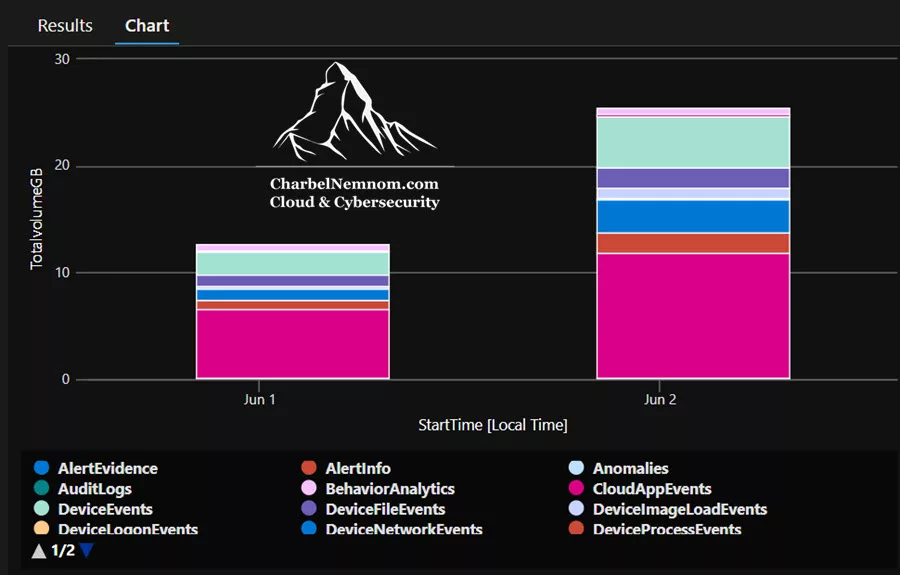
Cost Summary: Use this query to summarize the total GB ingested in the last 7 days, calculate daily average, weekly total, and provide an estimate of the monthly cost:
Usage
| where TimeGenerated > ago(7d) // Last 7 days
| where IsBillable == true // We only care about billable ingest
| summarize TotalGB = round(sum(Quantity) / 1024, 2) // Calculate total GB
| extend ['Daily Average (GB)'] = round(TotalGB/7, 2)
| extend ['Weekly Total (GB)'] = TotalGB
| extend ['Estimated Monthly Cost ($)'] = round(TotalGB/7 * 30 * 2.0, 2) // Estimate cost based on rate
| project ['Daily Average (GB)'], ['Weekly Total (GB)'], ['Estimated Monthly Cost ($)']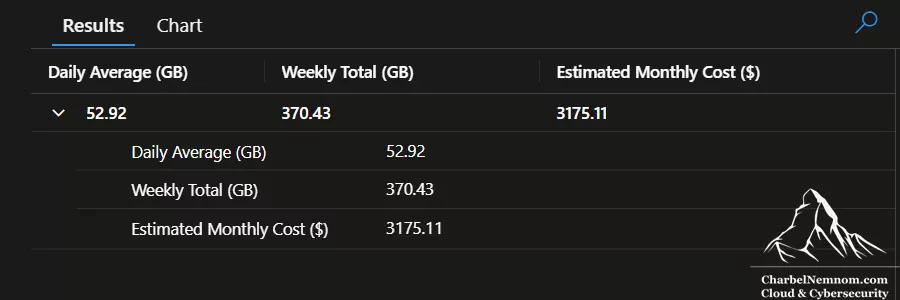
Top Data Sources: This query identifies the top 10 billable data sources based on total volume ingested in the last 30 days and estimates the associated costs:
Usage
// Filter for the last 30 days
| where TimeGenerated > ago(30d)
// Include only billable data
| where IsBillable == true
// Summarize by data type, calculating total GB
| summarize TotalGB = round(sum(Quantity) / 1024, 2) by DataType
// Get top 10 data types by volume in descending order
| top 10 by TotalGB desc
// Project relevant columns, including estimated cost
| project ['Data Type'] = DataType, ['Total GB'] = TotalGB, ['Estimated Cost ($)'] = TotalGB * 2.0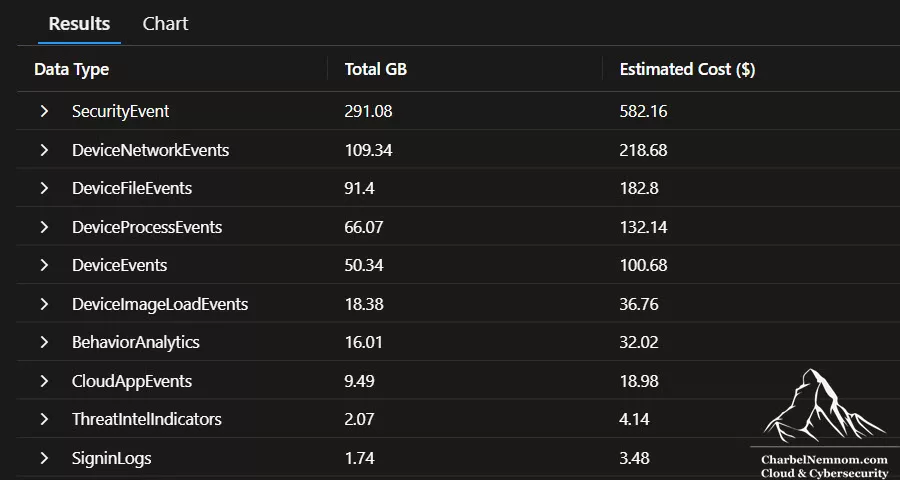
Monitor Daily Log Ingestion: Managing your daily data ingestion is not only essential for cost control, but also for catching potential misconfigurations or suspicious activity that may generate large volumes of logs (e.g., brute-force attacks, DDoS probes, Threat Intelligence (TI) feeds, or excessive diagnostic logs). You could schedule the following KQL query to help proactively monitor if your Log Analytics workspace is approaching or exceeding its daily ingestion limit. You need to set the two variables `DailyLimitGB` and `ThresholdPercentage` in the query based on your preference, so you’d be alerted when approaching the limit for each data table in the workspace.
//Title: Monitor daily log ingestion limits
//Description: Daily log limit alerts could indicate a misconfiguration that is generating many log events.
let DailyLimitGB = 10;  // Set your daily ingestion limit in GB (e.g., 10GB).
let ThresholdPercentage = 80;  // Set the percentage when you want to be alerted before reaching the limit.
let IngestedData =
    Usage
    | where IsBillable == true  // Only consider billable data.
    | summarize TotalIngestedMB = sum(Quantity);  // Summarize the total ingested data in MB.
let IngestedDataGB = toscalar(IngestedData) / 1024.0;  // Convert MB to GB using toscalar to extract the value.
let PercentageReached = IngestedDataGB / DailyLimitGB * 100;
let Status = iff(PercentageReached >= 100, "Limit Reached", iff(PercentageReached >= ThresholdPercentage, "Almost Reached", "Below Limit"));

Usage
| where IsBillable == true
| extend IngestedDataGB = IngestedDataGB, DailyLimitGB = DailyLimitGB, PercentageReached = round(PercentageReached, 2), Status = Status
| where Status == "Almost Reached" or Status == "Limit Reached" // Filter only the relevant Status Limit Reached or Almost Reached.
| summarize TotalIngestedDataGB = sum(IngestedDataGB), DailyLimitGB = any(DailyLimitGB), PercentageReached = any(PercentageReached), Status = any(Status) by DataType
Event Costs: Use the following KQL query to calculate the event count and total size in GB for each SecurityEvent ID and the estimated cost. This helps you identify which types of security events and which users or systems are driving data ingestion costs, allowing you to optimize your logging and filtering strategy. For example:
SecurityEvent
// Filter for the last 30 days
| where TimeGenerated > ago(30d)
// Calculate event count and total size in GB for each EventID
| summarize Count = count(), SizeGB = round(sum(_BilledSize) / 1024/1024/1024, 2) by EventID, SubjectUserName, Computer
// Get top 10 EventIDs by size in descending order
| top 10 by SizeGB desc
// Project relevant columns, including estimated cost
| project ['Event ID'] = EventID, ['Event Count'] = Count, ['Size (GB)'] = SizeGB, ['Estimated Cost ($)'] = SizeGB * 2.0, SubjectUserName, Computer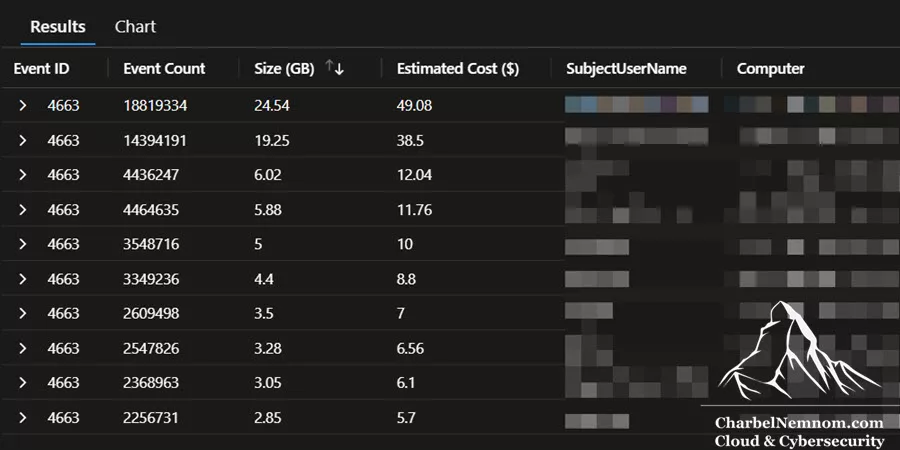
Usage in the Last Month: This query visualizes billable data ingestion over the last 30 days, grouped by data type. It provides a high-level breakdown to identify which tables contribute the most to your Log Analytics usage.
Usage
| where TimeGenerated between(startofday(ago(31d)) .. endofday(ago(1d)))
| where IsBillable = true
| summarize TotalGB = sum(Quantity) / 1000 by DataType
| render piechart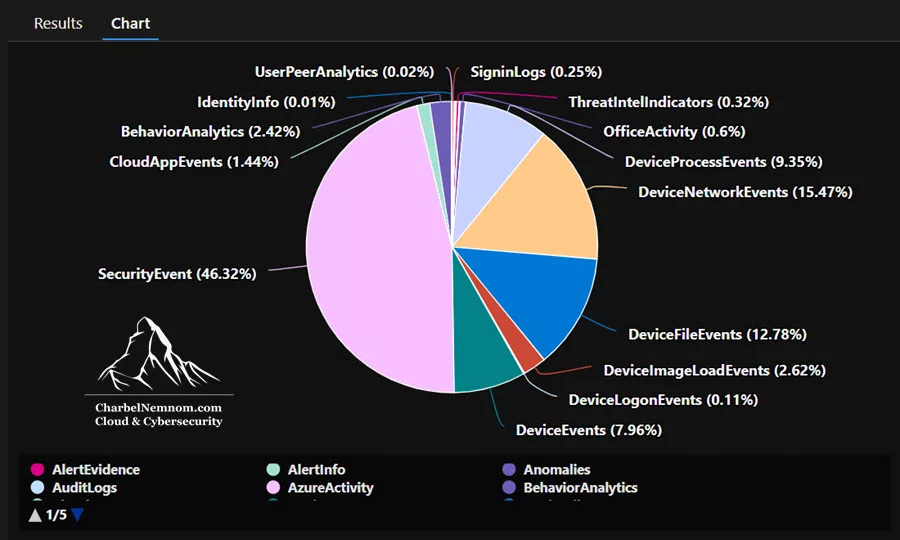
Usage Trend Over Time: This query tracks daily ingestion volumes for the past 90 days, helping you visualize trends, spot anomalies, and plan for capacity based on historical usage patterns.
Usage
| where TimeGenerated > ago(90d)
| where IsBillable = true
| summarize TotalGB = sum(Quantity) / 1000 by bin(TimeGenerated, 1d)
| render timechart
Sudden Spike in Usage: This query focuses on a specific three-month period to identify unexpected spikes in log ingestion. Helpful in detecting events that may indicate misconfiguration or abnormal activity.
Usage
| where TimeGenerated between(startofday(datetime("2025-03-04")) .. endofday(datetime("2025-06-04")))
| where IsBillable = true
| summarize TotalGB = sum(Quantity) / 1000 by bin(TimeGenerated, 1d)
| render timechart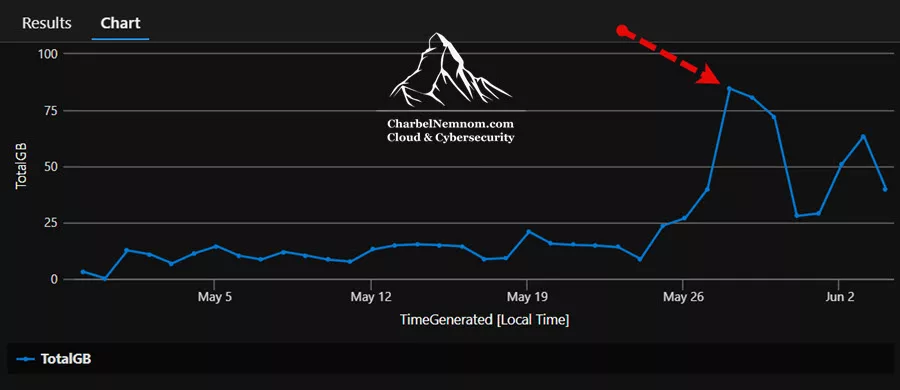
Compare Usage Between Two Specific Days: This query compares ingestion on May 17th with a baseline from May 10th to identify changes in volume across data types. Great for pinpointing the source of unexpected spikes.
let HighUsageDay = Usage
    | where TimeGenerated between(startofday(datetime("2025-05-16")) .. endofday(datetime("2025-05-17")))
    | where IsBillable = true
    | summarize totalGb = sum(Quantity) / 1000 by DataType
    | extend TimeGenerated = datetime("2025-05-17");
let NormalUsageDay = Usage
    | where TimeGenerated between(startofday(datetime("2025-05-09")) .. endofday(datetime("2025-05-10")))
    | where IsBillable = true
    | summarize totalGb = sum(Quantity) / 1000 by DataType
    | extend TimeGenerated = datetime("2025-05-10");
HighUsageDay | union NormalUsageDay
| render columnchart with(title="Usage day comparisson May 10th vs May 17th", xtitle="TimeGenerated", ytitle="Total Usage", legend=hidden, kind=stacked)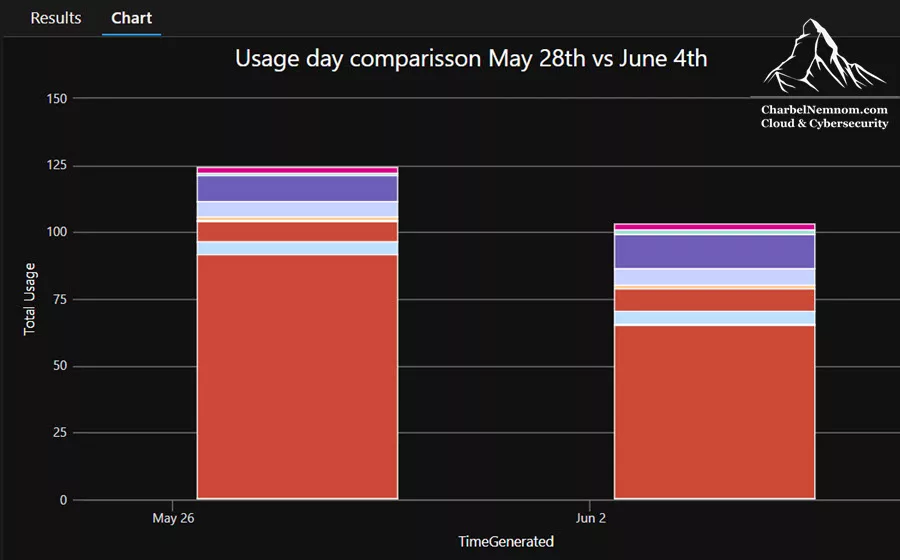
Drill Into AADNonInteractiveUserSignInLogs Table: This query checks whether a spike in log volume is due to more entries in a specific table. This example focuses on AADNonInteractiveUserSignInLogs during the same 3-month period.
AADNonInteractiveUserSignInLogs
| where TimeGenerated between(startofday(datetime("2025-03-04")) .. endofday(datetime("2025-06-04")))
| summarize count() by bin(TimeGenerated, 1d)
| render timechart
Estimate Average Column Size to Identify Bloat: This query compares the average column size between two days by sampling rows and analyzing their data size. Helpful in spotting which columns consume the most space.
let HighUsageDay = AADNonInteractiveUserSignInLogs
    | where TimeGenerated between(startofday(datetime("2025-05-16")) .. endofday(datetime("2025-05-17")))
    | take 10000
    | evaluate narrow()
    | extend ColumnSizeBytes = estimate_data_size(Value)
    | summarize ColumnSizeBytes = make_list(ColumnSizeBytes) by Column
    | extend series_stats(ColumnSizeBytes)
    | project Column, series_stats_ColumnSizeBytes_avg
    | extend TimeGenerated = datetime("2025-05-17");
let NormalUsageDay = AADNonInteractiveUserSignInLogs
    | where TimeGenerated between(startofday(datetime("2025-05-09")) .. endofday(datetime("2025-05-10")))
    | take 10000
    | evaluate narrow()
    | extend ColumnSizeBytes = estimate_data_size(Value)
    | summarize ColumnSizeBytes = make_list(ColumnSizeBytes) by Column
    | extend series_stats(ColumnSizeBytes)
    | project Column, series_stats_ColumnSizeBytes_avg
    | extend TimeGenerated = datetime("2025-05-10");
HighUsageDay | union NormalUsageDay
| render columnchart with(title="Usage day comparisson May 10th vs May 17th", xtitle="TimeGenerated", ytitle="Total Usage", legend=hidden, kind=stacked)
Estimate Ingestion Costs Based on Column Size: This query quantifies the ingestion cost impact of a misconfigured DCR by calculating the average row size and multiplying it by the row count. Demonstrates how small schema changes can have significant billing effects.
AADNonInteractiveUserSignInLogs
| where TimeGenerated between(startofday(datetime("2025-05-16")) .. endofday(datetime("2025-05-17")))
| count
AADNonInteractiveUserSignInLogs
| where TimeGenerated between(startofday(datetime("2025-05-16")) .. endofday(datetime("2025-05-17")))
| take 10000
| evaluate narrow()
| extend ColumnSizeBytes = estimate_data_size(Value)
| summarize ColumnSizeBytes = make_list(ColumnSizeBytes) by Column
| extend series_stats(ColumnSizeBytes)
| project Column, series_stats_ColumnSizeBytes_avg
| sort by series_stats_ColumnSizeBytes_avgSudden Drop in Ingestion: This query visualizes a significant drop in ingestion, signaling potential issues such as misconfigured agents, missing data connectors, or filtered-out logs.
Usage
| where TimeGenerated between(startofday(datetime("2025-03-04")) .. endofday(datetime("2025-06-04")))
| where IsBillable = true
| summarize TotalGB = sum(Quantity) / 1000 by bin(TimeGenerated, 1d)
| render timechart
Narrow Down the Cause of Drop: This query correlates the ingestion dip to a specific table — SecurityEvent — by comparing record counts across time.
SecurityEvent
| where TimeGenerated between(startofday(datetime("2025-03-04")) .. endofday(datetime("2025-06-04")))
| summarize count() by bin(TimeGenerated, 1d)
| render timechart
Fill in Missing Data Points for Accurate Visualization: This query ensures timechart graphs are not misleading by using make-series to fill in missing days with zero values. Critical for spotting actual data loss vs. no activity.
SecurityEvent
| where TimeGenerated between(startofday(datetime("2025-03-04")) .. endofday(datetime("2025-06-04")))
| make-series num=count() default=0 on TimeGenerated from startofday(datetime("2025-03-04")) to endofday(datetime("2025-06-04")) step 1d by Computer
| render timechart
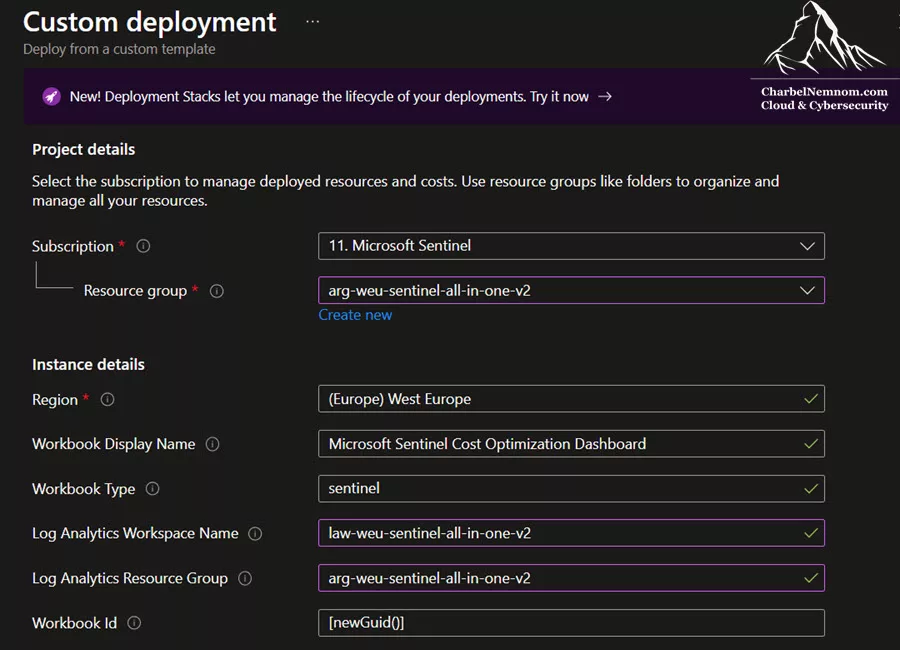
Charting in Workbooks: As we all know, Sentinel Workbook is a collection of KQL queries under the hood. I’ve put together all the queries above about the cost optimization in one workbook, which you can import directly into your Sentinel environment by clicking “Deploy to Azure” button below. By leveraging these queries together in a single workbook, you gain a comprehensive understanding of your Sentinel ingestion costs, identify areas for optimization, and improve cost management strategies.

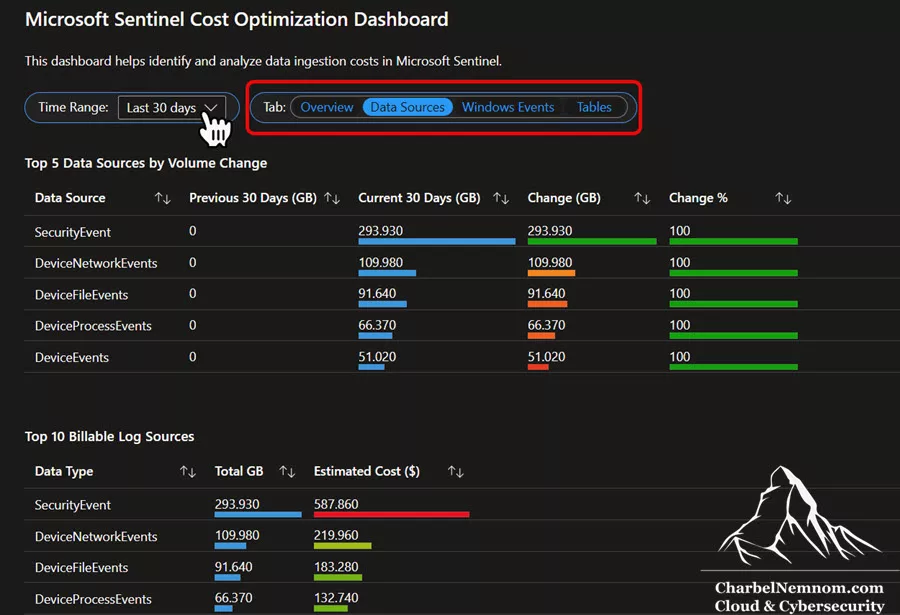
This dashboard helps identify and analyze data ingestion costs in Microsoft Sentinel.
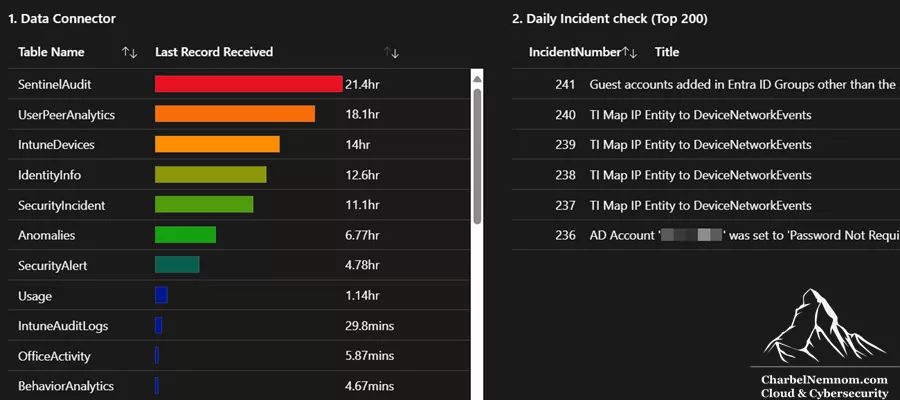
Additionally, many built-in workbooks in Sentinel help chart usage per data connector or event type. Use them to track daily ingestion by source. Filter dashboards to highlight any unexpected surges.
Tune analytic rules: If a rule fires too often on routine activity, consider tuning its query or thresholds, rather than eliminating the data it needs. Fine-tuning analytics can save investigation time and false positives without necessarily dropping data.
Resource Validation and Automation
It’s also essential to verify that Sentinel’s active content is healthy and working as expected:
Validate Analytics Rule Health
Sentinel analytic rules are central to threat detection, so a rule hygiene check ensures they’re current, functional, and aligned with your organization’s naming and tagging standards.
Enable rule-level monitoring as described above, so that each scheduled rule run is logged in SentinelHealth table. For example, to see all analytic rules that ran (and whether they triggered incidents), you could use the following KQL query. This displays the number of times each rule executed and its success status.
SentinelHealth
| where OperationName has "Analytics rule run"
| summarize Runs=count() by AnalyticsRuleName=SentinelResourceName,
 TriggerType=SentinelResourceKind, Reason, Status
| sort by Status asc
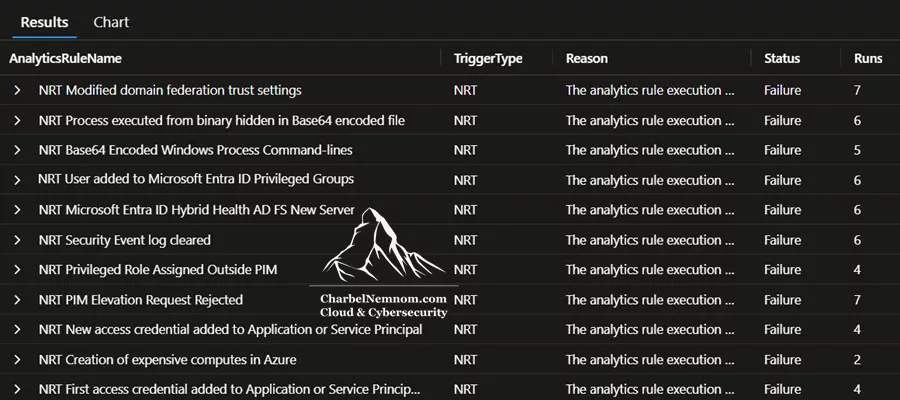
You can also use the Rule runs (Preview) insights from the Analytics blade in the Azure portal or the Microsoft Sentinel – Health workbook for a UI view.
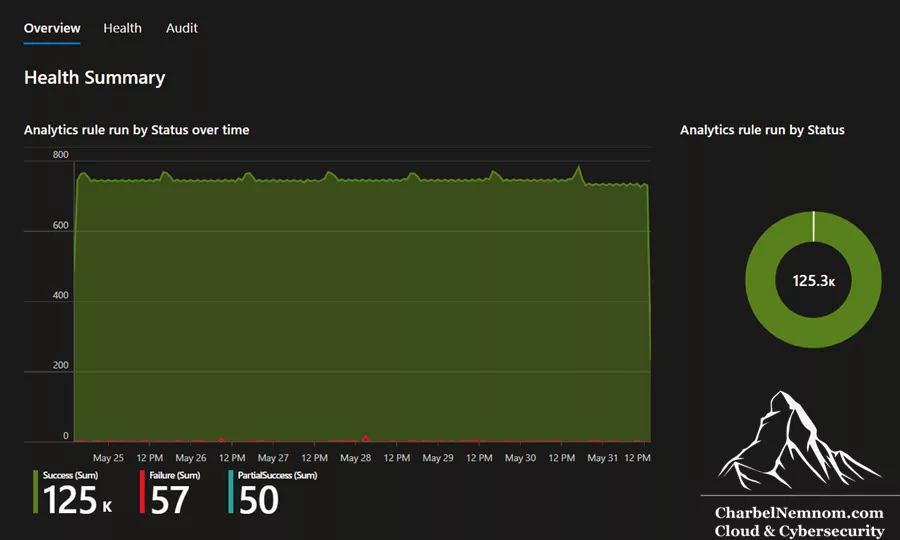
To spot rules that are disabled, frequently failing, or never triggered, use the SentinelHealth, SentinelAudit, and SecurityAlert tables, along with resource metadata:
Query for Disabled Rules
This query identifies Microsoft Sentinel analytic rules that were changed from enabled to disabled, showing when the change happened, the rule name, the user who made the change, and the before/after status. This shows all disabled rules and when they were last seen in logs.
SentinelAudit
| where SentinelResourceType == "Analytic Rule"
| extend OriginalProps = parse_json(tostring(ExtendedProperties.OriginalResourceState)),
         UpdatedProps = parse_json(tostring(ExtendedProperties.UpdatedResourceState))
| extend OriginalEnabled = tostring(OriginalProps.properties.enabled),
         UpdatedEnabled = tostring(UpdatedProps.properties.enabled)
| where OriginalEnabled == "true" and UpdatedEnabled == "false"
| extend CallerName = tostring(ExtendedProperties.CallerName)
| project TimeGenerated, OperationName, SentinelResourceName, OriginalEnabled, UpdatedEnabled, CallerName
| order by TimeGenerated desc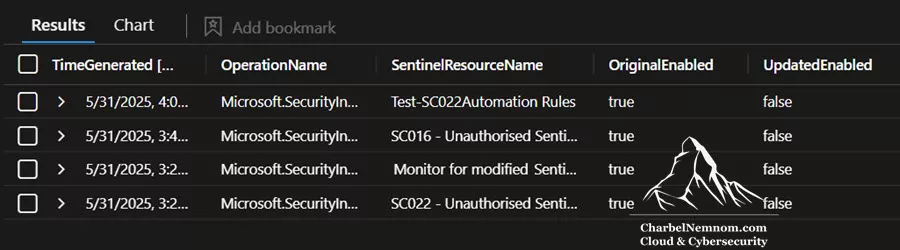
Query Rules that Regularly Fail
This query catches misconfigured or broken rules that frequently fail to execute in the last 7 days, typically due to syntax errors, missing data sources, or permission issues.
SentinelHealth
| where TimeGenerated >= ago(7d)
| where SentinelResourceType == "Analytics Rule"
| where Status in ("Failure", "PartialSuccess")
| summarize
    FailureCount = countif(Status == "Failure"),
    PartialSuccessCount = countif(Status == "PartialSuccess"),
    LastFailure = max(TimeGenerated)
  by SentinelResourceName
| where FailureCount >= 3 or PartialSuccessCount >= 3
| order by FailureCount desc, PartialSuccessCount desc
Query Rules That Never Trigger Incidents
Combine health and alert data to find active rules that haven’t triggered anything in the last 30 days. This is useful to identify outdated detections that no longer apply to your current threat landscape or data environment.
let activeRules = SentinelHealth
| where TimeGenerated >= ago(30d) // You can adjust this window
| where SentinelResourceType == "Analytics Rule" and Status == "Success"
| summarize by SentinelResourceName;

let alertingRules = SecurityAlert
| where TimeGenerated >= ago(30d) // You can adjust this window
| distinct AlertName;

activeRules
| where SentinelResourceName !in (alertingRules)
You can also audit logs, which SentinelAudit will record any changes to rule definitions, helping you spot unintended changes and edits. You could schedule the following KQL query to help you spot analytics rules modifications.
SentinelAudit
| where OperationName == "Microsoft.SecurityInsights/alertRules/Write" and Status == "Success"
| extend UserName = tostring(ExtendedProperties.CallerName),
         AnalyticRuleName = SentinelResourceName,
         IpAddress = tostring(ExtendedProperties.CallerIpAddress),
         SubscriptionId = tostring(ExtendedProperties.SubscriptionId),
         WorkspaceName = tostring(ExtendedProperties.WorkspaceName)
| project TimeGenerated, Description, AnalyticRuleName, Actor=UserName, IpAddress, TenantId, SubscriptionId, WorkspaceName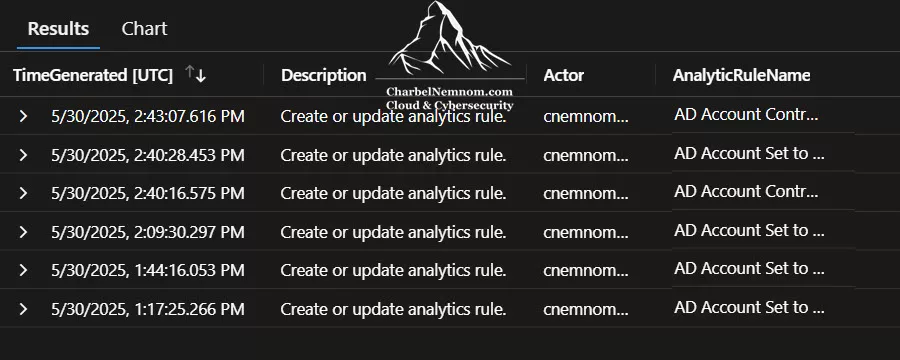
Check Analytics Rules Health
This query analyzes the health of Microsoft Sentinel analytics rules by inspecting the SentinelHealth table for non-healthy rules and then expanding any related issue details to help with the investigation. Do enable Sentinel Health and place alert rules:
SentinelHealth
| where SentinelResourceType == "Analytics Rule"
| where Status !in (
		"Success", "Informational"
	)
| mv-expand ExtendedProperties.Issues
| extend Issues_Description = tostring(ExtendedProperties_Issues.Description)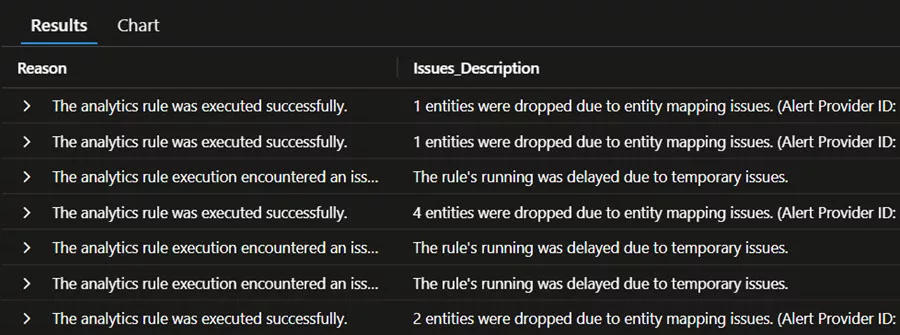
Standardize with Naming Convention
If your organization uses a naming convention (e.g., SC* for standardized/custom detections), you can validate rule names by using the following PowerShell command or the REST API. Rules that don’t follow your standard can be remediated or renamed. This helps keep your SOC organized when scaling detection engineering efforts:
# Install the Az.SecurityInsights module if not already installed
if (-not (Get-Module -ListAvailable -Name Az.SecurityInsights)) {
    Install-Module -Name Az.SecurityInsights -Scope CurrentUser -Force
}

# Variables
$resourceGroupName = "RG-Name"
$workspaceName = "LA-Workspace-Name"
$subscriptionId = "Your-Subscription-ID"

# Connect and set context
Connect-AzAccount
Set-AzContext -SubscriptionId $subscriptionId

# Import the module
Import-Module Az.SecurityInsights

# Get all Sentinel analytics rules
$rules = Get-AzSentinelAlertRule -ResourceGroupName $resourceGroupName -WorkspaceName $workspaceName

# Filter rules that do NOT start with "SC*"
$nonCompliantRules = $rules | Where-Object { -not $_.DisplayName.StartsWith("SC") }

# Output
$nonCompliantRules | Select-Object DisplayName, Name, Kind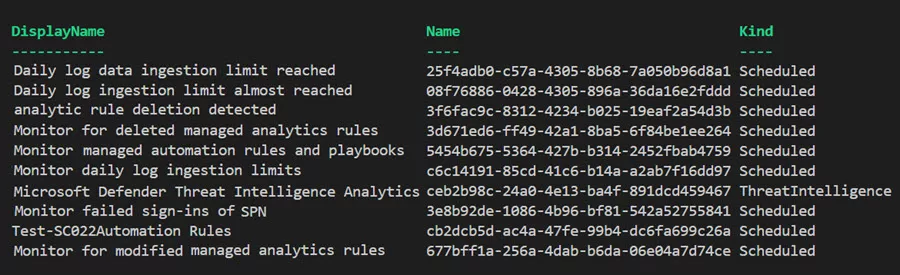
Also consider tagging rules with metadata such as: Tactic, Technique, Sub-Technique, Severity, Owner, or Tested (Yes/No). Tag-based makes rule reviews much easier across large environments.
Validate Automation Rules & Playbooks
With Auditing and Health monitoring on, check that your automation rules (incident automation) are executing. SentinelHealth table records an event whenever an automation rule triggers, e.g. OperationName == “Automation rule run“. Likewise, every playbook execution is logged as “Playbook was triggered“. For example, you could use the following KQL query to check Automation Rules and Playbooks status:
SentinelHealth
| where OperationName in ("Automation rule run", "Playbook was triggered")
| extend TriggeredPlaybooks = tostring(ExtendedProperties.TriggeredPlaybooks)
| extend ParsedPlaybook = parse_json(TriggeredPlaybooks)
| extend PlaybookName = case(
    isnull(ParsedPlaybook), "N/A",
    array_length(ParsedPlaybook) == 0, "N/A",
    isnull(ParsedPlaybook[0].WorkflowId), "N/A",
    extract("workflows/([^/]+)", 1, tostring(ParsedPlaybook[0].WorkflowId))
)
| project TimeGenerated, OperationName, Status, AutomationRuleName = SentinelResourceName, PlaybookName
| sort by Status asc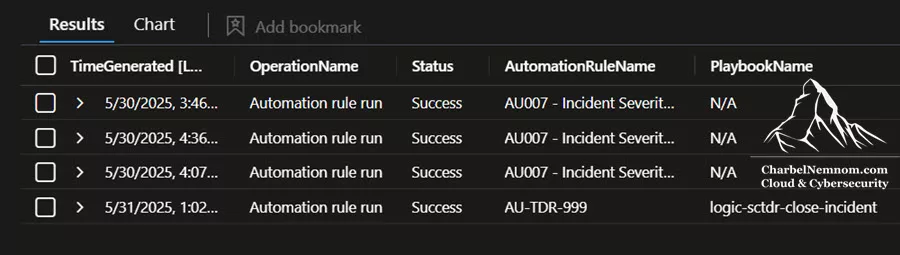
Tip: Also, enable Azure Logic Apps diagnostics logs for your playbooks. This allows you to correlate the SentinelHealth entries with Logic Apps run history (via the CorrelationId), giving more detail on any errors. Check how to master Microsoft Sentinel playbooks for enhanced security.

You could also schedule the following KQL query to help you spot automation rules modifications, for example, if someone disabled it manually, or it might have had an “expiration” date, which, when reached, would have disabled the automation rule automatically. Validate if those disabled or expired automation rules can be deleted if they are no longer applicable. This requires that you have the AzureActivity data connector enabled on the subscription where the Sentinel instance is deployed to audit all activities.
AzureActivity
| where OperationNameValue contains "Microsoft.SecurityInsights/automationRules/write"
| where ActivityStatusValue in ("Success", "Succeeded")
| extend AutomationRule = extract("([^/]+)$", 1, _ResourceId)
| extend resourceString = tostring(Properties_d['resource'])
| extend ExtractedValue = extract(@"microsoft\.securityinsights/([^/]+)/", 1, resourceString)
| extend AutomationRule = iif(isnotempty(ExtractedValue), ExtractedValue, AutomationRule)
| project AutomationRule, Actor=Caller, OperationNameValue, ActivityStatusValue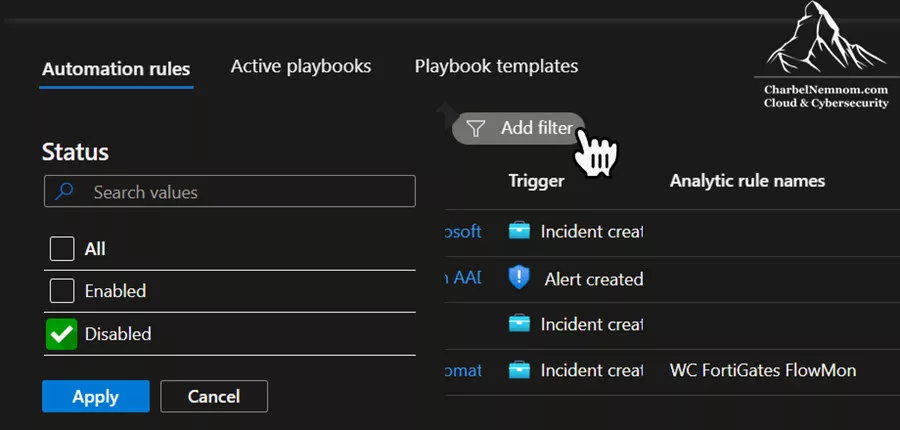
In the Logic Apps resource for each playbook, review the run history to ensure triggers are occurring. Integrating Logic App diagnostics (as mentioned above) with SentinelHealth will surface failed runs. Once you enable diagnostic logs for Logic Apps in Log Analytics, you can query the “AzureDiagnostics” table and check for failed runs, as follows:
AzureDiagnostics
| where Category == "WorkflowRuntime" and status_s == "Failed"
| summarize make_list(pack_all()) by resource_workflowName_s
The AzureDiagnostic table will include specifics about each playbook run, and you can compare playbook trigger data with playbook run data using the resource_runId_s field that is unique for each playbook run. The following KQL query is designed to audit and monitor Logic App (playbook) executions in Microsoft Sentinel by pulling data from the AzureDiagnostics table. It gives you visibility into when playbooks ran, how long they took, who triggered them, and whether they succeeded or failed. You can add a filter at the end of the query to highlight failed or long-running playbooks: `| where Status != "Succeeded" or DurationSeconds > 60`, this makes it easier to troubleshoot automation issues that may be silently failing or underperforming:
AzureDiagnostics
| where ResourceType has "WORKFLOWS/RUNS"
| where Category == "WorkflowRuntime" and status_s != "Failed"
| project
    TimeGenerated,
    PlaybookName = tostring(resource_workflowName_s),
    RunId = tostring(resource_runId_s),
    Status = tostring(status_s),
    StartTime = startTime_t,
    EndTime = endTime_t,
    DurationSeconds = datetime_diff('second', endTime_t, startTime_t),
    ResourceGroup,
    TriggeredBy = tostring(tags_createdBy_s),
    Environment = tostring(tags_Env_s),
    Criticality = tostring(tags_Criticality_s)
| order by TimeGenerated desc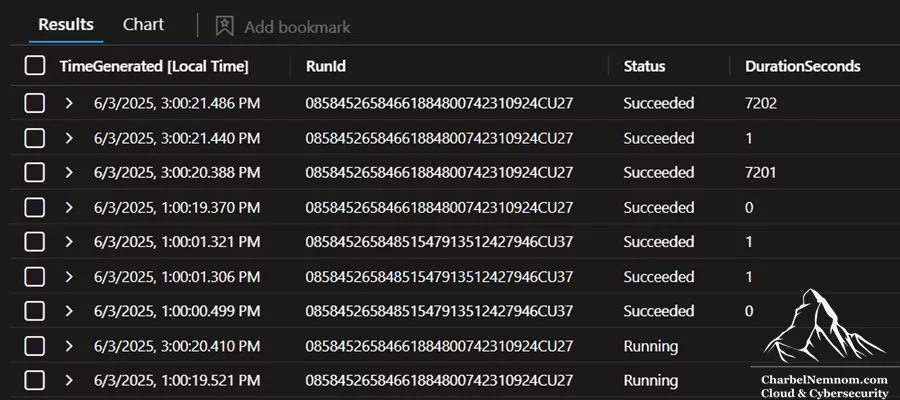
The following KQL query will inspect all analytics rules, automation runs, and playbooks using the SentinelHealth table:
SentinelHealth
| where OperationName has_any
("Analytics rule run","Automation rule run","Playbook was triggered")
| summarize Runs=count() by OperationName, Status, SentinelResourceType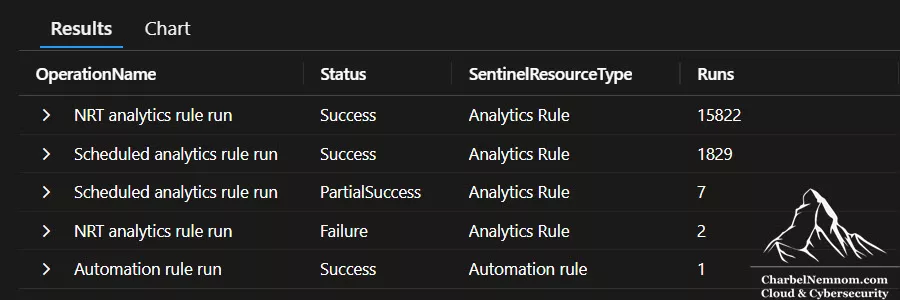
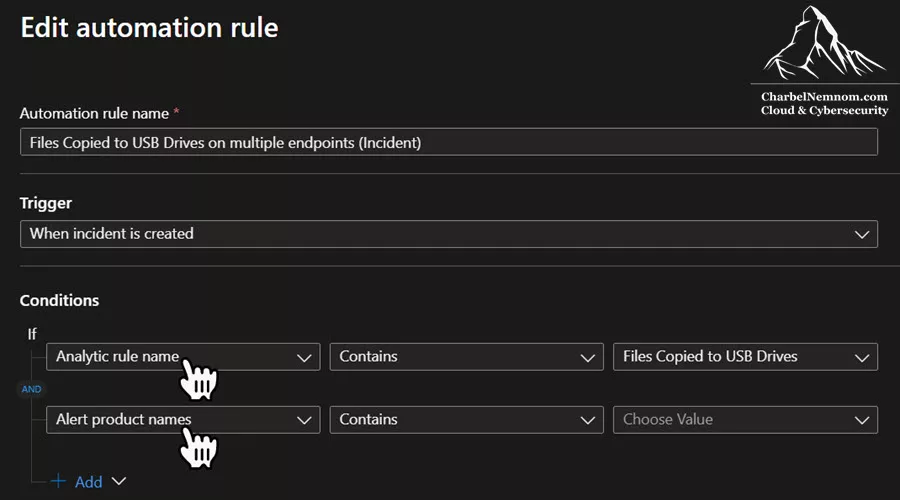
Note: If you have transitioned your Microsoft Sentinel environment to the Defender portal, the new Unified Security Operations Platform (Defender XDR + Sentinel) has some new best practice guidance for automation rules and playbooks:
- If you’ve created an automation rule using the incident “Title” as a condition, use “Analytic rule name” instead. The Title value could change with Defender’s Correlation engine.
- The option for “Incident provider” has been removed and replaced by “Alert product names” to filter based on the alert provider.
Validate Workbooks
Workbooks are resources used to visualize ingested logs and primarily serve reporting purposes. Sentinel provides a rich gallery of workbooks and content packs, but unused or outdated ones can clutter your workspace. There is no auto health log for workbooks, so they must be reviewed manually.
In Sentinel ▶ Threat Management ▶ Workbooks blade, open each critical workbook to ensure visuals render (queries are still valid). Based on the title of each workbook, try to assess if every workbook applies to the environment, or if one or more could be deleted.
For example, if the customer isn’t ingesting Cloudflare logs (or has discontinued Cloudflare in the past few months), but they have a workbook named “Cloudflare“, it is an obvious recommendation to remove the workbook.
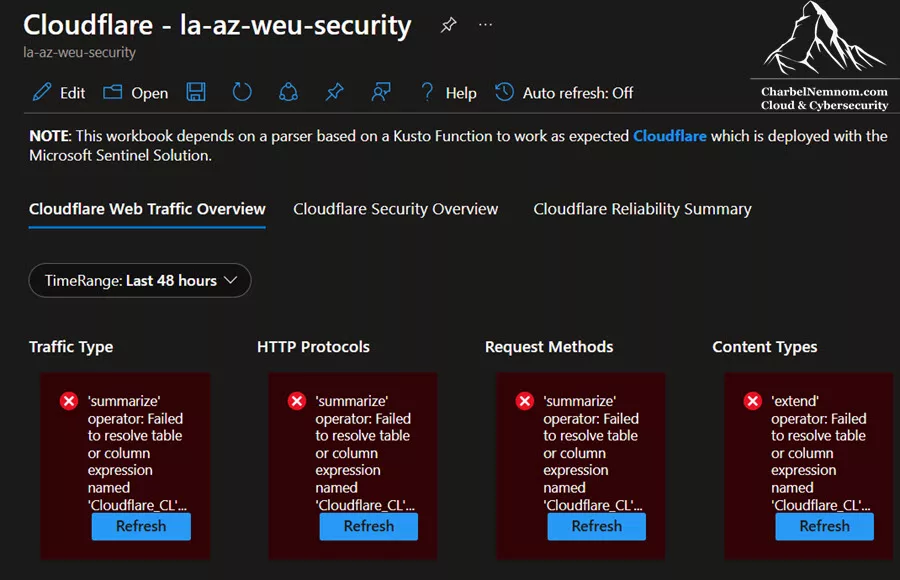
Additionally, if a workbook is querying a custom table that doesn’t exist anymore in Sentinel, it would throw an explicit error in the dashboard. Thus, an empty workbook should be deleted.
You can also review which workbooks are actually being used. For instance, if you installed a solution that includes a workbook, but no one opened it. This helps determine if the workbook is still relevant to your teams. This requires that you have the AzureActivity data connector enabled on the subscription where the Sentinel instance is deployed to audit all activities.
AzureActivity
| where TimeGenerated > ago(30d)
| where OperationNameValue has "Microsoft.Insights/workbooks/write"
| where ActivityStatusValue == "Success" and ActivitySubstatusValue == "OK"
| extend WorkbookResourceId = tostring(parse_json(Properties).entity)
| extend WorkbookGuid = tostring(split(WorkbookResourceId, "/")[-1])
| project TimeGenerated, Caller, OperationNameValue, WorkbookGuid, WorkbookResourceId, ResourceGroup, SubscriptionId
This adds the WorkbookGuid column extracted from the full Workbook Resource ID for easier identification. Since the workbook name is not stored in AzureActivity, you can cross-reference the GUID from WorkbookGuid with existing workbooks using the Azure portal, PowerShell, or Azure CLI.
Best Practices for Workbook Maintenance
Here are some best practices to follow for Workbook Maintenance:
- Clone built-in workbooks before editing – this ensures upgrades to the original don’t overwrite your customizations.
- Regularly check the Workbook (Content Hub) for updated versions.
- Add tags or metadata to workbooks (e.g., Owner, DataSource, LastReviewed) to make reviews easier.
- Remove obsolete workbooks by checking access logs (via
AzureActivity) to see which ones haven’t been used in months. - Use consistent naming conventions: e.g.,
SC-WB-AuthenticationInsights.
Validate Watchlists
Watchlists are powerful, but only if they’re used and up-to-date. First, identify which watchlists are actually referenced by your analytics rules, playbooks, and workbooks. For example, you can scan all rule definitions for the _GetWatchlist function.
In Sentinel ▶ Configuration ▶ Watchlist blade, check that each list has the expected number of entries by running a quick KQL count on its table, as shown in the following example. The names of the Watchlists in the query below are provided for illustration purposes; update the WatchlistAlias according to your environment:
// Get list of watchlists to check
let watchlists = Watchlist
| where _DTItemType == "watchlist"
| where tostring(WatchlistAlias) startswith "wl_"
| distinct WatchlistAlias;

// Manually count items per watchlist using _GetWatchlist
let wl_sentinel_config_accounts = _GetWatchlist("wl_sentinel_config_accounts") | summarize Count = count() | extend WatchlistAlias = "wl_sentinel_config_accounts";
let wl_scs_ops_spn = _GetWatchlist("wl_scs_ops_spn") | summarize Count = count() | extend WatchlistAlias = "wl_scs_ops_spn";
let wl_scs_critical_assets = _GetWatchlist("wl_scs_critical_assets") | summarize Count = count() | extend WatchlistAlias = "wl_scs_critical_assets";

// Combine all results
wl_sentinel_config_accounts
| union wl_scs_ops_spn, wl_scs_critical_assets
| project WatchlistName = WatchlistAlias, ActualCount = Count
| sort by ActualCount desc
If this query returns zero (or fewer rows than expected), the watchlist may be empty or stale. You can also run a quick query to see its data. I’ve observed that some test plans included watchlists filled with invalid values. If a test watchlist is no longer needed, it should be deleted.
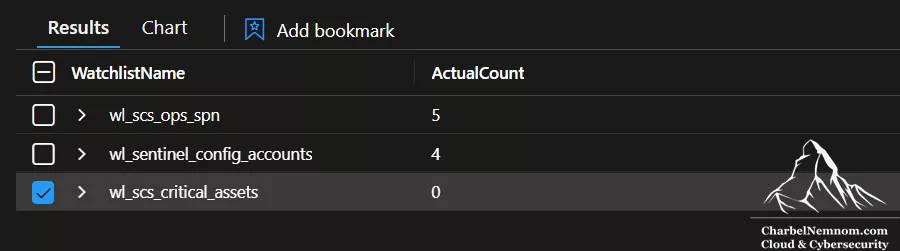
For example, the following KQL query checks whether each table listed in the watchlist named wl_scs_ops_tables still exists in the Sentinel workspace by comparing it against the Usage table. It also calculates how old each watchlist entry is (in days), and returns a list showing the table name, last update time, age, and whether it currently exists in Sentinel, helping you identify outdated or unused watchlist entries.
In practice, if your _GetWatchlist query shows that LastUpdatedTimeUTC values are very old, the data may be outdated – note that watchlists are refreshed in Sentinel roughly every 12 days. If a watchlist is obsolete, either remove it from rules or update its source (for example, upload a fresh CSV file).
let wl_scs_ops_tables = _GetWatchlist('wl_scs_ops_tables')
    | project TableName, LastUpdatedTimeUTC, AgeInDays = datetime_diff('day', now(), LastUpdatedTimeUTC);
let existingTables = Usage
    | summarize by DataType;
wl_scs_ops_tables
| join kind=leftouter (existingTables) on $left.TableName == $right.DataType
| project TableName, LastUpdatedTimeUTC, AgeInDays, ExistsInSentinel = iif(isnotempty(DataType), "Yes", "No")
| order by ExistsInSentinel asc, AgeInDays desc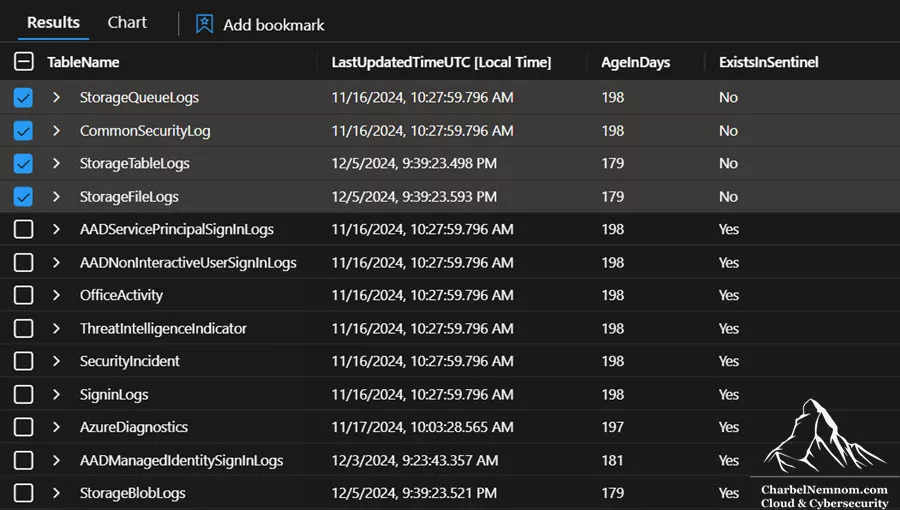
Remember that in Sentinel, you pay a fixed fee for each gigabyte of data you send. This cost applies to watchlists as well. The main difference between a watchlist and a regular table is that a watchlist generates additional logs over time and during specific activities. When you upload a watchlist, its contents are initially transferred to the ‘Watchlist’ table in Sentinel, for which you are charged. After this initial ingestion, the watchlist data is continuously pushed to Sentinel to ensure it remains available for rule processing. This refresh occurs every twelve days as documented by Microsoft (Watchlist limitations).
The next question is, how do you validate if a watchlist is being used in an analytic rule, a workbook, or a logic app? Well, we could use the Azure Resource Graph (ARG) explorer, the REST API, or Azure PowerShell to query each resource as follows:
Watchlist Usage in Logic Apps
resources
| where type =~ 'Microsoft.Logic/workflows'
| extend definition = tostring(properties.definition)
| where definition contains '_GetWatchlist('
| project name, watchlistUsage = extract("_GetWatchlist\\('([^']+)'\\)", 1, definition)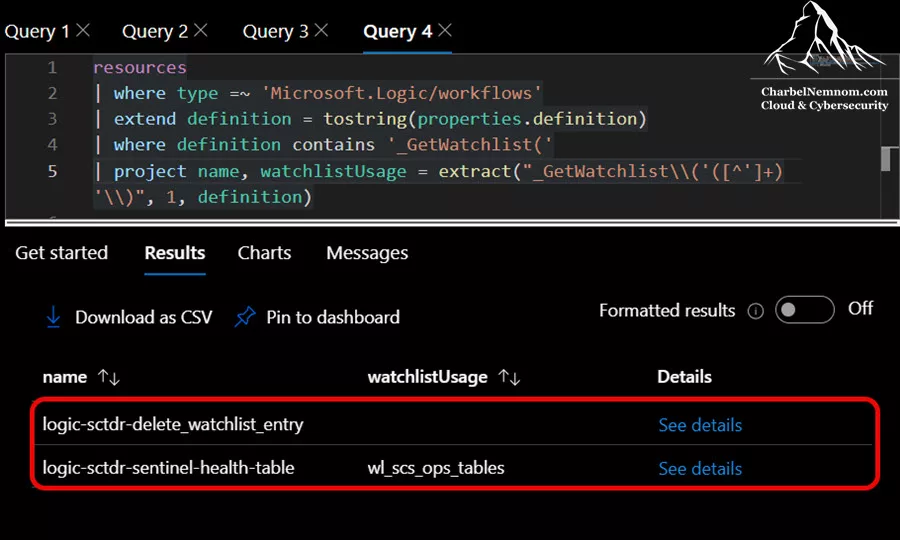
Watchlist Usage in Analytics Rules
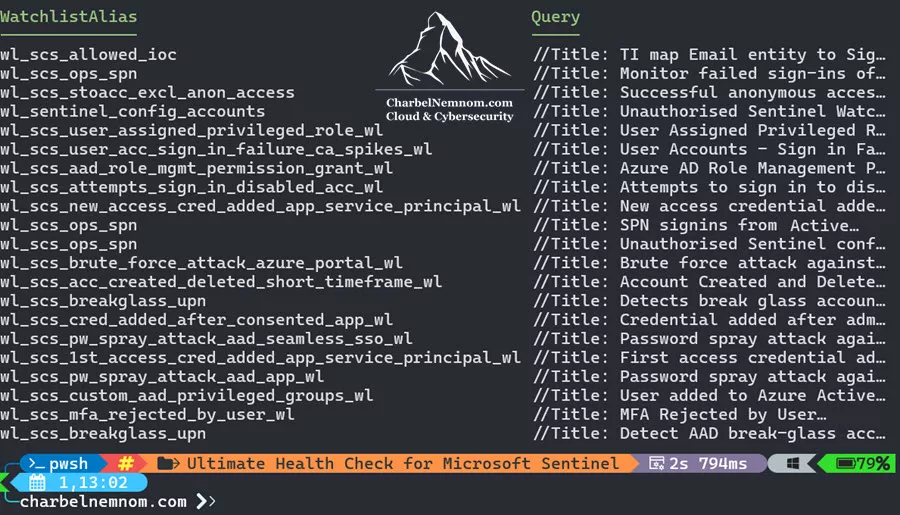
For Analytics rules, we can’t use the Azure Resource Graph (ARG) because Microsoft transitioned from TemplateSpecs to ContentTemplates in 2023, which means we can’t validate whether a watchlist is being used with ARG. An alternate option is to use the Az.SecurityInsights PowerShell module or the REST API to check if ‘_GetWatchlist‘ exists in any of the analytics rules. Here is a PowerShell example you can use to validate watchlist usage in Analytics Rules.
# Install the Az.SecurityInsights module if not already installed
if (-not (Get-Module -ListAvailable -Name Az.SecurityInsights)) {
    Install-Module -Name Az.SecurityInsights -Scope CurrentUser
}

# Connect & Set subscription context
$subscriptionId = "Your-Subscription-ID"
Connect-AzAccount
Set-AzContext -SubscriptionId $subscriptionId

# Specify your resource group name
$resourceGroupName = "RG-Name"

# Specify your Log Analytics workspace name
$WorkspaceName = "LA-Workspace-Name"

Import-Module -Name Az.SecurityInsights

$rules = Get-AzSentinelAlertRule -ResourceGroupName $resourceGroupName -WorkspaceName $WorkspaceName

$results = $rules | Where-Object { $_.Query -match '_GetWatchlist' } | ForEach-Object {
    $alias = "<not found>"
    # Perform the regex match and capture groups in one step
    if ([regex]::Match($_.Query, "_GetWatchlist\(\s*['""]([^'""]+)['""]\s*\)").Success) {
        $match = [regex]::Match($_.Query, "_GetWatchlist\(\s*['""]([^'""]+)['""]\s*\)")
        $alias = $match.Groups[1].Value
    }
    [PSCustomObject]@{
        AnalyticsRuleName = $_.DisplayName
        WatchlistAlias    = $alias
        Query             = $_.Query
    }
}

if ($results) {
    $results | Sort-Object displayname | Format-Table -AutoSize
}
else {
    Write-Output "No Analytics rules found using _GetWatchlist."
}
Watchlist Usage in Workbooks
The content of the workbook is not available in Azure Resource Graph (ARG) because it could be up to 2 MB in size. What we could do is to enumerate every workbook resource we can see in the resource group where the Microsoft Sentinel instance is deployed. For this, we can perform an ARM GET for each workbook resource with canFetchContent=true, and then search through the properties.serializedData field for the `_GetWatchlist` content we are looking for. Here is a PowerShell example using the REST API you can use to validate watchlist usage in Workbooks.
# Variables
$subscriptionId = "Your-Subscription-ID"
$resourceGroupName = "RG-Name"

# Connect to Azure
Connect-AzAccount

#! Get Az Access Token
#! This will default to Azure Resource Manager endpoint
$token = (ConvertFrom-SecureString (Get-AzAccessToken -AsSecureString -WarningAction SilentlyContinue).Token -AsPlainText)
$authHeader = @{
    'Content-Type'  = 'application/json'
    'Authorization' = 'Bearer ' + $token
}

# Get all workbooks in the resource group
$workbooksUri = "https://management.azure.com/subscriptions/$subscriptionId/resourceGroups/$resourceGroupName/providers/Microsoft.Insights/workbooks?api-version=2021-08-01"
$workbooksResponse = Invoke-RestMethod -Uri $workbooksUri -Headers $authHeader -Method Get

if (-not $workbooksResponse.value) {
    Write-Output "No workbooks found in resource group $resourceGroupName."
    return
}

$results = foreach ($wb in $workbooksResponse.value) {
    $wbName = $wb.name

    # Get full workbook JSON with canFetchContent=true
    $wbUri = "https://management.azure.com/subscriptions/$subscriptionId/resourceGroups/$resourceGroupName/providers/Microsoft.Insights/workbooks/$($wbName)?api-version=2021-08-01&canFetchContent=true"
    $wbFull = Invoke-RestMethod -Uri $wbUri -Headers $authHeader -Method Get

    # Get the workbook JSON definition from serializedData or definition
    $jsonContent = $wbFull.properties.serializedData
    if (-not $jsonContent) {
        $jsonContent = $wbFull.properties.definition
    }

    # Default if no JSON content found
    if (-not $jsonContent) {
        [PSCustomObject]@{
            WorkbookName   = $wbName
            DisplayName    = $wbFull.properties.displayName
            UsesWatchlist  = $false
            WatchlistAliases = @()
        }
        continue
    }

    # Convert JSON content string to object if needed
    # Sometimes serializedData is a JSON string, sometimes already parsed object
    if ($jsonContent -is [string]) {
        $jsonObject = $jsonContent | ConvertFrom-Json -ErrorAction SilentlyContinue
    } else {
        $jsonObject = $jsonContent
    }

    # Search the entire JSON string for _GetWatchlist usage (simple string search)
    $usesWatchlist = $false
    $aliases = @()

    # Flatten JSON to string for regex search if object
    $jsonString = if ($jsonContent -is [string]) { $jsonContent } else { ($jsonContent | ConvertTo-Json -Depth 100) }

    if ($jsonString -match "_GetWatchlist") {
        $usesWatchlist = $true

        # Extract all aliases with regex: _GetWatchlist('alias') or _GetWatchlist("alias")
        $matches = [regex]::Matches($jsonString, "_GetWatchlist\(\s*['""]([^'""]+)['""]\s*\)")
        foreach ($m in $matches) {
            $aliases += $m.Groups[1].Value
        }
        $aliases = $aliases | Sort-Object -Unique
    }

    [PSCustomObject]@{
        WorkbookName    = $wbName
        DisplayName     = $wbFull.properties.displayName
        UsesWatchlist   = $usesWatchlist
        WatchlistAliases = $aliases
    }
}

# Output results
$results | Sort-Object DisplayName | Format-Table -AutoSize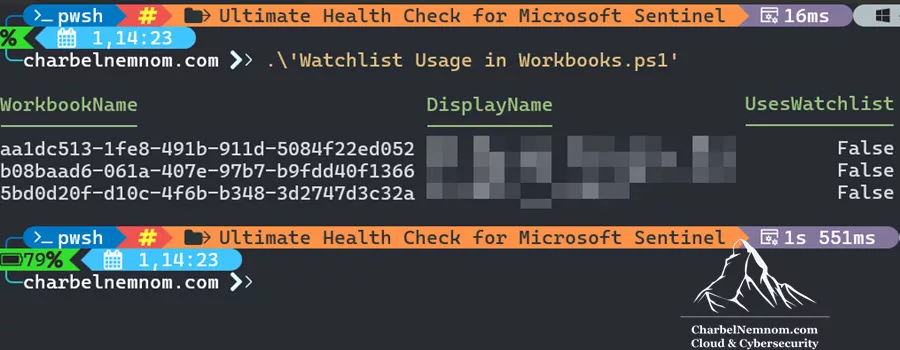
Detect Watchlist Changes
You could also schedule the following KQL query to detect unauthorized Sentinel watchlist changes. First, you need to create a watchlist (e.g., wl_sentinel_config_accounts) and add all the authorized accounts to it.
let wl_SentinelConfigApprovers = _GetWatchlist('wl_sentinel_config_accounts')
    | project upn;
let backTime = ago(1d);
Watchlist
| extend update_email=UpdatedBy.email
| extend update_name=UpdatedBy.name
| where LastUpdatedTimeUTC>backTime
| extend updatedBy=coalesce(update_email,update_name)
| where updatedBy !in (wl_SentinelConfigApprovers)
| where (_DTItemType == "watchlist" and _DTItemStatus == "Delete")
    or (_DTItemType == "watchlist-item"
    and _DTItemStatus in ("Create", "Delete")
    and WatchlistAlias !in (Watchlist
    | where _DTItemType == "watchlist"
        and _DTItemStatus == "Delete"
    | project WatchlistAlias))
| extend status_action=_DTItemStatus
| extend updatedField = iff(WatchlistName == "", strcat(tostring(_DTItemType), " ", tostring(WatchlistItem)), WatchlistName)
| extend watchlist_alias_c = tostring(WatchlistAlias)
| where tostring(watchlist_alias_c) startswith 'wl_'
| project WatchlistName,TimeGenerated, watchlist_alias_c, status_action, _DTItemType, WatchlistItem, updatedBy, updatedField
Validate Threat Intelligence Indicators
Finally, ensure your Threat Intelligence (TI) map is active and being used. All ingested threat indicators are stored in the new ThreatIntelIndicators table. You can check ingestion by querying its table. If TotalIndicators is unexpectedly low or zero, your TI feeds might not be connected or may have failed. Also, review the timestamps (TimeGenerated) on these indicators to ensure they are recent.
ThreatIntelIndicators
| summarize TotalIndicators = count()
Next, verify that your analytics rules actually reference these indicators. Search rule queries for the term ThreatIntelIndicators or the legacy ThreatIntelligenceIndicator table. To check which Microsoft Sentinel rules are using Threat Intelligence (TI), you can query the SecurityAlert table in Log Analytics, Microsoft Sentinel REST API, or PowerShell with the Az.SecurityInsights module.
# Install the Az.SecurityInsights module if not already installed
if (-not (Get-Module -ListAvailable -Name Az.SecurityInsights)) {
    Install-Module -Name Az.SecurityInsights -Scope CurrentUser
}

# Specify your resource group name
$resourceGroupName = "RG-Name"

# Specify your Log Analytics workspace name
$WorkspaceName = "LA-Workspace-Name"

# Connect & Set subscription context
$subscriptionId = "Your-Subscription-ID"
Connect-AzAccount
Set-AzContext -SubscriptionId $subscriptionId

Import-Module -Name Az.SecurityInsights

$rules = Get-AzSentinelAlertRule -ResourceGroupName $resourceGroupName -WorkspaceName $WorkspaceName
$rules | Where-Object { $_.Query -match 'ThreatIntelIndicators' } | Select-Object DisplayName, Query
This lists any rules using Threat Intel. If none of your rules appear, you may want to create or adjust rules that leverage TI (for example, checking if an IP or domain in an alert matches a known malicious indicator). Keeping TI data fresh and ensuring your rules query it will maximize the value of the threat intelligence map.

// See Also: Threat Intelligence in Microsoft Sentinel: Transitioning to Enhanced Modeling and Advanced Threat Hunting.
Alert Fatigue and Noisy Analytics Rules
Over time, security teams can become overwhelmed by an excessive number of low-fidelity alerts. Noisy analytic rules – those that fire repeatedly on benign activity – lead to alert fatigue. It’s essential to tune or disable such rules so analysts can focus on real threats. For example, Microsoft Sentinel’s built-in tuning insights highlight entities and conditions that often cause false positives. You can use these recommendations to exclude benign hosts, IPs, or users from rules, or to disable rules that no longer fit your environment.
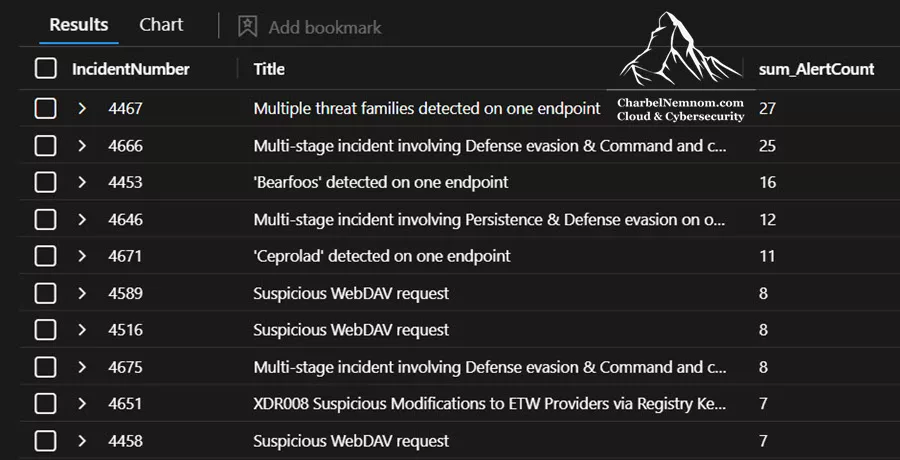
You can also use Log Analytics queries to identify problematic rules. For instance, to see which Sentinel rules have generated the most incidents in the last 30 days, run a query like:
SecurityIncident
| where TimeGenerated > ago(30d) // ✅ filter on incidents
| summarize IncidentCount = count() by IncidentNumber, tostring(AlertIds), Title
| extend Alerts = extract("\\[(.*?)\\]", 1, tostring(AlertIds))
| mv-expand todynamic(AlertIds) to typeof(string)
| join
(
    SecurityAlert
    | where TimeGenerated > ago(30d) // ✅ filter on incidents
    | summarize AlertCount = count() by AlertSeverity, SystemAlertId, AlertName
) on $left.AlertIds == $right.SystemAlertId
| summarize sum(AlertCount), make_set(AlertName) by IncidentNumber, Title
| order by sum_AlertCount desc
This KQL query retrieves Microsoft Sentinel incidents from the last 30 days and joins them with related alerts to show how many alerts are linked to each incident. It summarizes the total alert count and the set of alert names per incident, ordering the results by the highest number of associated alerts. Any rule with an exceptionally high alert count is a candidate for review and tuning.
Likewise, you can correlate rule runs to incidents. Sentinel’s health logs capture every scheduled rule execution. For example:
let runs = SentinelHealth
    | where TimeGenerated >= ago(30d) and SentinelResourceType == "Analytics Rule" and Status == "Success"
    | summarize Runs=count() by RuleName = SentinelResourceName;
let incs = SecurityIncident
    | where TimeGenerated >= ago(30d)
    | join kind= fullouter (SecurityAlert) on $left.Title==$right.AlertName
    | where AlertIds contains SystemAlertId
    | summarize Incidents=count() by AlertName;
runs
| join kind=leftouter incs on $left.RuleName == $right.AlertName
| where Runs > 50 and coalesce(Incidents, 0) < 5
| project RuleName, Runs, Incidents
| sort by Runs desc
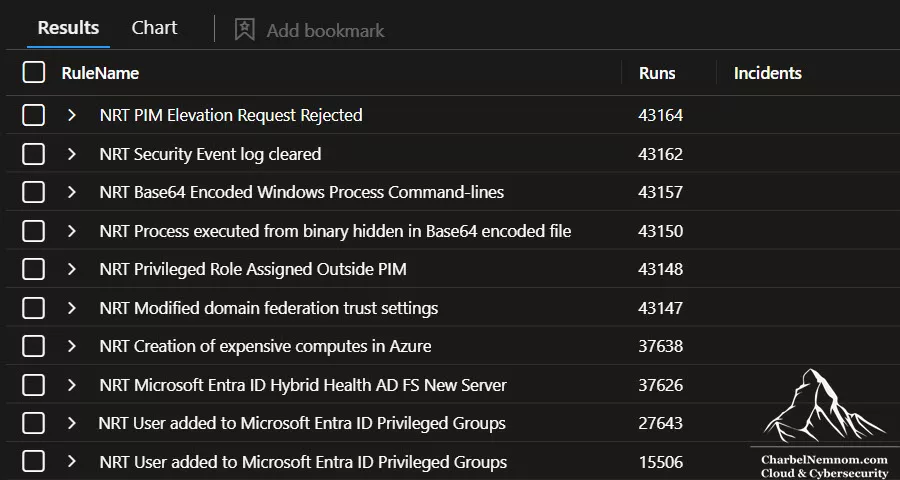
This KQL query identifies analytics rules in Microsoft Sentinel that have successfully run more than 50 times in the past 30 days but have resulted in fewer than 5 incidents. It does this by comparing execution counts (Runs) from the SentinelHealth table with incident counts (Incidents) derived by joining SecurityIncident and SecurityAlert, ensuring that only alerts actually linked to incidents are counted. This helps identify ineffective rules that are frequently evaluated but rarely lead to actionable incidents. Such rules may need review — consider tightening their logic, reducing frequency, or disabling them to reduce resource usage and noise.
In summary, regularly query your logs to spot high-volume alerts and low-value rule runs. Tune thresholds or exclusions on the top offenders, and disable any legacy or overly broad rules. These steps will reduce alert noise and help your Security Operations Center (SOC) team focus on the most critical threats.
Wrap-Up: Key Takeaways
In conclusion, regularly assessing the health of your Microsoft Sentinel environment is essential for maintaining an effective security posture. A critical aspect of this process is identifying noisy analytics rules and fine-tuning them with targeted KQL queries. This approach reduces false alerts and helps alleviate alert fatigue, allowing your team to concentrate on genuine threats.
By systematically following these checks – from cost settings to connector health, UEBA, and rule execution – SOC teams can confidently verify that Sentinel is collecting the right data and operating efficiently. The combination of portal settings, built-in monitoring tables, and targeted KQL queries will help you identify and address any gaps, ensure compliance with cost and retention policies, and ultimately refine your security operations.
Additionally, monitoring SentinelHealth and SentinelAudit Logs are invaluable; they can highlight rule execution failures or unexpected disables before they compromise your coverage. Validating your watchlists is equally crucial to ensure that all data references driving your rules and workbooks remain current and accurate. Finally, confirming full integration of threat intelligence rounds out the picture. By reviewing how indicators are incorporated into your detection logic, you can ensure that fresh threat data is applied effectively.
While these steps may seem routine, establishing them as a consistent health check routine is crucial for long-term success. By documenting the processes and queries associated with these checks, your SOC team can regularly review and refine its rules and resources. This proactive approach allows you to stay ahead of environmental changes and emerging threat trends.
By doing this, you create a culture of continuous improvement within Microsoft Sentinel—one that strikes a balance between security monitoring and practical efficiency. This thoughtful maintenance of your Sentinel analytics and data feeds ensures that your detections remain accurate, your alerts are meaningful, and your team is confident that the platform is functioning optimally. Ultimately, regular health checks help ensure that your investment in Microsoft Sentinel continues to provide robust, up-to-date security insights.
Remember, you can always support us in developing tools and creating content via Why Donate? – Charbelnemnom.com Cloud & Cybersecurity
__
Thank you for reading our blog.
Please let us know in the comments section below if you have any questions or feedback.
-Charbel Nemnom-
