
Microsoft Defender External Attack Surface Management (EASM) provides organizations with a comprehensive view of their digital attack surfaces. It discovers known and unknown resources, from web pages to IP addresses and domains, helping prioritize risks and defend against potential threats.
Integrating Defender EASM into Microsoft Sentinel becomes essential so that you have only one platform to monitor and respond to threats. In this guide, we’ll cover all the steps to connect Defender EASM to Microsoft Sentinel to enrich an incident by looking at whether an asset in your organization is internet-connected and exposed to vulnerabilities.
Table of Contents
Overview of Defender EASM and Its Importance
Microsoft Defender External Attack Surface Management (EASM) uses Microsoft’s crawling technology to actively scan and uncover new connections over time. It generates Attack Surface Insights by applying vulnerability and infrastructure data, revealing critical areas of concern.
The tool is essential for managing assets beyond the firewall’s protection and addressing the challenges of modern networks, including shadow IT. EASM’s dynamic inventory helps bring rogue elements under control, ensuring all assets are accounted for and managed.
Key benefits of EASM include:
- Discovering digital assets and maintaining an always-on inventory
- Analyzing and prioritizing risks and threats
- Pinpointing attacker-exposed weaknesses
- Gaining visibility into third-party attack surfaces
EASM integrates with other Microsoft solutions, enabling enriched workflows and stronger defenses. Its data connections feature allows seamless integration with platforms like Azure Log Analytics and Azure Data Explorer (ADX), enabling automatic asset data and insights export.
By providing an “external” perspective of infrastructure through continuous monitoring, EASM helps organizations take proactive steps against evolving threats. It streamlines the process of identifying, assessing, and mitigating risks across the digital landscape.
Supported Regions and Assets
Microsoft Defender EASM currently supports only 14 regions globally, including:
- Australia East
- Canada Central
- Central US
- East Asia
- East US
- France Central
- Japan East
- North Europe
- Norway East
- South Central US
- Sweden Central
- Switzerland North
- West Europe
- West US 3
More regions will be added in the future. Defender EASM discovers various assets relevant to an organization’s external attack surface, including:
| Asset Type | Description |
|---|---|
| Domains | Registered web addresses |
| Hostnames | Names assigned to network devices |
| Web Pages | Individual pages within websites |
| IP Blocks | Ranges of IP addresses |
| IP Addresses | Unique network identifiers |
| ASNs | Autonomous System Numbers |
| SSL Certificates | Digital certificates for secure connections |
| WHOIS Contacts | Domain registration information |
This broad spectrum of asset detection allows Defender EASM to present a thorough mapping of an organization’s external assets. The continuous scanning and re-evaluation of the attack surface ensures that the inventory remains up-to-date, capturing new additions or changes as they occur.
Prerequisites
To follow this guide, you need to have the following:
1) Azure subscription – If you don’t have an Azure subscription, you can create one here for free.
2) Log Analytics workspace – To create a new workspace, follow the instructions to create a Log Analytics workspace.
3) Enable Microsoft Sentinel at no additional cost on an Azure Monitor Log Analytics workspace for the first 31 days; follow the quick onboarding process. Once Microsoft Sentinel is enabled on your Azure Monitor Log Analytics workspace, every GB of data ingested into the workspace can be retained at no charge for 90 days. Defender EASM integration into Sentinel/Log Analytics is NOT free and will follow the official data ingestion and storage retention costs.
4) Ensure you have the following roles assigned on the following resources:
- Microsoft Sentinel Contributor on the Log Analytics workspace where Microsoft Sentinel is deployed.
5) A Contributor role assigned for you to create the EASM resource. New Defender EASM resources start with a 30-day trial. After the trial period, you will be automatically billed at the standard metered rate of $0.011 asset/day.
6) Data connection permissions. Defender EASM data connections do not support private links or networks (more on this below).
Assuming you have all the prerequisites in place, take the following steps:
Setting Up Defender EASM
To set up Microsoft Defender EASM, follow these steps:
1) Create a Defender EASM Azure resource:
Go to the Azure portal and search for Microsoft Defender External Attack Surface Management.
Create a new EASM resource and configure subscription, resource group, and region settings.

2) Create a custom attack surface:
After setting up the workspace, the system searches for pre-existing attack surface information. Microsoft has preemptively configured the attack surfaces of many organizations, mapping their initial attack surface by discovering infrastructure connected to known assets.

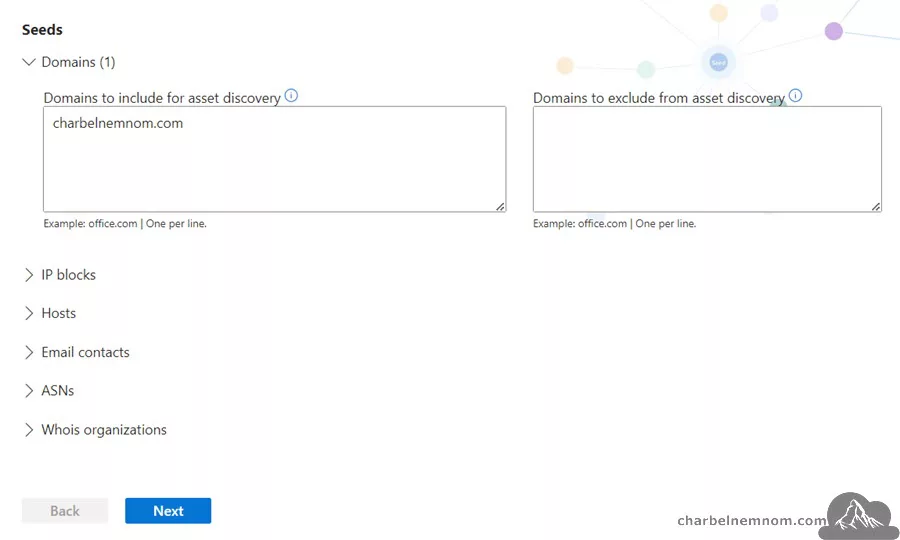
If your organization is not found, you can create a new custom attack surface under “Manage” in the “Discovery” section, as shown in the figure below.

Next, enter “seeds“, such as domain names, IP blocks, hosts, ASNs, Whois organizations, etc. Known assets (seeds) discover connected (known and/or unknown) assets to build up the attack surface.
3) Verification and confirmation:
Microsoft scans its security graph and maps your digital footprint. This process typically takes 24 to 48 hours.

4) Post-scan analysis:
Review the detailed inventory of your attack surface under “General” in the ‘Inventory‘ section.

5) Leverage the data:
Integrate with other tools like Azure Log Analytics and Microsoft Sentinel for enriched investigation playbooks and automated responses. This setup process helps establish a strong defense mechanism and enables continuous updating and management of your security posture (more on this in the next section).
Defender EASM Dashboards
Once the discovery is completed, we can access the Dashboards section, which provides insights into identifying unmanaged assets, assessing security posture, and evaluating compliance.
1) The Attack Surface Summary page provides insights into the core components of the attack surface (High, Medium, and Low risks), which has the same view as the Overview page.

2) The Security Posture page overviews the security maturity of different configuration areas, such as CVE exposure, domain administration, hosting and networking, domain configuration, Open ports, SSL configuration, and SSL organization.

3) The GDPR Compliance page provides an overview of GDPR (EU Privacy law) compliance with public-facing web assets (websites, SSL certificates, cookies, PII, and login posture).

4) The OWASP Top 10 page provides an overview of the top 10 web-based attacks, such as (SQL) Injection, broken access control, cryptographic failure, insecure design, security misconfiguration per asset, Identification and authentication failures, server-side request forgery, etc.

5) The CWE Top 25 Software Weaknesses page provides the top 25 Common Weakness Enumeration (CWE) provided annually (for the last five years) by MITRE ATT&CK®. These most common and impactful software weaknesses are easy to find and exploit.

6) The CISA known exploits page provides a list of exploits identified by the Cybersecurity & Infrastructure Security Agency (CISA) recently exploited by threat actors.

Configuring Data Connections
Defender EASM offers data connections to help you seamlessly integrate your attack surface data into other Microsoft solutions to supplement existing workflows with new insights. To best use your attack surface data, you must get data from Defender EASM and use it in other security tools, such as Microsoft Sentinel, for remediation purposes.
The data connector sends Defender EASM asset data to two different platforms: Log Analytics and Azure Data Explorer (ADX). You need to export Defender EASM data to either tool. Data connections are subject to the pricing model for each respective platform.
Next is configuring the Log Analytics connection to integrate Defender EASM with Microsoft Sentinel.
Integrating Defender EASM with Microsoft Sentinel
Integrating Defender EASM with Microsoft Sentinel enhances security monitoring and incident response by leveraging comprehensive attack surface data. This integration enables the creation of alerts and custom dashboards, improving threat detection capabilities. To add a data connection to Microsoft Sentinel, take the following steps:
1) Log Analytics Permissions:
- Open the Log Analytics (Sentinel) workspace where you want to ingest your Defender EASM data.
- On the leftmost pane, under Settings, select Agents.
- Expand the Log Analytics agent instructions section to view your workspace ID and primary key. The next step will use these values to set up your data connection.

2) Open Data Connections:
- Access your Defender EASM resource in the Azure portal.
- Go to Manage > Data Connections.
3) Initiate Connection:
- Under the Log Analytics section, click Add Connection.

4) Enter Connection Details:
- Provide a name for the connection, Workspace ID, API Key (Workspace primary or secondary key), content type (select to integrate asset data, attack surface insights, or both), and update frequency (daily, weekly, and monthly).
5) Confirmation and Data Flow:
- Click Add. Data will start populating into Log Analytics within about 30 minutes.

This setup creates a seamless data flow, enhancing threat detection and response capabilities within 30 minutes of configuration.
Query EASM Data in Microsoft Sentinel
Once the Microsoft Defender EASM Data Connection is connected, data from Microsoft Defender EASM is ingested into the Log Analytics workspace and is usable in Microsoft Sentinel. If we navigate to the logs section, we can see that the following 10 Custom Logs tables are created, where the table name ends with (_CL), which stands for custom table:
EasmAsset_CLEasmAssetBanner_CLEasmAssetWebComponent_CLEasmContactAsset_CLEasmDomainAsset_CLEasmHostAsset_CLEasmIpAddressAsset_CLEasmPageAsset_CLEasmRisk_CLEasmSslCertAsset_CL

Next, we could use this information to enrich an Incident. For example, when a device is involved in an incident, we can quickly see if it is internet-connected and exposed (which ports? and vulnerabilities?).
Custom Alerts and Dashboards
1) Create Custom Alerts:
- In Microsoft Sentinel, go to Logs and use KQL to query Defender EASM data. Here are a couple of query examples:
The following KQL query searches for high-risk assets in Defender EASM and generates the corresponding incidents in Sentinel.
let queryperiod = 7d;
EasmRisk_CL
| where AssetLastSeen_t >= ago(queryperiod)
| where CategoryName_s == "High Severity"
| extend Rule = tostring(parse_json(AssetDiscoveryAuditTrail_s)[0].Rule)
| project TimeGenerated, AssetType_s, AssetName_s, CategoryName_s, Rule
The following KQL query, look at the “EasmAssetBanner_CL” table and shows which ports are open and connected (inbound) to the Internet. To further automate things, you can create a playbook (Logic App) to enrich an incident with data like the Internet’s exposure, open ports, vulnerabilities/CVE, etc.
let assetname = "add-here-the-asset-name";
EasmAssetBanner_CL
| where AssetType_s == "IP_ADDRESS" and AssetName_s == assetname- Last, save queries and create a Microsoft Sentinel scheduled analytic rule alert based on them.

2) Develop Custom Dashboards:
- Use Workbooks in Microsoft Sentinel to create visual reports.
- Add queries that return Defender EASM data and customize visualizations.
Microsoft has developed the workbook below, which you can import directly into your Sentinel environment by clicking “Deploy to Azure” button below.


Once the workbook is deployed, you can start visualizing data snapshots, and then the charts and visuals will populate with that information.

Edit or Delete a Data Connection
To edit or delete a data connection in Defender EASM, take the following steps:
- Edit a Data Connection: Select the connection to edit, make changes, and click Save.
- Delete a Data Connection: Select the connection and click Delete.
- Reconnect: For disconnected connections, select and click Reconnect.

This integrated approach streamlines incident management and ensures a proactive stance in securing the digital landscape.
Use Cases and Benefits
Integrating Microsoft Defender EASM with Microsoft Sentinel offers several use cases that enhance an organization’s security operations:
1) Creating Alerts: Custom alerts can be set up based on asset or insight data queries. For example, alerts can be triggered for new high-severity vulnerabilities on approved inventory.
2) Generating Custom Reports: Security teams can create dashboards highlighting specific issues, such as approved hosts with expired SSL certificates.
3) Incorporating Data into Automated Workflows: EASM data can be integrated into existing SIEM and XDR solutions to enhance threat-hunting and incident response processes.
Benefits of this integration include:
- Enhanced Situational Awareness: Continuous updates on the attack surface allow quick identification of new vulnerabilities for your assets.
- Improved Incident Response: Custom alerts and integrated workflows enable faster and more accurate responses to threats.
- Custom Reporting and Compliance: Specific reports can be generated to maintain compliance with regulatory standards.
- Reduced Complexity: The integration provides a centralized platform for managing external attack surfaces.
- Resource Optimization: Automated workflows allow security teams to focus on critical tasks rather than manual data management.
This integration combines powerful tools and actionable insights, equipping security teams to handle evolving cyber threats efficiently.

Microsoft Defender EASM is a crucial tool in modern cybersecurity strategies. It offers insights and defenses against evolving threats by continuously mapping and monitoring digital attack surfaces. With its ability to discover digital assets, analyze risks, and pinpoint weaknesses, Defender EASM provides an “outside-in” view that complements traditional “inside-out” security approaches.
Top 10 Microsoft Sentinel Alerts for Defender EASM
Here are some effective alerts you can set up in Microsoft Sentinel using the data provided by Defender External Attack Surface Management (EASM). These alerts focus on monitoring external-facing assets, vulnerabilities, and potential risks that can affect your organization’s security posture:
1. Newly Discovered Exposed Assets
Description: Alert when Defender EASM discovers a new asset that is exposed to the internet.
Alert Logic: Trigger when a new IP address, domain, or service is found that is not previously listed in your inventory.
Use Case: Helps track shadow IT or misconfigured assets that could increase your attack surface.
KQL: The query below will alert on any asset that AssetFirstSeen_t falls within the last 24 hours.
let queryPeriod = 24h;
EasmAsset_CL
| where AssetFirstSeen_t >= ago(queryPeriod)
| project TimeGenerated, AssetType_s, AssetName_s, AssetFirstSeen_t
2. Publicly Accessible Critical Services
Description: Alert when critical services (e.g., RDP, SSH, DBs) are detected as publicly accessible.
Alert Logic: Identify if any services running on exposed assets should not be publicly accessible based on defined policies.
Use Case: Protects against potential unauthorized access to sensitive services.
KQL: The query below will alert when critical services (e.g., RDP, SSH, SQL, Oracle DB ports) are detected as publicly reachable in the last 24 hours. You could also use a watchlist to add all critical ports instead of adding the list of ports directly into the query.
let queryPeriod = 24h;
let criticalPorts = dynamic([22, 3389, 1433, 1521]);
EasmAssetBanner_CL
| where TimeGenerated >= ago(queryPeriod)
| where AssetType_s == "IP_ADDRESS"
| where Port_d in (criticalPorts)
| project
    TimeGenerated,
    AssetName_s,
    Port        = Port_d,
    Service     = Banner_s,
    FirstSeen   = BannerFirstSeen_t,
    LastSeen    = BannerLastSeen_t
3. New Vulnerabilities on Exposed Assets
Description: Alert when EASM identifies vulnerabilities on externally exposed assets.
Alert Logic: Trigger when CVEs or known vulnerabilities are detected on externally facing systems.
Use Case: Helps prioritize patching or remediation efforts on high-risk, publicly exposed assets.
KQL: The query below will alert when new CVEs are detected on internet-facing assets.
let queryPeriod = 7d;
EasmRisk_CL
| where TimeGenerated >= ago(queryPeriod)
| where MetricDisplayName_s contains "CVE" or CategoryName_s contains "High Severity"
| extend ParsedAuditTrail = parse_json(AssetDiscoveryAuditTrail_s)
| where isnotempty(ParsedAuditTrail)
| mv-expand TrailItem = ParsedAuditTrail
| extend
    DiscoveryRule = tostring(TrailItem["Rule"]),
    DiscoveryAssetType = tostring(TrailItem["AssetType"]),
    DiscoveryAssetName = tostring(TrailItem["AssetName"])
| project TimeGenerated, AssetType_s, AssetName_s, CategoryDescription_s, DiscoveryRule, DiscoveryAssetType, DiscoveryAssetName
4. Expired or Soon-to-Expire Certificates
Description: Alert when an SSL/TLS certificate on an external-facing asset is expired or soon-to-expire.
Alert Logic: Trigger when certificates that are soon to expire or expired dates are found on web-facing assets.
Use Case: Ensures strong encryption is maintained and prevents man-in-the-middle attacks.
KQL: The query below will alert when certificates are expired, or soon-to-expire certificates (e.g., expiring in the next 3 days).
let nowTime = now();
let warningThreshold = nowTime + 3d;
let expiringOrExpiredCerts = EasmSslCertAsset_CL
| extend Expiry = todatetime(InvalidAfter_t)
| where Expiry < nowTime or Expiry <= warningThreshold
| project SubjectCommonNames = SubjectCommonNames_s,
          Thumbprint = Thumbprint_s,
          Expiry,
          TimeGenerated,
          SerialNumber = SerialNumber_s,
          Issuer = IssuerOrganizations_s,
          ExpiryStatus = iif(Expiry < nowTime, "Expired", "ExpiringSoon");

let validCerts = EasmSslCertAsset_CL
| extend Expiry = todatetime(InvalidAfter_t)
| where Expiry > warningThreshold
| summarize ReplacementCount = count() by SubjectCommonNames = SubjectCommonNames_s;

expiringOrExpiredCerts
| join kind=leftanti validCerts on SubjectCommonNames
| project SubjectCommonNames, Thumbprint, SerialNumber, Expiry, ExpiryStatus, Issuer, TimeGenerated, Summary
5. Changes in DNS Records
Description: Alert when unexpected or unauthorized changes are detected in the DNS records of your domains.
Alert Logic: Monitor for any new, removed, or modified DNS records for key domains.
Use Case: Helps identify DNS hijacking attempts or unauthorized redirections.
KQL: The query below will alert when DNS records are added/removed/modified for your domains.
let lookback = 24h;
EasmDomainAsset_CL
| where TimeGenerated >= ago(lookback)
| project TimeGenerated, Domain = Domain_s, NameServers = NameServers_s
| order by Domain asc, TimeGenerated asc
| serialize
| extend
    prevDomain        = prev(Domain),
    prevNameServers   = prev(NameServers)
| where Domain == prevDomain
  and NameServers != prevNameServers
| project
    TimeGenerated,
    Domain,
    PreviousNameServers = prevNameServers,
    CurrentNameServers  = NameServers
6. Exposed Cloud Storage or Data Repositories
Description: Alert when cloud storage (S3 buckets, Azure Blobs) or databases are publicly accessible.
Alert Logic: Identify exposed storage buckets or databases that should be private.
Use Case: Prevents data leakage or breaches due to misconfigurations.
KQL: The query below identifies standard cloud-storage endpoints by name patterns (Azure Blob, AWS S3, GCP Storage) and then joins with the banner table to confirm that HTTP/S (ports 80 or 443) is reachable (i.e., publicly accessible).
let queryPeriod = 24h;

// 1) Find any storage‐style assets in the last 24h
let StorageAssets =
    EasmAsset_CL
    | where TimeGenerated >= ago(queryPeriod)
    | where AssetType_s in ("DOMAIN","HOSTNAME","WEB_PAGE")
    | where AssetName_s endswith ".blob.core.windows.net"
        or AssetName_s endswith ".storage.azure.com"
        or AssetName_s endswith ".s3.amazonaws.com"
        or AssetName_s matches regex @".*\.s3-[a-z0-9-]+\.amazonaws\.com"
        or AssetName_s endswith ".storage.googleapis.com"
    | project AssetName_s, AssetType_s, FirstSeen = AssetFirstSeen_t;

// 2) Confirm any of these have an open inbound HTTP/S port
StorageAssets
| join kind=inner (
    EasmAssetBanner_CL
    | where TimeGenerated >= ago(queryPeriod)
    | where Port_d in (80, 443)            // HTTP or HTTPS
        and Banner_s has_any ("HTTP","HTTPS")
    | project AssetName_s, Port = Port_d, Service = Banner_s
) on AssetName_s
| project
    FirstSeen,
    AssetType_s,
    AssetName_s,
    Port,
    Service
7. Potential Phishing or Impersonation Domains
Description: Alert when similar-looking domains (typosquatting) are detected that could be used in phishing attacks.
Alert Logic: Match newly discovered domains with known corporate domain names.
Use Case: Helps proactively defend against phishing or impersonation campaigns targeting employees or customers.
KQL: The query below will alert when newly discovered domains closely resemble corporate domains. You could also use a watchlist to add all your corporate domains instead of adding the list of domains directly into the query.
let corporateDomains = dynamic(["contoso.com","fabrikam.net"]);
let queryPeriod = 7d;

EasmDomainAsset_CL
| where TimeGenerated >= ago(queryPeriod)
| extend DomainLower = tolower(Domain_s)
| mv-expand CorpDomain = corporateDomains
| extend CorpLower = tolower(CorpDomain)
| where DomainLower != CorpLower                            // exclude exact matches
  and substring(DomainLower, 0, 3) == substring(CorpLower, 0, 3)  // same first 3 chars
  and abs(strlen(DomainLower) - strlen(CorpLower)) <= 2      // length within ±2
| project TimeGenerated, DiscoveredDomain = Domain_s, CorpDomain,
          DiscoveredLength = strlen(DomainLower), CorpLength = strlen(CorpLower)
8. High-Risk Ports Exposed to the Internet
Description: Alert when high-risk ports (e.g., 21, 23, 69, 161, 3389) are found open on internet-facing systems.
Alert Logic: Monitor for ports that are commonly used in attacks or should not be exposed.
Use Case: Prevents external attackers from exploiting misconfigured services.
KQL: The query below will alert when any high-risk ports (FTP, Telnet, TFTP, SNMP, RDP, etc.) are open inbound on internet-facing hosts. You could also use a watchlist to add and maintain all high-risk ports instead of adding the list manually into the query.
let queryPeriod = 24h;
let highRiskPorts = dynamic([21, 23, 69, 161, 3389]);

EasmAssetBanner_CL
| where TimeGenerated >= ago(queryPeriod)
| where AssetType_s == "IP_ADDRESS"     // focus on hosts
| where Port_d in (highRiskPorts)       // high-risk ports list
| project
    TimeGenerated,
    AssetName     = AssetName_s,
    Port          = Port_d,
    Service       = Banner_s,
    FirstSeen     = BannerFirstSeen_t,
    LastSeen      = BannerLastSeen_t
9. Weak or Default Credentials Detected
Description: Alert when assets are found using default credentials or weak authentication mechanisms.
Alert Logic: Flag systems with poor password hygiene or default credentials are used.
Use Case: Enhances security by enforcing stronger authentication practices on exposed assets.
KQL: The query below leverages the EasmRisk_CL table, which alerts to surface risk insights with high severities discovered by Defender EASM.
let queryPeriod = 7d;
EasmRisk_CL
| where TimeGenerated >= ago(queryPeriod)
| where CategoryName_s =~ "High Severity"    // catches "Attack Surface: High Severity"
| project
    TimeGenerated,
    AssetType          = AssetType_s,
    AssetName          = AssetName_s,
    Issue              = CategoryDescription_s,
    DisplayName        = MetricDisplayName_s
10. Abnormal Traffic Patterns or Anomalous IP Access
Description: Alert when unusual traffic or access patterns are detected on exposed assets, such as unexpected countries or IP ranges.
Alert Logic: Correlate external data to detect anomalous access based on time, region, or IP ranges.
Use Case: Detects potential reconnaissance, brute-force attempts, or other suspicious activities.
KQL: The query below will alert on unusual source IPs or geolocations contacting exposed services. This assumes that you are ingesting firewall or NSG logs into the CommonSecurityLog table.
// 1 hour lookback ensures you’re alerted quickly when an external IP suddenly starts probing your public assets
let queryPeriod = 1h;

// 1) Get your externally‐facing asset IPs seen in the last hour
let ExposedIPs = EasmAssetBanner_CL
  | where TimeGenerated >= ago(queryPeriod)
  | where AssetType_s == "IP_ADDRESS"
  | distinct AssetName_s;

// 2) Look at your firewall/NSG logs and find traffic to those assets from outside your internal CIDRs
CommonSecurityLog
| where TimeGenerated >= ago(queryPeriod)
| where DestinationIP in (ExposedIPs)
| where not(
// Exclude private IP address ranges
    ipv4_is_in_range(SourceIP, "10.0.0.0/8") or
    ipv4_is_in_range(SourceIP, "192.168.0.0/16") or
    ipv4_is_in_range(SourceIP, "172.16.0.0/12")
  )
// Summarize by 15-minute bins, showing which external sources contacted which exposed assets and how many times.
| summarize Hits = count() by
    TimeWindow = bin(TimeGenerated, 15m),
    SourceIP   = SourceIP,
    DestIP     = DestinationIP,
    DestPort   = DestinationPort,
    Protocol   = Protocol
| project TimeWindow, SourceIP, DestIP, DestPort, Protocol, Hits
By setting up these alerts in Microsoft Sentinel based on EASM data, you can better manage your external attack surface and reduce the risk of being compromised by exposed or vulnerable assets.
In Summary
Microsoft Defender External Attack Surface Management (Defender EASM) uses proprietary technology to build a dynamic inventory of your web applications, third-party dependencies, and web infrastructure. EASM combines that with the latest threat research and vulnerability intelligence to give you visibility into your organization’s security posture.
EASM is penetration testing as a service. It will find your weak spots based on the information you provide, using Microsoft’s own security services to investigate. It’s a nice service and not that expensive compared to the benefits you could get from it.
As cyber threats grow in sophistication and frequency, tools like Defender EASM become increasingly vital for organizations seeking to maintain a robust security posture in an ever-evolving digital landscape.
__
Thank you for reading our blog.
Please let us know in the comments section below if you have any questions or feedback.
-Charbel Nemnom-

Where do we find the queries for the TOP 10 Alerts?
Hello Alex, thanks for the comment!
Please note that I’ve added the queries for the Top 10 Alerts into the following section.
Hope it helps! Cheers to the KQL Cafe ;-)