
Updated – 01/08/2023 – Starting with Azure Stack HCI, Windows Server 2022, and above versions, the LBFO Team switches are being deprecated. Embedded Team or SET is the recommended mode for Windows Server 2016 and above. Check how to create a converged Network with SET in SCVMM.
In this article, we will show how you can model your logical network in Virtual Machine Manager (VMM) to support Converged Network fabric (NIC teaming, QoS, and virtual network adapters).
Table of Contents
What is a converged network fabric?
Before we get started, what is a converged network?
As discussed in a previous post on how to Isolate DPM Traffic in Hyper-V by leveraging the converged network on the Hyper-V host were combining multiple physical NICs with NIC teaming, QoS, and vNICs, we can isolate each network traffic and sustain network resiliency if one NIC failed as shown in below diagram:

To use NIC teaming in a Hyper-V environment with QoS, you need to use PowerShell to separate the traffic, however, in VMM we can deploy the same using the UI.
More information about QoS Common PowerShell Configurations can be found here.
So without further ado, let’s jump right in.
The Hyper-V server in this Demo is using 2X10GB fiber, I want to team those NICs to leverage QoS and converged networking. The host is connected to the same physical fiber switch, configured with a static IP address on one of the NICs, it’s joined to the domain and managed by VMM.
Step 1: Create Logical Networks in VMM
First, we must create Logical Networks in VMM.
What is a logical Network and how to create a Logical Network in Virtual Machine Manager 2012 R2? click here.
We will create several logical networks in this demo for different purposes:
Logical Networks:
- Management / VM: Contains the IP subnet used for host management and Virtual Machines. This network does also have an associated IP Pool so that VMM can manage IP assignment to hosts, and virtual machines connected to this network. In this demo the management and Virtual Machines are on the same network, however, in the production environment, both networks must be separated.
- Live Migration: Contains the IP subnet and VLAN for Live Migration traffic. This network is non-routable as it only remains within the physical rack. This network does also have an associated IP Pool so that VMM can manage IP assignment to the hosts.
- Backup: Contains the IP subnet and VLAN for Hyper-V Backup traffic. This network is non-routable as it only remains within the physical rack. This network does also have an associated IP Pool so that VMM can manage IP assignment to the hosts.
- Hyper-V Replica: Contains the IP subnet and VLAN for Hyper-V Replica traffic. This network is non-routable as it only remains within the physical rack. This network does also have an associated IP Pool so that VMM can manage IP assignment to the hosts.
- Cluster: Contains the IP subnet and VLAN for Cluster communication. This network is non-routable as it only remains within the physical rack. This network does also have an associated IP Pool so that VMM can manage IP assignment to the hosts.
Step 2: Create IP Pools
Next, we need to create IP pools for host Management, Live Migration, Backup, Hyper-V Replica, and a Cluster network.
We will create IP pools for each logical network site so that VMM can assign the right IP configuration to the Virtual NIC within this network. This is an awesome feature in VMM so that we don’t have to perform this manually or rely on the DHCP server. We can also exclude IP addresses from the pool that has already been assigned to other resources.
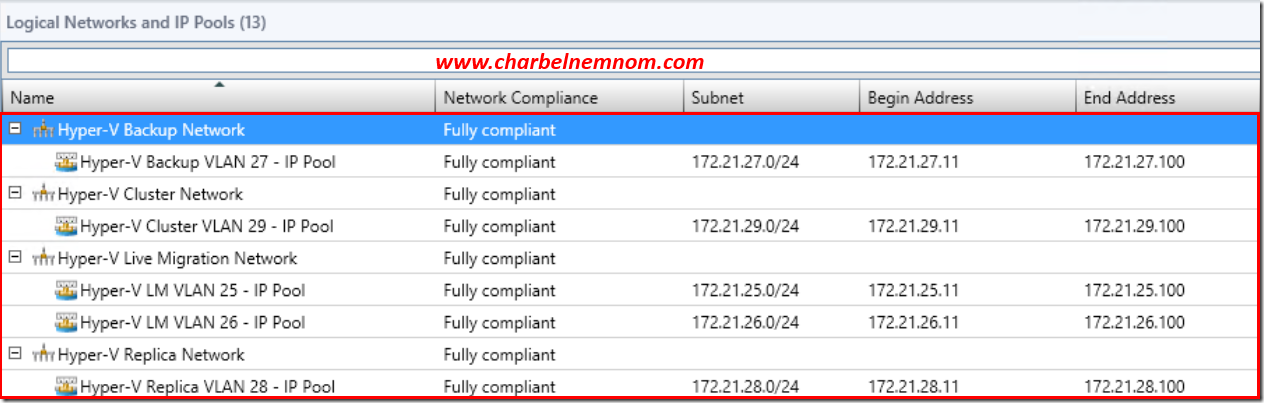
Step 3: Create a VM network
The VM Networks step is not necessary if you selected ‘Create a VM network with the same name to allow virtual machines to access this logical network directly’ while creating the logical networks above.
If you did not, please continue to create VM networks with 1:1 mapping with the Logical Networks in the Fabric workspace as shown in the figure below.

Step 4: Create Port Profiles and Classifications
Next, we need to create Uplink Port Profiles, Virtual Port Profiles, and Port Classifications.
Virtual Machine Manager does not ship with a default Uplink port profile, so we must create one on our own. We will create one Uplink port profile so in this demo one profile for our production Hyper-V host.
Production Uplink Port Profile
Right-click on Port Profiles in the fabric workspace and create a new Hyper-V port profile.
As you can see in the figure below, Windows Server 2012 R2 and later release supports three different load-balancing algorithms:
Hashing, Hyper-V switch port, and Dynamic
For Teaming mode, we have Static teaming, Switch independent, and LACP.
More information about NIC Teaming can be found here.
Assign a name, and description, and make sure that ‘Uplink port profile’ is selected, then specify the load balancing algorithm together with teaming mode, as best practice, we will select Dynamic and Switch Independent for Hyper-V workload. Click Next.

Select the network sites supported by this uplink port profile. VMM will tell the Hyper-V hosts that they are connected and mapped to the following logical networks and sites in our fabric: Backup (for Hyper-V backup traffic), Live Migration (for live migration traffic), Management/VM (for management and virtual machine communication), Replica (for Hyper-V replica traffic), Cluster (for Hyper-V cluster communication).


Virtual Port Profile
If you navigate to Port Profiles under the networking tab in the fabric workspace, you will see several port profiles already shipped with VMM. You can take advantage of these and use the existing profiles for Host management, Cluster, and Live Migration.
For the purpose of this demo, I will create 2 additional virtual port profiles for Hyper-V Backup and Hyper-V Replica as well.
Note: Make sure you don’t exceed the total weight of 100 in Bandwidth settings for all virtual port profiles that you intend to apply on the Hyper-V host.
Here are the different bandwidth settings for each profile that I used:
Host Management: 10
Hyper-V Replica: 10
Hyper-V Cluster: 10
Hyper-V Backup: 10
Live Migration: 20
If you summit up, we have already a weight of 60 and the rest can be assigned to the Virtual Machines or other resources.
Right-click on Port Profiles in the fabric workspace and create a new Hyper-V port profile one for backup and another one for the replica. Assign a name and description, and by default ‘Virtual network adapter profile’ will be selected. Click Next.
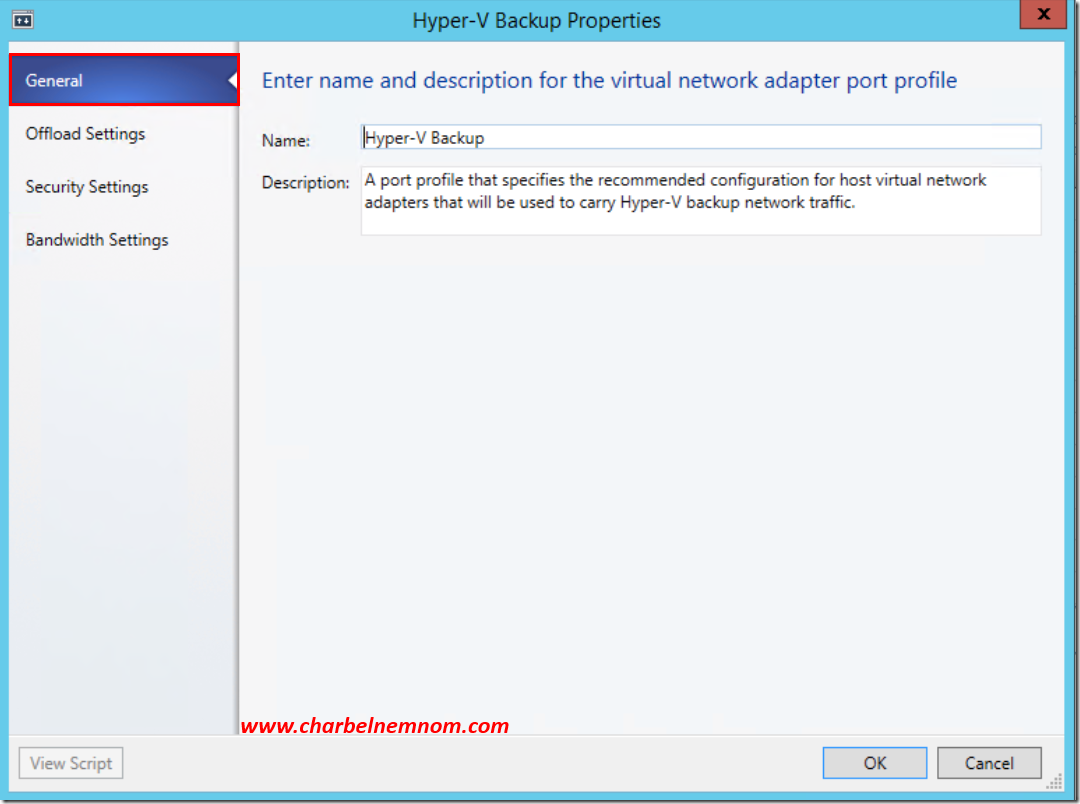

Click on Offload settings to see the settings for the virtual network adapter profile.
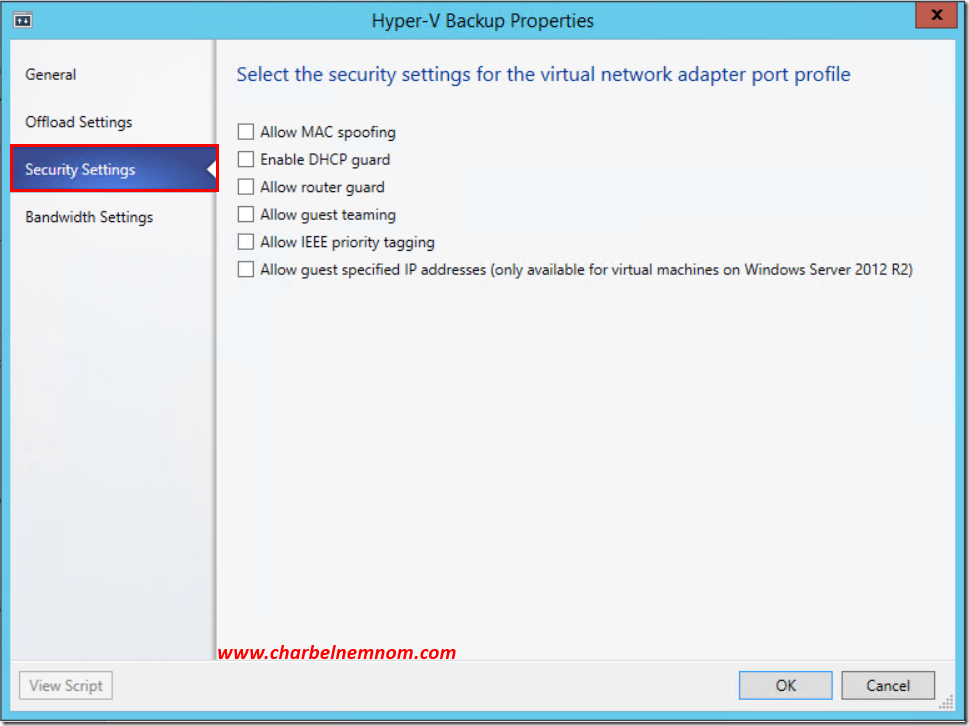
Click on Bandwidth settings and adjust the QoS as we described above.

Repeat the same steps for each Virtual network adapter profile.

Port Classifications
Creating a port classification.
We must also create a port classification that we can associate with each virtual network port profile. When you are configuring virtual network adapters on a team on a Hyper-V host, you can map the network adapter to a classification that will ensure that the configuration within the virtual port profiles is mapped.
Please note that this is a description (label) only and does not contain any configuration, this is very useful in a hosting provider deployment where the tenant/customer sees the message for their Virtual Machines for example High bandwidth, but effectively you can limit the customer with a port profile very Low bandwidth weight and they think they have a very high-speed VMs sneaky yes (don’t do this).
Navigate to fabric, expand networking, and right-click on Port Classification to create a new port classification.
Assign a name, description and click OK.

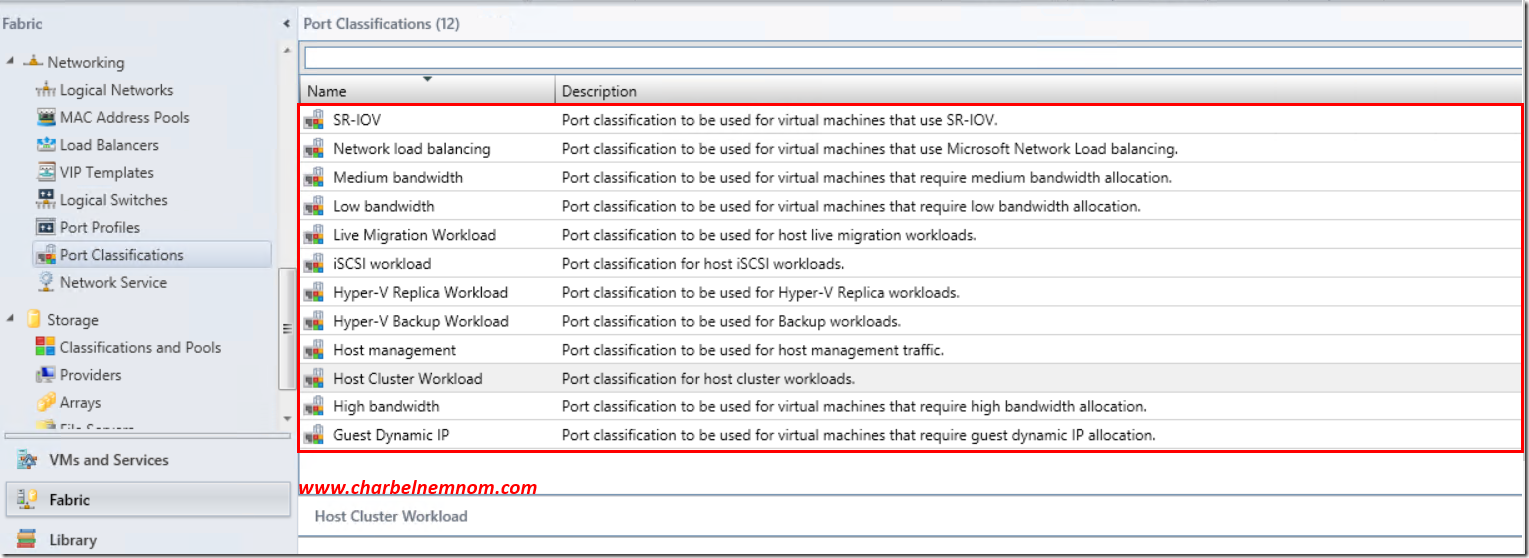
Step 5: Create a Logical Switch
Next, we need to create Logical Switches.
A logical switch is the last networking fabric in VMM before we apply it to our Hyper-V host, it’s basically a container of Uplink profiles and Virtual port profiles.
Right-click on Logical Switches in the Fabric workspace and create a new logical switch.
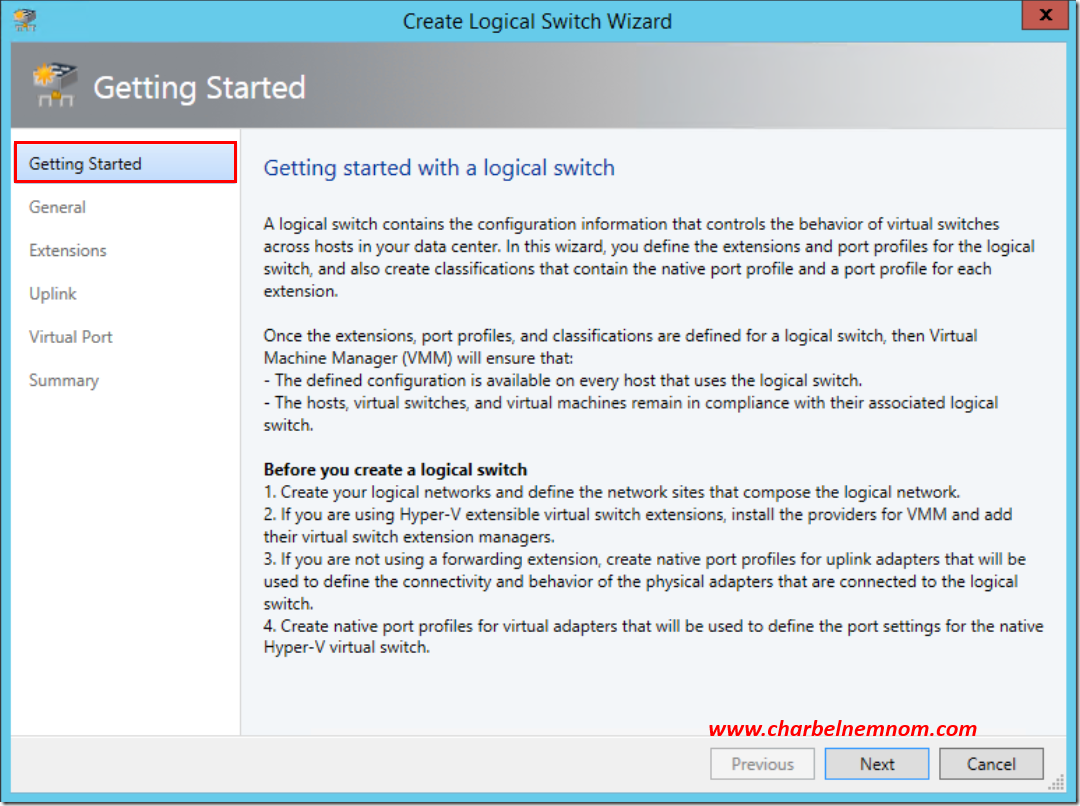
Assign the logical switch a name and a description. Leave out the option for ‘Enable single root I/O virtualization (SR-IOV)’, this is beyond our scope in this demo.

We are using the default Microsoft Windows Filtering Platform. Click Next.

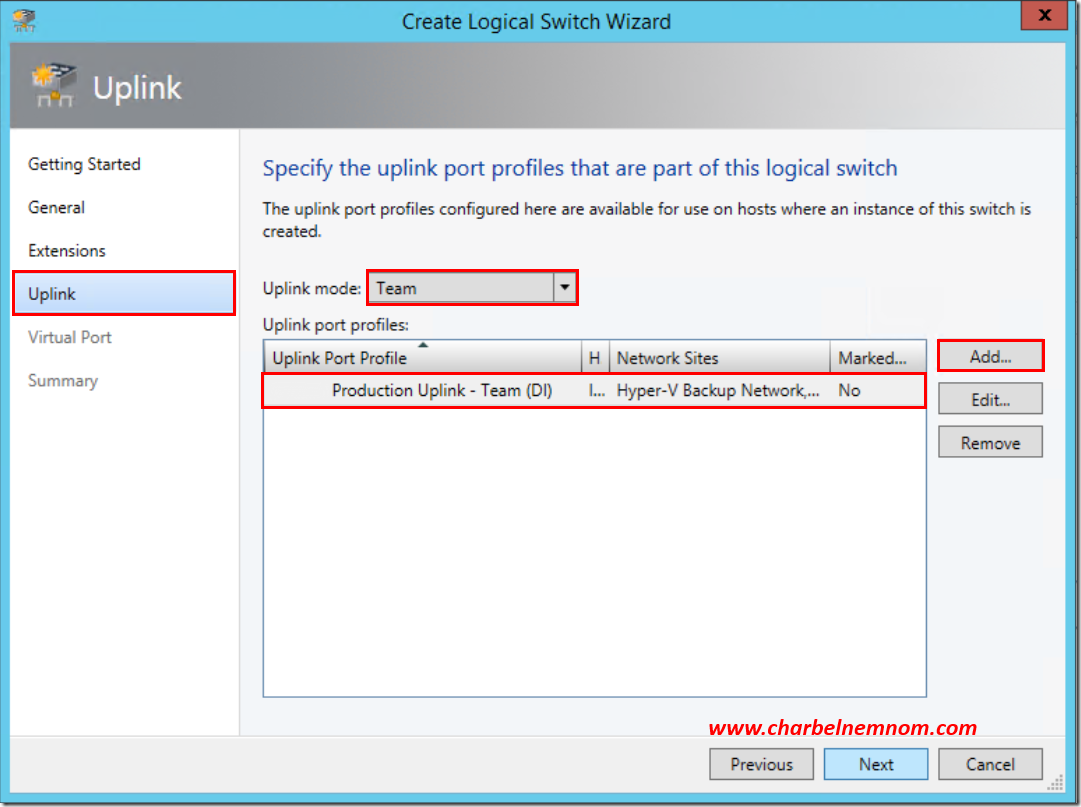
Specify the uplink port profiles that are part of this logical switch, sure enough, we will enable uplink mode to be ‘Team’, and add our Production Uplink. Click Next.
Specify the port classifications for each virtual port part of this logical switch. Click ‘add’ to configure the virtual ports. Browse to the right classification and include a virtual network adapter port profile to associate the classification. Repeat this process for all virtual ports so you have added classifications and profiles for management, backup, cluster, live migration, and replica, low, medium, and high bandwidths are used for the Virtual Machines. Click Next.

Review the settings and click Finish.

Step 6: Apply the Network template
Last but not least, we need to apply the networking template on the Hyper-V host.
Until this point, we created different networking fabrics in VMM and we ended up with a Logical Switch template that contains all networking configurations that we intended to apply on the host.
Navigate to the host group in the fabric workspace that contains your production Hyper-V hosts.
Right-click on the host and click ‘Properties’.
Navigate to Virtual switches.
Click ‘New Virtual Switch’ and ‘New Logical Switch’. Make sure that Production Converged vSwitch is selected and add the physical adapters that should participate in this configuration. Make sure that ‘Production Uplink’ is associated with the adapters.

Click on ‘New Virtual Network Adapter’ to add virtual adapters to the configuration.
We will add in a total of 5 virtual network adapters. One adapter for host management, one for live migration, one for backup, one for the replica, and one for the cluster. Please note that the virtual adapter used for host management will have the setting ‘This virtual network adapter inherits settings from the physical management adapter’ enabled.
This means that the physical NIC on the host configured for management will transfer its configuration into a virtual adapter created on the team. This is very important, if you don’t select this you will lose the network connectivity to the host, therefore you cannot access it anymore unless you have ILO or iDRAC management interface on the physical host.

Repeat the process for Live Migration and Cluster virtual adapters, etc… and ensure they are connected to the right VM networks with the right VLAN, IP Pool, and port profile classification.

Once you are done, click OK. VMM will now communicate with its agent on the host and configure NIC teaming with the right configurations and corresponding virtual network adapters.

The last step is to validate the network configuration on the host 

Until next time… Enjoy your weekend!
__
Thank you for reading my blog.
If you have any questions or feedback, please leave a comment.
-Charbel Nemnom-

Hello Dennis,
Please find my answers inline:
1. Each node has 4 10Gig NICs and dedicated FC HBA. (10Gig great, are they RDMA capable or standard 10Gig?)
2. Is it better off to configure LACP on the switches and use switch dependent LACP/Dynamic combo? )For Hyper-V Hosts, I always recommend to use Switch Independent/Dynamic mode as per Microsoft best practices).
3. Should we configure the converged fabric/vSwitch/vNICs prior to creating the logical switches on SCVMM? How would you recommend we set up the logical switches? (If you follow the steps described in this article, you should be able to deploy end to end Converged Networks with SCVMM).
Hope this helps!
Cheers,
~Charbel
Thanks for the kind response, Charbel.
These are Intel DP X520 10GigE NICs I don’t think they support RDMA. As for LACP vs switch independant I know MS recommend the latter however I can’t find what their pros and cons are. Network admin here always prefer using LACP.
Here you go Dennis :)
Microsoft’s NIC Teaming Black Belt
Thanks Charbel, very helpful indeed! :)
We’ve got the 3 hyper-v nodes up in a cluster now it’s the time to create the logical networks. Since we’ve got 4 NICs (on 1 LACP portchannel) on each host, we are going to run VMs of separate VLANs on the Hyper-V cluster. we only have single site at the moment, What would be the recommended logical network design for this? Is it possible to team 4 NICs and create 1 logical network with separate VLANS on top?
Thanks again for your help.
Hello Dennis,
Since you have 4 NICs, I recommend to have two Logical Networks, each with 2 NICs teamed.
One logical network for the Management Network (ManagementOS, Backup, CSV, LiveMigration) ad the second logical network dedicated to VMs.
As for now in Windows Server 2012 R2, I recommend to split the VM traffic from the converged network.
Cheers,
-Charbel
Thanks for the kind response, Charbel.
May I ask What the advantages are of splitting the VM traffic from the converged network?
Hello Dennis,
By splitting the VM Traffic from the Management Infrastructure traffic you will get better performance.
As of now Windows Server 2012 R2 does note support RSS for the (vNICs) on the host when using Converged Network, in other words your maximum throughput will be handled by one CPU core which gives you around 2 to 3Gbps if you are using 10G network adapters.
However your Virtual Machines where vRSS is enabled inside the guest, you will get good throughput.
By having RSS enabled on the Infrastructure team without vSwitch, Live Migration, Backup etc… will be very fast!
Cheers,
-Charbel
Hi! Great post. Hopefully quick question. I have 6 vNICs: 1 MGMT, 1 CSV, 2 iSCSI, 1 Live Migration, 2 Production network which are teamed. All on seperate VLANs but routable. What is the best practice here. Am I to create logical networks with IP pools, followed by Uplink ports and then logical switches? Any guidance would be nice.
to add to the previous comment. it is a 5 node environment in a clustered environment. 6 vNICs, 2 teamed for the VM traffic (VMs can communicate with one another but not with host; each node hosts a “production site” and each production site is isolated from one another via VLANs). what do you suggest in terms of the SCVMM network design?
Hi Charbel,
Thanks for this very good article.
I’m a bit confuse how to separate the Management traffic from the Hyper-V traffic I our environment. We have currently our hyper-v machines on the same subnet and Vlan as our Hyper-v hosts. Should I create a new Vlan for the management traffic?
Yes it’s absolutely best practice to have the ManagementOS (Hyper-V host) on a separate VLAN!
The Virtual Machines on a different VLANs of course, and if you are a service provider, you want to look at Network Virtualization as well.
Hope this helps!
I plan to have this configuration for our VSA environment after reading your recommendation on your blog.
We have 12-NICs on each host (not 8 as I write before).
One vSwitch for VSA (2 NICS)
One vSwitch for production-Management (8 NICS)
2 NICS for iSCSI
One Management Logical Network (Host-Mngt-Traffic(VLAN29),Host-Backup-Traffic(VLAN45),Cluster-Traffic(VLAN47),Live-Migration-Traffic(VLAN46),Switch_Mngt(VLAN1))
-One Production Logical Network(VM_Traffic(VLAN30),DMZ(VLAN40),Untrunsted-C(VLAN34)……)
Should I have the VSA and iSCSI on different VLAN?
Should I integrate those VLAN to one of the Logical Network above or should I create a new one for VSA and another for iSCSI?
Is it a good configuration to only have 2 vSwitch?
And again, thanks for your support!!
You Wrote
Hello Christophe,
I recommend to have VSA Traffic and iSCSI on a different VLAN.
The VSA traffic is mirroring/replicating the data across all nodes at the same time.
The Cluster requires access to the shared storage through iSCSI, it’s better to have them separated.
I prefer to have a separate VMM Logical Network as well for each type VSA and another for iSCSI.
I have the same in my environment.
Yes two vSwitches, one vSwitch is used for VSA and another one for VM Traffic (Production).
The remaining Physical 2 NICs are for iSCSI with HP DSM MPIO.
P.S. Post a comment (confirm) on the blog post when you are done.
Hope this helps!
Hello Charbel,
I created 2 Uplink ports profile one for the Production and another one for VSA, both configured as Dynamic/Switch Independent (as you recommend it).
We have only one top of rack switch in our environment so I wonder if I should use Dynamic/LACP instead of Switch Independent.
Thanks
Thanks Christophe,
I am glad to hear your project is completed.
I recommend to keep Dynamic/Switch Independent instead of Dynamic/LACP even with one TOR switch.
For more information, please refer to this post.
Cheers,
-Charbel