
Updated — 04/03/2026 — Microsoft has recently announced an exciting expansion of User and Entity Behavior Analytics (UEBA) in Sentinel called the Behaviors Layer. The Behaviors Layer is a new UEBA feature. Behaviors are aggregations and sequences of events into meaningful patterns, providing explainability and mapping to the MITRE ATT&CK framework. Refer to the following section for information on the new Sentinel Behaviors layer.
Updated — 15/09/2025 — Microsoft has recently announced an exciting expansion of User and Entity Behavior Analytics (UEBA) in Sentinel. This update brings powerful behavioral analytics to new authentication, cloud, and identity management data sources — making it easier than ever for defenders to spot stealthy threats across hybrid and multi-cloud environments. Refer to the following section for information on the new Sentinel UEBA data sources.
Updated — 30/09/2024 — Microsoft has deprecated third-party enrichment widgets for UEBA. You can no longer enable third-party enrichment widgets in Microsoft Sentinel due to the inability to create the required Azure key vaults. Existing widgets will stop functioning by February 2025. Organizations should disable these widgets by deleting the related key vaults (check how to remove enrichment widgets). No admin action is required for the transition. First-party data enrichment widgets are unaffected and will continue to work as usual.
Understanding how to effectively use Microsoft Sentinel User and Entity Behavior Analytics (UEBA) can enhance your organization’s security posture. Setting up and configuring UEBA within Microsoft Sentinel is a powerful tool for detecting and responding to potential threats. This advanced analytics system leverages machine learning and behavioral analysis to identify anomalies that may indicate security breaches or insider threats.
In this article, we’ll dive deep into Microsoft Sentinel UEBA, look at its architecture, and see how to enable it to detect anomalies, query behavior analytics data, and investigate using UEBA.
Table of Contents
Introduction to User and Entity Behavior Analytics
User and Entity Behavior Analytics (UEBA) identifies threats in your organization and their potential impact, whether a compromised entity or a malicious insider, which has always been a time-consuming and labor-intensive process. Shifting through alerts, connecting the dots, and active hunting all add up to massive amounts of time and effort expended with minimal return.
The possibility of a sophisticated threat, simply evading discovery. Particularly, elusive threats like zero-day targeted and advanced persistent threats can be the most dangerous to your organization, making their detection all the more critical. Now, by implementing User and Entity Behavior Analytics in Microsoft Sentinel, you can use the data generated by machine learning to analyze the different types of activities that a user or an entity can perform.
Now, if you think about entities, you could think about devices, IP addresses, accounts, IoT, or other resource types. Obviously, users are people signing in to, for example, Microsoft Entra ID to access resources throughout the organization.
What we can do is you can improve insider and unknown threat detection with user and entity behavior analytics. Microsoft added this new capability and will build up its comprehensive entity profiles across time and peer groups, identifying anomalies that indicate never-before-seen threats and insider risks.
Using built-in queries and analytic rules, you can leverage these entity analytics insights for threat hunting and detection. Unlike other user and entity behavior analytics solutions, you can only onboard the data sources in minutes. Plus, you can get a unified view of users or hosts with new entity profiles. You can see the insights for a particular entity and get contextual
information about the entity.
Next to that, you will also be shown a timeline for following the behavior of an entity. With behavioral insights, you can actually start detecting anomalies, understand the relative sensitivity of those entities, and evaluate the potential impact. You can also get a baseline for behavioral profiles of entities across time and peer group horizons.
Now, if we zoom into what User and Entity Behavior Analytics can do for you in Microsoft Sentinel, then we could say that there are four pillars that make all of this possible.
The first pillar helps you detect anomalies based on the entity behavior profile. So, in general, we can say that Microsoft’s data congestion into what people are doing is being written down. Everything that is happening inside an organization is logged. Based on that log file information, we can create an envelope of what we think is normal behavior.
Now, based on normal behavior, we might also be able to detect anomalies. Think about users doing day-to-day jobs in Microsoft Office. They may be working with 100 emails per day, they may be working with one gigabyte of data per day that they can get via OneDrive for business or SharePoint.
Now, if all of a sudden, a user starts to work with way more pieces of data than the average that the rest of the organization is working with, then we can detect that as an anomaly, and it might indicate data exfiltration by a departing user.
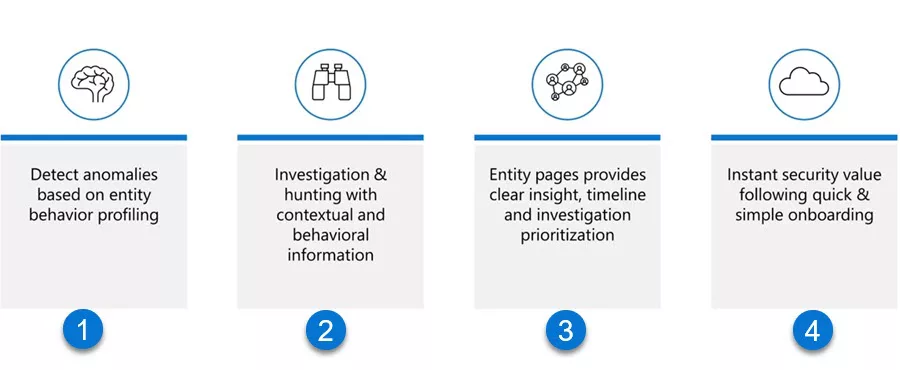
The next pillar is building user and entity behavior analytics, which will help us with investigation and hunting with contextual and behavioral information.
What we can do is look into entities, for example, devices or users, and see how, for example, a device and a user are being bound together. Maybe there is a device where the user is a primary user. By adding that information, the SOC analyst is being enriched in the ways and the tools to go and dive deeper into what has happened, so we can start our advanced hunting here.
Now, when we think about users, we think about people signing in to Microsoft Entra ID. But what about those entities? Well, with entity pages, we can provide clear insights into the timeline and investigation prioritization for not just users but also devices, IP addresses, applications, accounts, etc.
Now, all of this will instantly secure value following quick and simple onboarding using Microsoft Sentinel. As you can tell, user and entity behavior analytics in Microsoft Sentinel will help SOC analysts understand what users and entities have been doing and why.
All of this is based on the user and entity behavior analytics engine. Now, if we look at the solution that Microsoft Sentinel is built upon, we know that we use Microsoft Log Analytics. Log Analytics is based on the Azure Data Explorer (ADX), and all sources can push data into the Log Analytics workspace containing the Azure Data Explorer. All that data, for example, data that is being generated by Microsoft Entra ID when users are signing in or accessing certain cloud-based applications, or data that has been generated by, for example, Microsoft/Office 365, which we can use when we monitor, for example, what activities users are doing within the Office environment.
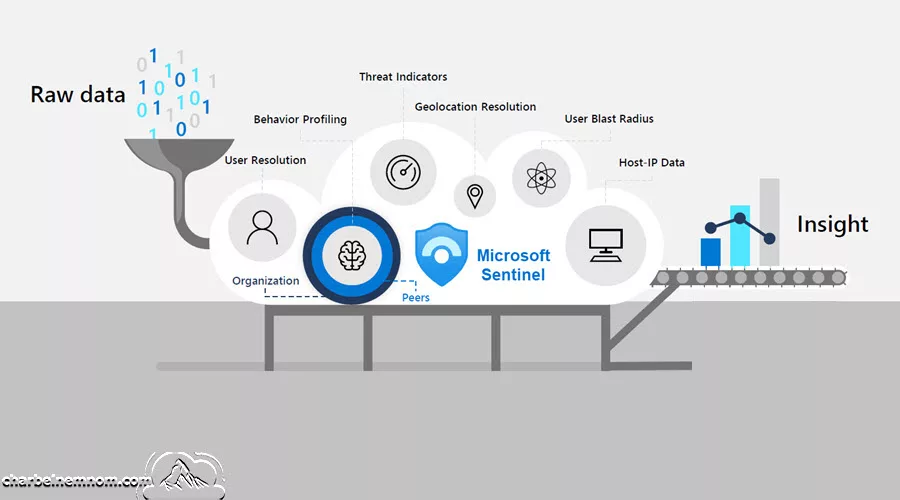
You could be thinking about, for example, Exchange Online, SharePoint Online, OneDrive for Business, Microsoft Teams, Viva Engage, and so on. All that data is being pushed into the Azure Data Explorer (ADX) environment, part of Log Analytics. All that raw data is then being pushed, and one of the components in user and entity behavior analytics in Sentinel is user resolution. So, we want to know which user has been doing what. Now, not only do we want to know what user does, but we also want to start creating or profiling behavior.
One of the things we can do is detect which users in the organization are peers for another user in the organization. For example, when one user is part of five different Microsoft Entra ID groups, and there are a couple of users that are also members of those same Entra ID groups, we could say that those users are all part of the same groups as peers.
We expect those users to perform the same job based on their group membership. Based on that, we can then enable behavior profiling. So, on average, all of these users should be doing the same things on a day-to-day working basis. Now, if one of the users starts behaving differently, then we might want to go and alert it because that user might be behaving anomalously.
Now, not only can we perform behavior profiling and get the peers for a user, but we can make use of those threat indicators where we could go and say, Hey, there are IP addresses that we do not trust, there are URLs that we don’t trust, there may be domain names that we don’t trust, there may be files that we chose not to trust. Those threat indicators could be considered to determine what entities a certain user may be involved with.
Also, you might be interested in where an entity or a user is doing what the user or entity does. We want to resolve the geolocation information. We may be interested in IP addresses for hosts so we can see where the host was when certain activities happened. We also want to be able to check out the user blast radius to know how many of those entities have a user-to-user relationship and have been involved at a single time.
All that together provides us with insights into how a user or an entity, like a device, behaves, and that is exactly the purpose of user and entity behavior analytics in Microsoft Sentinel.
Microsoft Sentinel UEBA Architecture
Let’s explore how user and entity behavior analytics can help us detect advanced threats, starting with the architecture of user and entity behavior analytics.
Microsoft Sentinel is at the core of everything, allowing data to be ingested from various sources. These sources could be software-as-a-service-based (SaaS) applications, both of which are hosted by Microsoft. You could be thinking about Office-related applications like Exchange Online, SharePoint, OneDrive for Business, and Teams. We could also monitor data ingests from on-premises solutions like on-premises file service, application service, print service, domain controllers, database service, and so on.
All that data could be ingested into Microsoft Sentinel. As we know, the Sentinel component responsible for receiving all the data is the Azure Data Explorer (ADX) component, which is part of Log Analytics.
When all that data is ingested into Sentinel, we can then pass that data forward into the user and entity behavior analytics engine. Then, once we have that engine running, it is able to detect anomalies based on data stored in behavior analytics, identity info, user peer analytics, and user access analytics.
Also, we can take data from Microsoft Entra ID and Active Directory into the user and entity behavior analytics engine to get even more insightful information.
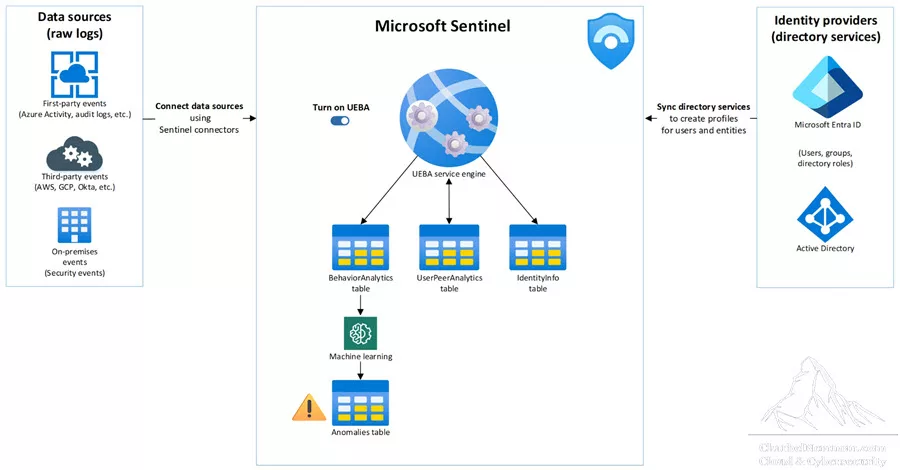
As Microsoft Sentinel collects logs and alerts from all of its connected data sources, it will then analyze them, and it will build a baseline behavior profile of your organization’s entities. With those entities, you could think about users, hosts, IP addresses, and applications. It will create that baseline of behavioral profiles across a time and peer group horizon.
Using a variety of techniques and machine learning capabilities, Microsoft Sentinel can identify anomalous activity and help you determine if an asset has been compromised.
Not only that, but it can also figure out the relative sensitivity of a particular asset. It will help you to identify peer groups of assets, and it can be used to evaluate the potential impact of any given compromised asset, which is going to be known as its blast radius. With this information, you can effectively prioritize your investigation and incident handling.
The user and entity behavior analytics are all security-driven, whereas Microsoft Sentinel will provide an outside-in approach based on three frames: use cases, data sources, and analytics. This is all inspired by Gartner’s paradigm for user and entity behavior analytics solutions. Microsoft Sentinel will provide that outside-in approach.
First, the frame of reference is a use case by prioritizing the relevant attack vectors and scenarios based on security research, aligned with the MITRE ATT&CK framework of tactics and techniques and sub-techniques; it will put various entities as victims, perpetrators, or pivot points in the kill chain. Microsoft Sentinel focuses on the most valuable logs each data source can provide.
Another frame of reference is the Data Source; where does the data come from? While first and foremost supporting Azure data sources, Microsoft Sentinel thoughtfully selects third-party data sources to provide data that matches our threat scenarios.
Third, but not least, is the frame of reference on analytics. Using different machine learning algorithms, Microsoft Sentinel identifies anomalous activities and presents evidence clearly and concisely in the form of contextual enrichment; some examples are shown in the diagram below.
We can see where the data is ingested. We can also see that raw data ingestion results in 100% of all events. Next, we can filter based on security resources; we may be left out with 30% of those raw events, and based on that 30% of events, we may then be able to enrich the data to get more contextual and behavioral information about an entity.
If we can then profile all this data back to the user and entities and correlate this data, which allows us to map everything into the MITRE ATT&CK framework, we can trigger information based on the anomaly.
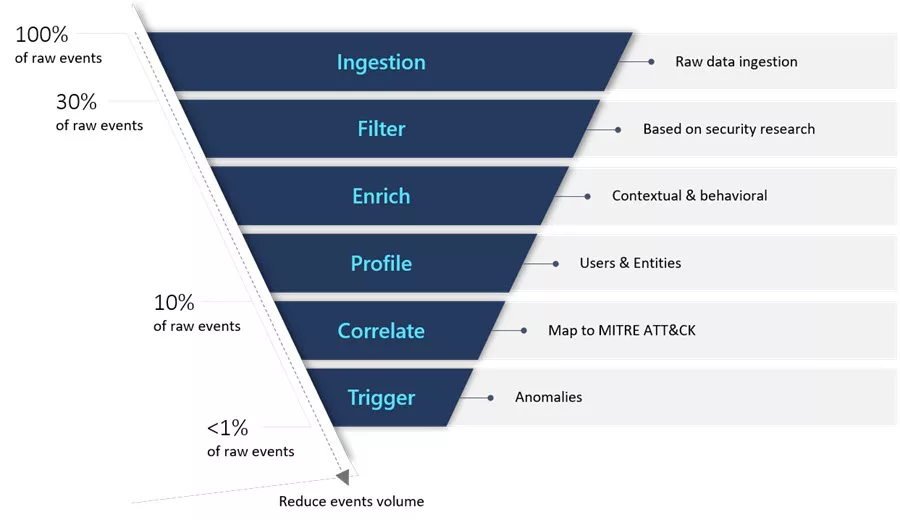
Now, of course, it helps to understand anomalous activities in context because you can see an activity independently. But if there is no context, it’s hard to determine whether or not an activity is okay or is an anomaly. We want to get our data and enrich information across geographical locations, devices, and environments.
We want to match our activities across time and frequency horizons, for example, compared to the user’s own history, but also compared to maybe the peers of that user’s behavior, and also compared to what the users in the rest of the organization will show. Microsoft Sentinel presents artifacts to help your security analysts get a clear understanding of anomalous activities in context and comparison with user baseline profiles. Actions performed by a user, a host, or an address are evaluated contextually, where a true outcome indicates and identifies the anomaly.
Now, if we look at Microsoft Sentinel User and Entity Behavior Analytics, we can see that there are different data sources for that solution. The first data source is Microsoft Entra ID Sign-in logs, which will give us all sign-in events. Everything we see where a user or applications are signing in using Entra ID, all the information is being taken into account for user and entity behavior analytics.
We also have Microsoft Entra ID Audit logs. Audit logs are used to monitor who is doing what inside an environment. That is what auditing is. In this case, the events related to application management, directory management, group management, working with devices, working with roles, and user management categories are being taken into account when it comes to auditing parts of Microsoft Entra ID.
Also, within Azure, we monitor Activity logs where we can authorize people, where the billing is set, and where people are using computing or consumption-based solutions. You can monitor your Azure key vault, network, and other resources, including Microsoft Intune, Logic Apps, SQL, and other types of storage.
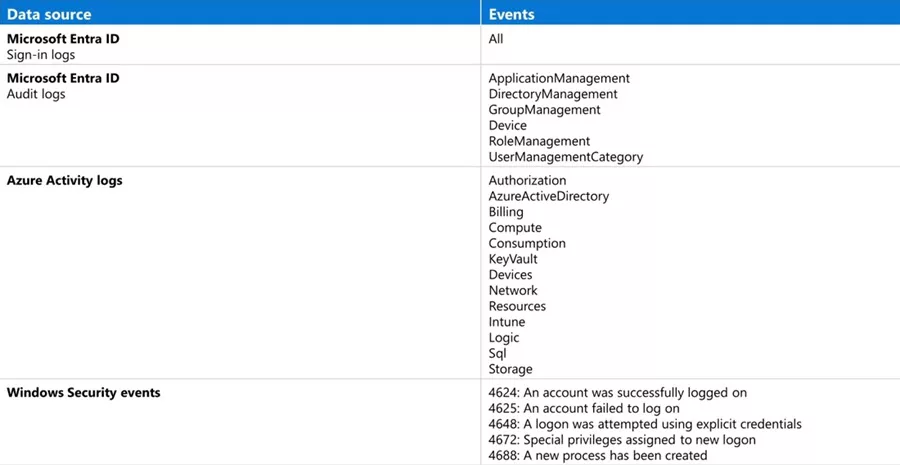
Now, we can add some Windows Security events when it comes to Windows devices on-premises environments or Windows virtual machines in Azure. Here, for example, you can monitor Event ID 4624, where an account has successfully signed in, or Event ID 4625, where an account has failed to log on; 4648, when a log-on attempt was using an explicit credential; or, for example, the Event ID 4672 related to special privileges assigned to a new log-on, or Event ID 4688 when a process has been created on one of those Windows devices.
If we zoom in on how user and entity behavior analytics work together with Microsoft Entra ID, we see that the user entity information that Sentinel uses to build its user profiles comes all from Microsoft Entra ID, or you can also get your data from on-premises Active Directories as well but that function it is still in (preview).
When you enable user and entity behavior analytics, it will synchronize your Microsoft Entra ID with Microsoft Sentinel, storing the information in an internal database visible through
the “IdentityInfo” table in Log Analytics. Now, in preview, you can also sync your on-premises Active Directory user entity information using Microsoft Defender for Identity.
See Also: Step-by-Step: Deploy Microsoft Defender for Identity.
You can get your entity information, which is used to build profiles. Now, when User and Entity Behavior Analytics is enabled, Microsoft Entra ID is synchronized with Sentinel, and the data is stored in this database.
Now, if you want to see what data we are dealing with here, you might want to go and check out the Microsoft Entra ID at entra.microsoft.com. This is where you will find the management of users. To give you an idea of what information is being stored in Microsoft Entra ID, we can go into Identity, and if we click on the Show More section down on the left, we see something like Monitoring & Health. This is where we can find, for example, Sign-in logs, Audit logs, and other types of information.
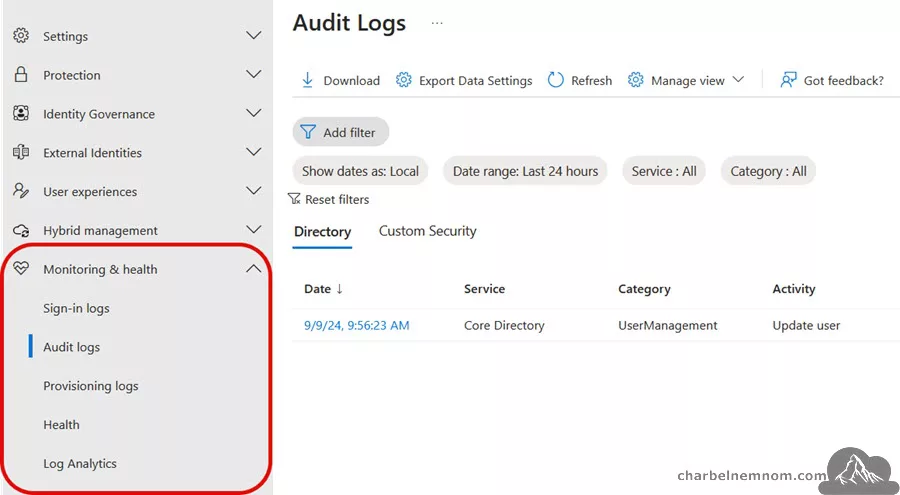
The audit logs show what users have been doing or what applications have been doing inside Microsoft Azure, so we monitor everything happening inside an organization.
Here, we can see, for example, the actual Activity that is being monitored (Update service principal). We can see the Targets and the Properties that have been modified.
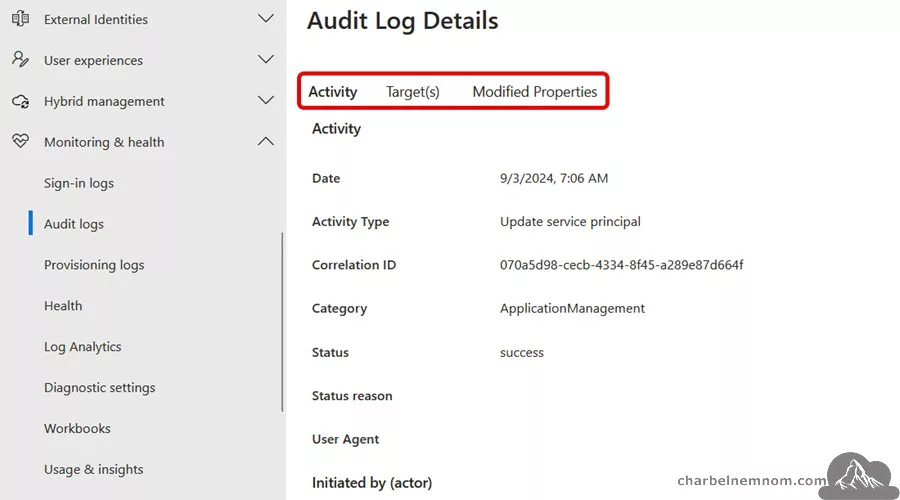
All that information is also stored. The cool part is that Microsoft Sentinel will take all this data, and it will use machine learning to create an envelope of what we see as typical behavior for an entity. It could be a single user, a group based on group memberships, an application, or a host.
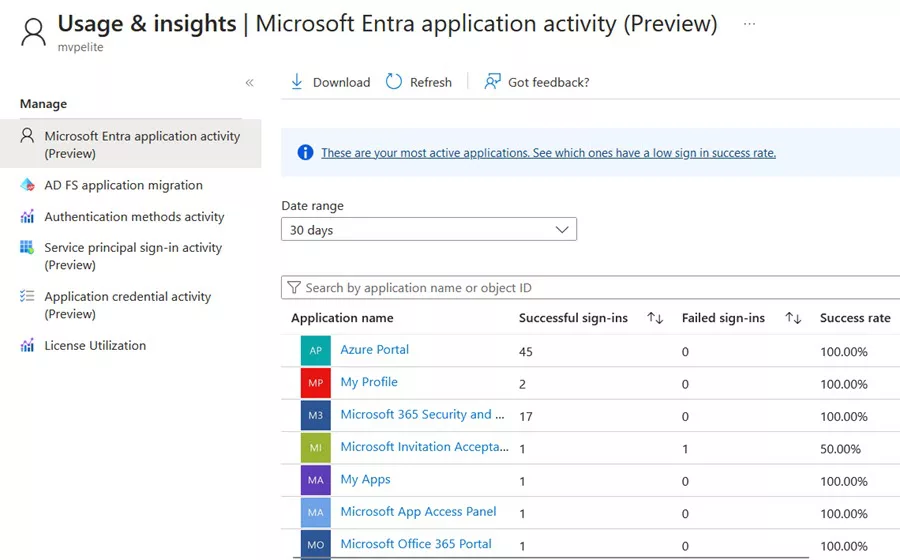
For example, if we check out the Usage & Insights, you can see, for example, successful sign-ins or failed sign-ins to certain applications. We can see, for example, what authentication methods are being used within the organization and how people have registered their signings to sign into Microsoft Entra ID.
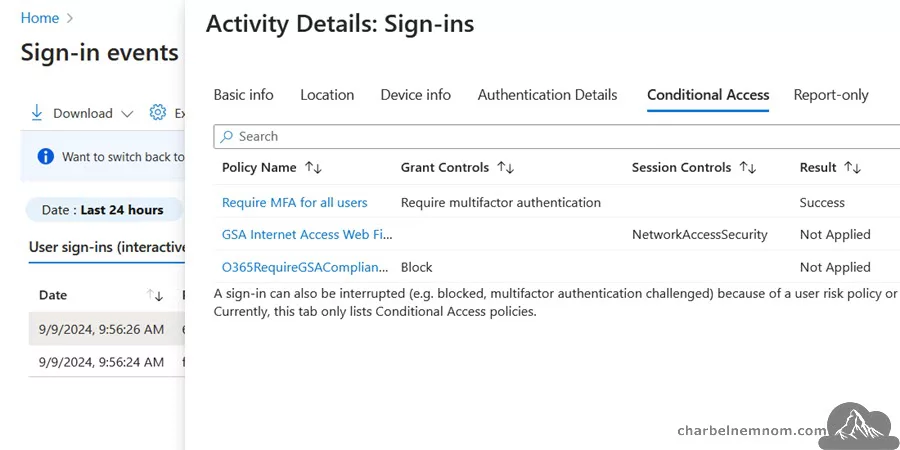
When we dive deep, we can also go, for example, and check out the sign-in logs. In the sign-in events, you can see what sign-ins have been performed by who in an organization and where we connected. From what IP address? From what location did we connect? If you were diving even deeper into this, you could see all kinds of information on where we sign in, from what location you signed in, and what your device was like at that point. We can see some extra Authentication Details and whether or not Conditional Access has been applied.
You can even get more details if they are available for any user who signs in, so you get a very rich data set on what people are signing in, where, and from where, or using what client application.
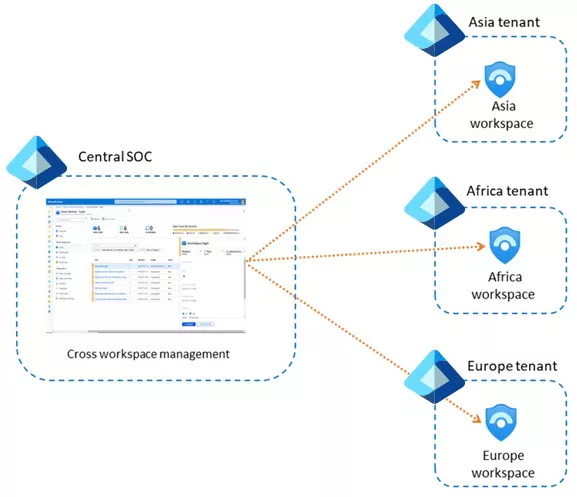
We have sign-in logs, audit logs, and provisioning logs that show what has been created in the environment. With all that information, we can now push that data from Microsoft Entra ID into a central Log Analytics workspace powered by Sentinel.
Now, one of the nice solutions we can take is to implement multiple Sentinel environments where we can have one Sentinel SOC and divide information to other Sentinel environments, maybe based on geographical location. This is how user and entity behavior and analytics behave within Microsoft Entra ID.
Each activity we have gotten from Microsoft Entra ID or anywhere else will be scored. Each activity is scored with an investigation priority score, which will determine the probability of a specific user performing a specific activity based on the behavioral learning of the user and its peers. The activities identified as the most abnormal will receive the highest score. The score is between zero and 10, where 10 would be the highest score and where a certain activity would be the most abnormal for a user.
Now, next to getting the default data, User and Entity Behavior Analytics can enrich your data. Now, what will happen is that User and Entity Behavior Analytics will add information to Microsoft Sentinel entities along with all the details. You can use all the details to focus and sharpen your security incident investigation. These enrichments are displayed on the entity pages and can be found in several log-analytic tables:
- The “
BehaviorAnalytics” table. - The “
IdentityInfo” table. - The “
UserPeerAnalytics” table.
For example, you could dive into the “BehaviorAnalytics” table in log analytics, where the user and entity behavior analytics output information is stored. There are also a couple of dynamic fields in that table that you can start using. For example, the “UsersInsights” And “DevicesInsights” fields contain entity information from Active Directory and Microsoft Entra ID, as well as threat intelligence sources. The “ActivityInsights” field contains entity information based on behavioral profiles built by Microsoft Sentinel Entity Behavior Analytics.
User activities are analyzed against a dynamically compiled baseline each time it’s being used. Each activity has a defined lookback period from which the dynamic baseline is derived. The lookback and the lookback period are specified in the baseline.
The “IdentityInfo” table is where identity information is synchronized to user and entity behavior analytics from Microsoft Entra ID. What we are looking into is that if we are in a Log Analytics workspace for an organization and we open up, for example, a certain log analytics workspace, then one of the things we can do is we can dive into the actual log file.
In this example, we can see quite a few different log tables to identify. Now, if you want to play with Log Analytics yourself, you might want to go and connect to aka.ms/lademo because this allows you to connect to a Microsoft-managed Log Analytics environment, and that allows you to play around with Kusto query language (KQL).
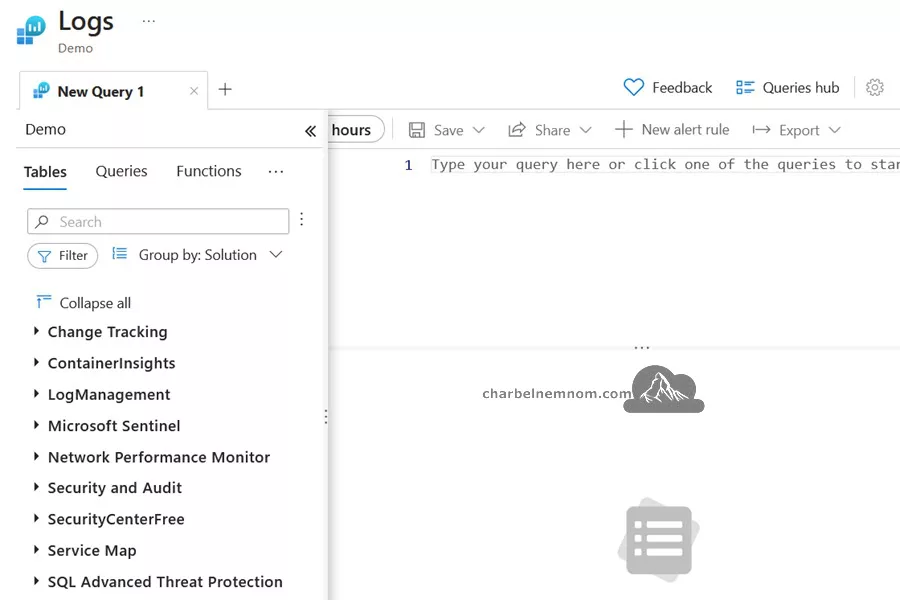
Now, one of the tables you can access using a Log Analytics workspace when it is getting data from Microsoft Entra ID is a table called “IdentityInfo“. So, if we go and search for “IdentityInfo” and we then run the following query; we can see that in this particular environment, there is no “IdentityInfo” table.
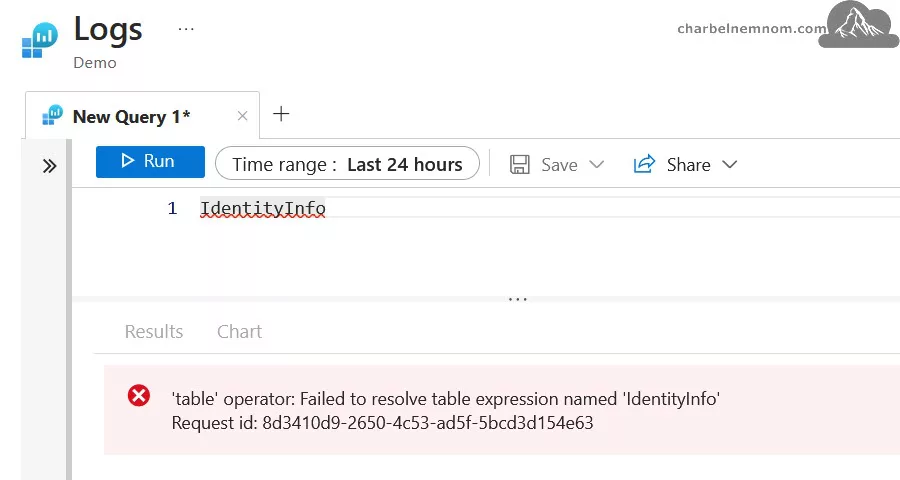
Let’s check with the other Log Analytics environment. Here, we can see that we do have the “IdentityInfo” table. If we go in and just enter the name of the table and run it, we get to see all kinds of information about different identities. In this way, we can see, for example, that there are different kinds of objects.
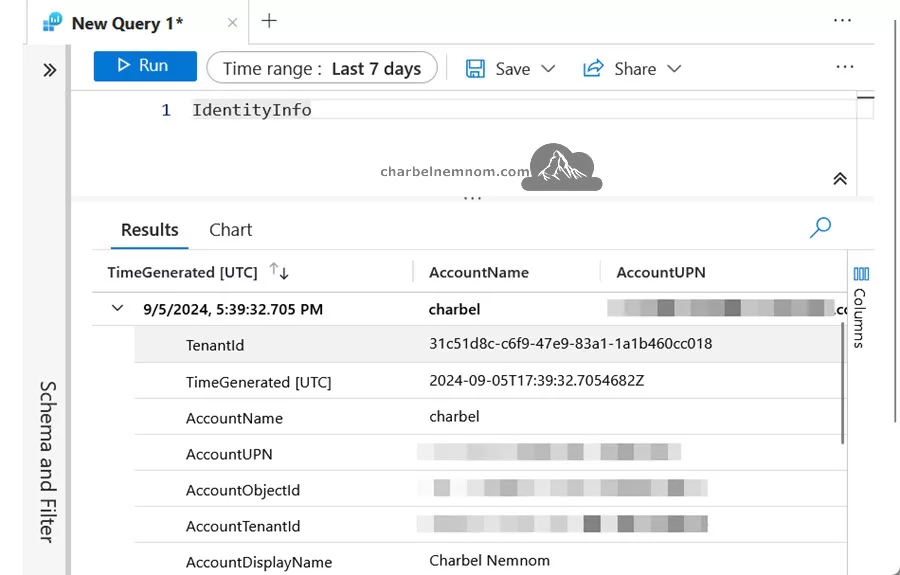
Now, based on this information, Microsoft Sentinel User and Entity Behavior Analytics will start working on the data. If we want to see what comes out of the user and entity behavior analytics engine, we have the “BehaviorAnalytics” table that we can then go into, and this will show information that is being created by behavior analytics.
Let’s say we want to show data from the last seven days and query the “BehaviorAnalytics” table. Then, we can see what has happened for specific objects or entities within the organization.
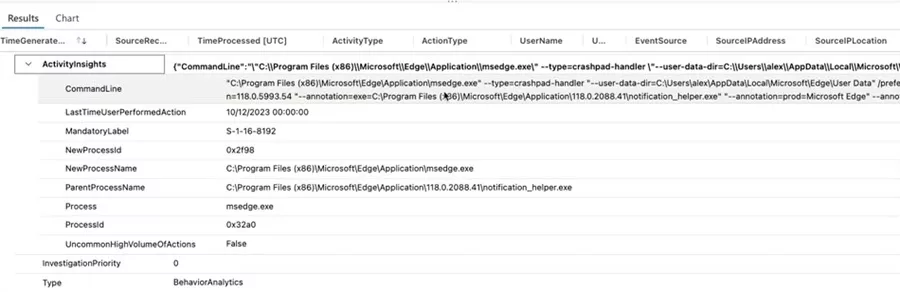
For example, we may have seen that a certain process has been created, and we can see a security event in which we can see information about the user doing things, the device used for this, and what the activity would be. We can even see that a very specific command line has been used for a user. All that information is being written down and used by Microsoft Sentinel User and Entity Behavior Analytics.
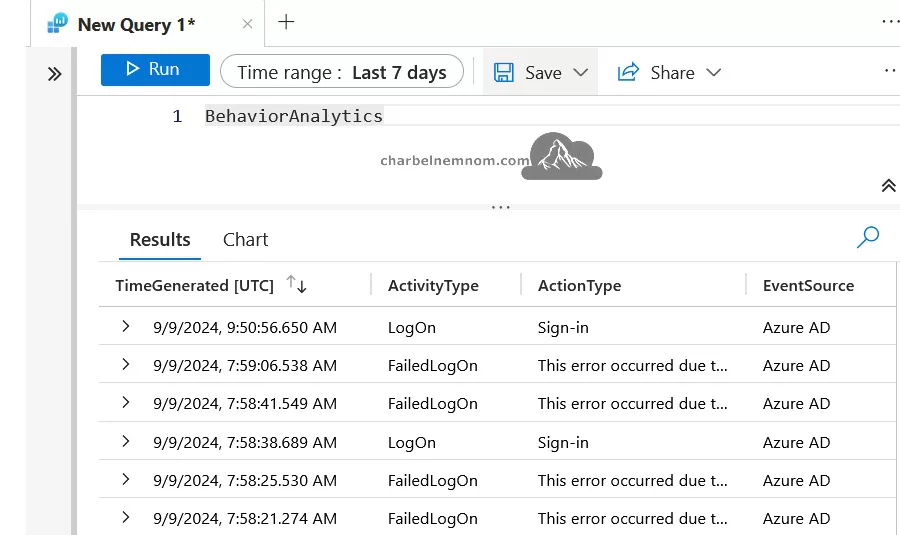
At this point, we are going through the actual data generated by the User and Entity Behavior Analytics. If you check out the set of logs, we can see the “IdentityInfo“, and the “BehaviorAnalytics” but there’s also a third table that you might find interesting, and that would be the “UserPeerAnalytics“.
The “UserPeerAnalytics” is the result of Microsoft Sentinel checking what users are peers for each other. This is going to go and say, Hey, but based on different sources, based on different components, we can identify which users we think are each other’s peers.
Just like that, we can use Log Analytics to dive into the actual data being used and generated by Microsoft Sentinel’s User and Entity Behavior Analytics. We can enrich the data that is used by the environment.
Enabling User and Entity Behavior Analytics
So, how do we enable User and Entity Behavior Analytics in Microsoft Sentinel?
Before enabling Microsoft Sentinel’s User and Entity Behavior Analytics, you must check and apply a couple of prerequisites. Otherwise, it will not work.
1) First, you must be a member of your organization’s Entra ID. It is not allowed to be a guest (external) user.
2) Second, your user object must be assigned the Global Administrator role or the Security Administrator role in Microsoft Entra ID. Always remember to use the principle of least privilege (PoLP) when assigning permissions.
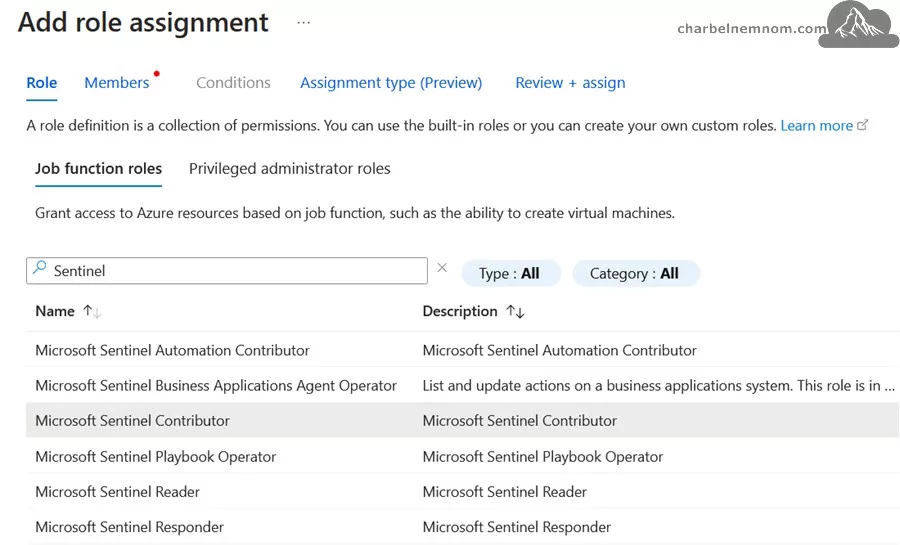
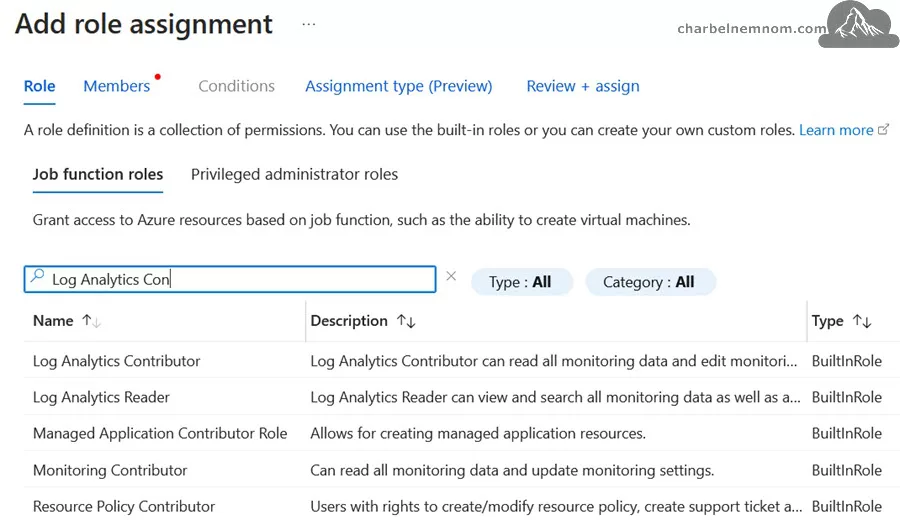
3) Third, your user must at least be assigned the Microsoft Sentinel Contributor role at the workspace where you are going to build the User and Entity Behavior Analytics on top of. You could also have your log analytics contributor role in the resource group or subscription level.
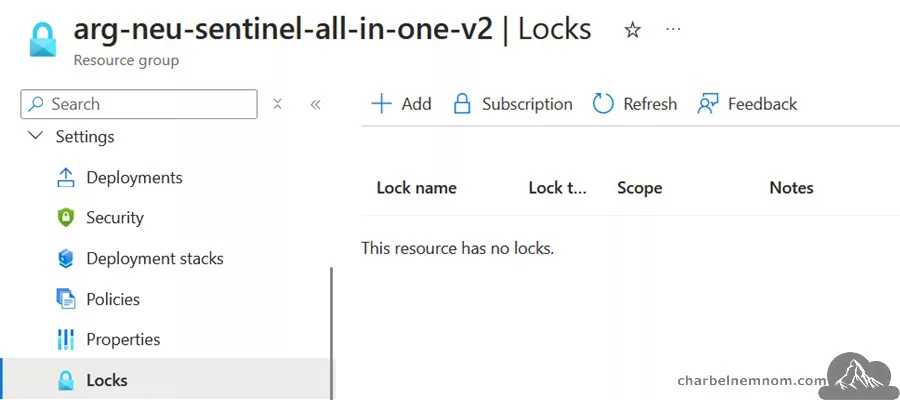
4) Next, your Log Analytics workspace must not have any resource locks in Azure applied to it.
The next step is that you want to be in the Settings environment for Microsoft Sentinel. Then, you can set User and Entity Behavior Analytics, which you can switch on. Then, you’ll have to tell what kind of sources you want to apply the data on.
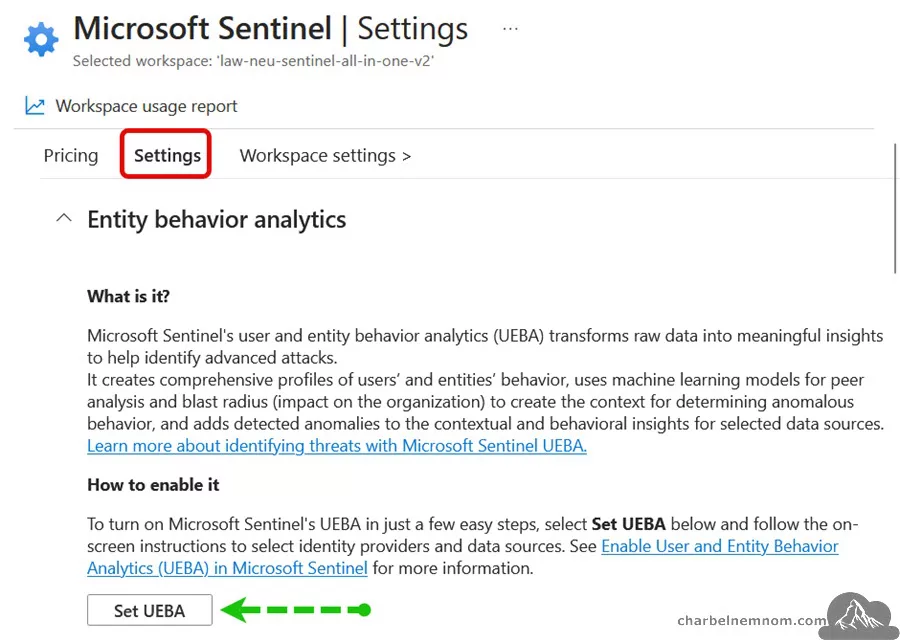
To get started, we must meet, of course, the prerequisites for the environment. One of the things that we need to do is make sure that the user who is going to enable User and Entity Behavior Analytics is not a guest inside Microsoft Entra ID. That could just be a normal user object. The user must be assigned to either the global administrator role or the security administrator role in Entra ID.
For example, you could set this up by creating a new user dedicated to Sentinel Admin for the organization and assigning the security administrator role to that user.
The next step is for the specific user(s) to have the Microsoft Sentinel Contributor role set at the workspace in Sentinel, or we could go and set up the Log Analytics Contributor role at the resource group or subscription level.
For example, you could go to the resource group in Azure, which contains the Log Analytics workspace and the Sentinel instance, which is built on top of that workspace. Under Access Control, we can then add the role assignment. Now, here we have two options. You can search for the word Sentinel, as shown in the figure below, and the role that we need is the Microsoft Sentinel Contributor role.
Or we could also allow the Log Analytics Contributor role to be assigned to the user. You can select the user and assign the role, and then we want to review and assign that role to that resource group.
Another super important thing, otherwise, when enabling the User and Entity Behavior Analytics will fail, is that you must not have assigned any Azure resource lock to the resource. For example, in many cases, organizations enable resource locks in Azure to ensure you cannot accidentally remove or make any changes to a working situation.
For example, in our environment on the resource group, we do not have any lock enabled. But if you have any lock enabled on either the subscription or the resource group that this Sentinel Workspace is part of, then adding the user and entity behavior analytic solution in Microsoft Sentinel will fail. You have to delete the lock first, and then you can enable the user and entity behavior analytics solution.
Now, once all those prerequisites are finally met, we can then dive into Microsoft Sentinel and go into the Sentinel workspace that you want to enable user and entity behavior analytics. What you could do is you can go into Entity behavior, and what you’ll see here is that, at this point, no entity or user behavior analytics has been enabled.
One of the things we can do is go into Entity Behavior Settings, which will bring you to the workspace Settings for Sentinel, where you can click and Set User and Entity Behavior Analytics.
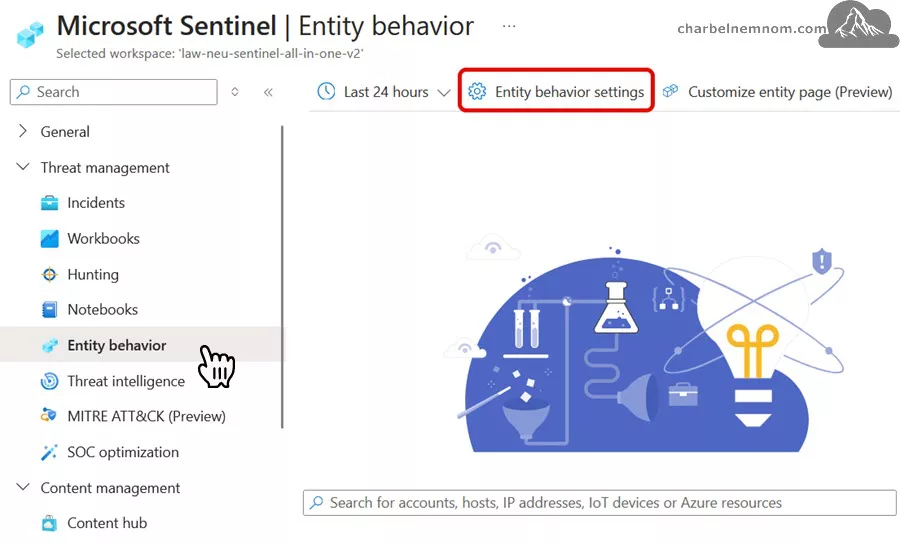
Another way to get to that same page is to go into your Microsoft Sentinel settings down on the left. Then, under Settings, you can click Set UEBA. Also, it explains a little bit what it is and how to enable it.
From now on, enabling the user and entity behavior analytics is not hard because you only have to enable it. Again, you should be, and it states that you should be a Global Administrator or a Security Administrator in Microsoft Entra ID to switch on this feature. Then, we must sync Microsoft Sentinel with at least one of the following directory services.
For example, in our case, we want to sync it with Microsoft Entra ID. The other feature here is the Active Directory (Preview), the on-premises Active Directory Domain Services (AD DS) you may be running in your environment. This is the Active Directory where domain controllers are, group policies are, and so on.
Now, in this environment, we do not have an on-premises or a legacy Active Directory. We just have Microsoft Entra ID, so we will apply this one. Then, you’ll see that a validation is done and entities have synced successfully. That’s a good step!
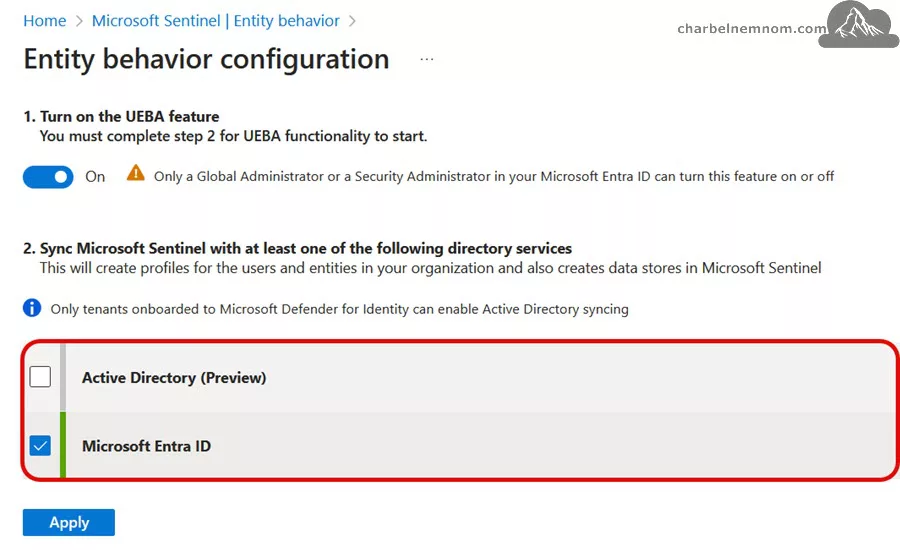
Then, you can select the existing data sources you want to enable. Here, we will say what data to consider when working with user and entity behavior analytics. In this example, we’ll select Audit Logs, Azure Activity, and Sign-in Logs and click Apply.

Additionally, we can enable Security Events for entity behavior analytics, which would be an extra step to configure Microsoft security events for Windows-based machines. This is quite interesting because we can configure Windows Security events via the new Azure Monitor Agent (AMA). What we are doing here is we can go in and install an agent on an Azure Windows virtual machine, and we can also install agents on non-Azure Windows machines.

It allows us to download and install the Windows agent and tells us where and how to connect. We could deploy this agent on Windows machines that we are running both inside and outside of Azure, then create data collection rules (DCRs) that will allow us to monitor certain security-related events in Microsoft Sentinel to use user and entity behavior analytics. These are the steps to enable user and entity behavior analytics in Microsoft Sentinel!
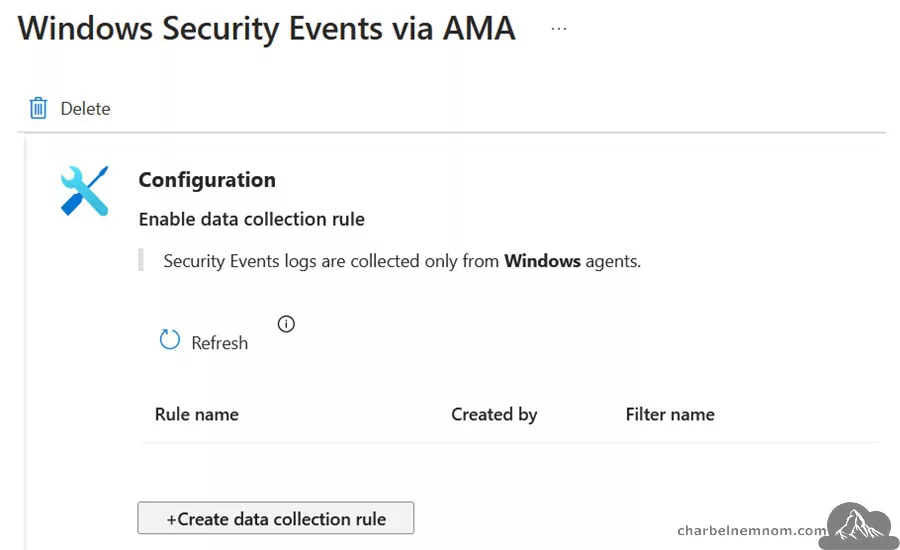
Note: Refer to the following section for details on the new Sentinel UEBA data sources that you can connect.
Once enabled, you can also obviously disable it if you no longer want to use it. Another thing we can do is then go back into the entity behavior view. One of the things that you may like to do is customize the entity page, where we can change a couple of settings.

For example, we can go to the Activity Templates tab to customize the entity page, whether it’s an account, host, IP, IoT, or Azure resource. If we are interested in monitoring whether or not an account was created on a host, whether an account has been added to a domain admins group, or, for example, when we see new credential log-ins to a host, we can create this activity. It’s a security event-based activity. Behind the activity that we are creating, there is a Kusto query language that we can run here. From that point, we can then create the activity.

Once you click on Create activity, you will be taken to the Activity wizard. The idea is for us to start customizing that entity page. For example, if we just leave the default for now and then click Review, then we can create the activity.
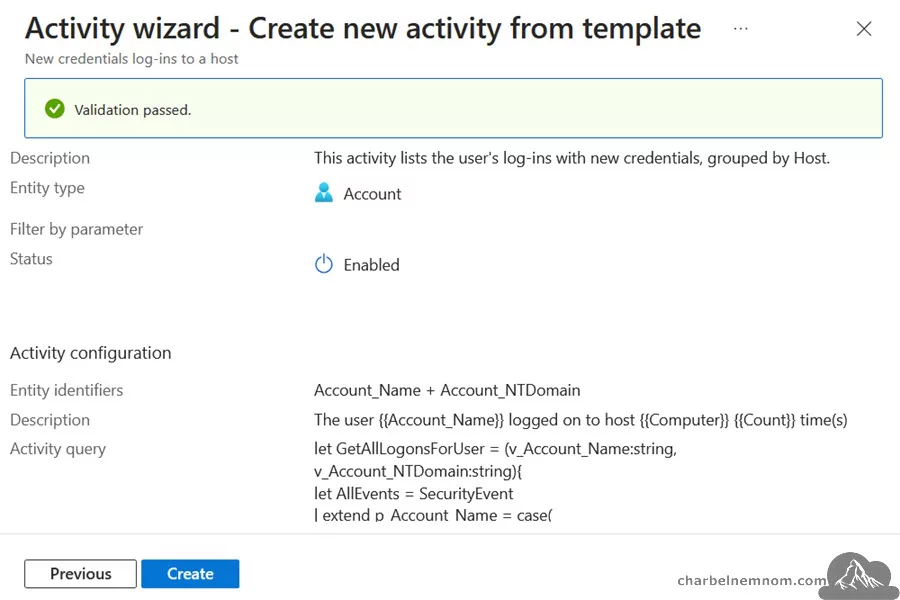
The nice thing about that is that we now have created the activity here, and we can then choose this activity to be shown on the timelines in your entity pages. If there are any activities, we can open up an entity, and we can then dive into those values on that page.
We can also add activities completely from scratch, which will appear in the My Activities tab if we want to. We can also edit the page based on templates. With that, we can extend the functionality of what we will show when we open up an entity. So, when we open up an account as an entity, we will now see that field there. And just like that, we can see a couple of other options as well.

You can do this if you want to customize the User and Entity Behavior Analytics within Microsoft Sentinel.
Detecting Anomalies Using UEBA
Before we see User and Entity Behavior Analytics in action, let’s first look at what anomalies can be detected by Microsoft Sentinel UEBA. The list below shows all the anomalies that the User and Entity Behavior Analytics engine could detect:
- Anomalous Account Access Removal
- Anomalous Account Creation
- Anomalous Account Deletion
- Anomalous Account Manipulation
- Anomalous Code Execution (UEBA)
- Anomalous Data Destruction
- Anomalous Defensive Mechanism Modification
- Anomalous Failed Sign-in
- Anomalous Password Reset
- Anomalous Privilege Granted
- Anomalous Sign-in
- Anomalous Process Creation
If you look at this list, you can see anomalous account access removal or anomalous account creation. We can also see if there’s anomalous account deletion or manipulation for accounts, and we can also monitor whether or not there is anomalous code execution, data destruction, and anomalous defensive mechanism modification. We can also monitor for failed sign-ins, password resets, privilege granted, and actual sign-ins, all of which are anomalous.
UEBA Anomalies also have their own tab on the Analytics blade in Microsoft Sentinel, which provides a consolidated view of anomalies in one place.
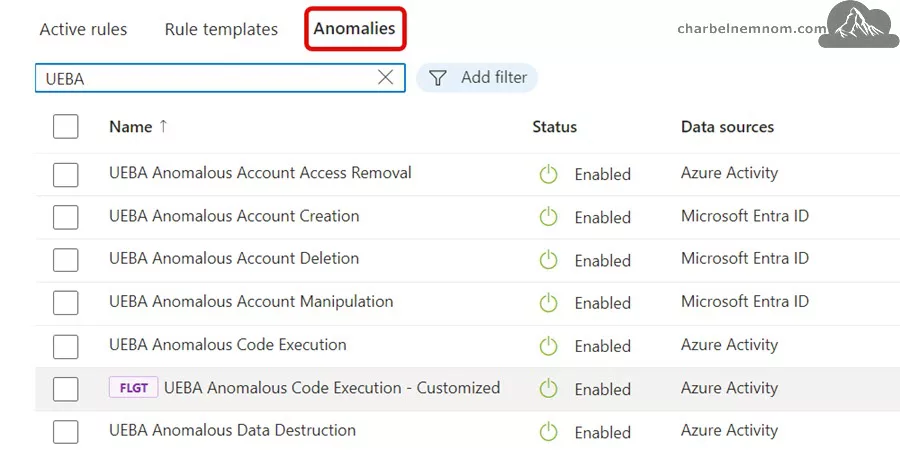
Let’s go through a couple of examples of what is being detected through User and Entity Behavior Analytics:
The first example is Anomalous Account Deletion – Adversaries may interrupt the availability of system and network resources by inhibiting access to accounts utilized by legitimate users. Accounts, for example, may be deleted, locked, or manipulated.
For example, change the credentials to remove access to an account. In this case, we can say that the anomaly type is User and Entity Behavior Analytics. The data source could be the Microsoft Entra ID audit logs.
When we think about the MITRE ATT&CK tactics involved, that would be the Impact tactic. The technique is T1531 – Account Access Removal. Activities being monitored are at the core directory level, user management, user deletion, device deletion for users, and user management with deleted users. With that, we have one example of how User and Entity Behavior Analytics can detect anomalous activity.
Another activity monitor is the Anomalous Password Reset – Adversaries, bad guys, may interrupt the availability of system and network resources by inhibiting access to accounts utilized by legitimate users. Accounts may again be deleted, locked, or manipulated. This is exactly what happens if we change a password anomalously. Again, the data source would be
the Microsoft Entra ID audit logs.
The MITRE ATT&CK tactic is Impact, and the technique is T1531 – Account Access Removal. The monitored activity is the core directory/user management/user password reset.
Another example of something that may be bad for your environment and that is being detected by the use of User and Entity Behavior Analytics is Anomalous Sign-in – where we can have an adversary that may steal the credentials of a specific user or service account using credentials access techniques or capture credentials earlier in their reconnaissance process through social engineering for means of gaining Persistence.
Again, the anomaly type would be User and Entity Behavior Analytics. The data source could be Microsoft Entra ID sign-in logs or Windows Security logs, and the MITRE ATT&CK
tactic is Persistence. The MITRE ATT&CK technique involved is T1078 – Valid Accounts, and the activity monitored is from Microsoft Entra ID, the sign-in activity, or Windows Security, a successful login event that comes with the Event ID of 4624.
Next, let’s look at how to query UEBA in Microsoft Sentinel.
Querying UEBA in Microsoft Sentinel
Now, we have data in User and Entity Behavior Analytics in Sentinel. Let’s look at what we can do when we want to query that data, which is stored in the Log Analytics workspace.
Here, we have a nice little example of what we can do by querying data about User and Entity Behavior in Log Analytics workspaces. The following KQL query is one that we can use to search for “BehaviorAnalytics“, and then, within there, we can start running all kinds of “where” statements.
In the example below, the first “where” statement is about displaying a failed logon. The second “where” statement is super interesting because it shows the activity insight data. Next to activity insights data, you can also look for user and device insights.
This specific activity insight is searching for the value of first-time user connected from a country equals True, which means that we will look for a user who is signing in for the first time in a certain country. The third “where” statement is also interesting because it shows the country uncommonly connected from among peers.
BehaviorAnalytics
| where ActivityType == "FailedLogOn"
| where Activityinsights.FirstTimeUserConnectedFromCountry == True
| where Activitylnsights.CountryUncommonlyConnectedFromAmongPeers == True
In User and Entity Behavior Analytics, Microsoft Sentinel is searching for users’ peers based on group memberships. Now, the peers are ranked from 1-20 and stored in the “UserPeerAnalytics” table. For example, if a peer has a value of 1, that would be the closest peer to the specific given user.
Let’s look at what querying the Log Analytics workspace for behavior analytics means within Azure Portal or Defender Portal. One of our Log Analytics workspaces contains a log we can search for behavior analytics.
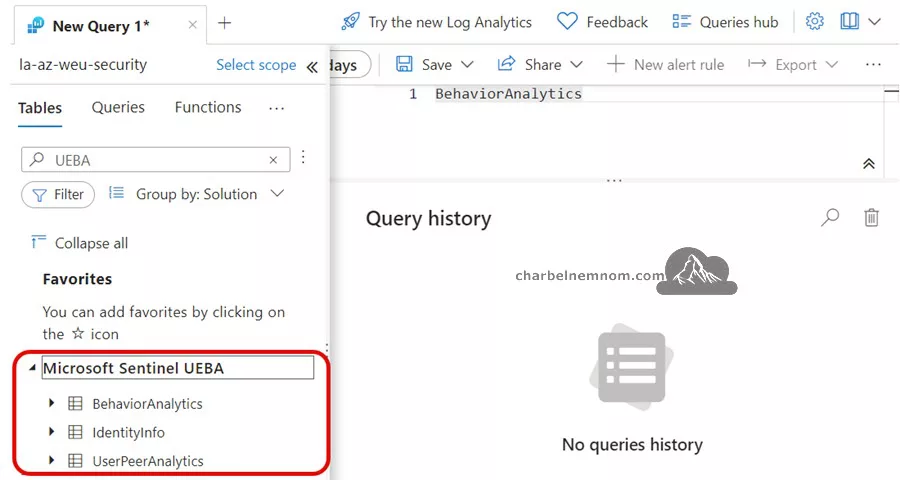
If you’re interested in what data is stored by Microsoft Sentinel User and Entity Behavior Analytics, you can open up the Log view, as shown in the figure below, and you can see that there is a table named “BehaviorAnalytics“, “IdentityInfo“, and “UserPeerAnalytics“. We can just go in and start running a query that will only show the content of that behavior analytics table.
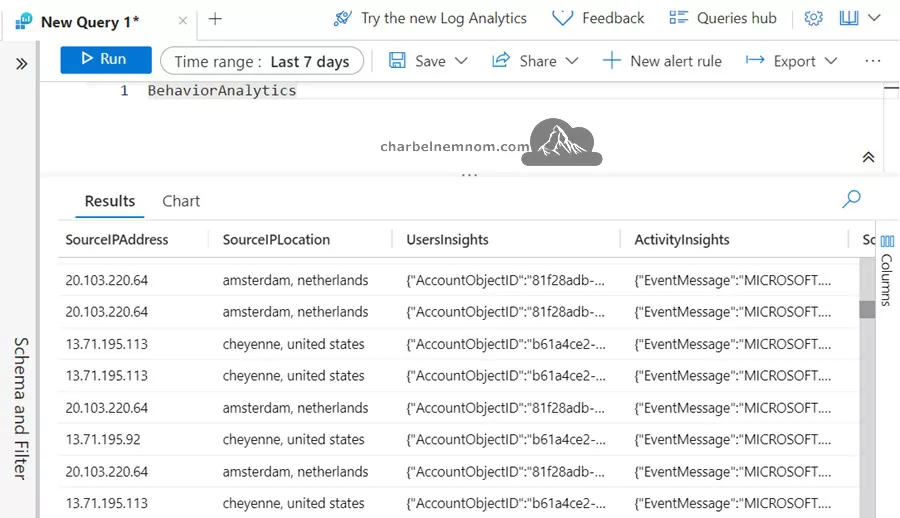
Like this, we get to see all the information that this table has to offer. For example, we can see the SourceRecordId and TimeGenerated information. But more interesting is the time that we process this data, the activity type that we have found for that data, the action type, the user, the user principal name, and the event source. So, where does this data come from? From what IP address does it come from? From what location can we bind to that IP address? The devices used, for example, a MacBook Pro or a Windows 11 ARM device. Just like that, we can also start looking into data found in user insights, device insights, and activity insights.
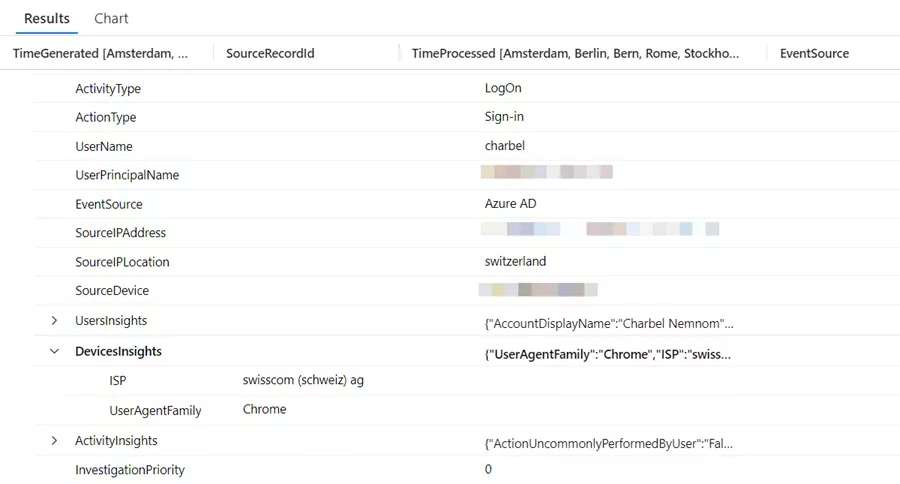
Now, if we dive deeper into any one of these entries, we can then see, for example, a log-on activity from Microsoft Entra ID (Azure AD) from a certain IP address, as shown in the figure below, which is found in Switzerland. The source device used, but super interesting here, is the UserInsights about the user. What information can we get about the user? What information can we have about the device being used? Under DeviceInsights, we see what ISP is being used, as well as the browser, which in this case is Chrome.
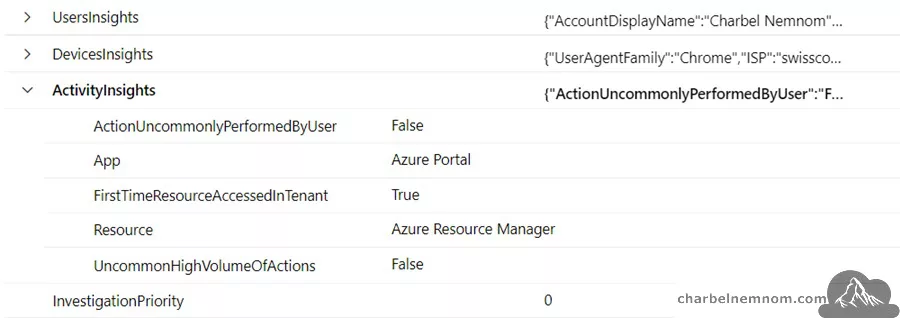
When we think about ActivityInsights, we can see that in this case, we are dealing with an action that is not, because the value is False, the action is not uncommonly performed by that user. Also, it is not an UncommonHighVolumeOfActions. But the cool part is that we can start searching for all kinds of data about the activity here.
Looking for another entry, we have ActivityInsights that shows that a certain executable has been run with a certain set of parameters. For example, we see the ProcessId used, the process name, the process parent component, and the ID shown. Again, the UncommonHighVolumeOfActions equals False. Not only does this say that this is an action that we see happen more often for the specific user, but we also see that Microsoft Sentinel is keeping track of what we think is and what we think is NOT common for a user.
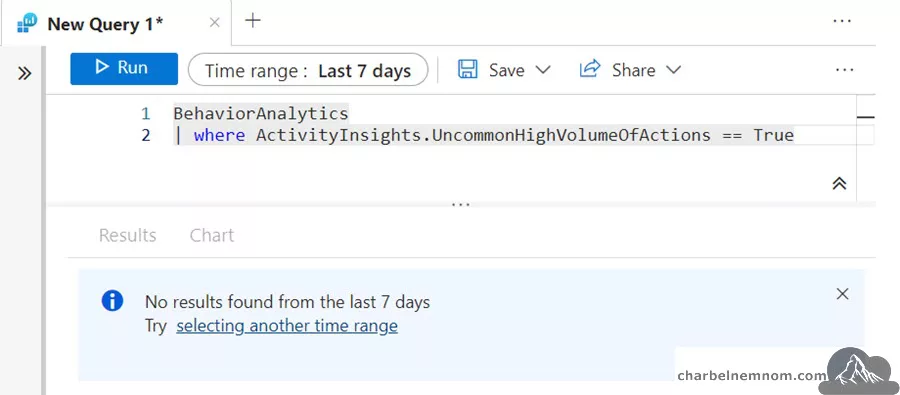
If you want to know what is not common for a user, we have to record what we do think is common for a user. Just like that, we could start to query for actions that are uncommonly performed by a user. For example, if we dive into where, activity insights, and then we can do dot, and we can search for UncommonHighVolumeOfActions equals True. We can now run the following query, and we can actually search for entries in the “BehaviorAnalytics” table where this value is set to True so we can dive deeper into that data.
BehaviorAnalytics
| where ActivityInsights.UncommonHighVolumeOfActions == True
In this environment, we don’t have any activity insights that match the UncommonHighVolumeOfActions.
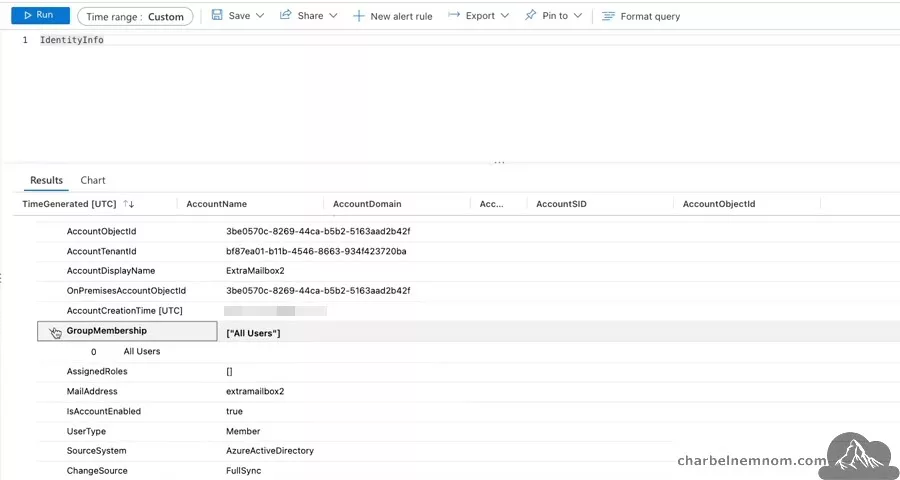
As mentioned previously, in Microsoft Sentinel UEBA, we have “BehaviorAnalytics” table. Another table that is being used by this solution is the “IdentityInfo” which will show all kinds of information about the identities that we have inside the organization.
Here, for example, we can see information about an object. We can see about group memberships. In this example, we can see where the object comes from and some extra info.
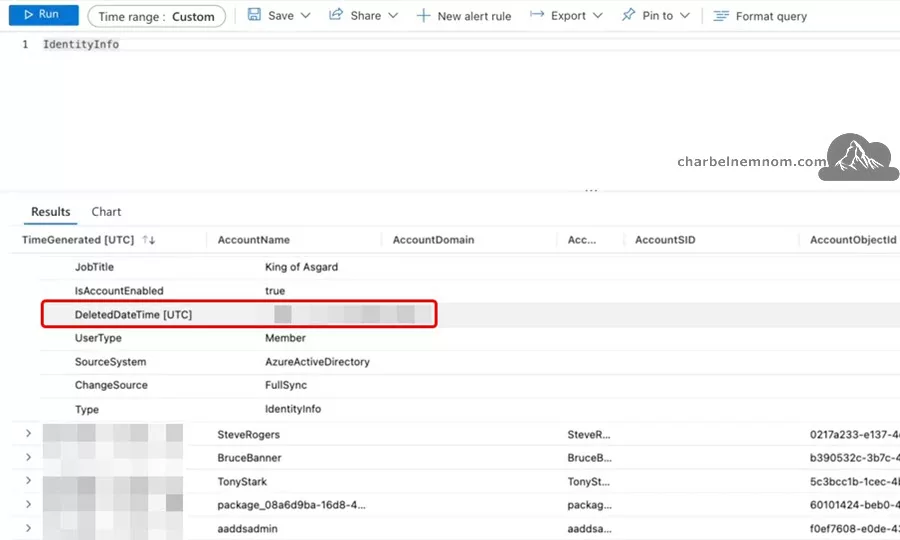
We can also, for example, search for certain components, and sometimes, we can monitor whether or not. In this example, you can see DeletedDateTime. In this case, we have a user object that has been deleted in the past, but it is still being shown in this environment. Just like this, we can see all kinds of user objects. We can see the group memberships that we have for users. So, it is quite helpful information if you need to investigate users.
You can also embed the “IdentityInfo” data in analytics rules to enhance investigations. For example, you can create a new analytic rule and use the following KQL query. This query correlates security events from Windows devices with the “IdentityInfo” table to alert on high-value server access by non-IT personnel.
SecurityEvent
| where EventID in ("4624","4672")
| where Computer == "My.High.Value.Asset"
| join kind=inner (
IdentityInfo
| summarize arg_max(TimeGenerated, *) by AccountObjectId) on $left.SubjectUserSid == $right.AccountSID
| where Department != "IT"
By leveraging these techniques, security teams can gain deeper insights into user and entity behaviors, enhancing their ability to detect and respond to potential threats.
We also have the “UserPeerAnalytics” table. When we think about user peer analytics, we can also dive into the table, and this will, for example, show any user what peers that user has, and they are ranked with a value from 1-20. What you will not see in this table is the actual username or user principal name (UPN). You will see the UserId and the PeerUserId, as shown in the figure below.
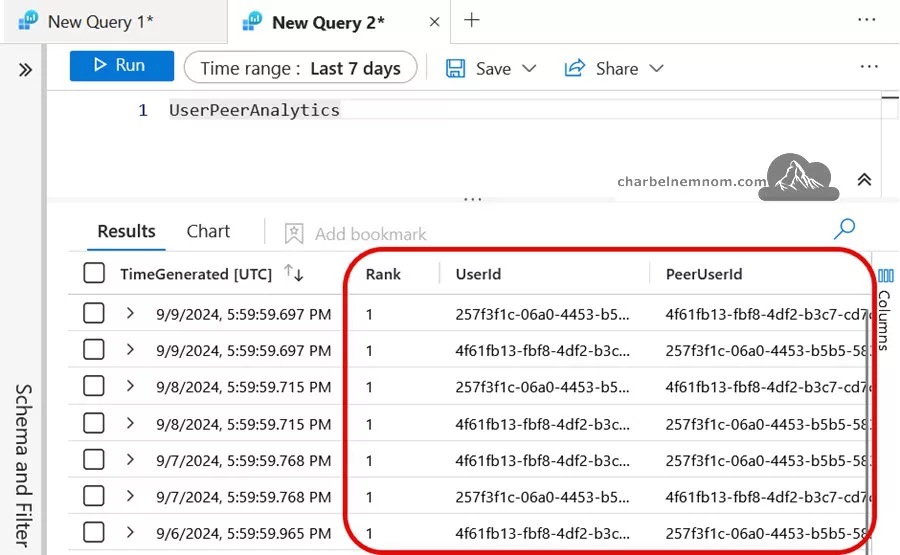
But if you check out the “IdentityInfo” table, you will see that it contains the user or peer user ID with the actual username related to that user.
Now, what is nice about the “UserPeerAnalytics” table is that we don’t need to start investigating which user ID or peer user ID belongs to what actual user because in user and entity behavior analytics in the right location, you can see the names there. You know for what user is a peer and to what level. So, it’s going to be shown anyway.
Next to being able to query the analytics data inside Log Analytics, permission analytics helps determine the potential impact of the compromising of an organizational asset by an attack. This impact is also known as that asset’s blast radius.
Security analysts can use this blast radius to prioritize investigations between one another. For example, if there are two users that have been compromised, but one of them has more permissions than the other, you will first want to investigate and protect that user object with more permissions because the blast radius of that user object is bigger.
If you look at the screenshot below, then what you’ll see is that in the “UserAccessAnalytics” table, we have a data entry about a demo user called Alex Johnson. Alex Johnson
has a level of permission to an Azure subscription, which is called Contoso Hotels Tenant. Here, we see that this user has access to an Azure subscription, which is named Contoso Hotels Tenant, and his access level is Owner, and he got that level of access via Azure Role-Based Access Control. It is, indeed, the “UserAccessAnalytics” that can dive into that level of data.
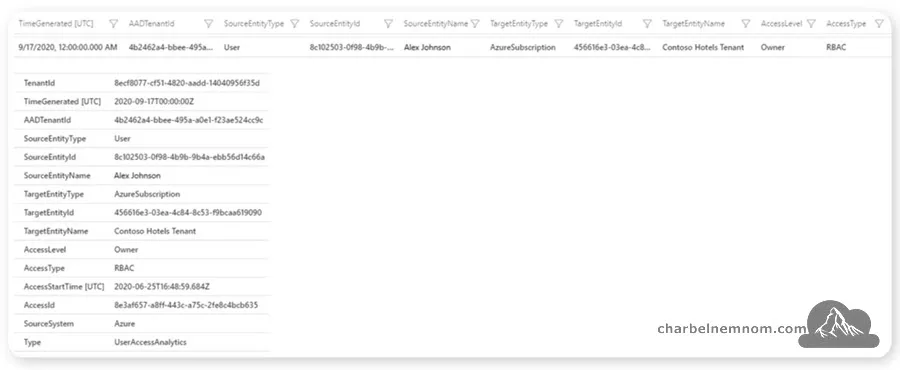
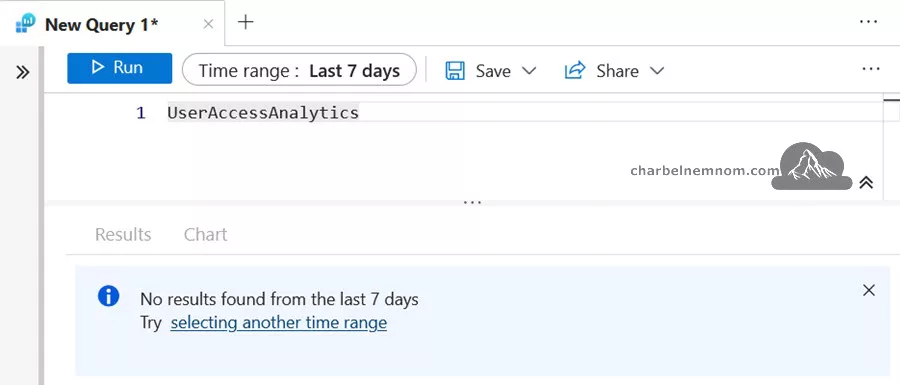
Now, in your Log Analytics environment, you can search for “UserAccessAnalytics“. However, in the environment that we’re using, there is no data for that situation yet.
We can dive into the analytics data generated by the User and Entity Behavior Analytics data with Microsoft Sentinel. Now, this is the Log Analytics way, but obviously, we also want to be able to do this from within Sentinel, and that will bring us to the final part of this article, where we can start investigations using User and Entity Behavior Analytics.
Investigating with UEBA
In the previous sections, we discussed all kinds of User and Entity Behavior Analytics settings in Microsoft Sentinel; now, it is time to start investigating issues using UEBA.
UEBA in Microsoft Sentinel is a powerful tool for identifying sophisticated threats, particularly password spray and spear phishing attempts. Let’s explore how UEBA insights help detect and investigate such attacks.
If we start looking into the different ways we can investigate issues in Microsoft Sentinel, then of course, we will have data connectors sending us data. We have the analytic rules that we can use to start creating alerts and incidents. Next to alerts and incidents, in Sentinel, we can make use of hunting queries and exploration queries.
Let’s dive, for example, into a demo Sentinel environment to see what that means for an organization; then, obviously, we have the ways that the incidents have been created by the analytics rules that we were running over time.
First, we have installed all kinds of data connectors via the Content Hub, and as part of the solution that installs data connectors, we can also use those hunting queries and analytics rules. In this example, we are looking at analytics rules that are running KQL queries against the data set generated by the data connectors to recognize anomalies, and if recognized, it will then create alerts and incidents.
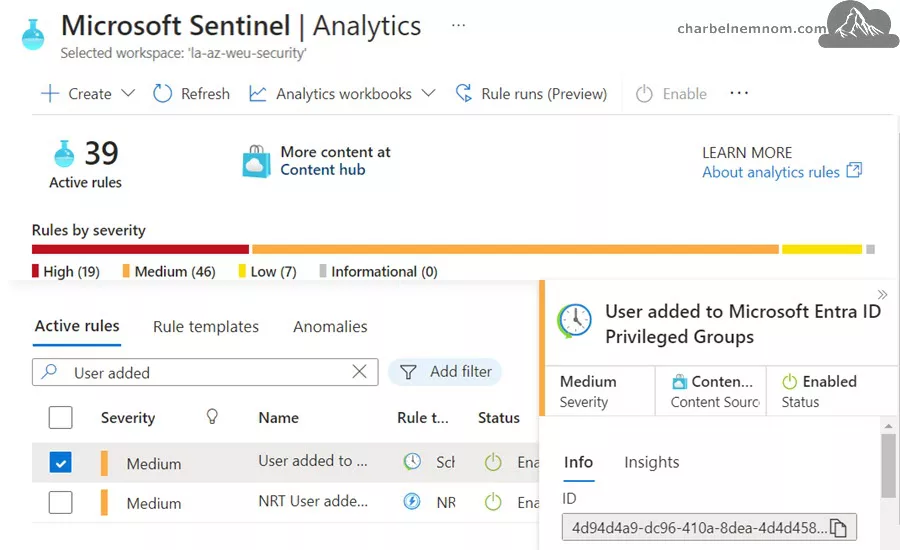
If we want to dive into incidents, we typically go into the Threat Management view in the Azure Portal or to the Investigation & response in the Defender Portal, where we will show incidents. For example, if we show the incidents that we have had in this Tenant over the last seven days, then we will get to see a couple of those incidents. Now, what we can also see is how many alerts are related to the incident.
Every incident gets its own identification number so we can keep track of it. We can see the product name of the incident is involved. We can see the creation time of the incident and when we have seen the last update for the incident, as well as the owner and status of the incident.
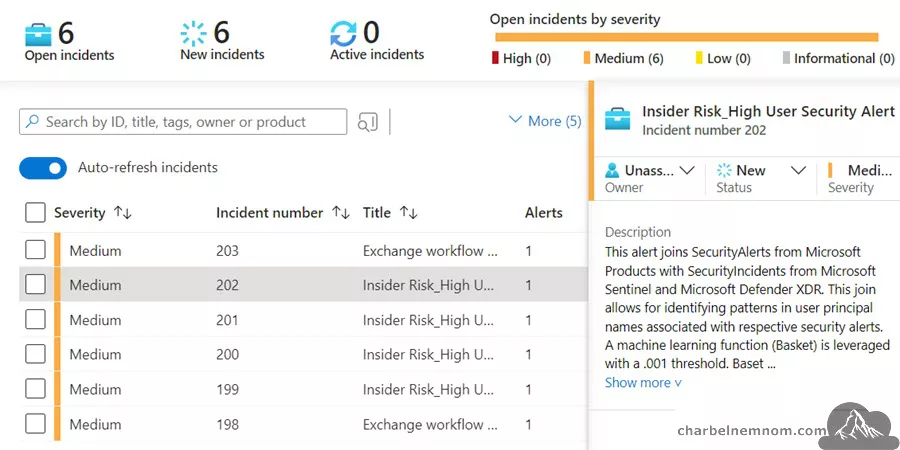
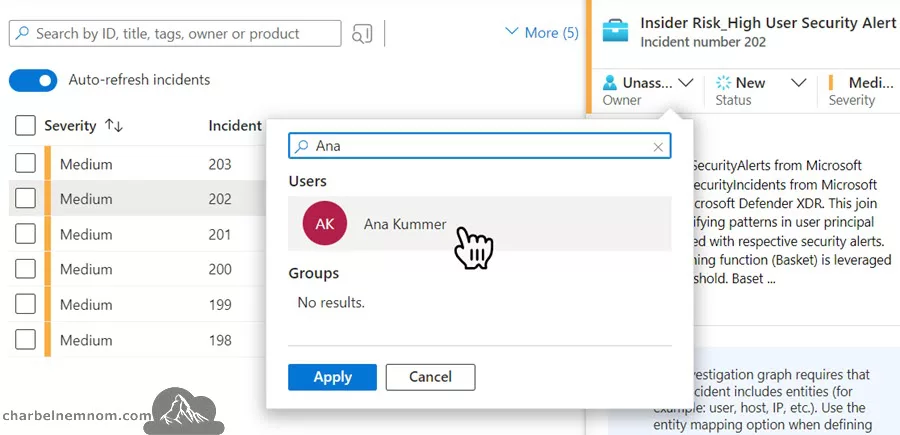
For every incident, we can go in and assign an Owner to that incident, or we can change the status. For example, we can change the status of an incident to Active. With that, we can show colleagues in the security operations center that someone is already working on that incident.
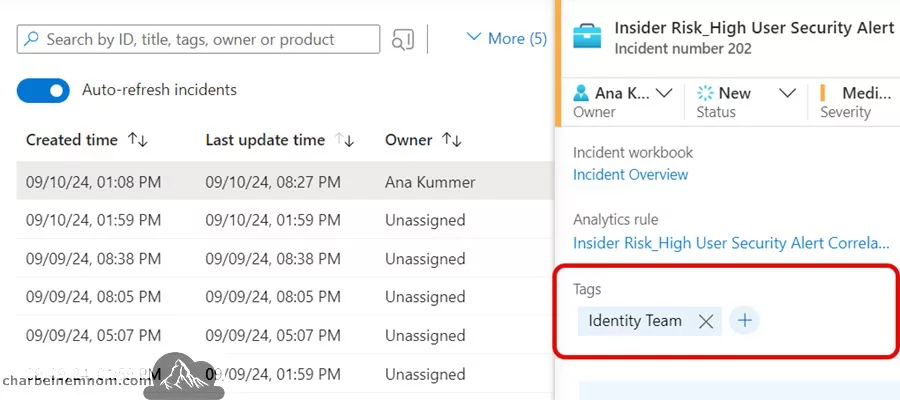
Now, next to working with the incident itself, we may also want to add Tags to the incident. For example, we can say that this is tagged the Identity Team. In this case, we say, Hey, the Identity Team is now responsible for following up on that alert. From now on, we can see that these tags are also listed in the incident, as shown in the figure below.
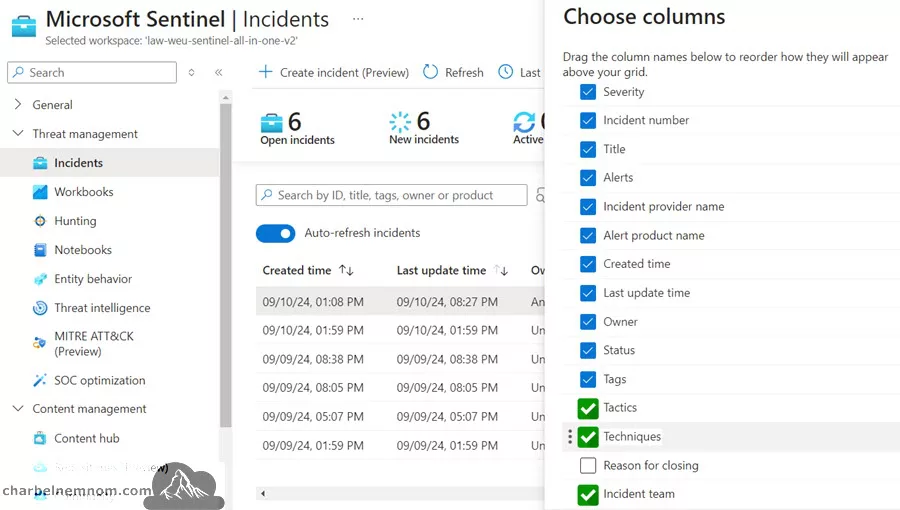
Another thing you might be interested in is changing the Columns because we could also dive into adding more columns, for example, what MITRE ATT&CK tactic or technique has been involved. Also, we can assign a certain Incident team. We can say, Hey, this is an incident for the Identity team, for example.
What you can see is that in some cases, when we look into incidents, we might see that there is more than one alert related to the incident. In this way, we can dive deeper into what that incident, in this case, is about.
Now, we can also open the investigation graph by clicking the Investigate button within the incident. Please note that opening the investigation graph requires that your incident includes entities (for example, user, host, IP, etc.). As shown in the figure below, the view could sometimes be optimized to show a relationship between the different alerts for the incident.
If you want more information on one of the entities, you can also dive into that entity. For example, if we select the IP address, we get the information about that object and the entity.
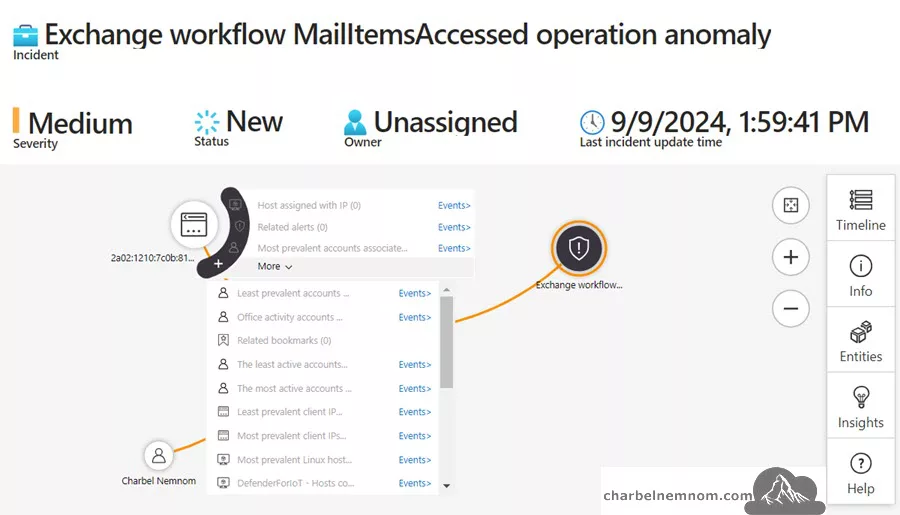
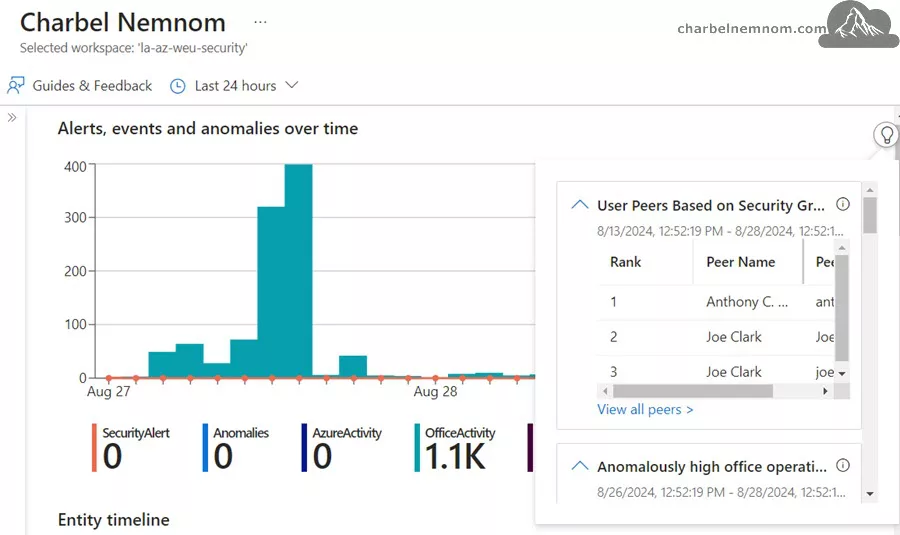
You can also go in and check the full details about the entity. This will show in Microsoft Sentinel on the entity information page. This is where User and Entity Behavior Analytics kicks in. So, we can see the entity itself, information about it, and, for example, the number of alerts, events, and anomalies over time.
If we think about Hunting and exploration queries, then what we could say is that Microsoft Sentinel gives us an out-of-the-box set of hunting queries and exploration and also the User and Entity Behavior Analytics workbook, which is based on those queries and the “BehaviorAnalytics” table in Log Analytics. Together, these tools present enriched data and will focus on specific use cases that indicate anomalous behavior.
As legacy defense tools become obsolete, organizations may have such a vast and porous digital estate that it becomes unmanageable to obtain a comprehensive picture of the risk and posture that their environment may be facing.
Relying heavily on reactive efforts such as analytics rules enables bad actors to learn how to evade those efforts. This is where User and Entity Behavior Analytics comes into play by providing risk-scoring methodologies and algorithms to figure out what is happening. What we can do is run proactive routine searches in our entity data.
Now, it’s recommended to run regular proactive searches through user activity to create leads for further investigation. Now, you could use the Microsoft Sentinel User and Entity Behavior Analytics workbook to query your data, for example, to show your top risky users with anomalies and attached incidents, as well as data on specific users. This can help you determine whether the subject has indeed been compromised or whether there is an insight threat due to action deviating from a user’s profile.
Additionally, you can capture non-routine actions in the User and Entity Behavior Analytics workbook. Also, you can use them to find anomaly activities and potentially non-compliance practices.
If we check out the workbook that goes with the entity behavior, then one option is that we can dive into the section of workbooks where you can find a couple of templates. However, as shown in the figure below, we don’t see the user and entity behavior analytics workbook under Templates.
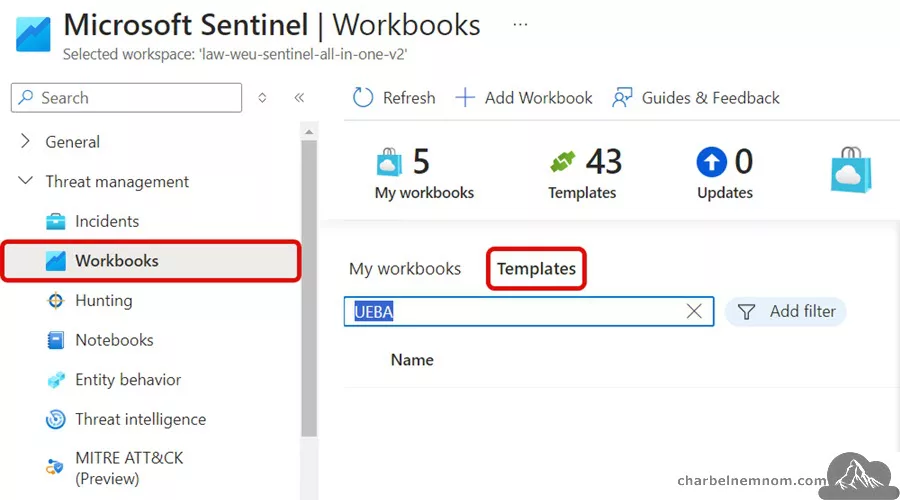
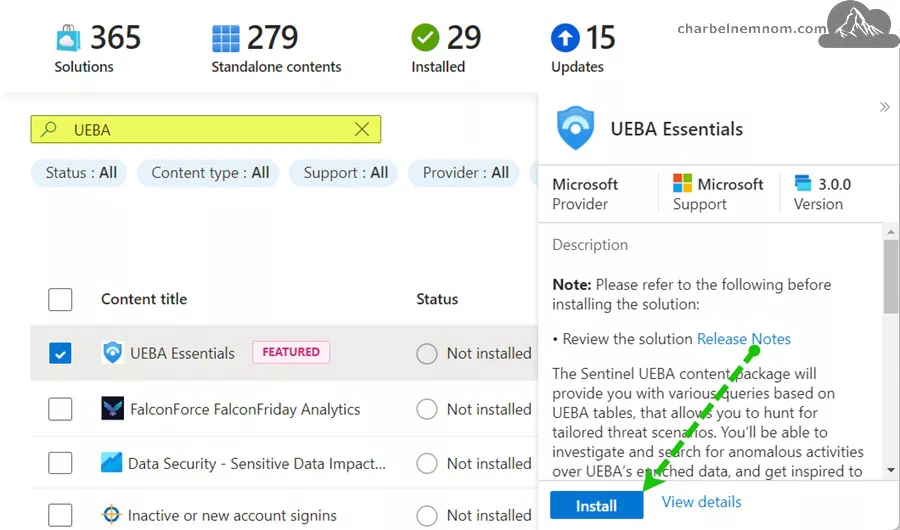
In this case, you should go into the Content Hub and search for UEBA, where you can find a set of User and Entity Behavior Analytics essentials to add to your environment. For example, we can install the UEBA Essentials component as an extra solution in Microsoft Sentinel. This would be one step that we want to take in this case.
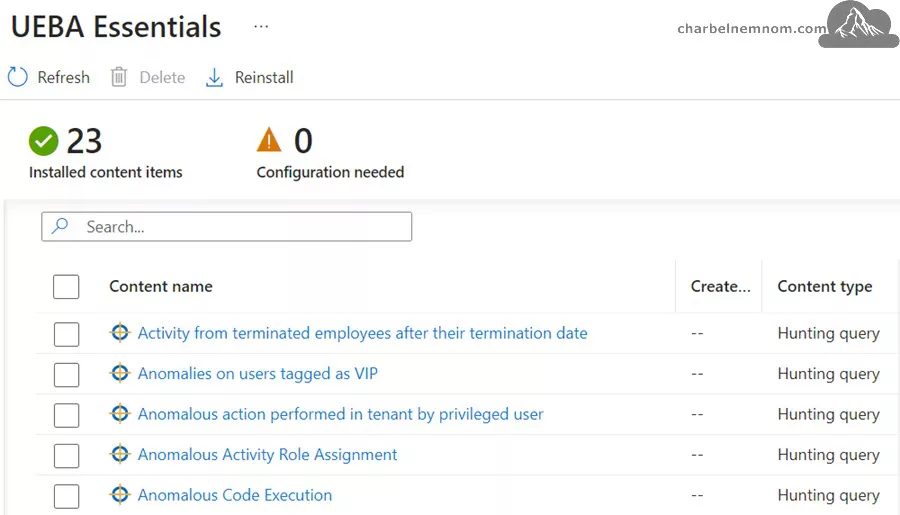
From here, we could dive into that solution. If we’re going to Manage, we can see that we get 23 different hunting queries, in this case, to get started with user and entity behavior analytics.
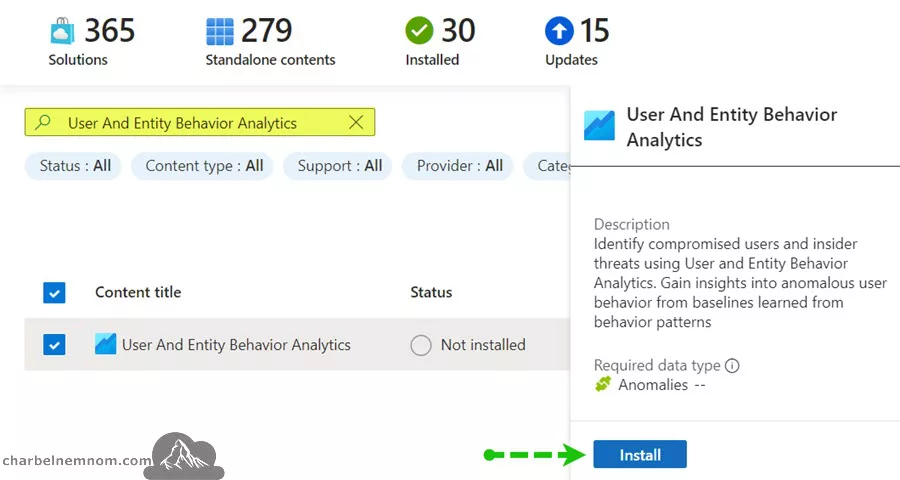
Another step that we want to take is to install the User And Entity Behavior Analytics standalone solution that contains the actual Workbook.
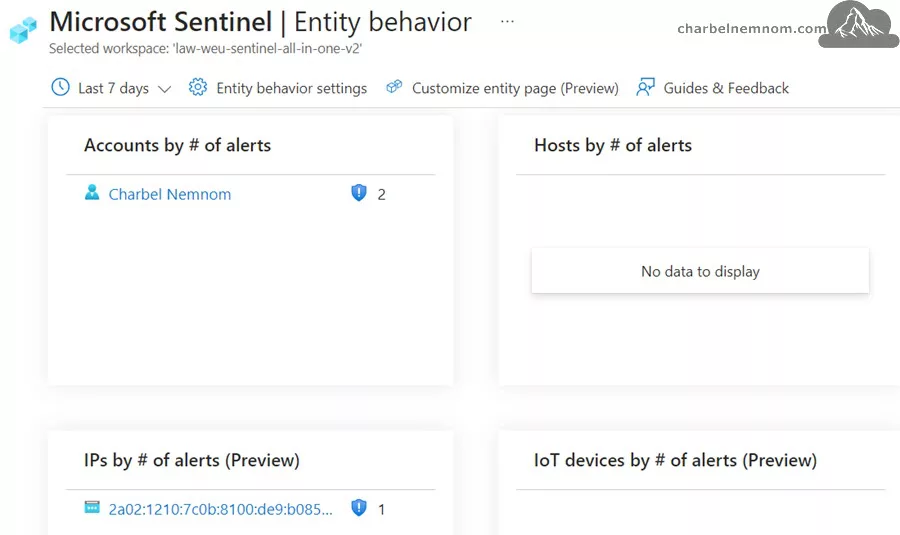
Now, we can also go into the Entity behavior overview page, which shows the entity behavior portal or workbook. Here, we can, for example, dive and search for certain accounts and hosts, IP addresses, IoT devices, or Azure resources. In this environment, you can see that currently, for the last 7 days, we had two alerts on a user object, some IP addresses involved, and a couple of alerts per IP address.
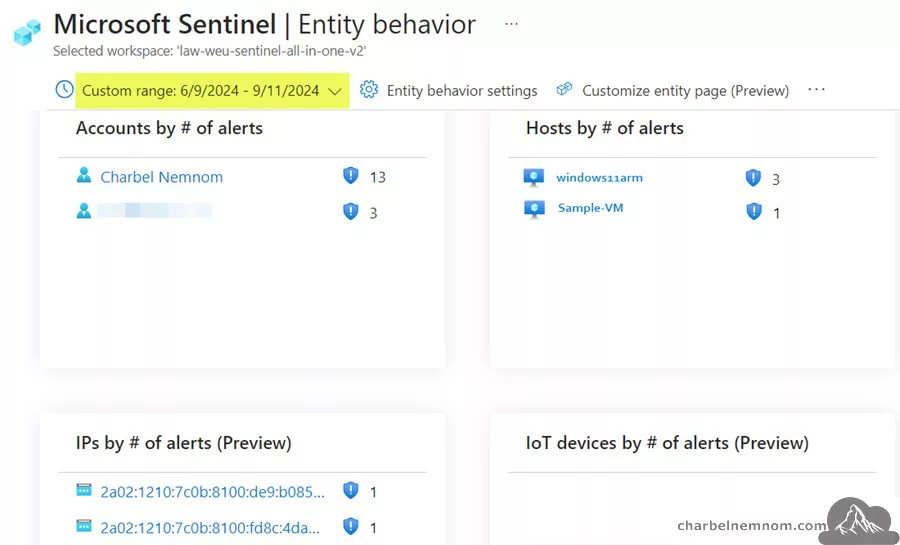
If we want to dive a little bit deeper into historical data, for example, 30 days, or if we check out a custom range and we want to go back a little bit further in history for all the data, we can see some more information, as shown in the figure below. You can see that we have a couple of accounts. We can see hosts that may have a certain set of alerts. We have IP addresses involved, IoT devices are listed but not present in this demo environment, and a couple of Azure resources that you might be interested in.
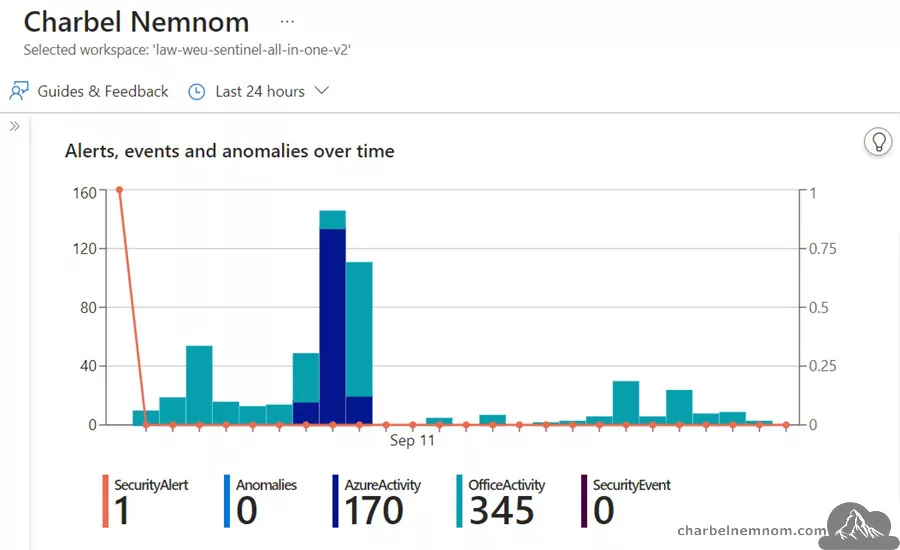
For example, you could be looking at a certain account, host, or IP. For example, if we choose an account, we can see that over time, we don’t get to see weird information, in this case, an account (Anomalies equals 0), but we do see a Security Alert.
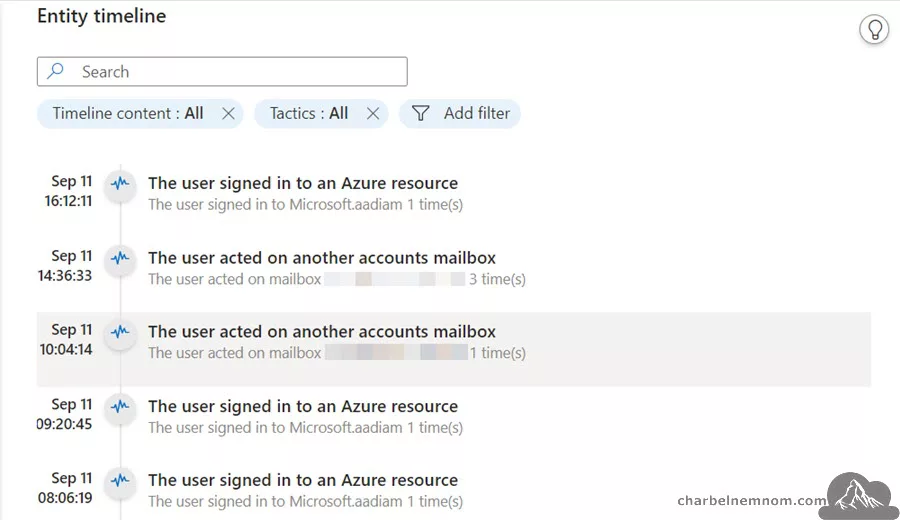
Next, whenever you enter an entity page, all the enabled activity queries for that entity will run, providing you with up-to-the-minute information in the entity timeline. You’ll see the activities in the timeline, as shown in the figure below, alongside alerts and bookmarks. You can use the Timeline content filter to present only activities (or any combination of activities, alerts, and bookmarks).
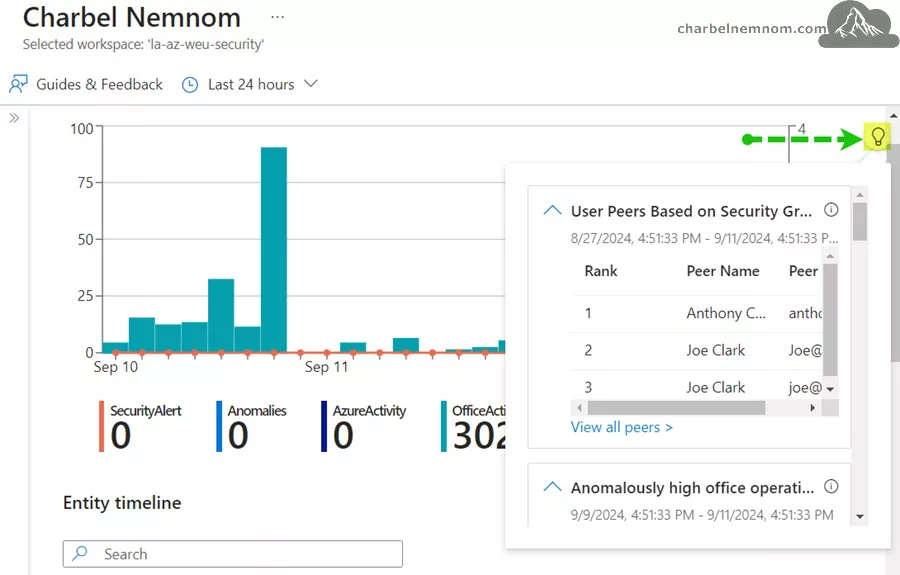
Optionally, you can get extra insights by clicking the bulb icon on the right-hand side. You can see some extra information about the user. For example, it will also be able to tell what peers we have on that object and some other insights that we may see happening in the entity itself, as shown in the figure below. Also, for that object, we could dive a little bit deeper into the history to see if there is more information to tell about this user over time.
When we think about user and entity behavior analytics, in the UEBA workbook that we installed from Content Hub, we get to see an overview of the related objects that deal with certain anomalies found when monitoring those objects.
Next to adding all kinds of data from different locations into Sentinel and running hunting queries to dive deeper into those solutions, we can start investigating anomalous sign-ins as well. For example, you might want to follow the investigation of a user who connected to a VPN that they had never used before, which we could see as an anomalous activity.
In that case, we want to search for and open up the User and Entity Behavior Analytics Workbook in the Sentinel Workbooks area. This is where we can search for a username, and we can start them to investigate.
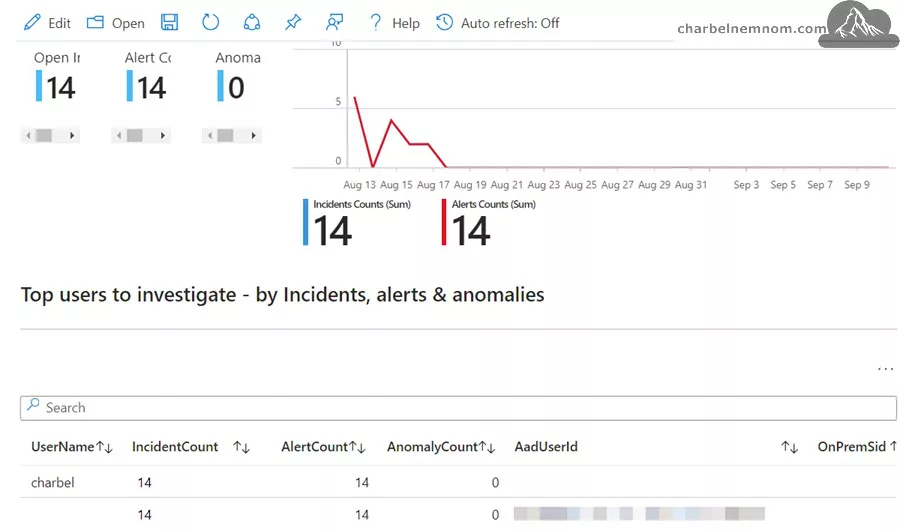
The next step is that we want to make sure that we can dive deeper into the anomaly by monitoring the successful log-on for anomalous successful sign-ins. Then, we can use the data found in the User and Entity Behavior Analytics workbooks to determine whether the user activity is suspicious and/or requires some extra action to sign in.
Also, we can use User and Entity Behavior Analytics data to analyze false positives. So, if we see people signing in and think this is not an actual false activity, then we want to go and ignore that. Sometimes, an incident captured in an investigation is a false positive. A common example of a false positive is when impossible travel activity is detected, such as a user who signed in to an application or portal from both New York and London within the same hour. While Microsoft Sentinel notes the impossible travel as an anomaly, an investigation with the user might clarify that maybe a VPN was used as an alternative location to where the user actually was.
If that impossible travel incident has happened and after confirming with the user that the VPN was used, we can navigate from the incident to the user entity page, and we can use the data displayed there to determine whether the locations captured are included in the user’s commonly known location. The user entity page is also linked to the incident page itself and the investigation graph.
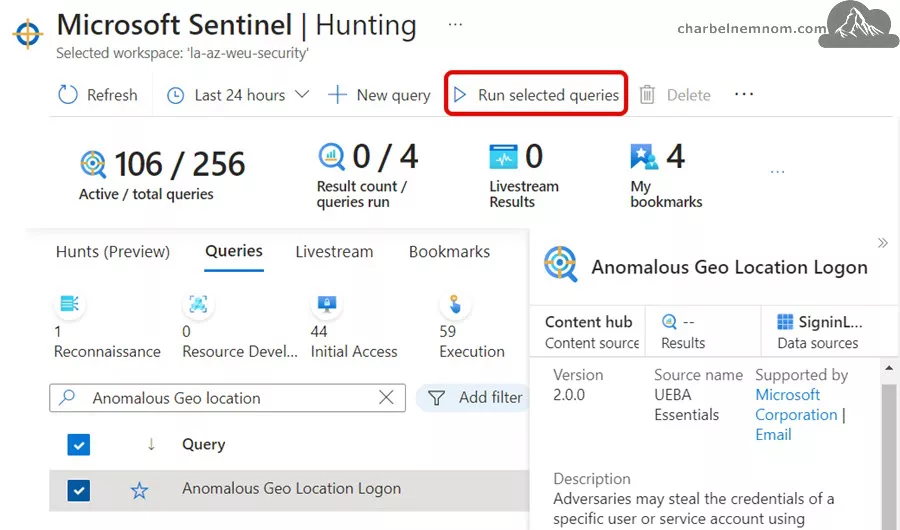
After confirming the data on the user entity page for the specific user associated with the incident, you can go to the Sentinel hunting area to understand whether the user’s peers also usually connect from the same locations as well. If so, this knowledge would make an even stronger case for a false positive. What we can do in the hunting area is go and run the Anomalous Geo location query that would allow us to solve the problem, and for the next time, maybe add the entity as a trusted location so that it would never be shown as an impossible travel activity again.
Another example is that we can identify password spray and spear phishing attempts. For example, without having multifactor authentication enabled, user credentials are vulnerable to attackers looking to compromise attacks with password spraying or spear phishing attempts. We can investigate a password spray incident by using User and Entity Behavior Analytics.
We can click the investigate button on the incident page, which allows us to view the accounts, the machines, and other data points or entities that were potentially targeted in the attack. Browsing through the data, you might see an administrator account with a relatively large number of log-on failures. While this is suspicious, you might not want to restrict the account without further confirmation.
The next step would be to select the administrative user entity in the map and then select Insights on the right to find more details, such as a graph of sign-ins over time. You can start drilling down further if you select the info to view the full details. For example, note whether this is a user’s potential password spray incident or watch the user sign-in history to understand better if the failures were anomalous.
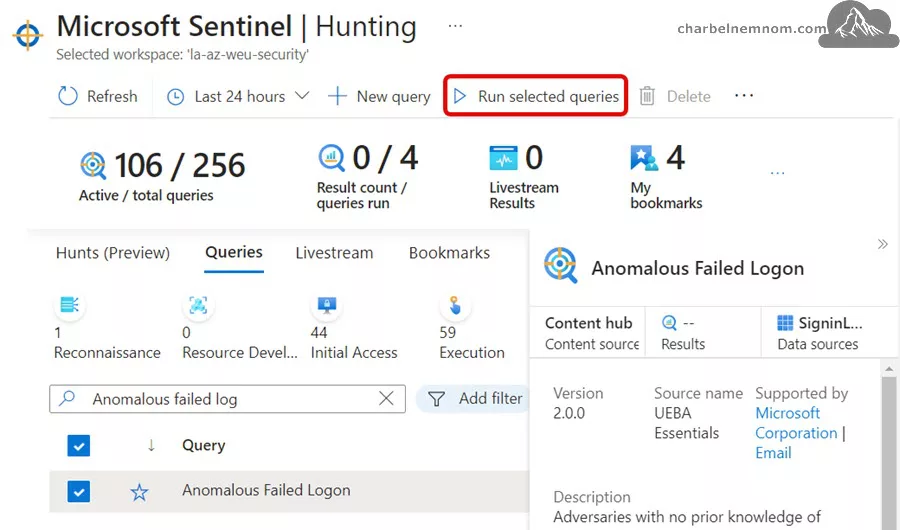
Now, you could also be running the hunting query named Anomalous Failed Logon. This will allow you to monitor an organization’s Anomalous Failed Logon, and you can then use the results from the query to start investigations into a possible password spray attack.
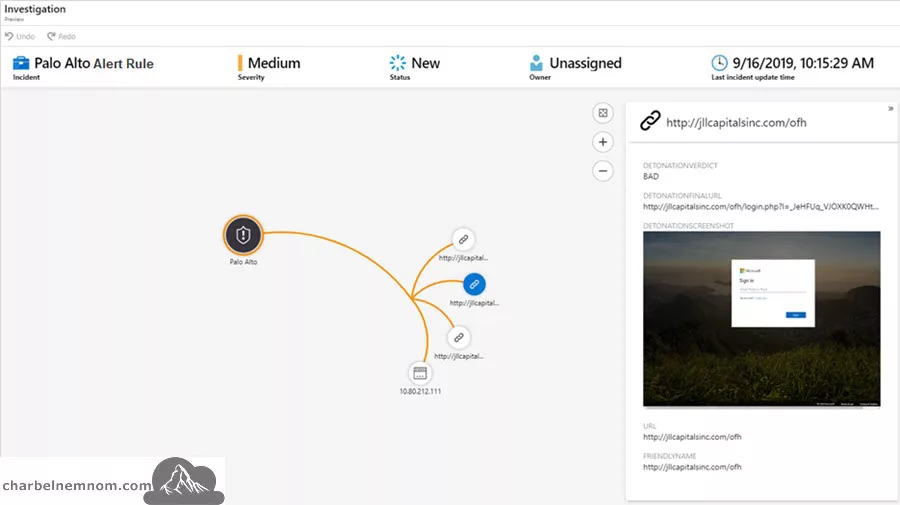
Another option, which is still in preview, is called URL detonation. When there are URLs in log files ingested into Microsoft Sentinel, those URLs are automatically detonated to help accelerate the triage process. The investigation graph includes a note for the detonated URL, as well as extra details. For example, there is a detonation prediction.
This high-level boolean determination from detonation, for example, bad, means the site was classified as hosting malware or phishing content. Also, the detonation final URL value is
the final observed landing page URL is shown after all the redirects from the original URL.
In some cases, you can even see a detonation screenshot, as shown in the figure below, which is a screenshot of what the page looked like when the alert was triggered. You can also select that screenshot to zoom in.
Now, if you do not see URLs in your log files, you may want to check that URL logging, also known as threat logging, is enabled for your secure web gateways, your web proxies, your firewalls, or legacy intrusion detection systems and intrusion prevention systems. You could also create custom logs to channel specific URLs of interest into Microsoft Sentinel for further investigation.
Integrating UEBA with Other Microsoft Security Services
Integrating UEBA with other Microsoft security services strengthens Microsoft Sentinel’s capabilities. This integration expands the scope of security monitoring and improves threat detection and response.
- Microsoft Defender for Cloud Apps adds visibility into cloud application usage and user activities. This integration allows comprehensive monitoring of cloud app-based behaviors, which is crucial for detecting suspicious actions such as abnormal data downloads or unauthorized app usage.
- Microsoft Defender for Endpoint brings endpoint detection and response (EDR) into the mix, providing visibility into device-level events. When this data is ingested into Microsoft Sentinel’s UEBA, it enhances detection capabilities by correlating endpoint anomalies with other user behaviors.
- Microsoft Defender for Identity provides insights into on-premises Active Directory activities. When integrated with UEBA in Sentinel, it uses this data to enrich the behavioral profiles of users accessing both on-premises and cloud resources, helping detect sophisticated attacks that span across hybrid environments.
The integration of these services enhances incident management and response. UEBA uses the comprehensive data from Defender XDR tools to create detailed, contextual incidents within Sentinel. The Incident page in Sentinel becomes a central location where security teams can see related alerts, logs, and entity details.
“Additional integrations, such as those with ServiceNow or Jira, streamline workflows by allowing seamless communication and task assignments from within Sentinel.”
Threat intelligence integrations enhance UEBA’s capabilities by feeding it with external enrichment data. These enrichments are embedded directly into Sentinel alerts and incidents, improving detection accuracy and accelerating response times.
By integrating UEBA with these Microsoft security services, Sentinel transforms into a comprehensive security solution that spans across cloud, on-premises, and hybrid environments.
Microsoft Sentinel UEBA Expands to New Data Sources
With this new expansion release, Microsoft Sentinel UEBA now supports connecting six new data sources.
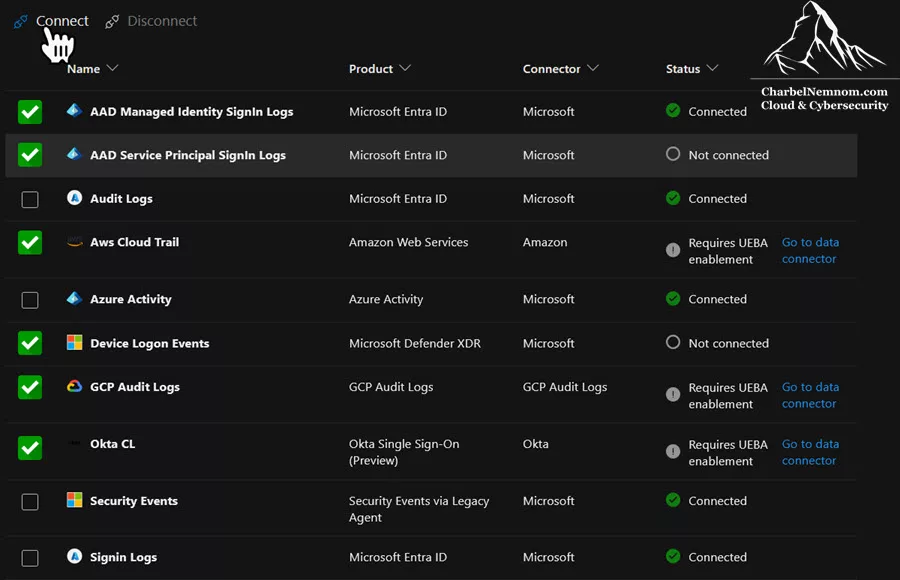
Similarly, on how to enable User and Entity Behavior Analytics, UEBA can now analyze anomalies in Authentication activities, other cloud platforms, and identity management. Please note that the new data sources can only be enabled from the Microsoft Defender portal under Settings > Microsoft Sentinel > SIEM workspaces. Then, you select the Log Analytics workspace you want to configure. From the workspace configuration page, choose Entity Behavior Analytics > Configure UEBA.
Authentication activities
- MDE DeviceLogonEvents – Spot lateral movement and unusual logons on endpoints.
- AAD Managed Identity Sign-in Logs – Detect stealthy misuse of non-human identities.
- AAD Service Principal Sign-in Logs – Expose anomalies in service principal usage.
Cloud platforms & identity management
- AWS CloudTrail Login Events – Identify risky AWS logon activity.
- GCP Audit Logs – Catch denied IAM access attempts in Google Cloud.
- Okta CL Events – Surface MFA fatigue, session hijacking, and policy tampering.
After enabling UEBA, you can enable supported data sources for UEBA directly from the data connector pane or from the Defender portal Settings page, as shown in the following figure.
Identity telemetry is often fragmented across multiple platforms. Attackers exploit these blind spots, moving laterally between providers where visibility is weakest. By extending UEBA into AWS, GCP, and Okta, Microsoft Sentinel closes one of the hardest detection gaps: correlating subtle anomalies across hybrid identity providers.
This update isn’t just about anomaly detection. Microsoft highlights three key ways to maximize UEBA impact:
- Behavior Analytics Table – Detect logon anomalies across hybrid environments.
- Anomaly Table – Surface account-based anomalies across multi-cloud, multi-vendor authentication sources.
- Alert Optimization – Dynamically tune the severity of alerts with UEBA-driven signals.
Here are some examples of what defenders can now do with Microsoft Sentinel UEBA and KQL:
- Discover AWS accounts without MFA or logins from untrusted geographies.
- Identify account anomalies across AWS, GCP, and Okta authentication data sources.
- Detect anomalous key vault access from service principals.
// Discover AWS Accounts without MFA and from uncommonly connected countries
BehaviorAnalytics
| where TimeGenerated > ago(7d)
| where EventSource == "AwsConsoleSignIn" and ActivityType == "signin.amazonaws.com"
| where ActivityInsights.IsMfaUsed == "No"
| where ActivityInsights.CountryUncommonlyConnectedFromInTenant == True
This is just the beginning. At the time of this writing, this expansion includes a limited set of anomalies; however, Microsoft has confirmed that additional behavioral insights will be available for these new data sources.
Microsoft Sentinel Behaviors Layer
In addition to the new data sources that can be connected to Microsoft Sentinel UEBA, we have a new behavior capability called Behaviors Layer. The behaviors layer is part of Microsoft Sentinel’s User and Entity Behavior Analytics capabilities, which provide normalized, contextualized activity summaries that complement anomaly detection and enrich investigations. This capability can also be enabled under the same UEBA configuration page in the Defender portal.
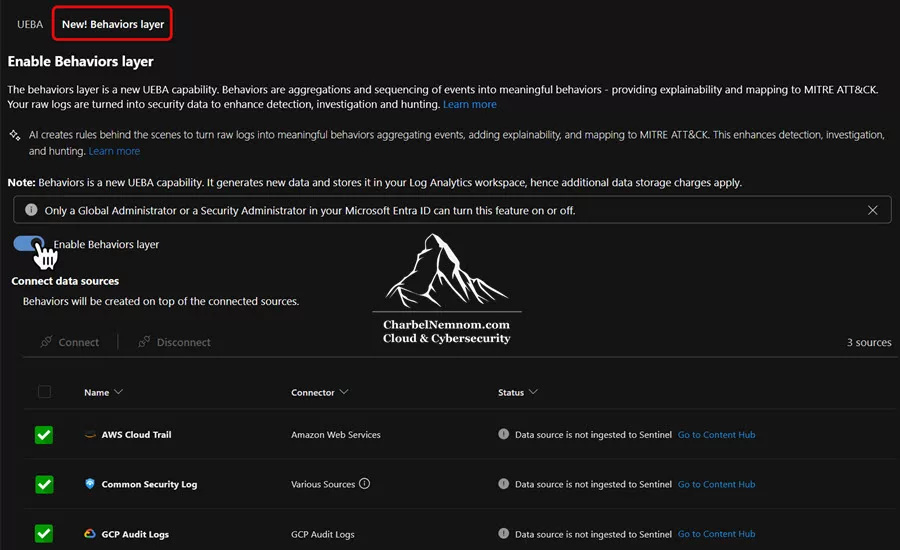
When enabled, it processes supported security logs in near real-time, summarizing two types of behavioral patterns: Aggregated and Sequenced behaviors. Your raw logs are transformed into security data to improve detection, investigation, and hunting. At the time of this writing, it focuses on non-Microsoft data sources like CommonSecurityLog, AWSCloudTrail, and GCPAuditLogs.
The behavior records are created based on tailored time intervals and stored in two tables:
- A behavior information
BehaviorInfotable, which contains the behavior title, description, MITRE mappings, categories, and links to raw logs, and - A behavior‑related entities
BehaviorEntitiestable, which lists all entities involved in the behavior and their roles.
Of course, the new data that gets created by this new capability is stored in your Log Analytics workspace and generates additional charges. These two tables integrate seamlessly with your existing workflows for detection rules, investigations, and incident analysis.
The behavior layer processes all types of security activity—not just suspicious events—and provides comprehensive visibility into both normal and anomalous behavior patterns.
In Summary
Incorporating UEBA into your security strategy improves Microsoft Sentinel’s ability to detect and respond to threats. You can build comprehensive behavior profiles that enhance threat detection and response times by using insights from various data sources and integrating them with other Microsoft security services. Regularly monitoring these profiles helps identify early threats, strengthening your organization’s overall security posture.
UEBA is a critical component in modern cybersecurity strategies, providing organizations with the ability to detect and respond to advanced threats that might otherwise go unnoticed.
__
Thank you for reading our blog.
Please let us know in the comments section below if you have any questions or feedback.
-Charbel Nemnom-
