
Microsoft Defender for Endpoint (MDE) with Plan 2 provides a really great and relatively affordable way of ingesting large-scale events into your SIEM, like Microsoft Sentinel, for detection, correlation, and investigation. However, in some heavily regulated environments, MDE log collection is not enough because it does not collect information like Process Call Stacks, Service Modification, Service Deletion, etc. The EDR telemetry project for Windows might be interesting for you to compare with what MDE collects or does not collect.
MDE enables the logs and event tracing that it wants to investigate. For most environments, we do not deploy the Azure Monitor Agent (AMA) to the workstations and consider MDE with Plan 2 to be sufficient for local log collection for most security use cases. We do find, though, that having AMA in place on the workstations is not only beneficial for SecOps, but if you can get them in the mode of using it, the ops support teams can get a lot of benefit for troubleshooting problems from having a centralized logging.
Another approach to consider alongside EDR is Windows Event Forwarding (WEF). We highly recommend directly deploying Azure Monitor Agent (AMA) to workstations if you need to collect logs beyond what Microsoft Defender for Endpoint (MDE) captures. WEF is primarily focused on collecting logs from Windows servers.
Additionally, if the workstations are Entra-joined and not hybrid-joined, and the devices aren’t connected to a physical office, configuring WEF can be challenging. Event generation on each device must be enabled separately or through Group Policy Objects (GPO). Even if workstations connect via VPN to the office, WEF may still be unreliable.
In these scenarios, we highly recommend the direct deployment of AMA to the workstations if you need to collect logs beyond what is collected with your existing EDR solution. The deployment is much simpler and more reliable, as the AMA agent communicates with the Log Analytics workspace / Sentinel directly, so no additional infrastructure is needed.
In this step-by-step guide, we will go through all the steps required to collect security events from workstations using Azure Monitor Agent (AMA) and ingest them into Microsoft Sentinel (SecurityEvent and Event tables) using Data Collection Rules (DCRs) without onboarding the workstations to Azure Arc. Those devices could be running anywhere (on-premises, edge, and multicloud environments) to effectively Collect Security Events.
We’ll also look at how to apply KQL transformations, so you can filter and exclude irrelevant events, or route only critical events to the Analytics tier, while archiving the rest to the Auxiliary Logs tier or the new Microsoft Sentinel Data Lake. This will help to optimize ingestion costs and query performance by shaping data at collection time.
Table of Contents
Prerequisites
To follow this article, you need to have the following:
1) Azure subscription – If you don’t have an Azure subscription, you can create one here for free.
2) Log Analytics workspace – To create a new workspace, follow the instructions to create a Log Analytics workspace.
3) Enable Microsoft Sentinel at no additional cost on an Azure Monitor Log Analytics workspace for the first 31 days; follow the quick onboarding process. Once Microsoft Sentinel is enabled on your Azure Monitor Log Analytics workspace, every GB of data ingested into the workspace can be retained at no charge for 90 days.
4) Azure RBAC role assignments and Microsoft Entra permissions:
- Eligible and time-bound Owner role assignments at the subscription or management group where Microsoft Sentinel / Workspace is onboarded
- Monitoring Contributor to create and edit Data Collection Rules (DCRs) on the subscription
- Temporary elevated access with User Access Administrator so that you can manage access to Azure resources. See how to monitor critical elevated access in Microsoft Entra with Sentinel.
5) The client machine(s) must be running Windows client OS version 10 RS4 or later. Please note that the Azure Monitor Agent (AMA) doesn’t support hibernation. If the agent computer hibernates, you may lose monitoring and data collection.
6) The client machine(s) should have C++ Redistributable version 2015 or later installed.
7) The client machine(s) must have network access to the following HTTPS endpoints:
global.handler.control.monitor.azure.com{azure-region-name}.handler.control.azure.com{log-analytics-workspace-id}.ods.opinsights.azure.com
8) You need one or more Data Collection Rules (DCRs) that you want to associate with the client devices to collect the required Windows Event and/or Security Logs (more on this below).
9) The client machine(s) must be domain-joined to a Microsoft Entra tenant (joined or hybrid-joined). When the machine is Entra or hybrid-joined, the agent can fetch Microsoft Entra device tokens to authenticate and automatically fetch DCRs from Azure. You can verify by running the following command: dsregcmd /status. As shown in the figure below, the output in the Device State section is AzureAdJoined : YES, and in the Device Details section, the DeviceAuthStatus : SUCCESS.

In this guide, we will show you how to collect Security Events and ingest them into the SecurityEvent table, as well as Event Logs (i.e., Application, System, etc.), and ingest them into the Event table without onboarding the workstations to Azure Arc.
Installing the Azure Monitor Agent
When collecting data using the Azure Monitor Agent on workstations, the first step is to ensure that the agent is distributed and installed on the required devices. The installer for the latest Windows AMA agent is available for download directly from this URL. At the time of this writing, the current AMA version for Windows is 1.36.

The best method to automate and deploy that installer (AzureMonitorAgentClientSetup.msi) is by using Microsoft Intune as a Win32 app. That method enables the creation of a flexible installation method for making the Azure Monitor agent available on devices. Before creating the app within Microsoft Intune, the Microsoft Intune Win32 App Packaging Tool should be used to wrap the installation file (AzureMonitorAgentClientSetup.msi) in an .intunewin file. Those steps are pretty straightforward when starting the app packaging tool.

Please note that if you manually installed the agent using the client installer, you currently cannot update the local agent settings after installation. To modify these settings, you must uninstall and then reinstall the Azure Monitor Agent. We strongly recommend that you always update to the latest version of the agent. To update the AMA version, install the new version you want to update to.
Creating Data Collection Rules
The next step is to create one or more Data Collection Rules (DCRs) based on your data collection use cases. The DCR rule is used for specifying the log events that should be collected and in which table they should be stored, and optionally, filter and exclude irrelevant events using ingestion-time transformation.
To automate the creation of Data Collection Rules (DCRs), we’ll use Azure PowerShell and JSON templates to collect Windows and Security Events. For this example, we’ll create two DCRs, one for Windows Event and another one for Security Event. Make sure to update and change the “location” for the Azure region if needed, and update the “workspaceResourceId” to match your existing Log Analytics workspace in the JSON files below.
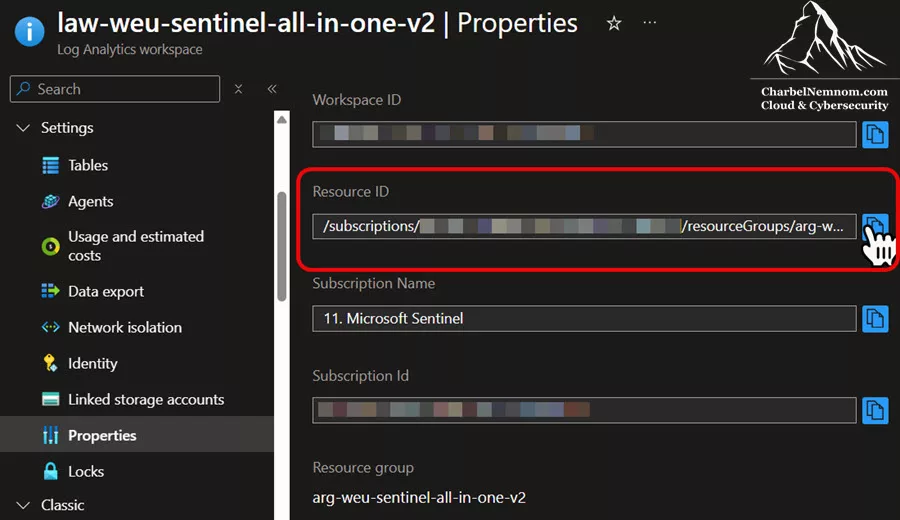
You can find the “workspaceResourceId” under Log Analytics workspace > Settings > Properties > Resource ID, as shown in the following figure. The Resource ID has been intentionally obscured for obvious reasons.
Windows Client Event Logs (DCR)
In the first Data Collection Rule, we are collecting the System and Application event logs with Level 1 (Critical), Level 2 (Error), and Level 3 (Warning), and we are ingesting those logs into the default Event table in the Analytics tier without transformation. Keep in mind the following Data collection rules and service limits.
Save the following JSON file for the first DCR locally for later use:
{
    "location": "westeurope",
    "properties": {
      "dataSources": {
        "windowsEventLogs": [
          {
            "name": "WindowsClientEventLogs",
            "streams": [
              "Microsoft-Event"
            ],
            "xPathQueries": [
              "System!*[System[(Level = 1 or Level = 2 or Level = 3)]]",
              "Application!*[System[(Level = 1 or Level = 2 or Level = 3)]]"
            ]
          }
        ]
    },
      "destinations": {
        "logAnalytics": [
          {
            "workspaceResourceId": "/subscriptions/1111111-1111-1111-1111-11111/resourceGroups/rg-name/providers/Microsoft.OperationalInsights/workspaces/workspace-name",
            "name": "DataCollectionEvent"
          }
        ]
      },
      "dataFlows": [
        {
          "streams": [
            "Microsoft-Event"
          ],
          "destinations": [
            "DataCollectionEvent"
          ],
            "transformKql": "source",
            "outputStream": "Microsoft-Event"
        }
      ]
    }
  }
Windows Client Security Event Logs (DCR)
In the second Data Collection Rule, we are collecting specific Security Event IDs (i.e., 4624, 4625, 4670, 4672, 4688, 4720, 4722, etc.), and we are ingesting those logs into the default SecurityEvent table in the Analytics tier, and we are filtering out (Local System, Local Service, and Network Service) from those Security Events with a KQL transformation. Keep in mind the following Data collection rules and service limits.
Save the following JSON file for the second DCR locally for later use:
{
    "location": "westeurope",
    "properties": {
      "dataSources": {
        "windowsEventLogs": [
          {
            "name": "WindowsClientSecurityEventLogs",
            "streams": [
              "Microsoft-SecurityEvent"
            ],
            "xPathQueries": [
              "Security!*[System[(EventID=4624 or EventID=4625 or EventID=4670 or EventID=4672 or EventID=4688 or EventID=4720 or EventID=4722 or EventID=4723 or EventID=4724 or EventID=4725 or EventID=4726 or EventID=4728 or EventID=4729 or EventID=4732 or EventID=4733 or EventID=4738 or EventID=4740 or EventID=4756 or EventID=4757)]]"
            ]
          }
        ]
    },
      "destinations": {
        "logAnalytics": [
          {
            "workspaceResourceId": "/subscriptions/1111111-1111-1111-1111-11111/resourceGroups/rg-name/providers/Microsoft.OperationalInsights/workspaces/workspace-name",
            "name": "DataCollectionEvent"
          }
        ]
      },
      "dataFlows": [
        {
          "streams": [
            "Microsoft-SecurityEvent"
          ],
          "destinations": [
            "DataCollectionEvent"
          ],
          "transformKql": "source | where SubjectUserSid !in ('S-1-5-18', 'S-1-5-19', 'S-1-5-20')",
          "outputStream": "Microsoft-SecurityEvent"
        }
      ]
    }
  }
Please note that you can add a transformation to the dataFlows property section for calculated columns and to further filter data, but you should use XPathQueries to filter data at the agent as much as possible for efficiency and to avoid potential ingestion charges in case you’re using a Log Analytics workspace without Sentinel. However, Log Analytics workspaces enabled for Microsoft Sentinel aren’t subject to Azure Monitor’s filtering ingestion charge, regardless of how much data the transformation filters.
Routing Security Event Logs
Another scenario is that you can route Security Event Logs from Windows client machines to a table in the Auxiliary tier.
First, you need to create a Custom Table with the Auxiliary tier and route the collected Security Events from those client devices to reduce ingesting costs and long-term data retention. This will also help to perform device investigations, including forensic information, at a lower price. The Sentinel data lake announced recently is a key part of this evolution. Data ingested into the Sentinel data lake can be accessed in Auxiliary logs without a copy, and vice-versa.

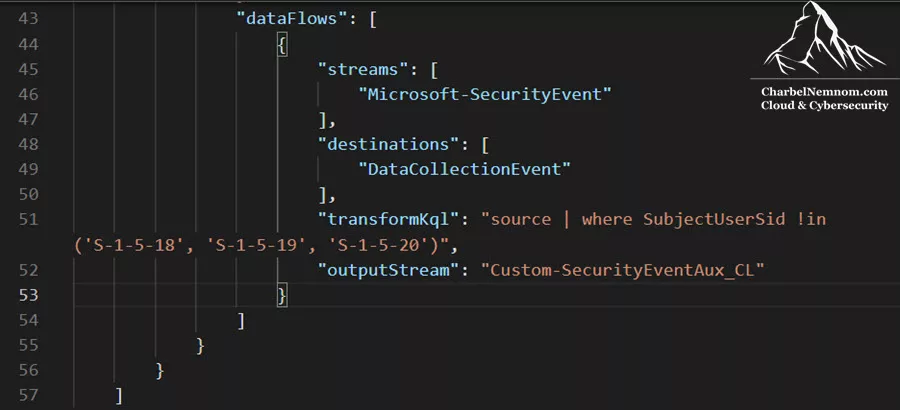
Once the custom table is created, you can update the dataFlows section in the Data Collection Rule for Security Event as follows. Please note that this will only apply to Windows client devices. So if you are collecting Security Events from Windows servers as well, there will be another Data Collection Rule specific for servers, which does not conflict with this one.
"dataFlows": [
    {
       "streams": [ "Microsoft-SecurityEvent" ],
       "destinations": [ "DataCollectionEvent" ],
       "transformKql": "source | where SubjectUserSid !in ('S-1-5-18', 'S-1-5-19', 'S-1-5-20')",
       "outputStream": "Custom-SecurityEventAux_CL"
    }
]
Save and deploy the DCR—your Windows client machines will now send Security Events to the Auxiliary tier table, as configured.
SecurityEventAux_CL
| project TimeGenerated, Computer, Channel, EventID, Activity, SubjectUserName, EventSourceName
Microsoft has recently worked to make queries on Auxiliary Logs faster and more powerful. That includes:
- Expanded KQL Support: All KQL operators on a single table are now supported, including the lookup operator to Analytics tables.
- Performance Boosts: Auxiliary Logs now benefit from improved encoding and partitioning to make queries much more efficient.
- Extended Time Range: Queries are no longer limited to the last 30 days – you can now query across a more extended period.
- Cost Estimation Preview: You can get a cost estimate before running your KQL query, as shown in the figure below.

Step 1: PowerShell Script
The next step is to prepare the general information for the PowerShell script, as shown in the snippet below, which contains the required information. That means that it describes the necessary details (e.g., Tenant, Subscription, Location, data collection rule, and association names to be used later), creates the required connection, installs the Az Accounts module if needed, connects and selects the required subscription, and creates the Data Collections Rules (DCRs) if they are not present.
# Permissions Requirements
# Elevate access to manage Azure subscription(s) and Management groups

# Variables to be defined
$TenantID = "YourTenantID"
$SubscriptionID = "YourSubscriptionID"
$ResourceGroup = "YourResrouceGroupName"
$Location = "westeurope" #Azure Location

# First Data Collection Rule name
$DCRName01 = "DCR-WindowsClient-WEL-001"
# Define first custom association name, you must change the association name to a unique name if you want to associate multiple DCRs to a monitored object.
$AssociationName01 = "ASS-WindowsClient-WEL-001"

# Second Data Collection Rule name
$DCRName02 = "DCR-WindowsClient-WES-001"
# Define second custom association name, you must change the association name to a unique name if you want to associate multiple DCRs to a monitored object.
$AssociationName02 = "ASS-WindowsClient-WES-001"

#! Install Az Module If Needed
function Install-Module-If-Needed {
    param([string]$ModuleName)

    if (Get-Module -ListAvailable -Name $ModuleName) {
        Write-Host "Module '$($ModuleName)' already exists, continue..." -ForegroundColor Green
    }
    else {
        Write-Host "Module '$($ModuleName)' does not exist, installing..." -ForegroundColor Yellow
        Install-Module $ModuleName -Force  -AllowClobber -ErrorAction Stop
        Write-Host "Module '$($ModuleName)' installed." -ForegroundColor Green
    }
}

#! Install Az Accounts Module If Needed
Install-Module-If-Needed Az.Accounts

#! Check Azure Connection
Try {
    Write-Verbose "Connecting to Azure Cloud..."
    Connect-AzAccount -Tenant $TenantID -Subscription $SubscriptionID -WarningAction SilentlyContinue -ErrorAction Stop | Out-Null
}
Catch {
    Write-Warning "Cannot connect to Azure Cloud. Please check your credentials. Exiting!"
    Break
}

# Create new DCRs with PowerShell if they do not exist
# Ensure the JSON files for the DCRs exist at the specified paths
if (-not (Get-AzDataCollectionRule -Name $DCRName01 -ResourceGroupName $ResourceGroup -ErrorAction SilentlyContinue)) {
    Write-Host "Creating Data Collection Rule: $DCRName01" -ForegroundColor Green
    # Ensure the DCR JSON file path is correct
    if (-not (Test-Path 'C:\Temp\DCR-AMAClients-WEL.json')) {
        Write-Error "JSON file for $DCRName01 does not exist at the specified path."
        exit
    }
    New-AzDataCollectionRule -Name $DCRName01 -ResourceGroupName $ResourceGroup -JsonFilePath 'C:\Temp\DCR-AMAClients-WEL.json'
}
else {
    Write-Host "Data Collection Rule $DCRName01 already exists." -ForegroundColor Yellow
}
if (-not (Get-AzDataCollectionRule -Name $DCRName02 -ResourceGroupName $ResourceGroup -ErrorAction SilentlyContinue)) {
    Write-Host "Creating Data Collection Rule: $DCRName02" -ForegroundColor Green
    # Ensure the DCR JSON file path is correct
    if (-not (Test-Path 'C:\Temp\DCR-AMAClients-WES.json')) {
        Write-Error "JSON file for $DCRName02 does not exist at the specified path."
        exit
    }
    New-AzDataCollectionRule -Name $DCRName02 -ResourceGroupName $ResourceGroup -JsonFilePath 'C:\Temp\DCR-AMAClients-WES.json'
}
else {
    Write-Host "Data Collection Rule $DCRName02 already exists." -ForegroundColor Yellow
}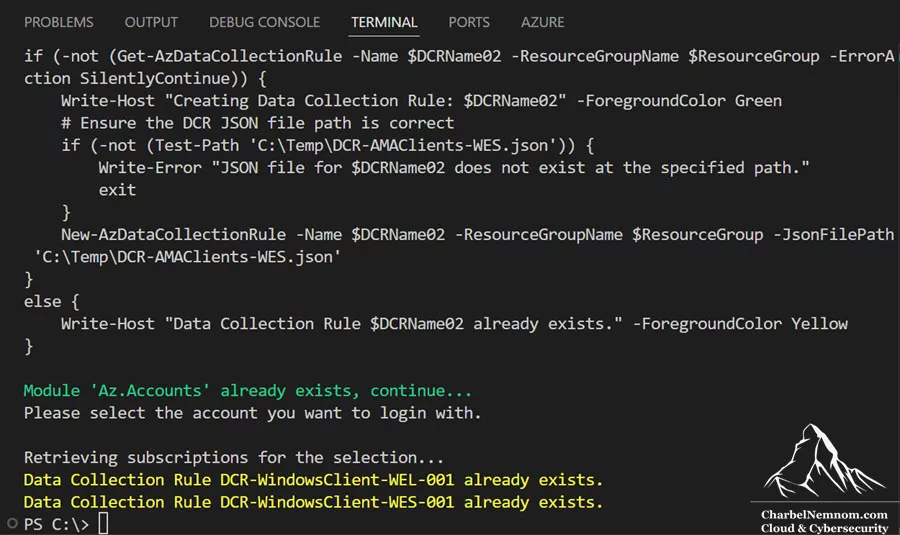
Switch to the Azure portal and verify that the Data collection rules are created successfully, as shown in the figure below. At this point, they are not associated with any resources yet; we’ll do that in the next section.

Creating and Associating a Monitored Object
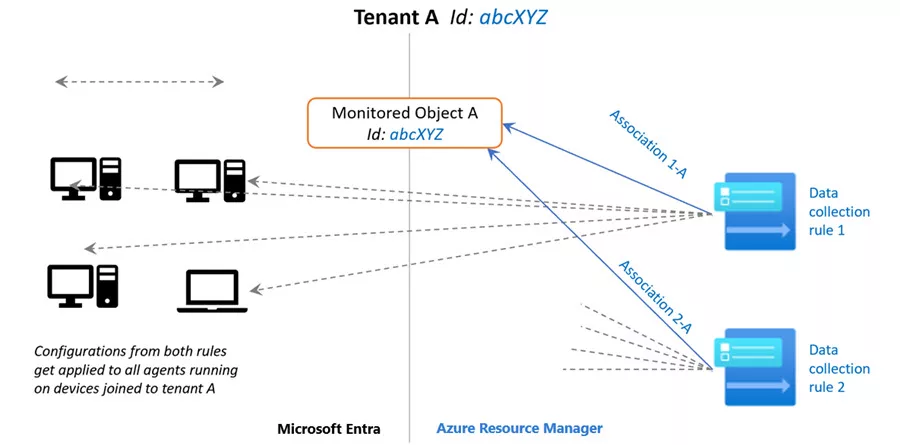
When collecting data using the Azure Monitor Agent (AMA) from Windows Clients, we need to create and associate a Monitored Object. That Monitored Object is used to create a representation of the Microsoft Entra ID tenant in Azure Resource Manager (ARM). Azure will associate a monitored object with all Windows client machines in the same Microsoft Entra tenant. The Data Collection Rules (DCRs) that we created in the previous section must be associated with it.
The architecture of our monitored object and data collection rules is shown in the following figure. The same Monitored Object is used for all workstations and the associated DCRs.
Currently, the best method for creating and associating that Monitored Object is using PowerShell. We’ll continue and build based on the PowerShell script that we shared in the previous section.
Step 2: Get Access Token
The following PowerShell snippet will create a new “Owner” role assignment at the root scope subscription, get an access token, and set the authentication header.
# Grant access to the user at root scope Workspace/Sentinel subscription (/)
$user = Get-AzADUser -SignedIn

# This requires elevated access to work in Azure at root scope subscription (/subscriptions/$SubscriptionID)
# You can skip this step if your user account has the "Owner" permission at root scope of the Azure subscription (/subscriptions/$SubscriptionID)
# Please ensure to remove the user from the Owner role once you are done with all the configuration.
if (Get-AzRoleAssignment -ObjectId $user.Id -Scope "/subscriptions/$SubscriptionID" -RoleDefinitionName 'Owner' -ErrorAction SilentlyContinue) {
    Write-Host "User already has 'Owner' role assignment at root scope /subscriptions/$SubscriptionID." -ForegroundColor Yellow
} else {
    Write-Host "Assigning 'Owner' role to user at root scope subscription." -ForegroundColor Green
    New-AzRoleAssignment -Scope "/subscriptions/$SubscriptionID" -RoleDefinitionName 'Owner' -ObjectId $user.Id
}

# Create the authentication token
$context = Get-AzContext
if (-not $context) {
    throw "No Azure context found. Please re-authenticate."
}
$tokenRequest = [Microsoft.Azure.Commands.Common.Authentication.AzureSession]::Instance.AuthenticationFactory.Authenticate($context.Account, $context.Environment, $context.Tenant.Id, $null, "Never", $null, "https://management.azure.com/")
if (-not $tokenRequest) {
    throw "Failed to obtain access token. Please check your authentication."
}
$AzureAccessToken = $tokenRequest.AccessToken
$AuthenticationHeader = New-Object "System.Collections.Generic.Dictionary[[String],[String]]"
$AuthenticationHeader.Add("Content-Type", "application/json")
$AuthenticationHeader.Add("Authorization", "Bearer $AzureAccessToken")
Step 3: Assign the Monitored Object Contributor Role
The second section of the PowerShell script, as shown in the snippet below, contains the action to grant the ability to create and link a Monitored Object to the signed-in user. That means that it describes the role definition for the Monitored Object Contributor RBAC role, sets the request URI for the role assignment, and invokes the PUT on the URI to set the role for the user.
##########################
# Assign the Monitored Objects Contributor role to the User (Operator)
$newguid = (New-Guid).Guid
$UserObjectID = $user.Id

$body = @"
{
            "properties": {
                "roleDefinitionId":"/providers/Microsoft.Authorization/roleDefinitions/56be40e24db14ccf93c37e44c597135b",
                "principalId": `"$UserObjectID`"
        }
}
"@

$requestURL = "https://management.azure.com/providers/microsoft.insights/providers/microsoft.authorization/roleassignments/$newguid`?api-version=2021-04-01-preview"

$request = Invoke-RestMethod -Uri $requestURL -Headers $AuthenticationHeader -Method PUT -Body $body
$request.properties
Once the Monitored Object Contributor RBAC role is assigned to the user, we can proceed with creating a monitored object.
Step 4: Create a Monitored Object
The next section of the PowerShell script, as shown in the snippet below, contains the action to create the Monitored Object for the Microsoft Entra ID tenant scope. That means that it sets the request URI for the Monitored Object, describes the properties, the location of the Monitored Object that we defined above, and invokes the PUT on the URI to create the Monitored Object.
Please note that the location should be the same region where you created the Data Collection Rule (DCRs). This is the region where Azure Monitor Agent (AMA) communications occur.
##########################
# Create a monitored object
# The 'location' property value in the 'body' section should be the Azure region where the monitored object is stored.
# It should be the same region where you created the Data Collection Rule (DCRs).
# This is the region where Azure Monitor Agent (AMA) communications occur.

$requestURL = "https://management.azure.com/providers/Microsoft.Insights/monitoredObjects/$TenantID`?api-version=2021-09-01-preview"
$body = @"
{
    "properties":{
        "location":`"$Location`"
    }
}
"@

$Respond = Invoke-RestMethod -Uri $requestURL -Headers $AuthenticationHeader -Method PUT -Body $body -Verbose
$RespondID = $Respond.id
As shown in the figure below, the monitored object is created successfully at the tenant level in West Europe. The name, which is Tenant ID, has been intentionally obscured for obvious reasons.
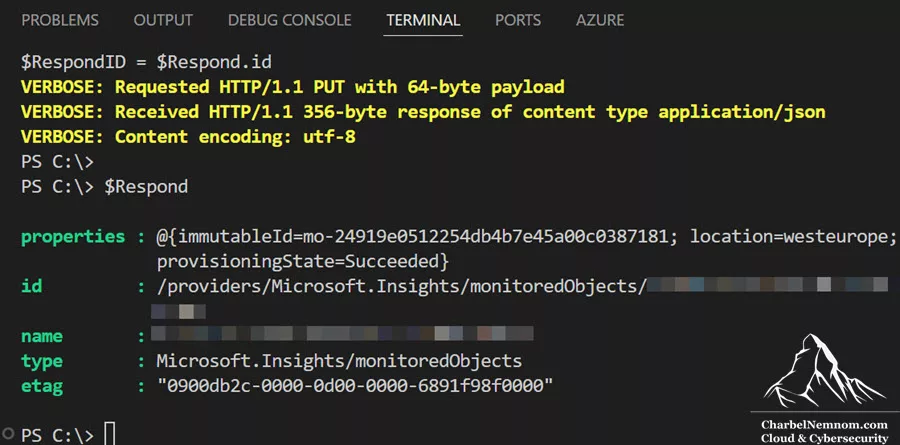
The last step is to associate one or more data collection rules (DCRs) with the monitored object that we just created.
Step 5: Associate DCR with the Monitored Object
The last section of the PowerShell script, as shown in the snippet below, contains the action to associate the Data Collection Rule with the Monitored Object. That means that it sets the request URI for associating the Data Collection Rule with the Monitored Object, describes the properties of the Data Collection Rule(s), and invokes the PUT on the URI to create the association.
In this example, we are associating two DCRs with the Monitored Object because we are collecting and ingesting logs into the SecurityEvent and Event tables.
##########################
# Associate the first DCR with the monitored object if specified.
If ($DCRName01 -and $AssociationName01) {
    Write-Host "Associating first DCR: $DCRName01 with association name: $AssociationName01" -ForegroundColor Green
    $requestURL = "https://management.azure.com$RespondId/providers/microsoft.insights/datacollectionruleassociations/$associationName01`?api-version=2021-09-01-preview"
    $body = @"
        {
            "properties": {
                "dataCollectionRuleId": "/subscriptions/$SubscriptionID/resourceGroups/$ResourceGroup/providers/Microsoft.Insights/dataCollectionRules/$DCRName01"
            }
        }
"@
    Invoke-RestMethod -Uri $requestURL -Headers $AuthenticationHeader -Method PUT -Body $body
}
else {
    Write-Host "Skipping association for first DCR as it is not defined." -ForegroundColor Yellow
}

##########################
# Associate another DCR with the monitored object if specified.
If ($DCRName02 -and $AssociationName02) {
    Write-Host "Associating second DCR: $DCRName02 with association name: $AssociationName02" -ForegroundColor Green
    $requestURL = "https://management.azure.com$RespondId/providers/microsoft.insights/datacollectionruleassociations/$associationName02`?api-version=2021-09-01-preview"
    $body = @"
        {
            "properties": {
                "dataCollectionRuleId": "/subscriptions/$SubscriptionID/resourceGroups/$ResourceGroup/providers/Microsoft.Insights/dataCollectionRules/$DCRName02"
            }
        }
"@
    Invoke-RestMethod -Uri $requestURL -Headers $AuthenticationHeader -Method PUT -Body $body
}
else {
    Write-Host "Skipping association for second DCR as it is not defined." -ForegroundColor Yellow
}
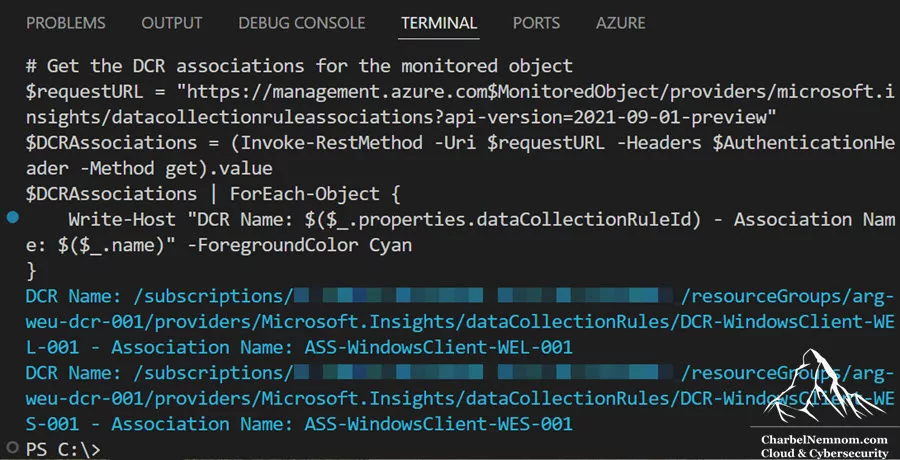
Last, as an optional step, we can verify all Data Collection Rules (DCRs) that we associated by running the following snippet:
# (Optional) Get and verify all Data Collection Rule (DCRs) associations.
# Get the monitored object
$requestURL = "https://management.azure.com/providers/Microsoft.Insights/monitoredObjects/$TenantID`?api-version=2021-09-01-preview"
$MonitoredObject = (Invoke-RestMethod -Uri $requestURL -Headers $AuthenticationHeader -Method Get).id

# Get the DCR associations for the monitored object
$requestURL = "https://management.azure.com$MonitoredObject/providers/microsoft.insights/datacollectionruleassociations?api-version=2021-09-01-preview"
$DCRAssociations = (Invoke-RestMethod -Uri $requestURL -Headers $AuthenticationHeader -Method get).value
$DCRAssociations | ForEach-Object {
    Write-Host "DCR Name: $($_.properties.dataCollectionRuleId) - Association Name: $($_.name)" -ForegroundColor Cyan
}
Verifying the Collected Event and Security Logs
After installing the Azure Monitor Agent (AMA), creating a Data Collection Rule(s), and creating and associating a Monitored Object, the data collection should start within a few minutes. To verify a successful configuration on the client machine, open the Command Prompt or PowerShell session as an administrator, and then run the following commands:
AMA Extension – Command Prompt
cd "C:\Program Files\Azure Monitor Agent\Troubleshooter"

.\AgentTroubleshooter.exe --ama
This command will run a series of activities that could take up to 3 minutes to complete. Be patient until this process is completed. As we can see in the screenshot below, the Agent Troubleshooter passed with zero fails and 25 passes. You can ignore the warnings about the [IPv6] connectivity test and Parse VM Extension Settings since the client machine is not running in Azure. If you see any failure or red messages, you must check your DNS and network configuration before you continue.

AMA Extension – PowerShell
If you prefer to use PowerShell, then run the following command:
$troubleshooterPath = "C:\Program Files\Azure Monitor Agent\Troubleshooter\"
Set-Location -Path $troubleshooterPath
Start-Process -FilePath $troubleshooterPath\AgentTroubleshooter.exe -ArgumentList "--ama"
Invoke-Item $troubleshooterPath
Like the command prompt above, this command will run the same series of activities that could take up to 3 minutes to complete.
Verify that the agent was able to download the associated DCR(s)
We can also check if the client machine(s) have the latest DCR downloaded from the Azure Monitor Configuration Service (AMCS) service at this location: “C:\Resources\Azure Monitor Agent\AzureMonitorAgent.MonitoringDataStore\mcs\configchunks“. As we can see in the screenshot below, the client machine has successfully downloaded the two DCRs (JSON files) associated with this example.
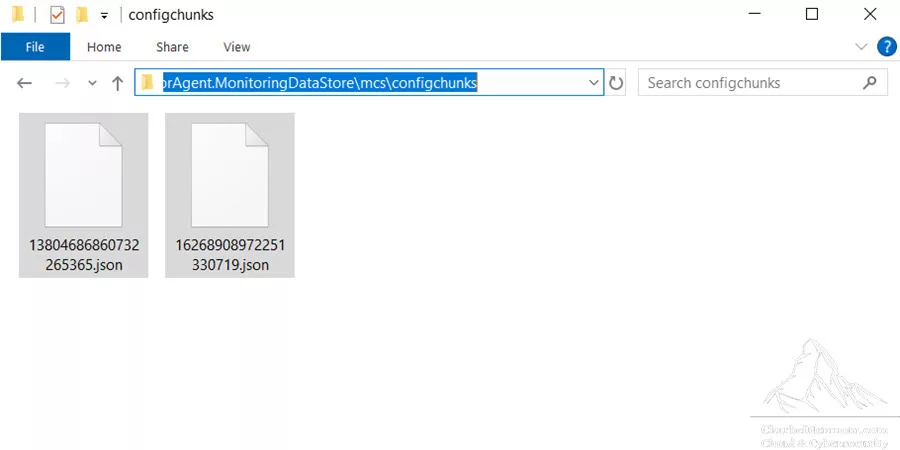
Next, to verify a successful log ingestion, we can look at the data in the Log Analytics / Sentinel workspace that is connected to the Data Collection Rule(s) by running the following KQL query.
Heartbeat
| where OSName !contains "Windows Server"
| project TimeGenerated, Computer, OSName, Category, Version, ComputerEnvironment
As shown in the figure below, we can see that the Windows 10 device is sending Heartbeat information to the Heartbeat table. Eventually, there should be Windows 10/11 devices with Non-Azure registration with ComputerEnvironment.
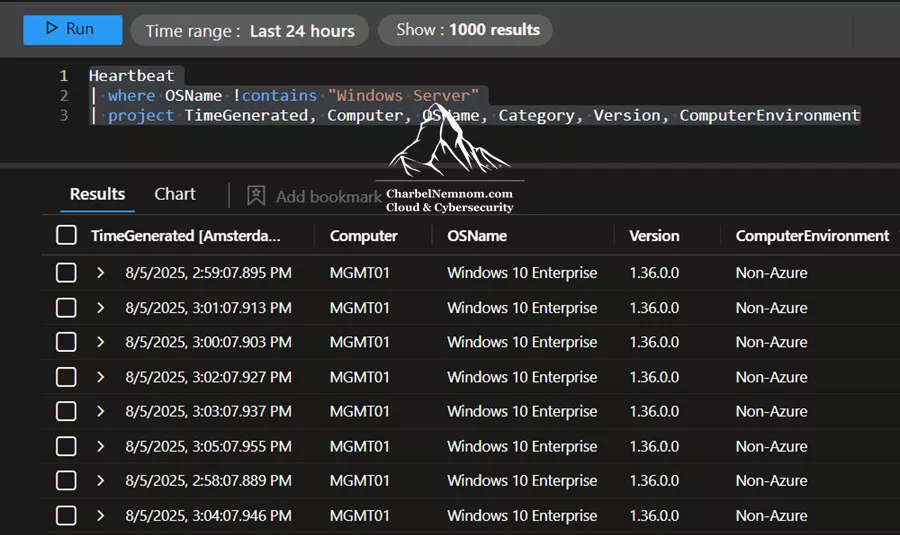
Next, we can verify the collected logs in the Event table.
Event
| project TimeGenerated, EventLevel, EventLog, Computer, EventLevelName, RenderedDescription
| sort by EventLevel asc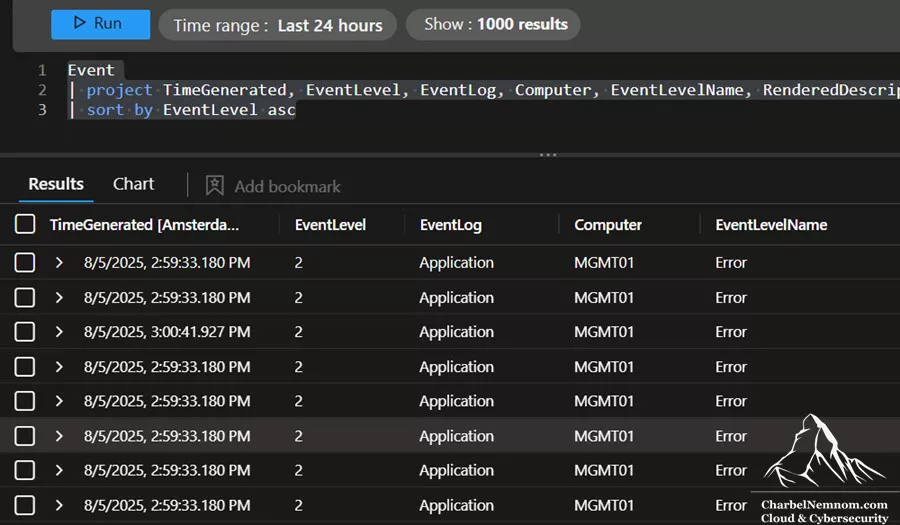
Similarly, we can verify the ingested logs in the SecurityEvent table.
SecurityEvent
| project TimeGenerated, Computer, Channel, EventID, Activity, SubjectUserName, EventSourceName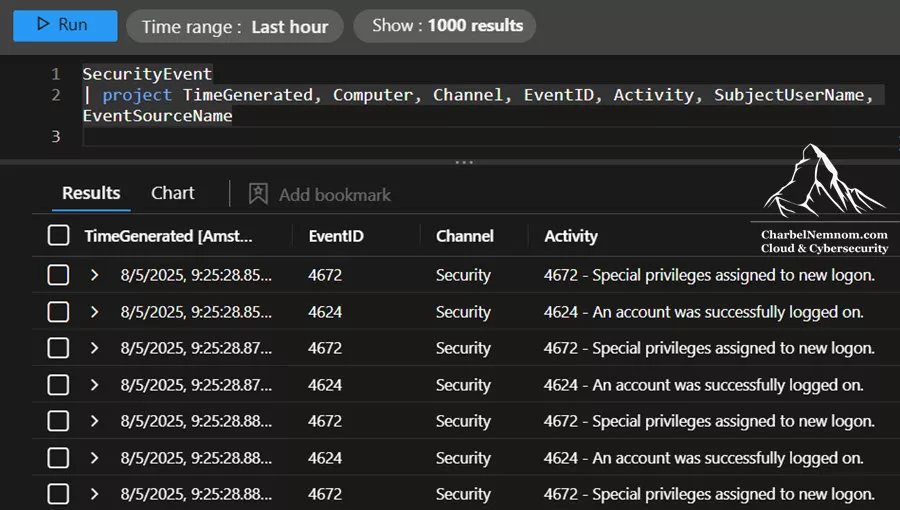
That’s it, there you have it! Happy Collecting Security and Log Events with Azure Monitor Agent (AMA) on Workstations without Azure Arc.
Conclusion
Deploying the Azure Monitor Agent (AMA) on your Windows workstations enables you to capture a broader set of security events, such as process call stacks and service modifications, which exceed the default collection of Microsoft Defender for Endpoint Plan 2. By using Data Collection Rules, you can easily ingest Event and SecurityEvent logs into your Log Analytics workspace or Microsoft Sentinel without Azure Arc. This centralizes reporting for workstations located on-premises, at the edge, or in multi-cloud environments.
With ingestion-time KQL transformations and tier-aware routing, you can control which events go to the Analytics tier, Auxiliary Logs, or the Sentinel Data Lake, optimizing performance and costs. The provided PowerShell automation streamlines the creation of DCRs, monitored object associations, and continuous verification for reliable, large-scale deployments.
Implementing AMA on your endpoints is a best practice that helps meet regulatory requirements and enhances incident response. We encourage you to customize event filters, retention periods, and RBAC roles to fit your organization’s specific needs.
Remember, you can always support us in developing tools and creating content via Why Contribute? – Charbelnemnom.com Cloud & Cybersecurity
__
Thank you for reading our blog.
Please let us know in the comments section below if you have any questions or feedback.
-Charbel Nemnom-

Hi Charbel!
Super nice article, thanks for your helpful work.
My Q: Why don’t use Arc? Do you see any advantage on Monitored Object vs. Arc?
Thanks!
Hello David, Thank you for the feedback — much appreciated!
The reason we don’t recommend using Azure Arc on workstations is based on two main points:
1) Support limitations:
The Azure Arc service and Azure Connected Machine Agent are supported on Windows 10 and 11 client operating systems only when those machines are used in a server-like environment.
For example, a Windows 11 computer used for digital signage, point-of-sale solutions, or general back-office management tasks would be a good candidate for Azure Arc. However, end-user productivity devices (such as laptops or desktops) that may be offline for extended periods should not use Azure Arc and should instead consider Microsoft Intune.
2) Cost considerations:
Azure Arc is not free — it costs $5 per system per month. Managing 3,000 workstations would cost $15,000 per month just for Arc. In such cases, it’s worth considering alternative options without using Arc to collect security events. In all scenarios, the Sentinel ingestion cost would still apply.
I hope this answers your question.