
Maintaining a secure and well-monitored administrative landscape in today’s cloud-driven environment is crucial. One particularly powerful role in Microsoft Azure is the User Access Administrator role, which can be assigned automatically using the Access Management for Azure resources option in Microsoft Entra (formerly Azure AD). This role provides the ability to assign or remove permissions across Azure resources, making it a vital tool for managing access—especially during critical scenarios such as recovering subscriptions that have lost their assigned administrators.
Recently, Microsoft introduced a new capability in public preview—Azure RBAC (Elevate Access) events. These events, now available through Microsoft Entra Audit Logs, offer an in-depth view of when a user’s privileges are elevated to the User Access Administrator role and when that elevated access is removed. By integrating these logs with Microsoft Sentinel, security teams can establish robust monitoring and alerting mechanisms to detect and respond to changes in administrative privileges quickly.
This article provides a comprehensive guide on using Microsoft Sentinel to detect changes in the User Access Administrator role assignment through analytic rules, focusing on both elevated access and its removal.
Let’s dive into the details.
Table of Contents
Understanding the User Access Administrator Role
The User Access Administrator RBAC role in Microsoft Azure is critical because it grants broad permissions to manage role assignments and access controls across Azure resources. When a user is assigned this role, they can modify permissions at high levels of the management hierarchy (Tenant Root Group), as shown in the figure below—ranging from subscriptions down to individual resources. This makes it an essential tool for administrators needing to reassign access, especially during emergency scenarios such as restoring access to orphaned subscriptions.

However, with great power comes the necessity for careful oversight. Elevated privileges must be closely monitored to ensure they are granted only when necessary and revoked (removed) as soon as the required administrative task is complete. Improper or prolonged use of such privileges can lead to security vulnerabilities, as unauthorized changes or misconfigurations might go undetected without proper logging and alerting.
The figure below shows that Microsoft Security clearly states deleting access for users with unnecessary elevated access.
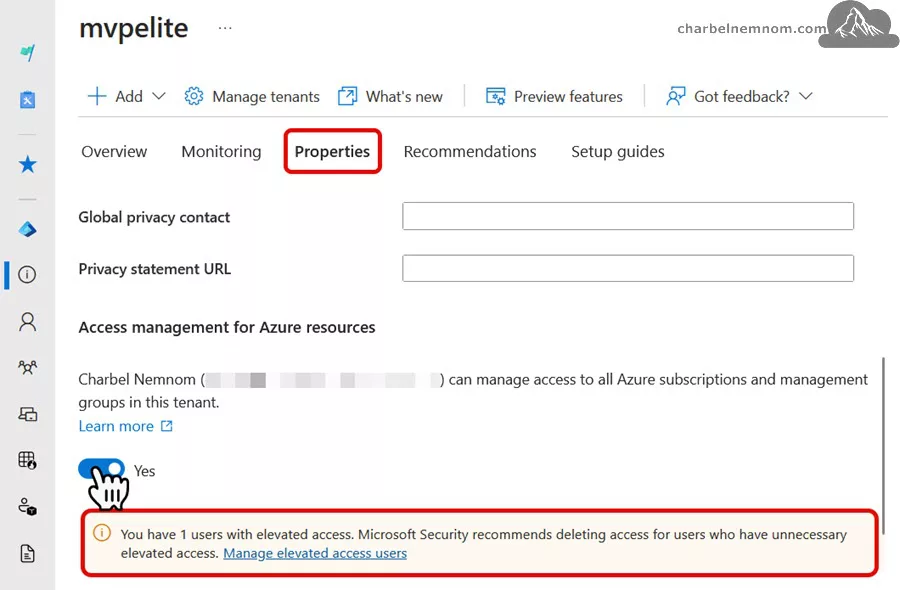
Note: When using Privileged Identity Management (PIM), deactivating your role assignment won’t switch the Access management for Azure resources toggle to No. To ensure the least privileged access, we suggest setting this toggle to No prior to deactivating your role assignment in PIM.
Risks Associated with High-Level Permissions
Some of the potential risks include:
- Excessive Privilege Exposure: If elevated access remains enabled beyond its intended use, it can inadvertently open up opportunities for misuse—either due to human error or malicious activity.
- Compromised Accounts: Should an account with elevated permissions become compromised, an attacker might gain the ability to make widespread changes across multiple resources.
- Lack of Auditability: Without detailed monitoring, it can be challenging to track who made changes and when, which may complicate incident investigations and compliance audits.
Given these challenges, it is essential to have robust mechanisms in place to monitor both the activation and deactivation of the User Access Administrator role.
Overview of Elevate Access Events
Microsoft’s Elevate Access events provide detailed logging whenever a user’s privileges are elevated for Azure resources, including the User Access Administrator role, or when those elevated privileges are removed. Each time the mechanism for elevation is toggled, an event is logged, capturing critical details such as:
- Timestamp: The exact moment when the access change occurred.
- Operation Details: Information about whether the change involved elevation or removal of privileged access.
- Actor Information: Identification of the user’s principal name that initiated the change.
- Result Status: The outcome of the operation, indicating success or failure.
- Scope and Tenant Data: Context regarding where the change took place in the hierarchy.
Logging Locations and Benefits
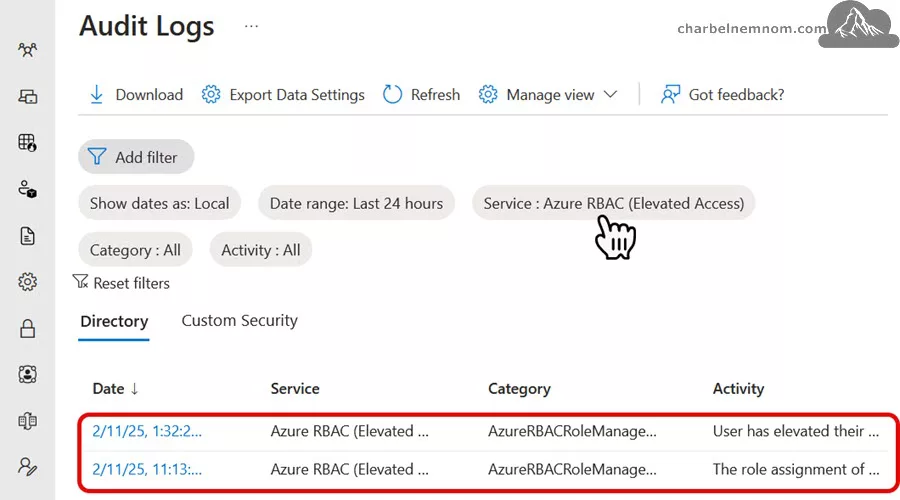
Elevate Access events are recorded in both the Microsoft Entra directory Audit Logs and the Azure Activity logs. Although both locations provide similar data, the Entra audit logs offer enhanced filtering and export options, as shown in the figure below, making them particularly useful when integrated with SIEM solutions such as Microsoft Sentinel.
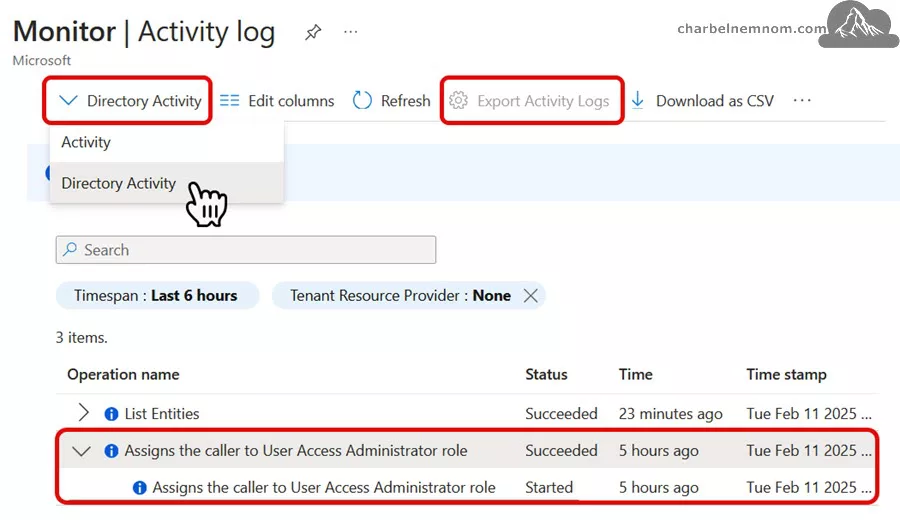
On the other hand, the Azure Monitor > Activity log > Directory Activity does NOT offer an export activity logs option, as shown in the figure below.
By exporting these logs, organizations can continuously monitor administrative actions, maintain compliance records, and quickly detect any unauthorized or unintended changes. This level of transparency is invaluable for maintaining operational security and ensuring that elevated privileges are managed appropriately.
Prerequisites
To follow this article, you need to have the following:
1) Azure subscription – If you don’t have an Azure subscription, you can create one here for free.
2) Microsoft Entra Tenant with Microsoft Entra ID Free license. Exporting or ingesting Audit Logs from Microsoft Entra does not require any license. However, Sign-In Logs are very important to ingest, which require a P1 license as a minimum.
3) Log Analytics workspace – To create a new workspace, follow the instructions to create a Log Analytics workspace.
4) Enable Microsoft Sentinel at no additional cost on an Azure Monitor Log Analytics workspace for the first 31 days; follow the instructions on this page. Once Microsoft Sentinel is enabled on your Azure Monitor Log Analytics workspace, every GB of data ingested into the workspace can be retained at no charge for 90 days.
5) Tenant Permissions: ‘Global Administrator’ or ‘Security Administrator’ on the tenant and ‘Microsoft Sentinel Contributor’ on the Sentinel workspace.
6) Access to a ‘Global Administrator’ role assignment to give access and trigger the events. By default, the feature is available for all tenants worldwide.
Assuming you have all the prerequisites in place, take the following steps:
Integrating Microsoft Entra Audit Logs with Microsoft Sentinel
To leverage the power of Microsoft Sentinel for monitoring elevated access events, the first step is to ensure that your Microsoft Entra Audit Logs are being ingested correctly. The following steps outline how to set up the necessary integrations:
Configuring Diagnostic Settings in Microsoft Entra
Access Your Microsoft Entra Environment:
1) Sign in to the Azure Portal and navigate to Microsoft Entra ID or the Entra admin center portal.
2) Locate the Diagnostic Settings Section under the Monitoring & health category.
3) Select Diagnostic Setting and then configure where your logs will be sent.
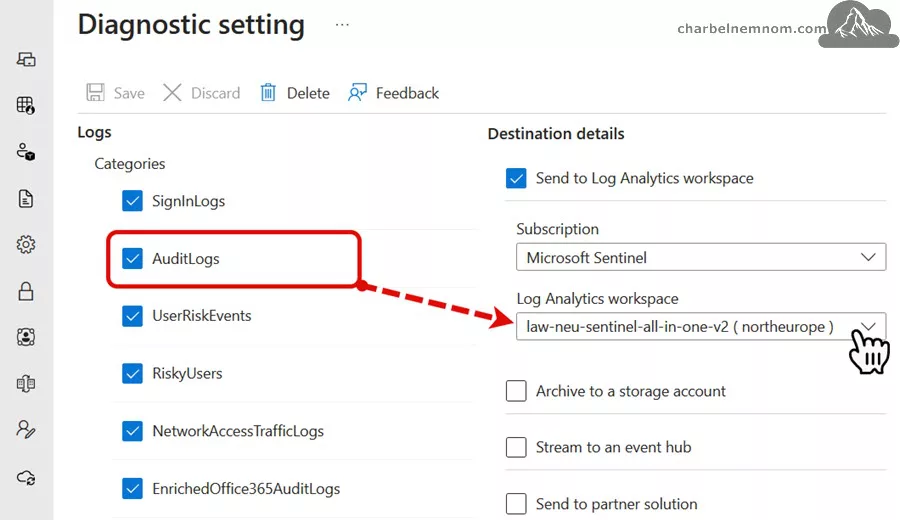
4) Create a new diagnostic setting and choose to send the logs to a Log Analytics workspace, as shown in the figure below. The good news is that you can use the Entra ID Free or Office 365 license to export audit logs; you don’t need a P1 or P2 license compared to the requirements of ‘SignInLogs‘.
5) Optionally, you may also choose to send these logs to an Event Hub or Storage Account for further processing or archival purposes.
Linking the Log Analytics Workspace to Microsoft Sentinel
If you have not already linked the Log Analytics Workspace to Microsoft Sentinel, take the following steps:
1) Launch Microsoft Sentinel: In the Azure Portal or Defender Portal, select Microsoft Sentinel from the list of services.
2) Connect or Select a Workspace: If you have not already set up a Log Analytics workspace, follow the prompts to create one or select an existing workspace. Ensure that this workspace is connected to Microsoft Sentinel so that any logs sent via the diagnostic settings are available for analysis.
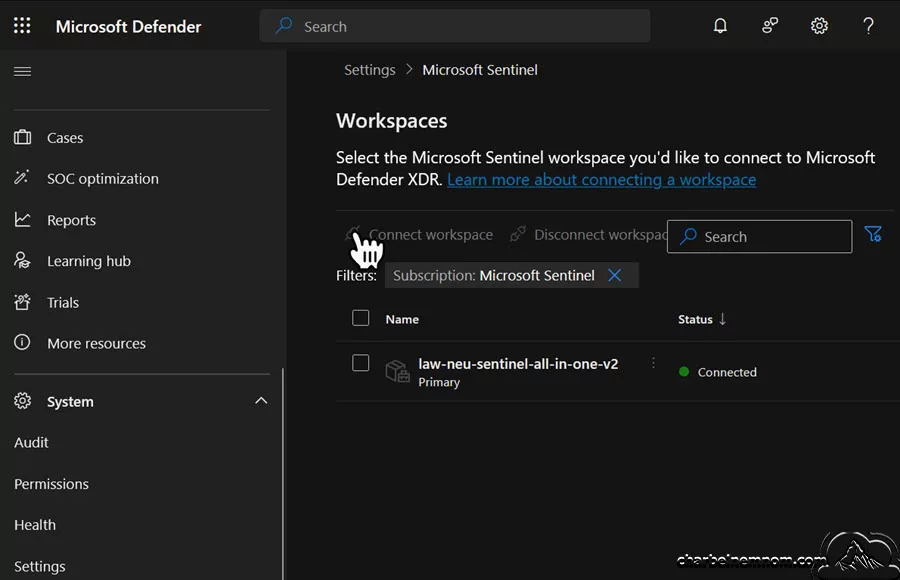
3) Verify Log Ingestion: Open the Logs section in Microsoft Sentinel or the Advanced Hunting under Hunting in the Defender Portal and run a simple KQL query against the ‘AuditLogs | take 10‘ table to confirm that the data is being ingested as expected.
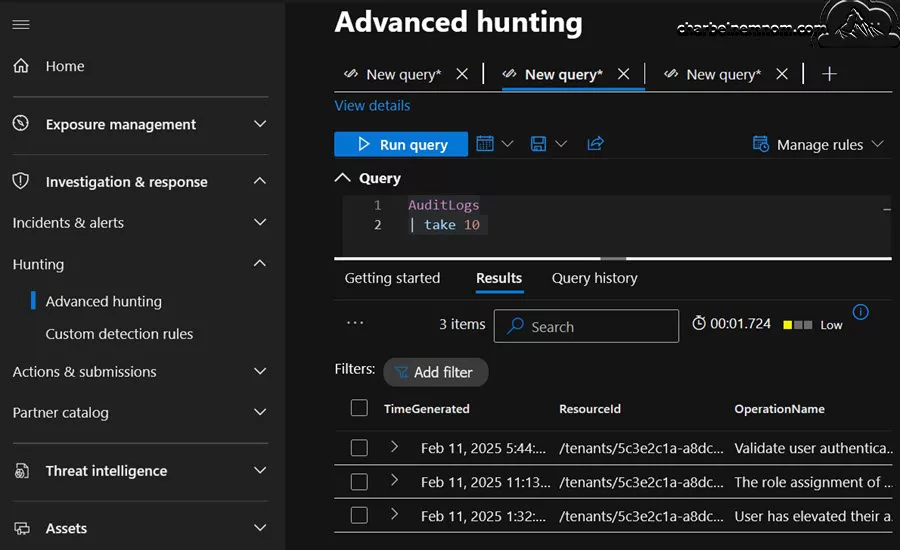
This integration forms the backbone of your monitoring solution, allowing you to utilize Sentinel’s powerful search and alerting capabilities on your Entra audit logs.
Building Analytic Rules in Microsoft Sentinel
The next step is to create analytic rules within Microsoft Sentinel to detect when a user’s privileges are elevated or removed. This is accomplished using Kusto Query Language (KQL) to define the conditions under which an alert should be triggered.
Constructing the KQL Query
Below is a sample KQL query that detects events related to changes in the Azure RBAC (Elevated Access) category:
AuditLogs
| where Category == "AzureRBACRoleManagementElevateAccess"
    and OperationName has "User Access Administrator"
| extend
    Actor = tostring(parse_json(InitiatedBy.user).userPrincipalName),
    ActorIPAddress = tostring(parse_json(tostring(InitiatedBy.user)).ipAddress)
| project
    TimeGenerated,
    OperationName,
    Actor,
    ActorIPAddress,
    Result,
    CorrelationId,
    AADTenantId
Explaining the KQL Query
-
Data Source (AuditLogs): The query starts by referencing the
AuditLogstable, which contains all audit events from Microsoft Entra. -
Filtering Events: The
whereclause filters the events only to include those categorized under the “AzureRBACRoleManagementElevateAccess” and those that mention “User Access Administrator” in the operation name. Currently, Azure RBAC (Elevated Access) logs both the activation and deactivation of the User Access Administrator role so you can remove the operation name in the query. -
Extracting Actor Information: The
extendstatement extracts the user principal name and the IP address from the JSON data contained in theInitiatedBy.userfield. -
Selecting Relevant Fields: Finally, the
projectcommand specifies the fields to be returned, including the timestamp, operation name, the actor who initiated the event, the correlation ID, the Entra tenant ID, and the operation result. The correlation ID is a unique ID that helps correlate activities that span across various services and is used for troubleshooting.
Creating an Analytic Rule in Sentinel
Follow these steps to create a scheduled analytic rule based on the above query:
1) Access the Analytics Section: In your Microsoft Sentinel workspace, click on Analytics in the left-hand menu.
2) Initiate Rule Creation: Click on + Create and choose the Scheduled query rule. This allows the query to run at regular intervals and generate alerts if conditions or thresholds are met.
3) Configure Rule Details:
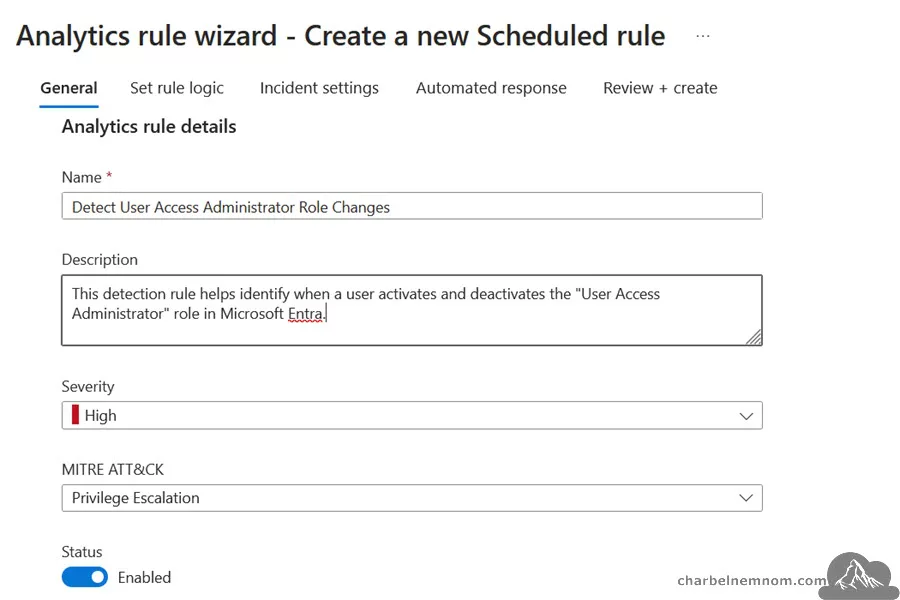
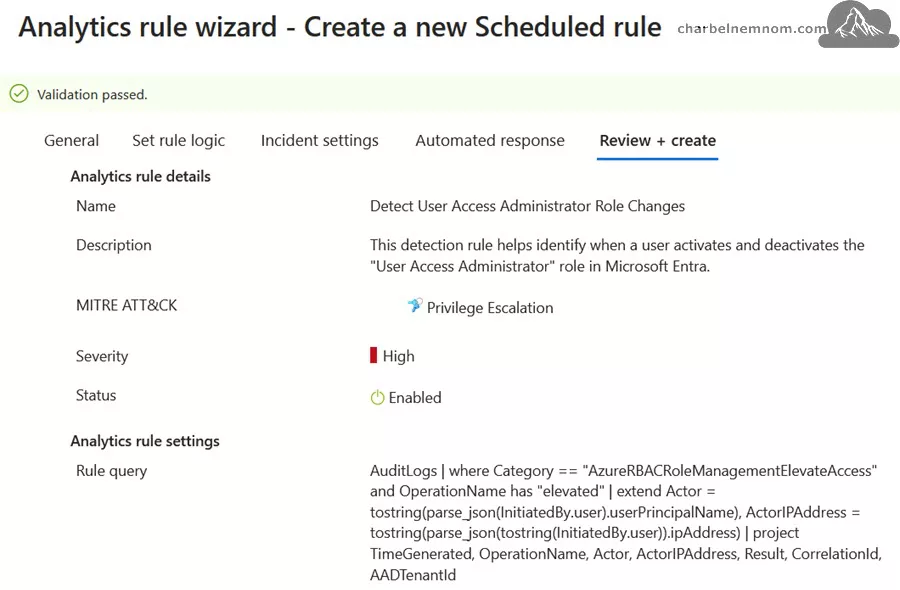
- Rule Name and Description: Provide a meaningful name, such as “Detect User Access Administrator Role Changes,” and include a detailed description outlining the purpose of the rule, such as “This detection rule helps identify when a user activates and deactivates the Access management for Azure resources in Microsoft Entra.”
- Severity and MITRE Mapping: Assign an appropriate severity level (e.g., High) and map the alert to relevant MITRE ATT&CK techniques, such as “Privilege Escalation.”
4) Set rule logic:
- Rule query: Enter the KQL query shared above or use one of the below queries to differentiate between when elevated access is activated or removed.
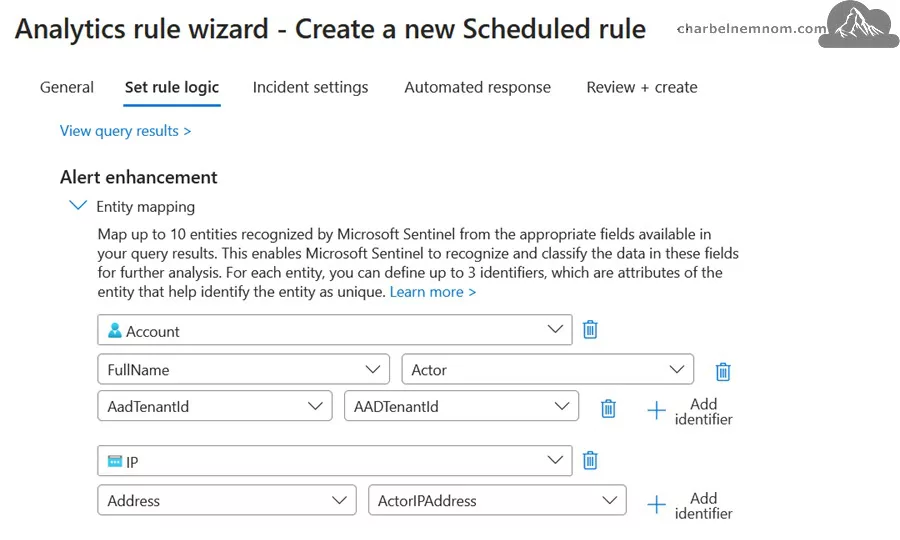
- Entity Mapping: Ensure that the alert extracts the user (actor) and IP address involved in the event for further investigation.
-
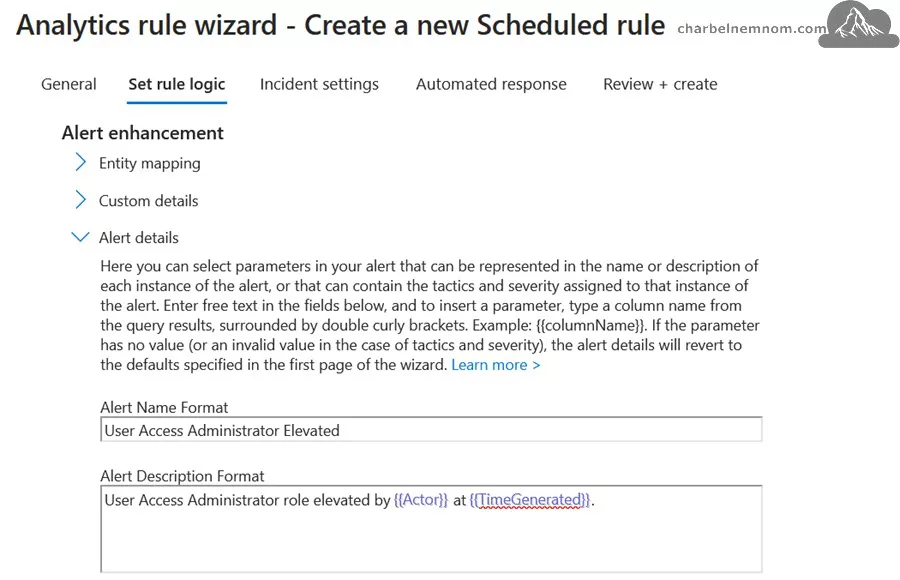
Alert Details: You can customize the alert title and description to pull dynamic content from the query results (e.g., the user who initiated the change and the time it occurred). Ensure to type the column name from the query results, surrounded by double curly brackets. Example:
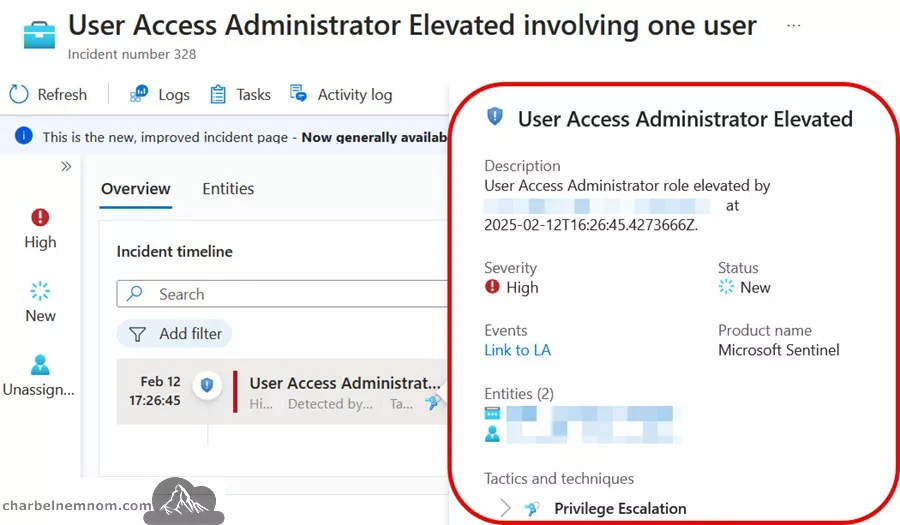
User Access Administrator role elevated by {{Actor}} at {{TimeGenerated}}.
5) Set the Query Schedule: Define the frequency (for example, every 1 or 2 hours) and the lookback period for the query. This will determine how far back in time Sentinel checks for relevant events, and the maximum lookup is 14 days. For example, if you set the query frequency to run every 5 minutes, then set the lookup data from the last 6 or 7 minutes to capture the potential delay of data ingestion. Refer to how to handle ingestion delay in scheduled analytics rules.
Note: You can solve the delay ingestion issue using the near-real-time detection (NRT) query rule instead of the scheduled query rule.
6) Define Alert threshold: Specify that if the query returns one or more results, an alert/incident should be generated.
7) Event grouping: Keep the default (Group all events into a single alert). In this case, the rule generates a single alert every time it runs as long as the query returns more results than the specified alert threshold defined in Step 6 above. This single alert summarizes all the events returned in the query results.
8) Incident settings: Keep the “Create incidents from alerts triggered by this analytics rule” selected. Turning off this setting prevents alerts generated by this rule from appearing in the unified Defender portal alerts queue, and the “AlertInfo” table in advanced hunting.
9) Alert grouping: Enable alert grouping to group related alerts triggered by this analytics rule into incidents. Leave the default time frame and grouping alerts into a single incident if all the entities match (recommended).
10) Automation and Incident Response: Optionally, create an automation rule or link a playbook (using Azure Logic Apps) to notify security personnel or initiate an investigation when the alert is triggered. Integration with your ticketing system can also streamline the incident response process.
11) Save and Test: Save the analytic rule and test it to ensure it accurately captures and alerts on the intended events.
Differentiating Between Elevation and Removing Access
It may be necessary to differentiate between when elevated access is activated and when it is removed. You can accomplish this by refining your KQL query further:
For Activating Elevated Access:
AuditLogs
| where Category == "AzureRBACRoleManagementElevateAccess"
    and OperationName has "elevated"
| extend
    Actor = tostring(parse_json(InitiatedBy.user).userPrincipalName),
    ActorIPAddress = tostring(parse_json(tostring(InitiatedBy.user)).ipAddress)
| project
    TimeGenerated,
    OperationName,
    Actor,
    ActorIPAddress,
    Result,
    CorrelationId,
    AADTenantId
For Removing Elevated Access:
AuditLogs
| where Category == "AzureRBACRoleManagementElevateAccess"
    and OperationName has "removed"
| extend
    Actor = tostring(parse_json(InitiatedBy.user).userPrincipalName),
    ActorIPAddress = tostring(parse_json(tostring(InitiatedBy.user)).ipAddress)
| project
    TimeGenerated,
    OperationName,
    Actor,
    ActorIPAddress,
    Result,
    CorrelationId,
    AADTenantId
By creating separate rules or integrating conditional logic into a single rule, you can ensure that your security team is alerted with the appropriate context for each type of event.
Enhancing Detection with Automation and Investigation
Beyond merely generating alerts and incidents, Microsoft Sentinel provides advanced features for automating responses and performing deep-dive investigations into elevated access events.
Automating Responses with Playbooks
Playbooks in Microsoft Sentinel, built on Azure Logic Apps, enable you to automate incident response processes. Here are some practical applications:
- Immediate Notifications: Automatically send alerts via email, SMS, or Microsoft Teams to notify the security team when a change in elevated access is detected.
- Context Gathering: Trigger workflows that collect additional data related to the alert, such as recent sign-in activities or modifications to role assignments.
- Automated Remediation: In some cases, a playbook can be configured to automatically reverse unauthorized changes or to enforce additional verification steps before elevated access is maintained.
Related: Mastering Microsoft Sentinel Playbooks for Enhanced Security.
Integrating these playbooks ensures that alerts lead to timely and structured responses, reducing the window during which an attacker might exploit elevated privileges.
Utilizing Sentinel’s Investigation Tools
Microsoft Sentinel also offers a range of investigative features designed to help you analyze and understand security incidents:
- Incident Graph: The graph and attack story provide a visual representation of relationships between entities involved in an alert, including users, IP addresses, and affected resources.
- Entity Behavior Analytics: By examining patterns in user behavior over time, Sentinel can help identify anomalies that may indicate misuse of elevated privileges.
- Hunting Queries: Proactively search through historical data for patterns or indicators of compromise that might not have triggered an alert, providing additional layers of insight.

When an alert related to the User Access Administrator role is generated, these tools can be used to reconstruct the sequence of events, verify the legitimacy of the action, and determine the broader impact on your environment.
Best Practices for Monitoring Elevated Access
To maximize the effectiveness of your monitoring strategy, consider the following best practices:
- Regular Review and Tuning: As your organization evolves, continually review and update your analytic rules and queries to reflect new threat scenarios and operational changes.
- Comprehensive Data Integration: While the Entra audit logs provide detailed insights into elevated access events, correlate this data with other logs (e.g., Sign-In Logs, Azure Activity Logs) for a complete security picture.
- Clear Escalation Procedures: Develop and document clear processes for investigating and remediating alerts related to elevated access. This ensures that your security team can respond quickly and effectively.
- Minimize Elevated Access Duration: Implement policies that enforce the temporary nature of elevated access, ensuring that such privileges are removed immediately after the necessary tasks are completed.
- Audit and Compliance Alignment: Use the detailed logs and incident records generated by Sentinel to support internal audits and regulatory compliance requirements.
In Conclusion
Ensuring that administrative privileges are closely monitored is a critical aspect of cloud security. The introduction of Elevate Access events in Microsoft Entra, paired with the powerful analytics and automation capabilities of Microsoft Sentinel, provides a comprehensive solution for tracking changes to the User Access Administrator role.
By following the guidance provided in this article, organizations can:
- Seamlessly ingest critical audit data from Microsoft Entra into Microsoft Sentinel.
- Develop and deploy targeted KQL queries that detect when elevated access is granted or removed.
- Implement robust analytic rules and automated playbooks to ensure that suspicious administrative activities are promptly identified and addressed.
- Utilize advanced investigation tools within Sentinel to perform in-depth analyses of any detected events, thereby supporting rapid remediation efforts and maintaining a secure operational environment.
Microsoft Sentinel’s integration with Microsoft Entra Audit Logs not only enhances visibility into administrative changes but also helps maintain a secure, well-governed cloud environment.
By adopting these practices, your organization can better protect its critical assets, minimize risks associated with elevated privileges, and ensure that any deviations from normal administrative procedures are swiftly detected and remediated.
Are you interested in taking your security operations analyst to the next level? We highly encourage you to check the SC-200 Microsoft Security Operations Analyst (video course) directly from the Microsoft Press store, Inform IT by Pearson, or the LinkedIn Learning platforms.
Remember, you can always support us in developing tools and creating content via Why Donate? – Charbelnemnom.com Cloud & Cybersecurity.
__
Thank you for reading our blog.
Please let us know in the comments section below if you have any questions or feedback.
-Charbel Nemnom-
