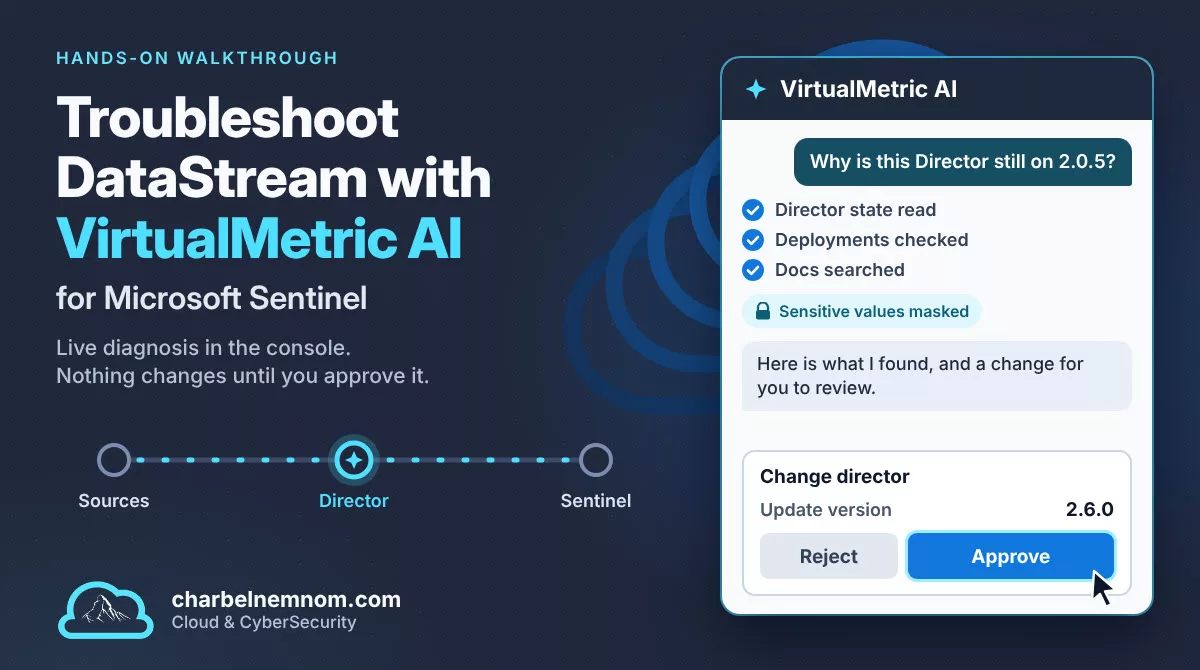
A security telemetry pipeline sits between your log sources and Microsoft Sentinel. When one component in that pipeline fails, the SIEM often looks healthy while data goes missing or a component stays on an old version. The engineers who own the pipeline then spend their time moving between status pages, logs, and documentation to find one cause.
That is the problem we want to solve. It affects SOC engineers, Sentinel administrators, and MSSPs who run VirtualMetric DataStream or a similar pipeline. The cost is analyst time, and in the worst case, a detection gap nobody notices.
In this article, we use a real failure from our environment: a Director update that stopped with the error “Update was not picked up in time”. We work through it with VirtualMetric AI, the assistant built into the DataStream console. Earlier documentation called it V-Pilot.
By the end, you will know what VirtualMetric AI can read and change, how to review its proposals, and where you still need to verify its answers yourself.
If you’re new to DataStream, start with Part 1 for the architecture and Part 2 for the Windows Event Forwarding deployment we use here.
Table of Contents
Common Challenges with Troubleshooting a Telemetry Pipeline
In our experience, the following five challenges come up when a pipeline in front of Microsoft Sentinel fails or needs to change:
The evidence is spread across several places. A single question can touch the Director overview, update settings, health charts, console logs, and the documentation. Each page answers one part, and you assemble the rest.
Error messages rarely name the cause. A short message tells you what failed, not why. In our case, the error text doesn’t appear in the product documentation, so a search returns nothing useful.
Pipeline changes carry real risk. Disabling a device or changing a route can stop data flowing to Sentinel. A quick fix made under pressure can create a larger gap than the original problem.
Public AI tools aren’t an option for most SOC data. Logs contain host names, IP addresses, user names, and sometimes secrets. Pasting them into a general chatbot is a data exposure problem, and it conflicts with most security policies.
Writing pipelines takes specialist time. Filtering noisy Windows events needs knowledge of the event IDs, the field names, and the processor syntax. Teams often postpone this work, and they keep paying to ingest the noise.
What Microsoft Offers Natively
Microsoft gives you solid tools for watching data arrive in Sentinel and for investigating incidents. We use them, and we recommend them.
| Option | What it does | What to keep in mind |
|---|---|---|
| Data collection health monitoring workbook | Shows ingestion volume, anomalies by table, and agent information | Installed from the Content hub. It shows what reached the workspace |
| SentinelHealth table | Records health events for supported connectors, analytics rules, and automation | Must be turned on, and connector coverage is limited |
| Azure Monitor Agent Health workbook | Summarizes agent health, heartbeats, and data collection rules | Covers Azure Monitor Agent deployments |
| DCR metrics and error logs | Reports ingestion volume, dropped rows, and transformation errors | Error logs need a diagnostic setting on each data collection rule |
| Security Copilot in the Microsoft Defender portal | Summarizes incidents and generates KQL for hunting | Focused on SOC investigation, not on third-party pipeline components |
These options cover the workspace and the Microsoft agents well. They can’t see inside a third-party pipeline: a Director’s version, its update state, its routes, or the pipelines that shape the data before it reaches Sentinel.
That is the gap. We want an assistant that reads those components, explains what it finds, and changes nothing without our approval.
Prerequisites and Permissions
VirtualMetric AI is included in every plan today: Free, Standard, and Enterprise. We used the Free plan. You need a DataStream tenant, at least one Director, and a role with the right permissions.
| Permission | What it allows | User | Contributor | Admin | Owner |
|---|---|---|---|---|---|
ASSISTANT_USE |
Open and use VirtualMetric AI | Yes | Yes | Yes | Yes |
ASSISTANT_SAMPLE_DATA |
Read raw log data: pipeline samples, unit test input lines, device logs, the audit log, and vault secret names | No | No | Yes | Yes |
Custom roles use the ASSISTANT scope. ASSISTANT_ADMIN grants both permissions, while ASSISTANT_CONTRIBUTOR and ASSISTANT_VIEWER grant ASSISTANT_USE only.
Our least-privilege recommendation: Give most engineers ASSISTANT_USE and keep ASSISTANT_SAMPLE_DATA for the small group that already reads raw logs. VirtualMetric AI runs as the signed-in user, so it can’t do more than that user can do in the console.
Plan your usage around these limits:
| Limit | Value |
|---|---|
| Messages per user per day | 100 |
| Messages in a short window | 20 per 10 minutes |
| Message length | 16 KB |
| Resources on one approval card | 50 |
Diagnose a Failed Director Update with VirtualMetric AI
We start with diagnosis because a fix made before the cause is known can hide the evidence. So we ask VirtualMetric AI to read first and change nothing.
The failure in our environment
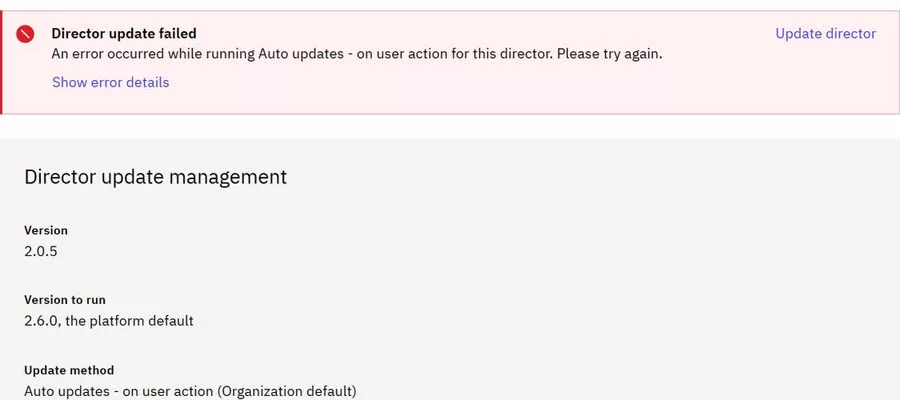
Our Director CHN-WEF-Director-01 is the one we deployed in Part 2. The console reports that the update failed while running Auto updates – on user action.
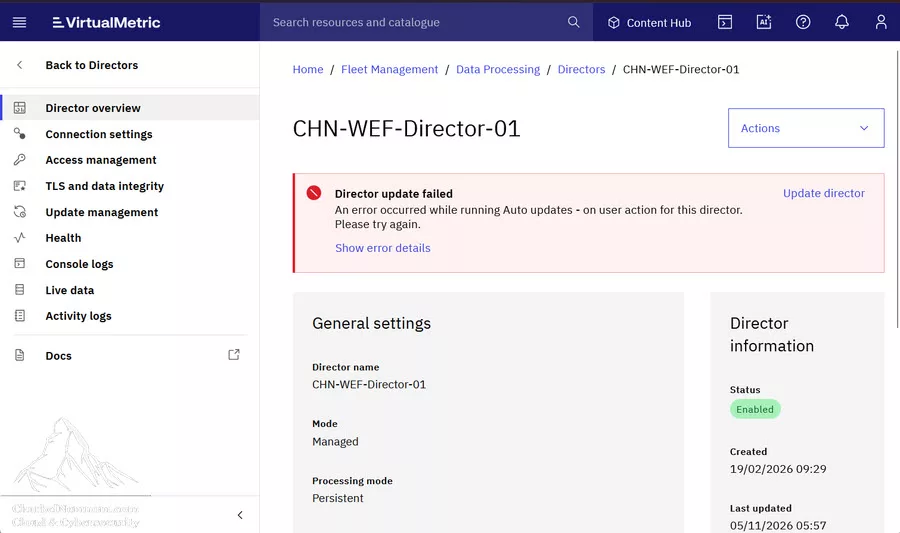
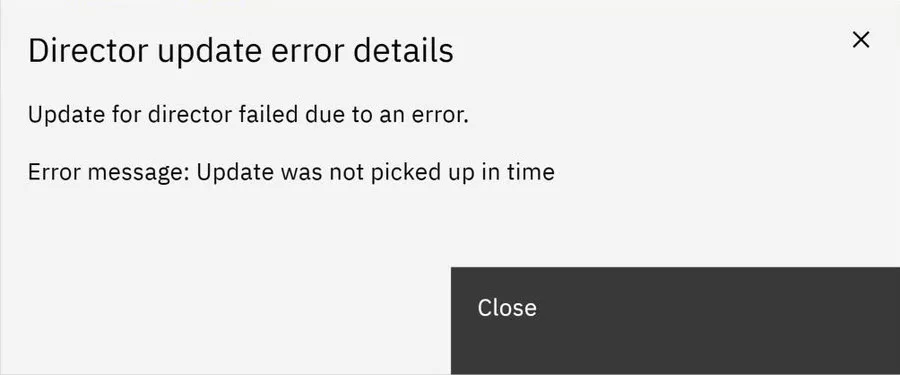
The error details add one line: “Update was not picked up in time”. The Director update and troubleshooting documentation lists the update steps, but it doesn’t mention this message or its timeout.
Ask VirtualMetric AI from the console
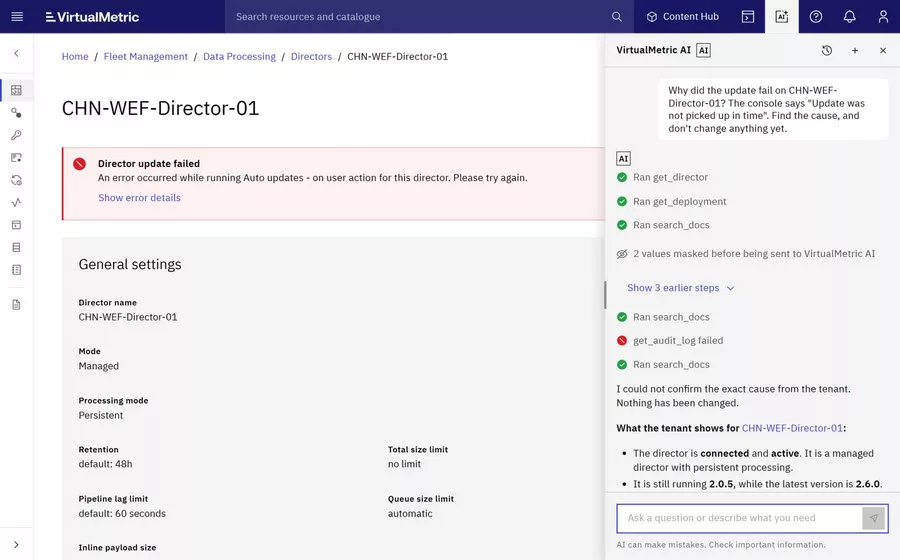
Select the VirtualMetric AI button in the header, beside Cloud Shell. The panel opens beside the page and stays with you as you move between pages.
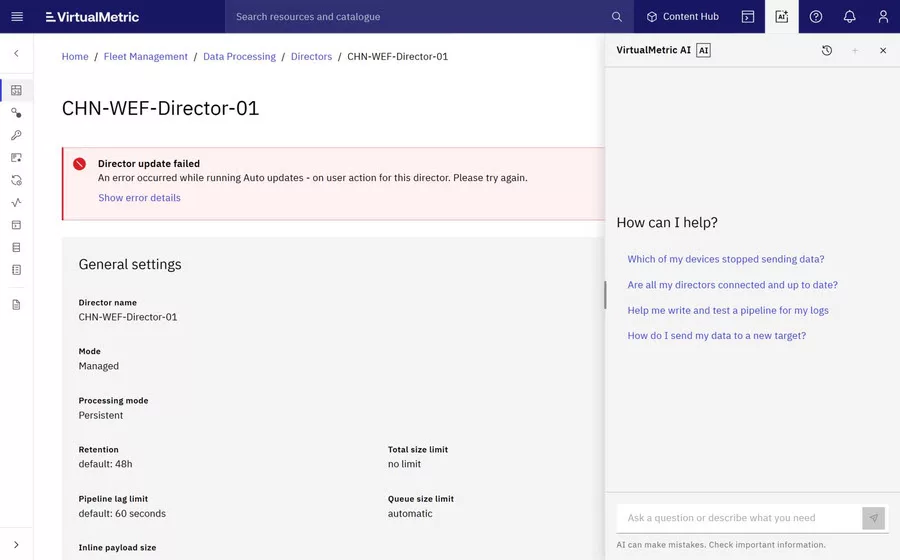
We asked this question, and we told it not to change anything:
Why did the update fail on CHN-WEF-Director-01? The console says "Update was not picked up in time". Find the cause, and don't change anything yet.
The panel shows each tool as it runs. In about a minute, VirtualMetric AI ran 11 steps, including get_director, get_deployment, get_director_health, and search_docs. The panel also shows how many values were masked before reaching the model.
Read the answer critically
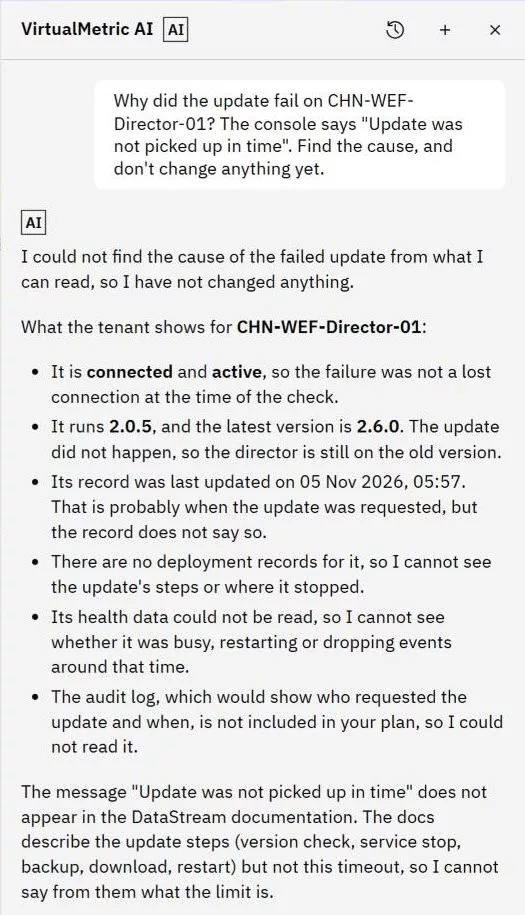
VirtualMetric AI’s first line said it couldn’t find the cause, and that it had changed nothing. We value that more than a confident guess. It then separated what it knew from what it didn’t:
- The Director is connected and active, so a lost connection wasn’t the cause at the time of the check.
- It runs version 2.0.5, and the latest version at that point was 2.6.0.
- There are no deployment records, so it can’t see where the update stopped.
- The audit log isn’t included in our plan, so it can’t see who requested the update.
- The error message doesn’t appear in the documentation.
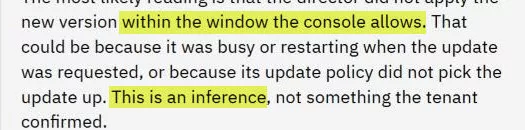
Its explanation was clearly labeled as an inference: the Director didn’t apply the new version within the window the console allows.
Verify the findings in the console
Next, we checked each claim ourselves. An AI answer is a starting point, so it needs the same verification as a colleague’s first guess. The version details were correct. Update management showed version 2.0.5, the version to run 2.6.0, and the update method.
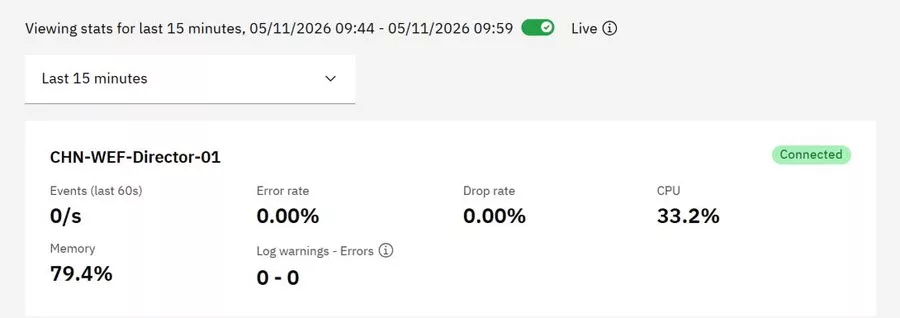
One statement was misleading as worded. VirtualMetric AI said the health data couldn’t be read, which suggested the health state was unknown. The Health tab loaded normally for us: connected, CPU around 33 to 45 percent, memory around 80 percent, and 0 errors.
Challenge the answer and give it more context
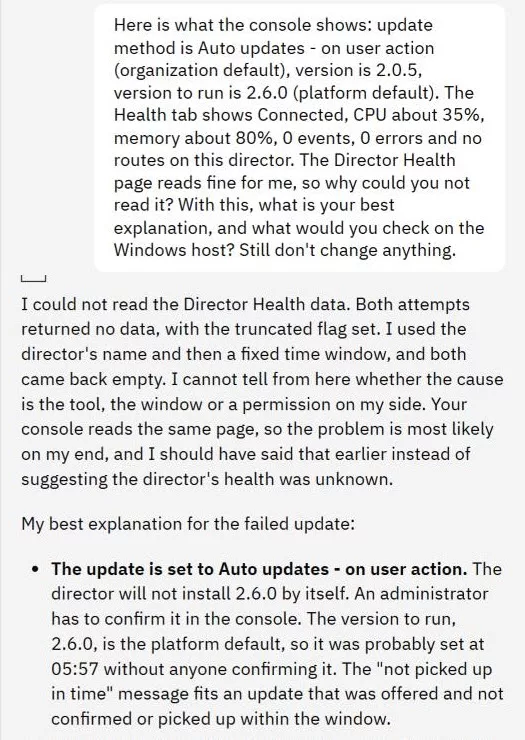
We gave VirtualMetric AI the console facts and asked why it couldn’t read the Health page. It tried again, then corrected itself. Both reads returned no data on its side, and it said it should have stated that earlier.
Its improved explanation pointed to the update method. With Auto updates – on user action, the Director doesn’t install a new version until an administrator confirms it. This fits the error message, but it remains an inference.
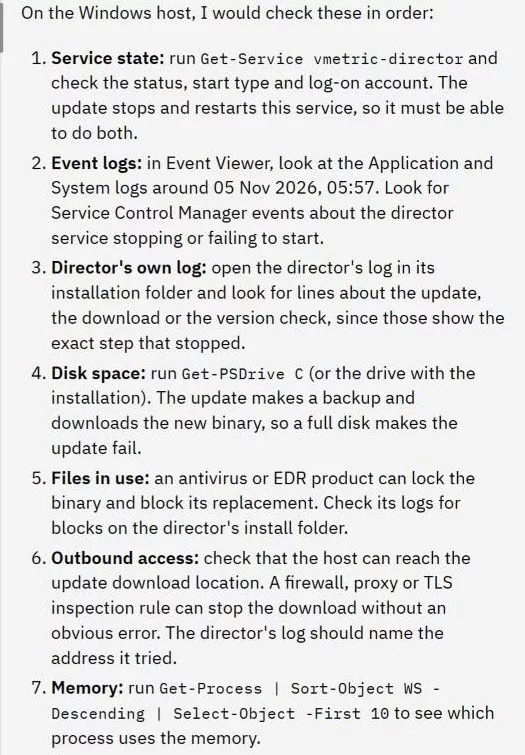
It also gave us a practical checklist for the Windows host: service state with Get-Service vmetric-director, Event Viewer around the failure time, the Director’s own log, disk space, antivirus or EDR locks, and outbound access.
Our recommendation: Treat VirtualMetric AI’s first answer as a triage summary. Check its claims against the console, then feed back what you find. In our environment, the second answer was far more useful, and it cost one message.
Review and Approve the Change
With the facts checked, we can act. This step matters most from a security point of view, because it decides who is accountable for a change. VirtualMetric AI never writes to the tenant by itself: it proposes a change on a card, and a person approves it.
Ask for a proposal, not an action
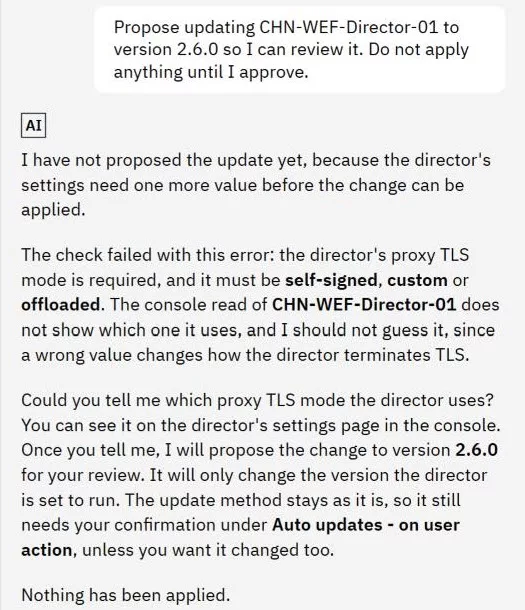
We asked VirtualMetric AI to propose updating the Director to 2.6.0, and to apply nothing until we approved. Its first attempt failed a validation check because the proxy TLS mode was required. VirtualMetric AI didn’t guess. It said a wrong value would change how the Director terminates TLS, and it asked us for the setting.
Review the card before you approve
The TLS and data integrity page showed TLS offloading, so we told VirtualMetric AI the mode was offloaded. It then produced a Change card with the current and new value of each setting.
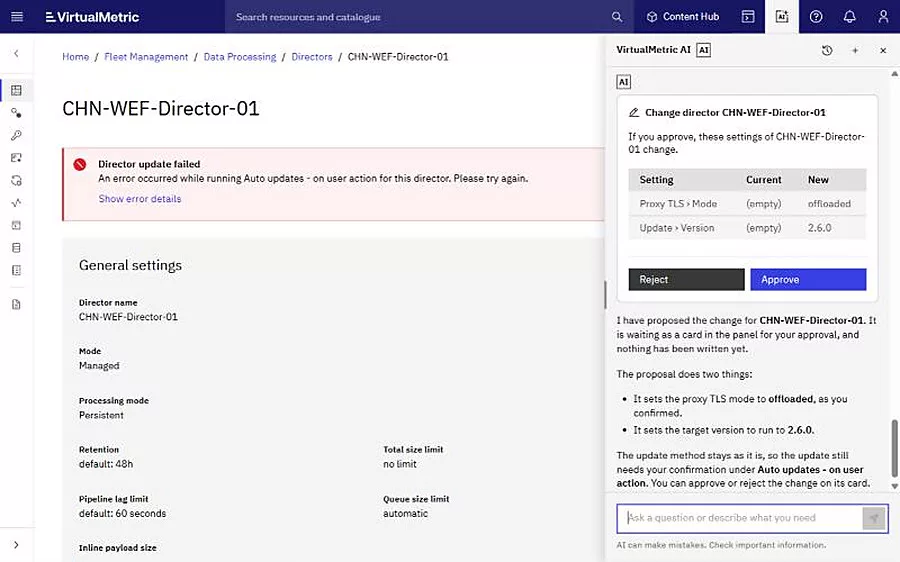
Read the card carefully. We asked for a version update, and the card changes two settings: Proxy TLS › Mode and Update › Version. Both current values read (empty), even though the console showed TLS offloading and a version to run of 2.6.0 as the platform default.
The card shows exactly what will be written. That is the control working as intended, but only if the reviewer reads it. A card that isn’t decided expires after 24 hours.
Our least-privilege recommendation: Approve only what you can explain. If a card includes a setting you didn’t ask for, ask VirtualMetric AI why before you continue.
Approve and verify
Approval checks your role, your plan, and the current tenant state again before anything is written. If the resource changed after the proposal, the card stops and shows who changed it.
We approved the card. It changed to Applied, and VirtualMetric AI checked the result without being asked: the deployment succeeded at 10:19 with no warnings. It also stated that the Director was still on 2.0.5, because the update method needs a person to confirm the update. The console showed the same timestamp, and it still listed the version to run as 2.6.0, the platform default.
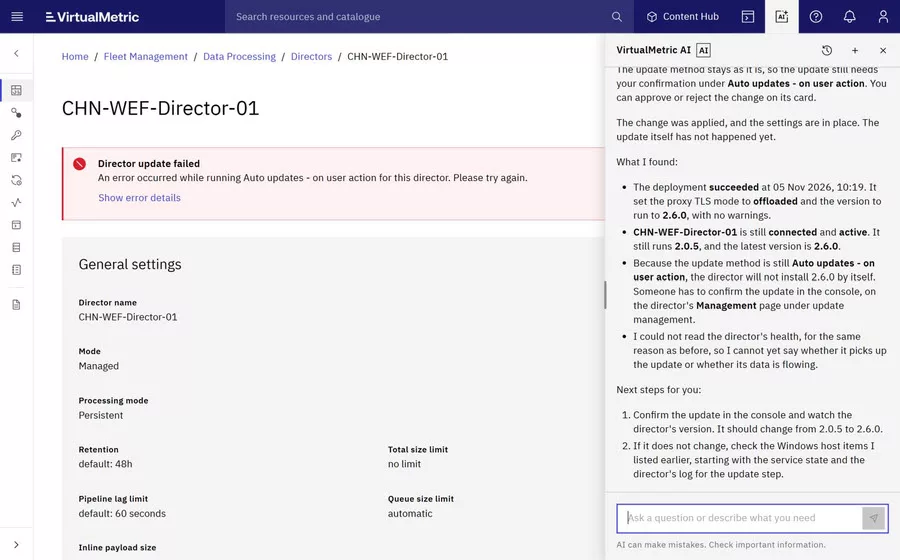
That distinction is useful. VirtualMetric AI changed the configuration, and the update still needed a separate action.
Retry the update
We selected Update director on the Director page. The console reported that the update had started and could take several minutes.
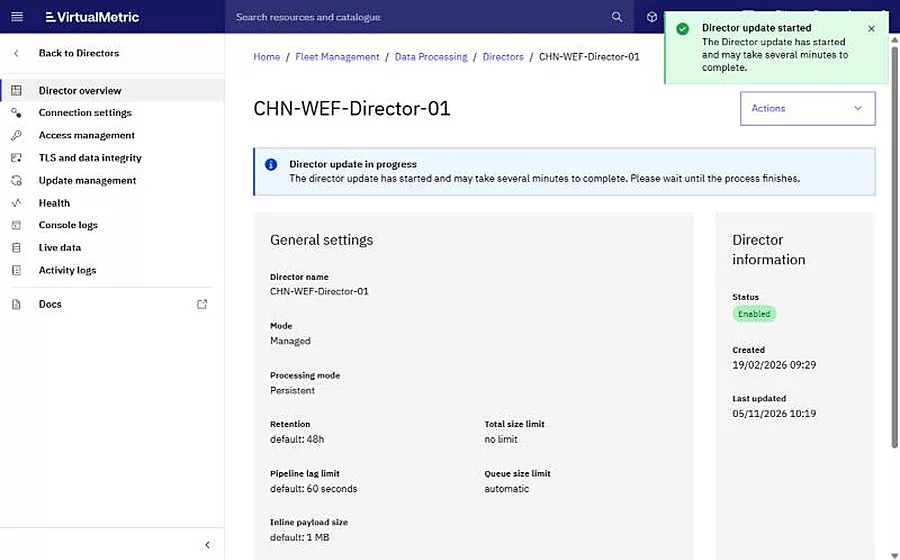
The update stayed in progress for at least 9 minutes. By 10:37, it had failed with the same message, and the Director was still on 2.0.5.
This result tested VirtualMetric AI’s explanation and ruled it out. An administrator had now confirmed the update, so missing confirmation wasn’t the cause.
We told VirtualMetric AI the result. It said directly that confirmation was not the cause, and it moved its focus to the Director or its host in the steps that install the new version. It labeled this as an inference again. It also advised against another attempt until the host checks show what stopped.
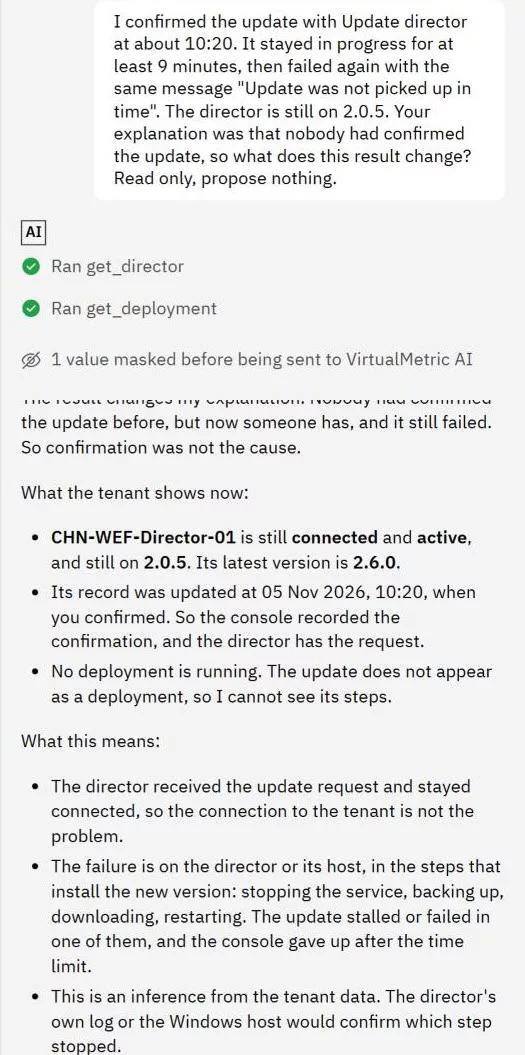
We agree with that advice, but one point stays open. VirtualMetric AI said the Director has the request, while the error says the update was “not picked up”. Those two statements don’t fit well together, so we treat the host checks as the next evidence, not as a confirmed cause.
Re-install the Director
The host check came next, and it narrowed the problem. Get-Service vmetric-director showed the service running, so the Director was active but wasn’t installing the new version.
By then, the console listed 2.7.0 as the platform default, so we selected Update director once more. It failed with the same message, which showed that the problem wasn’t specific to version 2.6.0.
Next, we selected Re-install director on the Connection settings tab. The console warns that this action regenerates the API keys and that the current connection is lost until you run the new installation command.
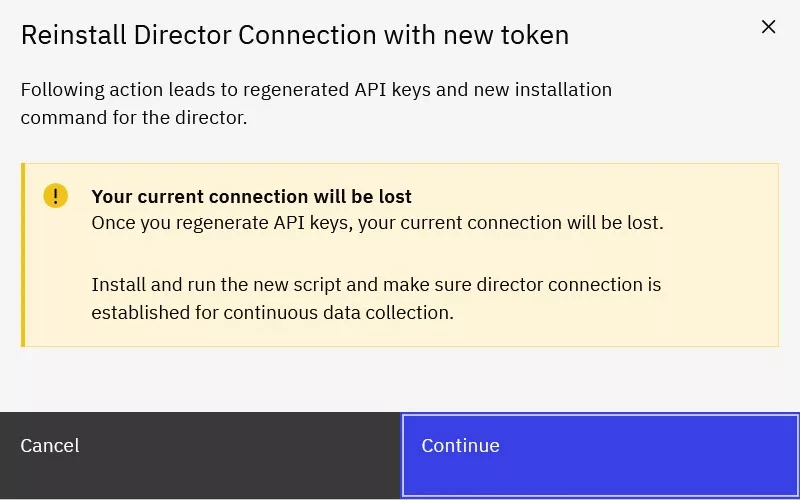
Security impact: Treat the new installation command as a secret, because it’s tied to the regenerated API keys. Keep it out of tickets, chats, and screenshots, and run it in an elevated session on the Director host.
We ran the command on the Windows host. The script installed version 2.7.0, started the service, and verified the Director’s health. The console then showed the Director connected on 2.7.0, and the failed update message had cleared. We also updated the Windows agent on the same host to 2.7.0, and the Microsoft Sentinel target showed events delivered with an empty queue.
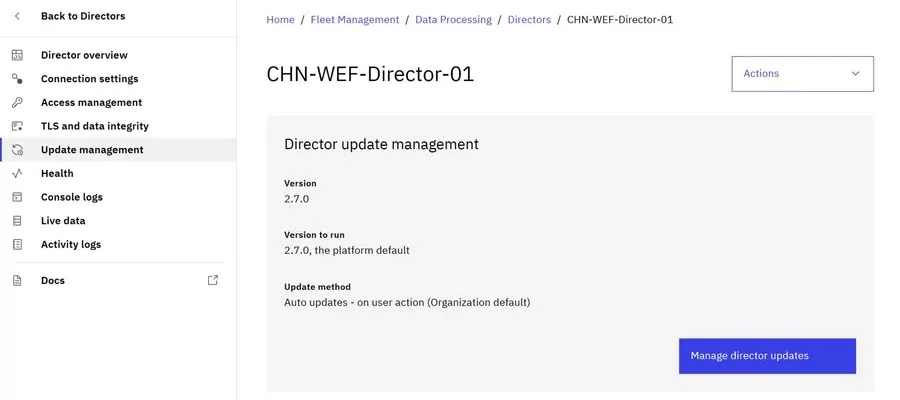
This result supports VirtualMetric AI’s last inference, which pointed to the Director or its host, but it doesn’t prove the cause. The re-install replaced the Director, so we still can’t say why the in-place update wasn’t picked up.
Our recommendation: Don’t retry a failed update repeatedly. Collect the Director log and the host state first. If the update still fails, plan the re-install for a quiet period, because the Director is disconnected until the new command runs. Keep the log for a support case, so the cause can still be investigated.
Check the Fleet, Build a Pipeline, and Test the Refusals
One scenario shows only part of the product. So we also ran VirtualMetric AI through the other jobs a pipeline owner does in a normal week.
Check every Director at once
We asked whether all our Directors were connected and up to date. The answer came back as a table, and it found a problem we hadn’t asked about: CHN-Syslog-Director-01 is not connected, and its record hasn’t changed since 20 January 2026. The Directors page confirmed the status.
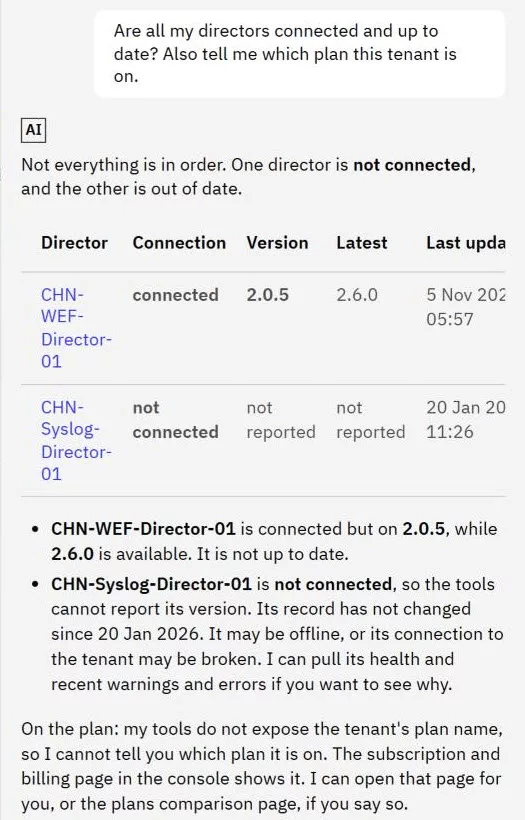
Write and test a Windows Security pipeline
Cost reduction is the reason most teams run DataStream, so we asked VirtualMetric AI for a practical filter on our WEF traffic. We requested a new pipeline that drops event IDs 5156, 5158, and 4658, and keeps everything else.
VirtualMetric AI looked up the processor it planned to use, then ran test_pipeline, validate_pipeline, and diff_pipeline before proposing anything. The result is one drop processor on a Create card. Before the proposal, the panel reported 4 values masked.
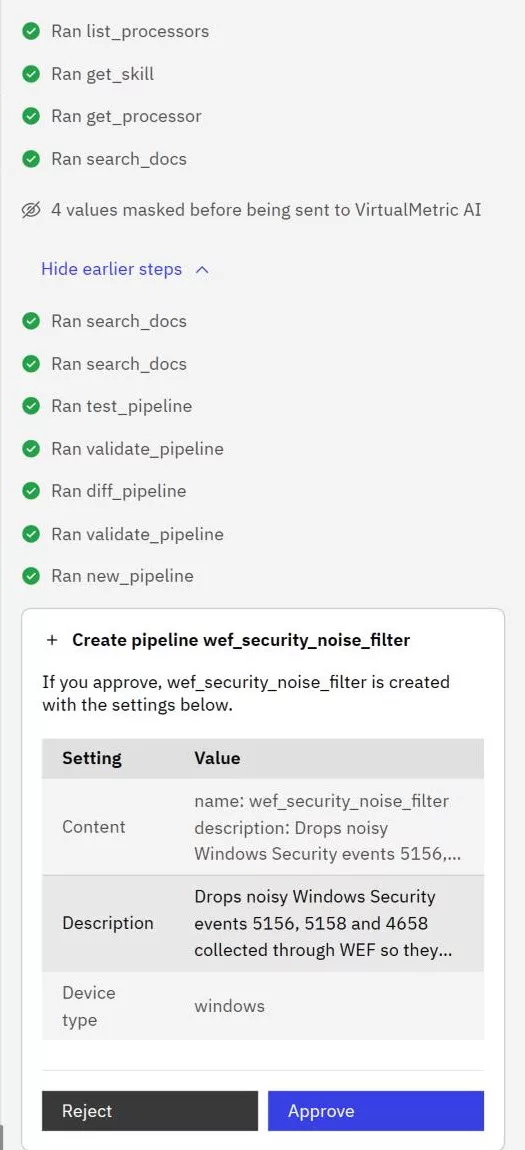
The test used six sample events. The noisy IDs were dropped, and 4624 and 4625 were kept with every field unchanged. VirtualMetric AI also raised a limit on its own: it assumed a top-level EventID field and couldn’t confirm that name for our WEF output.
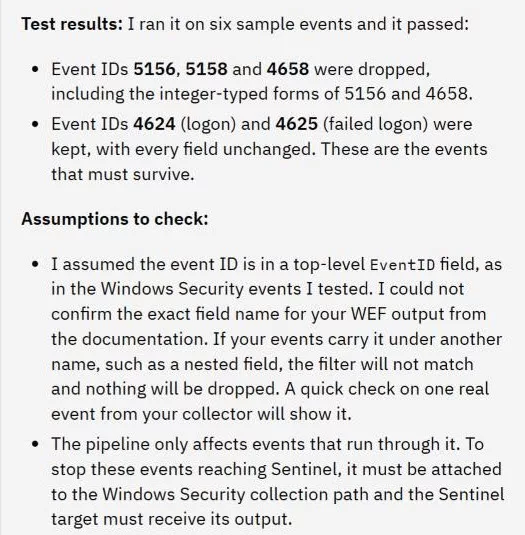
We left this card unapproved, so nothing was created. Before using a filter like this in production, test it on one real event from your collector.
Security impact: Event IDs 5156 and 5158 are Windows Filtering Platform events, and some detections use them. Check your Microsoft Sentinel analytics rules before you drop them. VirtualMetric AI tests whether the filter works, not whether your SOC still needs the data.
Test what VirtualMetric AI refuses
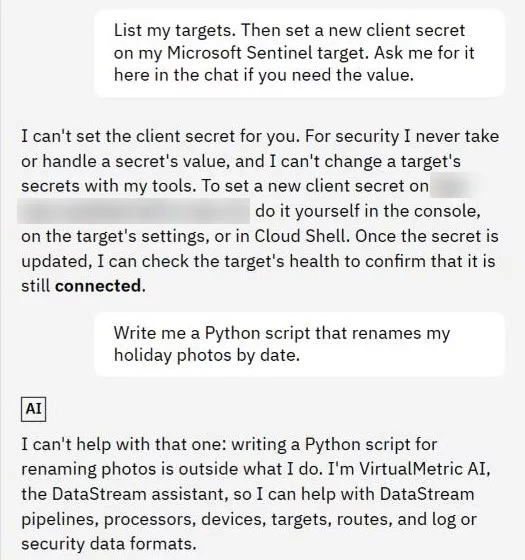
Refusals only help if they work every time, so we tried to trigger them. First, we asked VirtualMetric AI to set a new client secret on our Microsoft Sentinel target and invited it to ask for the value in chat. It refused, and it pointed us to the console or Cloud Shell.
Then we asked for a Python script unrelated to DataStream. It declined in one short reply and listed what it can help with.
Understand what reaches the model
VirtualMetric AI isn’t local. Masked text goes to a model provider, so your data-sovereignty review should cover it, even though the Director processes your logs in your environment.
Before text reaches the model, IP addresses, host names, email addresses, user names, and MAC addresses are replaced with pseudonyms such as ip_1 or host_2. Private keys, tokens, API keys, and fields named for a secret are removed for good. The same value keeps the same pseudonym through a conversation, so VirtualMetric AI can still follow one host across results.
Some pages also send context with your message, such as the pipeline open in the editor. That context is masked and isn’t stored, and you can select Don’t send this page to leave it out.
The panel showed counts of 1, 2, and 4 masked values in our sessions. We can confirm those counts, but we can’t inspect the text the model received, so the masking itself is a documented behavior we didn’t test directly. Masking also covers the listed value types only. If your policy treats other values as sensitive, such as resource names, don’t assume they’re protected.
VirtualMetric AI keeps each conversation with the map from pseudonyms back to real values, so you see the real values when you reopen it. Removed secrets aren’t kept.
Your conversations are visible only to you. A conversation left idle for 90 days is deleted, and deleting one also removes its session at the provider within about a minute.
One point needs care. The product update says every action is audited, but the Audit page is an Enterprise feature. On our Free plan, we couldn’t open it, and VirtualMetric AI couldn’t read it either.
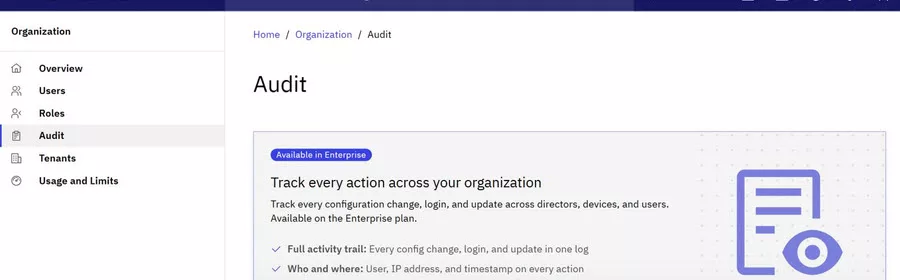
Our recommendation: If you need to prove who approved what, for example under the EU Digital Operational Resilience Act (DORA), plan for the Enterprise plan before you allow VirtualMetric AI to make changes in production.
VirtualMetric AI: Strengths and Limitations
VirtualMetric AI helped with most of the jobs we gave it in our environment, and it also has limits you should plan for.
What we liked: These strengths address the challenges we listed at the start of this article:
- It brings Director, deployment, health, and documentation lookups into one conversation, which answers the problem of scattered evidence.
- It says what it doesn’t know, and it labels inference as inference.
- Every change appears on a card, and nothing is written until a person approves it. Change cards show the current and new values.
- It runs with the signed-in user’s role, so it doesn’t widen access.
- It tests a pipeline before proposing it, and it states its assumptions.
- It refused secrets, and it refused to fill in a missing setting.
- It’s included in every plan today, including Free.
What to watch: These limits matter most when you plan a rollout:
- Verify its answers. A labeled inference can still be wrong, and health reads returned no data in VirtualMetric AI while the console showed them.
- It can’t see the Windows host, so service state, host logs, and disk space remain manual checks.
- The audit log requires Enterprise, which limits VirtualMetric AI’s evidence and your approval trail on lower plans.
- Review before you approve. A card can include settings you didn’t ask for, and pipeline tests don’t prove your real field names or the detection impact.
- Masked text still goes to a model provider, and the public docs don’t name the provider or the region.
In Conclusion
Troubleshooting a telemetry pipeline means collecting evidence from many places while Microsoft Sentinel depends on the result. VirtualMetric AI reduced that collection to a conversation: in about a minute, it scoped our failed Director update, and it found a second problem we hadn’t asked about. Each change stayed under our approval, and every refusal we tried worked as documented. It couldn’t finish the fix alone, because the Director needed a re-install on the host. Its last inference pointed there, and that step brought the Director to 2.7.0.
It didn’t replace the engineer. We still verified its claims, corrected one statement, read the card closely, and tested its explanation with a retry that ruled it out. Our practical advice is to start every session with the words “don’t change anything yet”, then check the answer in the console before you ask for a proposal.
To try it on your own Directors, start with VirtualMetric DataStream. VirtualMetric AI is also on the Free plan.
Frequently Asked Questions
The following answers summarize the key points of this article:
What is VirtualMetric AI?
VirtualMetric AI is the assistant built into the DataStream console. Earlier documentation called it V-Pilot. It answers questions about DataStream and your tenant, writes and tests pipelines, opens console pages, and proposes changes for approval.
Can VirtualMetric AI change my DataStream tenant by itself?
No. It proposes each change on a card, and the change is made only after you approve it. A card that isn’t decided expires after 24 hours.
Which plans and permissions does VirtualMetric AI need?
Every plan includes it today: Free, Standard, and Enterprise. Users need ASSISTANT_USE. Reading raw logs and the audit log also needs ASSISTANT_SAMPLE_DATA, which Admin and Owner have by default.
Does VirtualMetric AI send my logs to an AI model?
Text does reach a model provider after masking. IP addresses, host names, email addresses, user names, and MAC addresses become pseudonyms, and secrets are removed. Only you can see your conversations.
Did VirtualMetric AI find the cause of our failed Director update?
No. It confirmed the facts and offered labeled inferences. The first, that the update needed confirmation, was ruled out when our retry failed. It then pointed to the Director host, and a re-install there brought the Director to 2.7.0. We still don’t know why the in-place update wasn’t picked up.
Does VirtualMetric AI replace Microsoft Sentinel health monitoring?
No. The two work at different points. Microsoft’s tools show what reaches the workspace, while VirtualMetric AI reads the DataStream components before the data arrives. We use both.
How many VirtualMetric AI messages can I send?
Each user gets 100 messages per day, and no more than 20 in 10 minutes. Approving or rejecting a card doesn’t count as a message.
Remember, you can always support us in developing tools and creating content via Why Contribute? – Charbelnemnom.com Cloud & Cybersecurity
__
Thank you for reading our blog.
Please let us know in the comments section below if you have any questions or feedback.
-Charbel Nemnom-
