
Microsoft Sentinel is an extremely powerful platform—but at scale, Windows telemetry (especially Security events) can quickly become one of the highest cost and noise drivers in the workspace. If you’re already centralizing Windows logs with Windows Event Forwarding (WEF) into a Windows Event Collector (WEC), you’ve already solved half the problem: you’ve reduced agent sprawl and built a clean collection pattern.
In Part 1 of this series, we focused on the “why” and the architectural “what”: the ingestion cost challenge, noisy telemetry, and why a dedicated security telemetry pipeline matters—plus how VirtualMetric DataStream is structured (Director, Agent, Proxy, MSSP model).
In Part 2, we go hands-on and cover the practical deployment steps to collect Windows Security/Event Logs from an existing WEC/WEF setup and ingest them into Microsoft Sentinel / Log Analytics, with the right building blocks in place for later parts (advanced routing, ASIM normalization, staged routes/commit processors, data lake strategies, etc.).
Important scope note: We will not re-explain how to implement WEF/WEC from scratch. If you need that baseline, we’ve already documented it in detail—you can use it as your prerequisite foundation before you continue here.
Table of Contents
Why DataStream in front of Sentinel
In Part 1, we discussed a pattern that most SOCs eventually encounter:
- Sentinel cost pressure grows with ingestion volume (especially “always-on” Windows Security telemetry).
- Noise inflates: more data doesn’t automatically equal better detections.
- Many teams end up building ad-hoc scripts and glue logic to parse, enrich, and route logs.
DataStream positions itself as the missing middle layer: Security Data Processing/Telemetry Pipelines for Data Collection, Data Processing, and Data Routing before logs reach Microsoft Sentinel, including the data lake. It’s designed to optimize for Microsoft security workflows—especially ASIM and Sentinel query/detection behavior—rather than treating security logs like generic observability data.
A key point for Windows specifically: DataStream includes specialized optimization for Windows events, with documented size-reduction potential of 60–70% through intelligent handling of the Windows EventData XML—while preserving security-relevant fields used in Sentinel detections and ASIM parsing, which is critical with Microsoft Security Copilot integration, making it easier to operationalize clean, structured data for AI-driven security workflows. And that’s the “ROI” we start wiring up in this part.
Architecture for this guide
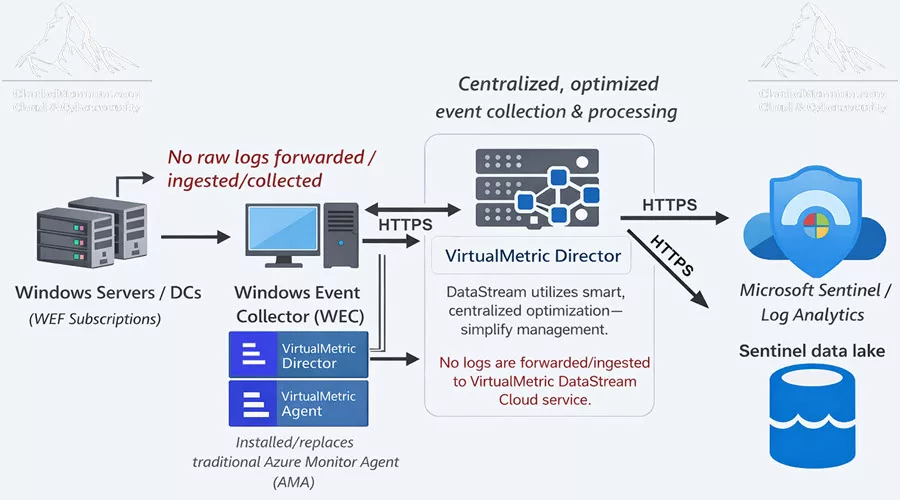
The reference architecture that we’ll follow for this guide is the following:
- Windows Servers / Domain Controllers forward events via WEF
- Events land on a WEC server (centralized collection)
- DataStream collects Windows events from WEC (Security/System/Application/ForwardedEvents, depending on your subscriptions)
- DataStream processes/normalizes (later, we’ll go deeper into ASIM normalization and staged routes)
- Output goes to Microsoft Sentinel (Log Analytics workspace), and/or to Sentinel data lake. It’s worth mentioning that the diagram below shows an HTTPS outbound connection to Sentinel (Log Analytics) and to the Sentinel data lake over the public Internet, but you can also send and forward the logs via an Azure Monitor Private Link (Private Endpoint) over Site-to-Site VPN or ExpressRoute connection (for more information, see how to forward logs to Microsoft Sentinel with a Private Link).
In DataStream terminology, we have:
- Devices represent your sources (WEC in our case)
- The director is your processing engine
- Pipelines define parsing/transforms/enrichment/optimization
- Targets define where data goes (Microsoft Sentinel/data lake)
- Routes connect Device → Pipeline → Target
Prerequisites
To follow this guide, you need to have the following:
Azure / Sentinel
- An Azure subscription
- A Log Analytics workspace
- Microsoft Sentinel is enabled on that workspace
- Optional but recommended – Microsoft Sentinel onboarded and connected to the Defender portal. As a side note, Microsoft will sunset the ability to manage Microsoft Sentinel in the Azure portal by March 31, 2027.
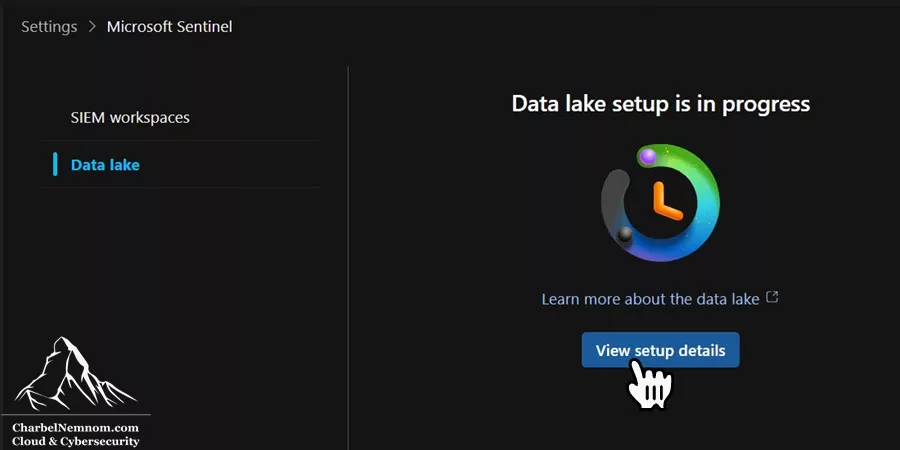
- Optional but recommended – Microsoft Sentinel data lake enabled on the workspace
Windows Collection
- WEF/WEC is already deployed and working
- You should already see forwarded events landing on your WEC server
- If you don’t have this yet, use my WEF/WEC guide first, and then come back
- Optional: You can onboard the WEC machine to Azure Arc to authenticate/integrate with VirtuaMetric DataStream for log ingestion (more on this below).
DataStream Baseline
At a high level, you need the following, which we’ll cover in depth shortly:
- Ability to create a DataStream account
- A host/VM where you can deploy the Director service and the Agent
- Network access:
- Director outbound HTTPS connectivity (control/management plane behavior depends on your deployment model).
- Internal connectivity from your Windows collection tier (WEC) to the Director (or from Agent to Director).
- The VirtualMetric Agent and the VirtualMetric Director can be deployed on the same Windows Event Collector (WEC) machine.
- DataStream authentication, we have different options here:
- You can either create an App Registration in Microsoft Entra ID and use the (Client ID/Client Secret).
- Or you could use the VirtualMetric Director Proxy component with Azure Managed Identity, which provides a more secure authentication method without managing credentials. This option is more toward MSSPs managing multiple tenants.
- Another option is to use an Azure Arc machine with a Managed Identity to authenticate and send logs to Microsoft Sentinel, providing a more secure authentication method without managing credentials. In this guide, we’ll use an existing Azure Arc deployment to integrate with DataStream and ingest our logs into Sentinel.
DataStream’s model includes predefined definitions and optimized preprocessing stages (including VMFL binary encoding), which is one reason it can keep the collection lightweight at scale.
Step-by-Step deployment
Let’s now dive in and deploy the entire solution end-to-end.
Step 1) Create a DataStream account
First, we need to create a DataStream account. If your organization uses Azure, you can sign up through the Azure Marketplace as follows:
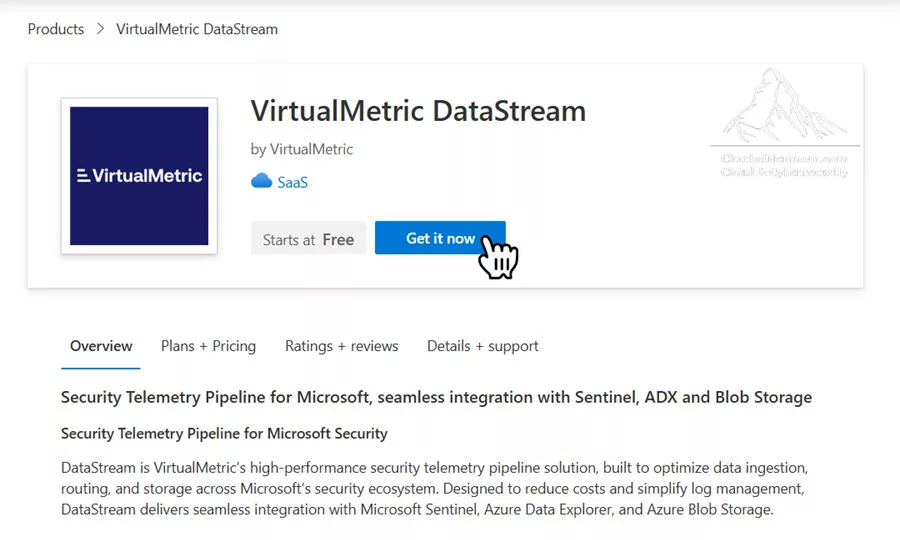
1. Go to the VirtualMetric DataStream page in Azure Marketplace.
2. Click Get it now, as shown in the figure below.
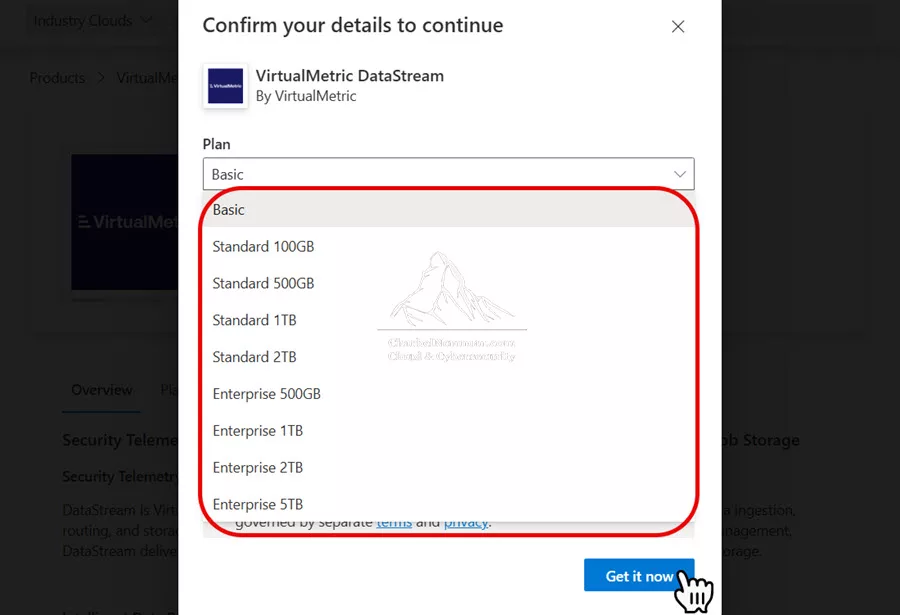
3. Then, sign in with your Azure account, choose your desired Plan (you can start with Basic, free plan, Standard, or Enterprise) based on your log ingestion volume, and then click Get it now, as shown in the figure below.
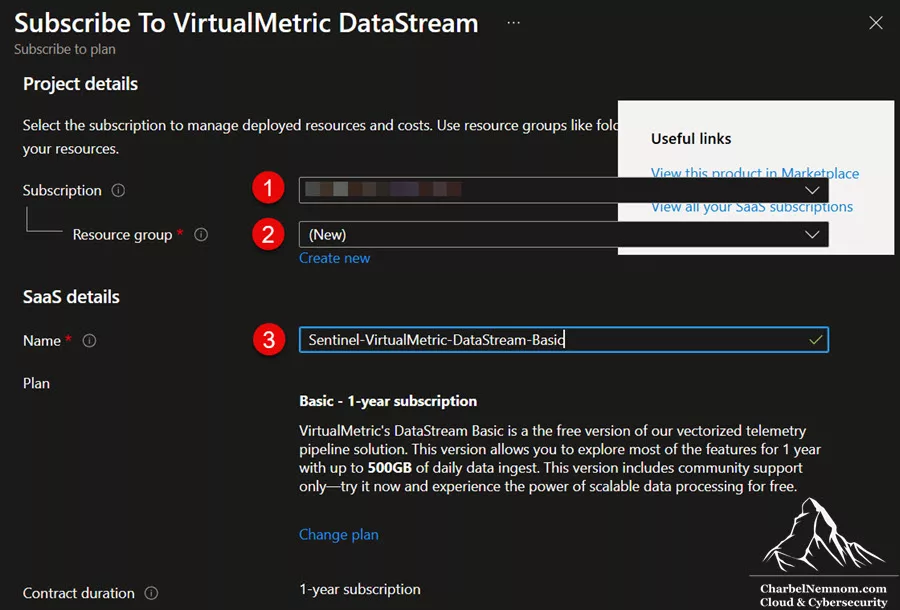
VirtualMetric’s DataStream Basic is the free version of a vectorized telemetry pipeline solution. This version lets you explore most features for 1 year, with up to 500GB of daily data ingestion. This version includes only community support; you can try it and experience the power of scalable data processing for free.
4. Next, you will be redirected to the Azure portal to complete this process.
5. Next, select your Azure subscription and resource group on the Project details page, then give the service a name under the SaaS details section, as shown in the figure below. You can also change the plan as needed.
6. Last, click Review + Subscribe to finalize. Your DataStream account will be created automatically.
My practical notes that if you’re deploying this for an enterprise SOC, define naming standards early, like:
- Org name = company name
- Environment tag = prod / nonprod / lab
- Region tag = weu / chn / eus (whatever matches your Azure naming convention)
This becomes important when you scale to multiple Directors, multiple sites, and eventually MSSP-style patterns.
Step 2) Create a Director (your processing engine)
The Director is where the real work happens: it runs pipelines, handles throughput, and connects your sources to your destinations.
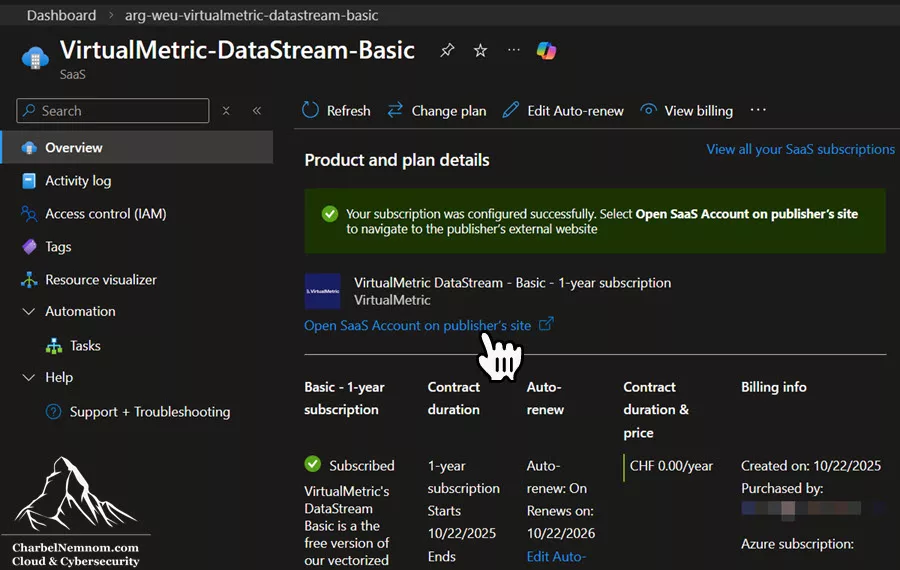
Browse to the resource group where you deployed the VirtualMetric DataStream subscription and click to open your SaaS account, as shown in the figure below.
Then log on to the VirtualMetric DataStream portal and take the following steps:
1. On the left-hand side, click on the hamburger menu, then go to Fleet Management and select Directors.
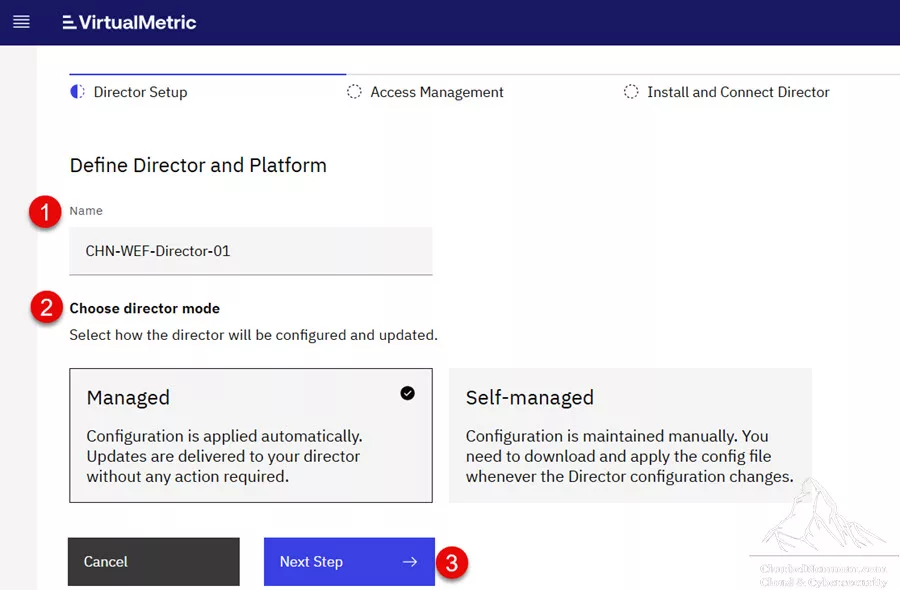
2. Select Create a new Director, give it a name, and select the director mode. The Director(s) can operate in two modes:
- Managed: Fully controlled through the DataStream portal (configurations, updates, monitoring)
- Self-managed: You download configurations and manage updates independently
In this guide, we will select Managed mode, then click Next Step.
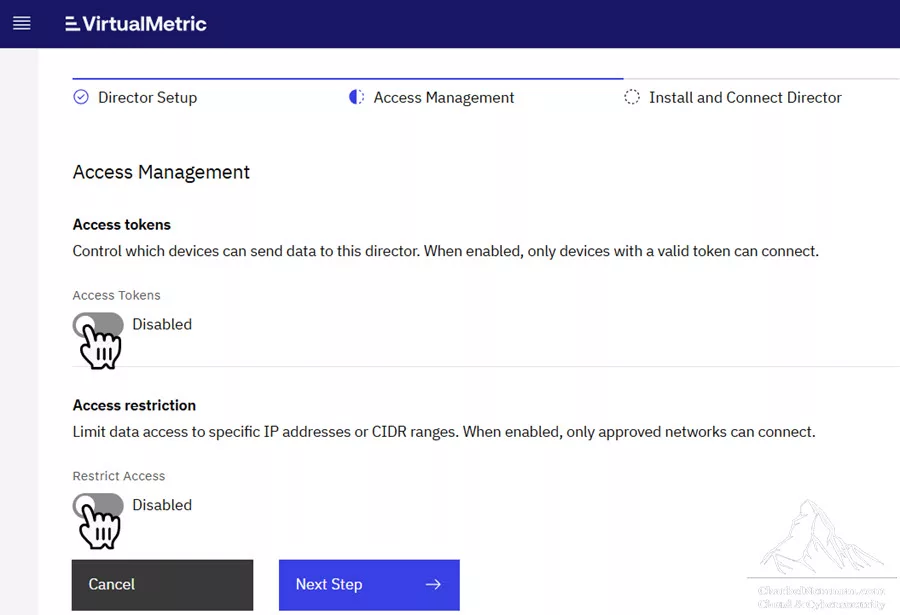
3. On the Access Management page, you can control which devices can send data to this director. When access tokens are enabled, only devices with a valid token can connect. You can also limit data access to specific IP addresses or CIDR ranges. When access restriction is enabled, only approved networks can connect. For the purpose of this guide, we’ll keep both options disabled. Click Next Step.
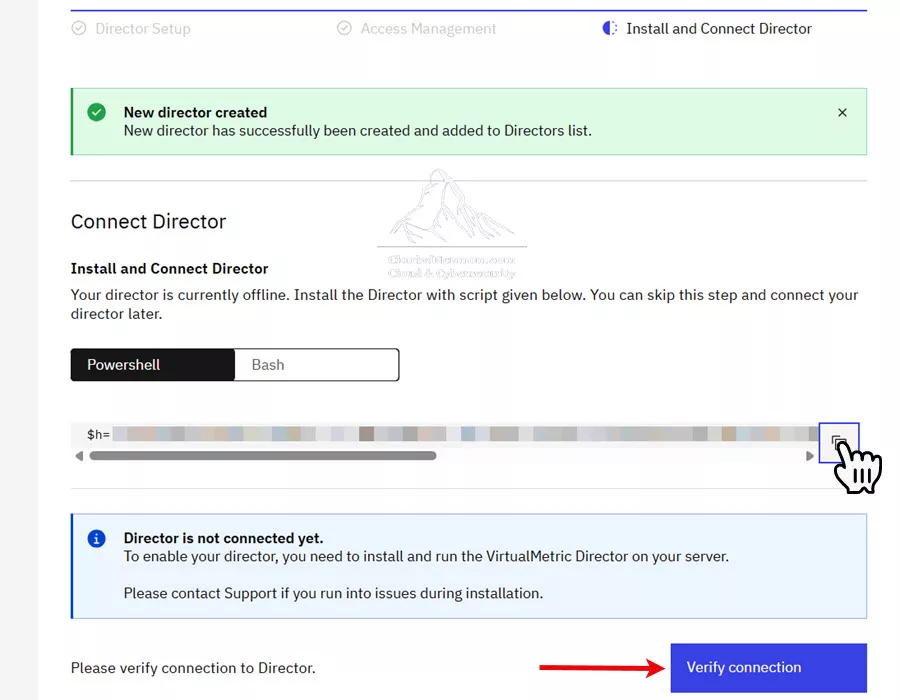
4. On the last step, Install and Connect Director, copy the PowerShell or Bash command, as shown in the figure below.
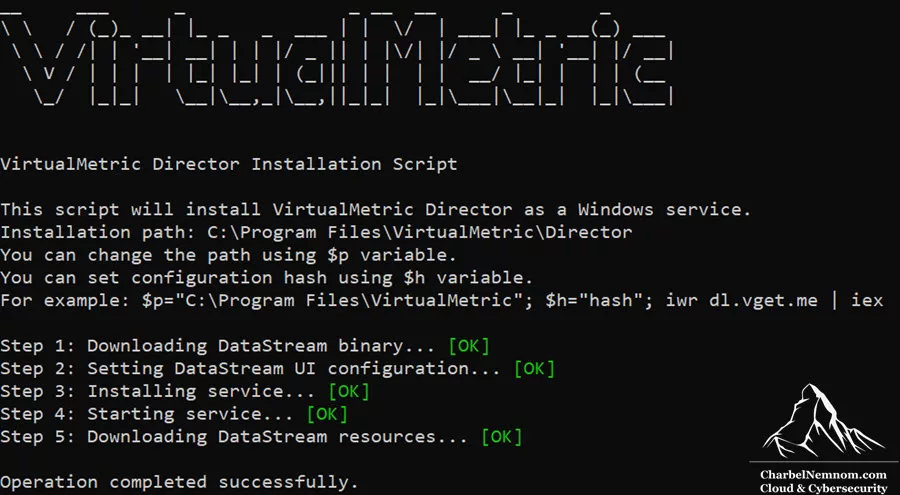
And then run the script on your designated Director VM or WEC server and confirm that all five steps completed successfully.
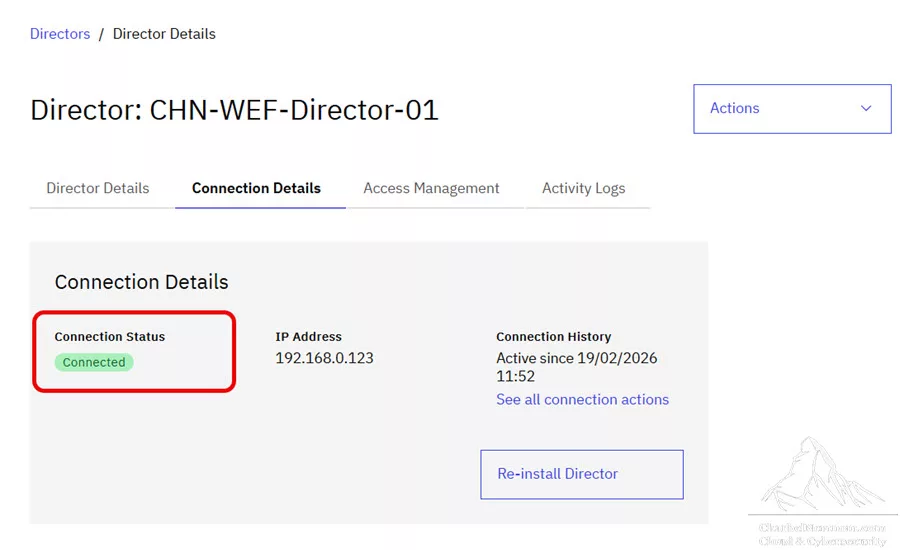
5. Click Verify connection and confirm the Director status shows Connected, as shown in the figure below.
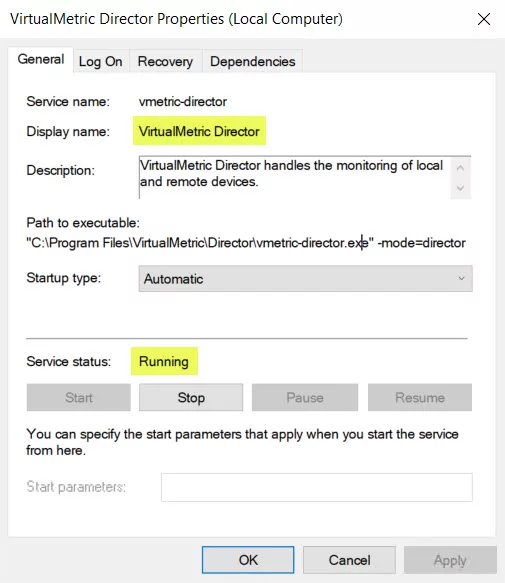
6. Last, we can open services.msc on the designated Director VM or WEC server, and confirm that the VirtualMetric Director service is running. At the time of this writing, the VirtualMetric Director version is 1.8.1. Always make sure you’re using the latest release.
As a side note, if you want to uninstall the VirtualMetric Director service for any reason, run the following command from an admin command prompt (cmd.exe):
"C:\Program Files\VirtualMetric\Director\vmetric-director" -service=uninstallNote: Windows Security events can be high EPS in bursts (authentication storms, GPO changes, domain incidents). Your Director sizing and placement determine whether you can keep up without a backlog—and this directly impacts both real-time detection and operational overhead.
Step 3) Create a Windows Device (your collection engine)
The next step is to create a Windows Device. The VirtualMetric Agent is a lightweight agent designed for high-performance data collection on machines. It manages local log collection (Windows event logs, Linux logs, performance counters, etc.) and streams data to the Director in real-time.
DataStream supports Windows collection patterns that may be described as “agentless” at the device level, but under the hood, it’s designed to avoid the classic “WinRM session as a constant log transport” pattern (which is expensive and fragile at scale). Microsoft has announced plans to deprecate WinRM in future Windows releases. VirtualMetric continues to support WinRM-based agentless monitoring. In this case, you should consider using the VirtualMetric Agent for long-term Windows endpoint monitoring, as we’ll describe in this section.
In practice, for a WEC-based design, you typically want one of the following two approaches:
Option 1 (recommended for WEF/WEC)
We need to install the DataStream Agent service on the WEC server. This aligns very well with centralized WEC designs:
- WEF forwards to WEC
- The agent collects data locally from WEC’s event logs and efficiently forwards it to the Director. The WEC server can also serve as the Director, depending on the size of your environment.
In this scenario, we avoid “pulling from many endpoints”. The WEC is already the aggregation tier, and local buffering reduces risk during transient connectivity issues (WEC → Director).
Switch to the VirtualMetric DataStream portal and take the following steps:
1. On the left-hand side, click on the hamburger menu, then go to Fleet Management and select Devices.
2. Search for Windows as a device and select it, as shown in the figure below.
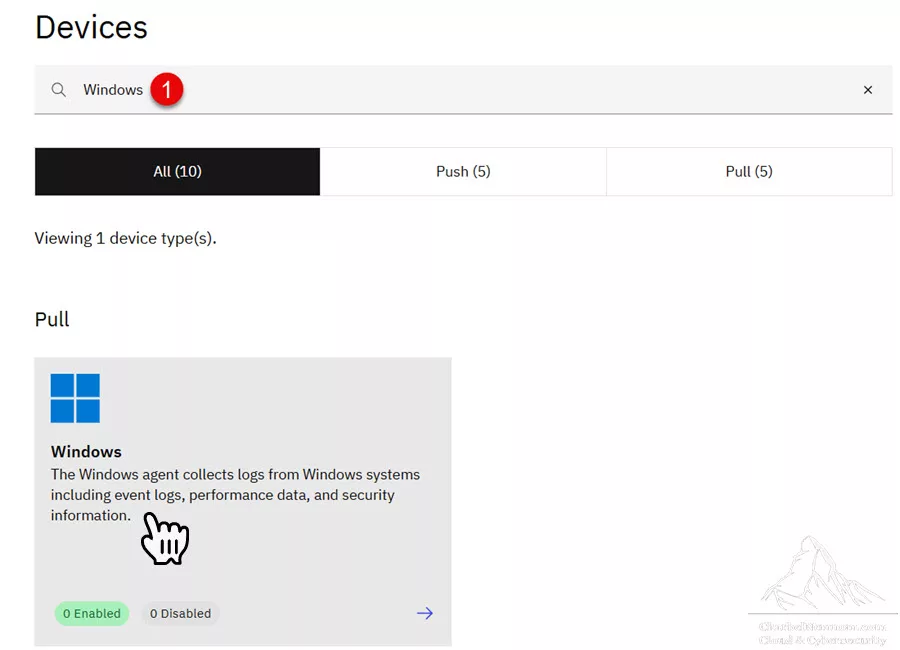
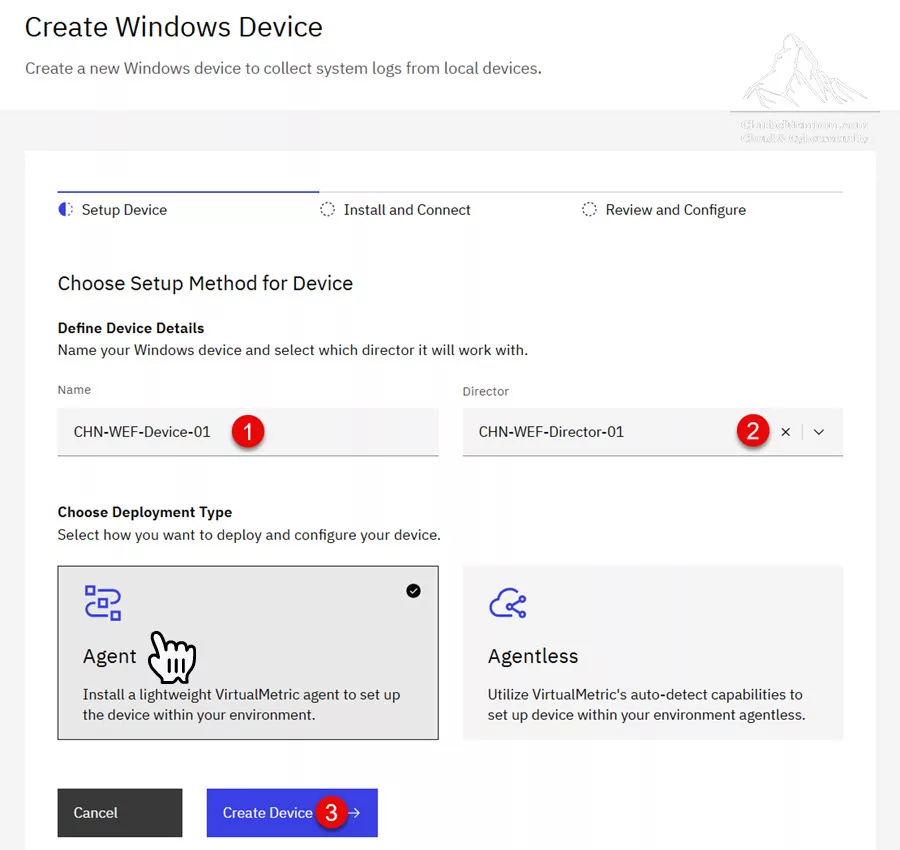
3. On the Windows page, click Add new device and define your device details, as follows, then click Create Device:
- Enter a Name for the Windows device
- Select the Director that we created in Step 2
- Choose Deployment Type (Agent or Agentless). For the purpose of this guide, we will install the lightweight VirtualMetric agent on our WEC server.
4. On the next step, Install and Connect, copy the PowerShell command, as shown in the figure below.
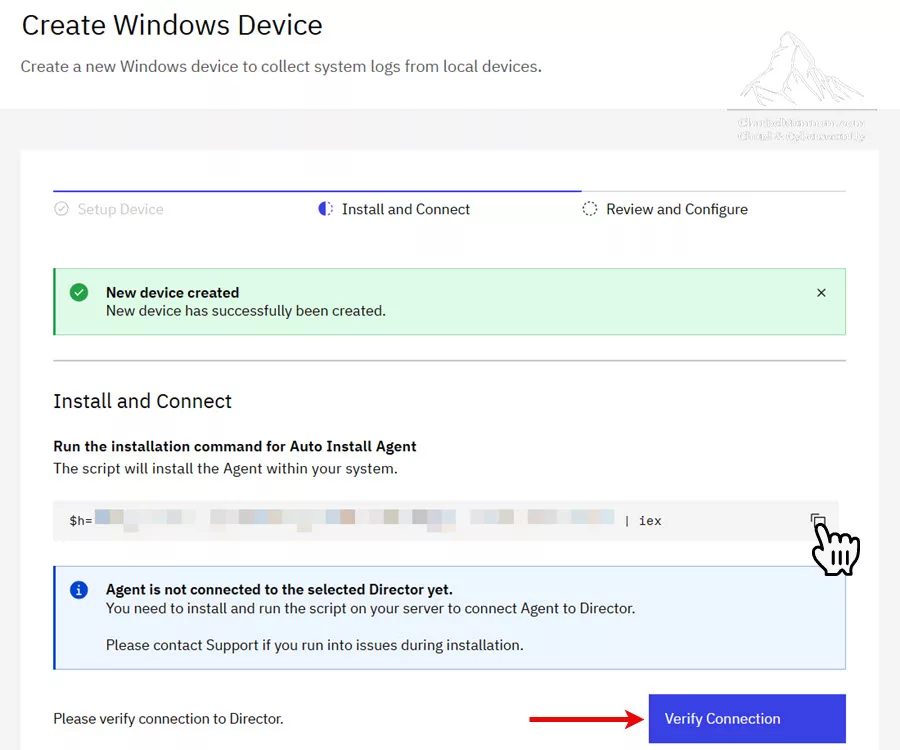
And then run the Auto Install Agent installation command on your designated WEC server and confirm that all four steps have completed successfully.
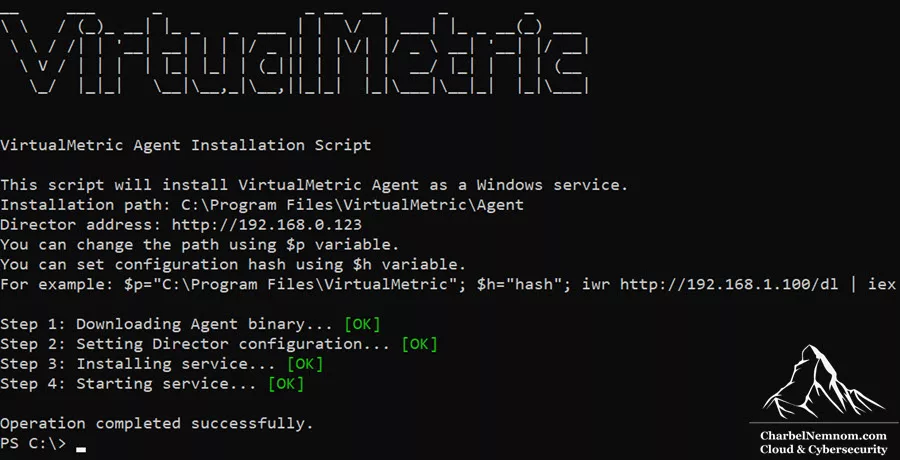
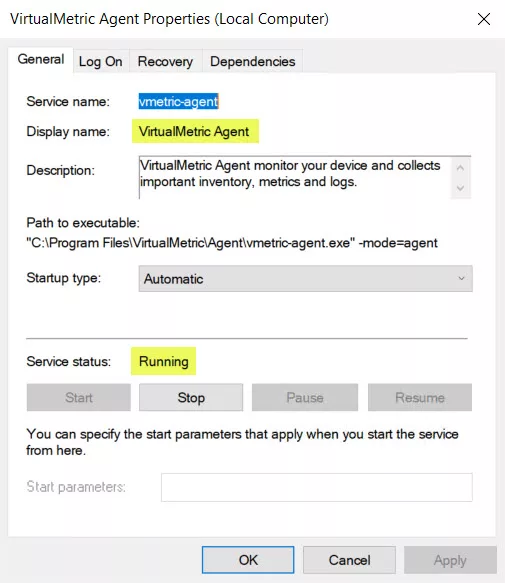
5. Click Verify Connection and confirm the new Windows device has successfully been created and connected. To verify that the Agent is running, you can open services.msc on the designated WEC server and confirm that the VirtualMetric Agent service is running, as shown in the figure below. At the time of this writing, the VirtualMetric Agent version is 1.8.1. Always make sure you’re using the latest release.
As a side note, if you want to uninstall the VirtualMetric Agent service for any reason, run the following command from an admin command prompt (cmd.exe):
"C:\Program Files\VirtualMetric\Agent\vmetric-agent" -service=uninstallOption 2: Agentless endpoint pull (WinRM-based device definition)
This option can be useful for quick Proof of Values (PoVs) on a small set of servers, but for WEF/WEC architectures, it’s less elegant than simply collecting from the WEC aggregation node. If you do use it, be aware that the Windows device configuration includes WinRM parameters and connectivity controls.
Step 4) Create Datasets and Profiles
Next, we need to create a dataset and assign it to our Windows Collector (WEC) device. The new VirtualMetric Datasets and Profiles were introduced to facilitate the collection of dataset types and profile assignments across Windows and Linux.
DataStream’s Agent model is designed around predefined definitions delivered by the Director to simplify configuration and preprocessing terminology (VMFL is referenced during preprocessing). So what we need to configure in this step:
- Device type: Windows/Linux. In this case, Windows for WEC
- Channels to consider (depends on your subscriptions):
- ForwardedEvents (WEF payload typically lands here)
- OR Custom Subscription(s) that you already have configured on the WEC
- Windows Security (on the WEC itself)
- System, Application (optional, depending on your use case)
If you want a structured list of common Windows Security Event IDs/channel groupings, VirtualMetric documents predefined Windows Security-related event IDs that are helpful for later standardizing packs and routes.
Switch to the VirtualMetric DataStream portal and take the following steps:
1. On the left-hand side, click on the hamburger menu, then go to Fleet Management and select Datasets and Profiles.
2. Under the Datasets tab, we can choose between different dataset types, as shown in the figure below. For the purpose of this article, we already have an existing Azure Monitor Data Collection Rule (DCR) that we need to import into VirtualMetric DataStream. Search for the Data Collection Rule and select it.
At the time of this writing, Datasets support the following eight types:
- Windows Security Events
- Windows Event Logs
- Data Collection Rule
- Windows Firewall Logs
- Windows DNS Logs
- Linux System Events
- Linux Audit Events
- Linux Firewall Events
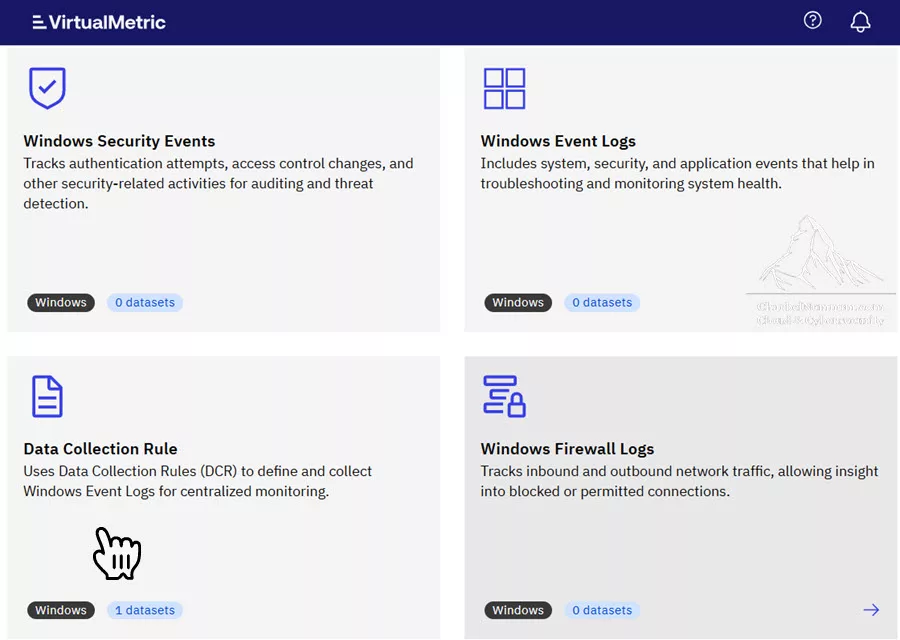
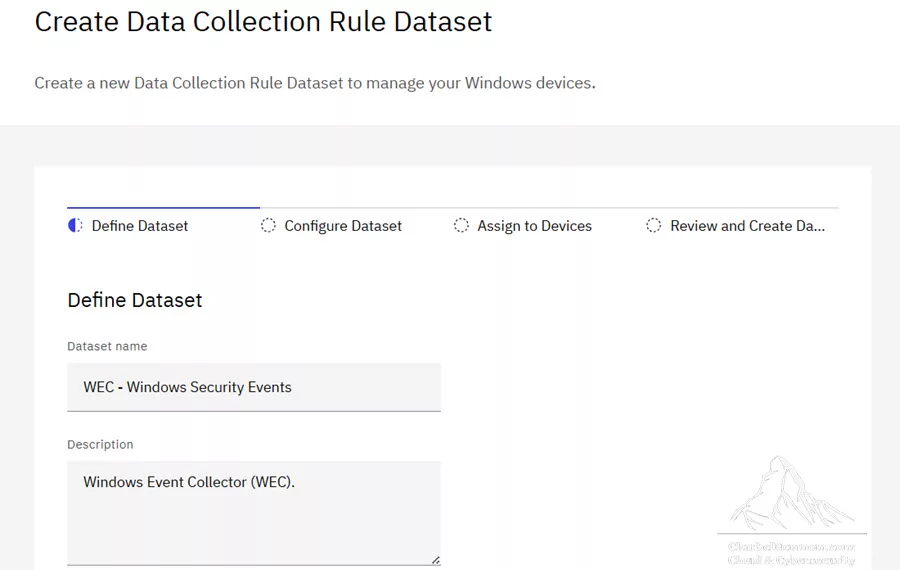
3. Select Create new dataset. On the Define Dataset tab, enter a dataset name and description. Click Next Step.
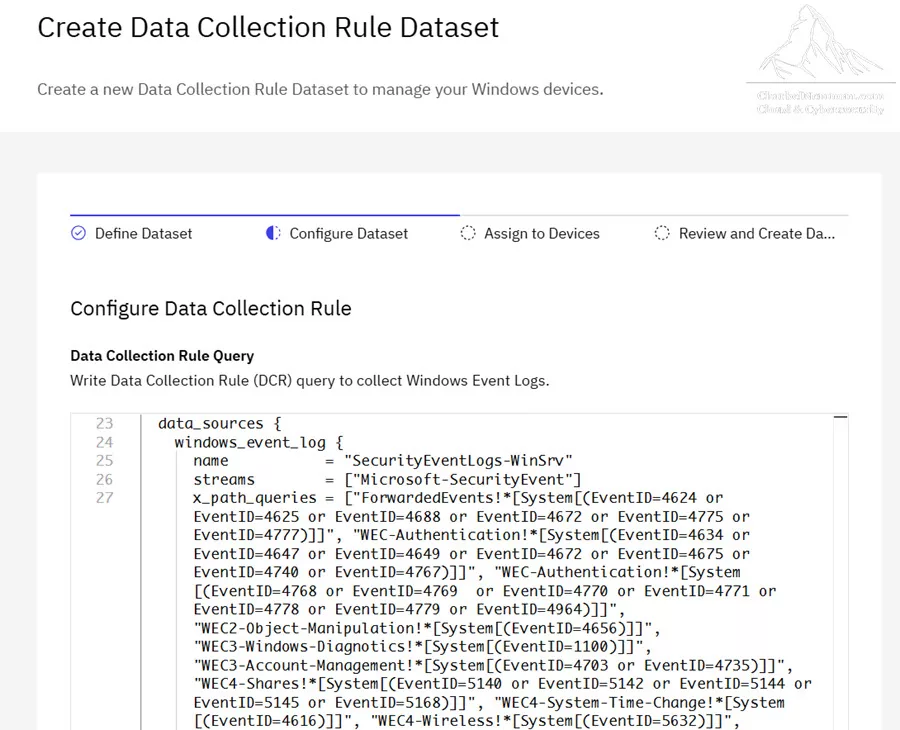
4. On the Configure Dataset tab, we can paste our DCR configuration using an ARM Template, Bicep, or Terraform. You can directly migrate from Azure Monitor Agent (AMA) DCRs to DataStream by leveraging this new capability, as shown in the figure below. So, if you have a very complex DCR with custom filters in your existing environment, you can add it here.
In this guide, we will export our existing, complex DCR template from the Azure portal and add it to DataStream. And the beauty of this is that DataStream will automatically understand the full syntax, whether in JSON, Bicep, or Terraform, including custom filters from your template, as well as the data flow streams (i.e., Microsoft-SecurityEvent, Microsoft-WindowsEvent). This is very powerful!
When finished, click Next Step.
5. On the Assign to Devices tab, add and select the Windows Collector (WEC) device that you created in Step 3. Click Next Step.
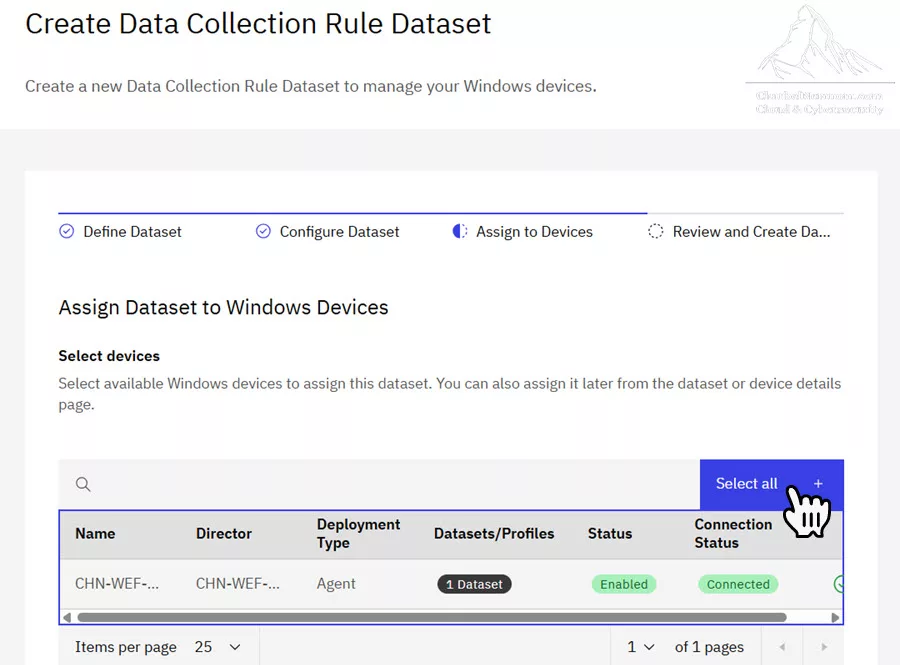
6. Last, review the details and click Create dataset.
Step 5) Install VirtualMetric Solution from Sentinel Content Hub
The next step is to install the VirtualMetric DataStream solution from the Microsoft Sentinel Content Hub.
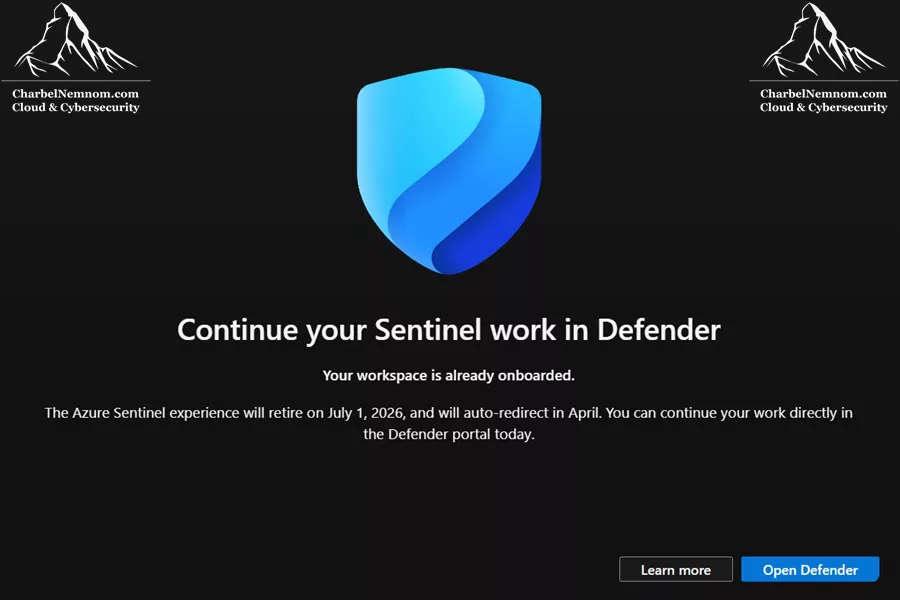
Jump to the Microsoft Sentinel portal in the Defender portal or in the Azure portal and take the following steps. As a side note, Microsoft will sunset the ability to manage Microsoft Sentinel in the Azure portal by March 31, 2027.
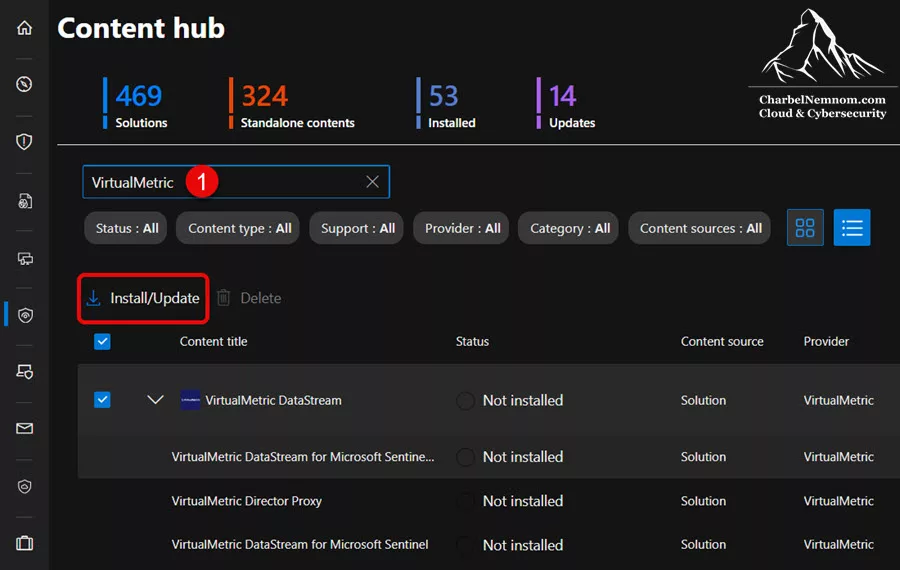
1. On the left-hand side, select Microsoft Sentinel > Content Management > Content Hub, then search for the VirtualMetric solution and install it, as shown in the figure below. The solution includes:
- VirtualMetric DataStream for Microsoft Sentinel: The VirtualMetric DataStream connector deploys Data Collection Rules to ingest security telemetry directly into the Microsoft Sentinel log analytics workspace.
- VirtualMetric DataStream for Microsoft Sentinel data lake: The VirtualMetric DataStream connector deploys Data Collection Rules to ingest security telemetry directly into the Microsoft Sentinel data lake. This option supports simultaneous ingestion to Log Analytics tables for detection and to Sentinel data lake tables for low-cost retention and hunting.
- VirtualMetric Director Proxy: The VirtualMetric Director Proxy deploys an Azure Function App to securely bridge VirtualMetric DataStream with Azure services, including Microsoft Sentinel, Azure Data Explorer, and Azure Storage.
Our focus in this guide is on ingesting security telemetry directly into the Microsoft Sentinel Log Analytics workspace.
2. Once installed, open the Data connectors page under the Configuration blade, and select the VirtualMetric DataStream for Microsoft Sentinel.
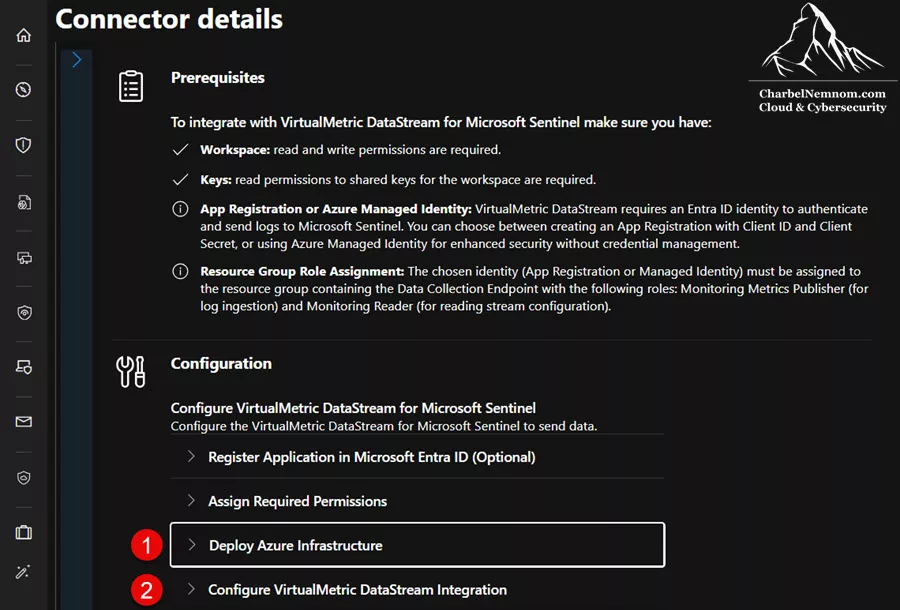
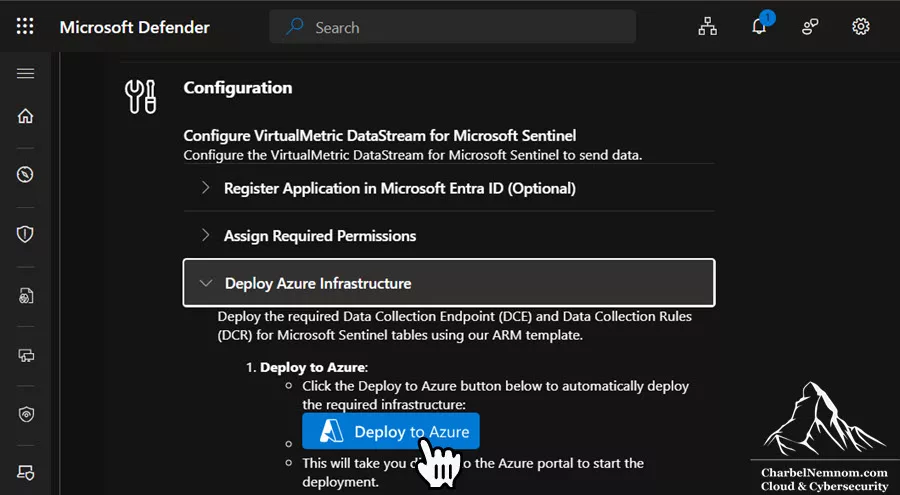
3. Under the Configuration section, we need to deploy the Azure Infrastructure first, and then configure VirtualMetric DataStream integration only, which will deploy the required one Data Collection Endpoint (DCE) and two Data Collection Rules (DCRs) for Microsoft Sentinel using an ARM template. Expand the Deploy Azure Infrastructure section and click Deploy to Azure. This will take you directly to the Azure portal to start the deployment process.
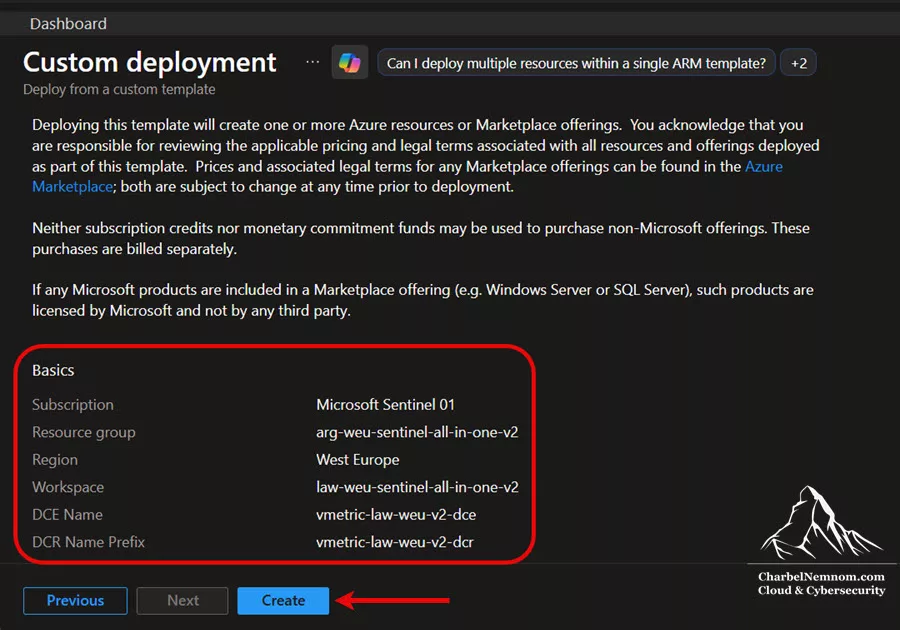
4. On the custom deployment page, configure the following settings:
Project details:
- Subscription: Select your Azure subscription from the dropdown
- Resource group: Select the same resource group where your Log Analytics / Sentinel workspace is deployed
Instance details:
- Region: Select the Azure region where your Log Analytics workspace is located (e.g., West Europe)
- Workspace: Enter your Log Analytics / Sentinel workspace name
- DCE Name: Provide a name for the Data Collection Endpoint (e.g., “vmetric-dce”)
- DCR Name Prefix: Provide a prefix for the Data Collection Rules (e.g., “vmetric-dcr”)
Complete the Deployment:
- Click Review + create to validate the template.
- Review the parameters and click Create to deploy the resources.
- Wait for the deployment to complete (typically takes 2-3 minutes).
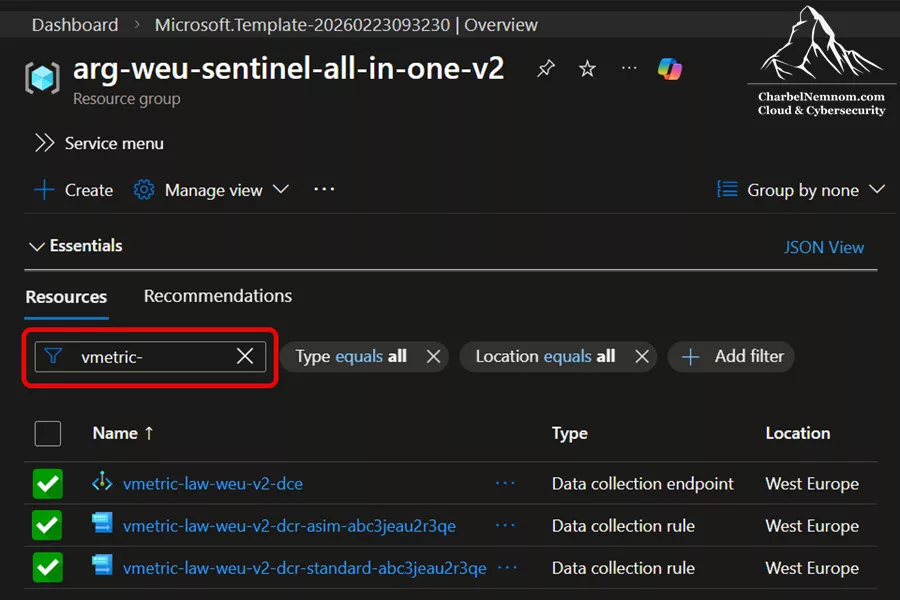
5. After deployment is completed, go to the resource group and verify the following resources were created:
- 1 x Data Collection Endpoint
- 2 x Data Collection Rules
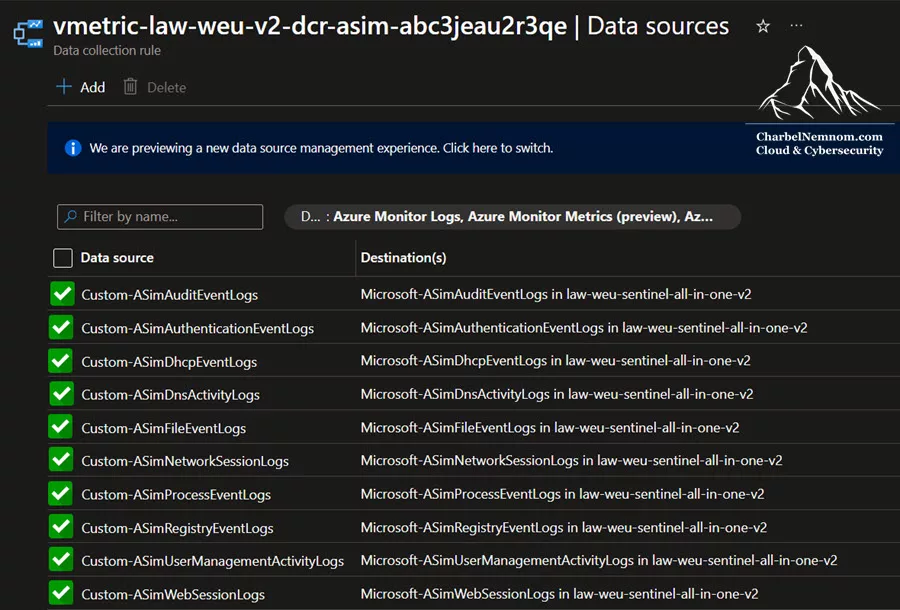
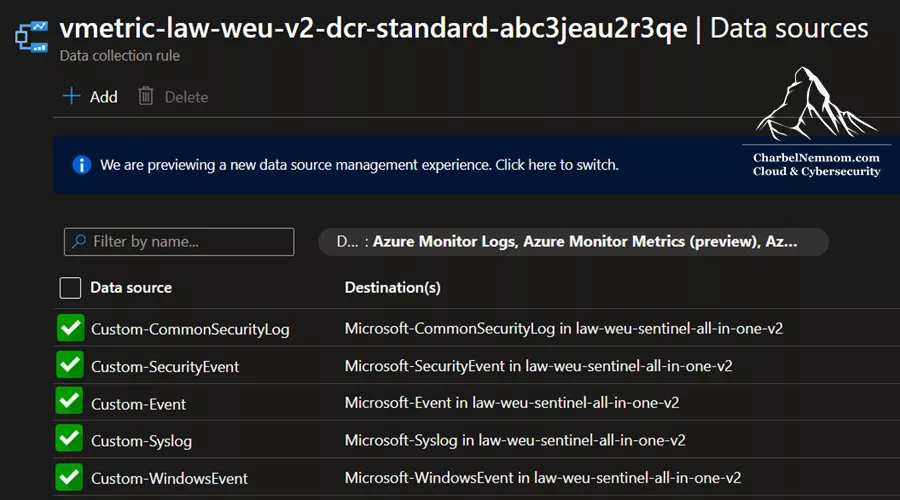
One DCR for the ASIM tables with 10 streams, like ASimRegistryEventLogs, ASimProcessEventLogs, ASimNetworkSessionLogs, ASimDnsActivityLogs, ASimFileEventLogs, ASimDhcpEventLogs, etc.
And the second DCR is for Standard tables with 5 streams, like SecurityEvent, WindowsEvent, Syslog, CommonSecurityLog, and Event. The focus in this guide is on Standard tables.
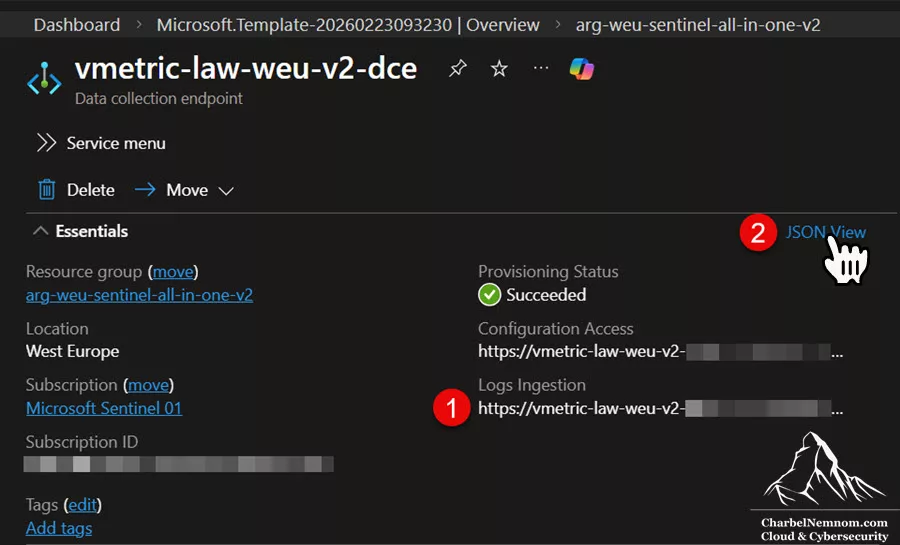
6. Next, click on the DCE and copy the Logs Ingestion URI from the DCE Overview page (format: https://<dce-name>.<region>-1.ingest.monitor.azure.com). The Logs Ingestion URI is required when configuring a manual stream in VirtualMetric DataStream (more on this in a bit).
7. For auto stream configuration, you need to copy the DCE Resource ID from the DCE Overview page under the JSON View, as shown in the figure below (format: /subscriptions/<subscription-id>/resourceGroups/<resource-group-name>/providers/Microsoft.Insights/dataCollectionEndpoints/<dce-name>). In this guide, we’ll leverage the auto-discovery capability in VirtualMetric DataStream to detect and discover the VirtualMetric data collection rules (more on this in a bit).
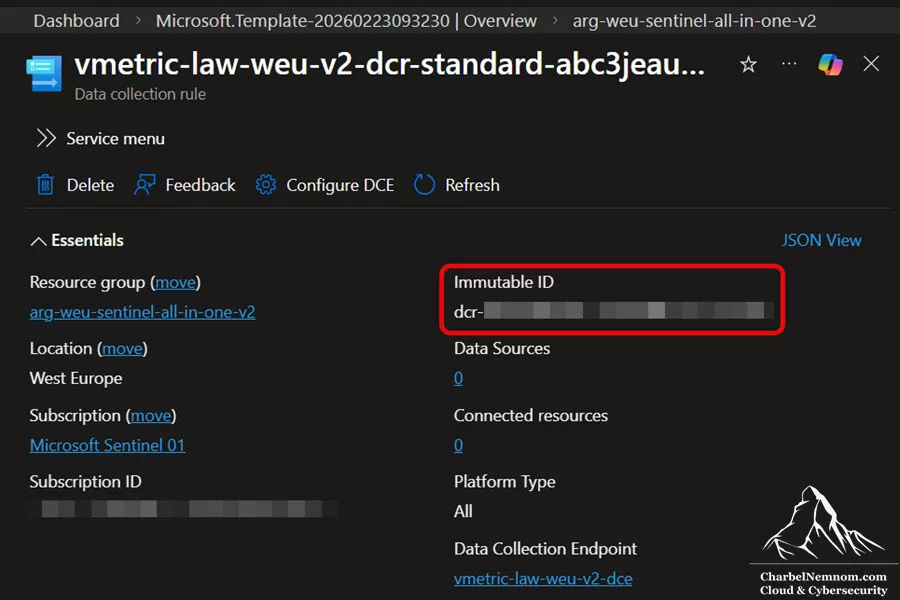
8. Last, open each DCR and note the Immutable ID from the Overview page (format dcr-<random-number>) – You’ll need these for DataStream configuration in the next step. The DCR Immutable ID is required when configuring a manual stream in DataStream (more on this in a bit).
Step 6) Configure VirtualMetric DataStream Sentinel Integration
Now that we have our WEF/WEC device configured, the next step is we need to define where processed Windows telemetry goes.
DataStream provides dedicated Microsoft Sentinel target types (a Microsoft Sentinel target type and a Microsoft Sentinel data lake target type) and documents their properties (workspace identifiers, authentication, format options, etc.). A Target is the output sink—where your pipeline sends the transformed/optimized events after processing.
Switch to the VirtualMetric DataStream portal and take the following steps:
1. On the left-hand side, click on the hamburger menu, then go to Fleet Management and select Targets.
2. Search for Sentinel under Targets. In this guide, we will install Microsoft Sentinel as a target that we can forward data to directly in the Log Analytics workspace for security analysis and real-time monitoring. You can also do the same and install the Sentinel data lake for long-term, cost-effective storage.
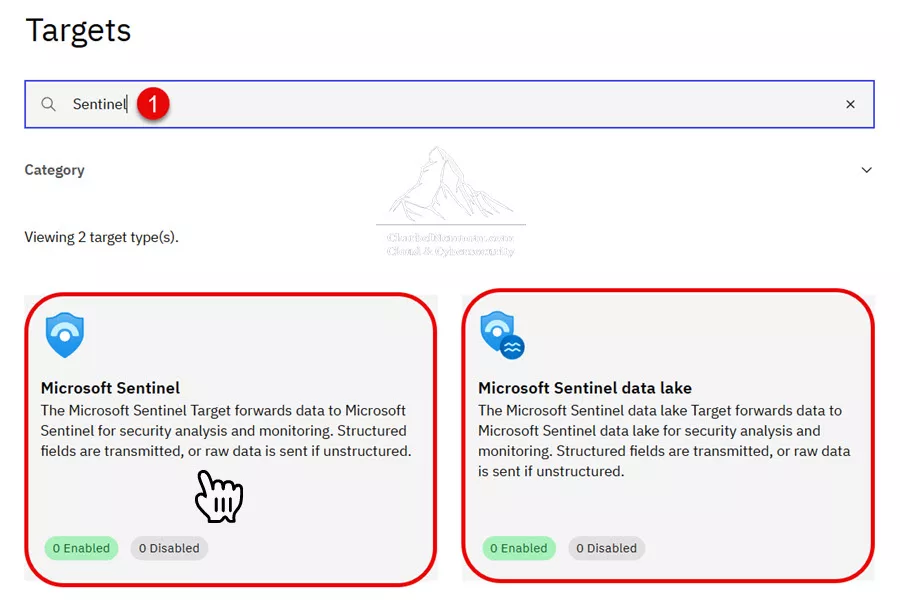
3. On the Microsoft Sentinel target configuration page, click Add new target.
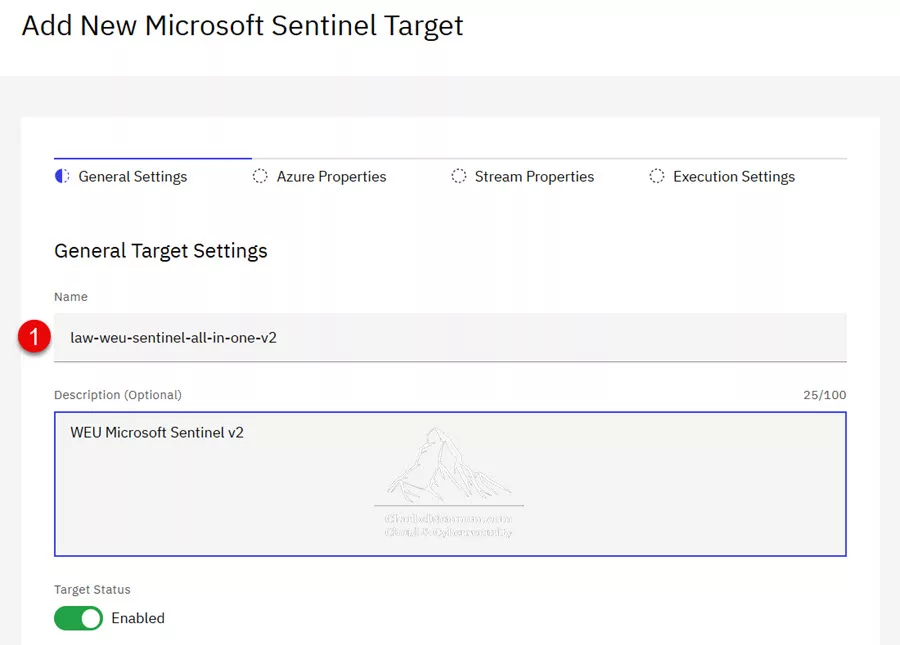
4. Enter a target Name and Description, as shown in the figure below. The target status is enabled by default. Click Next Step.
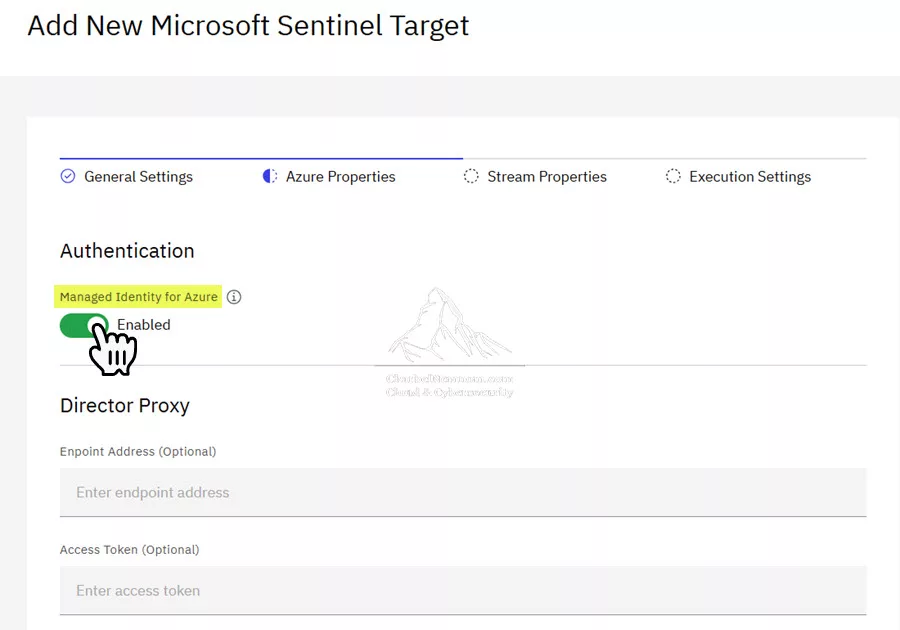
5. Next, on the Azure Properties page, we can see that we have three options to authenticate (Azure Managed Identity / Entra App registration / VirtualMetric Directory Proxy). As we mentioned in the prerequisites section, we’ll use Azure Arc with managed identity.
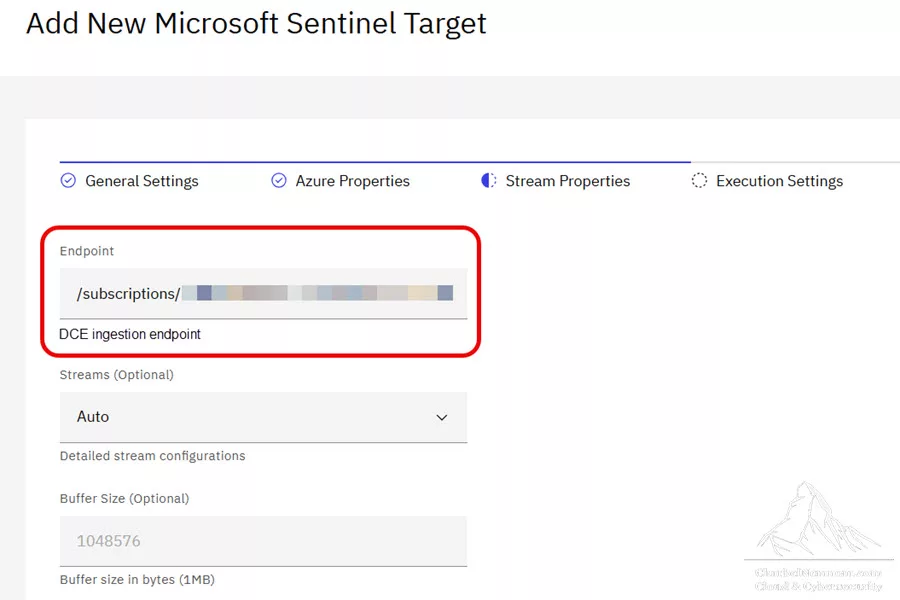
6. On the Stream Properties page, we need to specify the following properties:
-
Endpoint:
- Enter the DCE Resource ID that we showed in the previous step. This is required for Auto streams configuration. In this guide, we’ll use the auto-discovery capability.
- Or enter the DCE Logs Ingestion URI that we showed in the previous step. This is required for the Manual streams configuration.
-
Streams (Auto / Manual):
- Select Auto for automatic stream and DCR detection
- Or configure specific streams manually if needed. If you choose Manual, you need to add a stream configuration name and specify the Data Collection Rule (DCR)
Immutable IDshown in the previous step.
- Optionally, you can set the buffer size in bytes, keep phantom fields, drop unknown stream events, set the cache timeout if needed, and enable the field format for ASIM.
By default, DataStream will remove phantom fields. Common scenarios that cause phantom fields include log splitting with mismatched schemas, temporary fields in transformations, duplicate fields emerging from improper field mapping, and schema modifications without proper cleanup. DataStream also supports specifying a field format, such as ASIM for Microsoft Sentinel, which is relevant when you want DataStream to emit data in a format suitable for ASIM normalization strategies.
Click Next Step.
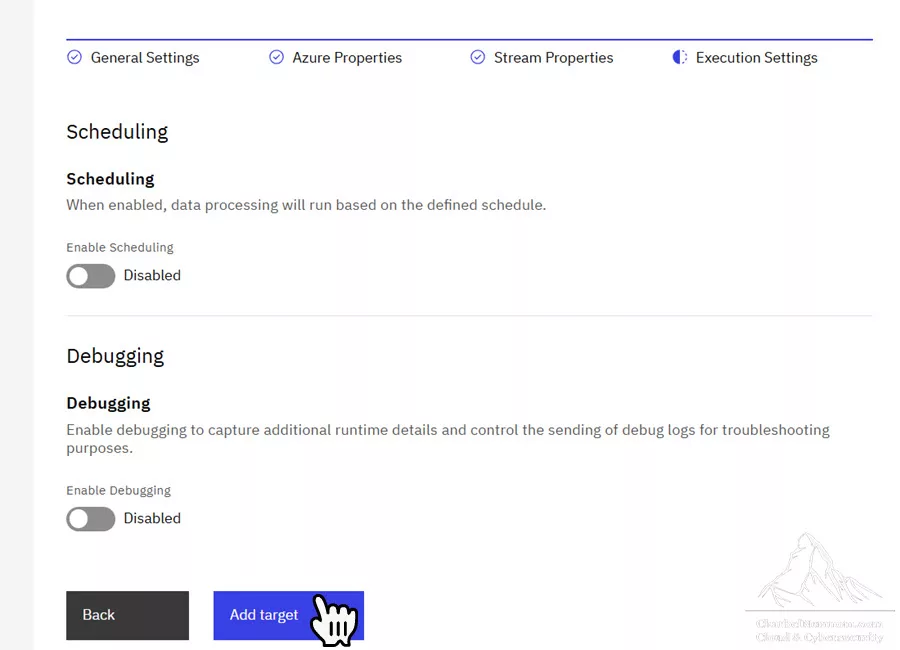
7. Last, on the Execution Settings page, you can enable scheduling and debugging.
- Scheduling: Data processing will run based on the defined schedule.
- Debugging: Enable debugging to capture additional runtime details and to control the sending of debug logs for troubleshooting.
Finally, click Add target to add Microsoft Sentinel.
Note: If you’re building this as an MSSP-style model or want customer isolation, DataStream also supports the Microsoft Sentinel Proxy target model. We won’t implement Proxy in this guide, but we’ll revisit it when we talk about multi-tenant scaling and secure routing patterns.
VirtualMetric DataStream Sentinel Permissions
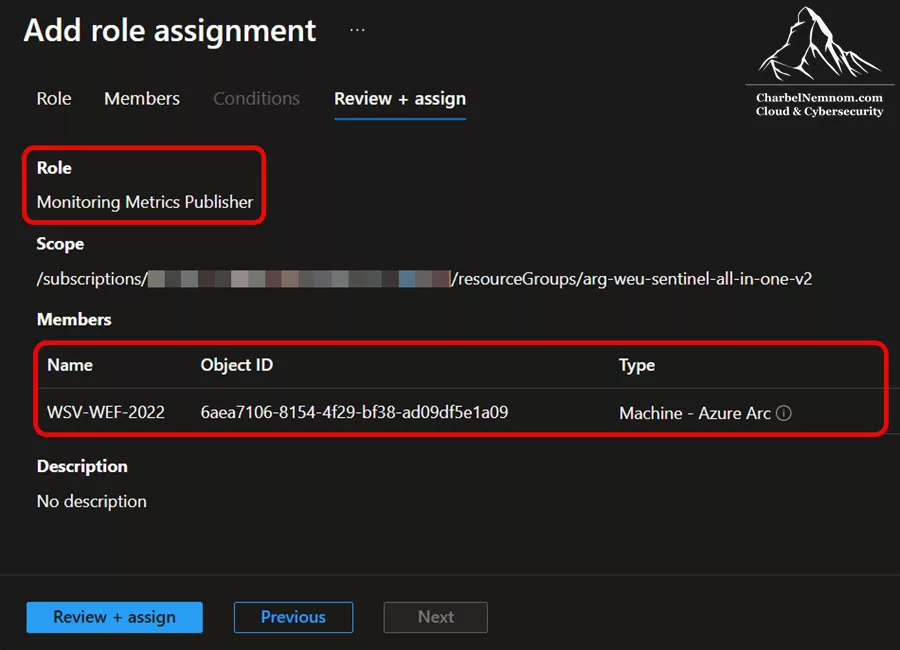
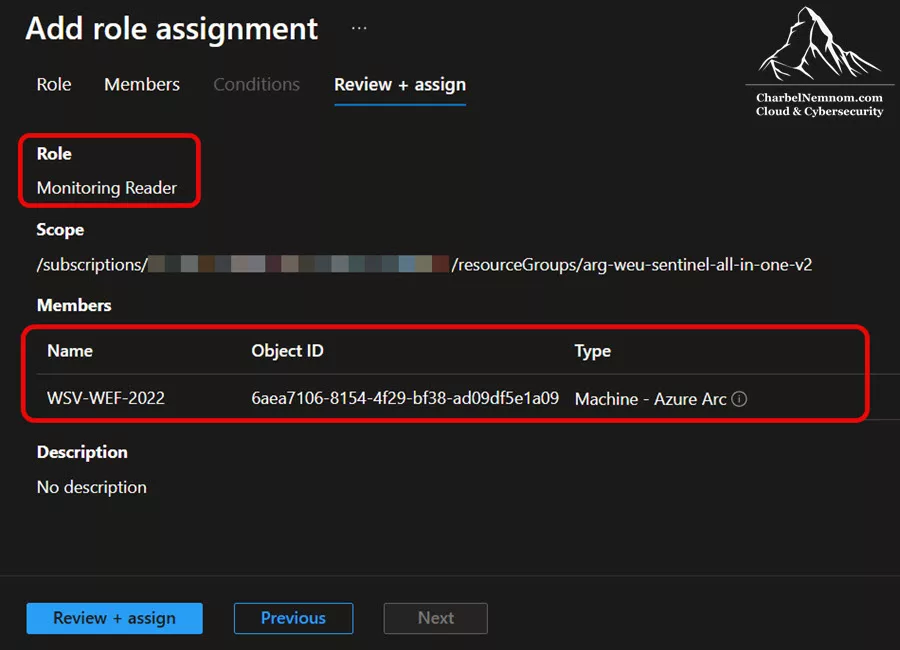
The last part of the VirtualMetric DataStream integration with Sentinel is to give the VirtualMetric Director (WEC machine onboarded with Azure Arc) the following two least privileged permissions for vmetric Data Collection Rules (DCRs) to ingest logs, and Autodiscovery to enable DCR autodiscovery features:
As we mentioned in the prerequisites section, we’ll use an Azure Arc machine with a managed identity to assign the necessary RBAC permissions. Switch to the Azure portal and navigate to the resource group where you deployed vmetric Data Collection Rules and take the following steps:
1. Go to Access Control (IAM) blade
2. Select Add > Add role assignment
3. Search for the Monitoring Metrics Publisher role and assign it to the managed identity, as shown in the figure below.
Repeat the same steps above and assign the second RBAC role Monitoring Reader to the managed identity associated with the Azure Arc machine in this example.
Step 7) Install Content from the VirtualMetric Content Hub
VirtualMetric Content Hub is where DataStream becomes “fast to deploy” instead of “build everything from scratch.” VirtualMetric positions Content Hub as a repository of professionally developed pipeline templates for common security devices and scenarios.
For Microsoft Sentinel specifically, VirtualMetric includes more than 45 content packs, such as:
- Microsoft Sentinel Automation and Normalization Pack
- Microsoft Sentinel ASIM Normalization Pack
- Microsoft Sentinel CSL Normalization Pack
- Microsoft Sentinel Vendor Automation Pack
- Microsoft Windows Security Event Pack for Microsoft Sentinel Details
- Microsoft Windows Event Log Pack for Microsoft Sentinel Details
- Microsoft Windows Firewall Log Pack for Microsoft Sentinel Details
- Microsoft Windows DNS Log Pack for Microsoft Sentinel Details
- …
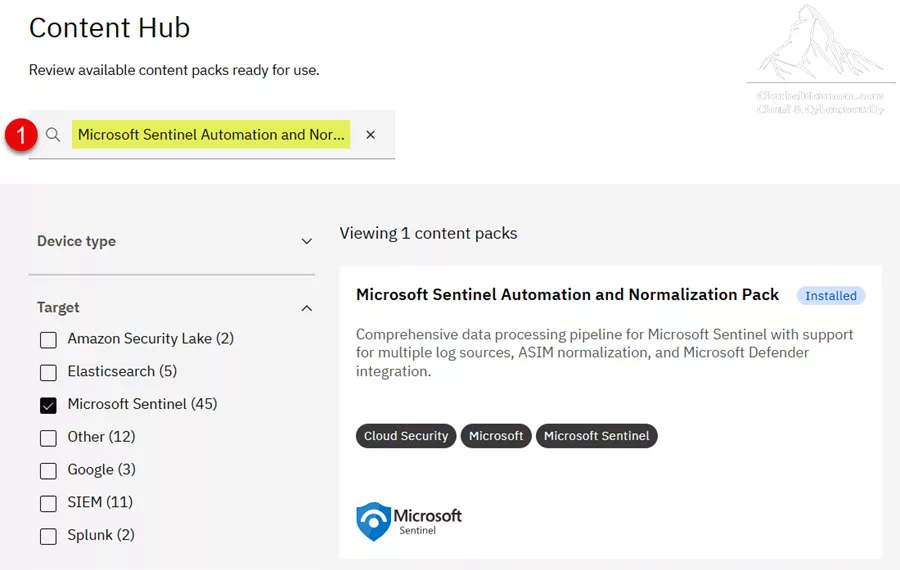
Because we’re focusing on Windows Security Event Logs via WEF/WEC, we need to install the Microsoft Sentinel Automation and Normalization Pack, a comprehensive data processing pipeline for Microsoft Sentinel that supports multiple log sources and ASIM normalization.
Switch to the VirtualMetric DataStream portal and take the following steps:
1. On the left-hand side, click on the hamburger menu, then go to Content Hub.
2. Search for Microsoft Sentinel Automation and Normalization Pack and install it, as shown in the figure below.
3. Once installed, we can open it and look at the Pipeline Overview tab. Then, on the left-hand side, if you scroll down and look for ms_azure_windows_wef and ms_azure_windows_wef_optimize to see how the VirtualMetric pipeline converts, processes, sends, and optimizes Windows Event Forwarding (WEF) messages.
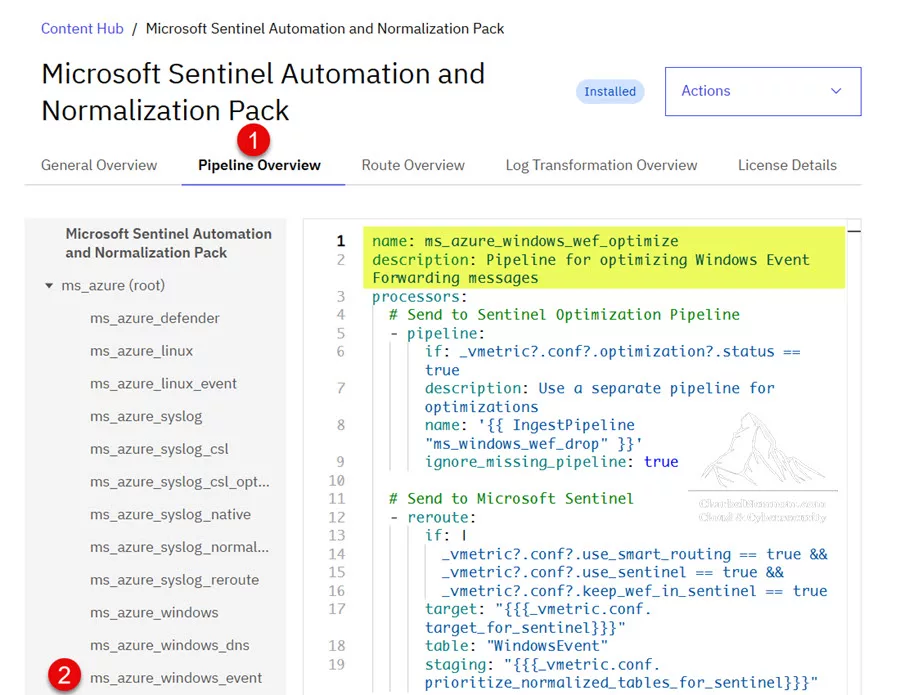
VirtualMetric DataStream’s optimization strategy is based on an analysis of Sentinel usage patterns (parsers, ASIM logic, detection rules), and it includes a Windows-specific optimization section that describes event size reduction via EventData processing. In other words: you’re not starting from a blank YAML file—you’re starting from pipelines shaped for Sentinel reality.
Step 8) Connect data flow with Routes
In the last step, we need to put all this together by creating a route. Routes are where you “wire” the flow: Device → Pipeline → Target.
DataStream provides both Quick Routes and Advanced Routes in the Routes UI:
Quick Routes is ideal for:
- Your first deployment
- Simple “one device to one pipeline to one target” wiring
- Rapid validation without over-engineering
Advanced Routes (what we use in this article) is ideal for:
- Conditional routing (event type, channel, EventID ranges, hostname groups)
- Multi-target routing (Sentinel + Data Lake + ADX + Blob storage)
- Staged routing patterns (preprocessing → normalization → commit)
Switch to the VirtualMetric DataStream portal and take the following steps:
1. On the left-hand side, click on the hamburger menu, then go to Routes and click on Advanced Routes, and then select Add new route.
2. On the Add New Advanced Route page, under the Route Details tab, complete the following fields:
- Route name (Mandatory)
- Route description (Optional)
- Filter (Optional) — You can specify conditional filters.
- Select director (Optional) — Here, we need to select the Director that we created in Step 2
- Default target — Here, we need to select the Microsoft Sentinel target that we created in Step 6
- Select pipeline — Here, we need to select the Microsoft Sentinel Automation and Normalization Pack that we installed in Step 7
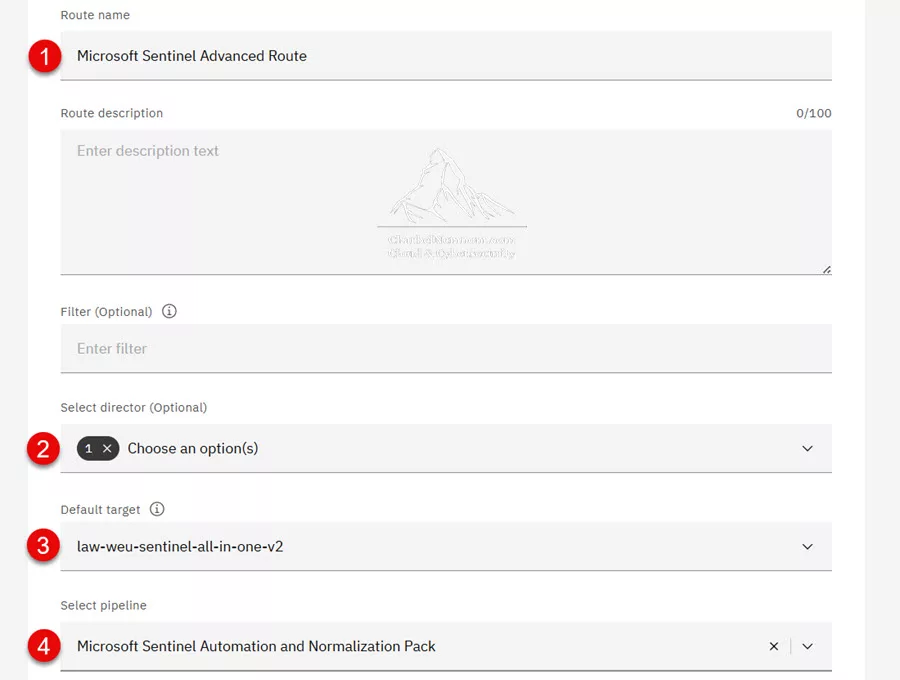
Click Next Step.
3. Under the Route Configuration tab, you can optionally and further configure your route. We’ll skip it for now, as the Microsoft Sentinel Automation and Normalization Pack that we installed in Step 7 will automatically handle the advanced route details here. Click Next Step.
4. Under the Execution Settings tab, you can optionally enable it, so data processing will run based on the defined schedule. Scheduling is disabled by default. Click Add route.
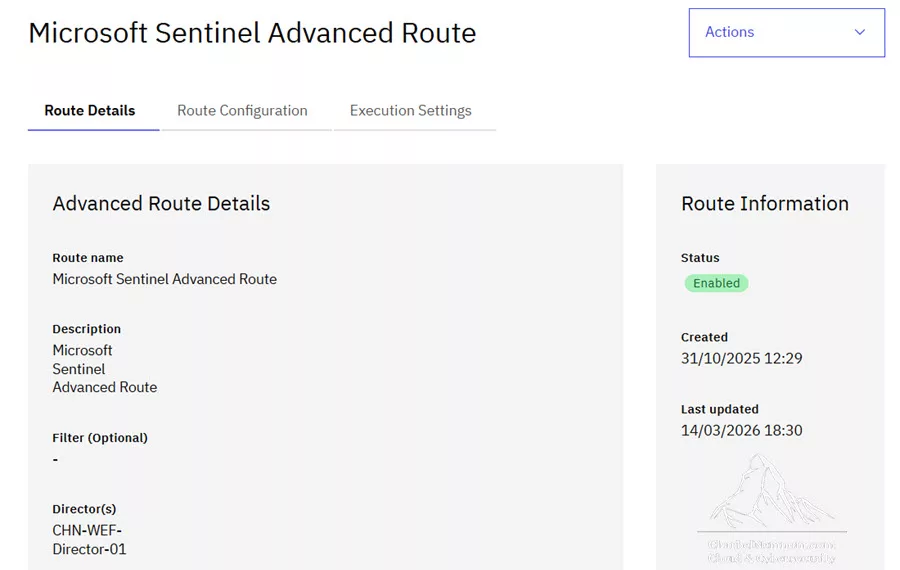
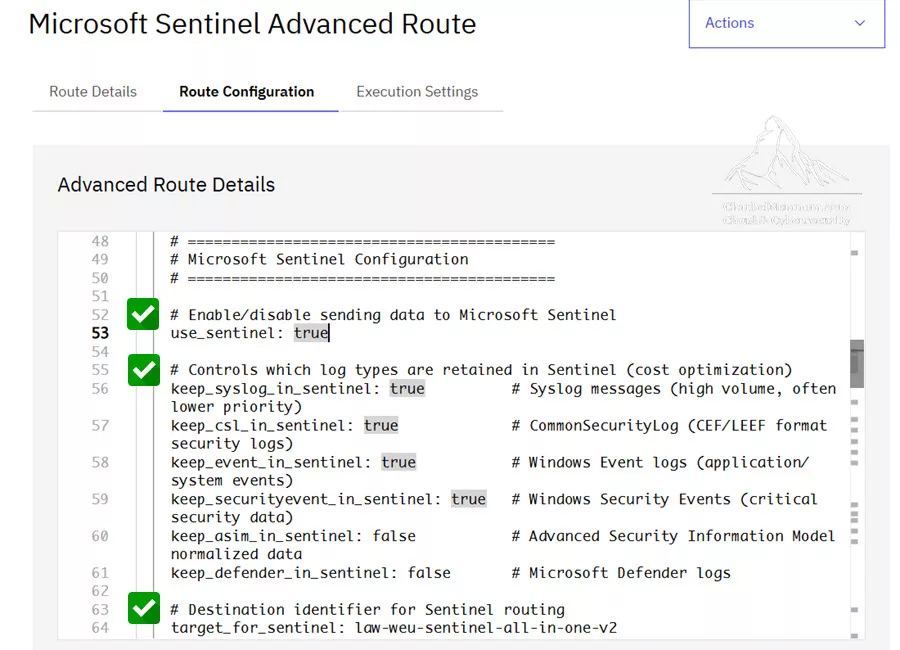
5. Once the advanced route is created, we can open it and look at the route configuration tab. The advanced route details include various routing configurations, which are automatically configured as part of the Microsoft Sentinel Automation and Normalization Pack we installed in Step 7. The route configuration includes:
- Multi-Tier Routing Configuration: Controls whether data is cloned and sent to multiple destinations simultaneously. When enabled, logs can be sent to Sentinel, ADX, and Blob Storage in parallel.
- Microsoft Sentinel Configuration: Enable/disable sending data to Microsoft Sentinel
- Microsoft Sentinel data lake Configuration: Enable/disable sending data to the Sentinel data lake (long-term storage)
- Azure Data Explorer (ADX) Configuration: Enable/disable sending data to Azure Data Explorer (Kusto)
In this guide, we’ll send our ingested logs directly to the Microsoft Sentinel workspace (Analytics Tier) using WEC. As you can see in the figure below, we can control which log types are retained in Sentinel for cost optimization, and the destination target for Sentinel is automatically set to route to our workspace.
Now that we have completed the configuration, we are ready to monitor and verify that our Windows security logs are ingested into Microsoft Sentinel.
Step 9) Monitor and verify (DataStream + Microsoft Sentinel)
Switch to the WEC server where the VirtualMetric Director is installed and run the following command from an admin command prompt (cmd.exe), so we can monitor the VirtualMetric Agent in action:
"C:\Program Files\VirtualMetric\Director\vmetric-director" -consoleOr if you want to just look at the VirtualMetric Director information when processing the logs to the Sentinel workspace through the console, you can run the following command instead:
"C:\Program Files\VirtualMetric\Director\vmetric-director" -console 2>&1 | findstr /i /c:"processed logs"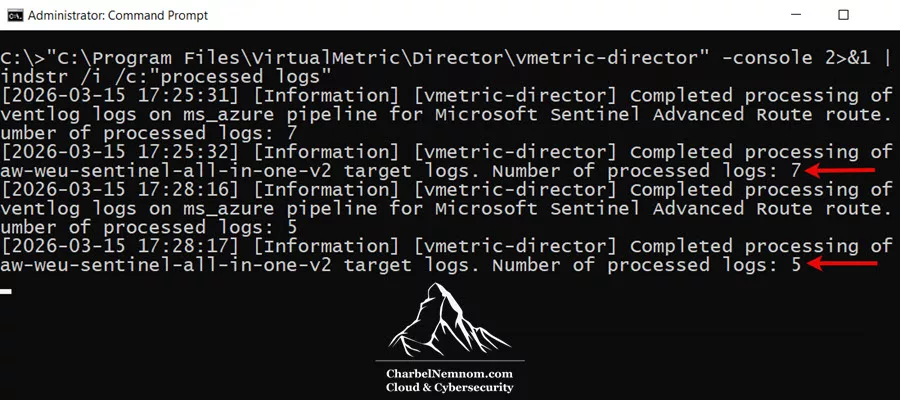
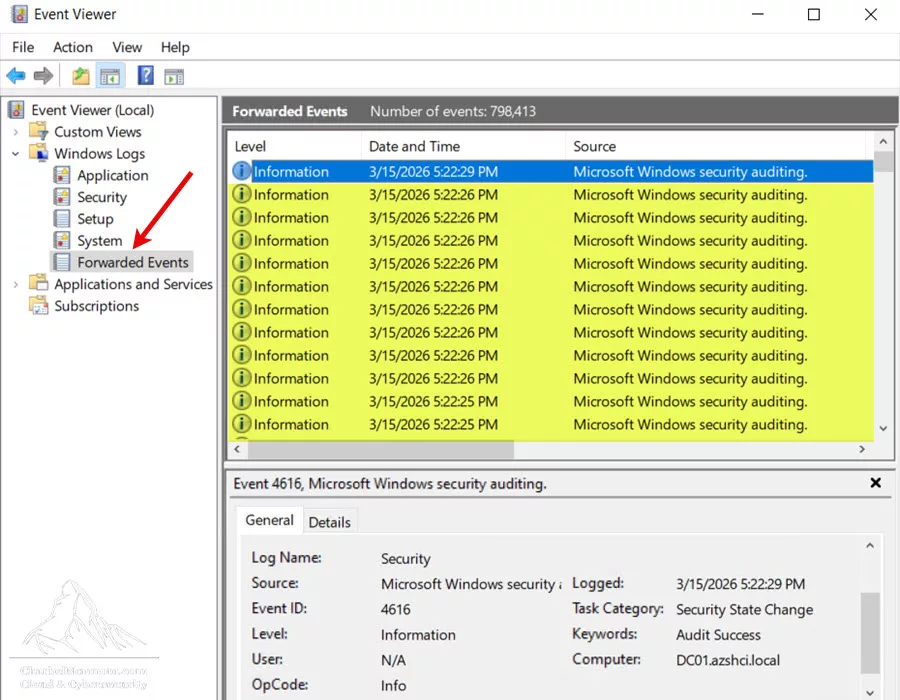
We can verify the same number of events forwarded and logged on our WEC server in Event Viewer > Windows Logs > Forwarded Events. The console shows that 7 and 5 logs were processed; however, we are filtering out the Event ID 4616. So, VirtualMetric DataStream will forward 11 events to Sentinel instead of 12.
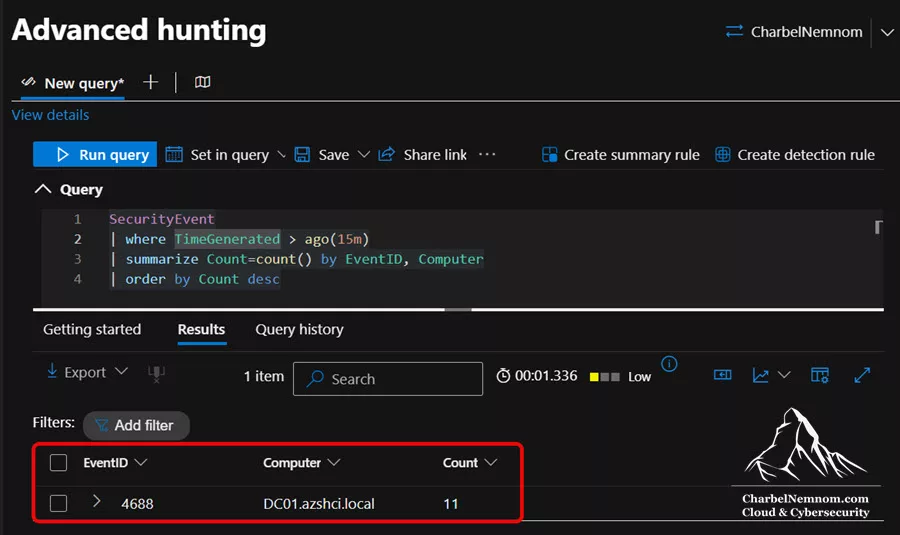
Last, switch to the Defender portal, Advanced hunting, or to the Sentinel workspace in the Azure portal, and verify the ingested SecurityEvent logs by running the following KQL query:
SecurityEvent
| where TimeGenerated > ago(15m)
| summarize Count=count() by EventID, Computer
| order by Count desc
As we can see, 11 events landed in the SecurityEvent table.
As a side note, if you send logs to Sentinel that are older than 2 days, Azure Monitor Logs (which powers Microsoft Sentinel) updates the date to the actual ingest time. Microsoft Sentinel doesn’t support old logs with old timestamps. Please keep in mind the following strict limit on ingestion time:
-
Log Age Limitation: The
TimeGeneratedvalue (the timestamp indicating when the log was created at the source) cannot be older than two days before the time the data is received. - Future Limits: It can also not be more than 1 day in the future.
- Result of Old Logs: If logs are sent that are older than 2 days (or too far in the future), Azure Monitor replaces the original TimeGenerated value with the actual received time (ingestion time).
This limitation exists to prevent data ingestion during closed or finalized billing periods and to ensure that indexing and analytics calculations, which are optimized for recent data, perform efficiently (for more information, see the official ingestion time documentation). So, if you send a log that happened 1 week ago, Sentinel will label it with today’s date (the ingestion time), causing potential inaccuracies in investigation timelines. And if you rely on TimeGenerated for scheduled query rules, these old logs might not be picked up by the queries, making it seem like the data was never sent or was missed.
Once you’ve verified you can move Windows logs from WEC → DataStream → Sentinel, you’re ready for the “real” work: shaping telemetry into high-quality security data. The next steps are to customize pipelines (drop noise, rename/match schema, enrich with lookups) and scale the collection (more sources, more targets).
That’s it, there you have!
Wrapping Up
In Part 2, we moved from architecture to implementation and built a complete, working Windows log ingestion pipeline using WEF/WEC, VirtualMetric DataStream, and Microsoft Sentinel.
We started with an existing Windows Event Collector (WEC) server that was already receiving events forwarded via Windows Event Forwarding (WEF). From there, we deployed the VirtualMetric Director and VirtualMetric Agent, created a Windows device, imported an existing Azure Monitor Data Collection Rule (DCR) as a dataset, installed the VirtualMetric solution in Microsoft Sentinel, configured Microsoft Sentinel as a target, installed the Microsoft Sentinel Automation and Normalization Pack from the VirtualMetric Content Hub, and then tied everything together with an Advanced Route.
At this point, we have a fully functional path where Windows Security/Event Logs are collected from WEC, processed by DataStream, and ingested into Microsoft Sentinel in a much more controlled and flexible way.
And that’s really the key takeaway from this part. We are no longer treating Windows telemetry as a simple “collect and forward everything” problem. Instead, we are introducing a smart processing and routing layer between the Windows collection tier and Sentinel. That gives us much better control over how logs are collected, normalized, and sent, and ultimately how much they cost.
This is also where the DataStream model becomes particularly interesting from an engineering perspective. We are not throwing away existing Microsoft investments. On the contrary, we are building on them. But instead of relying solely on the traditional AMA + DCR ingestion path, we are adding a much more capable telemetry pipeline in the middle, one built for optimization, scaling, routing, normalization, and, later on, tiered storage strategies.
Now that the end-to-end pipeline is up and running, we are ready to move to the next, and probably most important, question:
How does VirtualMetric DataStream actually help reduce cost and optimize Windows telemetry compared to the native Azure Monitor Agent (AMA) approach?
And this is where things start to get really interesting.
Getting Windows logs into Sentinel is easy. Getting the right Windows logs into Sentinel, in the right format, through the right pipeline, and at the right cost — that’s the real challenge. With the foundation now in place, we can move beyond simple ingestion and start focusing on optimization.
In Part 3, we’ll dive into how VirtualMetric DataStream helps reduce cost compared to the native AMA approach, and how to make smarter decisions about filtering, normalization, and where Windows telemetry should actually land.
Remember, you can always support us in developing tools and creating content via Why Contribute? – Charbelnemnom.com Cloud & Cybersecurity
__
Thank you for reading our blog.
Please let us know in the comments section below if you have any questions or feedback.
-Charbel Nemnom-
