Passwords are no longer enough. Even with multifactor authentication (MFA), many organizations are still exposed to phishing-resistant gaps. Traditional MFA methods such as SMS, voice calls, OTP codes, and even push notifications can still be targeted by phishing, MFA fatigue, or adversary-in-the-middle attacks.
This is where Passkeys come in.
Passkeys are based on FIDO2 standards and use public/private key cryptography. The private key never leaves the user’s device or authenticator, and there is no password or shared secret that can be stolen and replayed by an attacker.
In this article, we will look at how to enable and roll out Microsoft Authenticator Passkeys in Microsoft Entra ID, starting with admin accounts first, then expanding to all users.
Table of Contents
Why Microsoft Authenticator Passkeys?
The first question you may ask is, why should we prioritize Microsoft Authenticator Passkeys now?
The answer is simple: Microsoft is moving the sign-in experience away from passwords and toward stronger, phishing-resistant credentials.
There are three important Microsoft changes to be aware of:
1) First, Microsoft published Message Center MC1221452, titled Microsoft Entra ID: General Availability of passkey profiles and migration for existing Passkeys (FIDO2) tenants. According to the Message Center notification, Microsoft introduced passkey profiles and synced passkeys to General Availability for tenants with Passkeys (FIDO2) enabled. Existing configurations are migrated into a Default passkey profile, and administrators can configure the new passkeyType property to allow device-bound passkeys, synced passkeys, or both.
You can check the Message Center notification directly in your tenant here: Microsoft 365 Message Center – MC1221452
What does the automatic migration actually do?
If your tenant already has Passkeys (FIDO2) enabled and you do not opt in to passkey profiles before your automatic enablement window, Microsoft migrates you to a Default passkey profile and sets the passkeyType based on your current attestation configuration:
- Enforce attestation enabled → device-bound passkeys only.
- Enforce attestation disabled → device-bound and synced passkeys. In other words, a tenant with attestation off silently gains synced passkeys after migration.
Existing key restrictions and user targets are preserved, and no other authentication methods are turned on.
There is a second effect to watch for. If your Authentication methods registration campaign is in the Microsoft-managed state and your tenant is in scope, the campaign is updated automatically after migration:
- Targeted method changes from Microsoft Authenticator to Passkeys (FIDO2).
- Days allowed to snooze drops to 1 day and is no longer configurable.
- Limited number of snoozes is set to Disabled and is no longer configurable.
- Targeting expands from voice/text users to all MFA-capable users.
The net effect is that in-scope users start receiving passkey registration nudges during sign-in after completing MFA — without any action on your part.
Note: “In scope” here means all of the following are true for the tenant — the change doesn’t hit every Microsoft-managed tenant:
- The Passkeys (FIDO2) authentication method policy is Enabled.
- The Authentication methods registration campaign is set to Microsoft-managed.
- Allow self-service setup is Enabled.
- Target specific AAGUIDs is not selected (no AAGUID restrictions).
- At least one user is enabled for both synced and device-bound passkeys.
If any one of these isn’t met, the registration-campaign changes above don’t apply. See MC1221452 for the authoritative list.
What to do: If you want anything other than the migration defaults, opt in to passkey profiles before your tenant’s enablement window and set the Default profile’s passkeyType yourself. If you do not want the registration campaign to nudge for passkeys, either switch it to Enabled and keep targeting Microsoft Authenticator, or set it to Disabled. Then update your help-desk runbook, so support (service-desk) knows the behavior changed.
2) Second, Microsoft documents System-preferred authentication. This feature prompts users to sign in using the most secure method they have registered. For example, if a user has both a password and a passkey registered, Microsoft Entra ID can prefer the passkey instead of the password. Microsoft notes that the Microsoft-managed behavior affects both first-factor and multifactor authentication and is being gradually rolled out to tenants. See the official Microsoft Learn documentation for the current rollout timeline: System-preferred authentication in Microsoft Entra ID.
3) Third, on July 13, 2026, Microsoft announced that passkeys will become the default authentication method in Microsoft Entra ID. Beginning September 1, 2026, Microsoft rolls this out gradually. As it reaches your tenant, users enabled for SMS or voice authentication are automatically enabled for passkeys and are prompted to register one at their next multifactor authentication. Microsoft then retires its native SMS and voice authentication delivery on February 1, 2027; after that date, users who rely on SMS or voice must register a passkey before they can sign in, and the prompt is enforced with no opt-out.
Organizations with a regulatory or business need for SMS or voice can source it from a telecom partner through the Microsoft Security Store, at their own cost. These dates apply to the public cloud, with other cloud environments to follow on a separate timeline.
This is exactly why the deliberate, admin-first rollout in this guide matters: get ahead of the change on your own terms instead of waiting for the default experience to arrive.
In other words, if a user has a strong phishing-resistant credential such as a passkey, the sign-in experience can become passwordless. This improves both security and user experience.
For organizations already investing in Microsoft Entra ID, Conditional Access, and Zero Trust, Microsoft Authenticator Passkeys are a practical next step. If you are preparing your tenant for Microsoft MFA enforcement and stronger authentication controls, you may also want to read my previous article: Azure Mandatory MFA Planning Guide – Boost Security.
What are Passkeys?
A passkey is a phishing-resistant credential based on FIDO2/WebAuthn standards. So, instead of relying on a password that can be stolen, reused, or phished, a passkey uses a cryptographic key pair:
- The private key remains protected on the device or authenticator.
- The public key is registered with the service, such as Microsoft Entra ID.
- During sign-in, Microsoft Entra ID sends a challenge.
- The authenticator signs the challenge with the private key.
- Microsoft Entra ID validates the response using the public key.
There is no password to type, no code to copy, and nothing useful for an attacker to steal from the user. And the good news is that Microsoft Entra ID already supports Passkeys under the Passkey (FIDO2) authentication method.
Admin-first deployment strategy
For this deployment, we will focus on Microsoft Authenticator Passkeys and start with admin accounts first. This is the recommended approach because administrative accounts have privileged access and are high-value targets for attackers.
Please note that enabling a passkey profile and enforcing a passkey requirement are two different things.
The Passkey profile controls who can register and use specific types of passkeys.
The Conditional Access policy controls who is required to use phishing-resistant MFA when accessing cloud resources.
Prerequisites
Before you start, make sure you have the following:
1) Licensing: You need Microsoft Entra ID licensing that supports Conditional Access and Authentication Strengths. Recommended licenses:
- Microsoft Entra ID P1 for Conditional Access
- Microsoft Entra ID P2 for Identity Protection and privileged access scenarios
- Microsoft Entra Suite or Microsoft 365 E5, depending on your environment
2) Admin roles: You need the following roles:
- Authentication Policy Administrator to manage authentication methods and Passkey profiles
- Conditional Access Administrator to create and manage Conditional Access policies
- Global Administrator only if required by your organization’s process. The above two roles are enough. And remember to always use the least privileged roles.
3) Devices: For Microsoft Authenticator Passkeys, users need:
- Microsoft Authenticator installed
- iOS 17 or later, or Android 14 or later.
Note: On some Android 14 devices, you can’t enable Microsoft Authenticator as a passkey provider. If that setting is unavailable, upgrade to Android 15. This matters for BYOD fleets where device OS versions vary.
- Device screen lock enabled
- Internet connectivity
- Bluetooth enabled for cross-device authentication scenarios
Microsoft Authenticator passkeys are device-bound, which means they are tied to the mobile device where they are created.
Assuming you have all the prerequisites in place, take the following steps:
Step 1: Prepare emergency access accounts
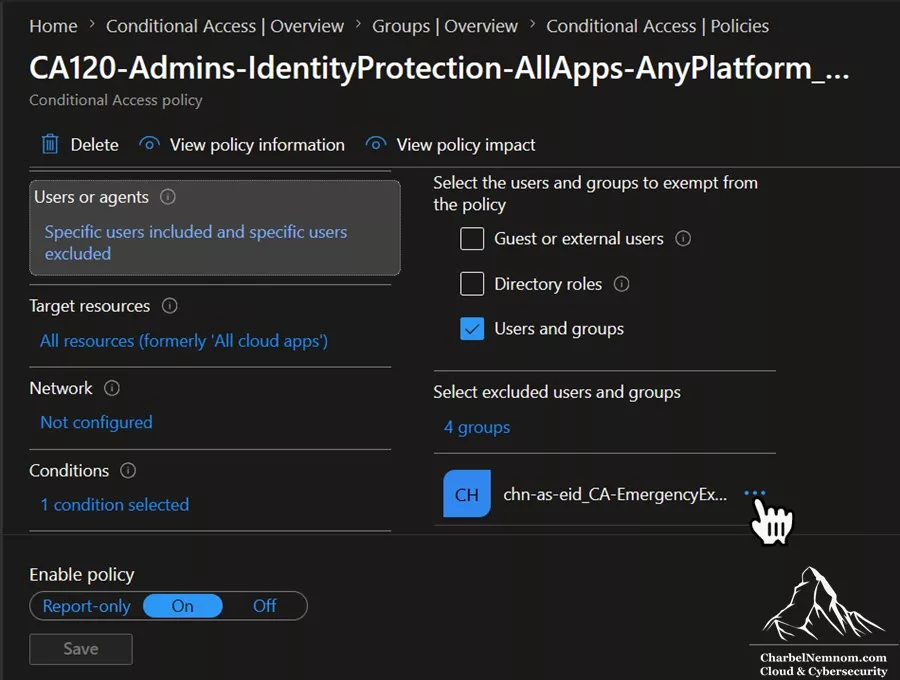
Before enabling any strong Conditional Access policy, make sure you have at least two emergency access, or break-glass, accounts.
This step is critical because Conditional Access policies can block access to Microsoft Entra ID if they are misconfigured. If the only administrator account is impacted by a new policy, you could lock yourself out of the tenant. You can skip this step if you already have these emergency accounts in place.
Emergency access accounts should be:
- Cloud-only accounts
- Excluded from Conditional Access policies
- Monitored with alerts
- Protected with strong credentials
- Stored securely
- Used only for emergencies
Suggested naming convention:
- bg-admin-01@tenant.onmicrosoft.com
- bg-admin-02@tenant.onmicrosoft.com
Microsoft recommends creating at least two emergency access (break-glass) accounts in your tenant. Having exactly two ensures redundancy while keeping your attack surface small. If one account is compromised or lost during an emergency, you have a secondary backup to regain access.
Verify that emergency access accounts are excluded from any Conditional Access policy that blocks or restricts sign-in. Then sign in with both accounts before continuing. Test access to:
Do not continue until emergency access is confirmed.
Related article: How To Safely Disable Security Defaults in Microsoft Entra ID
Step 2: Create the admin pilot group
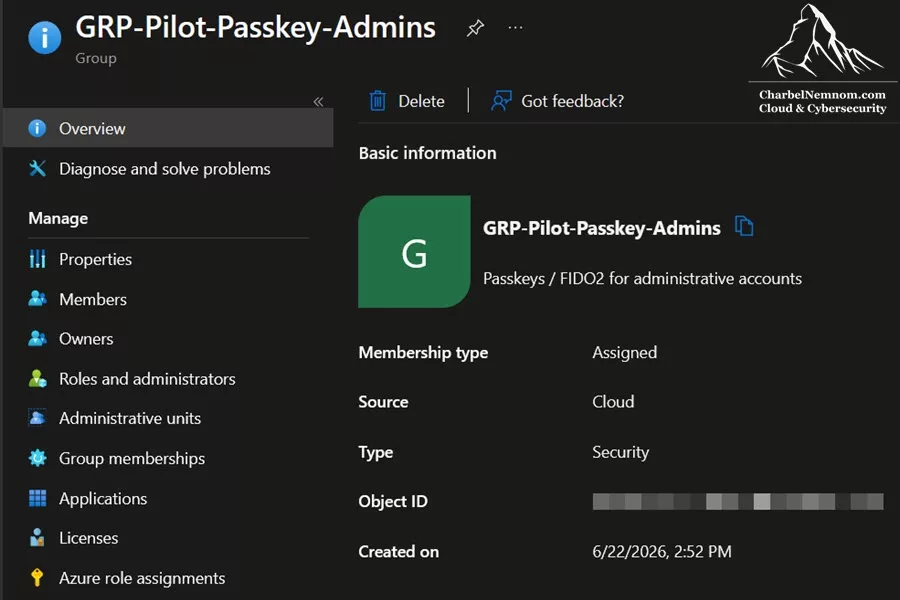
The next step is to create a dedicated security group for the admin pilot.
This group allows you to control exactly which administrators are part of the first rollout wave. Instead of enabling Passkeys for all administrators at once, you start with one or two test accounts, validate the experience, and then expand gradually.
Open the Microsoft Entra admin center and take the following steps:
1) Go to Entra ID > Groups > New group. Create the following group:
- Group type: Security
- Group name: GRP-Pilot-Passkey-Admins
- Membership type: Assigned
Add only one or two admin accounts for the first test. For example:
- Global Administrator
- Security Administrator
- Authentication Administrator
- Conditional Access Administrator
- Privileged Role Administrator
Do not add all admins at once. Keep the first pilot small. This new security group will be used in two places:
- The Passkey profile assignment
- The Conditional Access policy assignment
Step 3: Enable Passkey Profiles
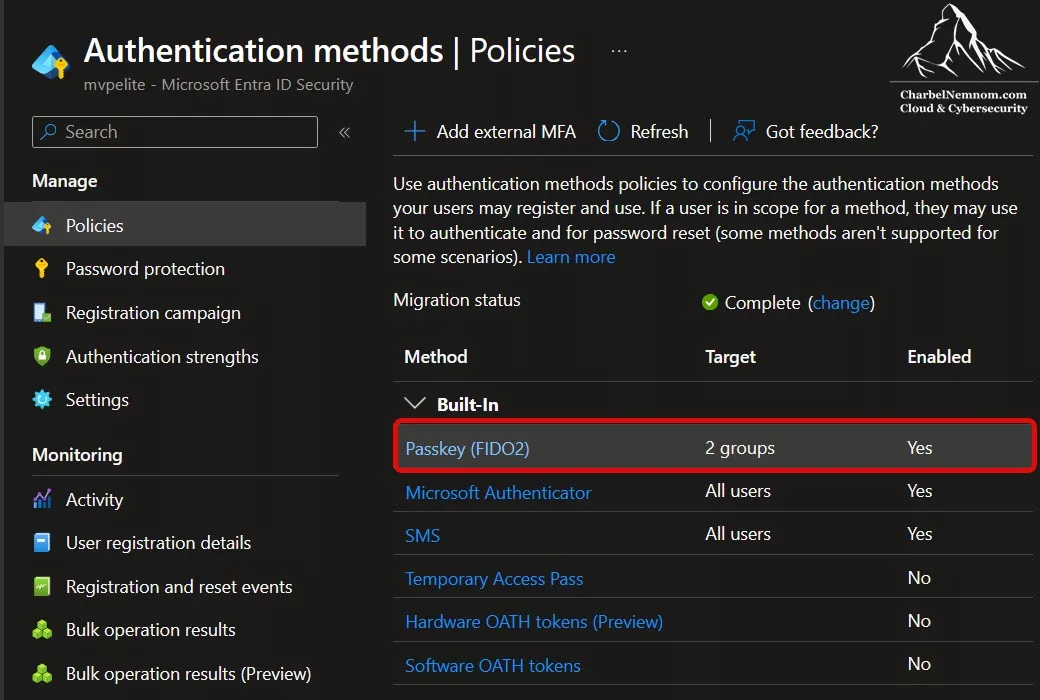
Now we will enable Passkey profiles in Microsoft Entra ID. Passkey profiles allow administrators to define different Passkey configurations for different groups of users. For example, you can create a stricter profile for administrators and a different profile for standard users.
Open the Microsoft Entra admin center and take the following steps:
1) Go to Entra ID > Authentication methods > Policies > Passkey (FIDO2)
If your tenant shows a banner to enable Passkey profiles, enable it.
Important: After you enable Passkey profiles, you cannot opt out. Microsoft automatically transfers existing global Passkey (FIDO2) settings into a Default passkey profile.
At the time of writing, the Microsoft Entra admin center shows that up to 10 passkey profiles are supported. Your previous Passkey (FIDO2) settings are moved into the Default passkey profile when profiles are enabled.
Note: Microsoft documentation and portal text can sometimes differ during staged rollouts. Always validate the current limit in your own Microsoft Entra admin center before planning a large multi-profile deployment.
Step 4: Create the Microsoft Authenticator Passkey profile
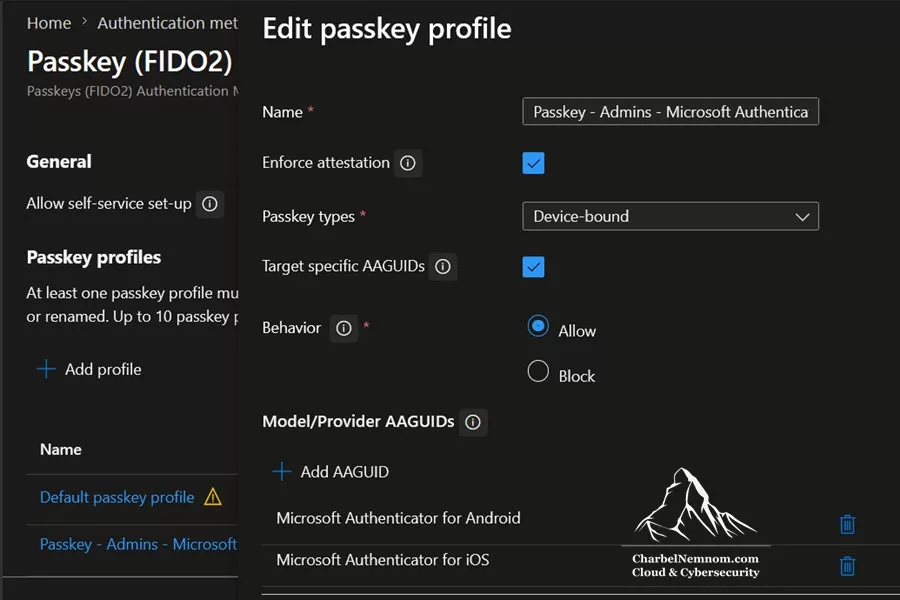
Next, we need to create a dedicated Passkey profile for Microsoft Authenticator. This profile controls which type of Passkeys are allowed for the targeted group. In this example, we want a strict admin profile that allows only device-bound Microsoft Authenticator Passkeys.
Open the Microsoft Entra admin center and take the following steps:
1) Go to Entra ID > Authentication methods > Policies > Passkey (FIDO2)
2) Passkey (FIDO2) > Configure > + Add passkey profile
3) Use the following settings:
- Name: Passkey – Admins – Microsoft Authenticator
- Passkey type: Device-bound
- Enforce attestation: Yes
- Target specific AAGUIDs: Yes
- Behavior: Allow
- Model/Provider AAGUIDs:
- Microsoft Authenticator for Android
- Microsoft Authenticator for iOS
This configuration means that only device-bound passkeys created by Microsoft Authenticator on iOS or Android are allowed. Microsoft Authenticator AAGUIDs:
- Microsoft Authenticator for Android:
de1e552d-db1d-4423-a619-566b625cdc84 - Microsoft Authenticator for iOS:
90a3ccdf-635c-4729-a248-9b709135078f
For the first lab test, you can set Enforce attestation to No to reduce registration friction. However, for production admin accounts, I recommend using:
- Enforce attestation: Yes
- Passkey type: Device-bound
- Target specific AAGUIDs: Yes
- Behavior: Allow
- Allowed providers: Microsoft Authenticator for Android and iOS
Please note that when attestation is enabled, users must register the passkey directly from Microsoft Authenticator. Cross-device registration flows do not support attested passkey registration.
Step 5: Assign the profile to the admin pilot group
After creating the profile, assign it to the admin pilot group. Creating a Passkey profile alone does not make it available to users. You must also assign the profile to a target group.
Open the Microsoft Entra admin center and take the following steps:
1) Go to Entra ID > Authentication methods > Policies > Passkey (FIDO2)
2) Passkey (FIDO2) > Enable and Target > + Add target
Configure the target:
- Target: Select targets
- Group: GRP-Pilot-Passkey-Admins
- Assigned passkey profile: Passkey – Admins – Microsoft Authenticator
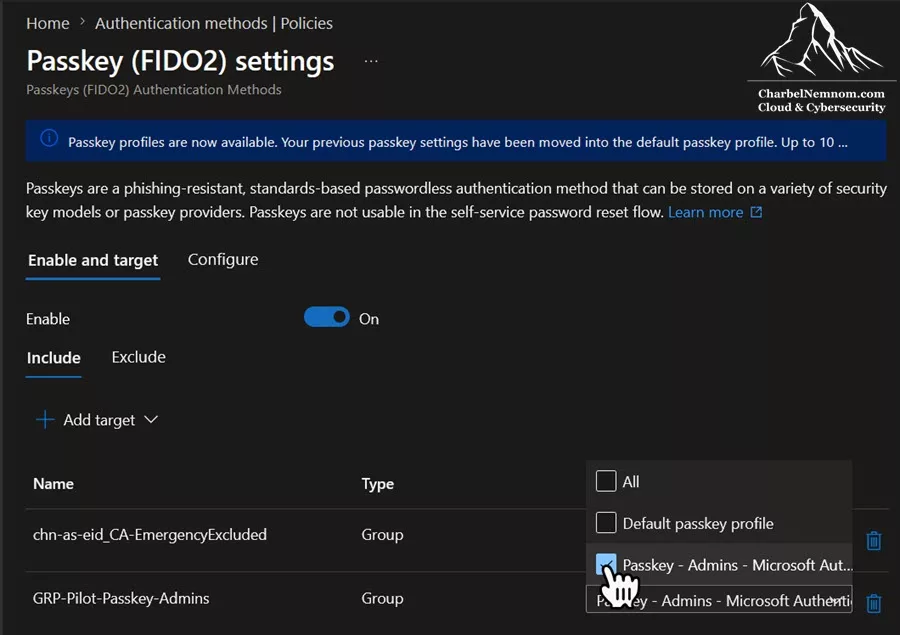
The final state should be:
- Passkey (FIDO2): Enabled
- Target group: GRP-Pilot-Passkey-Admins
- Assigned profile: Passkey – Admins – Microsoft Authenticator
- Self-service setup: Yes
- Allowed provider: Microsoft Authenticator only
Also confirm that Allow self-service set-up is enabled, as shown in the figure below.
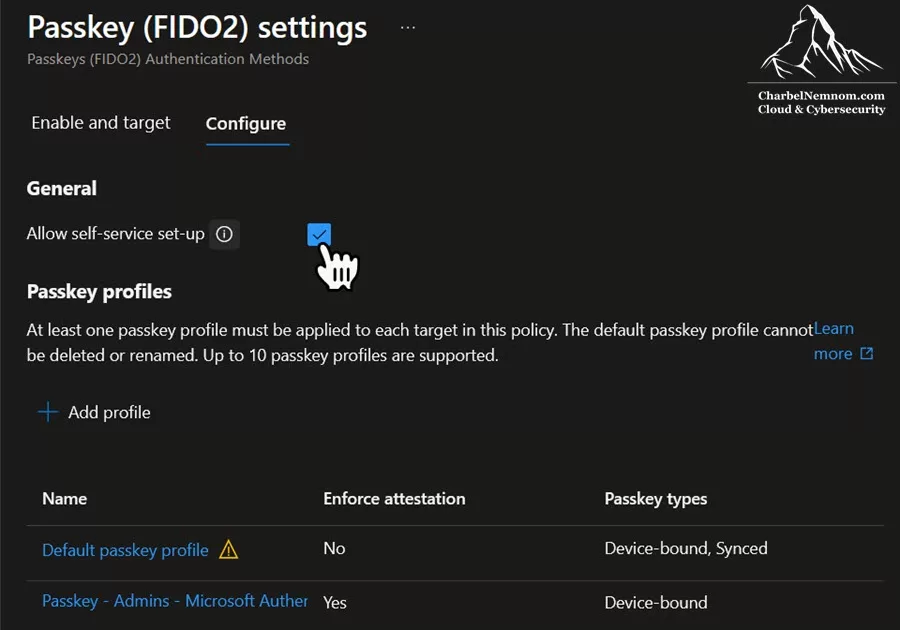
If this setting is disabled, users cannot register a passkey from the Security Info page even if Passkey (FIDO2) is enabled.
Step 6: Enable Temporary Access Pass for onboarding and recovery
Temporary Access Pass, or TAP, is optional, but highly recommended for onboarding and recovery.
TAP is useful because it solves the passwordless bootstrap problem. To register a Passkey, the user must first authenticate strongly. If the user does not yet have a strong authentication method available, or if the admin has lost access to their existing method, TAP provides a temporary, controlled way to sign in and register a new Passkey.
You can use TAP for scenarios such as:
- Initial Passkey registration
- New administrator onboarding
- Lost or replaced phone
- Broken Microsoft Authenticator registration
- Recovery from failed or missing authentication methods
Open the Microsoft Entra admin center and take the following steps:
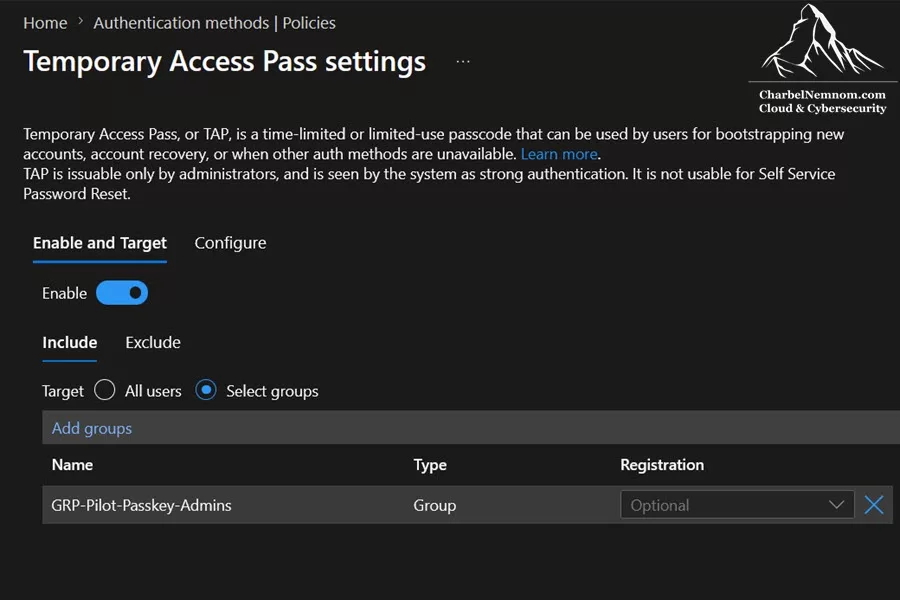
1) Go to Entra ID > Authentication methods > Policies > Temporary Access Pass
Enable TAP for the pilot group:
- Enable: Yes
- Target: GRP-Pilot-Passkey-Admins
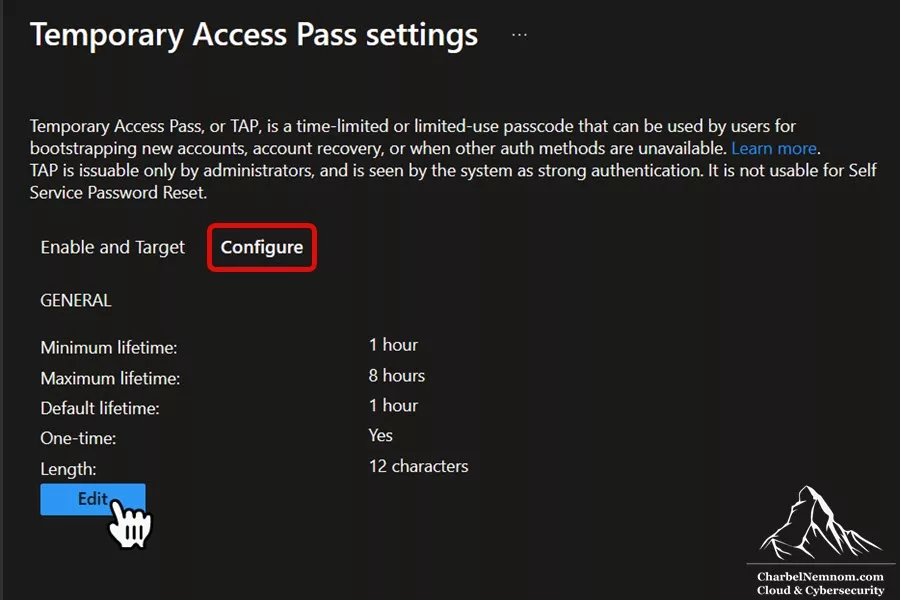
The recommended settings for the admin pilot:
- Minimum lifetime: 1 hour
- Maximum lifetime: 8 hours
- Default lifetime: 1 hour
- One-time use: Yes
- Length: 12 characters
TAP should not be treated as a normal user sign-in method. It should be issued only by authorized administrators, used for a specific onboarding or recovery scenario, and monitored.
If all your pilot administrators already have a valid MFA method and can register Microsoft Authenticator Passkey without issue, TAP is not mandatory. However, I still recommend enabling it for the pilot group so that you have a clean recovery path during the rollout.
Step 7: Register a Passkey in Microsoft Authenticator
Now each pilot administrator must register a Microsoft Authenticator Passkey. The preferred registration flow is directly from the Microsoft Authenticator app on your mobile device:
Open Microsoft Authenticator
- → Select the work or school account
- → Create passkey
If the account is not already added to Microsoft Authenticator, then open Microsoft Authenticator:
- → Add account
- → Work or school account
- → Sign in
- → Complete MFA or use Temporary Access Pass
- → Create passkey
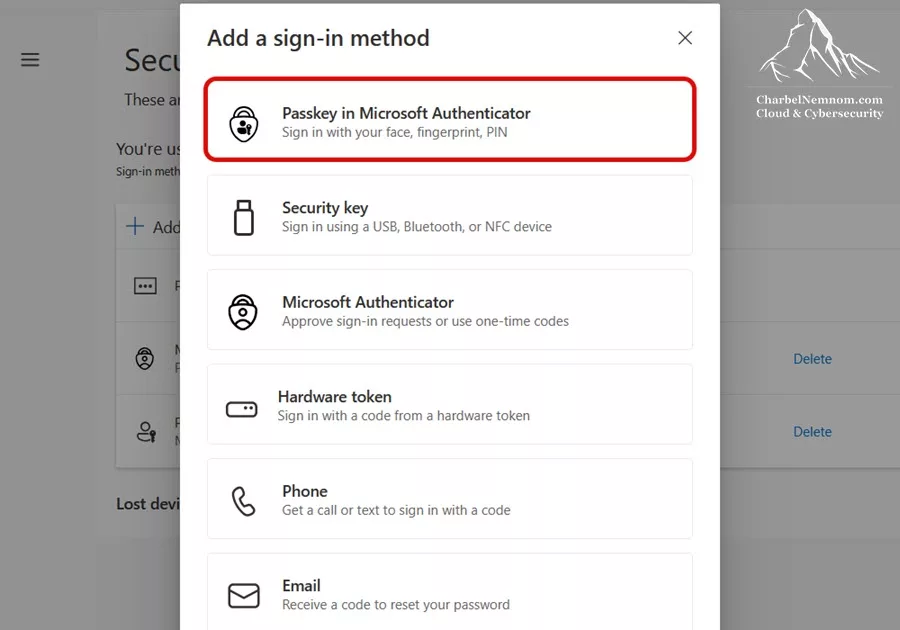
Alternative registration flow through the Security Info page at https://aka.ms/mysecurityinfo
- → + Add sign-in method
- → Passkey in Microsoft Authenticator
The recommended naming convention:
- Authenticator Passkey – iPhone – Admin
- Authenticator Passkey – Android – Admin
- Authenticator Passkey – iPhone – Username
Important: Registering the passkey is not enough on its own. During registration, Microsoft Authenticator prompts you to enable it as a passkey provider in the device’s OS settings. If you skip this, the passkey exists, but the operating system cannot present it to apps like Outlook or Teams, and sign-in falls back to a cross-device QR code that can’t be used on the same phone. Based on the OS platform you are using, check the following:
- iOS 18: Settings → General → AutoFill & Passwords → turn on AutoFill Passwords and Passkeys, then select Authenticator under AutoFill From. (iOS 17: Settings → Passwords → Password Options.)
- Android: Settings → Passwords & accounts → Additional providers → enable Authenticator.
Once enabled, Outlook and Teams surface the local Authenticator passkey directly (Face ID, fingerprint, or PIN), and single sign-on works across Microsoft native apps.
After registration, the admin should immediately test sign-in in a private browser session. Learn how to register passkeys in Microsoft Authenticator on Android and iOS.
Step 8: Create the Conditional Access policy
The Passkey profile controls who can register and use Microsoft Authenticator Passkeys. The Conditional Access policy controls who must use phishing-resistant MFA to access cloud resources.
Open the Microsoft Entra admin center and take the following steps:
1) Go to Entra ID > Conditional Access > Policies > + New policy
2) Create the policy:
- Name:
CA0##-Admins-AllApps-RequirePhishingResistant_MFA-P2
Users or workload identities
For the pilot, use the group:
- Include: Users and groups →
GRP-Pilot-Passkey-Admins
Exclude emergency access accounts:
- Exclude: Emergency access group / Break-glass accounts
Do not target All users yet, and do not target Directory roles yet for the first pilot. Once the pilot is validated, you can create a production version targeting privileged directory roles.
Target resources
Configure:
- Include: All resources / All cloud apps
Conditions
For the first pilot, do not configure risk, platform, location, or device filters.
- Conditions: Not configured
This keeps the pilot simple and ensures that the policy applies to the sign-in.
Grant controls
Configure:
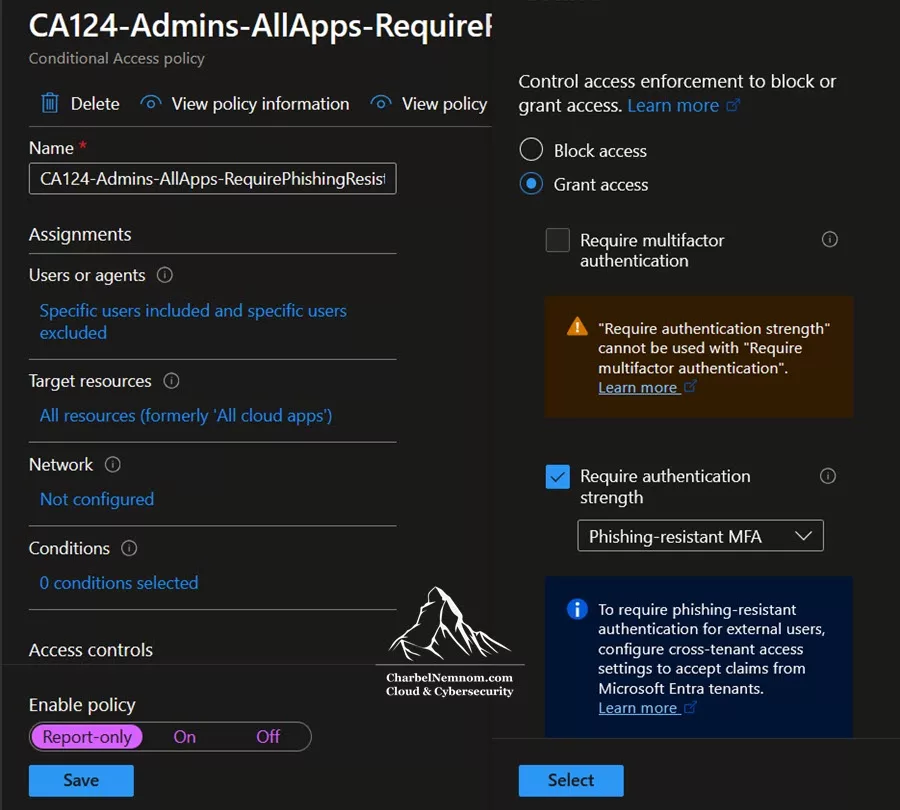
- Grant access: Require authentication strength → Phishing-resistant MFA
As shown in the figure below, Require multifactor authentication cannot be selected at the same time. Microsoft Entra does not allow Require authentication strength and Require multifactor authentication to be used together in the same Grant control.
Enable policy
Start with:
- Enable policy: Report-only
Save the policy.
Step 9: Test Conditional Access policy in Report-only mode
The report-only mode allows you to validate the policy’s impact before enforcing it. Open a new InPrivate browser session and sign in to https://entra.microsoft.com with the pilot admin account.
Use Microsoft Authenticator Passkey. Then go to:
1) Entra ID > Monitoring & health > Sign-in logs
Open the sign-in event and select the Report only tab. The expected result:
- Policy name:
CA0##-Admins-AllApps-RequirePhishingResistant_MFA-P2 - Result: Report-only > Success
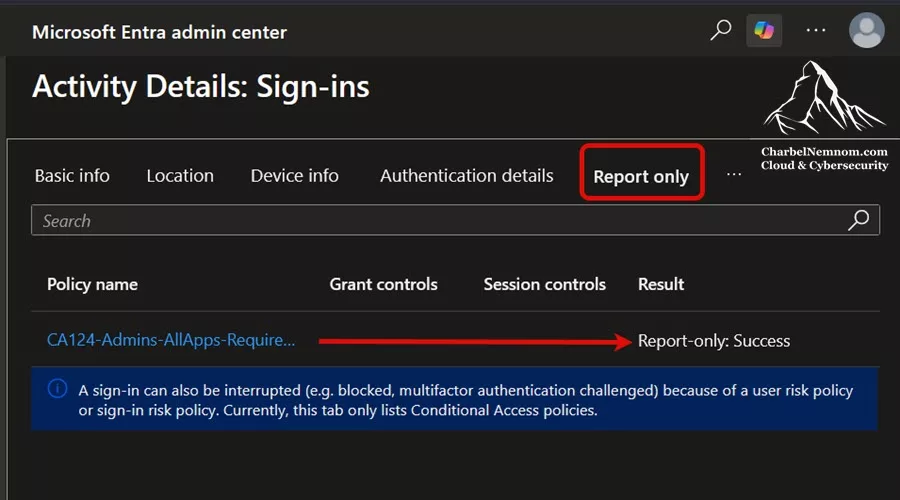
This means the policy matched the sign-in, and the admin satisfied the phishing-resistant MFA requirement.
If the result is Report-only > Not applied, then the policy did not match the sign-in. The common reasons could be:
- The user is not in the pilot group.
- The user is excluded from the policy.
- The target app does not match.
- A condition such as user risk, sign-in risk, location, or platform is configured and not matched.
In one of my tests, the account was excluded because it was a member of an emergency exclusion group. After removing the normal admin test account from that exclusion group, the policy applied correctly.
Step 10: Enable the Conditional Access policy
After successful Report-only validation, enable the policy. Open the Microsoft Entra admin center and take the following steps:
1) Go to Entra ID > Conditional Access > Policies:
- Policy name:
CA0##-Admins-AllApps-RequirePhishingResistant_MFA-P2
2) Change: Enable policy > On
Save the policy, and keep the policy scoped only to:
- GRP-Pilot-Passkey-Admins
Do not expand the scope yet.
Step 11: Validate the sign-in logs
After enabling the policy, open a new InPrivate browser session and sign in again to https://entra.microsoft.com with the pilot admin account.
Use Microsoft Authenticator Passkey. Then go to:
1) Entra ID > Monitoring & health > Sign-in logs
Open the sign-in event and select the Conditional Access tab. The expected result:
- Policy name:
CA0##-Admins-AllApps-RequirePhishingResistant_MFA-P2 - Result: Result > Success
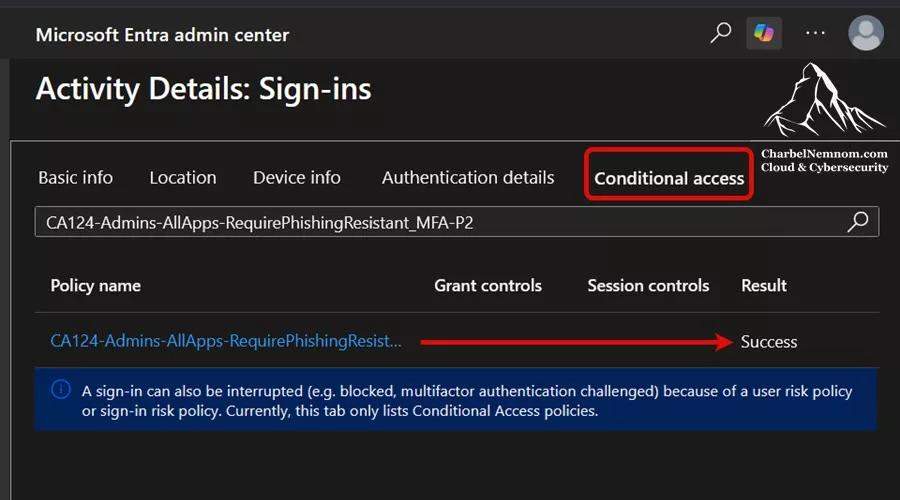
Then open the Authentication details tab. The expected result:
- Authentication policies applied: Conditional Access, Authentication Strength(s)
- Succeeded: Yes
- Requirement: Phishing-resistant MFA
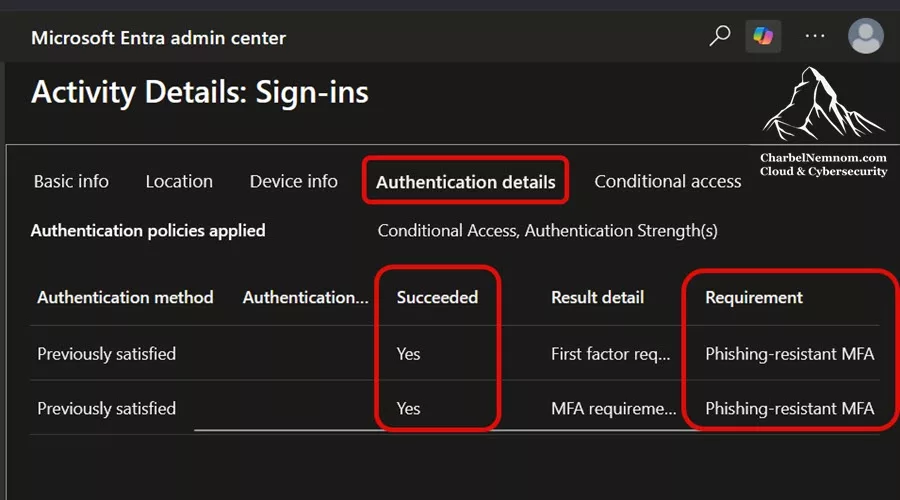
Sometimes you may see “Previously satisfied“. This means the current session already had a valid authentication claim that satisfied the phishing-resistant MFA requirement.
For a clean test, do the following:
- Sign out.
- Close all browser windows.
- Open a new InPrivate browser session.
- Sign in again.
- Use Microsoft Authenticator Passkey.
- Review the sign-in logs.
You can also test from another browser or revoke the user’s sessions before testing again.
Step 12: Roll out to all users
Once the admin pilot is validated, expand gradually. Recommended rollout waves:
- Wave 1: IT and Security administrators
- Wave 2: Helpdesk and support teams
- Wave 3: High-risk departments such as Finance, HR, and Legal
- Wave 4: Executives and VIP users
- Wave 5: All standard users
For standard users, you may choose a different profile depending on your security and user experience requirements. For example:
- Admins: Device-bound Microsoft Authenticator Passkeys with attestation
- Standard users: Microsoft Authenticator Passkeys or synced passkeys, depending on the security strategy
You can also use a registration campaign to nudge users to register passkeys.
Before expanding to all users, prepare the following:
- End-user communication
- Helpdesk runbook
- Temporary Access Pass process
- Recovery process for lost phones
- Known limitations
- Mobile OS requirements
- Monitoring and reporting
- Registration campaign, if applicable
A controlled rollout reduces the impact on support and allows you to detect registration issues before expanding to the entire organization.
Related article: Strengthen Microsoft 365 To Combat Phishing Threats
Troubleshooting
Even with a clean deployment plan, you may encounter issues during Passkey registration, Conditional Access validation, or sign-in testing. In this section, we will look at the most common issues you may face when enabling Microsoft Authenticator Passkeys in Microsoft Entra ID and how to troubleshoot them.
Conditional Access policy shows “Not applied”
If the policy shows Not applied in the sign-in logs, it means the policy did not match the sign-in event. This is usually caused by one of the following:
- The user is not included in the policy.
- The user is excluded from the policy.
- The user is a member of an emergency access exclusion group.
- The target cloud app does not match.
- A condition such as risk, location, platform, or client app is configured and not matched.
Open the sign-in event, go to the Conditional Access or Report only tab, and review the policy details. In my lab, the policy was not applied because the admin test account was part of an emergency exclusion group. After correcting the group membership, the policy applied successfully.
Report-only shows “Failure” or “User action required”
If the policy shows Report-only: Failure or User action required, the policy matched the sign-in, but the user did not satisfy the required grant control.
For this deployment, the user must satisfy:
- Authentication strength → Phishing-resistant MFA
Make sure the user is signing in with Microsoft Authenticator Passkey, not only Microsoft Authenticator push notification. Push notification can satisfy classic MFA, but it does not provide the same phishing-resistant protection as Passkey/FIDO2.
Passkey registration is not available
If the user cannot register a Passkey, first confirm that the user is included in the Passkey authentication method policy. Check:
Microsoft Entra admin center
→ Protection
→ Authentication methods
→ Policies
→ Passkey (FIDO2)
Verify that:
- The user is in the targeted group.
- The correct Passkey profile is assigned.
- Allow self-service setup is set to Yes.
- Microsoft Authenticator is installed.
- The mobile OS is supported.
- Screen lock is enabled on the device.
If Allow self-service set-up is disabled, users cannot register Passkeys from the Security Info Page even if the method is enabled.
Passkey registration fails when attestation is enabled
If Enforce attestation is enabled in the Passkey profile, users should register the Passkey directly from the Microsoft Authenticator app. If registration fails, verify that:
- Microsoft Authenticator is up to date.
- The mobile OS is supported.
- Screen lock is enabled.
- The Microsoft Authenticator AAGUIDs are allowed.
- The device can reach the required attestation services from Microsoft, Apple, or Google.
For a first lab test, you can temporarily disable attestation to reduce registration friction. For production administrator accounts, attestation is recommended for stronger assurance that the Passkey was created by the expected provider.
User is blocked as risky
If the user receives a message stating the account is blocked due to suspicious activity, this usually relates to Microsoft Entra ID Protection, not the Passkey profile itself.
Use another admin account or emergency access account and go to Microsoft Entra admin center:
- → Identity Protection
- → Risky users
Review the risk detections. If the activity is legitimate, follow your internal process to dismiss the risk or confirm the user as safe. If you are unsure, treat the account as potentially compromised, reset the password, revoke sessions, and investigate the sign-in activity.
Existing “Require MFA for all users” policy is already applied
Many tenants already have a baseline Conditional Access policy such as Require MFA for all users. This can remain enabled. It is not the same as the new phishing-resistant MFA policy. The baseline policy requires standard MFA. The new policy requires:
- Authentication strength → Phishing-resistant MFA
A Microsoft Authenticator Passkey should satisfy both requirements. A standard push notification may satisfy only classic MFA, but not the phishing-resistant MFA policy.
Outlook on a personal mobile prompts for a Passkey with a QR code
On a personal phone enrolled in Microsoft Intune, users may be prompted to sign in to Outlook with a Passkey but only see a QR code with no way to scan it. The QR code is the cross-device sign-in flow, intended for when the passkey lives on a different device. On the same phone, there is nothing to scan it with, so the only apparent option is Cancel, which then offers older methods like an Authenticator prompt.
This happens when Microsoft Authenticator is not set as the passkey provider on the device. The passkey is registered, but the operating system cannot present it to Outlook, so sign-in falls back to the cross-device QR flow.
To resolve it, enable Authenticator as a passkey provider on the device by following the OS steps in Step 7: Register a Passkey in Microsoft Authenticator above. On Android 14, if the provider option is unavailable, upgrade to Android 15.
After enabling the provider, Outlook and Teams surface the local Authenticator passkey directly with Face ID, fingerprint, or PIN — no QR code — and single sign-on works across Microsoft native apps.
Now, if you plan to remove older methods such as number matching to enforce passwordless sign-in, validate this passkey flow first. Enforce phishing-resistant sign-in through a Conditional Access authentication strength, and keep a Temporary Access Pass (TAP) available for onboarding and recovery, rather than disabling fallback methods before the passkey experience is confirmed working. On mobile, remember that Windows Hello for Business does not apply — it is Windows-only — so the Authenticator passkey is the phishing-resistant option on the phone.
In Conclusion
Microsoft Authenticator Passkeys are an important step toward phishing-resistant and passwordless authentication in Microsoft Entra ID.
With Microsoft moving toward system-preferred authentication, passkey profiles, and passkeys becoming the default sign-in method, organizations should not wait for the default experience to change unexpectedly. Instead, administrators should take control of the rollout by defining a clear passkey profile strategy, starting with privileged accounts, validating the sign-in experience, and then expanding to all users.
In this article, we looked at how to:
- Prepare emergency access accounts
- Create an admin pilot group
- Configure a strict Microsoft Authenticator Passkey profile
- Enable Microsoft Authenticator Passkey registration
- Create a Conditional Access policy requiring phishing-resistant MFA
- Test the policy in Report-only mode
- Enable and validate the policy
- Plan the rollout to all users
That’s it; there you have it! You now have a practical step-by-step approach to enable and roll out Microsoft Authenticator Passkeys in Microsoft Entra ID.
Remember, you can always support us in developing tools and creating content via Why Contribute? – Charbelnemnom.com Cloud & Cybersecurity
__
Thank you for reading our blog.
Please let us know in the comments section below if you have any questions or feedback.
-Charbel Nemnom-
