
Enterprise Microsoft Sentinel deployments often require selective log replication between workspaces—from Production to Non-Production for testing, from regional instances to centralized Security Operations Centers (SOCs), or for compliance and audit purposes. This comprehensive guide demonstrates how to build a secure, automated, and cost-effective log transfer and export pipeline using modern Azure technologies:
– Azure Monitor Logs Ingestion API: The modern successor to the deprecated HTTP Data Collector API, enabling OAuth-based ingestion.
– Data Collection Rules (DCR) and Endpoints (DCE): For schema validation, transformation (KQL filtering), and routing of data to target tables, including the Sentinel data lake.
– Azure Functions Flex Consumption: A serverless function architecture with VNet integration for private connectivity.
– User-Assigned Managed Identity: Zero-secret authentication, allowing the function to securely access resources without secret keys.
– KQL-Based Filtering: Export only the logs you need (e.g., specific firewall events), not entire tables, using flexible Azure Log Analytics queries.
– Full Private Networking: Virtual Network integration and private endpoints ensure the solution runs with no exposure to the public internet.
What makes this solution unique is its focus on security and flexibility, which allows you to selectively export and replicate via KQL queries (not bulk forwarding), with maximum security enabled by managed identities and private networking. It’s also cost-effective, leveraging a serverless architecture so you pay only for execution, with incremental sync and batch processing, and using the modern Logs Ingestion API.
This solution addresses a common Sentinel challenge: how do we automatically export specific log types from one workspace to another while maintaining enterprise security standards?
Table of Contents
The Scenario
You’re managing a Microsoft Sentinel deployment across multiple Azure environments, and you have the following:
- A Microsoft Sentinel production workspace collecting operational security logs (firewall logs, server security events, threat intelligence feeds, application logs, etc.).
- A separate Sentinel workspace for development/testing, used to validate detection rules before production deployment. This instance serves as a training environment for security analysts and must meet compliance requirements (certain logs are retained separately with different policies).
The requirement is to automatically export specific log types from Production to Non-Production every 30 minutes or so. We need to test detection rules with real production data, but without impacting the production workspace. We need to export only logs of a specific type in which threats were detected, not all logs.
This scenario highlights a common challenge: how to securely and efficiently export logs for testing and compliance without duplicating all data.
Why Not Use Built-In Solutions?
You might ask: “Why not use Azure’s built-in data export, workspace replication, or diagnostics settings for this?”
Unfortunately, each native option has limitations that make them unsuitable for selective, scheduled, secure cross-workspace log transfer.
* Workspace Replication – Azure Monitor offers Workspace Replication, which allows you to continuously replicate a Log Analytics workspace, including table schemas and newly ingested data, to another workspace. Workspace replication fully replicates all table schemas — it does not allow selective table or record-level filtering. This means workspace replication is excellent for DR or multi-region redundancy, but not suitable for controlled, selective, incremental log transfer between environments such as Prod → Non-Prod.
* Azure Diagnostic Settings – These only export Azure platform logs (Activity Logs, Resource Logs) and cannot export custom log tables from Sentinel.
* Log Analytics Data Export – Can continuously export logs from a workspace, but:
- It exports all records from a given table (no ability to filter specific events).
- It runs continuously (no custom scheduling, so you can’t do every 30 minutes specifically).
- It requires writing to an Event Hub or Storage account, introducing additional components and cost.
- No support for data transformation or filtering during export.
* Cross-Workspace Queries – Microsoft Sentinel allows querying across workspaces (e.g., using workspace() in KQL), but:
- This approach doesn’t actually copy data; it just queries remotely, so the non-prod workspace doesn’t store the data.
- It can impact performance on the source workspace if used heavily.
- You can’t modify or enrich the data in the target, since it’s just a query result.
* Azure Data Factory or Logic Apps – These can move data between sources, but:
- They are more complex to set up for Sentinel logs and require additional compute resources.
- Scheduled queries via Data Factory might incur a high cost for large data volumes.
- It can be overkill if you need a simple, periodic log transfer.
What we need is a solution that:
- Runs automatically on a schedule (e.g., every 30 minutes, or a custom interval)
- Queries the source workspace with flexible filters (using KQL to select only the relevant logs)
- Transforms data if needed (ability to rename fields, parse values, etc., before ingestion)
- Ingests into the destination workspace using a modern, supported API (no deprecated features)
- Avoids duplicates by tracking what’s already been transferred (supports incremental sync)
- It is secure by default and uses managed identities for authentication, and operates within private networks
- Minimizes cost and maintenance by using serverless components, so you pay only for what you use
In the following sections, we’ll design and deploy a solution that meets these requirements.
HTTP Data Collector API vs Logs Ingestion API
Before we dive into the solution design, it’s worth mentioning that Microsoft has officially announced that the Azure Monitor HTTP Data Collector API was retired on September 14, 2026. Customers should migrate to the Logs Ingestion API, which offers enhanced security with Entra ID authentication, schema validation through Data Collection Rules (DCR), and better error handling”. After that date, the HTTP Data Collector API will stop working.
The HTTP Data Collector API method relied on using a shared key for authentication and posting data directly to a workspace. The problems with this deprecated method, which is already retired and cannot be used anymore, are that:
- Requires secret keys: You had to manage workspace shared keys, which is a security risk (keys must be rotated, stored securely, etc.).
- No fine-grained permissions: The shared key grants broad access (any data to that workspace). No Azure RBAC roles, so it’s all-or-nothing.
- Minimal schema enforcement: It would accept any payload and just create custom columns on the fly (_CL tables), potentially leading to messy data.
- No transformation or filtering: Data is ingested exactly as sent. You couldn’t apply server-side filters or modify the payload.
- Limited error handling: Basic throttling and error responses, but you had to implement retries and back-off logic yourself.
The new Logs Ingestion API addresses those issues. For instance, sending data with this API (in PowerShell) involves obtaining an OAuth token and posting to a DCE endpoint. The advantages of the Logs Ingestion API include:
- Enhanced Security: Uses Microsoft Entra ID (formerly Azure AD) OAuth 2.0 tokens and managed identities, eliminating Log Analytics workspace shared keys.
- Granular RBAC Permissions: You can assign specific roles (like Monitoring Metrics Publisher on a particular DCR) to control exactly what a client can do.
- Schema Validation: Data must match a predefined schema in a DCR, so you avoid ingesting bad or inconsistent data. The DCR will reject invalid records.
- Data Transformation: DCRs allow an optional KQL-based transformation on the data stream (e.g., you could parse a raw log line into fields server-side).
- Better Monitoring: Ingestion is integrated with Azure Monitor, so you can track metrics and logs for your data pipeline, and the platform handles much of the scaling and throttling logic.
- Rich error handling: You get clear status codes (400 for schema issues, 403 for permission issues, 429 for throttling, etc.) and can implement robust retry logic.
- Scalability: The new pipeline is designed for high volume, supporting up to 1 GB/min and thousands of requests per minute per DCR, with built-in backpressure and throttling signals.
In short, migrating to the Logs Ingestion API isn’t just a mandatory step due to deprecation; it also significantly improves the security and reliability of your log transfer solution.
Why a Serverless Function for Automation?
Now that we’ve decided on the new ingestion mechanism, we need an automation engine to run the periodic queries and transfers. Traditional approaches might involve a VM or a scheduled script, but Azure Functions provide a compelling alternative:
| Option | Pros | Cons | When to use |
|---|---|---|---|
| VM or Azure Automation | Full control over environment | Requires managing OS, scaling, and network; not event-driven | Legacy processes, heavy customization (not ideal for this) |
| Logic Apps / Data Factory | Managed services, visual design | Higher cost for continuous runs; less flexible for custom code | Complex orchestrations or built-in connectors |
| Azure Functions (Consumption) | Fully serverless, cheap | Cannot VNet-integrate (no direct private access) | Public or simple tasks only |
| Azure Functions (Premium) | VNet integration, reserved instances for low latency | Expensive (always running instances), requires plan sizing | Enterprise scenarios where always-on is needed |
| Azure Functions (Flex Consumption) | Serverless cost model + VNet integration (best of both worlds) | Newer offering (still evolving) | Ideal for this secure, scheduled task |
We chose Azure Functions on Flex Consumption for this solution because it hits the sweet spot: it’s cost-effective (scales to zero when idle, so we pay only for each run) and it supports VNet integration and private endpoints, which is critical for a secure deployment. Specifically:
* Cost – The function will trigger every 30 minutes. With the Flex plan, if each run is short, the monthly cost is just a few dollars (for millions of executions, the cost is minimal). There’s no need to run a constant server.
* Security – We can integrate the Function App with our Virtual Network, allowing it to reach internal resources and use private endpoints for storage or other services. Additionally, the function uses a user-assigned managed identity to authenticate to Azure APIs, meaning no credentials are stored in code.
* Scalability – Azure Functions automatically handle scaling. If, for example, one run needs to process a larger batch of data and takes longer, it can scale out or up within the Flex plan’s limits (Flex allows up to 4 GB memory, though we likely only need 512 MB).
* Built-in Scheduling – We’ll use a Timer Trigger on the function with a CRON schedule (0 */30 * * * *) to run every 30 minutes. This is natively supported and reliable.
By using a serverless function, we avoid maintaining VM infrastructure or worrying about patching and uptime. And by using the Flex plan with VNet integration, we don’t compromise on network security, and we adhere to internal enterprise governance.
Solution Architecture
At a high level, our solution consists of a production Sentinel workspace as the source of logs, an Azure Function as the processing and transfer engine, and a non-production Sentinel workspace as the destination. Azure Monitor’s data ingestion pipeline (DCE/DCR) connects the function to the target workspace. The diagram below illustrates the components and data flow:
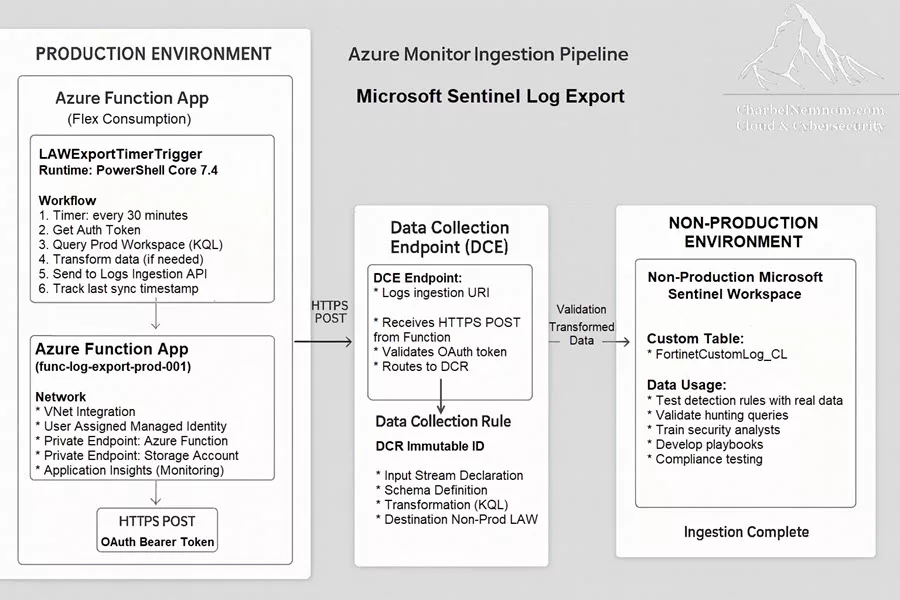
Core Components Deep Dive
Let’s break down the components shown above and highlight their roles and security configurations:
1. Source: Production Sentinel Workspace
- Contains operational security logs
- User-Assigned Managed Identity has the
Log Analytics ReaderRBAC role - Queried via Azure Monitor API
api.loganalytics.azure.comusing KQL
2. Compute: Azure Function App (Flex Consumption)
- Runtime PowerShell Core 7.4
- Timer (NCRONTAB:
0 */30 * * * *= every 30 minutes) - Authentication using a user-assigned managed identity
- VNet integration and private endpoints
- Private storage account (identity-based auth)
3. Ingestion Pipeline: Data Collection Endpoint + Data Collection Rule
This is the target pipeline that receives data from our function and inserts it into the destination workspace.
Essentially, an Azure Monitor endpoint is a service. For example, the Data Collection Endpoint (DCE) might have an endpoint URL: https://dce-name-abc123.azureregion-1.ingest.monitor.azure.com. This URL is where the function will send HTTP requests. The DCE must be in the same region as the destination workspace for performance and compliance reasons.
The DCE endpoint is a public DNS name, but it is accessible only with a valid Entra ID token. (At the time of writing, DCEs do not have a native private endpoint feature for the ingestion path; however, because our function is in Azure and will communicate out through the Azure network, it’s still not exposing traffic to the public internet beyond Azure’s backbone).
The DCE doesn’t store data itself; it’s like a gateway. It validates the token (ensuring our function’s identity has permission) and then routes the data to the appropriate DCR.
Next, the Data Collection Rule (DCR) defines how to handle data that comes in via a DCE. It specifies the data schema, any transformations, and the destination. The DCR also has a data flow that routes that stream to our specific Log Analytics workspace and table (the non-prod workspace and the custom table). In our case, we are sending to one destination, but DCRs can send to multiple destinations if needed (e.g., to two different workspaces and/or custom tables).
We have the option to include a transformKql in the data flow. In our scenario, we left transformKql as “source“, meaning no transformation beyond what the function already did. But if, for example, we wanted to further filter or modify data on the server side, we could put a KQL query here, and the ingestion pipeline would apply it on the fly.
The function’s managed identity needs permission to use this DCR. Specifically, we need to assign the Monitoring Metrics Publisher role to the identity scoped to this DCR and the DCE. This built-in role allows writing data to a monitoring resource (in this context, it’s the required role to push data through a DCR). It adheres to the principle of least privilege: the identity cannot read any log data or do other operations; it can only publish metrics/logs to the DCR (which results in data ingestion).
4. Destination: Non-Production Sentinel Workspace
- Log Analytics workspace for non-prod/testing Sentinel
- A Custom Table was created to receive the data. Custom tables via DCR must have names ending in
_CL. We defined this table’s columns in the DCR (or via the workspace UI when creating the table) to match the schema of the source data. - For data retention, we keep data for 90 days here (the default for Sentinel). This can be adjusted depending on the use case or offloaded to Sentinel data lake – often non-prod might use shorter retention if it’s just for testing.
- Once logs are replicated here, security analysts can query them without touching production, test new detection rules on real data, verify that parsing and normalization are working as expected, train on threat scenarios, and maintain an audit trail separate from production.
- Data sent through the Logs Ingestion API typically shows up in the target workspace within a few minutes. This slight delay is due to the ingestion pipeline’s processing (applying the DCR’s schema check and any transformation).
In summary, this architecture ensures that logs flow one-way from the production environment to the non-production environment. The use of Azure’s managed pipeline (DCE/DCR) decouples the source and destination (they don’t talk to each other directly; the function and DCR glue them together), and our function acts as a controlled agent that enforces the filtering and timing we need.
Understanding the Logs Ingestion API
Before diving into deployment, it’s useful to understand the Azure Monitor Logs Ingestion API in a bit more detail, since it’s central to how our solution works.
The Logs Ingestion API is the modern, supported method to send custom log data to a Log Analytics workspace. It works in combination with DCE/DCR resources, as we’ve seen. The official documentation provides a deep dive (see Azure Monitor Logs Ingestion API Overview), but here are the key points:
- It’s a RESTful API endpoint, different from the old data collector URI. Instead of posting to a workspace ID endpoint with a shared key, you post to a DCE endpoint with a rule ID and stream name.
- It requires Entra ID authentication (token in header) – no shared keys.
- The payload must be in JSON and must conform to the schema defined by the DCR for the specified stream.
The API Endpoint Format: https://{dce-name}.{region}-1.ingest.monitor.azure.com/dataCollectionRules/{dcr-immutable-id}/streams/{stream-name}?api-version=2023-01-01
Breaking down the components of this URL, we have:
-
DCE Hostname: The DCE name, followed by a generated hash, then the region, and the domain
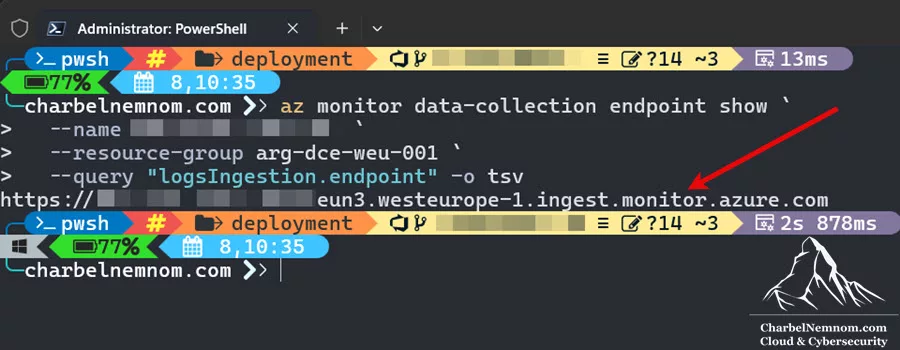
ingest.monitor.azure.com. This indicates the region (likewesteurope-1) and that it’s an ingestion endpoint. You can find the exact URL in the Azure Portal or via CLI, as shown in the figure below:

- DCR Immutable ID: A unique identifier for the Data Collection Rule. Azure assigns this GUID when the DCR is created. It’s immutable (doesn’t change even if you rename the DCR). We need to use this in the URL (not the friendly DCR name) to ensure the correct resource is targeted. You can find the exact Immutable ID in the Azure Portal or via CLI, as shown in the figure below:

-
The stream defined in the DCR that corresponds to our data. By convention, custom log streams must start with
Custom-and typically match the table name. In this example, our DCR was configured with this stream name (e.g.,Custom-FortinetCustomLog_CL) for the Fortinet logs. -
The version of the API to use. As of this writing,
2023-01-01is the stable version. Azure Monitor may introduce newer versions in the future, but those would be announced. We’ll stick to this version.
The Logs Ingestion API uses OAuth 2.0 Bearer tokens for authentication. In practice, that means:
- We need to include an
Authorization: Bearer {token}header in each request. - The token must be obtained from Entra ID with the correct resource/audience (
https://monitor.azure.com/). In our case, our function’s managed identity obtains this token automatically in code.
In a managed identity scenario, we don’t manually go to Entra ID to get a token; Azure does that for us when we call the local endpoint. But if you were using a service principal or user context, you’d request a token for Azure Monitor.
Some characteristics of these tokens include:
- Lifetime: ~1 hour, after which you need to get a new one. Our function runs every 30 minutes, so a new token each run is fine (and Azure Functions might cache it for the execution).
- Scopes/Roles: The token will carry whatever roles the identity has. When the DCE receives the token, it checks “Does this token’s identity have the Monitoring Metrics Publisher role on the target DCR resource?” If not, it will deny the request.
- No interactive login: Managed identities mean this happens in the background, no user involvement, and nothing to store.
Required RBAC Role: As mentioned, the managed identity needs the Monitoring Metrics Publisher role at the scope of the DCR (and its associated DCE) to successfully ingest data. Without this, you might get a 403 error. This built-in role was explicitly created for scenarios like custom metrics and logs ingestion, allowing a principal to publish monitoring data.
The Logs Ingestion API provides clear HTTP response codes to indicate what happened:
- 204 No Content – Success. The data was accepted for ingestion. (No content is returned in the body, just the success status).
- 400 Bad Request – The payload was invalid. This often means that schema validation failed. The response body will usually include a message pointing to the issue (e.g., missing a required column or wrong data type).
- 403 Forbidden – Authentication succeeded, but the identity is not authorized. This is an RBAC issue – e.g., missing the Monitoring Metrics Publisher role on the DCR/DCE.
- 429 Too Many Requests – You’ve hit a throttling limit. The response will include a Retry-After header (in seconds) indicating how long to wait before retrying.
- 500/503 Server Errors – These indicate Azure Monitor service issues (rare). 500 is an internal error; 503 might indicate the service is temporarily unavailable or overloaded. In both cases, you should implement retry logic with backoff.
If you get a 400 or 403, you need to fix something in your setup or data. If you get 429 or 500/503, you should retry (after a delay). Our function code is built to handle these by catching exceptions and inspecting the status.
Throttling limits: As of now, each DCR has substantial throughput capacity (up to 1 GB per minute of data and thousands of requests per minute). It’s unlikely you’ll hit this in our scenario (since we’re doing small periodic batches), but it’s good to be aware.
Prerequisites and Planning
Before we deploy anything, make sure you have the following in place:
Azure Resources Required
* Source (Production): with Microsoft Sentinel enabled.
* Destination (Non-Production): Sentinel enabled if you want to use Sentinel features on this data.
Both workspaces should exist. Sentinel being enabled on them isn’t strictly required for the pipeline to work, but since our scenario is about Sentinel, you’d likely have it enabled to use incidents, workbooks, hunting, etc., on the data.
Virtual Network and Subnets
* A Virtual Network in which we will integrate our Function App.
* Within this VNet, you need at least two subnets:
- A delegated subnet for the Function App’s regional integration. This subnet must be delegated to
Microsoft.App/environmentsfor Azure Functions that run on the Azure Apps infrastructure. The subnet size should be at least /27 (larger if you plan many functions; /27 provides 32 IPs, which is the minimum recommended for Azure Functions integration). - A subnet for private endpoints where we will put the storage account’s private endpoint (and optionally the function’s private endpoint). No delegation is required here, just a regular subnet. The subnet size of/28 (16 IPs) is usually enough for a handful of private endpoints.
* Please note that if you don’t have Microsoft.App registered on your subscription, make sure to register it first under Resource providers; otherwise, the subnet delegation will fail.
Last, make sure the VNet is in the same region as your function app, and that the subnets are created within the VNet.
Data Collection Infrastructure
We will be creating these as part of Step 1 below, but be aware of them:
- A Data Collection Endpoint (DCE) – a resource under Azure Monitor.
- A Data Collection Rule (DCR) – which we’ll configure for our custom log.
- A Custom Log Table in the destination workspace – defined by the DCR (you typically create the table when creating the DCR-based custom log via portal, REST API, Terraform, or PowerShell).
If you already have an existing DCE and DCR you want to reuse, you can adapt them, but this guide assumes fresh creation.
Azure Permissions
Ensure the account you’re using to deploy has the correct permissions, as follows:
- Contributor on the resource group(s) where you will create the function app, storage account, DCE, DCR, etc. (This allows creation of all those resources.)
- Log Analytics Reader on the source workspace to read the schema.
- Log Analytics Contributor on destination workspaces (to read schema, create tables, etc., especially if using Azure CLI or if automating parts of it).
- Network Contributor on the VNet if you need to create/delegate subnets or create private endpoints in it. If the network is pre-provisioned by someone else, coordinate with them to get the necessary subnet setups, private endpoint, and DNS approvals.
- The ability to assign roles to identities (either you need the Owner or Role-Based Access Control Administrator role on the resource group(s) or subscription). We will need to assign roles (
Log Analytics Reader,Monitoring Metrics Publisher, andStorage Blob Data Owner.) to the user-assigned managed identity.
Development Tools Required
On your local machine (or wherever you will execute deployment commands), you should have:
* Azure CLI – to run deployment commands and any CLI-based setup. Version 2.81.0 or above is recommended (to ensure all monitor and function commands are available).
az --version   # check version
# If not installed or outdated:
# Install/update instructions: https://aka.ms/installazurecli
* Azure Functions Core Tools – to publish the function code (if using that route) and for local builds. Version 4.x is needed for Azure Functions v4.
func --version   # check that this prints a version (like 4.3.x)
# Install via npm if needed:
npm install -g azure-functions-core-tools@4 --unsafe-perm true
* PowerShell 7.x – The function runtime is PowerShell 7, and the code provided is in PowerShell. Ensure you have PowerShell 7 installed on your dev machine for testing or running scripts.
$PSVersionTable.PSVersion   # should show Major 7
# If not installed:
# Download from https://aka.ms/powershell (choose the 7.x version for your OS)
# Install via PowerShell if needed:
Iex "& { $(irm https://aka.ms/install-powershell.ps1) } -UseMSI"
* Visual Studio Code (optional but recommended) – with the following extensions:
- Azure Functions extension (ms-azuretools.vscode-azurefunctions) for easy deployment.
- PowerShell extension (ms-vscode.PowerShell) for editing and running PowerShell scripts.
- Azure Resources extension (ms-azuretools.vscode-azureresourcegroups) for VS Code integration to log in, view, and manage resources.
* Git – If you are pulling code from a repository, you’ll need Git.
git --version  # should output the git version if installed
# Download from https://git-scm.com/ if needed.
Having these tools already in place will make the deployment easier later.
Planning Decisions
Before deployment, consider a few key planning aspects for your scenario:
1. Query Scope: What Data to Export? Define your KQL query carefully to meet your goals. Considerations for query design:
- Data volume vs. utility: The more you filter out, the less data you’re ingesting (saving cost), but also the less complete the picture in non-prod. Focus on the use case: if it’s to test specific analytics, maybe you only need the logs related to those analytics.
- Retention: If the non-prod workspace is just for short-term testing, you might not need to ship all data. Perhaps you only need the last 30 days of data continually refreshed, etc.
- Schema alignment: The query should produce columns exactly as expected by the destination table. If not, you’ll need to adjust either the query or the DCR transformation.
2. Schedule: How Often to Run? Depending on your needs, you might do:
- Every 5 or 10 minutes (if you need more real-time data in non-prod, but this increases cost and load).
- Hourly or daily (if you need a periodic snapshot, and want to further reduce cost).
- Data freshness (does your non-prod need data nearly in real-time), cost (more frequent runs = more executions and more data moved), and source impact (If the source workspace is large, a heavy query every 5 minutes could be taxing).
Azure Functions Timer Trigger uses NCRONTAB format. Some examples below:
Every 30 minutes:       0 */30 * * * *
Every hour on the hour: 0 0 * * * *
Every 6 hours:          0 0 */6 * * *
Daily at midnight UTC:  0 0 0 * * *
Weekdays at 8 AM UTC:   0 0 8 * * 1-5
3. Sync Strategy: Full or Incremental
As discussed, you have two main approaches when exporting data repeatedly:
- Full Sync each time: Use a fixed lookback window (e.g., last 7 days) and re-ingest that data. It’s simpler but causes overlaps, so you must handle duplicates. This approach protects against missed data if the pipeline goes down, but it increases cost because you repeatedly read and ingest the same logs.
- Incremental Sync: Track the last sync time in Blob Storage and query only new data since then. More efficient and avoids duplicates, but if the function doesn’t run for a while (say, there’s an outage), you might miss some data unless you have a mechanism to catch up (like an alert to do a manual backfill). In this example, we implement incremental by storing the last timestamp processed in the storage container.
Recommendation: Start with incremental to minimize redundancy. You can combine approaches: do incremental most of the time, but maybe have a process to do an occasional backfill if needed or if a gap is detected.
4. Deployment Method in a Locked-Down Environment
A key challenge for highly secure setups is deploying the function code when the function’s network has no public access. If your environment has a Site-to-Site VPN or ExpressRoute connecting your dev machine (or build agent) to Azure, you can deploy entirely privately. If not, you might have to temporarily allow public access to the function for deployment, or use another workaround. You could also use a Self-Hosted Azure DevOps Agent in a VNet or GitHub Actions with a Self-Hosted Runner, so no public access is needed for deployments.
Our approach in this guide covers both private and temporary public access for code deployment, assuming not everyone has a private connection set up. We mitigate it by automating the re-securing of the function right after deployment and recommending doing this at a low-traffic time.
Please note that One Deploy is the only deployment technology supported for apps on a Flex Consumption plan. The end result is a ready-to-run .zip package that your function app runs on.
With these decisions made, we’re ready to proceed to the actual implementation.
Step 1: Create Data Collection Endpoint (DCE)
In this first step, we will set up the Azure Monitor pieces: the Data Collection Endpoint, the custom log table, and the Data Collection Rule that ties them together. You can disregard this step if you already have them in place, but we will outline creation for completeness.
First, create the DCE in the Azure region of your destination workspace. You can use different methods and tools to provision these resources; we’ll use the Azure CLI here. Open a terminal or PowerShell and use Azure CLI:
# Login to Azure and select the subscription (if not already done)
az login
az account set --subscription "<your-subscription-id>"

# Create Data Collection Endpoint
az monitor data-collection endpoint create `
  --name dce-name-weu-001 `
  --resource-group arg-dce-weu-001 `
  --location westeurope `
  --public-network-access Enabled
This will output JSON of the created endpoint. Now, retrieve the endpoint URL (we’ll need to configure our function with it):
az monitor data-collection endpoint show `
  --name dce-name-weu-001 `
  --resource-group arg-dce-weu-001 `
  --query "logsIngestion.endpoint" -o tsv

# Example output:
# https://dce-name-weu-001-abc123.westeurope-1.ingest.monitor.azure.com
Copy or note this URL, because we’ll refer to it as the DCE_ENDPOINT variable later.
Step 2: Create a Custom Table
Next, set up the custom log table in the non-prod workspace. We can do this via the portal, which will also help create the DCR, or do it programmatically via CLI/ARM/Bicep/Terraform. Here, let’s do it via Portal for clarity:
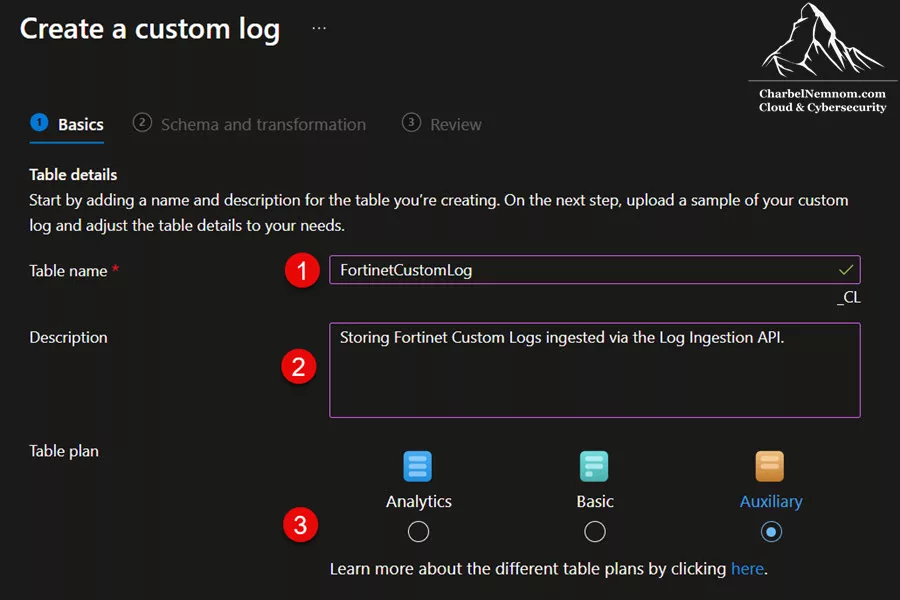
1. Navigate to your Log Analytics workspace for non-prod. In the workspace, go to the Tables section. Click + Create and choose New custom log (Direct ingest). This is the interface for creating a new custom table using the new DCR method, not the legacy Data Collector method. The good news is that the new custom table experience allows you to select different table plan tiers, including the Auxiliary (Sentinel data lake) tier, as shown in the figure below.
At the time of this writing, the Auxiliary plan is NOT yet available to create via the Portal; it may become available in the near future. Please see my previous article on how to create an Auxiliary (Sentinel data lake) tier via the REST API and PowerShell.
2. Provide the table details:
-
Table name: E.g.,
FortinetCustomLog(The name must be unique in that workspace; the_CLwill be appended automatically to the table name when you do it via the portal). - Table description: E.g, Storing Fortinet Custom Logs ingested via the Log Ingestion API.
- Table plan: Choose between Analytics or Auxiliary (data lake).
3. There will be an option to “Create a new data collection rule” – select that, as we intend to make a DCR in the next step. Give it a name, such as dcr-custom-fortinet-logs. Then click Done.

4. Select the Data collection endpoint that you created in the previous step from the pull-down menu and select Next.
5. Next, define the schema (columns) for the new table. Instead of directly configuring the table’s schema, you can upload a file containing a sample JSON array of data through the portal, and Azure Monitor will automatically set the schema. The sample JSON file must contain one or more log records structured as an array, in the same format as the data sent in the body of an HTTP request for the logs ingestion API call. Make sure to add each column with the appropriate type, and ensure names and types match what the function will send.
Here is an example based on our log structure used in this scenario. You can download the sample schema file from my GitHub repository.
{
    "properties": {
        "schema": {
            "name": "FortinetCustomLog_CL",
            "columns": [
                {
                    "name": "TimeGenerated",
                    "type": "datetime"
                },
                {
                    "name": "EventTime",
                    "type": "datetime"
                },
                {
                    "name": "DevName",
                    "type": "string"
                },
                {
                    "name": "DevID",
                    "type": "string"
                },
                {
                    "name": "DeviceTimeZone",
                    "type": "string"
                },
                {
                    "name": "LogID",
                    "type": "string"
                },
                {
                    "name": "EventType",
                    "type": "string"
                },
                {
                    "name": "SubType",
                    "type": "string"
                },
                {
                    "name": "Level",
                    "type": "string"
                },
                {
                    "name": "VirtualDomain",
                    "type": "string"
                },
                {
                    "name": "SourceIP",
                    "type": "string"
                },
                {
                    "name": "SourcePort",
                    "type": "int"
                },
                {
                    "name": "DeviceInboundInterface",
                    "type": "string"
                },
                {
                    "name": "SourceInterfaceRole",
                    "type": "string"
                },
                {
                    "name": "DestinationIP",
                    "type": "string"
                },
                {
                    "name": "DestinationPort",
                    "type": "int"
                },
                {
                    "name": "DeviceOutboundInterface",
                    "type": "string"
                },
                {
                    "name": "DeviceOutboundInterfaceRole",
                    "type": "string"
                },
                {
                    "name": "SourceCountry",
                    "type": "string"
                },
                {
                    "name": "DestinationCountry",
                    "type": "string"
                },
                {
                    "name": "SessionID",
                    "type": "long"
                },
                {
                    "name": "Protocol",
                    "type": "int"
                },
                {
                    "name": "Action",
                    "type": "string"
                },
                {
                    "name": "PolicyId",
                    "type": "int"
                },
                {
                    "name": "PolicyType",
                    "type": "string"
                },
                {
                    "name": "PolicyUUID",
                    "type": "string"
                },
                {
                    "name": "PolicyName",
                    "type": "string"
                },
                {
                    "name": "Service",
                    "type": "string"
                },
                {
                    "name": "TranslationType",
                    "type": "string"
                },
                {
                    "name": "Duration",
                    "type": "int"
                },
                {
                    "name": "SentBytes",
                    "type": "int"
                },
                {
                    "name": "ReceivedBytes",
                    "type": "int"
                },
                {
                    "name": "SentPackets",
                    "type": "int"
                },
                {
                    "name": "ReceivedPackets",
                    "type": "int"
                },
                {
                    "name": "VPNType",
                    "type": "string"
                },
                {
                    "name": "AppCat",
                    "type": "string"
                },
                {
                    "name": "AppSubcat",
                    "type": "string"
                },
                {
                    "name": "AppName",
                    "type": "string"
                },
                {
                    "name": "SentDelta",
                    "type": "int"
                },
                {
                    "name": "ReceivedDelta",
                    "type": "int"
                },
                {
                    "name": "CrScore",
                    "type": "int"
                },
                {
                    "name": "CrAction",
                    "type": "string"
                },
                {
                    "name": "ProtocolName",
                    "type": "string"
                },
                {
                    "name": "ProtocolID",
                    "type": "int"
                }
            ]
        }
    }
}
6. After defining the columns, proceed and upload the JSON file. You’ll notice the following warning message (you can disregard this message and continue):
-
There was no timestamp field found in the sample provided. The transformation was updated to populate the
TimeGeneratedcolumn with the timestamp of data ingestion. Please use the transformation editor to review or update the logic of theTimeGeneratedcolumn population in the destination table.
7. Optionally, you can transform the data by selecting the Transformation editor, which potentially modifies the incoming stream to filter records or to modify the schema to match the target table. If the schema of the incoming stream is the same as the target table, then you can use the default transformation of source. If not, then you can modify the transformKql section of the DCR with a KQL query that returns the required schema.

8. Click Next and complete the creation. This will actually create both the custom table and a new DCR that uses your DCE and targets this table.

Step 3: Create Data Collection Rule (DCR)
If you used the Azure portal method and it created a DCR for you, you can skip this step and gather its details (like the immutable ID). But we’ll outline the creation process with the Azure CLI for completeness.
We can define the DCR in JSON (which is helpful for reuse or source control). For example, save the following JSON to a file, with a name dcr-fortinet-logs.json that includes the key parts of this template:
- dataCollectionEndpointId: references the DCE’s resource ID (so it knows which endpoint to listen on).
-
streamDeclarations: defines the schema of the
Custom-FortinetCustomLog_CLstream with our columns. - destinations: sets up a reference called “workspace-nonprod” pointing to our Log Analytics workspace.
-
dataFlows: connects the stream to the destination. This
transformKql: "source"means no changes (just take the incoming data as is). TheoutputStreamnaming is typically the same as the input stream for custom logs, or you could route to a different custom table with a different tier.
You can download the complete JSON file from my GitHub repository.
Assuming that the DCE and the custom table already exist, you could run the following Azure CLI command to create the DCR by specifying the JSON file:
az monitor data-collection rule create `
  --name dcr-custom-fortinet-logs `
  --resource-group arg-dcr-weu-001 `
  --location westeurope `
  --endpoint-id "/subscriptions/<sub>/resourceGroups/arg-dcr-weu-001/providers/Microsoft.Insights/dataCollectionEndpoints/dce-name-weu-001" `
  --rule-file dcr-fortinet-logs.json
Once the DCR is created, you can retrieve its immutable ID by running the following command. This is the ID we’ll use in the function’s configuration later.
az monitor data-collection rule show `
  --name dcr-custom-fortinet-logs `
  --resource-group arg-dcr-weu-001 `
  --query "immutableId" -o tsv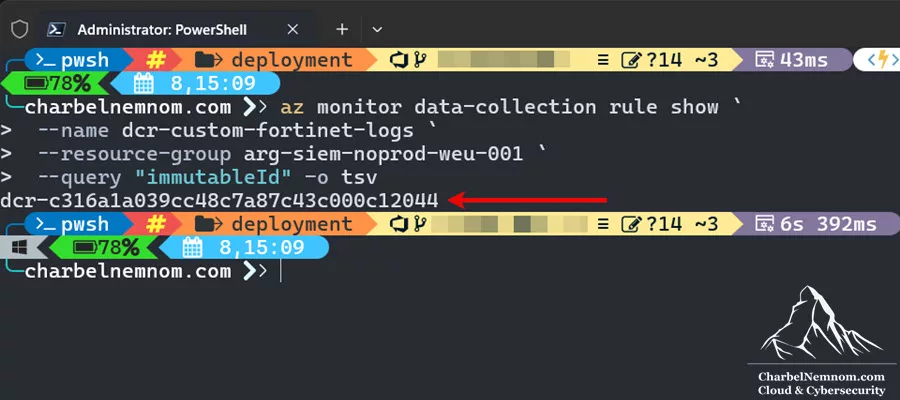
If the portal created the DCR for you, you can find it in Azure Monitor > Data Collection Rules. Click it, and you’ll see the Immutable ID in the Overview page.

At this point, the ingestion pipeline is set up. However, one crucial thing remains: permissions. Our function’s managed identity needs to be given the right roles:
- On the source workspace (to query logs) – we’ll assign Log Analytics Reader.
- On the DCR (and DCE) – we’ll assign the Monitoring Metrics Publisher.
We will handle those assignments after we create the managed identity in the next step. Just keep in mind that without those roles, the function app won’t work.
We have a DCE (with its endpoint URL), a DCR (with its immutable ID and configured stream), and a custom table in the destination workspace. We have the names/IDs noted down for the DCE endpoint, DCR ID, and workspace ID. Now we proceed to deploy the function infrastructure that will use these.
Step 4: Deploy Infrastructure (ARM Template)
In this step, we will deploy the Azure Function and related resources (storage account, application insights, managed identity, etc.) using an ARM template. This ensures the infrastructure is created with all the correct settings (like VNet integration and private endpoints).
We’ve prepared an ARM template for the function app environment, which includes:
- Function App (with PowerShell stack, set to Flex plan).
- App Service Plan (Flex Consumption).
- Storage Account (for function storage, with a private endpoint).
- Managed Identity (User-assigned).
- Application Insights.
- Configuration settings for the Function (like the VNet integration and environment variables for DCR, etc.).
- A private endpoint for the Function.
Make sure you have the parameters (workspace IDs, DCR ID, DCE URL, etc.) from the above steps ready to enter them into the template deployment. The simple way to deploy this template is to click the “Deploy to Azure” button below or “Deploy to Azure Gov” if you are using the Azure US Government cloud.


This button, when clicked, opens the Azure Portal’s custom deployment blade with the template. You then enter the parameter values, as shown in the figure below:
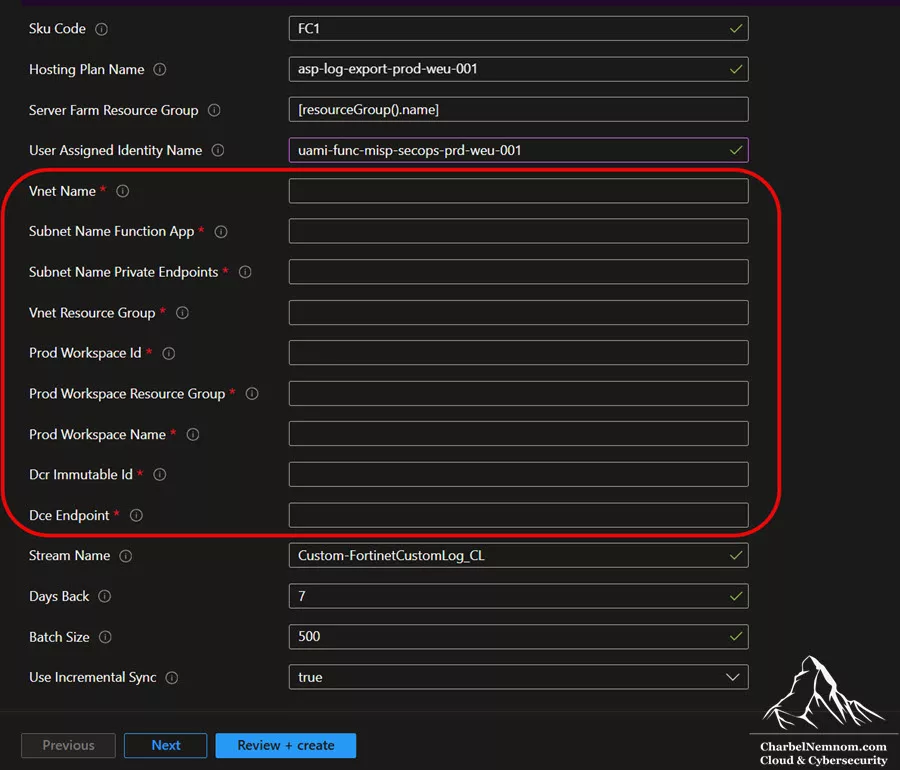
The deployment time will take around 5 minutes. It sets up several components, such as creating a user-assigned managed identity if you didn’t provide an existing one, and waits for the function app to integrate with the VNet and for the private endpoints to be created (private DNS and NICs will be created in the process).
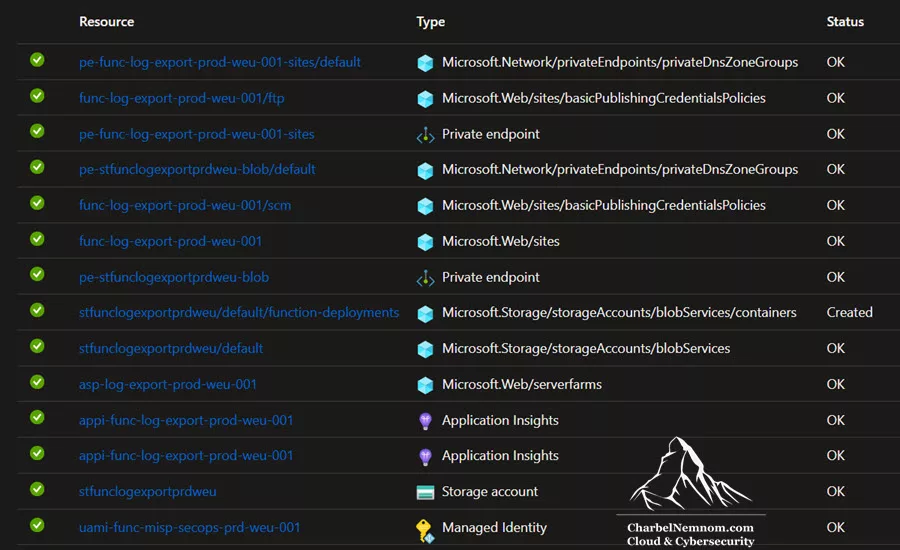
Ensure no resource is in a failed provisioning state. Private Endpoints should be in the Succeeded state (and DNS records should be created in the auto-generated private DNS zone). After deployment, verify that all expected resources are present and configured. Check the resource list, the expected key resources are:
- Function App
- App Service Plan
- Storage Account
- Private Endpoint for the Storage Account
- Private Endpoint for the Function
- User-Assigned Managed Identity
- Application Insights

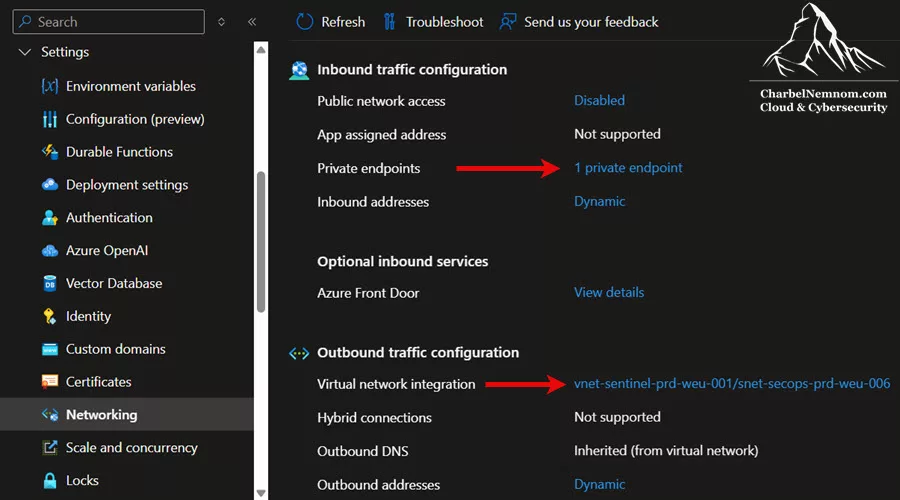
If we go to the Function App > Settings > Networking, we can see that Inbound and Outbound traffic are configured with private endpoints and VNet integration, as shown in the figure below.
Assign RBAC roles to Managed Identity
Now that the managed identity exists, we need to assign all the roles we discussed:
- On the source workspace (Prod): Log Analytics Reader role for the identity.
- On the DCR (and DCE): Monitoring Metrics Publisher role.
- On the storage account: Since we set the storage account to use Entra ID for authentication, the Function App requires access to the storage account with the Storage Blob Data Owner role.
We can do these via Azure CLI. First, get the principal ID of the user-assigned managed identity:
$PRINCIPAL_ID=az identity show `
  --name uami-func-export-prd-weu-001 `
  --resource-group arg-functions-weu-001 `
  --query principalId -o tsv
$PRINCIPAL_ID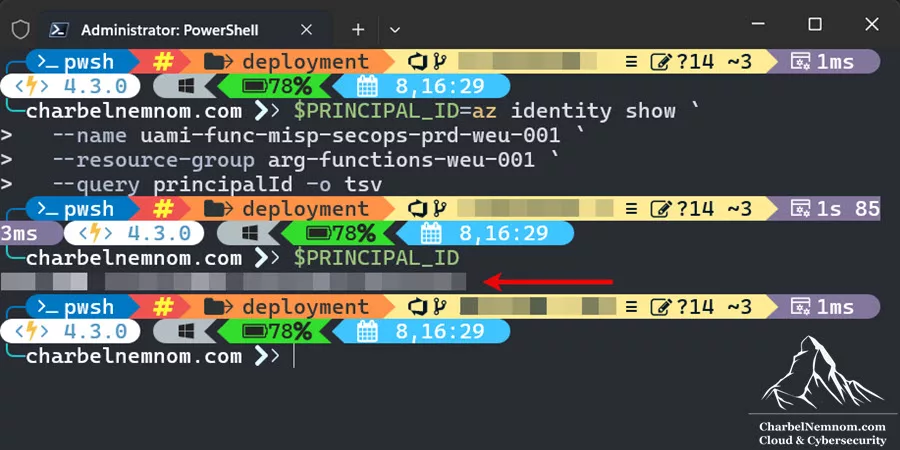
Then set the role assignments for all the required resources by running the following commands (Adjust resource names, resource groups, and subscription as needed):
# Role: Log Analytics Reader on source workspace
az role assignment create `
  --assignee $PRINCIPAL_ID `
  --role "Log Analytics Reader" `
  --scope "/subscriptions/<your-sub>/resourceGroups/<your-rg-name>/providers/Microsoft.OperationalInsights/workspaces/law-sentinel-prod-weu-001"

# Role: Monitoring Metrics Publisher on DCR
az role assignment create `
  --assignee $PRINCIPAL_ID `
  --role "Monitoring Metrics Publisher" `
  --scope "/subscriptions/<your-sub>/resourceGroups/<your-rg-name>/providers/Microsoft.Insights/dataCollectionRules/dcr-custom-fortinet-logs"

# Role: Monitoring Metrics Publisher on DCE (possibly not strictly required if DCR covers it, but assign to be safe)
az role assignment create `
  --assignee $PRINCIPAL_ID `
  --role "Monitoring Metrics Publisher" `
  --scope "/subscriptions/<your-sub>/resourceGroups/<your-rg-name>/providers/Microsoft.Insights/dataCollectionEndpoints/dce-name-weu-001"

# Role: Storage Blob Data Owner on Storage Account (for function to use storage via identity)
az role assignment create `
  --assignee $PRINCIPAL_ID `
  --role "Storage Blob Data Owner" `
  --scope "/subscriptions/<your-sub>/resourceGroups/<your-rg-name>/providers/Microsoft.Storage/storageAccounts/stfunclogexportprdweu"
To verify, list the roles assigned to the user-assigned managed identity by running the following command:
az role assignment list `
  --assignee $PRINCIPAL_ID `
  --all `
  --query "[].{Role:roleDefinitionName, Scope:scope}" -o table
You should see at least:
- Log Analytics Reader on the prod workspace
- Monitoring Metrics Publisher on the DCR and DCE
- Storage Blob Data Owner on the storage account
At this stage, the infrastructure is in place. The function app exists, but it doesn’t have our code yet. However, all environment variables have been set via the ARM template, including app settings such as AZURE_CLIENT_ID, DCE_ENDPOINT, and DCR_IMMUTABLE_ID details, as shown in the figure below. You can change and set them manually later on if needed.

Now, on to deploying the actual function code that will perform the log export.
Step 5: Understanding the PowerShell Function
Before deploying the function code, let’s briefly walk through what the function code contains. This will help in troubleshooting later and also ensure we can adjust it if needed.
Our function is a PowerShell Azure Function named LAWExportTimerTrigger. The code repository (or folder) has a structure as follows:
deployment/
├── host.json                   # Function app host configuration
├── profile.ps1                 # Executed at function start (for any module imports, etc.)
├── requirements.psd1           # Specifies PowerShell module dependencies
└── LAWExportTimerTrigger/
    ├── function.json           # Timer trigger schedule and binding config
    └── run.ps1                 # Main function logic
The important files:
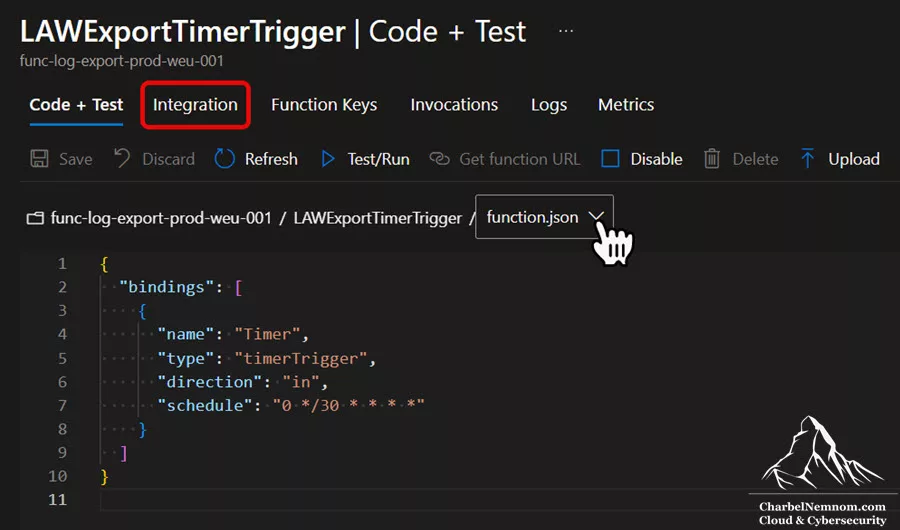
* function.json: This configures the timer trigger. For example:
{
  "bindings": [
    {
      "name": "Timer",
      "type": "timerTrigger",
      "direction": "in",
      "schedule": "0 */30 * * * *"
    }
  ]
}
This tells Azure to invoke run.ps1 on the given schedule. The NCRONTAB expression here is “every 30 minutes”. If we needed to change the schedule later, we could update this file and re-deploy. Once the function app code is deployed in Azure, you can also verify the schedule under the function’s Integration tab or by selecting the function.json under the Code + Test tab, as shown in the figure below.
* profile.ps1: Runs when the function app starts. We might use this to import Az modules or other dependencies. In our case, since we’re calling REST endpoints, we don’t need any heavy modules. But if we wanted to use Search-AzQuery cmdlet, for instance, we’d import the Az. However, that would require adding Az modules to requirements.psd1, which increases cold start time. Using direct REST (Invoke-RestMethod) as in our code avoids the need for the Az module, which is a conscious choice to keep the function lighter.
* requirements.psd1: If left blank or minimal, no major modules are preloaded. (Which is fine—PowerShell already has Invoke-RestMethod natively, etc. If we needed Kusto SDK or something, we could list it here.)
* run.ps1: This is where all the logic we described in the data flow lives. Let’s outline the different sections of the PowerShell script in the run.ps1 file:
Section 1: Configuration Loading – The function reads all runtime settings from app settings, so nothing is hardcoded. It pulls workspace IDs, ingestion endpoints/stream, days back, batch size, use incremental sync, and the blob container used for the sync marker.
# load config from env (no hardcoding)
$prodWorkspaceId    = $env:PROD_WORKSPACE_ID
$dcrImmutableId     = $env:DCR_IMMUTABLE_ID
$dceEndpoint        = $env:DCE_ENDPOINT
$streamName         = $env:STREAM_NAME
$daysBack           = if ($env:DAYS_BACK) { [int]$env:DAYS_BACK } else { 7 }
$batchSize          = if ($env:BATCH_SIZE) { [int]$env:BATCH_SIZE } else { 500 }

# incremental flag is normalized; only "true"/"1" turn it on
$incrementalEnv     = if ($env:USE_INCREMENTAL_SYNC) { $env:USE_INCREMENTAL_SYNC.Trim().ToLowerInvariant() } else { "" }
$useIncrementalSync = ($incrementalEnv -eq "true" -or $incrementalEnv -eq "1")

# blob-backed state (with AzureWebJobsStorage) and optional overrides
$stateStorageAccount          = $env:AzureWebJobsStorage__accountName
$stateStorageContainer        = if ($env:STATE_STORAGE_CONTAINER) { $env:STATE_STORAGE_CONTAINER } else { 'function-deployments' }
$stateStorageBlobName         = if ($env:STATE_STORAGE_BLOB_NAME) { $env:STATE_STORAGE_BLOB_NAME } else { 'lastrun_timestamp.txt' }
$stateStorageConnectionString = $env:AzureWebJobsStorage  # default Function App storage

# local file is only a legacy fallback when blob isn’t used
$lastRunTimestampFile = "$env:HOME\lastrun_timestamp.txt"
These variables will control how the script runs. For example, on first run, if incremental sync is true but no timestamp file exists, it will do a full sync of the last $daysBack days.
If USE_INCREMENTAL_SYNC is false, it always runs a full sync for $daysBack days. If true, it first looks for the marker in blob storage (using AzureWebJobsStorage and the container state above); if no marker exists yet, it falls back to a full $daysBack window and then writes the marker for the next run. The local file path is retained for Azure Functions with Dedicated/Premium/Consumption plans, but is effectively skipped when blob state is available. The new Flex Consumption plan on Linux includes ephemeral storage and a read-only filesystem, so we can’t rely on the local file option to write to it.
Section 2: Managed Identity Token Function – defines the Get-ManagedIdentityToken function (as we saw) to fetch tokens for given resource URLs from the local endpoint.
function Get-ManagedIdentityToken {
    [CmdletBinding()]
    param([string]$ResourceUrl)
    $tokenAuthURI   = $env:IDENTITY_ENDPOINT
    $tokenAuthHeader = $env:IDENTITY_HEADER
    $clientId       = $env:AZURE_CLIENT_ID  # ensures using the user-assigned identity
    $tokenUri = "$tokenAuthURI?resource=$ResourceUrl&api-version=2019-08-01&client_id=$clientId"
    $response = Invoke-RestMethod -Method GET -Headers @{"X-IDENTITY-HEADER" = $tokenAuthHeader} -Uri $tokenUri
    return $response.access_token
}

# Acquire tokens for Log Analytics and Azure Monitor
$logAnalyticsToken = Get-ManagedIdentityToken -ResourceUrl "https://api.loganalytics.io"
$monitorToken      = Get-ManagedIdentityToken -ResourceUrl "https://monitor.azure.com"
We ensure to pass the client_id param to target our user-assigned identity (otherwise, the system-assigned identity or a default would be used, but we specifically only have a user-assigned one attached).
Section 3: Determine Query Time Range – establishes $startDate and $endDate for the KQL query:
if ($useIncrementalSync -and (Test-Path $lastRunTimestampFile)) {
    # incremental: from last run
    $startDate = Get-Content $lastRunTimestampFile -Raw
} else {
    # full sync: last N days
    $startDate = (Get-Date).AddDays(-$daysBack).ToString("yyyy-MM-ddTHH:mm:ss")
}
$endDate = (Get-Date).ToString("yyyy-MM-ddTHH:mm:ss")
If first run (no file), start $daysBack days ago. Otherwise, start from the last run time.
Section 4: Build and Execute KQL Query – constructs the query string and calls the Log Analytics Query API:
$query = @"
FortinetCustomLog_CL
| where TimeGenerated >= datetime($startDate) and TimeGenerated < datetime($endDate)
| where Action == "accept"
"@

# Prepare REST call for query
$queryUri = "https://api.loganalytics.azure.com/v1/workspaces/$prodWorkspaceId/query"
$queryHeaders = @{ "Authorization" = "Bearer $logAnalyticsToken"; "Content-Type" = "application/json" }
$queryBody = @{ "query" = $query } | ConvertTo-Json

$queryResponse = Invoke-RestMethod -Uri $queryUri -Method POST -Headers $queryHeaders -Body $queryBody
# parse the results
...
In the actual code, as you’ll see later, after getting $queryResponse, we convert the table format into an array of PSObjects for easier handling. Essentially, $queryResponse.tables[0].columns gives the column names array, and .rows gives rows (as arrays of values). The code then pairs those into object properties.
You can also customize and tweak the KQL $query variable’s content to change what data is exported. For example, adding more filters (as we discussed) or choosing a different table.
Section 5: Batch the data and send via Logs Ingestion API – The code will batch process (send 500 records at a time):
$totalBatches = [Math]::Ceiling($data.Count / $batchSize)
$successCount = 0
$failureCount = 0

    for ($i = 0; $i -lt $data.Count; $i += $batchSize) {
        $currentBatch = [Math]::Floor($i / $batchSize) + 1
        $endIndex = [Math]::Min($i + $batchSize - 1, $data.Count - 1)
        $batch = $data[$i..$endIndex]

        Write-Host "  Sending batch $currentBatch of $totalBatches ($($batch.Count) records)..." -ForegroundColor Cyan

        try {
            Send-AzMonitorIngestionData `
                -DceEndpoint $dceEndpoint `
                -DcrImmutableId $dcrImmutableId `
                -StreamName $streamName `
                -AccessToken $bearerToken `
                -Data $batch

            $successCount += $batch.Count
            Write-Host "  ✓ Batch $currentBatch sent successfully" -ForegroundColor Green
        }
        catch {
            $failureCount += $batch.Count
            Write-Host "  ✗ Batch $currentBatch failed: $_" -ForegroundColor Red
        }

        # Small delay to avoid throttling
        Start-Sleep -Milliseconds 100
    }
Section 6: Save last run timestamp – After all batches succeed, we persist the end time as the next starting point. On Flex Consumption, we write to blob (using the Function App’s AzureWebJobsStorage); the local file remains only as a legacy fallback for dedicated/local scenarios.
 # Save timestamp for next run (only if all batches succeeded)
if ($failureCount -eq 0 -and $useIncrementalSync) {
    try {
        if ($useBlobState) {
            Set-LastRunInBlobRest -AccountName $stateStorageAccount `
                                  -ContainerName $stateStorageContainer `
                                  -BlobName $stateStorageBlobName `
                                  -Timestamp $endDate
        } else {
            $endDate | Out-File -FilePath $lastRunTimestampFile -NoNewline -Force
        }
        Write-Host "✓ Sync marker advanced to: $endDate" -ForegroundColor Green
        Write-Host "ℹ Next run will query from this timestamp forward" -ForegroundColor Cyan
    } catch {
        Write-Warning "Failed to persist sync marker: $_"
    }
}
The next invocation will read the marker (blob first, file only if blob isn’t in use) to know where to start.
Now that we understand the PowerShell code, let’s deploy it to the Function App.
Step 6: Deploy Function PowerShell Code
We have two main options to deploy the code to our Azure Function App:
Option A: Visual Studio Code deployment – using the Azure Functions extension (this uses the Azure management API to zip deploy or OneDeploy the code). This can work over an internet connection or through Azure if you’re logged in, and if you have network connectivity to Azure (which could be via VPN or even public internet for control plane, since it doesn’t send code via the function’s endpoint but via Azure’s management endpoints).
Option B: Azure CLI with func azure functionapp publish – But since our function app has public access disabled, we cannot publish directly unless we allow public access temporarily (more on this below).
In this example, we will outline both deployment options for completeness.
Option A: Deploy via Visual Studio Code
The Prerequisites for this method:
- You have VS Code with the Azure Functions extension installed.
- You are logged into Azure in VS Code (using the Azure Resources extension).
- If your function does not have public access and there is no direct internet route from your machine, you need to be on a network that can reach it, such as a VPN or ExpressRoute. Alternatively, you may need to temporarily open public internet access to allow for your public IP address.
1. Open the function project in VS Code: First, you need to clone the deployment project repository locally.
Open a command prompt or PowerShell window and run the following git commands:
git clone --no-checkout https://github.com/CharbelNemnom/Power-MVP-Elite.git
cd Power-MVP-Elite

git sparse-checkout init --cone
git sparse-checkout set "Azure/Microsoft Sentinel/Azure Functions/Sentinel Log Export/deployment"

git checkout master

cd "Azure\Microsoft Sentinel\Azure Functions\Sentinel Log Export\deployment"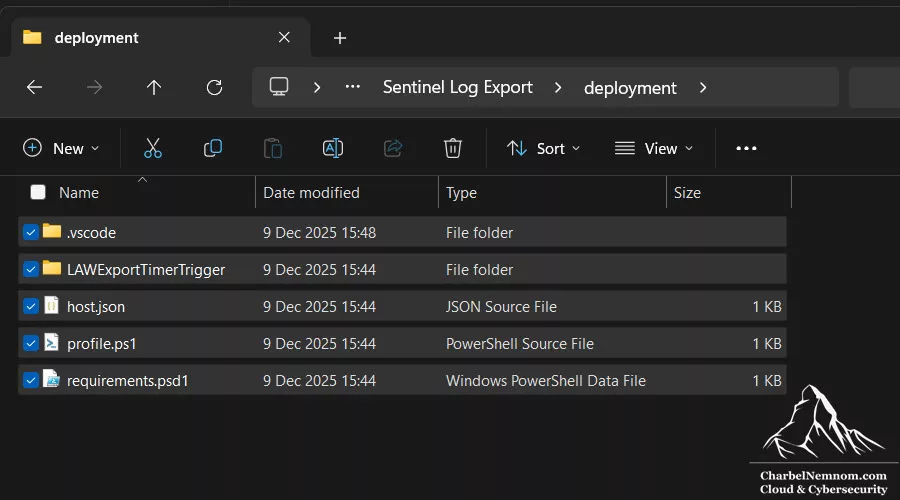
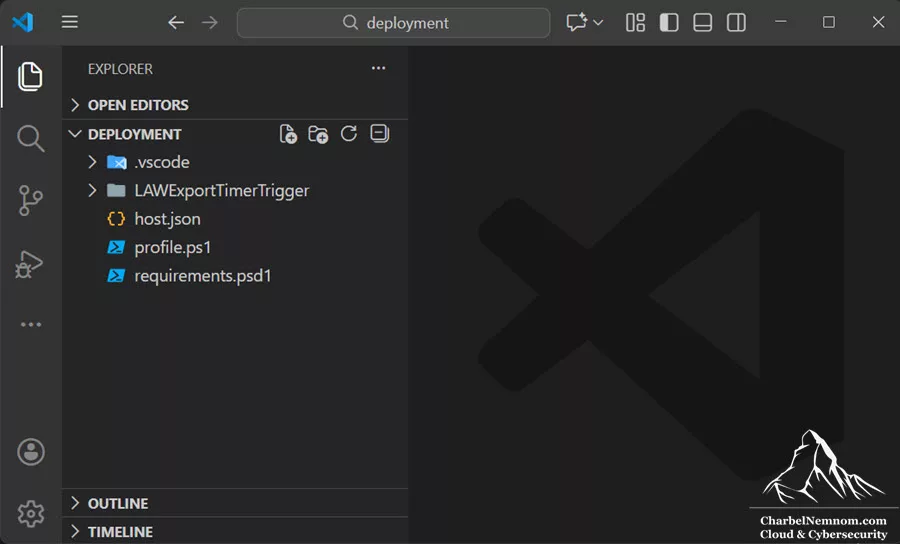
From your local clone or folder where the function code is, open that folder in VS Code. Ensure you see the host.json, the function folder, etc., in VS Code’s Explorer, as shown in the figure below.
2. Sign in to Azure in VS Code: In VS Code, open the command palette (Ctrl+Shift+P or Cmd+Shift+P on Mac) and run Azure: Sign In if you aren’t already signed in. Complete the authentication in your browser if prompted.
3. Initiate Deployment: In VS Code, press (Ctrl+Shift+A) to open the Azure resources extension. It will ask you to:
- Select a subscription (choose the one where you deployed the function).
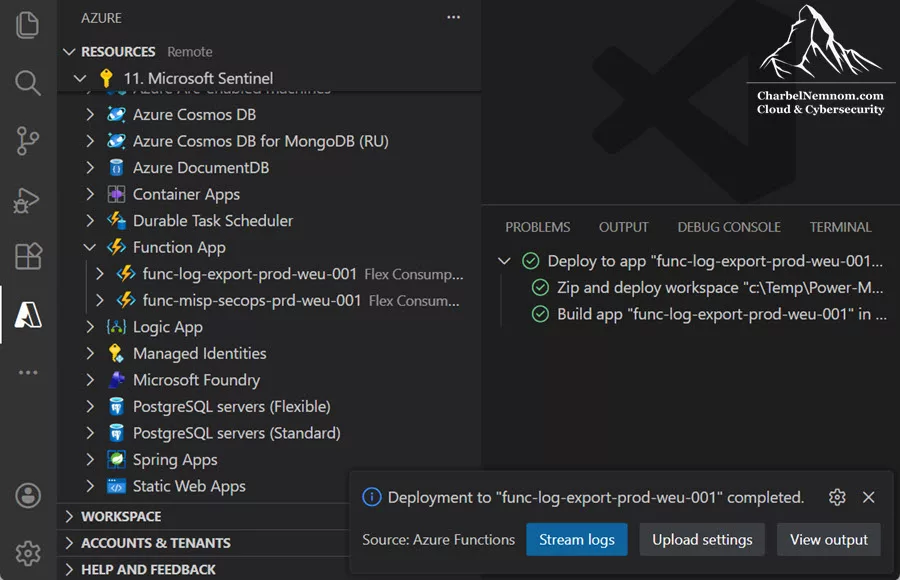
- Then select the function app name, then right-click and select Deploy to Function App, as shown in the figure below.
- It will warn that this will overwrite content in the function (which is fine, it’s empty at the moment). Confirm deployment by selecting Deploy.

You should see VS Code’s output panel showing the deployment progress. It usually does a build and a zip deployment.
4. Wait for deployment to complete: It typically takes 1-2 minutes. The output should show “Deployment to <func-name> completed.”, as shown in the figure below.
5. Verify function presence: You can switch to the Azure portal and verify the function LAWExportTimerTrigger is present and enabled under the Overview > Functions page. If it appears, the code has been successfully deployed, as shown in the figure below.
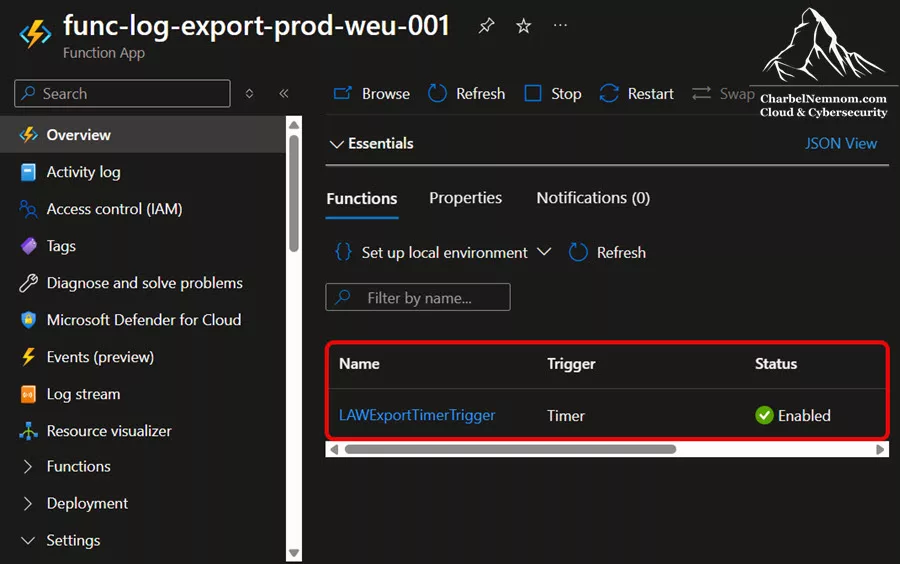
At this point, your code is in Azure. The timer trigger should be scheduled automatically. If the schedule aligns with the current time, it might run soon (e.g., if you deployed at 10:10, the next trigger is at 10:30).
Option B: Deploy via Azure CLI
Use this method if you do not have a private network connection to Azure. We will enable public access to the function app just long enough to publish code, then disable it. Only do this if Option A discussed above isn’t feasible, and ensure to turn public access off immediately after deployment to maintain security
1. On your machine, ensure Azure CLI and Azure Functions Core Tools are installed (from the prerequisites section). Also, ensure you have the function project folder ready.
2. Open a PowerShell (or Bash) terminal and navigate to the function project directory (the one containing host.json).
cd "Azure\Microsoft Sentinel\Azure Functions\Sentinel Log Export\deployment"3. Enable public access temporarily by running the following command (Adjust function name and resource group as needed):
az functionapp update `
  --name func-app-name `
  --resource-group rg-name `
  --set publicNetworkAccess='Enabled'
This sets the function app to allow public traffic (including for deployment). Wait a short moment (this might propagate quickly, but give it maybe 30 seconds).
4. Use the Azure Functions Core Tools publish command to deploy the code:
func azure functionapp publish func-log-export-prod --powershell --no-buildIf your code has no C# or other build steps, --no-build is fine; it will just zip and push the files.
You’ll be prompted to log in if not already, and you might need to provide credentials. This will upload the function package to Azure. You should see logs like “Getting site publishing info”, “Uploading package”, etc., and a final success message.
5. Disable public access immediately by running the following command (Adjust function name and resource group as needed):
az functionapp update `
  --name func-app-name `
  --resource-group rg-name `
  --set publicNetworkAccess='Disabled'
This reverts the function app to private access only.
6. Verify deployment by running the following command. You should see the LAWExportTimerTrigger function listed, as shown in the figure below.
az functionapp function list `
  --name func-app-name `
  --resource-group rg-name `
  --output table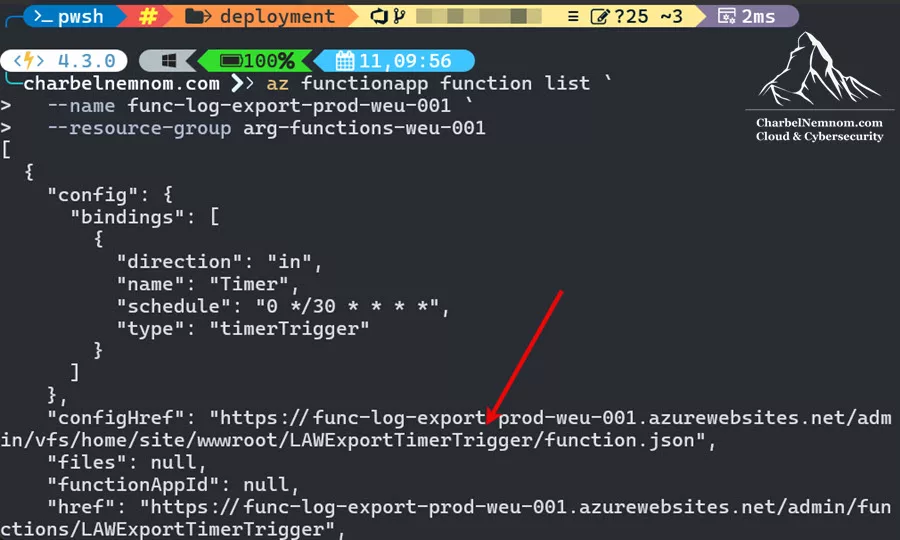
Step 7: Test the Function App
Since our function is a timer trigger, to test it on demand, we have a couple of approaches:
* Manual invocation from the Azure portal (if you have network access to run the function). As a side note, running your function in the portal requires the app to accept requests from https://portal.azure.com explicitly. This is known as cross-origin resource sharing (CORS). As part of the ARM template deployment, we automatically configured the CORS by adding https://portal.azure.com to the allowed origins, as shown in the figure below.

Once you verify your network access. Next, browse to the function LAWExportTimerTrigger and invoke it under the Code + Test tab, select Test/Run, and then click Run. This will invoke the function immediately (simulate the timer firing), as shown in the figure below. You will see the full output of the run in the Logs section below, in Cyan.

Note: This requires either public access or running it from a machine that can resolve and reach the function’s private endpoint (e.g., a VM in the VNet or via Azure Bastion). If you’re on a VPN/ExpressRoute and have private DNS resolution enabled, it’ll work.
* Wait for schedule: The more straightforward route is to wait until the next 30-minute mark and let it run.
Regardless of how it runs, you should monitor logs and deployment. In the Azure Portal, go to the storage account resource, open the function-deployments container, and verify that the released package for the PowerShell code in .zip was used as part of the deployment, and the lastrun_timestamp.txt was created, as shown in the figure below.
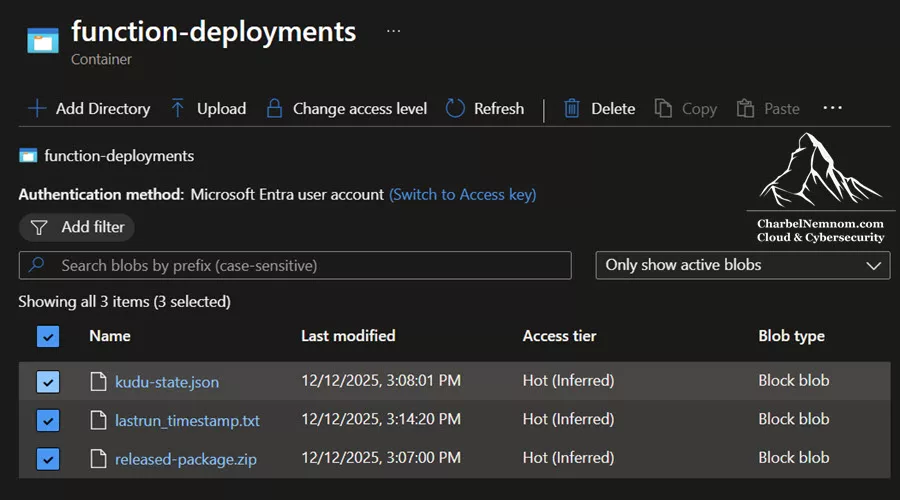
You can also go to the Application Insights resource, open Logs, and run the following KQL queries. For example, check if the function ran:
requests
| where name == "LAWExportTimerTrigger"
| order by timestamp desc
| take 10
This will show invocations (with timestamp, success/failure, duration, result code). If you see a result, it means the function executed. A 0 resultCode means success (usually; might also show 200 or 204, but for timer triggers often 0 or a custom value).
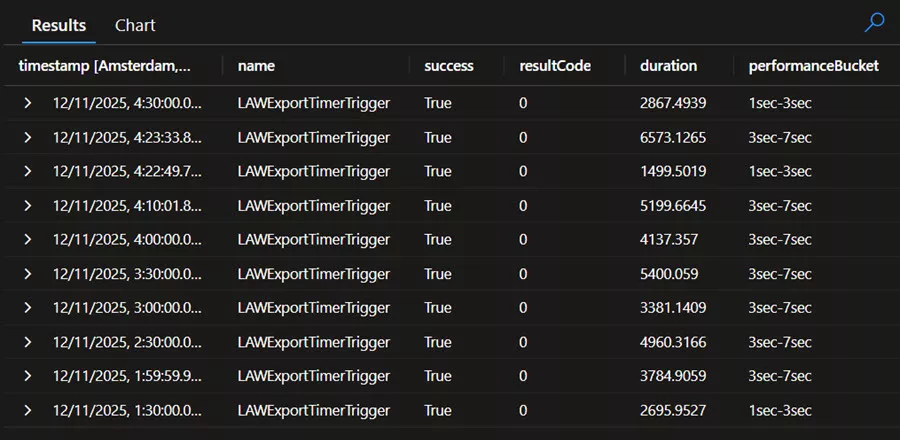
You can also check for exceptions. This shows any errors. If, say, RBAC were missing, you might see a 404 or 403 status in an exception message.
exceptions
| where cloud_RoleName == "func-log-export-prod"
| order by timestamp desc
| take 20
Also, any Write-Host output that we included in the PowerShell code should appear in the traces table, as shown in the figure below. Look for messages like “Batch of X records ingested“, “Query returned Y records“, or “No data found for the specified date range“, etc. That will confirm things are working.
traces
| where cloud_RoleName == "func-log-export-prod"
| order by timestamp desc
| take 50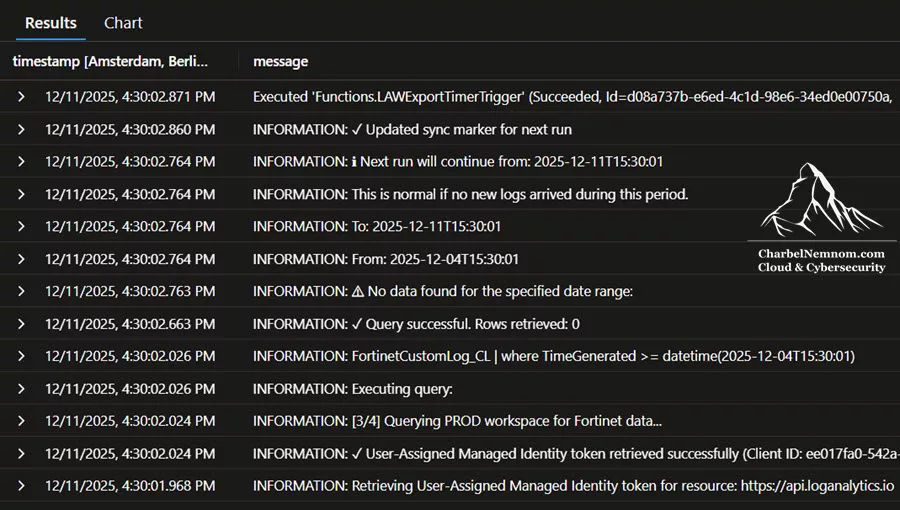
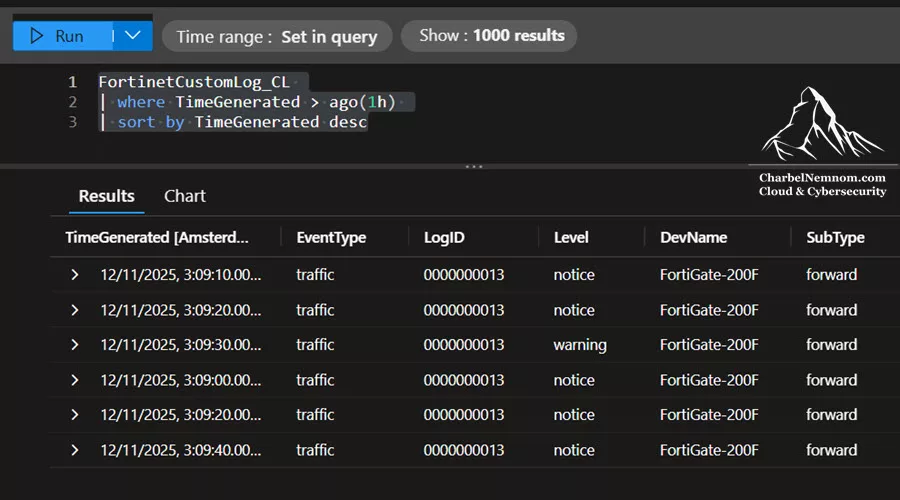
Finally, the real proof is to check the non-prod Sentinel workspace for data: In Log Analytics (destination workspace), run the following KQL query to verify:
FortinetCustomLog_CL
| where TimeGenerated > ago(1h)
| sort by TimeGenerated desc
| take 10
See if you get logs within few minutes. If yes, congratulations, the Sentinel pipeline is working as expected! If not, troubleshoot via logs.
After initial deployment, the very first function run might not find any lastrun_timestamp and do a 7-day query, which could be large. Monitor that. If needed, you can reduce DAYS_BACK or disable incremental sync for the first run or adjust the KQL logic to handle too-large results.
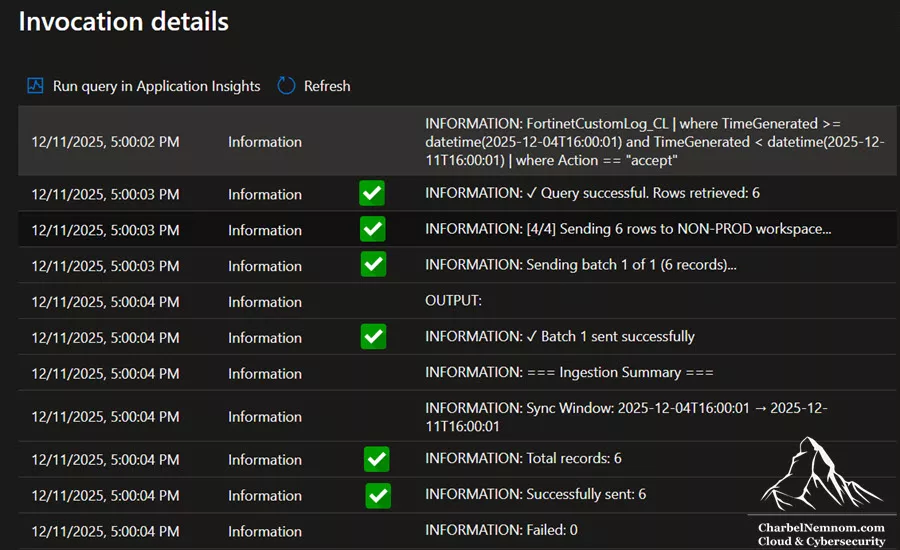
If we switch to the Azure portal and view the function app’s invocation details, we see that 6 total records were successfully ingested into the NON-PROD workspace, as shown in the figure below, confirming the logs above that we received in the destination workspace.
At this point, we have a working solution for exporting logs. Now we’ll look at how to monitor and manage it going forward.
Step 8: Monitoring and Operations
Operating this log transfer pipeline involves monitoring the function’s performance, errors, and verifying that data is flowing as expected. Azure provides tools for this via Application Insights and Log Analytics. Since the Function App is connected to Application Insights, we can leverage it for insights into our function’s behavior:
Check function executions: You can use the requests table in Application Insights, which logs each function invocation (timer trigger execution):
requests
| where name == "LAWExportTimerTrigger"
| project timestamp, duration, resultCode, success, cloud_RoleInstance
| order by timestamp desc
| take 20
Check for errors: Look at the exceptions table:
exceptions
| where cloud_RoleName == "func-log-export-prod"
| project timestamp, outerMessage, innermostMessage, problemId
| order by timestamp desc
| take 20
Any exceptions thrown by the function (uncaught errors) will appear here. For example, if the function encountered a 403 error from the API and we didn’t catch it, you’d see it. The outerMessage might say something like “Invoke-RestMethod … 403 forbidden”. You can use this to debug issues like missing RBAC or a bad payload.
Check custom logs from the function: Those appear in the traces table in Application Insights:
traces
| where cloud_RoleName == "func-log-export-prod"
| where message contains "Exported" or message contains "Error" or message contains "sending"
| project timestamp, message
| order by timestamp desc
| take 50
Adjust the filter based on how you adjusted the PowerShell script’s logging messages. This is useful for seeing internal info like “Query returned X records” or “Sent batch 1 of 3”, etc., if you added such logs.
Best Practices and Lessons Learned
Implementing a secure cross-workspace log transfer involves many Azure components. Here are some best practices and lessons learned.
Security Best Practices
Always use Managed Identity – Avoid using app registrations or secret keys for authentication. Managed identities provide an automatic, secretless connection to Azure resources, which we leveraged for both log querying and ingestion. There’s no Key Vault or password to manage, reducing risk.
Apply least privilege RBAC – Grant the minimum roles needed: our function’s identity only has:
- Log Analytics Reader on the source workspace (to query logs)
- Monitoring Metrics Publisher on the DCR (and DCE) to ingest data
- Storage Blob Data Owner on the function’s storage account (to allow the function to read/write its files, if using identity-based access for that).
Use private endpoints where possible – We deployed with zero public access to both the Function App (disabled public) and the Storage Account (using a private endpoint for the function storage). The only thing without a private endpoint is the DCE, which is an Azure service endpoint locked down by Entra ID auth. If needed in highly restricted environments, you could integrate with Private Link Scope for Azure Monitor (AMPLS).
Keep secrets out of code – All configuration, such as IDs and URLs, is stored in environment variables or the ARM template parameters, not hard-coded in the function. This means no sensitive info is checked into code. Even though our values are mostly IDs and not secrets, it’s still a good practice to parameterize everything.
Enable logging and monitoring – Application Insights gives us an audit trail of what the function did. This is important in a security context: if something fails (like a permission issue), we have evidence and can quickly pinpoint it. Also, maintain logs for at least a specified period to investigate past incidents (we could increase retention in App Insights if needed).
Network isolation – By using VNet integration, our function’s outbound traffic goes through our virtual network. This means if we needed to, we could even apply NSG rules or Azure Firewall rules to control what it can call. For instance, we could restrict it to only call Azure Monitor endpoints. In our case, we didn’t explicitly restrict it, but it’s within a controlled VNet environment.
Performance Best Practices
Use incremental sync – Only query data that hasn’t been transferred yet. This drastically reduces the amount of data processed on each run, reduces load on the source workspace, and speeds up the function execution. Full 7-day queries every time would be wasteful in our scenario.
Optimize KQL queries – We made sure to use project to select only needed columns, and filter early in the query (the where clauses) to avoid pulling unnecessary data. The more you can narrow down the query, the less data the function has to handle. Also consider query timeouts; the Log Analytics API has a default timeout (around 10 minutes). If your query might be long-running, you could add | take N or a narrower time window.
Batch processing – We send 500 records per request to the ingestion API rather than one by one. This is much more efficient. Too small batches = more overhead and possibly hitting request throttling, too large = hitting size limits. 500 is a safe default; you could tune it if needed (the API supports up to 1MB or 1000 records, whichever is first, so 1000 was also fine, but we chose 500 to be safe given varying record sizes).
Add slight delays between batches – A tiny delay (e.g., 0.1 second) between batches can help avoid tripping the 12,000 requests/minute limit in rare cases or just avoid flooding the service. Our function included a Start-Sleep -Milliseconds 100 (for example) in the loop as a precaution.
Limit initial sync scope – By configuring DAYS_BACK=7, we avoid the very first run pulling too much history (if your workspace had years of data, you wouldn’t want to inadvertently ingest all of it). If more history is needed, you could gradually backfill by running the function with an increasing window or separate process. But defaulting to a week or so is safer.
Monitor query performance – You can use Application Insights to track how long the Log Analytics query call took. If it’s approaching the schedule interval or timing out, that’s a sign to scale up (maybe use a larger plan, or break the query into smaller time slices per run).
Cost Optimization Best Practices
Right-size the schedule – Don’t run more often than necessary. We chose 30 minutes, considering a trade-off between data freshness and cost. If your use case tolerates hourly sync, that would cut execution count in half. Always evaluate the needs – e.g., no point in every 5 minutes if the data is only used daily.
Filter aggressively – Only export logs that truly need to be in the other workspace. The more you filter out, the less you pay for ingestion and storage on the destination side. In our case, we filtered for threat-related logs, assuming that’s the main interest for testing detection rules. If that assumption changes, adjust accordingly, but keep asking: do we really need this log in non-prod?
Use KQL aggregation – In some scenarios, raw logs are not needed; aggregated insights might suffice (for example, counts or summaries). Aggregated data means far fewer records ingested. Use this if the use case allows (we didn’t do much aggregation here beyond what’s needed, because we wanted raw events for realistic testing).
Monitor data volume and costs – Keep an eye on the destination workspace’s usage (you can set up Azure Monitor to alert if data ingestion spikes). Also, tag resources for cost tracking. We tagged our function app, etc., with a project tag. The function’s cost on Flex may be tiny, but Log Analytics ingestion and retention costs might be the larger factor if data volume is high. Use resource cost analysis to see what you’re spending on this pipeline.
Set appropriate data retention – Maybe your non-prod workspace only needs 90 days of data, not 180 days or 2 years. Reducing the retention can save costs. In Sentinel, the default is 90 days of free storage, but if you don’t need that long for non-prod, you can lower it. If you need to keep the data longer, consider routing the logs to the Sentinel data lake table instead.
Operational Best Practices
Version control everything – We have the ARM template, the PowerShell code, and the queries, all in source control. This ensures we can reliably recreate or modify the environment. It also allows peer review of changes (which is essential in security contexts).
Document customizations – If someone changes the KQL query or other parameters, keep that documented (even in the code comments or README). Six months later, you or someone else might wonder why certain logs were chosen or specific parameters set.
Test in non-prod first – Ironically, we are setting up a non-prod environment, but if you had a similar pipeline for multiple environments, always test changes in a lower environment. For example, if altering the DCR or function code, try it in a dev workspace before touching production data flows.
Implement monitoring alerts – Don’t rely on manual checking. Set up alerts: for instance, an Application Insights alert if any function run fails (you can alert on requests | where success == false or on exceptions > 0). Also, perhaps an alert if no data has been ingested in X time (could indicate the function stopped). This way, if the pipeline breaks, your team is notified promptly.
Plan for disaster recovery – Unlikely scenario: if someone accidentally deletes the DCR or the function resources. Make sure you have the configurations (templates, scripts) to rebuild quickly. Also consider exporting the DCR via ARM template, Bicep, or Terraform, so you have a copy of its definition. In our case, we already wrote it in code.
Wrapping Up
In this comprehensive guide, we built a production-ready, secure, and cost-effective log export pipeline for Microsoft Sentinel using modern Azure tools and services. While we focused on a Prod → Non-prod Sentinel scenario, the architecture can be adapted to other cases:
- Multi-Region Sentinel Deployments
- Compliance and Audit
- Testing and Development Environments
- Sentinel data lake Integration
- Custom Alerting Pipelines
In short, the pattern of query → process → send can be repurposed in many contexts. Building a secure, scalable, and maintainable log export pipeline requires careful consideration of multiple aspects:
- Security – We achieved a design with no public ingress, no hardcoded secrets, and strict access controls. This aligns with a “Zero Trust” approach, where each component has only the permissions it absolutely needs.
- Cost – By using serverless and filtering data, we minimized costs. Yet we remain aware of potential hidden costs, such as Log Analytics ingestion, which we monitor and control through filtering and scheduling.
- Reliability – The combination of Azure Functions (with built-in retry on failure if enabled, and our own retry logic for API calls) and Azure Monitor’s robust ingestion service gives us a reliable pipeline. Monitoring and alerts ensure we know if something goes wrong.
- Maintainability – Infrastructure-as-code and modular design (function configuration in env vars, queries can be changed without redeploying infrastructure) make the solution easier to update and maintain over time.
This solution provides a solid foundation that can be adapted and expanded to various log transfer needs in an Azure cloud environment. By leveraging modern Azure services and following best practices, you can build similar pipelines that meet your organization’s security and operational requirements.
Remember, you can always support us in developing tools and creating content via Why Contribute? – Charbelnemnom.com Cloud & Cybersecurity
__
Thank you for reading our blog.
Please let us know in the comments section below if you have any questions or feedback.
-Charbel Nemnom-
