
In today’s hybrid and multi-cloud world, securing log data is critical for any organization’s cybersecurity posture. Microsoft Sentinel is a cloud-native Security Information and Event Management (SIEM) and Security Orchestration, Automation, and Response (SOAR) solution that centralizes security data, enabling advanced threat detection, proactive hunting, and rapid incident response. By integrating Azure Arc and leveraging Private Link with Private Endpoints, organizations can extend secure connectivity directly into Microsoft Sentinel from on-premises or other cloud environments without exposing data over public networks.
This guide will walk you through every step—from understanding the foundational components and network connectivity methods to a deep technical deployment guide. We’ll discuss the use of Azure Private Link Scope (AMPLS) to securely connect networks to the Azure Monitor Log Analytics Workspace (LAW) and Data Collection Endpoint (DCE), cover the essential prerequisites, and provide hands-on steps for deployment and validation to establish a secure and private connection for log forwarding to Microsoft Sentinel.
This is a complex topic that requires different services to work together, so let’s dive in!
Table of Contents
Azure Arc Connectivity Methods
Azure Arc empowers organizations to manage diverse environments by connecting and governing resources across on-premises and multi-cloud infrastructures. When onboarding and establishing connectivity for Azure Arc-enabled resources, there are three primary methods available:
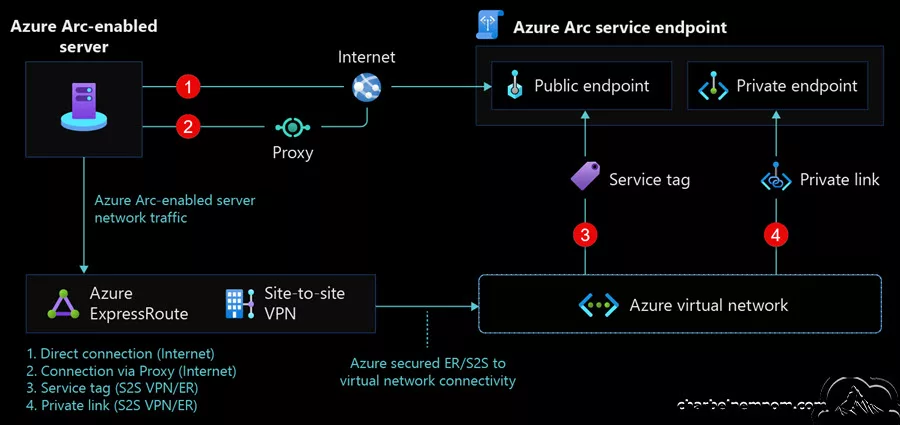
Public Endpoint
Public endpoints enable your resources to communicate using public IP addresses over the Internet. They are easy to set up and require minimal network changes. These endpoints are ideal for initial testing and for handling non-sensitive data. However, exposing resources to the public internet increases security risks and necessitates additional measures to prevent unauthorized access. Public endpoints are best suited for environments where security is not a primary concern or during the early stages of testing connectivity.
Proxy Server
A proxy server serves as an intermediary between your internal resources and external services. It adds an extra layer of security by filtering and caching traffic. Additionally, it can enforce access policies and control the flow of data. However, a proxy server may introduce latency and added complexity, requiring ongoing management and monitoring to maintain optimal performance. It is particularly beneficial for organizations that need to control access or filter traffic between on-premises environments and Azure services.
Private Endpoint
A private endpoint assigns a private IP address from your Virtual Network (VNet) to an Azure service resource. This setup ensures that communication occurs exclusively within the private network, enhancing security by keeping traffic within a controlled environment and eliminating exposure to public networks. It also provides more precise control and monitoring capabilities.
However, using a private endpoint involves more complex configuration and DNS management, requiring careful planning of network resources. It is the preferred method for production environments where security and regulatory compliance are critical.
The private endpoint approach (the focus of our topic) is generally recommended for secure log forwarding to Microsoft Sentinel and to ensure an end-to-end secure connection. By using private endpoints, you ensure that data does not traverse the public Internet, thereby reducing the risk of interception or unauthorized access.
Azure Arc: Extending Azure Management
Azure Arc extends Azure’s cloud management capabilities to any infrastructure, allowing organizations to:
1. Centralize Resource Management: Manage resources from on-premises, multi-cloud environments, and edge locations through a single interface.
2. Enforce Policies and Compliance: Apply Azure Policies consistently across your entire IT infrastructure to meet compliance standards.
3. Streamline Operations: Use familiar Azure tools for management, monitoring, automation, and updates, regardless of where your resources are located.
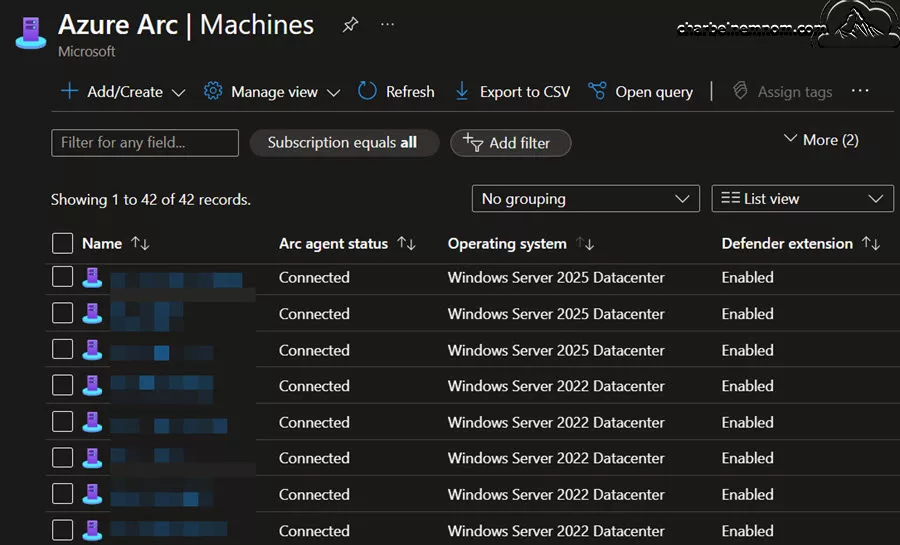
Azure Arc agents are installed on servers or Kubernetes clusters to connect them to Azure. Once connected, these resources are visible in the Azure portal, making it easier to manage them alongside Azure’s native services.
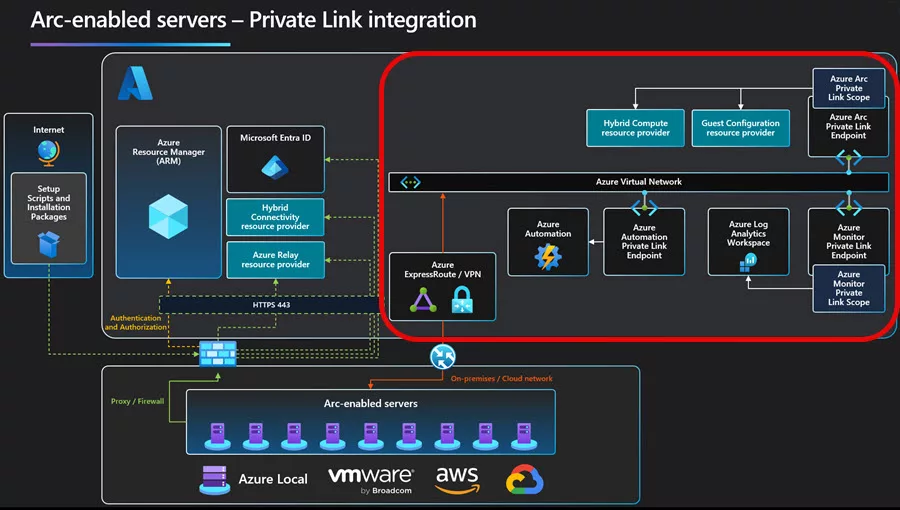
Private Link: Securing Connectivity
Private Link enables private connectivity to Azure services by mapping the service endpoint to a private IP address within your virtual network (VNet), which will help to:
* Enhanced Security: Keeps data within the Microsoft backbone network, reducing exposure to external threats.
* Improved Reliability: Uses the robust Azure network infrastructure to ensure high performance and low latency.
* Simplified Network Management: Centralizes access control to Azure services, which can be governed using Network Security Groups (NSGs) and Azure firewall rules.
Convergence: Azure Arc with Private Link
Combining Azure Arc with Private Link provides a powerful mechanism to secure log data transmission:
* Secure Data Flow: Log data from on-premises or other cloud resources connected via Azure Arc can be securely transmitted to Microsoft Sentinel without touching the public internet.
* Centralized Monitoring: With all log data consolidated in Microsoft Sentinel, security teams gain a unified view of their environment.
* Regulatory Compliance: Using Private Endpoints and Private Links helps meet strict regulatory requirements regarding data in transit.
This integrated approach is essential for organizations that prioritize security and ensure that their log management systems are robust and resilient.
Leveraging Azure Monitor Private Link Scope
Data ingestion into Log Analytics Workspaces (LAW) typically utilizes public endpoints. The objective is to securely and privately ingest data into an Azure Log Analytics Workspace while complying with the organization’s stringent security policies, which mandate that all network traffic remains within private virtual networks and avoids the public internet.
Azure Monitor Private Link Scope (AMPLS) is a resource that simplifies the management of private endpoints by acting as a central point of control. As shown in the figure below, it is particularly useful for organizations that need to connect multiple networks to Azure Monitor securely. Here’s an overview of how AMPLS works:
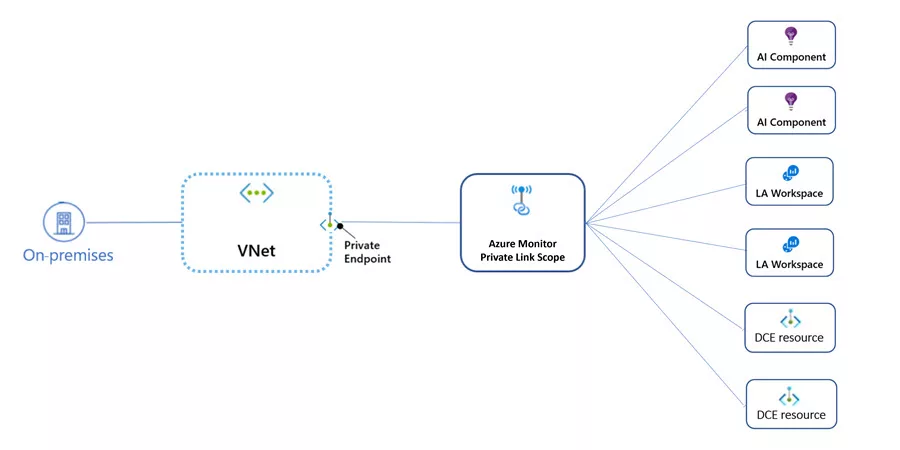
* Manage Private Endpoints at Scale: Group and manage private endpoints across multiple virtual networks from a single scope.
* Isolate Traffic: Ensure sensitive data only flows through approved private channels.
* Simplify Network Administration: Reduce the complexity of managing individual private endpoints by providing centralized oversight and configuration.
How AMPLS Connects Networks to Azure Monitor
1. Establishing the Scope: Initiate the creation of an AMPLS resource within your Azure subscription. Clearly define the resources to be included in the scope, such as Azure Monitor.
2. Associating Private Endpoints: Connect the private endpoints established within your Virtual Networks (VNets) to the AMPLS. This connection centralizes control and monitoring, ensuring only traffic from authorized endpoints is permitted.
3. Centralized Management and Monitoring: AMPLS provides a comprehensive interface for managing connectivity, diagnosing issues, and enforcing security policies. This centralization simplifies maintaining and auditing private connections throughout the entire environment.
By leveraging AMPLS, organizations can effectively and securely connect multiple virtual networks to Azure Monitor, ensuring compliance with the Zero Trust and data privacy policies.
Prerequisites
Before we start the deployment, we must ensure that all necessary prerequisites are in place and that the network is configured appropriately.
1. Azure Subscription: You must have an active Azure subscription with the appropriate permissions to create and manage resources.
2. Resource Groups: Organize your resources into logical groups for Microsoft Sentinel, Azure Monitor, Azure Arc-enabled servers, and network components.
3. Azure Arc Agents: Install and configure the Azure Arc agents on all servers, a single log forwarding machine, as shown in the figure below, or Kubernetes clusters that will send logs. For this guide, we will use a single log-forwarding, Windows Event Collector (WEC) machine with Azure Arc enabled with the Azure Monitor Agent (AMA) extension, where we’ll collect logs from different servers on-premises and send them to Microsoft Sentinel (Log Analytics). Refer to this section to see how to add a server with Azure Arc using a Private Endpoint.
Note: You can also deploy multiple Windows Event Collector (WEC) servers for high availability and client load balancing in a Windows Event Forwarding (WEF) setup. You can use DNS Round Robin or GPO-Based Load Distribution. This ensures better scalability, avoids a single point of failure, and spreads event load evenly.

4. Log Analytics workspace: To create a new workspace, follow the instructions to create a Log Analytics workspace.
5. Enable Microsoft Sentinel at no additional cost on an Azure Monitor Log Analytics workspace for the first 31 days; follow the instructions on this page. Once Microsoft Sentinel is enabled on your Log Analytics workspace, every GB of data ingested into the workspace can be retained at no charge for 90 days.
6. DCE and DCR: Create a Data Collection Endpoint (DCE) and Data Collection Rule (DCR). A DCE is only required if you use a private link (more on this below).
7. Permissions: Confirm that you have permission to create and manage private endpoints, including the ability to modify DNS settings.
Network Configuration
The following sections describe how to plan your Azure Monitor private link configuration based on your network topology.
1. Avoid DNS overrides: Some networks have multiple virtual or interconnected networks. If these networks share the same DNS, configuring a private link on any of them will update the DNS and affect traffic across all connected networks. The recommendation is to use a single Azure Monitor Private Link Scope (AMPLS).
2. Hub-and-spoke networks: Planning a hub-and-spoke architecture is very important. For the purpose of this article, we won’t dive deep into the configuration of hub-and-spoke architecture. You can refer to the guide written by my fellow MVP (Aidan Finn) on designing a hub and spoke infrastructure. For this environment, we are using the following architecture: a single private link connection is set on the hub (main) network and not on each spoke virtual network.
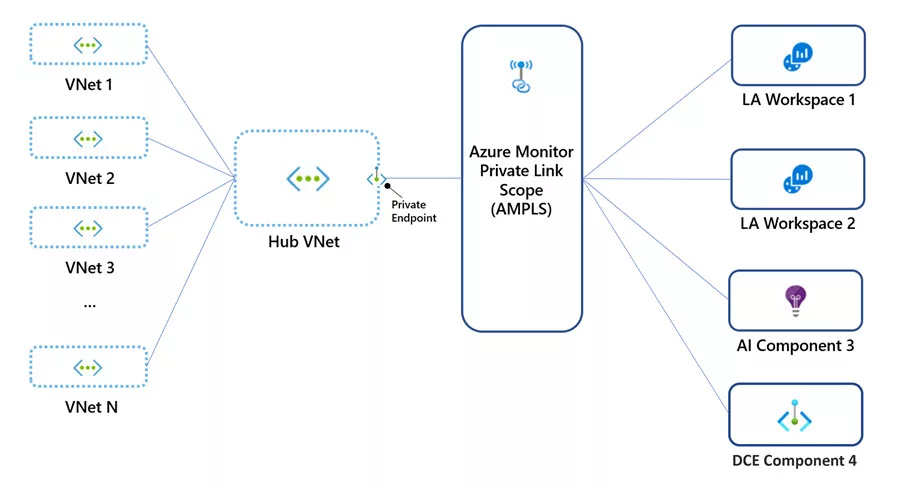
3. Peered networks: With network peering, networks can share each other’s IP addresses and often use the same DNS. In this scenario, it’s best to create a single private link on one network that the other networks can access. Avoid creating multiple private endpoints and AMPLS objects, as only the last one set in the DNS will take effect.
4. Isolated networks: Are you using isolated networks? If your networks are not peered, you must keep their DNS separate to use private links. You can create an individual private endpoint for each network and a separate AMPLS object for each. These AMPLS objects can connect to the same workspaces/components or different ones.
DNS Configuration
Your on-premises Log Forwarder machines or servers must be able to resolve the private link DNS records to the IP addresses of the private endpoints. The configuration method will depend on whether you are using Azure private DNS zones to manage DNS records or your own on-premises DNS server, as well as the number of servers you are setting up.
If you set up private DNS zones for Azure Arc-enabled servers when creating the private endpoint, your on-premises machines need to be able to forward DNS queries to the built-in Azure DNS servers to resolve the private endpoint addresses correctly. You need a DNS forwarder in Azure (either a purpose-built VM or an Azure Firewall instance with DNS proxy enabled), after which you can configure your on-premises DNS server to forward queries to Azure with conditional forwarders to resolve private endpoint IP addresses, as shown in the following diagram.

168.63.129.16“, as shown in the figure below. Please refer to the official documentation for the values of the Azure Private Endpoint private DNS zone.
monitor.azure.comods.opinsights.azure.comoms.opinsights.azure.comagentsvc.azure-automation.netblob.core.windows.nethis.arc.azure.comguestconfiguration.azure.com

Option 2: You can also use the Azure DNS Private Resolver service with your on-premises DNS conditional forwarder without deploying a DNS forwarder virtual machine (IaaS VM) in Azure.
Option 3: If you don’t want to use Azure private DNS zones during private endpoint creation, you must manually create the required DNS records in your on-premises DNS server, as illustrated below. You can also use this approach if you don’t want to use the Azure DNS Private Resolver or deploy a DNS forwarder virtual machine (IaaS VM) in Azure.
Important: The steps below should be done after creating the Data Collection Endpoint (DCE) and the private endpoints for Azure Arc and Azure Monitor Private Link Scope (please refer to the step-by-step deployment section below).
1. In the Azure portal, navigate to the Private Link Center | Private endpoint resources for both (Azure Arc and Azure Monitor Private Link Scope) associated with your virtual network and private link scope.
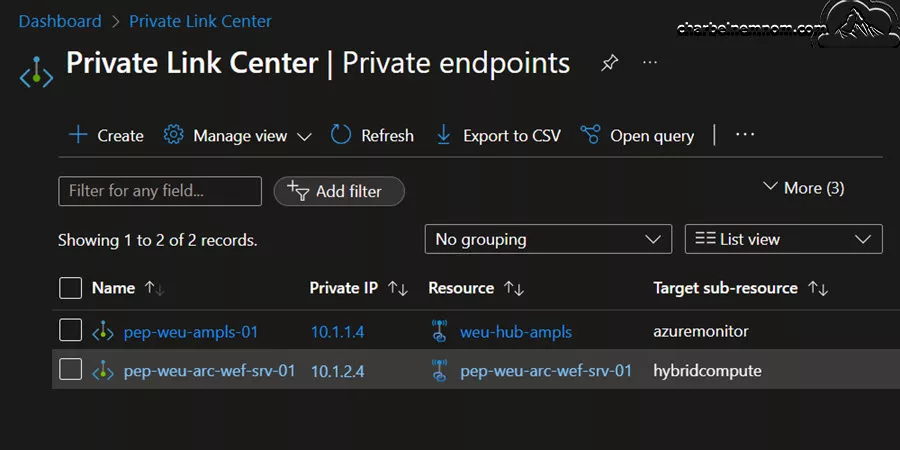
2. From the menu, under Settings, select DNS configuration to see a list of the DNS records and corresponding IP addresses you need to set up on your DNS server. Please note that the FQDNs and IP addresses will change based on the region you selected for your private endpoint and the available IP addresses in your subnet.
The following screenshot is an example of the Custom DNS records for the private endpoint of Azure Arc Private Link Scope.

The following screenshot is an example of the Custom DNS records for the private endpoint of the Azure Monitor Private Link Scope and Data Collection Endpoint. The only DNS records that you want to add manually for Azure Monitor Private Link Scope (AMPLS) and Data Collection Endpoints (DCEs) are the following six records:
{your-unique-dce-name.region-name}-1.handler.control.monitor.azure.com{your-unique-dce-name.region-name}-1.ingest.monitor.azure.com{your-unique-dce-name.region-name}-1.metrics.ingest.monitor.azure.com{your-unique-ods-endpoint-name}.ods.opinsights.azure.comglobal.handler.control.monitor.azure.com{your-region-name}.handler.control.monitor.azure.com

3. Then, follow the instructions provided by your DNS server vendor to add the required DNS zones and A records that correspond to the table under Custom DNS records in the Azure portal, as shown in the example above. Choose a DNS server that is properly configured for your network. Any machine or server that uses this DNS server will resolve the private endpoint IP addresses, and it must be linked to the Azure Arc Private Link Scope; otherwise, the connection will be denied.
Note: Do not update your DNS system globally when creating your private endpoint to test private links locally first, without impacting other clients on your network. What you do is to modify the C:\Windows\System32\drivers\etc\hosts file on your Windows machine locally to direct requests to the private link endpoints:
- Create and set up a private link, but when you connect to a private endpoint, choose not to auto-integrate with the DNS.
- Configure the relevant endpoints on your machines’
hostsfiles.
Here is an example of an on-premises DNS server where we created the appropriate DNS Zones and A records for all the required FQDNs and their corresponding private IP addresses for Azure Arc, Azure Monitor private endpoints, and Data Collection Endpoints (DCEs).
arc.azure.comguestconfiguration.azure.com-
kubernetesconfiguration.azure.com: This is not required if you are not using and collecting logs for Kubernetes. monitor.azure.comopinsights.azure.com

Note: It would be easier to use Option 1 or 2 mentioned above with conditional forwarders instead of manually configuring all the DNS Zones and A records statically on your DNS servers. However, this option is also feasible for those who don’t want to use the Azure DNS Private Resolver or deploy a DNS forwarder virtual machine (IaaS VM) in Azure to save some costs.
4. Finally, check your on-premises DNS server to verify that it is either forwarding requests to Azure DNS or is configured with the appropriate A records in your private link zone. When you run the following nslookup commands, they should return private IP addresses from your Azure virtual network for Azure Arc, Azure Monitor private endpoints, and Data Collection Endpoints (DCEs), as shown in the figure below. If they return public IP addresses instead, double-check your machine and the DNS configuration of your network.
nslookup gbl.his.arc.azure.comnslookup agentserviceapi.guestconfiguration.azure.comnslookup global.handler.control.monitor.azure.comnslookup {your-unique-ods-endpoint-name}.ods.opinsights.azure.comnslookup {your-unique-dce-name.region-name}-1.handler.control.monitor.azure.comnslookup {your-unique-dce-name.region-name}-1.ingest.monitor.azure.comnslookup {your-region-name}.handler.control.monitor.azure.com

Addressing these prerequisites and network configurations upfront helps prevent connectivity issues during the deployment process and ensures the security of your environment.
Step-by-Step Deployment
This section provides detailed instructions for deploying the solution end-to-end. The following steps assume you have met all prerequisites and configured your network accordingly.
This guide reviews how configuration is done through the Azure portal. Please note that we can automate the process using the Azure Resource Manager (ARM template), Bicep, Terraform, PowerShell, and the REST API.
Step 1. Enroll WEF Server in Azure Arc Service
To capture events within Microsoft Sentinel, a secure and private connection to the Log Analytics workspace that Microsoft Sentinel monitors must exist. We must enroll our Windows Event Forwarder (WEF) server on-premises into Azure Arc using a Private Link and install the Azure Monitor Agent (AMA).
1. Log on to the Azure portal at https://portal.azure.com
2. From the search portal, enter “Machines – Azure Arc” and select this to go to the “Machines” blade.
3. Click “+ Add/Create” and select “Add a machine“, as shown in the figure below.

4. Next, select “Generate Script” from the “Add a single server” box.
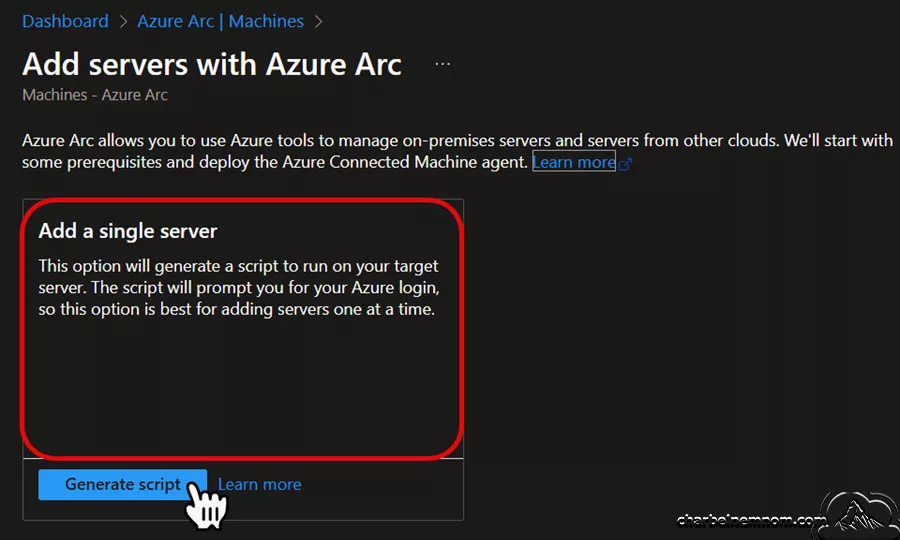
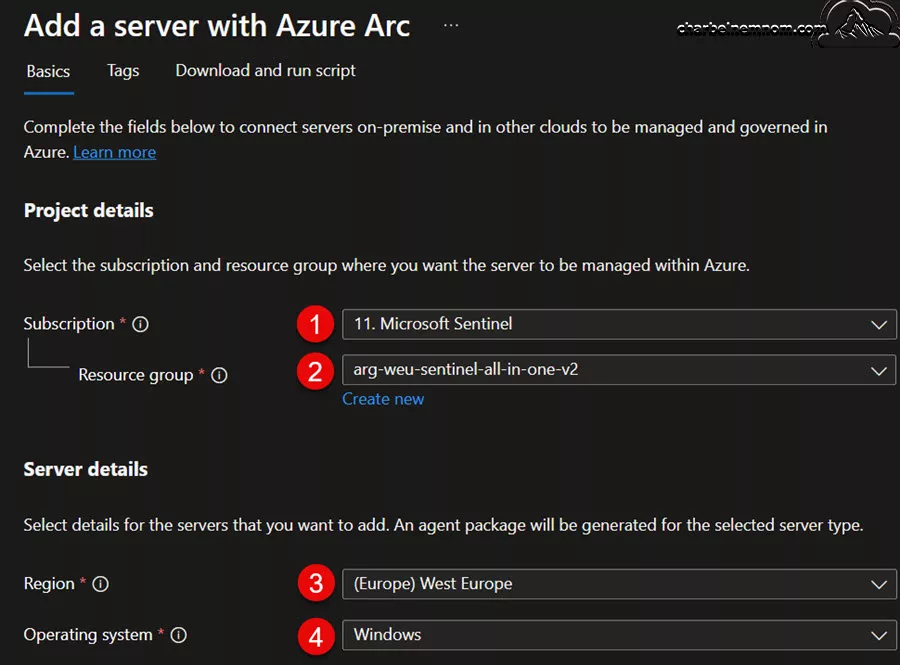
5. On the Basics tab, complete the Project details and Server details:
- Select the Subscription and Resource group where you want the server to be managed within Azure.
- Select the Region and Operating system details for the servers you want to add. An agent package will be generated for the selected server type. In this example, we are using Windows OS. You can perform the same process to collect and forward Linux Logs to Microsoft Sentinel.
6. Under the Connectivity method, select the “Private endpoint” option and create a private link scope and endpoint if you don’t already have one. In this example, we’ll create a new private endpoint by entering the following details. Then click OK.
- Select the Subscription and Resource group where you want the private endpoint to be created within Azure.
- Select the Location and then enter a Name for the private endpoint.
- Select the Virtual network and Subnet you want to connect to your Azure Arc servers. In this example, we have created a dedicated subnet for the Azure Arc Private Link (private endpoint).
- Select Yes to integrate with the private DNS zone, which will automatically create a new private DNS zone in Azure Private DNS.
Note: If you don’t want to integrate with Azure private DNS zones during private endpoint creation, you must manually create the required DNS Zones and A records in your on-premises DNS server (please refer to the DNS Configuration section).

Please note that the private link scope will be created with the same subscription, resource group, name, and region as the Arc server(s) to be onboarded.
Once the Azure Arc Private Link Scope and private endpoint were created, we confirmed that public network access was disabled.

7. Next, enter any required “Tags” for your organization and select “Next.” Then, select the “Download and run script” and click the “Download” or “Copy” button. Your organization will probably block the PowerShell.PS1” script files “Download” button.
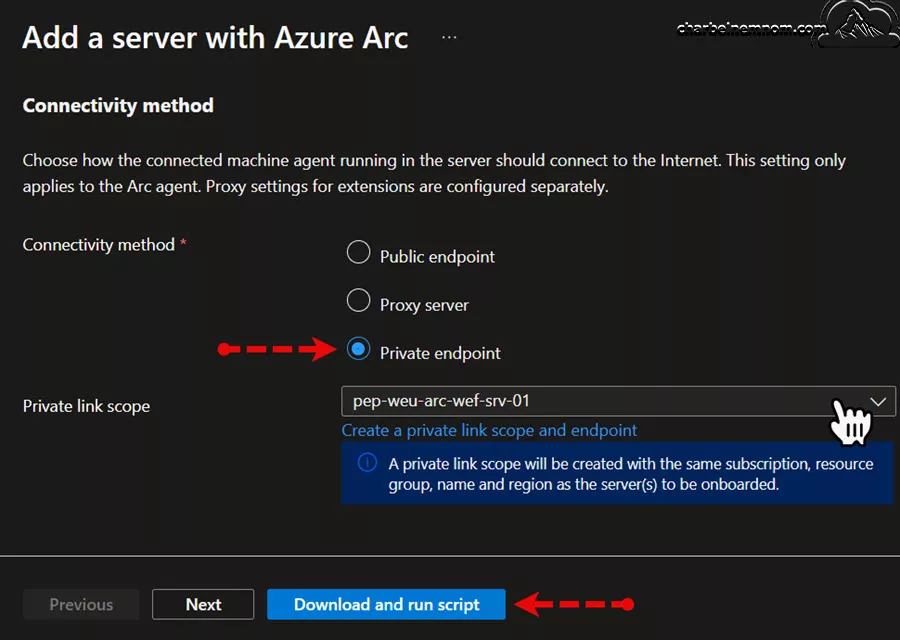
After downloading the script, you must run it on your WEF machine using a privileged (administrator or root) account. Depending on your network configuration, you might need to download the Arc agent from a computer with Internet access, transfer it to your on-premises machine, and then modify the script with the path to the agent.
The Windows agent can be downloaded directly from the following URL: https://aka.ms/AzureConnectedMachineAgent, and the Linux agent from https://packages.microsoft.com. Look for the latest version of the “azcmagent” under your OS distribution directory and install it with your local package manager.
8. From the on-premises WEF machine, open a script editor (Notepad, for example), paste the clipboard’s contents, and save it as “WEC-FW-Sentinel.ps1“.
- Open an elevated PowerShell command prompt
- Change directories to where you saved “
WEC-FW-Sentinel.ps1“ - Execute the script: “
.\WEC-FW-Sentinel.ps1“
Next, you will be prompted to sign in to a web browser and enter a code to authenticate. Follow the on-screen prompts to log on and approve the joining of the WEF machine to Azure Arc. As we can see in the figure below, the machine was successfully connected to Azure Arc using the private link.
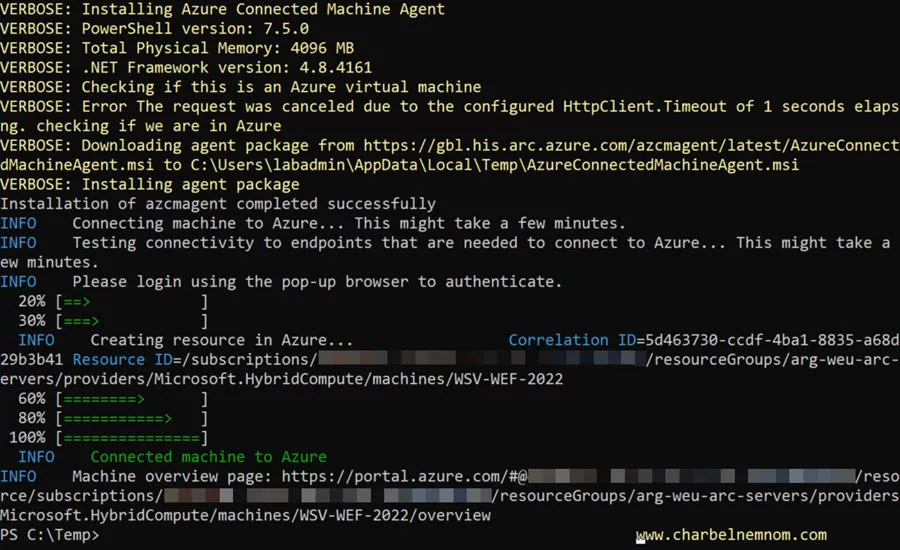
9. Move back to the “Machines” blade in Azure Arc, hit refresh, and the newly onboarded machine should now be part of the chosen subscription and connected to the Private link scope, as shown in the figure below. In this example, the Windows Event Forwarder “WSV-WEF-2022”.

10. To test that Azure Private Link with Azure Arc is working, open a command prompt on the machine where you ran the script and run the following nslookup command to confirm that you can reach the Azure Arc service over a private endpoint. It should return private IP addresses from your Azure virtual network and subnet.
nslookup gbl.his.arc.azure.com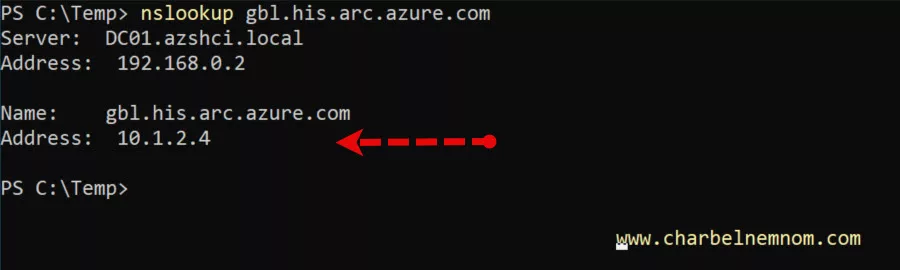
Step 2. Create a Data Collection Endpoint
The important part of the equation is to create a Data Collection Endpoint (DCE). A DCE isn’t always required for data collection since the data source may use a public endpoint or the ingestion endpoints in the DCR. Since we need to send the log securely using a private link, we must create a Data Collection Endpoint (DCE) and then attach it to the Data Collection Rule (DCR), as described in Step 3 below.
Important: Please note that the Data Collection Endpoint (DCE) and Data Collection Rule (DCR) should be in the same Azure region as the monitored resources. In this example, we use West Europe (Middenmeer) in the Netherlands as a location.
1. Log on to the Azure portal at https://portal.azure.com
2. From the search portal, enter “Data Collection Endpoints” and select this to go to the “Data collection endpoints” blade.
3. Click “+ Create” and enter the data collection Endpoint Name, select the desired Subscription, Resource Group, and Region, as shown in the figure below.

4. Last, let the validation pass and select Create.
A data collection endpoint includes components required to ingest data into Azure Monitor and send configuration files to the Azure Monitor Agent (AMA). How you set up Data Collection Endpoints (DCEs) for your deployment depends on whether your monitored resources and Log Analytics workspaces are in one or more Azure regions.
The configuration access endpoint is from which the Azure Monitor Agent (AMA) retrieves data collection rules (DCRs). For example: https://{unique-dce-identifier}.westeurope-1.handler.control.monitor.azure.com. It should be in the same region as the monitored resources.
Step 3. Create a Data Collection Rule
There are multiple ways to create a Data Collection Rule (DCR). For this guide, the easiest way is to perform this step through Microsoft Sentinel.
Assuming you’ve installed the Windows Forwarded Events solution from the Content hub first.
1. Go to the Windows Forwarded Events data connector page and select “+Create data collection rule“. On the “Basic” tab, enter “Rule Name“, “Subscription“, and “Resource group“, then click “Next: Resources >“, as shown in the figure below.

2. On the “Resources” tab, search for and select your Windows Event Forwarder (WEF) machine, which captures on-premises Windows Events, as shown in the figure below. Then click the “Next: Collect >“.

3. On the “Collect” tab, choose whether to send “All Forwarded Events” or just a filtered list “Custom“, and then click the “Next: Review + Create” button. In our scenario, we’ll select “Custom” to pick the Windows Firewall Events (Event ID 3001) and stream them to the appropriate “ASimNetworkSessionLogs” normalized schema table. The “Custom” option allows you to filter and select the Windows events to stream using XPath queries. For example, you can exclude and filter out the Event IDs (4627, 4634, and 4776). Please refer to the following step-by-step guide for more information.
ForwardedEvents!*[System[(EventID=3001)]]ForwardedEvents!*[System[(EventID!=4627 or EventID!=4634 or EventID!=4776)]]

4. Last, let the validation pass and select Create. Next, Microsoft Sentinel will install the Azure Monitor Agent (AMA) extension on the WEF machine as part of the Azure Arc-connected agent and create the Data Collection Rule (DCR).
5. After creating the DCR, browse to the Data Collection Rule blade and select the newly created DCR. Then, on the Overview page, click “Configure DCE“, as shown in the figure below. Choose the Data Collection Endpoint you created in Step 2 above, and then click Save.

6. Next, go to the Resources tab > select the Machine – Azure Arc, click Edit Data Collection Endpoint, associate the Data Collection Endpoint you created in Step 2 above, and then click Save, as shown in the figure below.

Until now, we have completed the Azure Arc Private Link Scope configuration and created the Data Collection Endpoint and Data Collection Rule. The last piece of the puzzle is creating the Azure Monitor Private Link Scope (AMPLS) and verifying the log forwarding over private and secure channels, so let’s continue!
Step 4. Create Azure Monitor Private Link Scope (AMPLS)
Now that we have enrolled the WEF server in Azure Arc over Private Link Scope, created the Data Collection Endpoint and Data Collection Rule, and associated the DCE on the DCR, the next step is to create the Azure Monitor Private Link Scope (AMPLS).
1. From the Monitor menu in the Azure portal, select Private Link Scopes and click Create, as shown in the figure below.

2. Next, select a subscription and resource group, and give the AMPLS a meaningful name like “weu-hub-ampls“. Keep the default set to Open for the query and ingestion access mode for now (more about private links access modes below).
Note: We recommend using the “Open” access mode when onboarding Microsoft Sentinel and then switching to “Private Only” mode after you finish testing. That’s how we can have a private configuration with AMPLS for data ingestion. Select Review + Create.
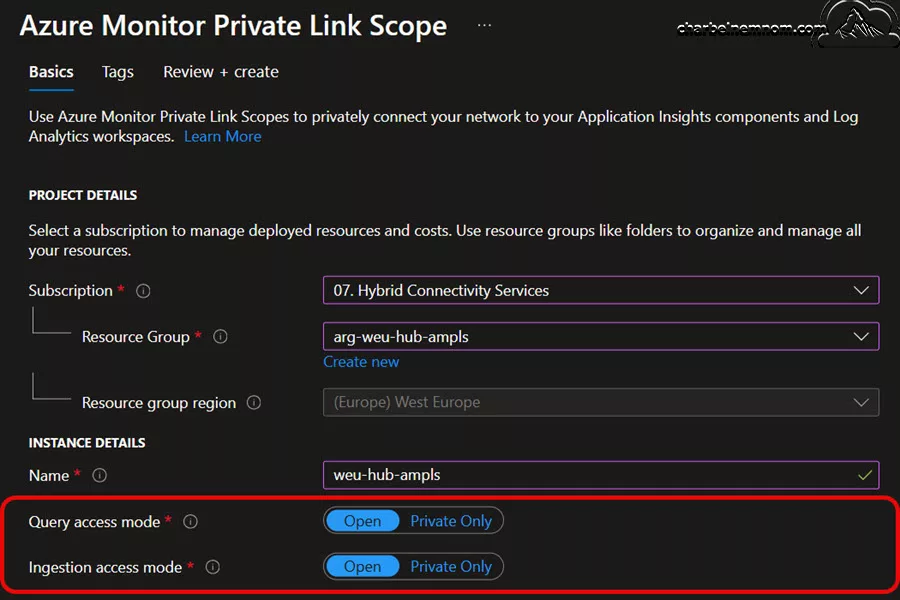
Private Links access modes control how Private Links apply to your network and significantly affect your network traffic. We have two options:
- Private Only—This mode allows the connected VNet to reach only Private Link resources. It is the most secure mode. Note: Only select ‘Private Only’ after adding all Azure Monitor resources to the AMPLS. Traffic to other resources will be blocked across networks, subscriptions, and tenants.
- Open—Allows the connected VNet to reach both Private Link resources and resources outside the AMPLS. Traffic to Private Link resources is validated and sent through private endpoints, but data exfiltration can’t be prevented because traffic can reach resources outside the AMPLS. The Open mode allows for a gradual onboarding process, combining Private Link access to some resources and public access to others.
3. Last, let the validation pass and select Create.
Step 5. Connect Log Analytics and DCE to the AMPLS
Once you have created the Azure Monitor Private Link Scope (AMPLS), you can connect the resources to the AMPLS.
From the menu for your recently created AMPLS, select Azure Monitor Resources and then click “+ Add“. Here, we need to add both the Log Analytics workspace instance used by Microsoft Sentinel and the Data Collection Endpoint (DCE) used by the Data Collection Rule (DCR), which plays the role of the Windows Event Forwarding (WEF) to collect the logs from on-premises Windows machines using Azure Arc Private Link and forward them to Microsoft Sentinel.

Here is a diagram created by Microsoft Learn to help you understand how to set up data collection endpoints based on your deployment. When you use the Azure Monitor Agent (AMA) with Azure Monitor Private Link Scope (AMPLS), all your DCRs must use DCEs, which must be added to the Azure Monitor Private Link Scope (AMPLS) configuration via a private link, as shown in the screenshot above.

Step 6. Connect AMPLS to a Private Endpoint
Once the Log Analytics workspace and the Data Collection Endpoint (DCE) resources are connected to your AMPLS, you can create a private endpoint to connect your private network.
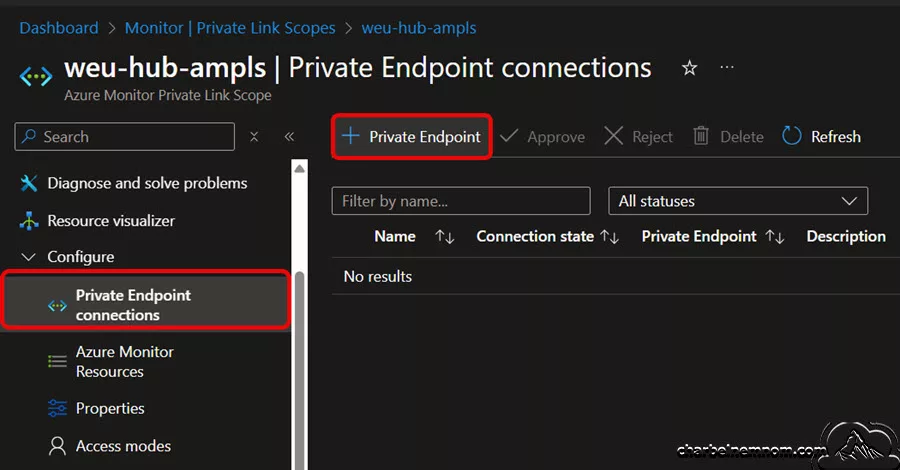
1. Select Private Endpoint connections from the menu for your AMPLS and then click + Private Endpoint, as shown in the figure below. You can also create and approve connections that were created in the Private Link Center | Private endpoints blade directly.
2. On the Basics tab:
- Select the Subscription and Resource group and then enter a Name and a Network Interface Name for the private endpoint.
- Select the Region in which the private endpoint should be created. The region must be the same as the virtual network you connect to.

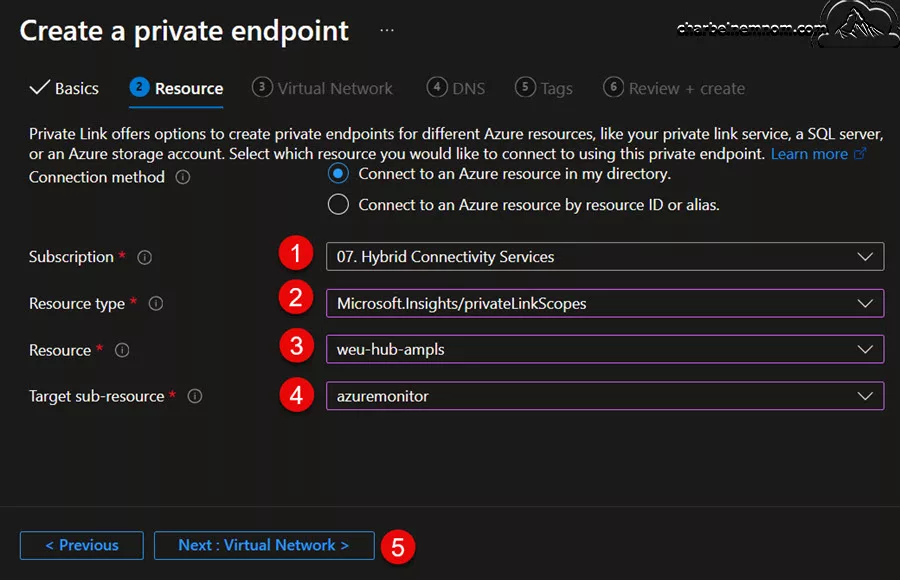
3. On the Resource tab:
- Select the Subscription that contains your Azure Monitor Private Link Scope (AMPLS) resource.
- For Resource type, select `
Microsoft.insights/privateLinkScopes`. - From the Resource dropdown, select the Private Link Scope you created in the previous step.
4. On the Virtual Network tab:
- Select the Virtual network and Subnet you want to connect to your Azure Monitor resources. In this example, we have created a dedicated subnet for the Azure Monitor Private Link Scope (private endpoint).
- For Network policy for private endpoints, select edit if you want to apply network security groups or route tables to the private endpoint subnet.
- For Private IP configuration, the default is to Dynamically allocate IP address. If you want to assign a static IP address, select Statically allocate IP address, then enter a name and private IP.
- Optionally, select or create an Application security group. You can use application security groups (ASG) to group virtual machines and define network security policies based on those groups.

5. On the DNS tab:
- Select Yes to integrate with the private DNS zone, which will automatically create a new private DNS zone in Azure Private DNS. The actual DNS zones might look different on your side from what’s shown in the following screenshot.
Important: If you select No and prefer to manage DNS records manually, first finish setting up your private link. Include this private endpoint and the AMPLS configuration, then configure your DNS according to the instructions in the DNS Configuration section above.

6. Last, click on the Review + Create tab. Once the validation passes, select Create.

Now that we have finished putting all the pieces together, the next step is to verify and test the connection and the log ingestion for the Data Collection Endpoint (DCE), the Azure Monitor Private Link Scope (AMPLS), and the Azure Arc Private Link Scope.
Step 7. Verify DCE, AMPLS, and Azure Arc
Switch back to the log forwarding machine on-premises or in another cloud, open the Command Prompt or PowerShell session as an administrator, and then run the following commands:
AMA Extension Troubleshooter – Command Prompt
You must update the {version} to match your installed Azure Monitor Agent (AMA) version number. In the following example, the AMA version is 1.32.0.0.
cd C:/Packages/Plugins/Microsoft.Azure.Monitor.AzureMonitorWindowsAgent/{version}/Troubleshooter/
.\AgentTroubleshooter.exe --ama
This command will run a series of activities that could take up to 5 minutes to complete. Be patient until this process is completed. As we can see in the screenshot below, the Agent Troubleshooter passed with zero fails and 27 passes. You can ignore the three warnings about the [IPv6] connectivity test. If you see any failure or red messages, you must check your DNS and network configuration before you continue.

AMA Extension Troubleshooter – PowerShell
If you prefer to use PowerShell, then run the following command:
$currentVersion = ((Get-ChildItem -Path "Registry::HKEY_LOCAL_MACHINE\SOFTWARE\Microsoft\Windows Azure\HandlerState\" | where Name -like "*AzureMonitorWindowsAgent*" | ForEach-Object {$_ | Get-ItemProperty} | where InstallState -eq "Enabled").PSChildName -split('_'))[1]

$troubleshooterPath = "C:\Packages\Plugins\Microsoft.Azure.Monitor.AzureMonitorWindowsAgent\$currentVersion\Troubleshooter"
Set-Location -Path $troubleshooterPath
Start-Process -FilePath $troubleshooterPath\AgentTroubleshooter.exe -ArgumentList "--ama"
Invoke-Item $troubleshooterPath
Like the command prompt above, this command will run the same series of activities that could take up to 5 minutes to complete. As we can see in the screenshot below, the Agent Troubleshooter passed with zero fails and 27 passes. You can ignore the warnings about the [IPv6] connectivity test. If you see any failure or red messages, you must check your DNS and network configuration before you continue.
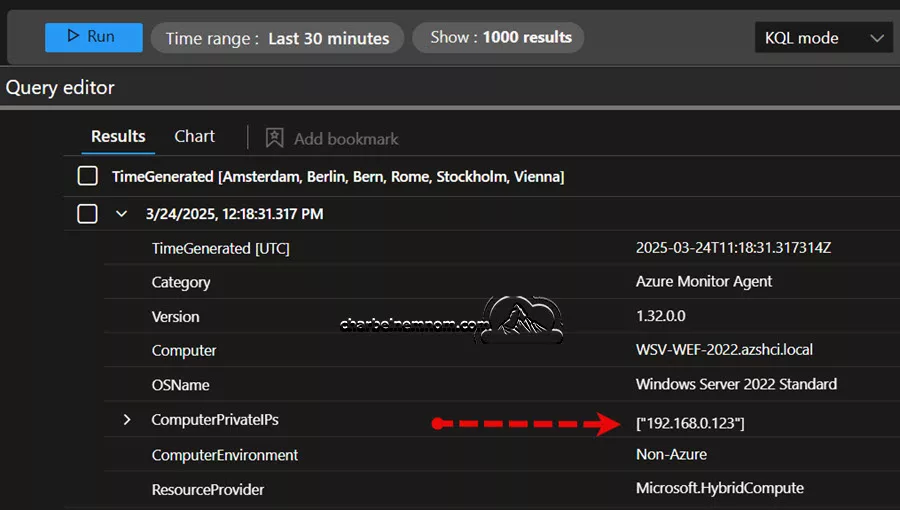
Next, we must check if the AMA agent sends heartbeat logs to the Log Analytics workspace onboarded to Sentinel. Switch to the Log Analytics workspace in the Azure portal or the Advanced Hunting blade in the Defender portal, and then run the KQL query below. You must update the “computer-name” in the query below to match your log-forwarding machine:
Heartbeat
| where Category == "Azure Monitor Agent" and Computer startswith "computer-name"
| sort by TimeGenerated
| project TimeGenerated, Category, Version, Computer, OSName, ComputerPrivateIPs, ComputerEnvironment, ResourceProvider
| take 10
As the screenshot below shows, the Azure Monitor Agent is sending a heartbeat over the machine’s private IP address and not the public IP.
We can also verify if the data is flowing by going to the Azure Monitor> Metrics blade and checking the average (Bytes In and Bytes Out) for the Azure Monitor Private Link Scope (AMPLS) private endpoint, as shown in the figure below. This confirms that the data is flowing correctly over the private endpoint.

Lastly, we can check and confirm that we are receiving the ingested logs in the WindowsEvent table in Microsoft Sentinel (Log Analytics) by running the following simple query. We see that our domain controller (DC01) is reporting Firewall Events through the Windows Event Forwarder (WEF) machine to Microsoft Sentinel over Azure Arc and Azure Monitor Private Link Scope.
WindowsEvent
| sort by TimeGenerated
| extend WefMachineName = extract(@"microsoft.hybridcompute/machines/([^/]+)$", 1, _ResourceId)
| project TimeGenerated, Computer, Provider, EventID, EventLevelName, EventData, WefMachineName
| take 10
Step 8. Configure access to AMPLS resources
Now, we have verified that we are receiving the ingested logs as expected. The final step is to harden and configure access to AMPLS resources (Log Analytics workspace and Data Collection Endpoint) and set the private kink scope access modes to “Private Only“.
1. From the menu for your Log Analytics workspace, select Network Isolation to control which networks can reach the resource through a private link and whether other networks can reach it or not. Select Manage and Restrict Public Inbound for Ingestion Access only on the Public Access tab, then click Save. The Private Access tab lists the Azure Monitor Private Link Scopes attached to the Log Analytics workspace.
Note: If you restrict public inbound for Query Access, you won’t be able to query the data in your Log Analytics workspace. Therefore, you can leverage the new network security perimeter where the resource is only accessible from private networks, and a network security perimeter approves access. While public network access is secured by perimeter, public access is determined by the associated network security perimeter.
At the time of this writing, Network Security Perimeter is in public preview and available in all Azure public cloud regions. This preview version is provided without a service level agreement, and it’s not recommended for production workloads.

2. Next, from the menu for your Data Collection Endpoint (DCE), select Network Isolation to control which networks can reach the resource through a private link and whether other networks can reach it or not. Select Manage and Restrict Public Inbound for Access Level on the Public Access tab, then click Save. The Private Access tab lists the Azure Monitor Private Link Scopes attached to the DCE.

3. Finally, browse to the Azure Monitor Private Link Scope menu, select Access modes, and switch the Ingestion and Query access modes to allow the connected virtual network (VNet) to reach only Private Link resources, and then click Save, as shown in the figure below. This is the most secure mode. As mentioned, select ‘Private Only‘ only after adding and testing all Azure Monitor resources to the AMPLS (Log Analytics Workspace and Data Collection Endpoint). Traffic to other resources will be blocked across networks, subscriptions, and tenants.

That’s it; there you have it! Happy sending and forwarding logs from on-premises and other clouds to Microsoft Sentinel over Azure Private Links!
Wrapping Up
In conclusion, deploying a secure log-forwarding solution using Microsoft Sentinel, Azure Arc, Azure Monitor, and Private Endpoints is a strategic imperative and a powerful way to safeguard your organization’s data. This comprehensive guide has walked you through every critical step—from understanding Azure Arc’s connectivity options and role to leveraging Private Link and configuring Azure Monitor Private Link Scope (AMPLS) for seamless, secure data ingestion.
By following these detailed instructions, you’ve learned how to:
- Establish a robust and centralized management framework for your hybrid and multi-cloud environments.
- Securely connect on-premises and cloud resources without exposing sensitive data to the public internet.
- Configure and validate essential components such as Data Collection Endpoints (DCE), Data Collection Rules (DCR), and DNS settings to ensure reliable communication between your systems.
Implementing this solution enhances your cybersecurity posture and ensures compliance with regulatory requirements. It provides a secure architecture that ensures your log data is transmitted and stored securely, reducing the risk of data exfiltration. As technology evolves and cyber threats become more sophisticated, having a resilient, well-architected logging infrastructure is crucial to proactive threat detection and rapid incident response.
Remember, you can always support us in developing tools and creating content via Why Donate? – Charbelnemnom.com Cloud & Cybersecurity
__
Thank you for reading our blog.
Please let us know in the comments section below if you have any questions or feedback.
-Charbel Nemnom-

Hi Charbel,
thank you for this – once again – amazing article.
I have one question : while reading Microsoft’s litterature regarding Arc and Private Link, it is mentionned that you ill need Internet access from the Windows server to access Entra ID and Azure Resource Manager. Do you confirm that ?
Regards,
P.
Hello Philippe, Thank you for your kind feedback and comment!
When configuring the Azure Connected Machine agent (e.g., on your WEC forwarding server) to communicate with Azure Arc and Log Analytics through a Private Link, some endpoints still require Internet access. The “Private Link capable” column in the official Microsoft documentation indicates which endpoints can be configured to use Private Link.
The key point is: If the column shows “Public” for a specific endpoint, you must ensure that this endpoint is accessible via your firewall and/or proxy server. Otherwise, the Azure Arc-enabled (WEC server) will not connect.
That said, when a Private Link Scope is assigned, all network traffic for eligible endpoints will be routed through the private endpoint—but public access is still needed for the endpoints that are not Private Link capable (such as those related to Entra ID, Arc, and Azure Resource Manager).
Hope this helps clarify things!
Best regards,
-Charbel