
Modern SIEM and platform solutions like Microsoft Sentinel can ingest logs from virtually any source, including custom text and JSON logs from network appliances and applications, and land them in your Sentinel data lake for scalable analytics.
In this guide, we walk through configuring a FortiGate firewall (as an example) to forward logs to an Azure Arc-enabled Linux syslog server, using the Azure Monitor Agent (AMA) to read a custom log file and ingest it into a Log Analytics workspace (and thus into Sentinel). We will cover prerequisites, step-by-step setup of the Data Collection Rule (DCR), log transformation and parsing, deployment methods, and tips for troubleshooting, debugging, and optimizing the ingestion.
Table of Contents
Ingest Custom Logs to Microsoft Sentinel
In this scenario, we have a FortiGate (or could be any device/application) that writes logs to a text file on a Linux syslog collector under the following path (e.g., /data/logs/forti/*). The Azure Monitor Agent (AMA) on that machine reads the file and forwards the data to Microsoft Sentinel (via the Log Analytics workspace). The logs will be stored in a Sentinel data lake custom table (e.g., FortinetCustomAuxLog_CL) for analysis using KQL Jobs and Summary Rules.

A sample of a custom log file used in this example that we’ll ingest looks as follows:
date=2025-10-17 time=13:48:40 devname="FortiGate-900G" devid="FGT500ETK21987654" eventtime=1728354820000000000 tz="+0200" logid="0000000020" type="traffic" subtype="forward" level="warning" vd="root" srcip=10.200.15.25 srcport=54321 srcintf="lan_servers" srcintfrole="lan" dstip=203.0.113.10 dstport=80 dstintf="wan1" dstintfrole="wan" srccountry="Reserved" dstcountry="United States" sessionid=23456792 proto=6 action="deny" policyid=104 policytype="policy" poluuid="d4e5f6a7-b8c9-d0e1-f2a3-b4c5d6e7f8a9" policyname="Block_Outbound_HTTP" service="HTTP" trandisp="noop" duration=0 sentbyte=0 rcvdbyte=0 sentpkt=1 rcvdpkt=0 appcat="Web.Client" craction="block"
date=2025-10-17 time=13:48:50 devname="FortiGate-900G" devid="FGT500ETK21987654" eventtime=1728354890000000000 tz="+0200" logid="0000000013" type="traffic" subtype="forward" level="notice" vd="root" srcip=172.20.1.1 srcport=50000 srcintf="lan_voice" srcintfrole="lan" dstip=93.184.216.34 dstport=443 dstintf="wan2" dstintfrole="wan" srccountry="Reserved" dstcountry="United States" sessionid=23456793 proto=6 action="accept" policyid=105 policytype="policy" poluuid="e5f6a7b8-c9d0-e1f2-a3b4-c5d6e7f8a9b0" policyname="VoIP_to_Internet" service="HTTPS" trandisp="snat" duration=900 sentbyte=30000 rcvdbyte=60000 sentpkt=300 rcvdpkt=600 appcat="Web.Client" craction="accept"
By the end of this guide, you’ll have a reusable pattern you can apply to any custom log source with a secure file access setup for AMA, a DCR that reads and transforms your logs, field-by-field parsing you can adapt, and a troubleshooting and debugging method to validate transforms before production.
As a side note, Microsoft will retire the legacy HTTP Data Collector API for ingesting custom logs to Azure Monitor logs on 14 September 2026. To avoid ingestion errors and data loss, transition to the DCR-based Log Ingestion API before 14 September 2026.
Prerequisites
Before you begin, ensure you have the following in place:
1) Azure subscription — If you don’t have an Azure subscription, you can create one for free.
2) Log Analytics workspace — To create a new workspace, follow the instructions to create a Log Analytics workspace.
3) Microsoft Sentinel — To enable Microsoft Sentinel at no additional cost on an Azure Monitor Log Analytics workspace for the first 31 days, follow the instructions here. Once Microsoft Sentinel is enabled on your workspace, every GB of data ingested into the workspace can be retained at no charge (free) for 90 days.
4) Linux Syslog Collector VM (on-premises or cloud) onboarded to Azure Arc and running a supported Linux OS. This machine will receive syslog messages from the devices and host the log file. It must have outbound internet connectivity to Azure or a private link (to send data to Log Analytics), and the Azure Monitor Agent (AMA) will be installed on it.
5) To onboard the collector machine to Azure Arc, you must have the Azure Connected Machine Onboarding or Contributor role for the resource group where you’re managing the collector server. As part of the onboarding of the Azure Arc-connected agent and creating the Data Collection Rule (DCR), Microsoft Sentinel will install the Azure Monitor Agent (AMA) extension on the Linux collector machine (more on this in the next section).
6) Azure role assignments and permissions:
- Microsoft Sentinel Contributor
- Monitoring Contributor to create and edit Data Collection Rules (DCRs) on the subscription
- Log Analytics Contributor to edit the workspace
7) Optional — You can enable the Sentinel data lake. As of September 30th, 2025, the data lake feature is in Generally Available (GA) and is enabled via the Microsoft Defender portal. To onboard your tenant, navigate to the Defender portal (https://security.microsoft.com) with appropriate permissions and follow the steps as described in this article.
8) Create a custom data lake table or an Auxiliary table in a Log Analytics workspace to receive the data (more on this in the next section).
9) File Access Setup — The AMA on Linux will run its log collection components under the syslog user account. To allow AMA to read custom log files in a directory like /data/logs/forti/*, you must adjust file permissions. Use Access Control Lists (ACLs) to grant the syslog user read access to the folder and files. Run the following commands on the Linux collector (as root or using sudo):
sudo apt install acl                        # Install ACL tools if not already present
sudo setfacl -R -m u:syslog:rX /data/logs/  # Give 'syslog' user recursive read+execute on /data/logs
sudo setfacl -d -m u:syslog:rX /data/logs/  # Set default ACL for new files in /data/logs
sudo systemctl restart azuremonitoragent    # Restart AMA to apply changes
These commands ensure the syslog user can traverse the directories and read the log files under /data/logs/*. Without this step, AMA might be unable to open and read the files (permission denied). If log ingestion isn’t working, double-check that file ownership and ACLs allow syslog read access.
You can use the getfacl to check ACL on the parent directory and to check the default ACL for New Files/Directories:
# Check ACL on the Parent Directory
getfacl /data/logs/

# Check Default ACL for New Files/Directories
getfacl -d /data/logs/
In the output, you should see a line confirming the syslog user’s permissions, as shown in the figure below. If you see the correct entries from these commands, your permissions are set correctly for the Azure Monitor Agent.

10) Familiarity with Kusto Query Language (KQL) for transformation definitions.
Assuming you have all the prerequisites in place, take the following steps:
Step 1 – Install and Onboard AMA on the Linux Syslog Collector
If you haven’t already, install the Azure Monitor Agent on your Linux VM. The most straightforward approach is to onboard the VM to Azure Arc (if it’s not an Azure VM) and then use Azure Monitor’s data collection rules or the Custom Logs via AMA connector to install the AMA extension on top of the Azure Arc-connected agent. For example, you can run the one-line installer script provided by Microsoft to set up a log forwarder with AMA. Alternatively, use Azure CLI or the Azure portal:
Log onto the Azure portal at https://portal.azure.com
From the search portal, enter “Machines – Azure Arc” and select this to go to the “Machines” blade.
Click “+ Add/Create” and select “Add a machine“, as shown in the figure below.

Next, select “Generate Script” from the “Add a single server” box if you have one server, or choose “Add multiple servers” to generate a script and onboard multiple servers at once.
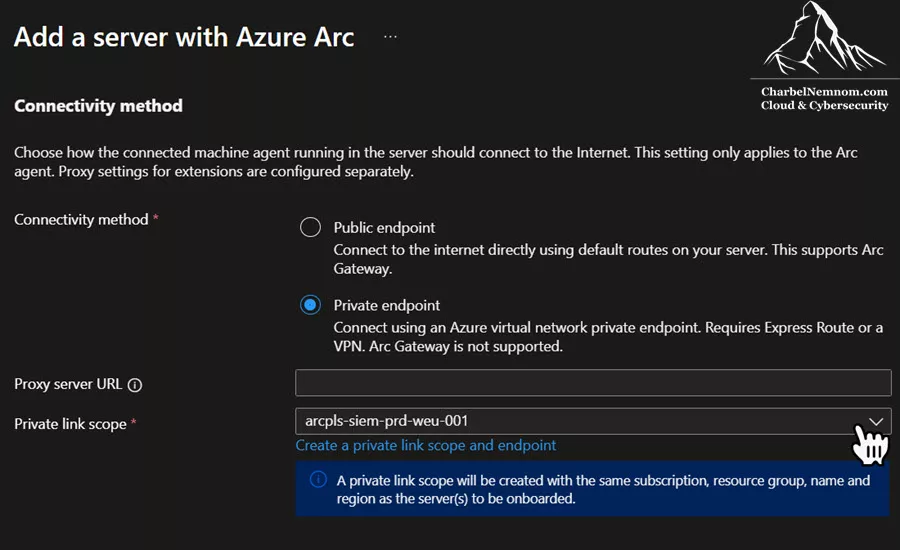
Select “Next,” complete the Project Details, choose “Linux” as an operating system for the server details. We use a “Private endpoint” under the connectivity method for our example, as shown in the figure below. We strongly encourage organizations not to expose log files on the public Internet; thus, you can use Private endpoints or Proxy servers instead of a Public endpoint. Click “Next” to continue.
Next, enter any required “Tags” for your organization and select “Next.” Then, select the “Download” or “Copy” button. Your organization will probably block the Bash “.sh” script files “Download” button.
Paste the clipboard’s contents on the on-premises Linux collector machine and run it. This will then install the Arc Service. When it runs, it will ask you to open the “https://microsoft.com/devicelogin” page to enter the code, sign in, and accept. The script will then finish installing.

Move back to the “Machines” blade, hit refresh, and the newly onboarded Linux collector machine should now be part of this subscription “Microsoft Sentinel”, as shown in the figure below.

When AMA is installed, the Linux syslog collector will have the agent listening for logs. Recent AMA versions (1.28.11+) listen on port 28330 for syslog messages, while older versions use a local UNIX socket. This detail is handled by the agent automatically when using DCR; just ensure no firewall blocks outbound HTTPS (port 443) for AMA to send data out.
After installation, ensure the Azure Monitor Agent service is running. You can run the following command: systemctl status azuremonitoragent on the collector Linux machine. The agent should be in an active (running) state, as shown in the figure below.

In the next step, we’ll create the custom table in Log Analytics that will receive the custom logs for Fortinet to ensure the appropriate schema definition exists in both Log Analytics and (if onboarded) the data lake.
Step 2 – Create the Custom Table in Log Analytics
Before defining the Data Collection Rule (DCR), you must create the target custom table that will receive the parsed logs. This ensures the schema definition exists in both Log Analytics and (if onboarded) the data lake.
There are several methods to create a custom table with the Analytics plan, including the Azure portal, Azure CLI, ARM/Bicep Template, and Azure PowerShell. However, if you want to create a custom table with the Auxiliary tier (data lake), the only option currently available is to use the REST API. We hope that Microsoft will eventually allow the creation of custom tables with the Auxiliary plan (data lake) through the Azure portal, Defender portal, Azure CLI, and PowerShell as well.
First, we need to define the custom table schema definition for the log file that we need to ingest. If your workspace is a data lake–onboarded, this schema will also propagate to the lake once ingestion starts.
To further automate the entire process, you can deploy the following ARM template to your Microsoft Sentinel workspace. This template creates a custom table with the Auxiliary plan enabled, allowing for a total retention period of 30 days to 12 years (4383 days), with 365 days set as the default. It will also include the appropriate schema to map each column from the custom log text file (e.g., Fortinet) that we are collecting from the Syslog machine.



Next, switch to the Azure portal, then go to your “Log Analytics workspace > Tables” or in the Defender Portal under Microsoft Sentinel > Configuration > Tables, and verify that the new custom table (i.e, FortinetCustomAuxLog_CL) has been created with the Auxiliary (data lake) plan.

In the next step, we’ll create a Data Collection Rule (DCR) to collect custom files using the custom logs via the AMA connector solution in Sentinel. This will involve auto-installing the Azure Monitor Agent for Linux extension on top of the Azure Arc-connected agent.
Step 3 – Create a Data Collection Rule (DCR) for Custom Log Ingestion
The core configuration is a Data Collection Rule (DCR) that tells AMA which log file to read, how to parse it, and where to send the data. We will set up a custom log collection DCR with a transformation for our FortiGate logs.
Define the Custom Log Data Source
In the DCR, configure a Custom Text Log source pointing to the file path and custom table name that we created above. For example, to collect all .log files in any subdirectory under /data/logs/forti/ (our FortiGate logs folder), use a file pattern like:
File pattern: /data/logs/forti/*/*.log – This will match files like /data/logs/forti/2025-10-15/Fortinet_local7_13_38.log, etc. (assuming logs are organized by date or facility).
Custom table name: We’ll use FortinetCustomAuxLog_CL. (By convention, custom Log Analytics tables end in _CL.) In the DCR’s stream definition, this table name is prefixed with Custom- in the stream identifier. By default, the DCR uses a stream named Custom-Text-FortinetCustomAuxLog_CL and an output stream Custom-FortinetCustomAuxLog_CL, which results in data landing in the FortinetCustomAuxLog_CL table.
Transform: Since these are plain text syslog entries (not JSON), set the format to “text” in the DCR. For our example, based on the custom log file that we are ingesting, the following Kusto query will parse and transform the logs into the appropriate custom columns.
source | extend date_s = extract("date=([^ ]+)", 1, RawData) | extend time_s = extract("time=([^ ]+)", 1, RawData) | extend DevName = extract("devname=\"([^\"]+)\"", 1, RawData) | extend DevID = extract("devid=\"([^\"]+)\"", 1, RawData) | extend eventtime_s = extract("eventtime=([^ ]+)", 1, RawData) | extend DeviceTimeZone = extract("tz=\"([^\"]+)\"", 1, RawData) | extend LogID = extract("logid=\"([^\"]+)\"", 1, RawData) | extend EventType = extract("type=\"([^\"]+)\"", 1, RawData) | extend SubType = extract("subtype=\"([^\"]+)\"", 1, RawData) | extend Level = extract("level=\"([^\"]+)\"", 1, RawData) | extend VirtualDomain = extract("vd=\"([^\"]+)\"", 1, RawData) | extend SourceIP = extract("srcip=([^ ]+)", 1, RawData) | extend srcport_s = extract("srcport=([^ ]+)", 1, RawData) | extend DeviceInboundInterface = extract("srcintf=\"([^\"]+)\"", 1, RawData) | extend SourceInterfaceRole = extract("srcintfrole=\"([^\"]+)\"", 1, RawData) | extend DestinationIP = extract("dstip=([^ ]+)", 1, RawData) | extend dstport_s = extract("dstport=([^ ]+)", 1, RawData) | extend DeviceOutboundInterface = extract("dstintf=\"([^\"]+)\"", 1, RawData) | extend DeviceOutboundInterfaceRole = extract("dstintfrole=\"([^\"]+)\"", 1, RawData) | extend SourceCountry = extract("srccountry=\"([^\"]+)\"", 1, RawData) | extend DestinationCountry = extract("dstcountry=\"([^\"]+)\"", 1, RawData) | extend sessionid_s = extract("sessionid=([^ ]+)", 1, RawData) | extend proto_s = extract("proto=([^ ]+)", 1, RawData) | extend Action = extract("action=\"([^\"]+)\"", 1, RawData) | extend policyid_s = extract("policyid=([^ ]+)", 1, RawData) | extend PolicyType = extract("policytype=\"([^\"]+)\"", 1, RawData) | extend PolicyUUID = extract("poluuid=\"([^\"]+)\"", 1, RawData) | extend PolicyName = extract("policyname=\"([^\"]+)\"", 1, RawData) | extend Service = extract("service=\"([^\"]+)\"", 1, RawData) | extend TranslationType = extract("trandisp=\"([^\"]+)\"", 1, RawData) | extend duration_s = extract("duration=([^ ]+)", 1, RawData) | extend sentbyte_s = extract("sentbyte=([^ ]+)", 1, RawData) | extend rcvdbyte_s = extract("rcvdbyte=([^ ]+)", 1, RawData) | extend sentpkt_s = extract("sentpkt=([^ ]+)", 1, RawData) | extend rcvdpkt_s = extract("rcvdpkt=([^ ]+)", 1, RawData) | extend VPNType = extract("vpntype=\"([^\"]+)\"", 1, RawData) | extend AppCat = extract("appcat=\"([^\"]+)\"", 1, RawData) | extend AppSubcat = extract("appsubcat=\"([^\"]+)\"", 1, RawData) | extend AppName = extract("appname=\"([^\"]+)\"", 1, RawData) | extend sentdelta_s = extract("sentdelta=([^ ]+)", 1, RawData) | extend rcvddelta_s = extract("rcvddelta=([^ ]+)", 1, RawData) | extend crscore_s = extract("crscore=([^ ]+)", 1, RawData) | extend CrAction = extract("craction=\"([^\"]+)\"", 1, RawData) | extend ProtocolName = extract("protoname=\"([^\"]+)\"", 1, RawData) | extend protoid_s = extract("protoid=([^ ]+)", 1, RawData) | extend TimeGenerated = todatetime(strcat(date_s, "T", time_s, DeviceTimeZone)) | extend EventTime = todatetime(strcat(date_s, "T", time_s, DeviceTimeZone)) | extend SourcePort = toint(srcport_s) | extend DestinationPort = toint(dstport_s) | extend Proto = toint(proto_s) | extend ProtocolID = toint(protoid_s) | extend Duration = toint(duration_s) | extend SentBytes = toint(sentbyte_s) | extend ReceivedBytes = toint(rcvdbyte_s) | extend SentPackets = toint(sentpkt_s) | extend ReceivedPackets = toint(rcvdpkt_s) | extend PolicyId = toint(policyid_s) | extend SessionID = tolong(sessionid_s) | extend SentDelta = toint(sentdelta_s) | extend ReceivedDelta = toint(rcvddelta_s) | extend CrScore = toint(crscore_s) | project-away RawData, date_s, time_s, eventtime_s, srcport_s, dstport_s, proto_s, protoid_s, duration_s, sentbyte_s, rcvdbyte_s, sentpkt_s, rcvdpkt_s, policyid_s, sessionid_s, sentdelta_s, rcvddelta_s, crscore_sYou can create this DCR via Custom Logs via AMA connector UI as follows, but first, you must install the solution from the Content Hub.
Log onto the Azure portal or to the Microsoft Defender portal (Defender XDR), select your Microsoft Sentinel instance, and then select the “Data Connectors” blade. Enter “Custom logs via AMA” in the “Search by name or provider” box, click on “Custom logs via AMA,” and select “Open connector page,” as shown in the figure below.

Next, under Configuration, select +Create Data Collection Rule.

On the DCR Wizard, under the “Basic” tab, enter “Rule Name“, select the “Subscription“, and “Resource group“, then click “Next: Resources >“. On the “Resources” tab, search for and select the non-Azure Arc Linux Collector machine, which collects the custom log files, as shown in the figure below. Then click the “Next: Collect >“.

On the “Collect” tab, select the “Custom new table” and enter the custom Auxiliary/data lake table name, including the desired file pattern, and the transformation KQL that we mentioned above.

Last, on the validation page, click the “Create” button. The figure below shows the summary of the custom collection details.

Next, Microsoft Sentinel will install the Azure Monitor Agent (AMA) extension on the non-Azure Arc Linux Collector machine and create the Data Collection Rule, as shown in the figure below.

Once the DCR is deployed, we can verify the Data sources section in the DCR and check the Custom Text Logs set as a data source type and the configuration that we set as part of this DCR, as shown in the figure below.
![DCR | Data Sources [Custom Text Logs]](https://charbelnemnom.com/wp-content/uploads/2025/10/Ingest_Custom_Logs_Microsoft_Sentinel_20.webp "Ingest Custom Logs to Microsoft Sentinel: A Step-by-Step Guide 19")
Automate Data Collection Rule deployment
If using ARM/CLI, your custom DCR JSON will have a section like below:
"dataSources": {
  "logFiles": [
     {
      "streams": [
          "Custom-Text-FortinetCustomLog_CL"
      ],
      "filePatterns": [
          "/data/logs/forti/*/*.log"
      ],
      "format": "text",
      "settings": {
          "text": {
              "recordStartTimestampFormat": "ISO 8601"
          }
     },
     "name": "Custom-Text-FortinetCustomAuxLog"
    }
  ]
},
"streamDeclarations": {
  "Custom-Text-FortinetCustomAuxLog_CL": {
    "columns": [
      {
       "name": "TimeGenerated",
       "type": "datetime"
      },
      {
       "name": "RawData",
       "type": "string"
      }
    ]
  }
},
"destinations": {
    "logAnalytics": [
      {
       "workspaceResourceId": "<your Log Analytics ResourceID>",
       "name": "DataCollectionEvent"
      }
  ]
},
"dataFlows": [
    {
      "streams": [
          "Custom-Text-FortinetCustomAuxLog_CL"
      ],
      "destinations": [
          "DataCollectionEvent"
      ],
      "transformKql": "source\n| extend date_s = extract(\"date=([^ ]+)\", 1, RawData)\n| extend time_s = extract(\"time=([^ ]+)\", 1, RawData)\n| extend DevName = extract(\"devname=\\\"([^\\\"]+)\\\"\", 1, RawData)\n| extend DevID = extract(\"devid=\\\"([^\\\"]+)\\\"\", 1, RawData)\n| extend eventtime_s = extract(\"eventtime=([^ ]+)\", 1, RawData)\n| extend DeviceTimeZone = extract(\"tz=\\\"([^\\\"]+)\\\"\", 1, RawData)\n| extend LogID = extract(\"logid=\\\"([^\\\"]+)\\\"\", 1, RawData)\n| extend EventType = extract(\"type=\\\"([^\\\"]+)\\\"\", 1, RawData)\n| extend SubType = extract(\"subtype=\\\"([^\\\"]+)\\\"\", 1, RawData)\n| extend Level = extract(\"level=\\\"([^\\\"]+)\\\"\", 1, RawData)\n| extend VirtualDomain = extract(\"vd=\\\"([^\\\"]+)\\\"\", 1, RawData)\n| extend SourceIP = extract(\"srcip=([^ ]+)\", 1, RawData)\n| extend srcport_s = extract(\"srcport=([^ ]+)\", 1, RawData)\n| extend DeviceInboundInterface = extract(\"srcintf=\\\"([^\\\"]+)\\\"\", 1, RawData)\n| extend SourceInterfaceRole = extract(\"srcintfrole=\\\"([^\\\"]+)\\\"\", 1, RawData)\n| extend DestinationIP = extract(\"dstip=([^ ]+)\", 1, RawData)\n| extend dstport_s = extract(\"dstport=([^ ]+)\", 1, RawData)\n| extend DeviceOutboundInterface = extract(\"dstintf=\\\"([^\\\"]+)\\\"\", 1, RawData)\n| extend DeviceOutboundInterfaceRole = extract(\"dstintfrole=\\\"([^\\\"]+)\\\"\", 1, RawData)\n| extend SourceCountry = extract(\"srccountry=\\\"([^\\\"]+)\\\"\", 1, RawData)\n| extend DestinationCountry = extract(\"dstcountry=\\\"([^\\\"]+)\\\"\", 1, RawData)\n| extend sessionid_s = extract(\"sessionid=([^ ]+)\", 1, RawData)\n| extend proto_s = extract(\"proto=([^ ]+)\", 1, RawData)\n| extend Action = extract(\"action=\\\"([^\\\"]+)\\\"\", 1, RawData)\n| extend policyid_s = extract(\"policyid=([^ ]+)\", 1, RawData)\n| extend PolicyType = extract(\"policytype=\\\"([^\\\"]+)\\\"\", 1, RawData)\n| extend PolicyUUID = extract(\"poluuid=\\\"([^\\\"]+)\\\"\", 1, RawData)\n| extend PolicyName = extract(\"policyname=\\\"([^\\\"]+)\\\"\", 1, RawData)\n| extend Service = extract(\"service=\\\"([^\\\"]+)\\\"\", 1, RawData)\n| extend TranslationType = extract(\"trandisp=\\\"([^\\\"]+)\\\"\", 1, RawData)\n| extend duration_s = extract(\"duration=([^ ]+)\", 1, RawData)\n| extend sentbyte_s = extract(\"sentbyte=([^ ]+)\", 1, RawData)\n| extend rcvdbyte_s = extract(\"rcvdbyte=([^ ]+)\", 1, RawData)\n| extend sentpkt_s = extract(\"sentpkt=([^ ]+)\", 1, RawData)\n| extend rcvdpkt_s = extract(\"rcvdpkt=([^ ]+)\", 1, RawData)\n| extend VPNType = extract(\"vpntype=\\\"([^\\\"]+)\\\"\", 1, RawData)\n| extend AppCat = extract(\"appcat=\\\"([^\\\"]+)\\\"\", 1, RawData)\n| extend AppSubcat = extract(\"appsubcat=\\\"([^\\\"]+)\\\"\", 1, RawData)\n| extend AppName = extract(\"appname=\\\"([^\\\"]+)\\\"\", 1, RawData)\n| extend sentdelta_s = extract(\"sentdelta=([^ ]+)\", 1, RawData)\n| extend rcvddelta_s = extract(\"rcvddelta=([^ ]+)\", 1, RawData)\n| extend crscore_s = extract(\"crscore=([^ ]+)\", 1, RawData)\n| extend CrAction = extract(\"craction=\\\"([^\\\"]+)\\\"\", 1, RawData)\n| extend ProtocolName = extract(\"protoname=\\\"([^\\\"]+)\\\"\", 1, RawData)\n| extend protoid_s = extract(\"protoid=([^ ]+)\", 1, RawData)\n| extend TimeGenerated = todatetime(strcat(date_s, \"T\", time_s, DeviceTimeZone))\n| extend EventTime = todatetime(strcat(date_s, \"T\", time_s, DeviceTimeZone))\n| extend SourcePort = toint(srcport_s)\n| extend DestinationPort = toint(dstport_s)\n| extend Proto = toint(proto_s)\n| extend ProtocolID = toint(protoid_s)\n| extend Duration = toint(duration_s)\n| extend SentBytes = toint(sentbyte_s)\n| extend ReceivedBytes = toint(rcvdbyte_s)\n| extend SentPackets = toint(sentpkt_s)\n| extend ReceivedPackets = toint(rcvdpkt_s)\n| extend PolicyId = toint(policyid_s)\n| extend SessionID = tolong(sessionid_s)\n| extend SentDelta = toint(sentdelta_s)\n| extend ReceivedDelta = toint(rcvddelta_s)\n| extend CrScore = toint(crscore_s)\n| project-away RawData, date_s, time_s, eventtime_s, srcport_s, dstport_s, proto_s, protoid_s, duration_s, sentbyte_s, rcvdbyte_s, sentpkt_s, rcvdpkt_s, policyid_s, sessionid_s, sentdelta_s, rcvddelta_s, crscore_s\n",
      "outputStream": "Custom-FortinetCustomAuxLog_CL"
    }
]
In the above snippet, the DCR declares a custom stream with two initial columns (TimeGenerated and RawData). AMA will read each line from the log file as a record, timestamp it, and store the full line in a RawData field.
Next, we’ll add a transformation to parse RawData into separate fields. Ingestion-Time Transformation (KQL) is a powerful feature of AMA that allows the application of a Kusto Query Language (KQL) transformation on the data before it’s ingested. This allows us to parse the log line and extract key fields, dropping anything unnecessary. In this example, we’ll use the KQL extract() function with regex to parse our FortiGate log format.
And if you’re using Terraform (azurerm_monitor_data_collection_rule), your custom DCR TF file will have a section like below:
data_sources {
   # Custom log collection for Fortinet
   # - Collector reads plaintext log files from /data/logs/forti/*/*.log
   # - Timestamp extraction: ISO 8601
   # - Streams: 'Custom-Text-FortinetCustomAuxLog_CL'
   log_file {
     file_patterns = [
       "/data/logs/forti/*/*.log"
     ]
     format  = "text"
     name    = "Custom-Text-FortinetCustomAuxLog"
     streams = ["Custom-Text-FortinetCustomAuxLog_CL"]
     settings {
       text {
         record_start_timestamp_format = "ISO 8601"
       }
   }
}
# Declare schemas for the custom streams (Fortinet)
stream_declaration {
  stream_name = "Custom-Text-FortinetCustomAuxLog_CL"
   column {
     name = "TimeGenerated"
     type = "datetime"
   }
   column {
     name = "RawData"
     type = "string"
   }
}
# Data flow for Fortinet: Parse key-value pairs and map to FortinetCustomAuxLog_CL schema
data_flow {
    streams       = ["Custom-Text-FortinetCustomAuxLog_CL"]
    destinations  = ["DataCollectionEvent"]
    transform_kql = <<-KQL
      source
      | extend date_s = extract("date=([^ ]+)", 1, RawData)
      | extend time_s = extract("time=([^ ]+)", 1, RawData)
      | extend DevName = extract("devname=\"([^\"]+)\"", 1, RawData)
      | extend DevID = extract("devid=\"([^\"]+)\"", 1, RawData)
      | extend eventtime_s = extract("eventtime=([^ ]+)", 1, RawData)
      | extend DeviceTimeZone = extract("tz=\"([^\"]+)\"", 1, RawData)
      | extend LogID = extract("logid=\"([^\"]+)\"", 1, RawData)
      | extend EventType = extract("type=\"([^\"]+)\"", 1, RawData)
      | extend SubType = extract("subtype=\"([^\"]+)\"", 1, RawData)
      | extend Level = extract("level=\"([^\"]+)\"", 1, RawData)
      | extend VirtualDomain = extract("vd=\"([^\"]+)\"", 1, RawData)
      | extend SourceIP = extract("srcip=([^ ]+)", 1, RawData)
      | extend srcport_s = extract("srcport=([^ ]+)", 1, RawData)
      | extend DeviceInboundInterface = extract("srcintf=\"([^\"]+)\"", 1, RawData)
      | extend SourceInterfaceRole = extract("srcintfrole=\"([^\"]+)\"", 1, RawData)
      | extend DestinationIP = extract("dstip=([^ ]+)", 1, RawData)
      | extend dstport_s = extract("dstport=([^ ]+)", 1, RawData)
      | extend DeviceOutboundInterface = extract("dstintf=\"([^\"]+)\"", 1, RawData)
      | extend DeviceOutboundInterfaceRole = extract("dstintfrole=\"([^\"]+)\"", 1, RawData)
      | extend SourceCountry = extract("srccountry=\"([^\"]+)\"", 1, RawData)
      | extend DestinationCountry = extract("dstcountry=\"([^\"]+)\"", 1, RawData)
      | extend sessionid_s = extract("sessionid=([^ ]+)", 1, RawData)
      | extend proto_s = extract("proto=([^ ]+)", 1, RawData)
      | extend Action = extract("action=\"([^\"]+)\"", 1, RawData)
      | extend policyid_s = extract("policyid=([^ ]+)", 1, RawData)
      | extend PolicyType = extract("policytype=\"([^\"]+)\"", 1, RawData)
      | extend PolicyUUID = extract("poluuid=\"([^\"]+)\"", 1, RawData)
      | extend PolicyName = extract("policyname=\"([^\"]+)\"", 1, RawData)
      | extend Service = extract("service=\"([^\"]+)\"", 1, RawData)
      | extend TranslationType = extract("trandisp=\"([^\"]+)\"", 1, RawData)
      | extend duration_s = extract("duration=([^ ]+)", 1, RawData)
      | extend sentbyte_s = extract("sentbyte=([^ ]+)", 1, RawData)
      | extend rcvdbyte_s = extract("rcvdbyte=([^ ]+)", 1, RawData)
      | extend sentpkt_s = extract("sentpkt=([^ ]+)", 1, RawData)
      | extend rcvdpkt_s = extract("rcvdpkt=([^ ]+)", 1, RawData)
      | extend VPNType = extract("vpntype=\"([^\"]+)\"", 1, RawData)
      | extend AppCat = extract("appcat=\"([^\"]+)\"", 1, RawData)
      | extend AppSubcat = extract("appsubcat=\"([^\"]+)\"", 1, RawData)
      | extend AppName = extract("appname=\"([^\"]+)\"", 1, RawData)
      | extend sentdelta_s = extract("sentdelta=([^ ]+)", 1, RawData)
      | extend rcvddelta_s = extract("rcvddelta=([^ ]+)", 1, RawData)
      | extend crscore_s = extract("crscore=([^ ]+)", 1, RawData)
      | extend CrAction = extract("craction=\"([^\"]+)\"", 1, RawData)
      | extend ProtocolName = extract("protoname=\"([^\"]+)\"", 1, RawData)
      | extend protoid_s = extract("protoid=([^ ]+)", 1, RawData)
      | extend TimeGenerated = todatetime(strcat(date_s, "T", time_s, DeviceTimeZone))
      | extend EventTime = todatetime(strcat(date_s, "T", time_s, DeviceTimeZone))
      | extend SourcePort = toint(srcport_s)
      | extend DestinationPort = toint(dstport_s)
      | extend Proto = toint(proto_s)
      | extend ProtocolID = toint(protoid_s)
      | extend Duration = toint(duration_s)
      | extend SentBytes = toint(sentbyte_s)
      | extend ReceivedBytes = toint(rcvdbyte_s)
      | extend SentPackets = toint(sentpkt_s)
      | extend ReceivedPackets = toint(rcvdpkt_s)
      | extend PolicyId = toint(policyid_s)
      | extend SessionID = tolong(sessionid_s)
      | extend SentDelta = toint(sentdelta_s)
      | extend ReceivedDelta = toint(rcvddelta_s)
      | extend CrScore = toint(crscore_s)
      | project-away RawData, date_s, time_s, eventtime_s, srcport_s, dstport_s, proto_s, protoid_s, duration_s, sentbyte_s, rcvdbyte_s, sentpkt_s, rcvdpkt_s, policyid_s, sessionid_s, sentdelta_s, rcvddelta_s, crscore_s
    KQL
    output_stream = "Custom-FortinetCustomAuxLog_CL"
  }
destinations {
   log_analytics {
     workspace_resource_id = azurerm_log_analytics_workspace.law-siemprod01.id
     name                  = "DataCollectionEvent"
  }
}
The DCR’s destination should be your Log Analytics workspace (often referred to via its resource ID). In the JSON and TF snippet above, the destination DataCollectionEvent links to the workspace ID. If using the Azure portal, you select your workspace when creating the rule.
Once the DCR is defined with the custom log source, transformation, and destination, associate the DCR with the Linux collector machine (target resource). In the portal, you add the VM under Resources when creating the DCR, as shown in the figure below. If using ARM/CLI/BICEP/TF, you include the Syslog machine’s resource ID in the DCR’s resources section or apply the rule via Azure Policy/Arc.
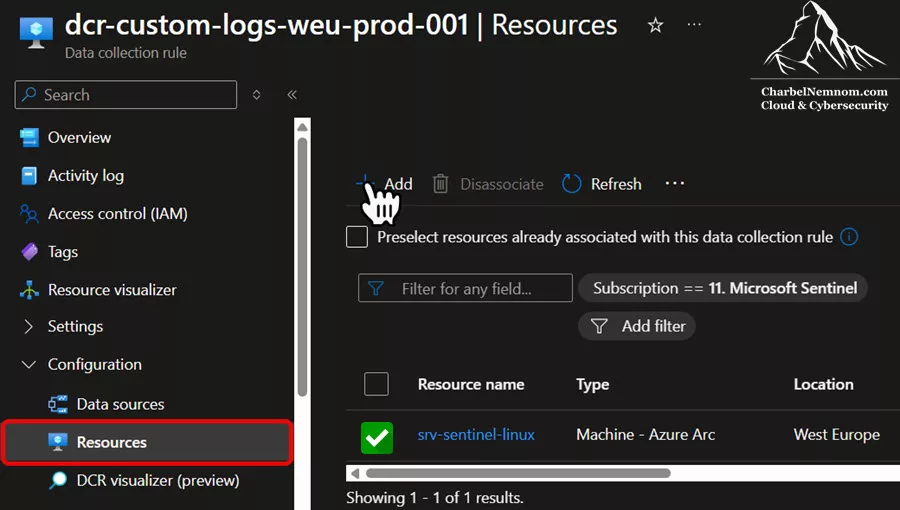
If you are using Private Link (Private Endpoint), you also need to add the Syslog VM under Resources to the Data Collection Endpoint (DCE) after creating the DCR, as shown in the figure below.

Transform and Parsing Details
Let’s break down what this transformation does:
Extracting Fields: Each extend ... = extract("key=([^ ]+)", 1, RawData) uses a regex to find the value for a given key in the raw log text. For example, SourceIP is extracted with srcip=([^ ]+) which matches the IP after srcip= (until the next space). Quoted values (like devname="FortiGate-900G") are handled with patterns like \"([^\"]+)\" to get the content inside quotes.
Temporary Suffix Fields: Fields that will be numeric are first captured as strings with a _s suffix (e.g., srcport_s, duration_s). We later convert them to int.
Time Fields: FortiGate logs have separate date, time, and timezone (tz) fields, as well as an eventtime (epoch in nanoseconds). In our transform, we combine date_s, time_s, and DeviceTimeZone to create a proper datetime (TimeGenerated and EventTime). We could also parse the eventtime if needed, but here we reconstruct the timestamp for clarity.
Type Conversions: Using toint() or tolong(), we convert numeric strings to actual numeric types. For example, ports, bytes, packet counts, etc., are stored as integers in the final table (e.g., SourcePort, SentBytes).
Project-away: At the end, we use project-away to drop fields we don’t need to store: the original RawData (full log line), all the intermediate _s string fields, and any other temporary fields. This is crucial for storage cost optimization – we only keep the parsed fields that matter, reducing the data volume ingested.
After this transformation, each log record will be ingested with dozens of columns (DevName, SourceIP, Action, PolicyId, etc.) instead of one big message. We have effectively normalized the FortiGate log into a structured table.
Step 4 – Verify Data and Adjust as Needed
Once the DCR is deployed, monitor the custom table for incoming logs:
Use Log Analytics query or the Advanced hunting (if onboarded to Defender XDR): FortinetCustomAuxLog_CL | sort by TimeGenerated desc | take 10 to see recent entries. Verify that the fields are populating correctly (e.g., SourceIP, Action, etc., have values that match expectations), as shown in the figure below.

If you don’t see data after ~10-15 minutes, double-check:
- The log file path and name on disk (does it match the pattern? Is the file updating when logs arrive?).
- Permissions (as discussed, ensure AMA can read the file).
- That the DCR is actually associated with the correct VM (you can check in Azure Portal under the DCR’s Resources or via az monitor data-collection rule list-associations).
- For initial testing, you might generate a log entry or copy a sample into the file to trigger AMA to read it.
Here is a test log file command that you can run on the Syslog Linux machine to generate a log entry.
# Create a new test directory and log file with different values for Fortinet
mkdir -p /data/logs/forti/2025-10-15/ && cat > /data/logs/forti/2025-10-15/syslog_local7_9.log << 'EOF'
date=2025-10-15 time=15:41:10 devname="FortiGate-900G" devid="FGT500ETK21987654" eventtime=1728354610000000000 tz="+0200" logid="0000000013" type="traffic" subtype="forward" level="notice" vd="root" srcip=10.100.5.10 srcport=49152 srcintf="lan_corp" srcintfrole="lan" dstip=10.200.15.20 dstport=3389 dstintf="lan_servers" dstintfrole="lan" srccountry="Reserved" dstcountry="Reserved" sessionid=23456789 proto=6 action="accept" policyid=101 policytype="policy" poluuid="a1b2c3d4-e5f6-a7b8-c9d0-e1f2a3b4c5d6" policyname="Corp_to_Servers" service="RDP" trandisp="noop" duration=1800 sentbyte=512000 rcvdbyte=1024000 sentpkt=500 rcvdpkt=1000 appcat="Network.Service" craction="accept"
date=2025-10-15 time=15:42:20 devname="FortiGate-900G" devid="FGT500ETK21987654" eventtime=1728354680000000000 tz="+0200" logid="0000000013" type="traffic" subtype="forward" level="notice" vd="root" srcip=192.168.30.5 srcport=12345 srcintf="lan_guest" srcintfrole="lan" dstip=172.31.1.1 dstport=8080 dstintf="lan_iot" dstintfrole="lan" srccountry="Reserved" dstcountry="Reserved" sessionid=23456790 proto=6 action="accept" policyid=102 policytype="policy" poluuid="b2c3d4e5-f6a7-b8c9-d0e1-f2a3b4c5d6e7" policyname="Guest_to_IoT" service="HTTP-alt" trandisp="noop" duration=60 sentbyte=1024 rcvdbyte=2048 sentpkt=10 rcvdpkt=20 appcat="General"
date=2025-10-15 time=15:43:30 devname="FortiGate-900G" devid="FGT500ETK21987654" eventtime=1728354750000000000 tz="+0200" logid="0000000013" type="traffic" subtype="forward" level="notice" vd="root" srcip=198.51.100.55 srcport=443 srcintf="wan1" srcintfrole="wan" dstip=10.100.5.150 dstport=61234 dstintf="lan_corp" dstintfrole="lan" srccountry="Canada" dstcountry="Reserved" sessionid=23456791 proto=6 action="accept" policyid=103 policytype="policy" poluuid="c3d4e5f6-a7b8-c9d0-e1f2-a3b4c5d6e7f8" policyname="Inbound_Web_Access" service="HTTPS" trandisp="dnat" duration=300 sentbyte=15000 rcvdbyte=75000 sentpkt=150 rcvdpkt=300 appcat="Web.Server" craction="accept"
EOF
If logs still don’t appear in the Log Analytics workspace or data lake table, proceed to the troubleshooting section below.
Troubleshooting Ingestion Issues
In case data is not flowing or you suspect a configuration problem, use these diagnostics on the Linux collector machine:
AMA Troubleshooter: The Azure Monitor Agent comes with a troubleshooter script. Run it to detect common issues. Make sure to replace the AMA version that you have installed (at the time of this writing, we are using version 1.37.0):
cd /var/lib/waagent/Microsoft.Azure.Monitor.AzureMonitorLinuxAgent-1.37.0/ama_tst/
sudo sh ama_troubleshooter.sh -A
This interactive AMA tool will check the agent’s status, connectivity, DCR configuration, etc., and report any problems (for example, it can flag permission issues or missing DCRs).
Inspect AMA Configuration: AMA uses Fluent Bit under the hood for custom logs. You can check the generated config to see if your file is being watched:
cat /etc/opt/microsoft/azuremonitoragent/config-cache/fluentbit/td-agent.conf | grep -A5 fortiIn that config agent file, you should find a section for your Fortinet custom log collection with the file path, as shown in the figure below. This confirms the agent received the DCR.

AMA Service Status: Ensure the agent service is healthy:
systemctl status azuremonitoragentLook for active (running). If it’s inactive or failed, there may be installation issues. You could also try to disable and enable the Azure Monitor Agent by running the following commands:
cd /var/lib/waagent/Microsoft.Azure.Monitor.AzureMonitorLinuxAgent-<agent version number>/

./shim.sh -disable
./shim.sh -enable
AMA Agent Logs: Tail the AMA logs for more details:
tail -n 30 /var/opt/microsoft/azuremonitoragent/log/fluentbit.log
tail -n 30 /var/opt/microsoft/azuremonitoragent/log/mdsd.err
The fluentbit.log will show if the file is being read or if there are errors parsing it. The mdsd.err may show errors sending to Log Analytics or other issues (e.g., network errors, out-of-space, or permission denials). For example, a permission issue might show an error opening the file. (If the disk is full, you’d also see errors in mdsd.err about no space).
Verify File Open: Check if Fluent Bit (fluent-bi) has opened the log file:
sudo lsof | grep .log | grep -i /data/logs/fortiThis will list any open handles to files in that directory by the agent. If you see the .log file open by fluent-bi, as shown in the figure below, it means AMA is actively tailing it. If not, it’s not even trying – likely an issue with the DCR, file path recognition, or permissions.

If you identify a misconfiguration (e.g., wrong path, missing table name, etc.), you can update the DCR. Edits to a DCR propagate to the agent typically within a few minutes. Keep an eye on the fluentbit log when you update the DCR – it usually restarts its config and you’ll see new entries.
For permission issues, adjust the ACLs/ownership as discussed and restart the agent. For data parsing issues (e.g., if a particular field isn’t extracting properly), you can tweak the regex in the transform. Remember that ingestion transformations do not support all KQL functions – they only allow operations per record (no aggregations or joins) and a limited set of functions. (For instance, functions like ipv4_is_private() or complex regex evaluations are not supported in DCR transformations, as the query is limited to per-record scope).
Debugging Method for DCR Transform
When building ingestion-time transforms in a DCR, you can’t run them as-is in Log Analytics because the source | only works inside the DCR runtime, and you don’t have a RawData column until the data is ingested.
We can emulate the DCR locally by defining RawData ourselves and pasting our transform without the source | prefix. Here’s an example that you can use in Log Analytics or Advanced Hunting to test your parsing before you add it to the DCR.
// Test Variables
let TimeGenerated = now();
let RawData = "<RAW LOG SAMPLE>";

// Your Transform (without "source |")
parse kind=relaxed RawData with <your parse pattern>
| extend <your extracts>
| project <final columns>
While debugging, remove the final project to see all intermediate columns (e.g., temporary *_raw values). This will help test transformations without ingesting data, allowing for quick iteration on regex and parsing to debug specific fields by isolating patterns and covering edge cases through the use of different RawData samples.
You can use this method for any custom text/CEF/syslog-based integration (Fortinet, Varonis, Zscaler, Palo Alto, custom apps, etc.) to validate parsing before deploying to a production DCR.
Filtering and Ingestion Optimization
Our example transformation already drops unused fields, but you might want to filter out certain logs entirely to reduce noise and cost. One common scenario: filtering out internal traffic. Perhaps you only care about traffic between your network and the internet, and want to ignore logs where both source and destination are private IPs (RFC1918 addresses).
While it’s technically possible to add a where clause in the DCR’s KQL (e.g., | where SourceIP !startswith "10." ...), the AMA transformation has limitations on functions and complexity. In fact, straightforward string checks or regex can be used in transformation, but some handy functions like ipv4_is_private() are not available. The DCR transformation supports a fixed subset of KQL for performance and security reasons. Complex multi-condition filtering can become cumbersome in that query. Moreover, maintaining a long regex for private IP ranges in the DCR could be error-prone.
Recommendation: Filter at the source – i.e., at the syslog daemon – whenever possible. By doing so, unwanted logs never even reach the agent. This approach is more efficient since it prevents the ingestion of unnecessary data (saving costs and bandwidth).
For example, on a syslog-ng or rsyslog configuration on the collector, you can drop or segregate logs based on content. In the FortiGate scenario, we could configure the syslog daemon to write logs to a file only if either the source or destination IP is public. Below is an example syslog-ng filter configuration (.conf) that achieves this, which is located under /etc/syslog-ng/conf.d and if you are using rsyslog, the path would be /etc/rsyslog.d:
# /etc/syslog-ng/conf.d/40-fortinet.conf

# Filters for private IP ranges (RFC1918) on source and destination
filter f_src_private { match("^(10\\.|192\\.168\\.|172\\.(1[6-9]|2[0-9]|3[0-1]))" value("forti.srcip")); };
filter f_dst_private { match("^(10\\.|192\\.168\\.|172\\.(1[6-9]|2[0-9]|3[0-1]))" value("forti.dstip")); };

# Define a filter for logs that have any public IP (i.e., NOT both src and dst private)
filter f_public_traffic { not filter(f_src_private) or not filter(f_dst_private); };

# Example log path: only log public traffic to file, drop others
destination d_forti { file("/data/logs/forti/${R_YEAR}-${R_MONTH}-${R_DAY}/Fortinet_${FACILITY}_${R_HOUR}_${R_MIN}.log"); };
log { source(s_syslog); filter(f_public_traffic); parser(p_forti); destination(d_forti); };
Using such filters, you significantly reduce the need to ingest internal-to-internal traffic logs, which may not be valuable for your Sentinel use cases. This source-side filtering is crucial when dealing with high-volume logs like firewall traffic. It ensures that only relevant data (e.g., internet-bound connections, blocked attempts from untrusted sources, etc.) is forwarded, thus optimizing both bandwidth and Sentinel costs.
Then you can run the following KQL query to verify that no private traffic is being ingested where the source and destination are RFC1918 addresses:
FortinetCustomAuxLog_CL
| where TimeGenerated > ago(2d)
| extend SourcelsPrivatelP = ipv4_is_private(SourceIP)
| extend DestinationIsPrivatelP = ipv4_is_private(DestinationIP)
| project TimeGenerated, SourceIP, SourcelsPrivatelP, DestinationIP, DestinationIsPrivatelP
| where SourcelsPrivatelP == true and DestinationIsPrivatelP == true
Filtering noise at the syslog/rsyslog source greatly optimizes your Sentinel deployment:
- Reduce costs: Sentinel charges by data volume. Dropping redundant or low-value events before ingestion saves money instantly.
- Bypass DCR limits: DCR transforms can’t handle complex logic (like private IP checks or multi-condition filters). Syslog configs can—using regex, boolean rules, and message routing.
- Boost performance: Less data means faster queries, lower latency, and reduced CPU/bandwidth usage for the AMA agent.
- Improve privacy & retention: Keep internal or sensitive traffic local; send only what matters to the cloud.
- Simplify analysis: Cleaner datasets make detections, workbooks, and KQL queries leaner and more accurate.
In summary, ingest only what you need. Use the combination of DCR transformations and syslog daemon filters to optimize the signal-to-noise ratio of your logs. In our FortiGate example, the DCR transform ensures each log record is lightweight and structured, and the syslog filtering ensures we’re only ingesting internet-related traffic (assuming that’s our focus). Together, these steps can significantly reduce ingestion (cutting firewall log volumes by 50-80% or more) while retaining all critical information for security monitoring.
Wrapping Up
With the custom log ingestion pipeline in place, you can leverage the data in Microsoft Sentinel for detection and analysis:
KQL Queries: Use the parsed fields to hunt for threats (e.g., unusual DestinationPort activity, spikes in SentBytes, blocked connections from foreign countries, etc.).
Analytics and custom detection rules: Create detection rules on the custom table by leveraging Summary rules and KQL jobs if the table is a data lake. For example, alert on where Action == "deny" and DestinationPort == 3389 (RDP blocked attempt), or any traffic from blacklisted countries (since you have SourceCountry).
Workbooks: Build dashboards showing top source IPs, top denied ports, bandwidth usage per policy, etc., using fields like SentBytes, PolicyName, and other relevant metrics. Custom tables are fully queryable in workbooks.
Retention: Consider whether this table’s data should be in the Analytics tier or the Auxiliary Logs (data lake) tier, depending on how you use it. If much of the data is for retention/audit and not frequent analytics, you could ingest the custom logs directly to an Auxiliary (data lake) table to save costs.
Scaling: If you have multiple FortiGates or other devices, you can either have them all log to the same collector (with identifiers in logs like DevName, which we capture) or have multiple collectors. You can reuse the same DCR for multiple machines if the log file path and format are consistent (the DCR can target multiple VMs). Just ensure each Syslog machine has AMA and the file path configured. You can also extend the same DCR to include other appliances and applications by adding different stream declarations, data sources, log files with various file patterns, and data flow streams.
By following this guide, you’ve configured a robust custom log ingestion for FortiGate (or similar text-based logs) into Microsoft Sentinel. You have fine-grained control over the data – from collection, through transformation, to filtering – resulting in a tailored dataset in your SIEM. This approach can be replicated for other custom logs by adjusting the file path and KQL parsing logic for the respective format. Happy custom logging!
Remember, you can always support us in developing tools and creating content via Why Contribute? – Charbelnemnom.com Cloud & Cybersecurity
__
Thank you for reading our blog.
Please let us know in the comments section below if you have any questions or feedback.
-Charbel Nemnom-

Is it possible to configure DCR so that it only receives Security logs and rule changes from Fortigate?
Thank you, Bruno! This is a great question and a very relevant one.
No, not natively via DCR filtering for text-based custom logs.
However, yes — you can achieve it by filtering at the source (FortiGate or Syslog layer) before AMA receives the logs.
Because for custom text log ingestion (via file patterns or syslog streams), the DCR “
transformKql” section runs after data ingestion into AMA’s internal pipeline.If you already receive all FortiGate messages, you can apply regex-based filtering before forwarding to AMA. For example, in
syslog-ng:This keeps only security and configuration logs, forwarding them to AMA.
Hope it helps!
Is it possible to use the CEF via AMA data connector to send logs directly to Data Lake table without writing the logs in a file on the disk?
Hello Mehdi, thank you for your comment!
Yes — it is possible to use the CEF via AMA data connector to send logs directly to a Microsoft Sentinel data lake table without writing the logs to a file on disk.
The process is similar to what I described in the article:
> Your firewall or network appliance sends the CEF logs to Syslog/Rsyslog.
> The Azure Monitor Agent (AMA) forwards the logs based on your Data Collection Rule (DCR).
> Instead of sending data to a Log Analytics custom table, the DCR can now send the logs to a Sentinel data lake custom table (formerly Auxiliary log table).
You simply need to create the custom data lake table and reference it in the DCR. No local file output is required. Hope this clarifies it!