
Modern security operations demand high visibility into network traffic, endpoint activity, and cloud events. Firewalls and proxy appliances, like Fortinet, Palo Alto, etc., are critical components of any cybersecurity infrastructure, providing valuable insights into network sessions, potential intrusions, and policy violations. However, the sheer volume of these logs can become a significant challenge, particularly when storing and analyzing them in a Security Information and Event Management (SIEM) solution like Microsoft Sentinel.
In this blog post, we will explore how to optimize Fortinet traffic logs into Microsoft Sentinel using Data Collection Rules (DCR) and Kusto Query Language (KQL) transformations.
Table of Contents
Introduction
Microsoft Sentinel provides advanced analytics and threat detection capabilities but operates on a pay-as-you-go or commitment tiers/commit units model for data ingestion. This means that every gigabyte of logs ingested carries a cost. If you are forwarding all your firewall logs without any filtering or transformation, you may find yourself paying for a substantial amount of data that is not always essential for security investigations.
Our primary objective is to reduce ingestion costs—by up to 80%—while retaining the critical data security fields needed for threat hunting, incident response, and compliance. We will provide a step-by-step guide, discuss best practices for firewall log management, and ensure that your Microsoft Sentinel environment remains both cost-efficient and security-focused.
Whether you are a seasoned security engineer, an IT manager, a CISO/CIO concerned about budget overruns, or a consultant looking to help clients optimize their SIEM/XDR solutions, this post will provide comprehensive details for managing Fortinet traffic logs in Microsoft Sentinel. Please note that the logic described here will apply to any other log source you plan to connect to Microsoft Sentinel.

Understanding Microsoft Sentinel Log Ingestion Costs
Before diving into the technical aspects of filtering and transforming logs, it is essential to understand how Microsoft Sentinel charges for data ingestion. Microsoft Sentinel operates on top of Azure Monitor Logs, which uses the Log Analytics Workspace (LAW) as a data store. The key cost driver here is the volume of data ingested. Essentially, you pay per gigabyte (GB) of data ingested and stored in the workspace.
Key Factors Affecting Costs
1. Log Volume: The more logs you send, the more you pay. Firewall logs, in particular, can generate large amounts of data, especially in high-traffic networks.
2. Retention Period: Microsoft Sentinel offers a default data retention period (e.g., 90 days), after which you can either continue to store logs for an additional cost in the Analytics tier up to 2 years or move them to archival up to 12 years. Check the Microsoft Sentinel multi-tier logging guide.
3. Solutions and Connectors: If you enable multiple connectors or solutions that collect data from various sources, ingestion costs can quickly accumulate.
4. Ingestion-Time Transformation: By applying transformations at the data collection layer using Data Collection Rule (DCR), you can reduce the volume of data stored, thereby cutting costs. Check how to optimize costs using ingestion-time transformation for Fortinet Logs in Microsoft Sentinel.

5. Summary Rules: By leveraging Summary rules, you can retain only necessary data in the analytics tier, reducing storage costs. For example, why keep 1,000 logs that say the same thing when we can summarize that data and keep only the important values we are interested in? Check how to monitor Summary Rules in Microsoft Sentinel.
Why Optimize?
Unfiltered firewall logs can include many fields that may not be essential for day-to-day security operations or compliance requirements. For example, interface names, device firmware versions, or other verbose details might be nice to have for advanced troubleshooting, but they might not be necessary for threat detection or hunting. By carefully selecting only the columns you truly need, you can drastically reduce the size of each log entry. Over time, this significantly reduces your monthly bills, making your SIEM/XDR platform more sustainable and cost-effective.
Why Focus on Fortinet Traffic Logs?
Fortinet firewalls (e.g., FortiGate) are widely deployed in corporate networks. They offer a range of security features, from basic packet filtering to advanced intrusion prevention systems. These devices generate logs for nearly every action they take—whether it’s allowing traffic, blocking suspicious connections, or identifying malware. Because of the breadth of features Fortinet devices provide, their logs can be very detailed and voluminous.
Common Use Cases for Fortinet Logs in Sentinel
1. Threat Hunting: Security analysts rely on IP addresses, ports, and action fields (e.g., blocked or allowed) to hunt for malicious activity.
2. Incident Response: In the event of a security incident, firewall logs can help determine the source and scope of an attack.
3. Compliance: Regulatory frameworks often require logs that prove traffic was adequately monitored or blocked according to policy.
4. Network Performance and Troubleshooting: Although not strictly a security requirement, firewall logs can assist in diagnosing connectivity issues and bandwidth usage.
The Challenge
Because Fortinet devices can produce a large amount of data, especially in busy networks, you can end up with a huge ingestion bill if you forward everything into Microsoft Sentinel. The following figure shows the total data ingested in the ‘CommonSecurityLog‘ table in a single day. As shown in the results below, we are ingesting nearly 7 GB daily, and the average bytes per entry before transformation is ~ 1121.7289411407896. In this environment, we use only one device vendor (Fortinet).

So, if we do a quick math, we pay nearly (7 GB X $5.99 per GB) = $42 daily just for Fortinet logs, and if we multiply it by 30 days, we are at USD 1,260 per month. Of course, this will vary a bit based on your chosen Azure region.
To address this issue, the first step is to understand what a firewall log is and where the valuable data is located. A firewall entry serves as a summary of a network conversation. We primarily collect this data to enforce security rules and investigate incidents. Each log entry contains various pieces of information, including IP addresses, ports, and much more. It’s important to note that a single entry can hold more than 1KB of information, which isn’t always useful.
Focusing on the columns and fields that matter for security detection and investigation can significantly reduce the ingestion footprint without losing vital insights. Removing unnecessary columns from the logs will not affect an incident response, but this can reduce almost 50% to 80% of the ingested data.
Key Fortinet Fields for Security Detection and Investigation
After thoroughly analyzing Fortinet logs, the following fields emerge as the most crucial for security monitoring, threat detection, and incident investigations. These fields strike the right balance between having enough detail for forensics and not overloading your SIEM with unnecessary information:
| Fieldnames | Fieldnames |
|---|---|
| TimeGenerated |
DestinationHostName |
| DeviceVendor | DeviceEventCategory |
| DeviceEventClassID | ReceivedBytes |
| Activity | SentBytes |
| DeviceAction | Protocol |
| LogSeverity | Reason |
| ApplicationProtocol | SourceHostName |
| DestinationTranslatedAddress | SourceTranslatedAddress |
| DestinationTranslatedPort | SourceTranslatedPort |
| DestinationPort | SourcePort |
| DestinationIP | SourceIP |
| IndicatorThreatType | MaliciousIPCountry |
| ThreatConfidence | Message |
| DeviceOutboundInterface | ReportReferenceLink |
| RequestURL | ThreatSeverity |
| MaliciousIP | SourceUserName |
For reference, you can find the official support guide for all the data types you could collect from CEF FortiGate Traffic logs:
1. TimeGenerated
- Description: The timestamp for the log event.
- Importance: Essential for chronological analysis and correlating events across systems.
2. DeviceVendor
- Description: Identifies the vendor of the device (in this case, “Fortinet”).
- Importance: Helpful for filtering and ensuring that only relevant firewall logs are included.
3. DeviceEventCategory
- Description: Categorizes the type of event (e.g., traffic, threat, system).
- Importance: Aids in quick searching and correlation of similar event types.
4. DeviceEventClassID
- Description: A unique identifier for the specific type of event.
- Importance: Useful for threat intelligence mapping and advanced correlation rules.
5. Activity
- Description: Often indicates the action or operation that took place (e.g., allowed, blocked).
- Importance: Crucial for quickly determining if traffic was permitted or denied.
6. DeviceAction
- Description: The specific action taken by the firewall.
- Importance: Helps refine the nature of the event (e.g., “deny,” “reset,” “drop,” “allow”).
7. Protocol
- Description: The network protocol (e.g., TCP, UDP, ICMP).
- Importance: Essential for understanding the nature of the traffic and potential exploits.
8. LogSeverity
- Description: Indicates the severity level of the log (e.g., information, warning, critical).
- Importance: Useful for prioritizing and filtering alerts.
9. Reason
- Description: Often provides a short explanation or reason for the action taken.
- Importance: Adds context for investigative queries.
10. ApplicationProtocol
- Description: Identifies higher-level protocols or applications (e.g., HTTP, HTTPS).
- Importance: Important for threat hunting, especially if you need to detect suspicious application usage.
11. SourceHostName
- Description: The hostname associated with the source of the traffic.
- Importance: Allows for quick mapping of internal assets during an investigation.
12. DestinationHostName
- Description: The hostname of the target system or server.
- Importance: Critical for understanding which resources are being accessed.
13. SourceIP and DestinationIP
- Description: IP addresses of the source and destination endpoints.
- Importance: The core of any firewall log analysis is crucial for threat detection and correlation.
14. SourcePort and DestinationPort
- Description: Network ports associated with the source and destination.
- Importance: Helps determine the nature of the traffic (e.g., web traffic on port 80/443).
15. SourceTranslatedAddress and DestinationTranslatedAddress
- Description: The NAT-translated IP addresses if network address translation is in use.
- Importance: Essential in NAT-heavy environments for accurate forensic analysis.
16. SourceTranslatedPort and DestinationTranslatedPort
- Description: The NAT-translated ports.
- Importance: Similar to the above, it helps reconstruct actual traffic flows in NAT environments.
17. ReceivedBytes and SentBytes
- Description: The volume of data received and sent during the session.
- Importance: Useful for identifying large data transfers that may indicate data exfiltration.
18. IndicatorThreatType
- Description: Classifies the threat type if the event is associated with a known threat.
- Importance: Helps quickly identify if an event is related to malware, phishing, or other threat categories.
19. MaliciousIPCountry
- Description: Country associated with a malicious IP, if known.
- Importance: Adds geo-context to the threat, assisting with further analysis or blocking strategies.
20. ThreatConfidence
- Description: A numeric or categorical value indicating the confidence level of a threat.
- Importance: Allows security teams to prioritize higher-confidence alerts.
21. Message
- Description: A descriptive message about the log event.
- Importance: Often contains additional context or error information.
22. DeviceOutboundInterface
- Description: The outbound interface on the firewall.
- Importance: Helps with network path tracing and troubleshooting.
23. ReportReferenceLink
- Description: A link to more information about the event or threat.
- Importance: Useful for extended threat intelligence or vendor-specific details.
24. RequestURL
- Description: URL requested, if the traffic was HTTP/HTTPS-based.
- Importance: Vital for web filtering and investigating malicious web activity.
25. ThreatSeverity
- Description: Severity rating for a threat-related event.
- Importance: Helps triage incidents and focus on the most critical threats first.
26. MaliciousIP
- Description: Indicates whether the IP address is flagged as malicious.
- Importance: Key for quickly filtering out known bad actors.
27. SourceUserName
- Description: The username of the user who initiated the traffic.
- Importance: Crucial for user-based investigations and tying network events to specific accounts.
By focusing on these fields, you ensure that you capture the vital details needed to detect threats and perform investigations while minimizing extraneous data that drives up ingestion costs.
Data Collection Rules (DCR) in Microsoft Sentinel
Data Collection Rules (DCR) are a feature in Azure Monitor that allows you to define how data is collected from various sources and sent to destinations like Microsoft Sentinel. With DCR, you can apply transformations using KQL to filter or modify the data before it is ingested and stored in your Log Analytics Workspace. This approach is far more efficient than collecting all data and filtering later because it prevents unwanted data from ever being ingested (and thus billed).

Key Benefits of Using DCR
1. Fine-Grained Control: You can define multiple rules for different data sources, each with unique transformations.
2. Cost Reduction: By filtering out unnecessary fields or events, you reduce the volume of ingested data.
3. Simplified Management: DCRs can be version-controlled and updated without significant downtime.
4. Consistency: Transformations ensure the data is standardized before reaching Microsoft Sentinel, making queries and analytics more consistent.
KQL Transformation to Optimize Fortinet Traffic Logs
The heart of this optimization strategy lies in a KQL transformation that selectively retains only the fields you need. Below is an example transformation snippet you can place in your DCR configuration for the CommonSecurityLog stream, specifically targeting logs where DeviceVendor is Fortinet.
Note that this snippet should be customized to fit your environment, but it serves as a robust starting point for Fortinet logs:
{
  "streams": [
    "Microsoft-CommonSecurityLog"
  ],
  "destinations": [
    "DataCollectionEvent"
  ],
  "transformKql": "source
                  | where DeviceVendor == 'Fortinet'
                  | project TimeGenerated, DeviceEventCategory, DeviceVendor, ReceivedBytes,
                    DeviceEventClassID, SentBytes, Activity, Protocol, DeviceAction, Reason,
                    LogSeverity, SourceHostName, DestinationHostName, ApplicationProtocol,
                    SourceTranslatedAddress, DestinationTranslatedAddress, SourceTranslatedPort,
                    DestinationTranslatedPort, SourcePort, DestinationPort, SourceIP, DestinationIP,
                    IndicatorThreatType, ThreatConfidence, DeviceOutboundInterface, RequestURL, MaliciousIP,
                    MaliciousIPCountry, Message, ReportReferenceLink, ThreatSeverity, SourceUserName",
  "outputStream": "Microsoft-CommonSecurityLog"
}
Explanation of the Transformation
1. where DeviceVendor == ‘Fortinet’: This filters out logs not from a Fortinet device, ensuring you transform only the relevant data.
2. project [fields…]: This clause selects the specific fields you want to retain. All other fields are excluded from ingestion.
3. outputStream: Defines which stream in Azure Monitor Logs (i.e., the default ‘CommonSecurityLog‘ table in the Analytic tier) the transformed data will go to. Check how to optimize costs using ingestion-time transformation for Fortinet Logs using the Basic and Auxiliary tiers.
By applying this transformation, you can remove fields such as device firmware versions, serial numbers, or other verbose metadata that might inflate your ingestion costs.
Step-by-Step Implementation
Understanding your baseline is vital before making any changes. This will help you measure the transformation’s impact.
Step 1: Review Your Current Ingestion and Costs
1. Access Azure Monitor Usage: In the Azure portal, navigate to Microsoft Sentinel -> Logs and run the following KQL query.
Usage
| where TimeGenerated > startofday(ago(7d))
| where IsBillable == true
| summarize IngestedGB = sum(Quantity) / 1000 by DataType
| sort by IngestedGB desc
| render piechart
2. Identify Top Data Sources: Determine which sources (e.g., CommonSecurityLog, DeviceEvents) contribute the most data.
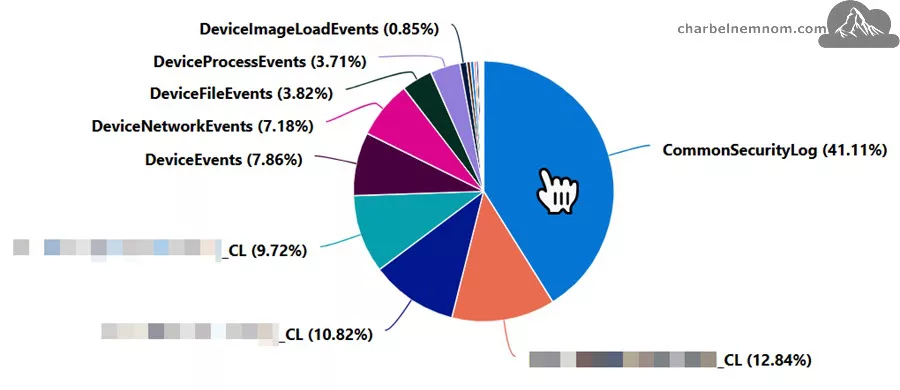
3. Check Fortinet-Specific Data: Filter by DeviceVendor == "Fortinet" to see how much data is coming from these devices, run the following KQL query.
let cutoff = ago(1d); // Define the cutoff time as 1 day ago
let daysAgo = 1; // Number of days for the analysis
CommonSecurityLog
| where DeviceVendor == "Fortinet" // Filter logs from Fortinet devices
| where TimeGenerated > cutoff // Consider logs generated after the cutoff time
| summarize
    Entries = count(), // Count the number of log entries
    Size = sum(_BilledSize), // Sum the size of the logs in bytes
    estimate = sumif(_BilledSize, _IsBillable == true) // Sum the size of billable logs
| project
    ['Table Name'] = "CommonSecurityLog", // Assign a static table name (i.e, CommonSecurityLog)
    ['Table Size (bytes)'] = Size, // Display the total size in bytes
    ['Table Size'] = format_bytes(Size, 2), // Display the total table size
    ['N# Table Entries'] = Entries, // Display the number of entries
    ['Events Per Second'] = (Entries / (daysAgo * 24 * 60 * 60)), // Calculate events per second
    ['Size per Entry (bytes)'] = 1.0 * Size / Entries // Calculate average size per entry
Pro Tip: Export these metrics to a CSV or Excel file. This will make it easier to compare ingestion volumes before and after you apply your transformations.

Step 2: Identify Data Requirements
Meet with your security team, network engineers, and any relevant stakeholders like CISO and CIO to determine which fields are critical for:
- Threat detection rules in Sentinel.
- Incident response playbooks.
- Compliance reporting (if applicable).
- Correlation with other log sources, like Microsoft Defender for Office (MDO).
You can use the Key Fortinet Fields support document as a reference. Validate whether each field is indeed needed, or if there are environment-specific fields that should be added or removed.
Step 3: Configure or Edit Your DCR
If you do not have a DCR set up for your firewall logs yet, you will need to create one. You can edit it to include the new transformation if you already have one.
1. Open the Azure Portal: Go to Azure Monitor -> Data Collection Rules.
2. Create a New Rule or Select an Existing One: If creating a new rule, follow the wizard, ensuring that you add the data source for your Fortinet firewall logs (often the Common Event Format (CEF) connector).
3. Select the Destination: Typically, this will be your Log Analytics Workspace associated with Microsoft Sentinel.
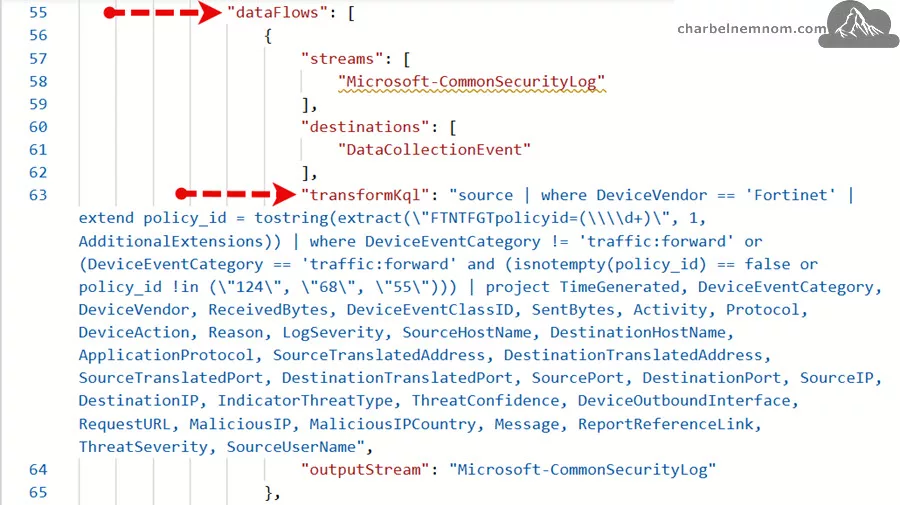
4. Add Transformation: Scroll to the “dataFlows” section. We must add “transformKql” to transform and filter the logs using ingestion-time transformation, as shown in the figure below. This is where you paste the snippet provided in Step 4 below.
Step 4: Apply the KQL Transformation
Paste in the transformation snippet (or a modified version that fits your needs) into the DCR configuration:
{
  "streams": [
    "Microsoft-CommonSecurityLog"
  ],
  "destinations": [
    "DataCollectionEvent"
  ],
  "transformKql": "source
                  | where DeviceVendor == 'Fortinet'
                  | project TimeGenerated, DeviceEventCategory, DeviceVendor, ReceivedBytes,
                    DeviceEventClassID, SentBytes, Activity, Protocol, DeviceAction, Reason,
                    LogSeverity, SourceHostName, DestinationHostName, ApplicationProtocol,
                    SourceTranslatedAddress, DestinationTranslatedAddress, SourceTranslatedPort,
                    DestinationTranslatedPort, SourcePort, DestinationPort, SourceIP, DestinationIP,
                    IndicatorThreatType, ThreatConfidence, DeviceOutboundInterface, RequestURL, MaliciousIP,
                    MaliciousIPCountry, Message, ReportReferenceLink, ThreatSeverity, SourceUserName",
  "outputStream": "Microsoft-CommonSecurityLog"
}
Make sure you do the following:
- Replace any placeholder names if you use a different stream or if your environment is set up differently.
- Double-check your syntax, as a misplaced comma or bracket can cause the transformation to fail.
Step 5: Validate and Test the Data
After applying the transformation, it’s crucial to validate that your logs are still arriving as expected in Microsoft Sentinel and that the essential fields are intact.
1. Wait for Log Ingestion: It may take a few minutes (around 20 minutes) for the changes to propagate.
2. Use Log Analytics Queries: In the Azure portal, open Microsoft Sentinel and go to Logs. Run a query like:
CommonSecurityLog
| where DeviceVendor == "Fortinet"
| top 10 by TimeGenerated desc
Inspect all the returned fields to ensure they match what you projected in your transformation rule.
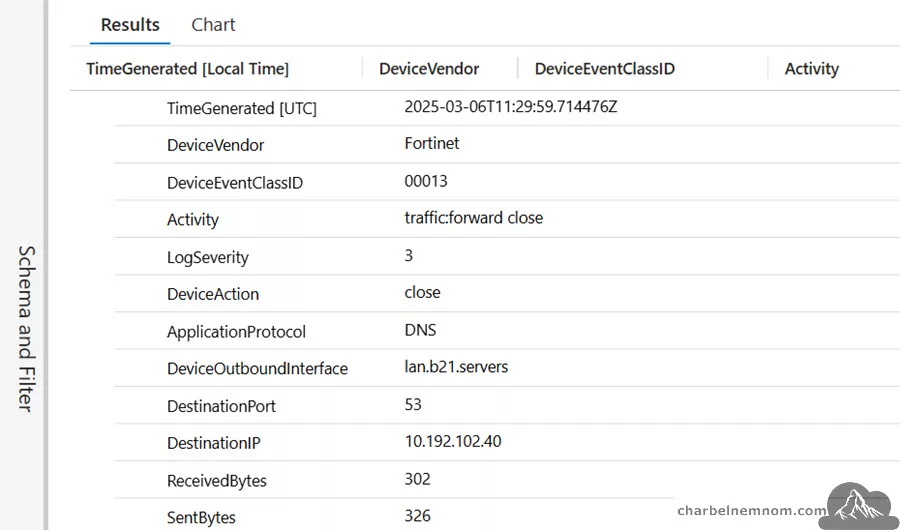
3. Check for Missing Data: If you notice any crucial fields are missing, revisit your transformation and add those fields to the project list.
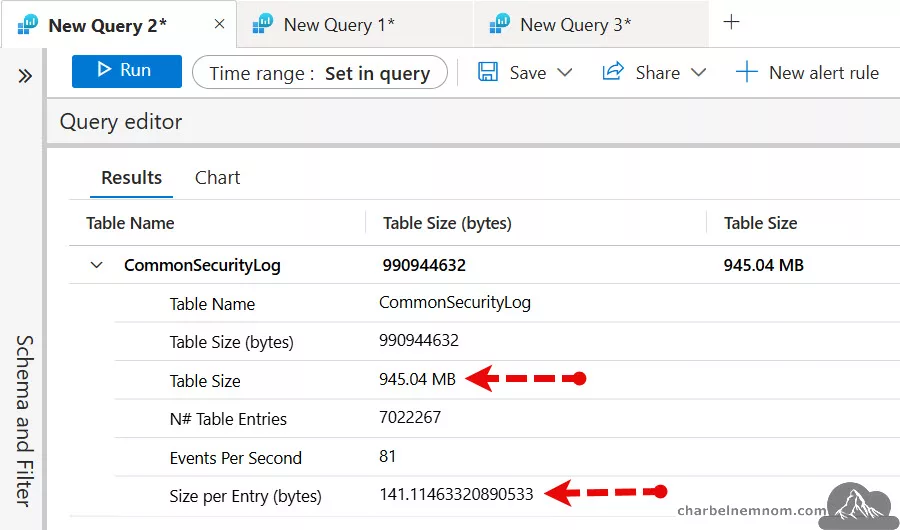
4. Compare with Baseline: Monitor ingestion volumes in Usage and estimated costs to see if there is a noticeable drop in data ingestion for the ‘CommonSecurityLog‘ table. As we can see in the following results, after we applied the KQL Transformation, we substantially reduced the log ingestion per day from 7 GB to 945 MB (~1 GB), which is nearly an 80% reduction in data ingestion. The average bytes per entry after transformation is 141.11463320890533 vs. 1121.7289411407896 before transformation.
Post-Implementation Considerations
So, what considerations should we make after implementing the ingestion-time transformation into the Firewall logs?
Monitoring Log Volume and Costs
After implementing your transformation, keep a close eye on ingestion metrics for at least a week or two. Look for:
- Sharp Drop in GB Ingested: This indicates that the transformation works as expected.
- Unexpected Spikes: If you see any sudden increases, investigate whether new firewall rules, new devices, or changes in the DCR have impacted log volume.
Ensuring Security Use Cases Are Unaffected
It is important to confirm that your security detection (Analytics Rules) and investigation capabilities in Microsoft Sentinel remain intact:
1. Test Existing Detection Rules: Run your analytics rules and see if they are still triggering appropriately.
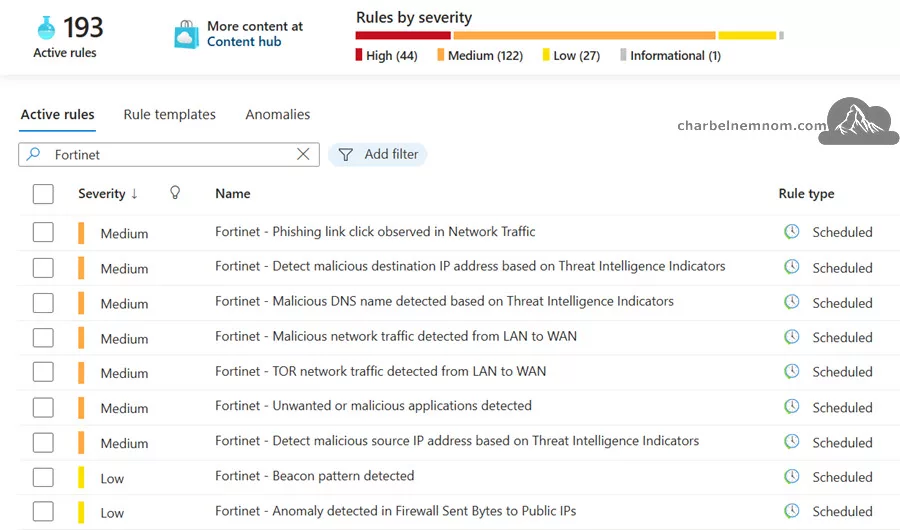
2. Perform Mock Incidents: Simulate or replay suspicious traffic to verify that the necessary data (IPs, ports, user information) is available for forensic analysis.
3. Validate Threat Intelligence Feeds: If you rely on threat intelligence feeds correlating IP addresses, ensure that SourceIP, DestinationIP, or other relevant fields are still being ingested.
Fortinet Summary Rules
Summary Rules in Microsoft Sentinel represent a strategic advancement in log analytics. They are designed to aggregate raw log data into concise, precompiled tables, significantly reducing the time required to run complex queries over large datasets. With Summary Rules, you can enjoy the benefits of both performance and cost savings.
Here are some use cases for summary rules that you can use with Fortinet logs. In the example below, we used the default CommonSecurityLog Analytics table in the summary rule. However, the intention behind summary rules is to extract and summarize the logs sent to an Auxiliary or Basic plan tables. Currently, Auxiliary tables do not support transformation, though this feature is coming soon. You can apply the same logic described below for Basic custom tables instead of Analytics tables:
1. Fortinet Fortigate Outbound SentBytes Summary
This rule will summarize the total bytes sent to public IP addresses.
// Outbound Sent Bytes to Public IP Addresses
// Summary of events with public IP Addresses and the outbound SentBytes.
let PrivateIPregex = @'^127\.|^10\.|^172\.1[6-9]\.|^172\.2[0-9]\.|^172\.3[0-1]\.|^192\.168\.';
CommonSecurityLog
| where DeviceVendor == "Fortinet" and Activity == "traffic:forward accept"
| where isnotempty(DestinationIP) and isnotempty(SourceIP)
| extend DestinationIpType = iff(DestinationIP matches regex PrivateIPregex,"private" ,"public")
| where DestinationIpType == "public"
| summarize TotalBytesSent = sum(SentBytes)
Then, we could create an analytic rule that will trigger an alert if we see a significant increase in this number, which might indicate that data exfiltration is happening.
Once you have your summary dataset (e.g., OutboundFortinetBytesPublicIP_CL), you can create an analytic rule that will run on this data, as it is an analytic table. Your analytic rule can look back 14 days to create a baseline, and it can trigger an alert if your ingestion over the last 24 hours was 70% or higher than your baseline, as in the example below:
let lookbackPeriod = 14d;
let detectionWindow = 1d;
// Calculate the baseline as the average TotalBytesOut over the last 14 days (excluding the last 24 hours)
let baseline = toscalar(
    OutboundFortinetBytesPublicIP_CL
    | where TimeGenerated between (ago(lookbackPeriod) .. ago(detectionWindow))
// Retrieve data for the last 24 hours and check against the baseline
    | summarize avg(TotalBytesSent)
);
OutboundFortinetBytesPublicIP_CL
| where TimeGenerated >= ago(detectionWindow)
| extend FormattedTime = format_datetime(TimeGenerated, 'dd.MM.yyyy, HH:mm:ss')
| extend Baseline = baseline
| extend Threshold = Baseline * 1.7 // 70% increase above baseline for network traffic
| extend IncreasePercentage = (TotalBytesSent - Baseline) * 100.0 / Baseline
| where TotalBytesSent > Threshold
| extend DynamicAlertsFields = strcat(
    "Alert generated at ", FormattedTime,
    " the total bytes sent is: ", TotalBytesSent,
    " the baseline is: ", Baseline,
    " the threshold is: ", Threshold,
    " and the increase percentage is: ", IncreasePercentage
)
| project FormattedTime, TotalBytesSent, Baseline, Threshold, IncreasePercentage, DynamicAlertsFields
2. Fortinet Fortigate NetworkSession IP Summary
This summary rule aggregates network session logs from Fortinet Fortigate devices, providing hourly insights into session count, data sent, and data received by device actions, destination port, protocol, source, and destination IP addresses.
CommonSecurityLog
| where DeviceVendor == "Fortinet"
  and (column_ifexists("DeviceEventCategory","") has "traffic"  or AdditionalExtensions has "cat=traffic")
// You can customize the summary table by adding or removing fields based on your requirement.
| summarize Count = count(), SentBytes = sum(SentBytes), ReceivedBytes = sum(ReceivedBytes) by SourceIP, DestinationIP, DestinationPort, DeviceAction, Protocol, bin(TimeGenerated,1h)
Then, you could monitor for unexpected bursts in network sessions that could indicate scanning, lateral movement, or even data exfiltration over multiple sessions. Once you have your summary dataset (e.g., FortinetNetworkSessionSummary_CL), you can create an analytic rule that will run on this data, as it is an analytic table.
This analytic rule could be especially useful when routine session counts are predictable, so any significant deviation stands out quickly and will detect NetwotkSession spikes, as in the example below:
// Assume your summary table is named FortinetNetworkSessionSummary_CL
// This query flags hour-long aggregates where the session count is greater
// than a predefined threshold (which could be determined from historical data)
let thresholdSessions = 100;
FortinetNetworkSessionSummary_CL
| where Count > thresholdSessions
| project TimeGenerated, SourceIP, DestinationIP, DestinationPort, DeviceAction, Protocol, Count, SentBytes, ReceivedBytes
| extend DynamicAlertFields = strcat(
    "High network session volume detected. Sessions: ", Count,
    ", Source: ", SourceIP, ", Destination: ", DestinationIP,
    ", Port: ", tostring(DestinationPort), ", Protocol: ", Protocol
)
3. Fortinet Fortigate WebSession IP Summary
This summary rule aggregates web session logs from Fortinet Fortigate devices, providing hourly insights into session count, data sent and data received by device actions, destination hostname, and source and destination IP addresses.
CommonSecurityLog
| where DeviceVendor  == "Fortinet"
  and Activity has_all ('webfilter', 'utm')
// You can customize the summary table by adding or removing fields based on your requirement.
| summarize Count = count(), SentBytes = sum(SentBytes), ReceivedBytes = sum(ReceivedBytes) by SourceIP, DestinationIP, DestinationPort, DestinationHostName, DeviceAction, bin(TimeGenerated,1h)
Then, you could monitor for unexpected increases in web session activity. The web session logs provide insight into user- or system-initiated web requests filtered through Fortinet’s UTM. Once you have your summary dataset (e.g., FortinetWebSessionSummary_CL), you can create an analytic rule that will run on this data, as it is an analytic table.
This analytic rule serves as an early warning that either web usage patterns have shifted or that an attacker might be leveraging web sessions to move data or communicate with command-and-control domains and will detect WebSession spikes, as in the example below:
// Assume your summary table is named FortinetWebSessionSummary_CL
// This query flags a high number of web sessions or an unusual volume of data
// sent/received by destination hostname in a recent time window.
let thresholdSessions = 50;
FortinetWebSessionSummary_CL
| where Count > thresholdSessions
| project TimeGenerated, SourceIP, DestinationIP, DestinationHostName, DestinationPort, DeviceAction, Count, SentBytes, ReceivedBytes
| extend DynamicAlertFields = strcat(
    "High web session activity detected for host ", DestinationHostName,
    ". Sessions: ", Count,
    ", SentBytes: ", SentBytes,
    ", ReceivedBytes: ", ReceivedBytes
)
Maintaining Long-Term Scalability
Your environment and security requirements will evolve over time. New threats may require additional fields for detection, or compliance mandates might demand more verbose logs. Plan for ongoing maintenance:
- Regular Reviews: At least quarterly, review which fields you are ingesting and whether they still meet your needs.
- Automation and Infrastructure-as-Code (IaC): Consider automating your DCR configurations with templates or scripts, which will streamline updates.
- Archival vs. Real-Time Ingestion: For data you do not need in real time but might want to keep for historical analysis, consider alternative storage options like Azure Monitor long-term retention, Azure Blob Storage, or Azure Data Explorer (ADX) for cheaper archival.
Tips for Effective Firewall Log Management
Beyond the specific DCR transformation, here are some broader tips to keep your firewall log management strategy both cost-effective and security-focused:
1. Leverage Auxiliary vs. Basic vs. Analytics Tiers: Microsoft Sentinel allows data to be stored in an Auxiliary and Basic Logs tier at a lower cost, though it limits certain analytics capabilities. Use this for less critical (secondary security) logs.
2. Use Custom Tables: If you want to store firewall logs in a specialized format, consider creating a custom table. This can help keep your data organized and reduce the overhead of using the default ‘CommonSecurityLog‘ table for everything.
3. Enable Threat Intelligence (TI) Matching: Combine your firewall logs with threat intelligence feeds to flag suspicious IP addresses, domains, or URLs automatically.
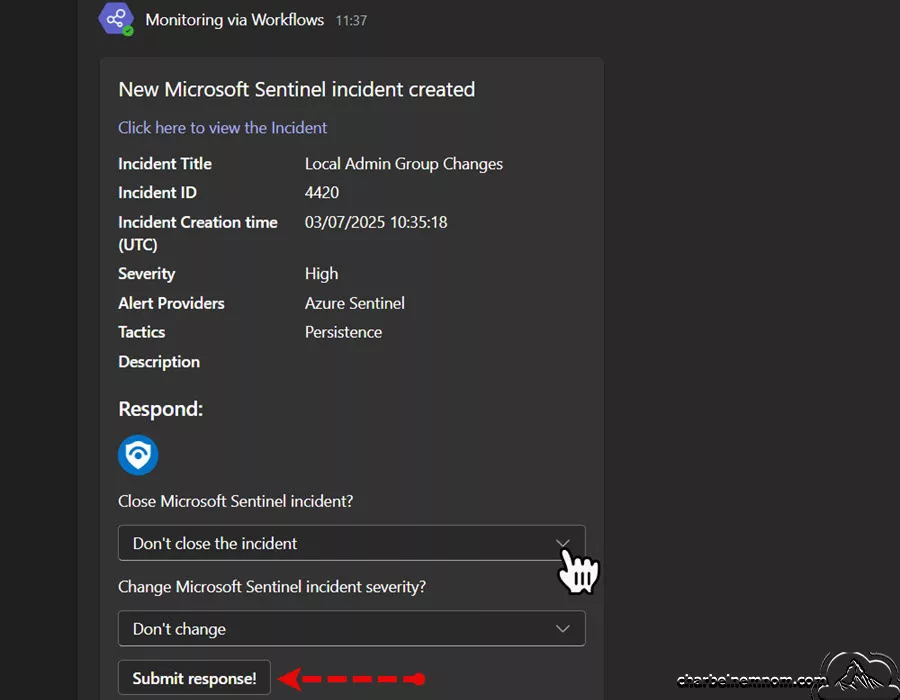
4. Integrate with Other Azure Services: Tools like Azure Logic Apps can automate responses to certain firewall events (e.g., blocking IP addresses, posting alerts in a dedicated Teams channel, sending email alerts, etc.).
5. Regularly Update Firewall Firmware: Ensure your firewall devices are up to date, so logs adhere to the latest standards and you are protected against known vulnerabilities.
In Conclusion
Optimizing Fortinet or any other source of traffic logs in Microsoft Sentinel is both an art and a science. By carefully selecting which fields to ingest, you can significantly reduce your monthly costs—potentially by as much as 80%—while retaining the crucial information needed for threat detection, incident response, and compliance. The key lies in using Data Collection Rules (DCRs) to apply a KQL transformation that filters out unnecessary fields and events.
Once implemented, it is essential to validate your existing detection rules and investigations so that they are not adversely affected by the ingestion-time transformation. Regular reviews and adjustments will ensure your logging strategy aligns with evolving security needs and budget constraints.
Please remember that the fields you keep today may change tomorrow as new threats and compliance demands arise. Log optimization should be an ongoing process, not a one-time project. With the right approach, you can continue gaining deep visibility into your network while keeping costs under control.
Remember, you can always support us in developing tools and creating content via Why Donate? – Charbelnemnom.com Cloud & Cybersecurity
__
Thank you for reading our blog.
Please let us know in the comments section below if you have any questions or feedback.
-Charbel Nemnom-

Thanks for this article, for Step 3 and 4, you have different KQL transforms. We cannot copy the example from Step 3. with Step 4 we have all the information to get the FortiGate information?
Thanks, we are moving to sentinel and we have a lot of traffic from our FortiGate. it helps a lot to fine tune the connector. Maybe you could develop some concrete examples for summary rules and Fortinet? with impact on queries/cost and use with IoC from the MS TI connector.
Hello Nicolas, thanks for your comment!
Yes, in Step 3 I use a different KQL transform to extract a specific FortiGate policy that we need to collect. In Step 4, you get all the information required to obtain FortiGate security logs.
If you’re interested in learning more about filtering a specific FortiGate policy, please check the following article!
Hope it helps!
Hello Nicolas, thanks for the comment and feedback.
I’m happy to share my latest in-depth blog post on enhancing security visibility with Microsoft Sentinel Summary Rules for Fortinet Logs integrated with Threat Intelligence IoCs.
Check it out and let me know if it helps.